


 Video Converter Ultimate
 Scherm opnemer
 Videoreparatie
Converteer MPEG naar AVI met de 5 Toegankelijke MPEG naar AVI Video Converter
MPEG is een van de beste formaten die je mogelijk al bent tegengekomen, omdat het bestanden voor video en audio opslaat. Bovendien is het niet alleen een container, maar gebruikt het ook MPEG‑1- en MPEG‑2-compressie. MPEG‑1 en MPEG‑2 zijn echter oude formaten die vroeger op Blu-rays werden opgeslagen. Dus nu leggen we uit hoe je het kunt verbeteren door het formaat om te zetten naar AVI. In de onderstaande lijst laten we verschillende tools zien die je kunt gebruiken om MPEG naar AVI te converteren en geven we meer details over MPEG en AVI.
Deel 1. Korte uitleg over MPEG- en AVI-bestandsindeling
MPEG en AVI zijn een van de beste formaten die u kunt gebruiken om een mediabestand op te slaan. Hoewel ze geweldig zijn, zijn er nog steeds enkele redenen waarom je MPEG naar AVI-videoconvertor moet gebruiken. Maar voor nu zullen we veel details over de twee formaten uitleggen en een idee hebben over MPEG en AVI.
Zoals eerder gezegd, is MPEG niet alleen een container, maar heeft het ook een ingebouwde compressor. Kortom, het is een bestandsindeling met twee doelen. Dit formaat is ook het meest gebruikte formaat op Blu-ray vanwege de kwaliteit en de compressie die het biedt. Bovendien is het MPEG-formaat ingedeeld in 6, maar we zullen de twee meest gebruikte bespreken en dat zijn de MPEG-1 en MPEG-2. Bovendien is MPEG-1 de eerste generatie MPEG's. Dit formaat slaat op de standaard gebaseerde resolutie op, maar vergeleken met de resolutie van het andere formaat is de MPEG-1 veel minder. Hoewel MPEG-2 een veel betere kwaliteit biedt dan MPEG-1, werkt het echter het beste op Blu-ray en dvd's. Dit formaat wordt ook het meest gebruikt door het tv-station om een video over te zetten en af te spelen.
Maar AVI verschilt sterk van MPEG, omdat het ongecomprimeerd is. Ook is de kwaliteit die dit formaat biedt hoog, omdat het het bestand dat het bevat niet comprimeert. Hoewel het formaat erg groot is qua bestandsgrootte, krijgt het toch veel ondersteuning op alle platforms in vergelijking met MPEG-bestanden.
Deel 2. 2 van de beste converter die wordt gebruikt om MPEG offline naar AVI-indeling te converteren
1. FVC Video Converter Ultimate
Als je op zoek bent naar een multifunctionele MPEG-naar-AVI-converter en -downloader, dan is FVC Video Converter Ultimate de juiste tool. Deze tool krijgt in dit artikel al een hoge positie vanwege de functies en de eenvoud die hij biedt. Hoewel hij gemakkelijk te gebruiken is, kun je er toch het fenomenale resultaat mee behalen dat je altijd al wilde. En in tegenstelling tot andere converters, legt deze software de lat zeer hoog. Dus als je vóór, tijdens en na je conversie 100% succes wilt behalen, dan is het een must om deze tool te gebruiken. En nu gaan we verder met de stapsgewijze handleiding over het gebruik van de FVC Video Converter Ultimate.
Stap 1. Klik, om de tool op je desktop te downloaden, op de knop hieronder. Installeer hem nadat het downloaden voltooid is, voer de snelle installatie uit en klik op Start Now.
Gratis downloadVoor Windows 7 of nieuwerVeilige download
Gratis downloadVoor MacOS 10.7 of nieuwerVeilige download
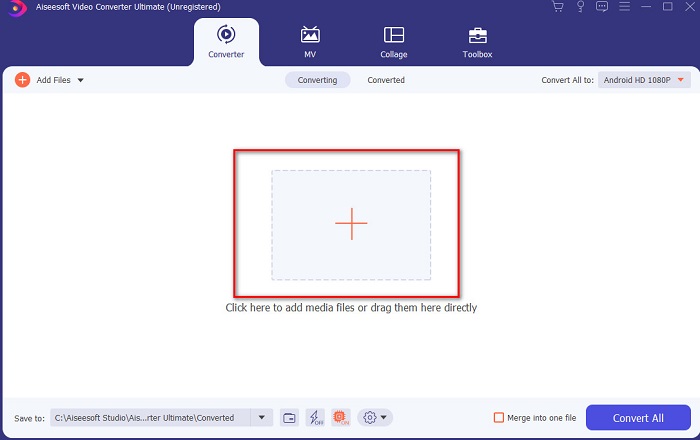
Stap 2. De interface van de tool zou er zo uit moeten zien; klik vervolgens op het +-teken in het middelste gedeelte. Er verschijnt een map op je scherm; selecteer het MPEG-videobestand dat je wilt converteren en klik op Open.
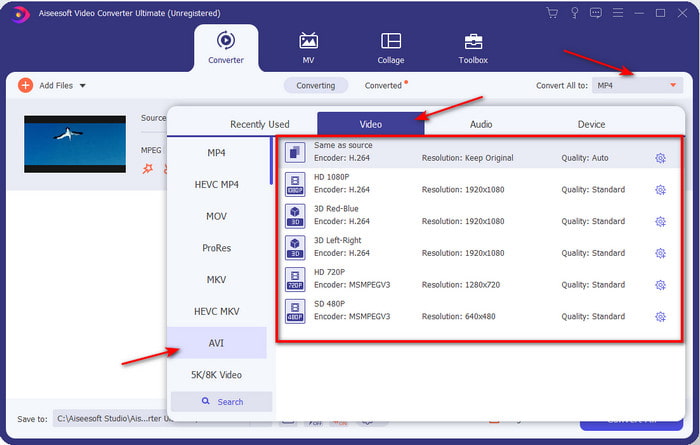
Stap 3. Als het bestand al in je interface staat, klik dan op Convert All to: en zoek het AVI-formaat.
Stap 4. Om nu de conversie van MPEG‑4-films naar AVI-formaat te starten, druk je op Convert All.
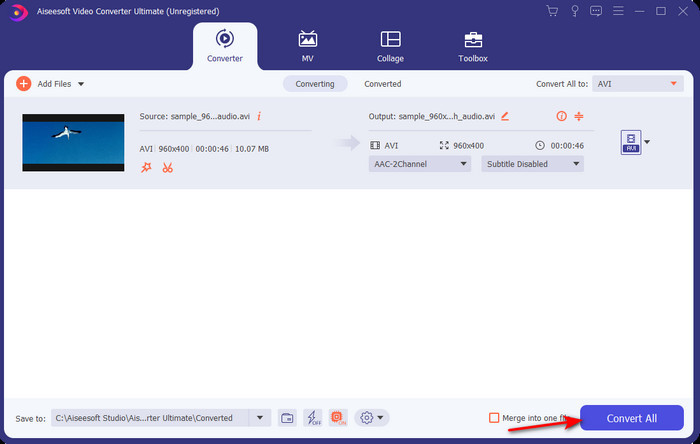
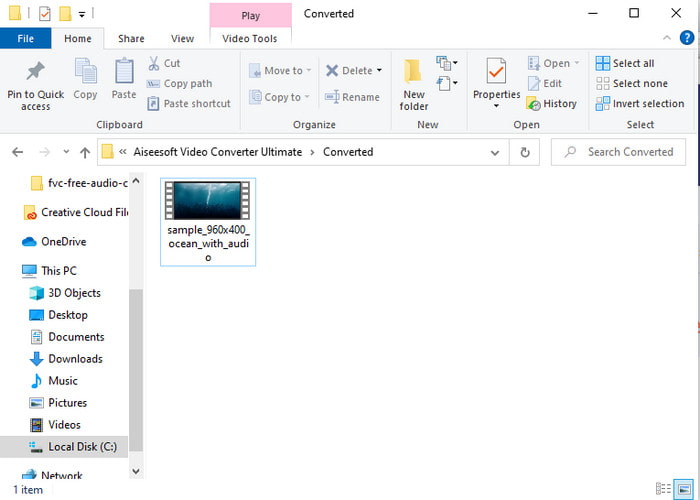
Stap 5. Het downloaden van het bestand duurt slechts enkele minuten en zodra het klaar is, verschijnt er een map met het geconverteerde formaat. Klik nu op het bestand om het nieuw geconverteerde MPEG-bestand te bekijken.
2. FFmpeg
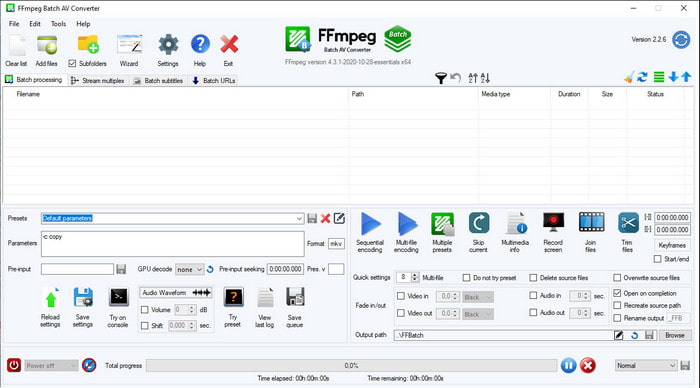
Een andere software in deze lijst is FFmpeg. Als je op zoek bent naar opensourcesoftware, is dit een van de opties die je op het web kunt vinden. De interface van deze tool is echter moeilijk te begrijpen, vooral voor beginners en zelfs voor gevorderden. Het conversieproces is over het algemeen uitstekend en levert een hoge kwaliteit op, net als andere converters. Dus als je met FFmpeg MPEG naar AVI wilt converteren, volg dan deze stappen; wij maken het eenvoudig te begrijpen.
Stap 1. Download FFmpeg op je desktop en maak een nieuwe map aan; pak daarbinnen het bestand uit.
Stap 2. Zoek CDM op je Windows-systeem en open het.
Stap 3. Zoek het bestand via de opdrachtprompt, voer vervolgens deze code in: ffmpeg -i input.mpeg -vn -ar 44100 -ac 2 -b:a 192k output.avi en druk op Enter op je toetsenbord om het proces te starten.
Deel 3. 3 van de beste converter die wordt gebruikt om MPEG online naar AVI-indeling te converteren
3. FVC gratis video-omzetter
Als je op zoek bent naar de beste gratis MPEG-naar-AVI-converter online, dan is de FVC Free Video Converter de online converter die aan je wensen zal voldoen. Dat komt door de eenvoudige interface van deze webtool. Daarnaast is het grote voordeel van deze online tool dat je er gemakkelijk toegang toe hebt via je favoriete browser. Bovendien zijn er geen beperkingen aan het converteren met deze tool, wat betekent dat je elk formaat op elk moment kunt converteren. Je kunt hier echter geen batchconversie uitvoeren, in tegenstelling tot bij de FVC Video Converter Ultimate. En als je deze online tool wilt proberen en gebruiken, volg dan de onderstaande stappen.
Stap 1. Om naar de hoofdwebsite van de FVC-converter te gaan, moet je eerst op deze link klikken.
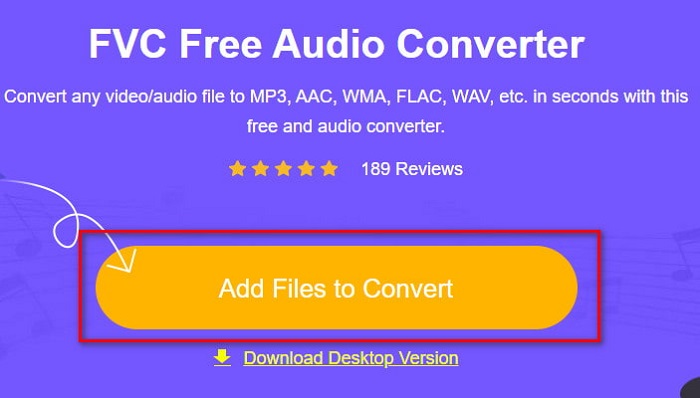
Stap 2. Klik op Add Files to Convert, waarna de webtool wordt gestart en er een map verschijnt. Zoek het bestand op en klik op Open.
Stap 3. Nadat de webtool is gestart, kies je het formaat dat in dit gedeelte wordt weergegeven.
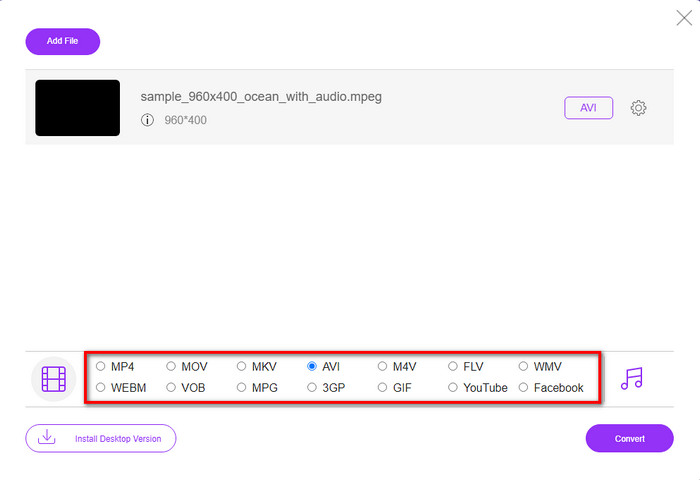
Stap 4. Als je het formaat al hebt gekozen, is het nu tijd om te converteren door op de knop Convert te klikken.
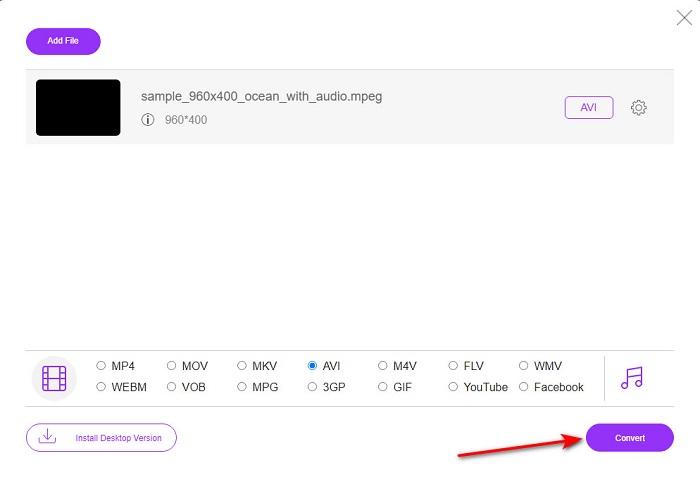
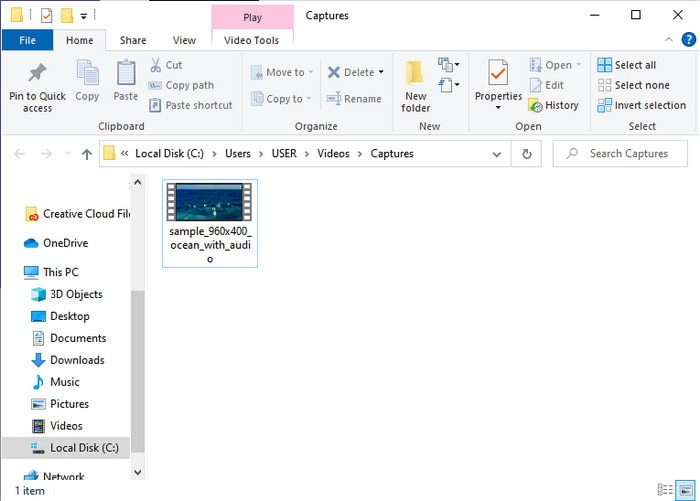
Stap 5. Wacht een kort moment tot het proces binnenkort begint. Zodra het proces is voltooid, verschijnt er een map met het geconverteerde bestand dat je eerder hebt aangemaakt.
4. Freeconvert.com
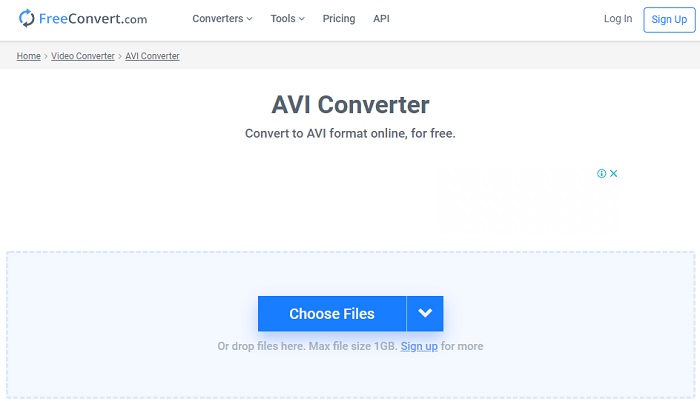
Net als de hierboven genoemde online tool is dit een andere online tool die je kunt gebruiken, Freeconvert.com. Deze webtool heeft al veel populariteit verworven onder internetgebruikers. Veel gebruikers prijzen deze tool ook vanwege het gebruiksgemak en de extra functionaliteit. Er is echter een groot nadeel als je voor deze webtool kiest: de formaten die de tool ondersteunt zijn beperkt. Daarnaast is het conversieproces hier iets langzamer dan verwacht. Als je nu wilt weten hoe je deze online converter gebruikt, volg dan de stappen.
Stap 1. Zoek de website freeconvert.com op het web. Klik vervolgens op AVI onder Video Converters.
Stap 2. Druk op Choose File en zoek het MPEG-bestand in de map die verschijnt. Nadat je het bestand hebt geselecteerd, klik je op Convert To AVI.
Stap 3. Wacht tot het uploadproces is voltooid en klik dan op Download AVI om het bestand op te slaan.
Deel 4. Veelgestelde vragen over MPEG naar AVI-conversie
Verliest het converteren van MPEG de kwaliteit?
Nou, het hangt ervan af in welk formaat je het gaat omzetten. Dus als je je MPEG naar GIF verandert, verwacht dan een drastische verandering omdat het een minder kleurencombinatie ondersteunt dan het andere formaat. Als u echter een ander formaat dan de GIF gebruikt, verwacht dan geen verlies.
Zijn MPEG lossy of lossless?
MPEG ondersteunt compressie met verlies, dus als je dit formaat gebruikt, verwacht dan een kleinere bestandsgrootte, zelfs als je een lange video en audio hebt.
Is MPEG een goed formaat?
Voordat het een van de beste formaten was die u kunt gebruiken om gegevens op uw dvd's op te slaan. In dit tijdperk is MPEG echter niet de beste keuze om gegevens op te slaan. Maar als je het op dvd's, cd's of Blu-ray wilt opslaan en veel sneller wilt overbrengen, dan moet dit een keuze zijn.
Gevolgtrekking
Kortom, alle online en offline software die hier wordt gepresenteerd, is geweldig om te gebruiken om het formaat te converteren. Er is echter één tool die bewijst dat je gemakkelijk een fenomenale conversie kunt bereiken met de FVC Video Converter Ultimate. Sterker nog, we kunnen het in 3 woorden uitleggen en dat is ook nog eens makkelijk in gebruik, effectief en veilig. Dus, als je grootsheid wilt bereiken, download deze tool dan nu en probeer het.
-
 Hoe MPEG naar MP4-bestanden gratis te converteren op Windows, Mac, online
 Lees en ontvang 3 gratis manieren om MPEG naar MP4-bestanden op uw computer te converteren. U kunt online en desktopvideoconverters gebruiken om eenvoudig MPEG naar MP4-formaat om te zetten.
-
 [2021] Beste tools en eenvoudige manieren om MPEG naar MP3 te converteren
 Dit artikel gaat voornamelijk over hoe je je MPEG-video's naar MP3 kunt converteren met behulp van de meest betrouwbare tools op de lijst.
-
 Tutorial om MP4 naar AVI-bestanden te converteren met 7 gratis video-converters
 Wil je alle gratis manieren krijgen om AVI naar MP4-video te converteren? Dit artikel mag je niet missen. Hier zijn 7 manieren om AVI-bestanden gratis naar MP4 te converteren op Windows, Mac, iPhone, Android en online.
