


 Video Converter Ultimate
 Scherm opnemer
 Videoreparatie
 Beveiligde download
4 beste applicaties om te gebruiken bij het converteren van Xvid naar DivX
In deze moderne tijd kom je overal video’s tegen. Mensen kijken graag naar films, clips, enzovoort. Toch zijn er onverwachte momenten waarop een video niet compatibel is met een bepaald platform. Een van de belangrijkste redenen is dat het bestandsformaat van de video misschien niet door het platform wordt ondersteund. In dat geval is de beste oplossing om de video om te zetten naar een ander bestandsformaat. Voor het wijzigen van het bestandsformaat heb je uitstekende software nodig waarmee je het ene bestandsformaat naar het andere kunt converteren. Als je wilt leren hoe je Xvid naar DivX kunt converteren, lees dan verder.

Deel 1: Beste toepassing om te converteren op computer
Video Converter Ultimate is een uitstekende en verbluffende softwaretoepassing waarmee je Xvid naar DivX op je computer kunt converteren. Deze toepassing is beschikbaar voor zowel Windows als Mac. Daarnaast ondersteunt hij diverse bestandsformaten, zoals GIF, FLV, AVI, MOC, MKV en meer. Met deze converter kun je bestanden converteren die niet compatibel zijn met andere programma’s of apparaten. Je kunt je bestand ook converteren zonder kwaliteitsverlies. Bovendien is Video Converter Ultimate eenvoudig en gebruiksvriendelijk, wat het perfect maakt voor beginners die gemakkelijk bestanden willen omzetten. Daarnaast is deze toepassing niet alleen geweldig voor het converteren van verschillende bestanden. Hij biedt ook diverse bewerkingstools die je met deze software kunt gebruiken, zoals een collagemaker, videosnelheidsregelaar, videocompressor, audiocompressor, watermerk toevoegen en verwijderen, videocropper, collagemaker, watermerk toevoegen, kleurcorrectie en meer. Als je Xvid naar DivX wilt converteren, volg dan de eenvoudige stappen hieronder.
Stap 1: Download Video Converter Ultimate op je computer. Start de toepassing na het installatieproces.
Gratis downloadVoor Windows 7 of nieuwerVeilige download
Gratis downloadVoor MacOS 10.7 of nieuwerVeilige download
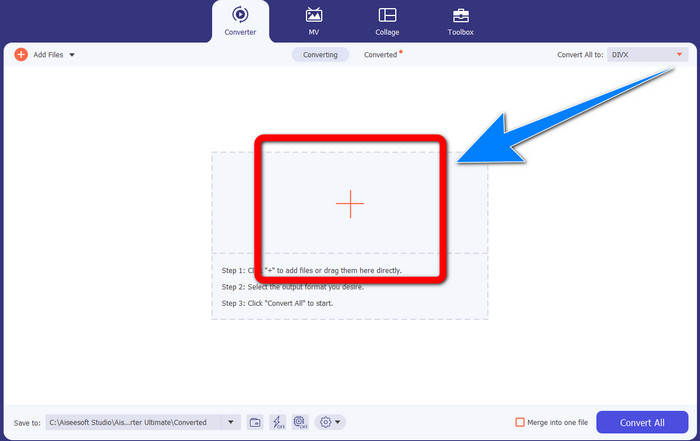
Stap 2: Nadat je Video Converter Ultimate hebt gestart, ga je naar Converter. Klik vervolgens op de knop met het plusteken om je Xvid‑videobestand toe te voegen dat je naar DivX wilt converteren.
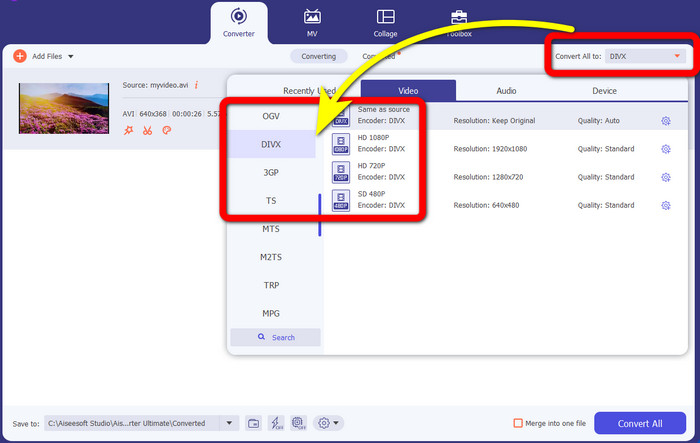
Stap 3: Wanneer je je Xvid‑videobestand hebt toegevoegd, klik je op de knop Convert All to. Selecteer vervolgens het DivX-bestand en kies de gewenste kwaliteit, zoals 480p, 720p of 1080p.
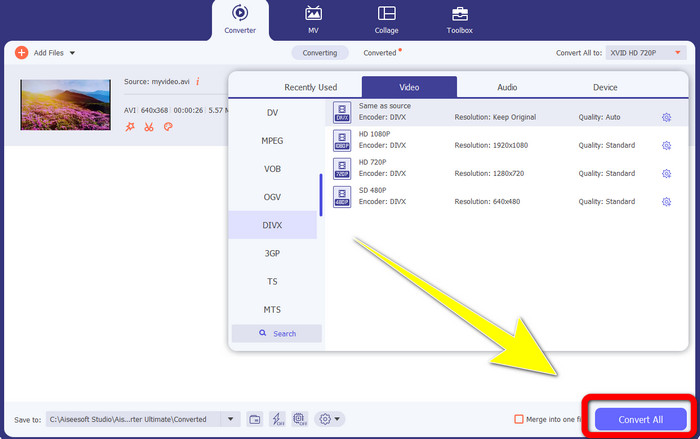
Stap 4: Nadat je je video hebt gewijzigd van een Xvid‑bestand naar een DivX‑bestand, klik je op de knop Convert All om te converteren en je uiteindelijke resultaat op te slaan. Daarna kun je je geconverteerde bestand op je apparaat uitproberen om te zien of het nu compatibel is.
Deel 2: gratis software om Xvid naar DivX te converteren
Een andere videoconverter die je gratis kunt gebruiken is de HitPaw Video Converter. Je kunt deze toepassing downloaden voor Windows en Mac. Met deze toepassing kun je Xvid naar DivX converteren. Bovendien kan hij meer dan 1000+ bestandsformaten converteren, zoals MP4, M4V, MOV, MKV, WMV, MPEG, AVI, FLV en meer. Daarnaast is HitPaw Video Converter een eenvoudige toepassing die geschikt is voor iedere gebruiker. Met deze toepassing kun je veel bestanden gemakkelijker converteren. De installatie neemt echter wat tijd in beslag en de geavanceerde functies zijn alleen beschikbaar in de betaalde versies. Als je Xvid naar DivX wilt converteren, volg dan deze stappen.
Stap 1: Download de HitPaw Video Converter op je Windows- of Mac-computer. Start de toepassing na het installatieproces.
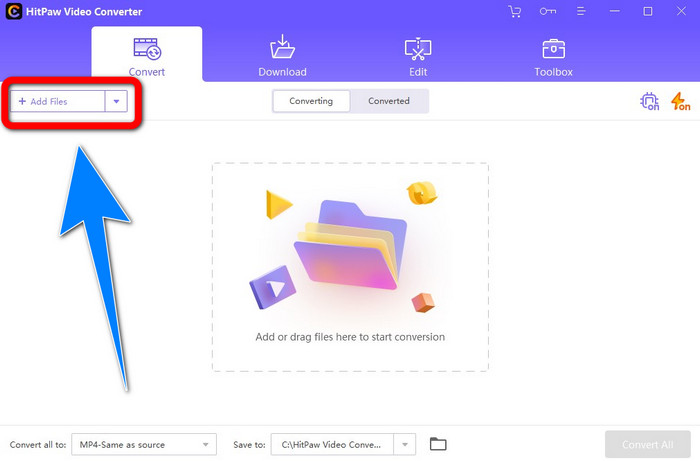
Stap 2: Klik op de Add File-knop om je Xvid‑bestand toe te voegen.
Stap 3: Ga naar de formaatopties en klik op het DivX-bestand.
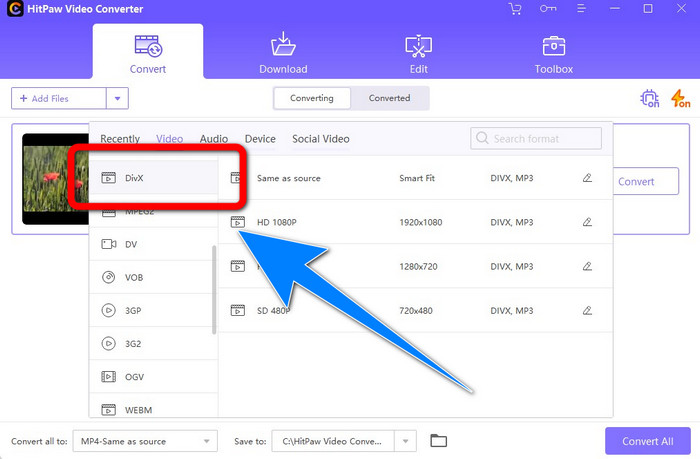
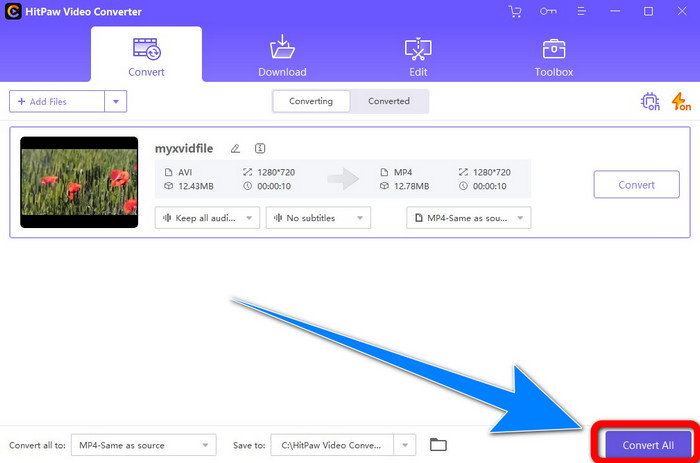
Stap 4: Nadat je het DivX‑bestandsformaat hebt gekozen, klik je op de knop Convert All om je uiteindelijke resultaat te converteren en op te slaan.
Deel 3: Xvid naar DivX converteren met behulp van de online tool
1. Evano gebruiken
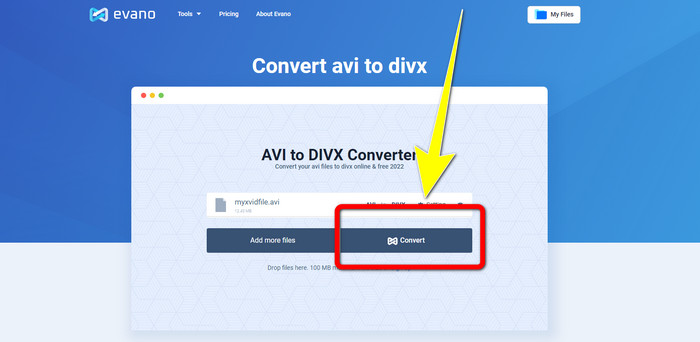
Evano is een van de meest betrouwbare en beste softwareoplossingen waarmee je je Xvid‑bestand naar een DivX‑bestand kunt converteren. Daarnaast is deze software gratis en hanteert hij eenvoudige conversiemethodes, wat goed is voor nieuwe gebruikers. Bovendien ondersteunt hij diverse audio‑ en videoformaten. Aan de audiokant ondersteunt hij MP3, WAV, FLAC, M4R, DTS, AAC, MP2 en meer audioformaten. Aan de videokant ondersteunt hij DivX, Xvid, AVI, MPEG, MKV, MOV, MJPEG, WEBM en meer. Toch heeft deze software beperkingen. Je kunt slechts maximaal tien bestanden per dag converteren, wat ongunstig is voor mensen die veel bestanden willen converteren. Ook is het conversieproces traag en duurt het enkele minuten. Als je Xvid naar DivX wilt converteren met Evano, volg dan de onderstaande stappen.
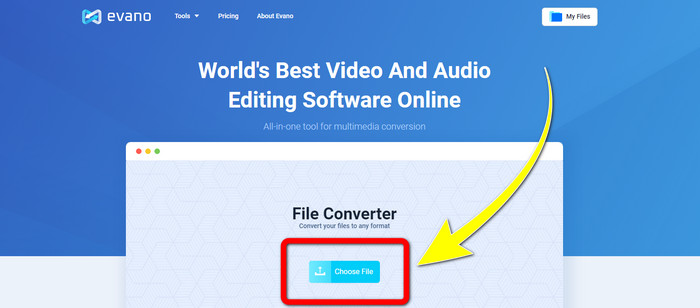
Stap 1: Ga naar de website van Evano. Klik vervolgens op Choose file en voeg je Xvid‑videobestand toe.
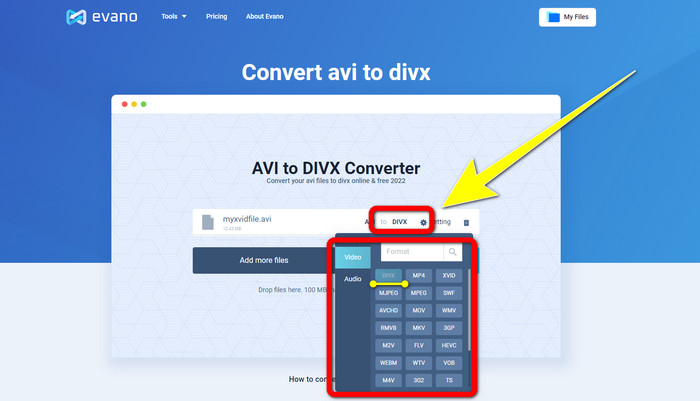
Stap 2: Wanneer je je videobestand hebt toegevoegd, ga je naar de Format options en kies je het DivX-bestandsformaat.
Stap 3: Nadat je op het DivX‑bestand hebt geklikt, selecteer je de knop Convert. Wacht op het conversieproces en download vervolgens je geconverteerde bestand.
2. AnyConv gebruiken
Als je op zoek bent naar een andere handige en waardevolle online toepassing om Xvid naar DivX te converteren, dan is AnyConv de software die je kunt gebruiken. Bovendien hoef je geen abonnement aan te schaffen, want deze toepassing is gratis. Daarnaast ondersteunt hij veel audio‑, video‑ en beeldformaten, zoals 3GP, DIVX, MOV, FLAC, FLV, H264, JPEG, JPG, MP3, MP3, MP4, MPEG en meer. Ook kun je deze software eenvoudig gebruiken, omdat hij slechts drie simpele stappen heeft om je Xvid‑bestand naar DivX te converteren. Het conversieproces van AnyConv is echter traag en soms werkt de software niet goed. Maar als je verschillende bestanden wilt converteren met deze online toepassing, volg dan de onderstaande stappen.
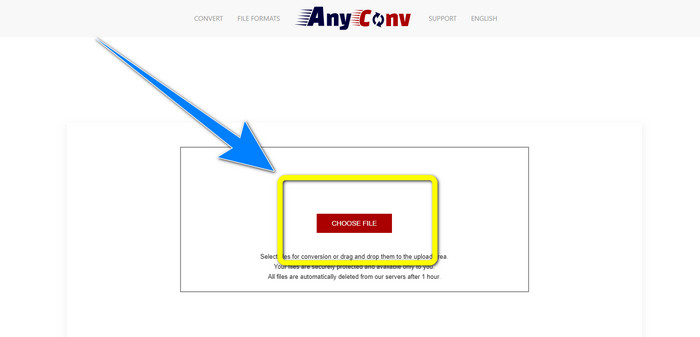
Stap 1: Bezoek de website van AnyConv. Klik op de knop Choose File en voeg de video toe die je wilt converteren.
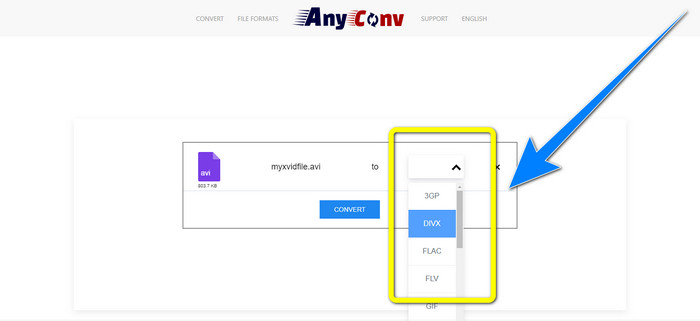
Stap 2: Nadat je je bestand hebt toegevoegd, ga je naar de format options en kies je het DivX-formaat.
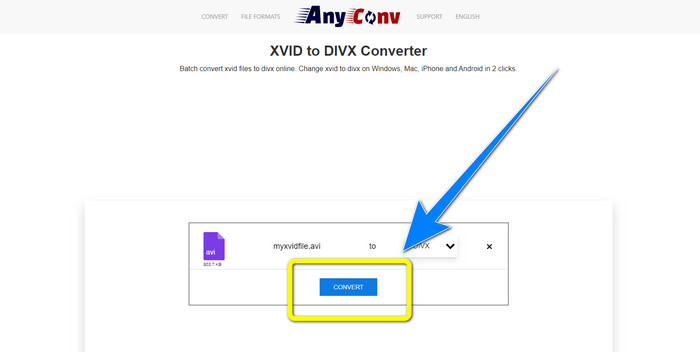
Stap 3: Klik vervolgens op de knop Convert. Download na het conversieproces het geconverteerde bestand en sla het op je apparaat op.
Gerelateerd aan:
Hoe XviD naar FLV te converteren zonder kwaliteitsverlies [Opgelost]
2 nuttige manieren om XviD verliesvrij naar WMV-formaat te transcoderen
Deel 4: Introductie van Xvid en DivX
Xvid is een software die is uitgebracht onder de GNU General Public License en is gebaseerd op het MPEG-4‑formaat. Het biedt ook voldoende compressie om een speelfilm op dvd op één cd te laten passen. Daarnaast is het voortgekomen uit DivX. Verder is Xvid een directe concurrent van DivX. Bovendien is het nieuwer en biedt het betere technologie dan andere bestandsformaten. Aan de andere kant is DivX een van de oudste videocodecs op de markt. Het behoort eveneens tot de MPEG-4‑familie. Het bestand van DivX is echter kleiner dan andere bestandsformaten. Het mooiste is dat het DivX‑bestand compatibel is met verschillende besturingssystemen en apparaten.
Deel 5: Veelgestelde vragen over het converteren van Xvid naar DivX
Hoe lang duurt het om mijn Xvid naar een DivX-bestand te converteren?
Het snelle videoconversieproces hangt af van de toepassing die u gebruikt. Sommige applicaties hebben maar een paar seconden nodig om te converteren, en andere een tijdje. Het hangt ook nog steeds af van de bestandsgrootte van de video.
Kan ik Xvid naar een DivX-bestand converteren met mijn Mac?
Ja, natuurlijk! Je kunt Xvid naar een DivX‑bestand converteren op je Mac. De toepassing die geschikt is voor je apparaat is Video Converter Ultimate. Hij is beschikbaar voor zowel Windows als Mac. Bovendien kan hij je helpen sneller te converteren dan andere toepassingen.
Kan ik mijn MP4-bestand ook converteren naar een ander bestand met Video Converter Ultimate?
Ja, dat kan! Video Converter Ultimate ondersteunt vele videobestandsindelingen, zoals MP4, WEBM, MXF, FLV, GIF, XVID, DIVX, AVI, 5K/8K Video en meer. Op deze manier kun je met deze applicatie verschillende bestandsindelingen converteren.
Waarom moet ik mijn bestanden converteren naar een ander formaat?
Soms moet u uw bestanden naar andere indelingen converteren om ze beter compatibel te maken met uw apparaten.
Gevolgtrekking
Zoals je ziet, is het converteren van Xvid naar DivX zeer belangrijk. Het gaat niet alleen om het wijzigen van het bestandsformaat. Het gaat erom dat je video’s op een bepaald apparaat kunt afspelen zonder problemen te ervaren. Converteren is de beste oplossing, vooral als je video niet geschikt of niet compatibel is met je apparaten. Bovendien, als je meer bestanden wilt converteren en naar andere bestandsformaten wilt omzetten, is de beste en meest betrouwbare converter die je kunt gebruiken Video Converter Ultimate.
-
 Top 2 voorgestelde converters om XviD naar MOV te converteren [Online en offline]
 Ontdek wat de 2 voorgestelde converters zijn die u kunt gebruiken om XviD-bestanden naar MOV-formaat te converteren Lees dit artikel aandachtig om een idee te krijgen hoe u het Xvid-bestand kunt converteren.
-
 Hoe XviD naar AVI te converteren zonder kwaliteitsverlies van de video [2021]
 Wilt u uw XviD-bestand converteren naar AVI? Als dat zo is, lees dan dit artikel, want we spreken meer over XviD en hoe u uw XviD-bestand naar een AVI-formaat kunt converteren.
-
 Hoe MKV gratis online en offline naar DivX te converteren
 Bent u op zoek naar de beste manieren om MKV gratis naar DivX-formaat te converteren. Blijf lezen om de beste MKV naar DivX online en offline converters te leren kennen.
