


 Video Converter Ultimate
 Scherm opnemer
 Videoreparatie
 Beveiligde download
Comprimeer MP4-video's eenvoudig voor e-mail op 5 manieren [2025]
Het versturen van videobestanden via e-mail kan soms overweldigend zijn vanwege bepaalde beperkingen qua bestandsgrootte. Over het algemeen kan een e-mail slechts een bestandsgrootte van 25 MB per bijlage verwerken. Bijlagen die groter zijn dan deze grootte, worden omgezet naar een Google Drive-link. Dus als u op zoek bent naar een manier om dit probleem op te lossen, bent u hier aan het juiste adres.
In dit artikel leer je vijf manieren om eenvoudig video’s te comprimeren voor e-mail. Zo ondervind je geen haperingen meer bij het verzenden van videobestanden via e-mail. Waar wacht je nog op? Laten we beginnen!

Deel 1. Een filmbestand comprimeren voor e-mail met behulp van een videocompressor
Het comprimeren van een filmbestand voor e-mail met een videocompressor kan eenvoudig worden gedaan met behulp van de juiste en speciale videocompressortools. Er zijn verschillende videocompressortools beschikbaar, elk met verschillende compressieniveaus, kwaliteitsbehoud en gebruiksgemak. Sommige tools bieden vooraf ingestelde profielen voor e-mailvriendelijke compressie, terwijl andere handmatige aanpassingen mogelijk maken om de juiste balans te vinden tussen grootte en kwaliteit. Hieronder staan de drie methoden die u kunt proberen om een filmbestand te comprimeren voor e-mail:
De beste manier om video te comprimeren voor e-mail
De beste manier om een video voor e-mail te comprimeren is met de door FVC geselecteerde Video Converter Ultimate. Deze volwaardige videoconverter heeft een toolbox waarin je de functie Videocompressor vindt. Wanneer je met dit programma een video comprimeert, kun je die heel eenvoudig verwerken. De tool heeft een gebruiksvriendelijke interface, waardoor gebruikers slechts 2 à 3 stappen hoeven te nemen om hun video’s te comprimeren. Bekijk de functies hieronder om deze tool beter te leren kennen:
Belangrijkste functie:
• Comprimeer videobestandsgroottes voor e-mail met behoud van hoge kwaliteit.
• Zorg voor videocompatibiliteit met elk e-mailplatform door formaten te converteren.
• Gebruik vooraf ingestelde e-mailvriendelijke profielen of pas de compressie-instellingen handmatig aan.
• Het kan meerdere videobestanden batchgewijs comprimeren.
Nu u weet wat de FVC Picked Video Converter Ultimate allemaal kan, gaan we kijken hoe u het kunt gebruiken.
Stap 1. Installeer en download eerst het programma op je computer.
Gratis DownloadVoor Windows 7 of hogerBeveiligde download
Gratis downloadenVoor macOS 10.7 of laterVeilige download
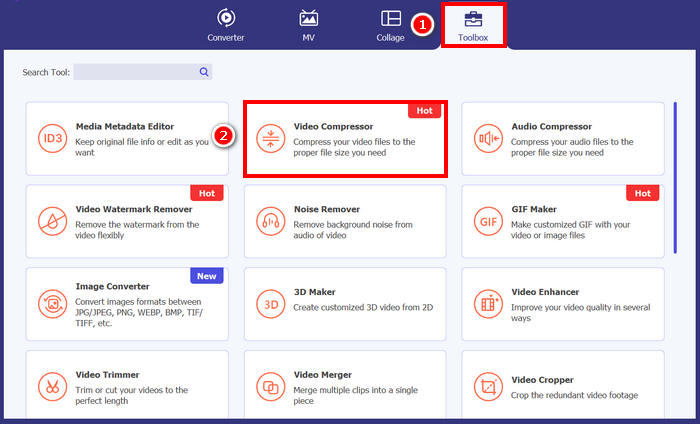
Stap 2. Open het programma, ga naar de Toolbox en klik op Videocompressor. Klik daarna op de rode plus-knop om de video toe te voegen die je wilt comprimeren.
Stap 3. Om vervolgens de bestandsgrootte van de video te verkleinen, kun je bij de optie Grootte eenvoudig de schuifregelaar verschuiven om de bestandsgrootte van je video aan te passen, of deze handmatig invoeren in het vak. Klik daarna op de knop Comprimeren.
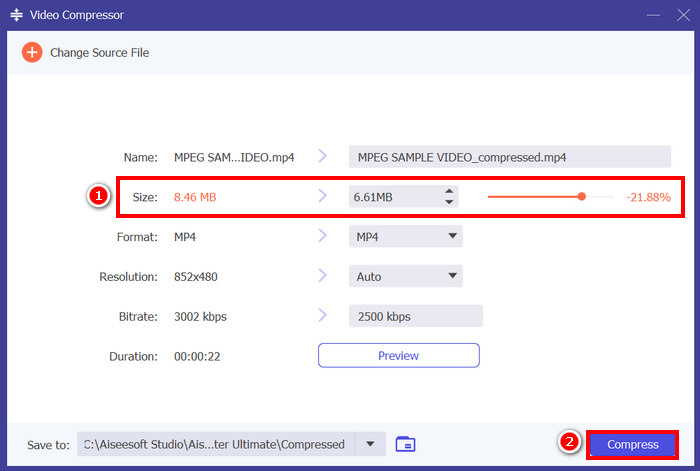
Opmerking: Als je je video verder wilt verbeteren terwijl deze wordt gecomprimeerd, kun je ook de resolutie, bitrate enzovoort aanpassen.
FVC koos voor Video Converter Ultimate, een van de beste tools voor het comprimeren van video voor e-mail. Het is snel, gebruiksvriendelijk en behoudt de videokwaliteit. Bovendien biedt het extra functies zoals batchcompressie en formaatconversie, waardoor het een veelzijdige oplossing is voor het verwerken van videobestanden.
Video comprimeren voor e-mail [gratis]
Als je op zoek bent naar een gratis manier om video te comprimeren voor e-mail, kun je de VLC Media Player gebruiken. Deze tool is niet zomaar een mediaspeler die meerdere media afspeelt en streamt. Je kunt hem ook gebruiken om video's te comprimeren. Volg hiervoor de onderstaande stappen:
Stap 1. Open eerst VLC Media Player of, als je die niet hebt, download en installeer hem.
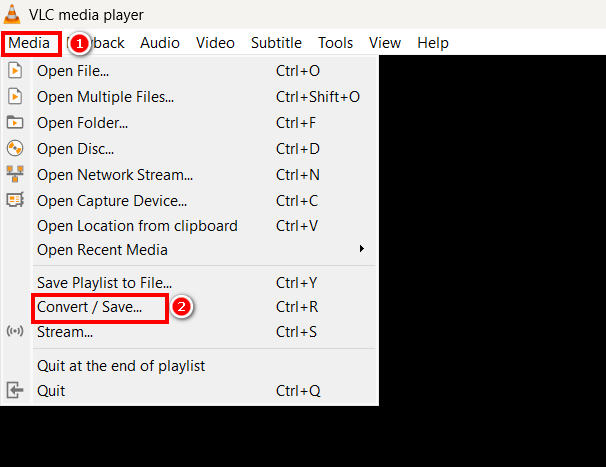
Stap 2. Ga daarna naar het tabblad Media en kies onderaan Converteren/Opslaan.
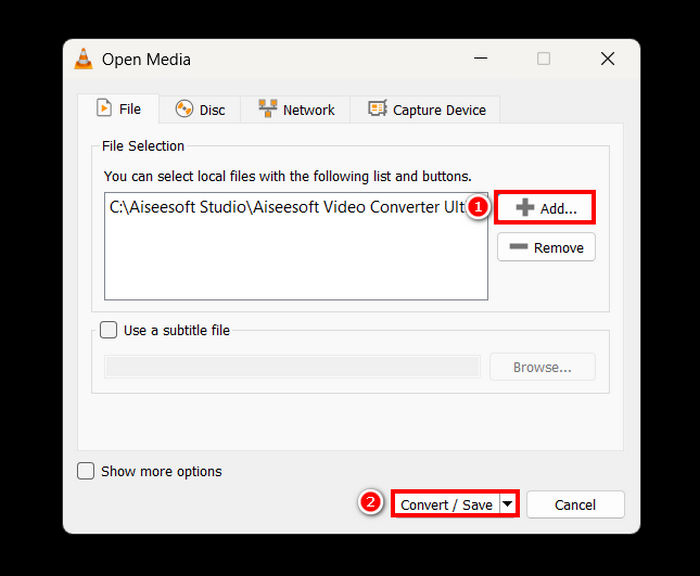
Stap 3. Klik nu op de knop Toevoegen om de video te importeren die je voor e-mail wilt comprimeren, en klik vervolgens op de knop Converteren/Opslaan.
Stap 4. Kies in het nieuwe venster de optie Geselecteerd profiel bewerken en ga daar naar het tabblad Videocodec om de resolutie, bitrate en framerate van je video te wijzigen.
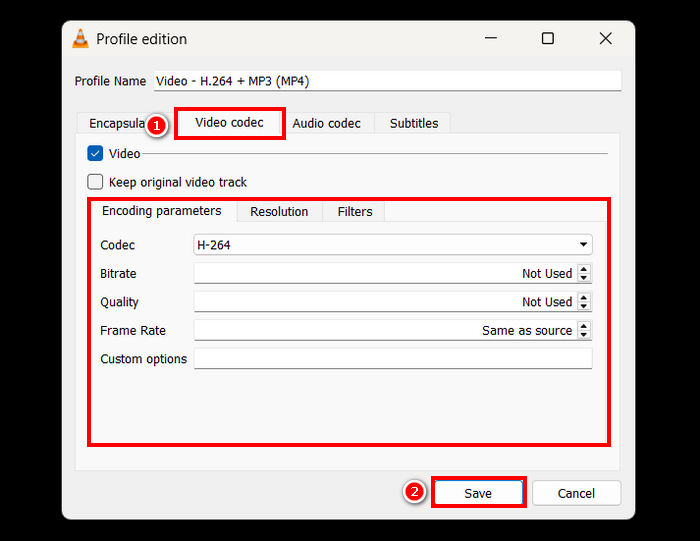
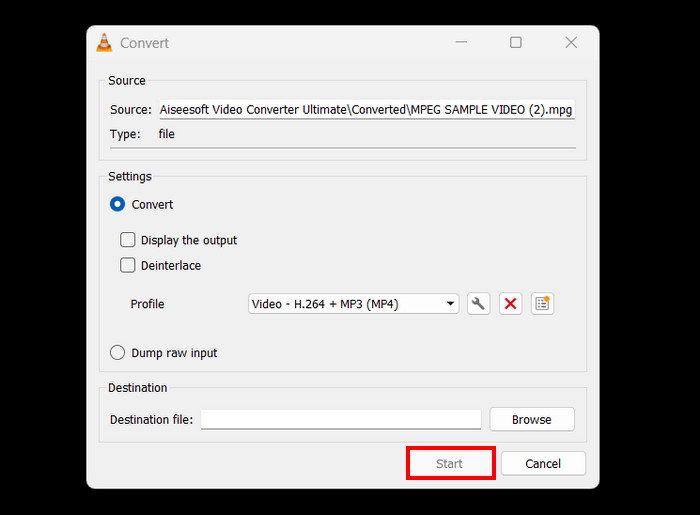
Stap 5. Wanneer alles ingesteld is, sla je het profiel op en klik je op de knop Start om je video te gaan comprimeren.
Beperking: In vergelijking met een speciale videocompressor is het comprimeren van video’s in VLC niet rechtstreeks en zijn er geen vooraf ingestelde profielen voor e-mail. Je moet alles handmatig instellen, wat overweldigend kan zijn en niet ideaal is voor wie een snelle en directe oplossing zoekt.
Hoe u een video kunt condenseren voor online e-mail
Als je een online methode wilt, kun je de Video Compressor van FreeConvert gebruiken. Met deze webgebaseerde videocompressietool kunnen gebruikers video’s comprimeren voor e-mail. Het verschil tussen het gebruik van deze tool en een softwaretoepassing is dat je geen app hoeft te installeren, wat voor sommige mensen handig kan zijn. Deze tool heeft echter beperkingen wat betreft de grootte van de video die je kunt comprimeren. Volg de onderstaande stappen om deze tool te gebruiken:
Stap 1. Ga naar de officiële website van FreeConvert. Zoek in je internetbrowser gewoon naar FreeConvert Video Compressor.
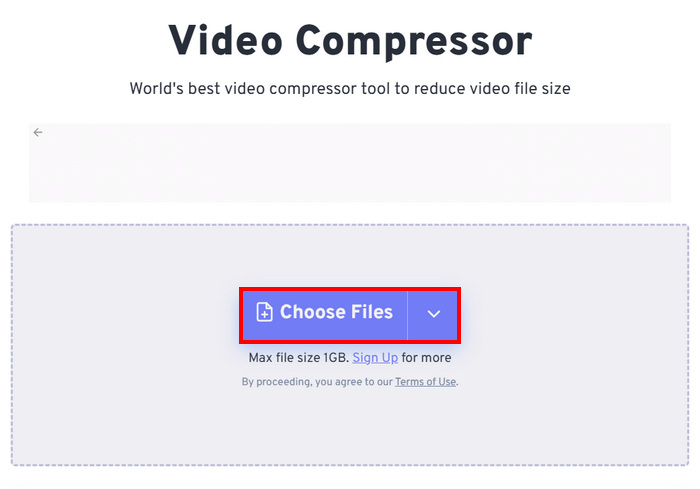
Stap 2. Klik vervolgens op de knop Choose Files om de video te importeren die je voor e-mail wilt comprimeren.
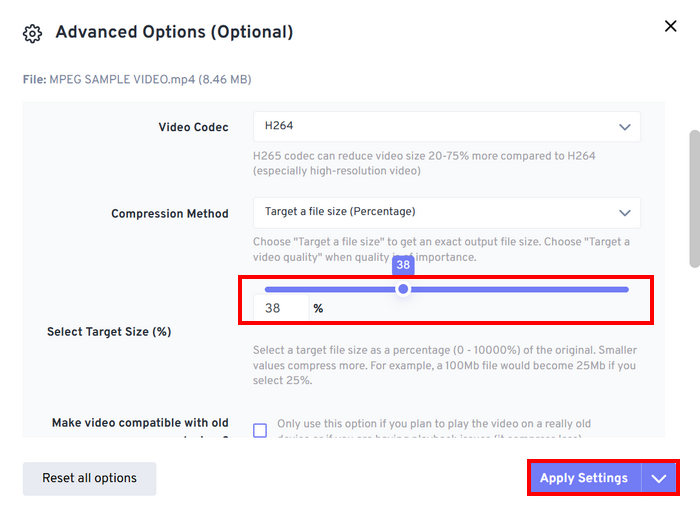
Stap 3. Ga nu naar de geavanceerde instellingen, weergegeven met een tandwiel-icoon, en stel daar de grootte van de video in. Schuif de schuifregelaar naar links om de videomaat te verkleinen. Klik tenslotte op de knop Apply Settings om het comprimeren van je video te starten.
Stap 4. Klik tot slot op de knop Compress Now om je video voor e-mail te gaan comprimeren.
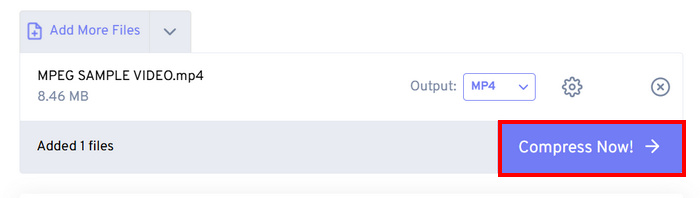
Beperking: Gebruikers kunnen slechts video’s tot 1 GB comprimeren; alles daarboven vereist een abonnement op hun premiumplannen. Bovendien kan, omdat het een webgebaseerde videocompressor is, de snelheid van het compressieproces variëren afhankelijk van de internetverbinding van de gebruiker.
Deel 2. Hoe u de videogrootte voor e-mail kunt verkleinen met een ZIP-videobestand
Een andere manier om de videogrootte voor e-mails eenvoudig te verkleinen, is door er een zipbestand van te maken. Deze methode werkt goed om de bestandsgrootte enigszins te verkleinen en meerdere video's in één bijlage te groeperen. Deze methode is ook eenvoudig uit te voeren. Deze methode is echter niet zo efficiënt als het gebruik van speciale videocompressietools. Volg hiervoor de onderstaande stappen:
Stap 1. Zoek eerst in je bibliotheek de video op die je voor e-mail wilt comprimeren.
Stap 2. Klik er vervolgens met de rechtermuisknop op, selecteer de optie Comprimeren naar en kies daarna ZIP-bestand.
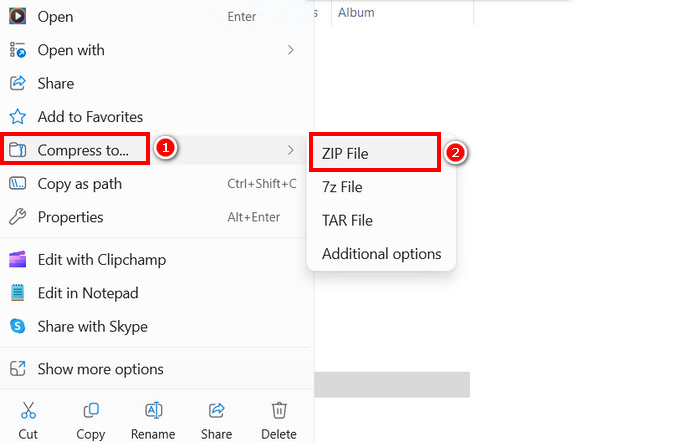
Beperking: Hoewel het maken van een ZIP-bestand een snelle manier is om video’s voor e-mail te comprimeren, wordt de bestandsgrootte hiermee niet zo sterk verkleind als met videocompressietools die bitrate, resolutie of formaat aanpassen om betere compressie te bereiken. Als je ZIP-bestand nog steeds te groot is, is een speciale videocompressor een betere oplossing.
Deel 3. Hoe maak je een video kleiner voor e-mail via Google Drive?
Het is voor Google Drive onmogelijk om een video rechtstreeks te comprimeren zoals speciale videocompressoren dat doen. Door de video te downloaden, wordt deze echter wel opgeslagen in een ZIP-bestand. Hierdoor wordt de video iets kleiner gemaakt voor opslag en overdracht.
Opmerking: Met deze methode wordt de bestandsgrootte slechts minimaal verminderd en dat is mogelijk niet voldoende voor grote videobestanden.
Een video kleiner maken voor e-mail via Google Drive:
Stap 1. Upload eerst in je Google Drive de video’s waarvan je de bestandsgrootte wilt verkleinen.
Stap 2. Klik daarna met de rechtermuisknop op de video’s waarvan je de grootte wilt verkleinen.
Stap 3. Zodra ze zijn gedownload, worden die videobestanden opgeslagen in een ZIP-bestand.
Beperking: Zoals gezegd heeft Google Drive niet de mogelijkheid om video’s rechtstreeks te comprimeren voor e-mail. Bovendien is het downloaden als ZIP-bestand nog steeds geen efficiënte oplossing.
Deel 4. Veelgestelde vragen over het comprimeren van een video voor e-mail
Wat is de beste manier om een video te comprimeren voor e-mail?
De beste manier om een video voor e-mail te comprimeren is door een speciale videocompressor te gebruiken, zoals FVC Video Converter Ultimate. Deze videoconverter is ontwikkeld om allerlei videobestanden te comprimeren, zodat gebruikers grote videobestanden gemakkelijk kunnen verwerken wanneer ze die via e-mail willen verzenden.
Waarom kan ik geen groot videobestand via e-mail versturen?
Het is belangrijk om te weten dat de meeste e-maildiensten, waaronder Gmail, een bestandsgroottelimiet van 25 MB per bijlage hanteren. Daarom kiezen verzenders die grotere bestanden hebben dan nodig is, ervoor om hun video's eerst te comprimeren. Dit is ook precies de reden waarom video's voor e-mail gecomprimeerd moeten worden.
Vermindert het comprimeren van een video de kwaliteit ervan?
Ja, het comprimeren van een video voor e-mail kan de kwaliteit enigszins verminderen, omdat je in feite de resolutie, bitsnelheid en andere coderingsparameters verlaagt om de bestandsgrootte te verkleinen. Er zijn echter geavanceerde videocompressoren zoals de FVC Picked Video Converter waarmee je de resolutie, bitsnelheid en het formaat kunt regelen om kwaliteitsverlies te minimaliseren.
Kan ik een video comprimeren voor e-mail online?
Ja. Je kunt online tools zoals de Video Compressor van FreeConvert gebruiken om video's te comprimeren zonder software te installeren. Gratis versies kunnen echter beperkingen hebben wat betreft de bestandsgrootte.
Hoe verstuur ik een grote video als compressie niet voldoende is?
Als compressie niet voldoende is, kunt u overwegen de video te uploaden naar Google Drive, OneDrive of Dropbox en de link via e-mail te delen in plaats van het bestand als bijlage toe te voegen.
Gevolgtrekking
Met alle beperkingen op de grootte van videobestanden bij e-maildiensten is de mogelijkheid om ze te comprimeren een noodzaak. Dus als jij in dezelfde situatie zit en het lastig vindt om een tool te vinden die video’s voor e-mail kan comprimeren, probeer dan alle methoden in dit artikel en kies degene die het beste bij je past.
Begin vandaag nog met het comprimeren van uw video's en verstuur ze zonder gedoe!
-
 Hoe GoPro-video te comprimeren van 4K naar 1080p (gratis en online)
 Wanneer je de GoPro-camera gebruikt om een video op te nemen, is de bestandsgrootte van de opgenomen video normaal gesproken extreem groot, wat moeilijk zal zijn om met anderen te delen. Dus dit bericht laat je zien hoe je GoPro-video comprimeert.
-
 2 manieren om video voor YouTube te comprimeren
 YouTube-video's zijn groot en traag om te uploaden? Comprimeer de videobestandsgrootte voor YouTube op 2 manieren online en op de computer.
-
 Adobe Premiere Compress Video: dingen waar u rekening mee moet houden
 Dit artikel bevat de beste en meest geschikte methoden om GIF Premiere te comprimeren. Ontdek de oplossing en verschillende alternatieven voor Adobe Premiere Compress.
