


 Video Converter Ultimate
 Scherm opnemer
 Videoreparatie
 Beveiligde download
Kleurcorrectie met de beste 5 onmisbare hulpmiddelen
Kleurcorrectie is een fundamenteel proces in videobewerking dat de kleuren in een video verbetert en op elkaar afstemt, waardoor een visueel aantrekkelijk en opvallend resultaat ontstaat. Het houdt in dat je het contrast, de verzadiging, de helderheid en de tinten van een video aanpast om die perfecte visuele sfeer te bereiken. Of je nu een professionele videograaf bent of een beginnende contentmaker, begrijpen hoe je kleurcorrectie uitvoert is een gamechanger om meeslepende beelden te leveren. Het proces begint met het identificeren en analyseren van de bestaande kleurbalans, hooglichten, schaduwen en middentonen in het videomateriaal. Vervolgens worden er aanpassingen gedaan met behulp van gespecialiseerde software die je nauwkeurige controle geeft over deze kleurelementen. Laten we in dit artikel dieper ingaan op hoe je kleurproblemen in video’s kunt oplossen met de beste tools waarop je kunt vertrouwen.

Deel 1. Vijf manieren om video's te kleuren
Het online vinden van verschillende gratis kleurcorrecties voor video-editors om de visuele aantrekkingskracht van uw video te verbeteren, is misschien net zo eenvoudig als u denkt. Het zoeken naar geavanceerdere en betrouwbaardere video's is echter nogal lastig om de juiste sfeer voor je video's te creëren. Ontdek vijf effectieve manieren om de kleuren van uw video te perfectioneren met behulp van diverse veelzijdige software, waardoor uw verhalen worden verbeterd en uw publiek wordt betrokken.
1. Video Converter Ultimate
Video Converter Ultimate is een alles-in-één videopakket waarmee je de videokwaliteit kunt verbeteren door essentiële parameters als helderheid, contrast en verzadiging aan te passen. Deze handige kleurcorrectietool stelt je ook in staat je video’s te bewerken met functies zoals knippen, bijsnijden en samenvoegen. Daarnaast biedt het een overvloed aan opties voor videoconversie, zodat je video’s kunt omzetten naar duizenden formaten en ze kunt optimaliseren voor verschillende apparaten zoals MP4, MKV, MOV, MP3, AAC, GIF, iPhone, Samsung en Apple TV, zodat ze op diverse platforms kunnen worden bekeken. Bovendien kunnen gebruikers ondertitels en watermerken toevoegen om hun video’s persoonlijker te maken. Met een gebruiksvriendelijke interface is deze tool perfect, of je nu beginner of ervaren gebruiker bent. Volg de onderstaande stappen om te leren hoe je je video succesvol kleurcorrigeert met Video Converter Ultimate.
Stap 1: Download en installeer de kleurcorrectietool
Download eerst het programma door op een van de knoppen Gratis downloaden hieronder te klikken. Zorg ervoor dat je, afhankelijk van het besturingssysteem van je computer, de juiste versie van Video Converter Ultimate downloadt. Volg de instructies om het te installeren.
Gratis DownloadVoor Windows 7 of hogerBeveiligde download
Gratis DownloadVoor MacOS 10.7 of hogerBeveiligde download
Stap 2: Start Video Converter Ultimate
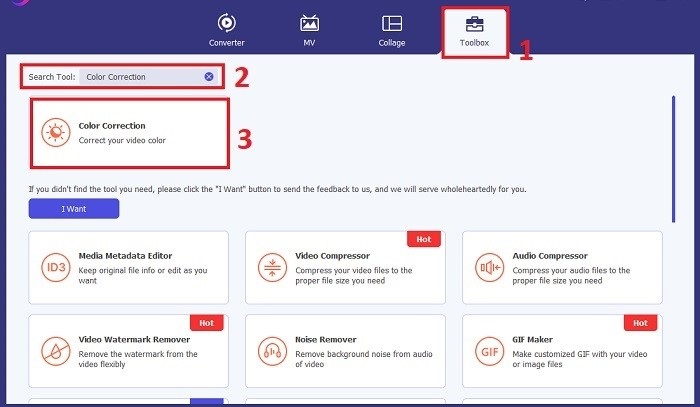
Open na de installatie Video Converter Ultimate. Ga in het hoofdmenu naar de Toolbox en zoek de functie Color Correction. Klik daarop om verder te gaan.
Stap 3: Importeer de video voor kleurcorrectie
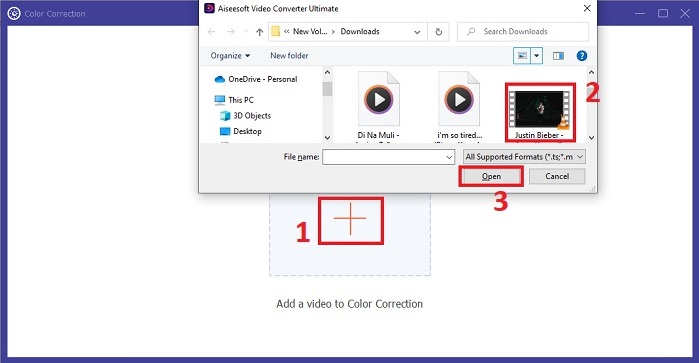
Klik nu op de Plus-knop om de video te importeren die je wilt kleurcorrigeren. Zoek het videobestand op je computer. Selecteer vervolgens Open om het in de software te laden.
Stap 4: Pas de videokleurinstellingen aan en sla op
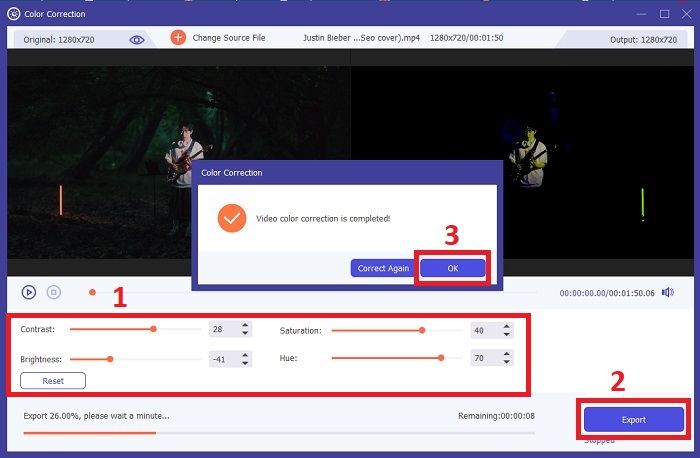
Nadat je de video hebt geïmporteerd, kun je de kleurparameters zoals helderheid, contrast, verzadiging en tint fijn afstellen om de gewenste kleurcorrectie te bereiken. Wanneer je tevreden bent met de kleuraanpassingen, klik je op Export. Laat het programma de video verwerken en sla de gecorrigeerde versie op de door jou gekozen locatie op.
2. Kleurcorrectie Premiere Pro
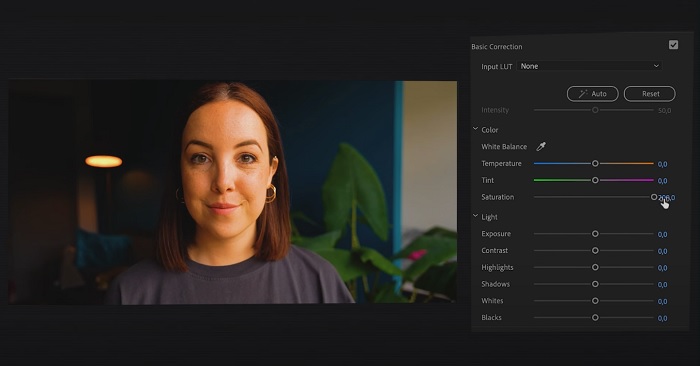
Premiere Pro staat bekend om zijn hoogwaardige videobewerkingssoftware en uitgebreide kleurcorrectiemogelijkheden. Het biedt diverse kleurcorrectietools en -effecten om nauwkeurige aanpassingen te maken. Kleurcorrectie Met Premiere Pro kunt u de kleurbalans en belichting aanpassen of creatieve looks toepassen om de gewenste visuele stijl te bereiken. U kunt ook kiezen uit de honderden ingebouwde video-effecten en overgangen, of beginnen met professioneel ontworpen sjablonen en deze aanpassen om de gewenste uitvoer te creëren. Bovendien beschikt het over samenwerkingsfuncties en kan het soepel worden geïntegreerd met andere Adobe-software, waardoor het een topkeuze is onder professionals.
Stap 1. Open om te beginnen Premiere Pro en importeer je video. Ga daarna naar de Color workspace.
Stap 2. Gebruik binnen de Color workspace het Lumetri Color-paneel om belichting, kleurbalans en creatieve looks aan te passen.
Stap 3. Gebruik scopes om ervoor te zorgen dat de kleurcorrecties nauwkeurig aansluiten bij het gewenste resultaat. Bekijk ten slotte een voorbeeld en exporteer de gecorrigeerde video.
3. Davinci Resolve kleurcorrectie
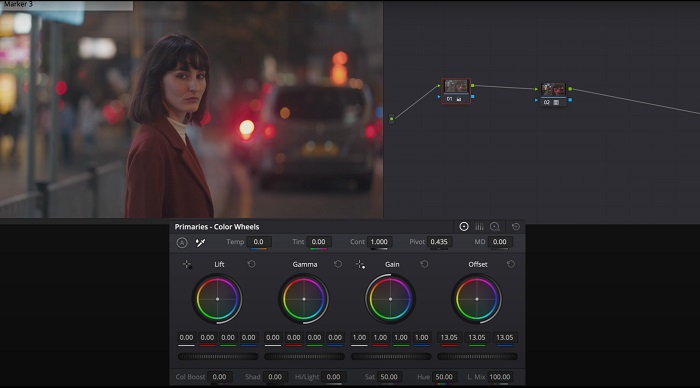
Ontdek de uitzonderlijke capaciteiten voor kleurcorrectie. Deze alles-in-één software combineert professionele bewerking, kleurcorrectie, visuele effecten en audiopostproductie. Met de gebruiksvriendelijke interface en de uitgebreide functieset van de tool kunt u uw creatieve visie met precisie en stijl tot leven brengen. Met de geavanceerde tools voor kleurcorrectie van Davinci Resolve Color Correction kunt u uw video's laten opvallen. Of je nu aan baanbrekende Hollywood-films of persoonlijke projecten werkt, deze tool stelt professionals en enthousiastelingen in staat boeiende verhalen met ongeëvenaarde kwaliteit te creëren.
Stap 1. Open DaVinci Resolve en importeer je video. Ga, zodra de video is geïmporteerd, naar het tabblad Color.
Stap 2. Gebruik op het tabblad Color de color wheels, curves en nodes om de kleuren van je video te corrigeren. Je kunt de beschikbare scopes gebruiken voor precieze aanpassingen.
Stap 3. Bekijk na het aanbrengen van de noodzakelijke kleuraanpassingen een voorbeeld van de gecorrigeerde video om te controleren of deze aan je verwachtingen voldoet. Als je tevreden bent, exporteer je de gecorrigeerde video zodat hij klaar is voor gebruik.
4. Final Cut Pro-kleurcorrectie
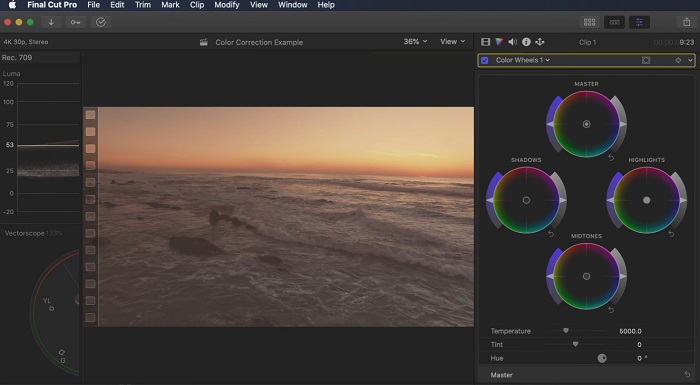
Als je een Mac-gebruiker bent en op zoek bent naar een eersteklas videobewerkingsprogramma, dan is Final Cut Pro een geweldige optie. Het beschikt over een gebruiksvriendelijke interface en krachtige functies die bewerken een fluitje van een cent maken. Als het om kleurcorrectie gaat, biedt Final Cut Pro een kleurenbord en kleurenwielen voor het aanpassen van de belichting, verzadiging en tint. U kunt realtime kleureffecten toepassen en geavanceerde beoordelingstools gebruiken om uw beeldmateriaal te verbeteren. Bovendien exporteert het probleemloos naar Apple-apparaten en populaire online platforms. Als je een professional bent die op zoek is naar efficiëntie en creativiteit, dan is Final Cut Pro een no-brainer. Zorg ervoor dat je macOS 13.4 of hoger hebt en een Mac-computer met Apple Silicon voor optimale prestaties.
Stap 1. Importeer je videofragment in Final Cut Pro en ga vervolgens naar de Color workspace.
Stap 2. Gebruik het Color Board of de Color Wheels om essentiële aanpassingen te doen aan belichting, verzadiging en tint.
Stap 3. Verfijn de kleur van je video verder met aanvullende color grading-tools, zodat je het best mogelijke resultaat behaalt. Bekijk daarna een voorbeeld en exporteer de gecorrigeerde video.
5. Kleurcorrectie na effecten
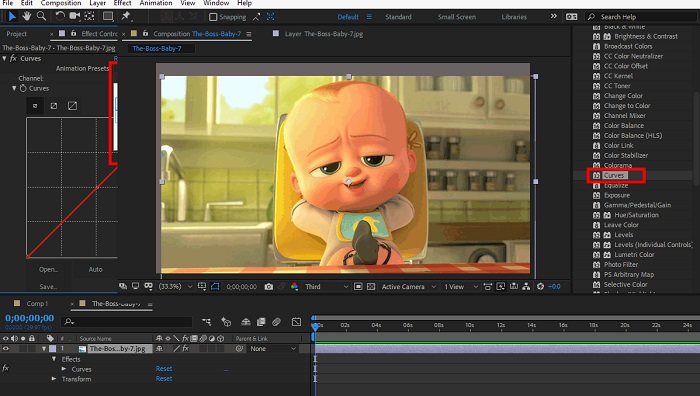
After Effects is een beroemde software voor bewegende beelden en visuele effecten met robuuste kleurcorrectiemogelijkheden. Naast de basiskleurcorrectie-effecten biedt het verschillende aanpassingslagen en effecten om kleuren te verbeteren en aan te passen. U kunt tekst en afbeeldingen snel animeren en tot leven brengen met boeiende bewegingen. Met Kleurcorrectie After Effects kunt u niveaus, curven en overvloeimodi gebruiken om de gewenste kleurcorrectie te bereiken. Het is een veelzijdige optie voor kleurcorrectie dankzij de integratie met verschillende Adobe-producten en een grote community die tutorials en plug-ins biedt. Bovendien evolueert de software voortdurend en introduceert functies zoals een intuïtief eigenschappenpaneel, transparante laagcontrole en efficiënte multi-frame rendering die workflows stroomlijnt en creaties op het snijvlak van creativiteit houdt.
Stap 1. Importeer je videofragment in het project van de tool. Pas kleurcorrectie-effecten toe via het paneel Effects & Presets en kies geschikte kleurcorrectietools zoals Curves, Levels of Color Balance.
Stap 2. Klik op het toegepaste kleurcorrectie-effect om de parameters te openen. Wijzig vervolgens instellingen zoals belichting, contrast, verzadiging en tint om de kleuren in je video te corrigeren en te verbeteren.
Stap 3. Bekijk een voorbeeld van de video in het Composition-paneel om te zien hoe de kleurcorrecties het beeld beïnvloeden. Verfijn de aanpassingen op basis van dit voorbeeld totdat de gewenste kleurcorrectie is bereikt, en ga daarna verder met renderen of exporteren van de gecorrigeerde video.
Verder lezen:
Top-apps voor het verbeteren van fotokleuren op je Android & iOS, gratis
4 geweldige manieren om een filter aan een video toe te voegen op Windows & macOS
Deel 2. Veelgestelde vragen over videokleurcorrectors
Hoe voer ik kleurcorrectie uit op een iMovie?
Om kleuren in iMovie te corrigeren, importeer je je videofragment, selecteer je het en klik je op de knop Color Correction (pictogram met toverstaf). Pas de schuifregelaars voor belichting, verzadiging en kleur aan om de gewenste uitstraling te bereiken.
Hoe krijg ik toegang tot kleurcorrectietools in OpenShot?
Voor kleurcorrectie in OpenShot Video Editor selecteer je een clip, ga je naar het tabblad Effects en klik je op Color Correction. Pas de schuifregelaars voor helderheid, contrast, tint en verzadiging aan om de gewenste kleurcorrectie te bereiken.
Hoe krijg ik toegang tot de kleurcorrectietools in Sony Vegas?
Voor kleurcorrectie in Sony Vegas selecteer je de clip die je wilt kleurcorrigeren, ga je naar het tabblad Video FX en zoek je Color Corrector. Sleep deze naar de clip en pas de kleurinstellingen aan in het venster Effect Controls.
Gevolgtrekking
Kleurcorrectie onder de knie krijgen is essentieel om de visuele aantrekkingskracht van je video’s te vergroten en een boeiende kijkervaring te creëren. In deze gids hebben we vijf krachtige kleurcorrectietools besproken om een onberispelijke kleurcorrectie te bereiken. Als je op zoek bent naar hoogwaardige videobewerkingssoftware, overweeg dan het gebruik van Video Converter Ultimate, Premiere Pro, Final Cut Pro, DaVinci Resolve of After Effects. Deze programma’s bieden een breed scala aan functies en mogelijkheden om je te helpen professionele video’s te maken. Elk programma heeft zijn eigen set functies en eigenschappen die aansluiten bij verschillende voorkeuren en niveaus van ervaring.
-
 Hoe u een Instagram-filter kunt toevoegen en maken voordat u een afbeelding en video plaatst
 Wat zijn de filters op Instagram? Hoe toepassen? Hoe maak je er een? Deze vragen zullen in dit bericht duidelijke antwoorden hebben, dus lees ze.
-
 Probleemloze methoden om afbeeldingen naar zwart-wit te converteren
 Wil je je foto's een nostalgische uitstraling geven? Wij hebben een antwoord voor je. Dit bericht biedt opmerkelijke manieren om een kleurenafbeelding om te zetten in zwart-wit.
-
 6 favoriete Snapchat-geanimeerde Snapchat-filters op Snapchat
 Wil je weten wat de beste manieren zijn om filters toe te voegen aan Snapchat-video's? Welnu, je kunt hierop klikken en de verschillende filters leren die je kunt gebruiken om op Snapchat-video's toe te passen.
