


 Video Converter Ultimate
 Scherm opnemer
 Videoreparatie
Tips en trucs om het volume op uw Windows/Mac/iPhone/Android te verhogen
De meeste pc’s, Macs, Android‑toestellen en iPhones kunnen het geluid maar tot een redelijk hard niveau afspelen. Dat is echter vaak niet genoeg om echt kippenvel te krijgen of er volledig van te genieten. Natuurlijk kunnen we proberen dit op te lossen door het volume helemaal open te zetten. Toch blijven sommige video’s dan nog steeds erg zacht. Daarom laten we nu verschillende technieken zien waaruit je kunt kiezen om video’s beter te kunnen beluisteren met alleen je eigen apparaten. Als je er klaar voor bent, lees dan verder en ontdek hoe je op verschillende platforms eenvoudig het volume kunt verhogen.

Deel 1. Het volume verhogen op Windows/Mac/iPhone/Android?
1. Vensters
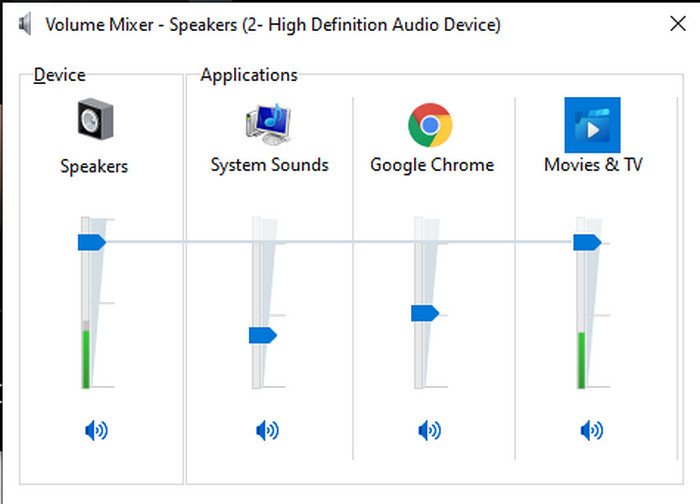
Het MP3-volume verhogen op een Windows-pc is veel gemakkelijker, zelfs als u geen derde partij hoeft te gebruiken. Als je echter de audio hier wilt verhogen, verwacht dan niet iets speciaals. Omdat dit besturingssysteem geen equalizer biedt om u te helpen het te manipuleren. Maar u kunt het volume van de andere applicaties die u hoger of lager wilt laten klinken, aanpassen. Laten we nu verder gaan met de onderstaande stappen om te bepalen hoe u uw videogeluid duidelijker kunt maken op een Windows-pc.
Hoe verhoog je het volume van een video op Windows:
Stap 1. Zoek op je Windows-pc rechtsonder op het scherm het pictogram Luidspreker.
Stap 2. Klik met de rechtermuisknop en kies Volumemixer openen.
Stap 3. Pas onder Apparaat de schuifregelaar aan om al het geluid harder of zachter te zetten. Wil je alleen het volume van één toepassing aanpassen, dan kun je de betreffende schuifregelaar afzonderlijk omhoog of omlaag slepen.
2. Mac
Net als Windows kun je op Mac gemakkelijk het volume van je video manipuleren en verhogen. Bovendien, als je de audio-uitvoer op je Mac wilt verhogen, moet dit je keuze zijn om het gemakkelijk uit te voeren. Echter, zoals eerder gezegd, is dit net als Windows, maar in een ander programma heeft dit besturingssysteem geen ingebouwde equalizer om het volume drastisch te veranderen. En als je nu wilt leren hoe je het volume luider kunt maken, volg dan de onderstaande stap.
Hoe verhoog je het volume van een video op Mac:
Stap 1. Start je Mac en klik bovenaan op de appelvormige knop.
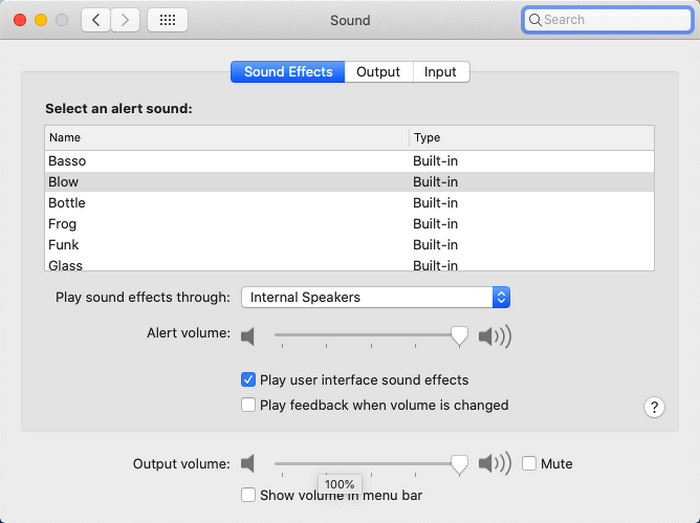
Stap 2. Klik vervolgens op Systeemvoorkeuren. Klik daarna op Geluid om naar de laatste stap te gaan.
Stap 3. Pas het uitvoervolume aan door de schuifregelaar te verslepen om het geluid harder of zachter te zetten.
3. iPhone
Als je een iPhone hebt, kun je gemakkelijk leren hoe je je volume luider en beter kunt maken. Omdat dit apparaat een ingebouwde equalizer heeft die je zeker zal helpen. Bovendien verbaast de mogelijkheid om de audio in deze telefoon te verhogen ons nog steeds. Omdat we niet wisten dat er een draagbare equalizer was die iOS-gebruikers konden gebruiken. Dus nu, als je geen idee hebt hoe je het moet gebruiken, dan zullen de volgende stappen je helpen om het te doen.
Hoe verhoog je het volume van een video op iPhone:
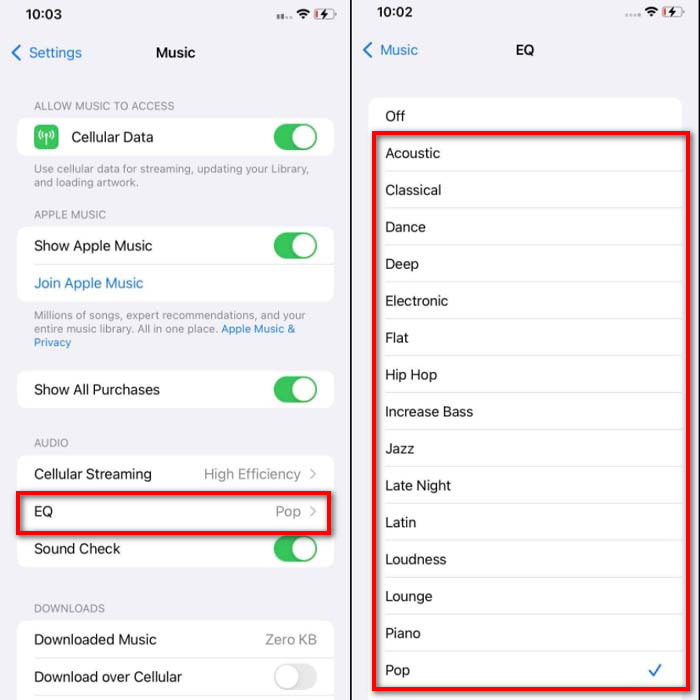
Stap 1. Ga naar Instellingen, zoek Muziek en tik daarop.
Stap 2. Tik op EQ en kies een optie uit de lijst. Ga daarna terug naar het beginscherm.
Stap 3. Open nu Muziek, speel een nummer af en verhoog het volume met de knoppen volume hoger of lager aan de zijkant van je iPhone.
4. Android
Android zal zijn gebruiker nooit teleurstellen omdat dit mobiele apparaat ook een ingebouwde equalizer heeft. Hoewel als je de kwaliteit en het volume zelf verhoogt met de hier beschikbare equalizer, het nog steeds niet zo effectief is als op de iPhone. Als u het echter gebruikt en het volume aanpast terwijl u een oortelefoon of luidsprekers heeft, zult u de drastische verandering van het volume voelen. Houd er echter rekening mee dat de stappen kunnen verschillen per merk en model van uw apparaat. Deze stappen zorgden ook voor werk op Realme 7 pro, Android-versie 11 en hoger. Dus als je je afvraagt, hoe kan ik het volume op mijn Android-telefoon verhogen, volg dan de onderstaande stappen.
Hoe verhoog je het volume van een video op Android:
Stap 1. Ga naar Instellingen en zoek Geluid en trillen (of Geluid & Vibratie).
Stap 2. Scroll naar beneden om Dolby Atmos te vinden en tik daarop om verder te gaan.
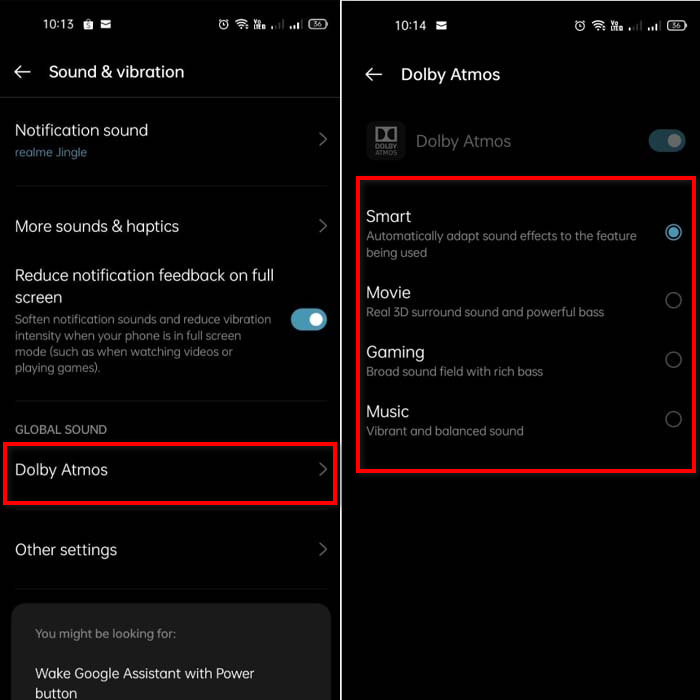
Stap 3. Pas de equalizer aan door een optie uit de lijst te kiezen. Wil je nog beter geluid, sluit dan een koptelefoon aan voor een luider en voller geluid. Gebruik daarna de knoppen volume hoger en lager aan de zijkant van je Android‑telefoon om het volume verder te regelen.
Deel 2. Hoor je nog steeds het volume van video's niet? Probeer het een boost te geven met de Video Converter Ultimate
Hoewel de bovenstaande stappen goed helpen, schieten ze soms nog tekort als je het volume echt flink wilt opvoeren. Daarom stellen we je nu een fenomenale volumebooster voor waarmee je een zacht volume kunt omzetten naar een krachtiger geluid: Video Converter Ultimate. Deze software wordt al door meer dan 10 miljoen gebruikers wereldwijd gebruikt. Je kunt deze tool niet op mobiele apparaten gebruiken, omdat hij daar niet voor is ontwikkeld. Wel kun je de software op je pc of Mac gebruiken, het bestand daar opslaan en het later naar je telefoon overzetten. Laten we nu bekijken hoe je de volumebooster in deze tool gebruikt en leren hoe je het volume harder maakt dan ooit tevoren.
Hoe verhoog je het volume van een video met behulp van Video Converter Ultimate:
Stap 1. Voordat je Video Converter Ultimate kunt gebruiken, moet je het eerst op je harde schijf downloaden. Installeer vervolgens de tool, doorloop de configuratie en klik op Nu starten om hem te openen.
Gratis downloadVoor Windows 7 of nieuwerVeilige download
Gratis downloadVoor MacOS 10.7 of nieuwerVeilige download
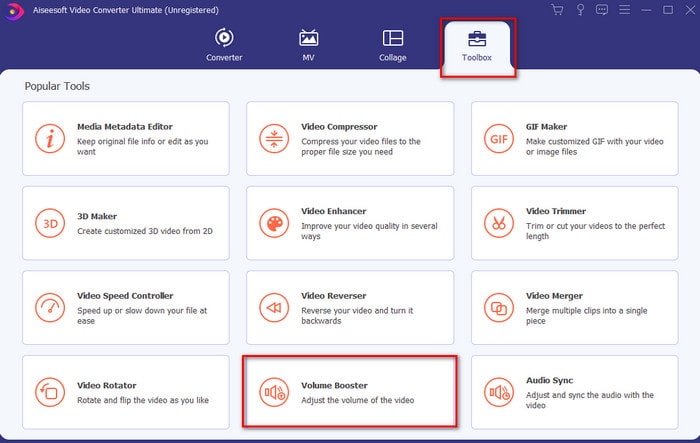
Stap 2. Nadat je de tool hebt gestart, ga je naar de Toolbox en zoek je de Volume Booster.
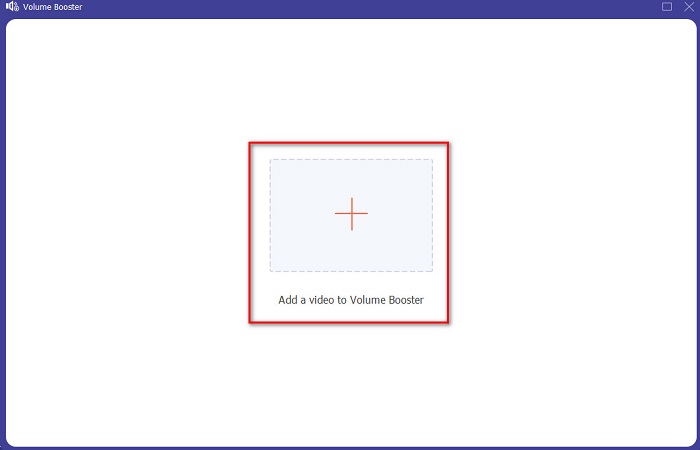
Stap 3. Klik op het +-teken om de video toe te voegen die je wilt versterken. Zoek het bestand in de map die op je scherm verschijnt en klik op Openen om verder te gaan.
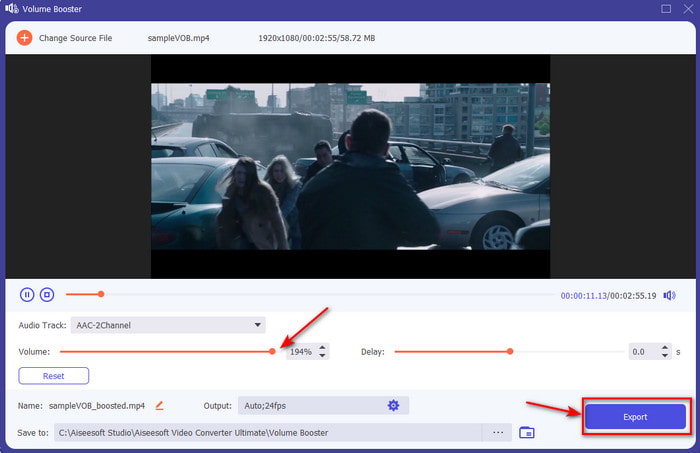
Stap 4. In de interface van de tool kun je de volumeschuifregelaar aanpassen en het volume tot het maximum of tot jouw gewenste niveau verhogen. Ben je tevreden met het ingestelde volume, klik dan op Exporteren om het bestand te downloaden.
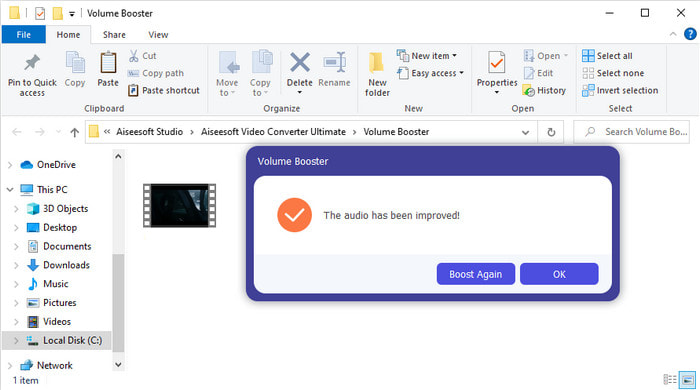
Stap 5. Wacht enkele seconden tot de verwerking is voltooid. Zodra het bestand klaar is, wordt er automatisch een map op je scherm geopend. Klik op het bestand om naar de video met het aangepaste volume te luisteren.
Deel 3. Veelgestelde vragen over Volume verhogen
Kan ik het volume op VLC verhogen?
Eigenlijk wel, in plaats van een volumebooster te gebruiken, kun je de VLC Player gebruiken om de audio-uitvoer van je video te verhogen. In plaats van de audio te beperken tot 100%, kunt u ook het volume ervan uitbreiden tot 125% als u dat wilt.
Vermindert het converteren van video's de kwaliteit van de video en audio?
Dat hangt ervan af naar welk formaat je converteert. Als je bijvoorbeeld AVI naar MP4 converteert, kun je wat kwaliteitsverlies verwachten, omdat AVI vaak ongecomprimeerd is. Dit kun je echter voorkomen door dit artikel te lezen; klik om verder te gaan op deze link. Als je een gecomprimeerd bestand naar een ongecomprimeerd formaat of naar een ander gecomprimeerd formaat converteert, kun je eveneens veranderingen verwachten, zeker als je dit vaak doet. Doe je het slechts eenmalig, dan zal de kwaliteit in de praktijk nauwelijks veranderen.
Hoe een video- en audiovertraging op te lossen?
Er zijn eigenlijk twee manieren om dit op te lossen. De eerste is om het bestand te verwijderen en de video opnieuw te downloaden, als deze online beschikbaar is. Zorg ervoor dat het proces niet wordt onderbroken en dat je een stabiele internetverbinding hebt, zodat er geen gegevens ontbreken. Als het bestand echter alleen voor eigen gebruik is, dan is het beter om software te kiezen die je helpt audio en video te synchroniseren. Wil je een idee krijgen van welke software er beschikbaar is en hoe je audio en video eenvoudig kunt synchroniseren, klik dan op de link en lees het artikel. We hebben verschillende programma’s verzameld waaruit je kunt kiezen.
Gevolgtrekking
Nu we weten hoe we een laag volume in onze video kunnen oplossen, is dit het juiste moment om ermee aan de slag te gaan. Volg gewoon de eenvoudige stappen hierboven om je volume beter te maken dan voorheen. Het gaat niet alleen om simpelweg op een volumeknop drukken of het volume opschroeven, maar met behulp van andere technieken die je gemakkelijk kunt toepassen. Als je toch vindt dat het geluid op je pc, Mac, Android of iPhone nog steeds te zacht is, versterk het dan met Video Converter Ultimate. Verhoog nu het volume naar een hoger niveau en ervaar veel luider en beter geluid.
-
 7 eenvoudige stappen voor het oplossen van problemen met OBS-audiovertraging [opgelost]
 Heb je moeite om je videoclip te bekijken na het opnemen vanwege de audiovertraging bij het gebruik van OBS Studio? Lees het onderstaande artikel om te leren hoe u niet-gesynchroniseerde audio effectief kunt herstellen.
-
 Uitstekende manieren mogelijk | VLC-audiovertraging repareren [2021]
 Vind je het moeilijk om je favoriete film op je VLC-mediaspeler te bekijken vanwege de audio-onzekerheid? Ga door met het lezen van dit artikel om alle mogelijke manieren te kennen om VLC-audiovertraging op te lossen.
-
 De beste manieren om het MP4-volume online en offline te verhogen
 Heb je moeite om de geluiden van je videoclip te horen? Lees het onderstaande artikel om te weten hoe u het mp4-volume op verschillende manieren kunt verhogen.
