


 Video Converter Ultimate
 Scherm opnemer
 Videoreparatie
 Beveiligde download
Hoe bijtbaar watermerk moeiteloos uit uw video's te verwijderen
Als je op zoek bent naar de beste en eenvoudigste manieren om biteable-watermerken uit je video’s te verwijderen, hoef je jezelf niet langer moeite te getroosten. Eerlijk gezegd is het irritant en frustrerend om een video met watermerken te bekijken. Je kunt dan niet echt van de video genieten. Daarnaast leiden deze watermerken de kijkers af. Begrijpelijkerwijs zijn watermerken bedoeld voor de beveiliging van de eigenaar van de video. Maar een groot watermerk plaatsen is niet goed. Het zorgt alleen voor een negatieve indruk bij mensen die graag hun favoriete video’s bekijken. Een voorbeeld hiervan zijn de biteable-watermerken. Deze biteable-watermerken komen van de Biteable‑applicatie, waarbij watermerken automatisch worden toegevoegd na het maken of opslaan van een video. Gelukkig kun je programma’s gebruiken om deze watermerken uit je video’s te verwijderen. Zo kun je je favoriete video’s bekijken zonder irritatie of frustratie. Als je de beste en meest betrouwbare programma’s wilt kennen die je kunt gebruiken om deze watermerken te verwijderen, lees dit artikel dan verder.

Deel 1: de beste manier om bijtbaar watermerk uit video's te verwijderen
Video Converter Ultimate is het meest uitstekende programma dat je kunt gebruiken om biteable-watermerken uit je video’s te verwijderen. Daarnaast is deze geweldige software in staat om andere irrelevante en storende objecten te verwijderen, zoals logo’s, teksten, handtekeningen, enzovoort. Ook het verwijderings‑ en opslagproces gaat zeer snel, zodat je niet veel tijd hoeft te besteden. Bovendien kan Video Converter Ultimate twee eenvoudige methoden bieden om watermerken uit je video’s te verwijderen: de video‑uitsnijder (cropper) en de video‑watermerkverwijderaar. Het heeft ook meer bewerkingstools die je kunt gebruiken, zoals een videosnelheidsregelaar, videoconverter, videocompressor, kleurcorrectie, collagemaker, GIF‑maker, video‑uitsnijder, afbeeldingsconverter en meer. Het beste aan deze tool is dat je hem gemakkelijk kunt gebruiken, omdat hij een zeer overzichtelijke interface heeft die perfect is voor beginners. Het ondersteunt ook verschillende bestandsindelingen, zoals MP4, MOV, FLV, MKV, OGV, DIVX en meer. Tot slot is Video Converter Ultimate beschikbaar voor zowel Windows als Mac, wat erg handig is voor gebruikers. Stel dat je een watermerk uit een video wilt verwijderen; volg dan de onderstaande eenvoudige stappen.
De tool Video Watermark Remover gebruiken
Stap 1: Ga naar de website van Video Converter Ultimate en download het programma. Ga daarna verder met de installatieprocedure. Start na de installatie het programma.
Gratis downloadVoor Windows 7 of nieuwerVeilige download
Gratis downloadVoor MacOS 10.7 of nieuwerVeilige download
Stap 2: Nadat je Video Converter Ultimate hebt geopend, klik je op de knop Toolbox > Video Watermark Remover. Vervolgens verschijnt er een andere interface op het scherm.
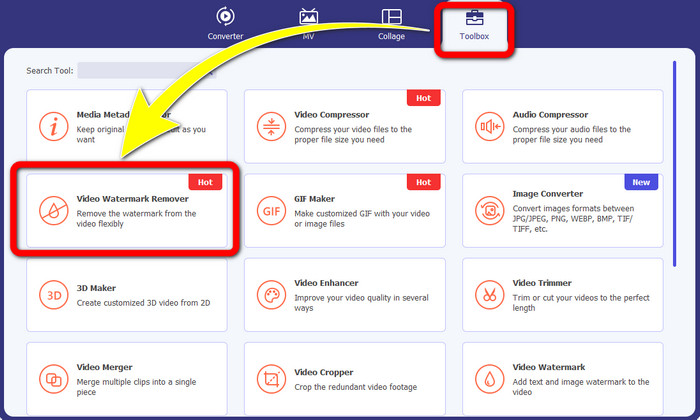
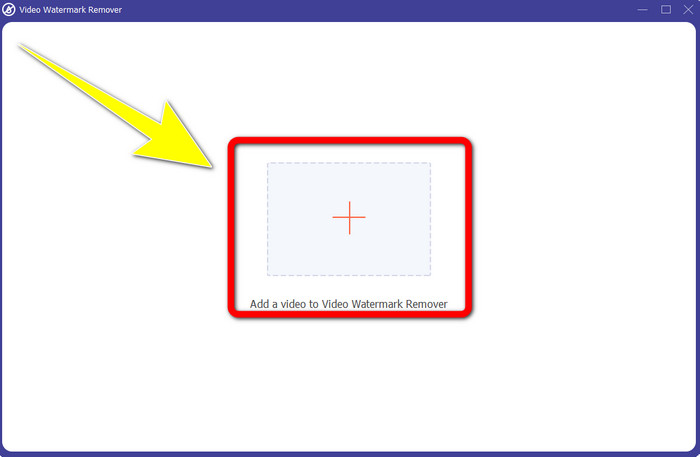
Stap 3: Wanneer de nieuwe interface op je scherm is verschenen, klik je op de knop met het plusteken om je video met een biteable‑watermerk toe te voegen.
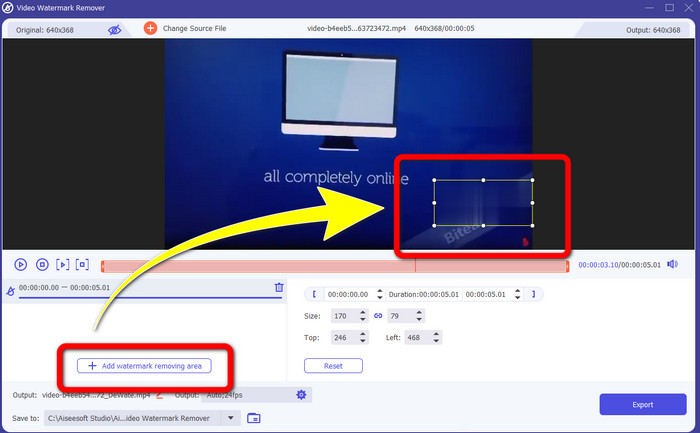
Stap 4: Nadat je je video hebt toegevoegd, klik je op Add Watermark Removing Area. Vervolgens verschijnt er een klein vakje in je video. Sleep het vak om de watermerken te bedekken.
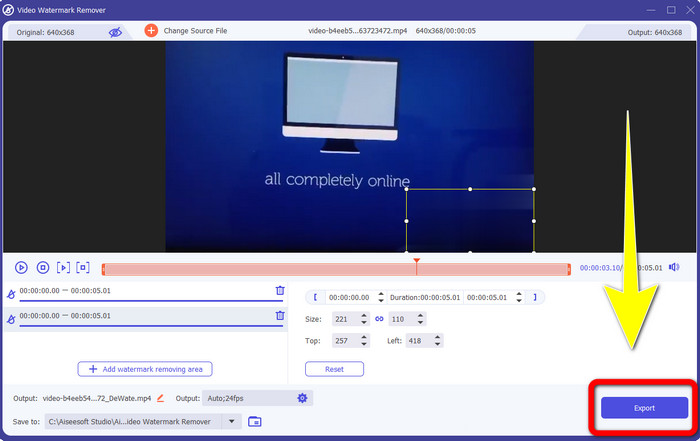
Stap 5: Als je het biteable‑watermerk uit je video hebt verwijderd, klik je op de knop Export om je definitieve bestand op te slaan.
Het hulpmiddel Videobijsnijden gebruiken
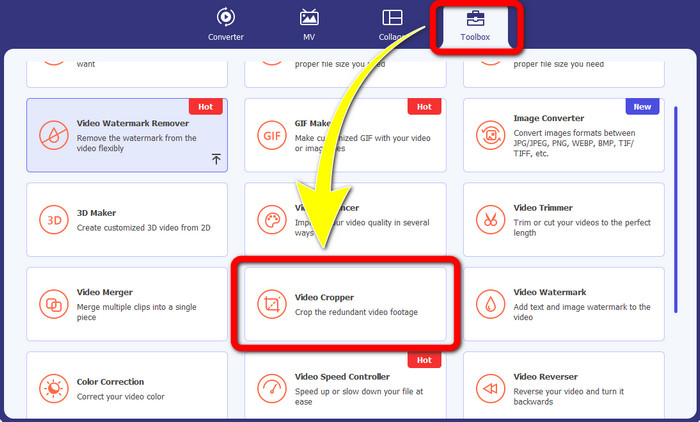
Stap 1: Start Video Converter Ultimate. Klik op de knop Toolbox > Video Cropper.
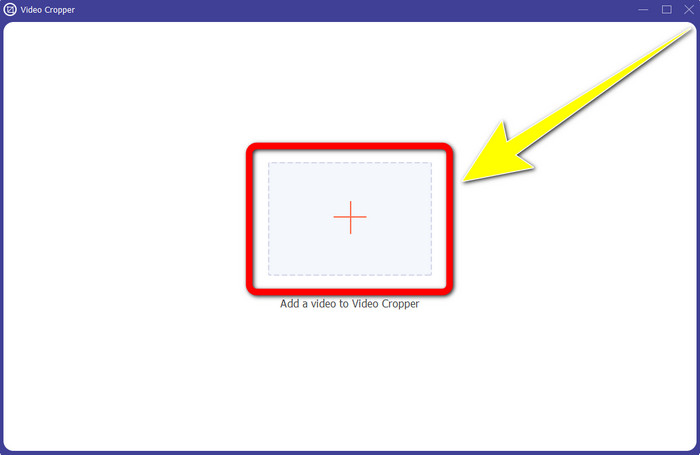
Stap 2: Nadat je op Video Cropper hebt geklikt, verschijnt er een nieuwe interface op je scherm. Klik op het plusteken en voeg je video met een biteable‑watermerk toe.
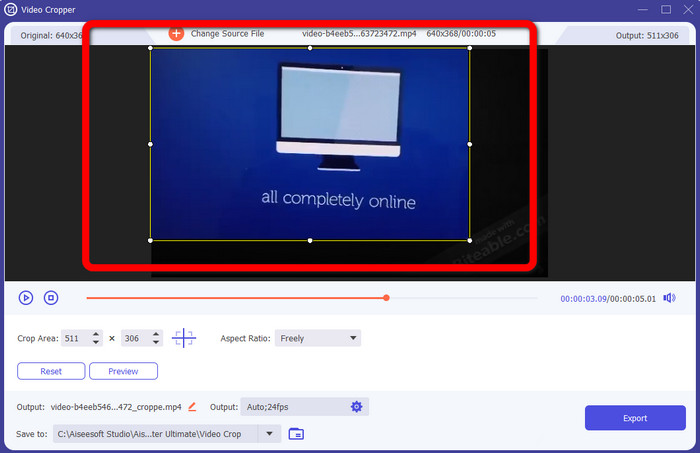
Stap 3: Wanneer je je video hebt toegevoegd, kun je deze nu bijsnijden (Crop) om de watermerken te verwijderen.
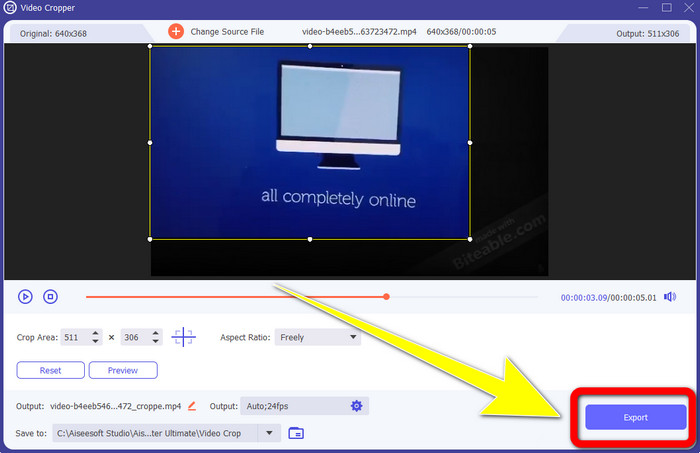
Stap 4: Als je klaar bent met het bijsnijden van je video, klik je op de knop Export en sla je je video op zonder biteable‑watermerk.
Deel 2: Bijtbaar watermerk verwijderen uit video's online
1. BeeCut gebruiken
Als u het bijtbare watermerk gratis online wilt verwijderen, is BeeCut de beste online applicatie die u kunt gebruiken. Het is in staat om watermerken uit je video's te verwijderen. Het is een eenvoudige online tool die u kunt gebruiken en die perfect is voor beginners. In slechts enkele stappen kunt u bijtbare watermerken uit vier video's verwijderen.
Bovendien heeft BeeCut veel bewerkingstools, zoals het bijsnijden, knippen, splitsen en combineren van video's. Als je bovendien een video wilt maken, kun je hieronder ondertitels aan je video toevoegen, wat handig is voor kijkers. Het uploaden van bestanden en het opslaan van processen met deze tool is echter traag. U kunt deze tool ook niet gebruiken als u geen internetverbinding heeft. Volg de onderstaande stappen als je bijtbare watermerken uit je video wilt verwijderen met deze online tool.
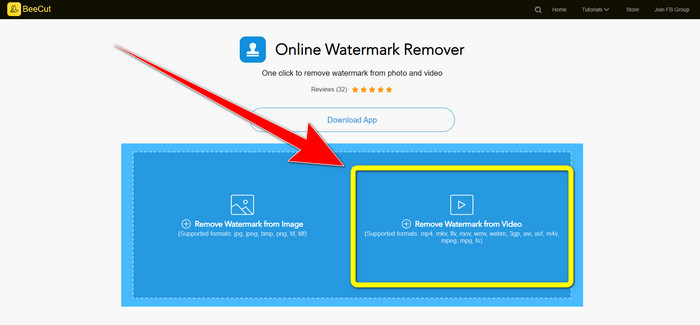
Stap 1: Bezoek de website van BeeCut. Klik vervolgens op de knop Remove Watermark from Video en voeg je video met een biteable‑watermerk toe.
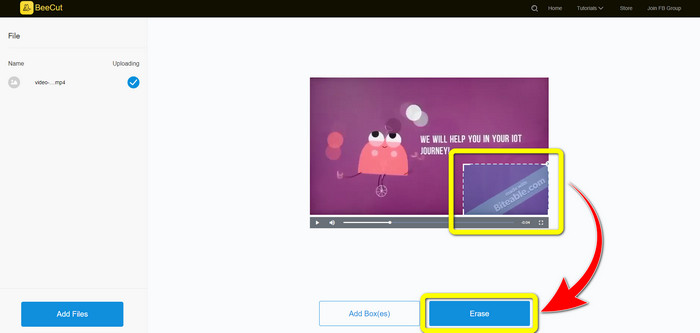
Stap 2: Nadat je je bestand hebt toegevoegd, verschijnt er een klein vak op je video. Sleep dit en bedek het biteable‑watermerk. Als je klaar bent met het bedekken van de watermerken, klik je op de knop Erase.
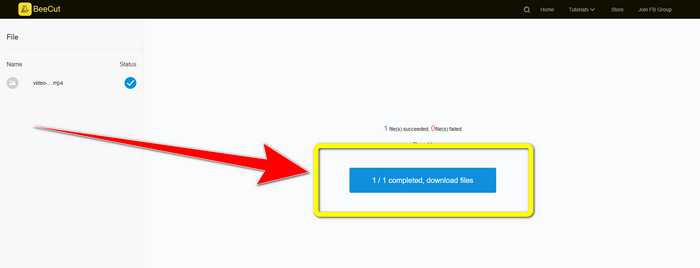
Stap 3: Wanneer je op de knop Erase hebt geklikt, wacht je op het verwijderingsproces. Daarna kun je het bestand downloaden en genieten van het kijken zonder het biteable‑watermerk in je video.
2. Blur Video Online gebruiken
Als je nog steeds op zoek bent naar een andere applicatie die je kunt gebruiken om het bijtbare watermerk van je video online te verwijderen, dan is Blur Video Online een geweldige tool voor jou. En Blur Video Online is beschikbaar voor bijna alle apparaten en browsers, zoals Google Chrome, Opera, IE, Mozilla Firefox en meer. Deze webafhankelijke toepassing is echter te traag bij het importeren van videobestanden en het proces van het verwijderen van watermerken is tijdrovend. Het is ook een internetafhankelijke tool, wat betekent dat het alleen werkt als je een internetverbinding hebt. Volg de eenvoudige stappen hieronder om een bijtbaar watermerk uit je video te verwijderen/vervagen.
Stap 1: Ga naar de website van Blur Video Online. Klik vervolgens op de knop Click to Add File en voeg je video met een watermerk toe.

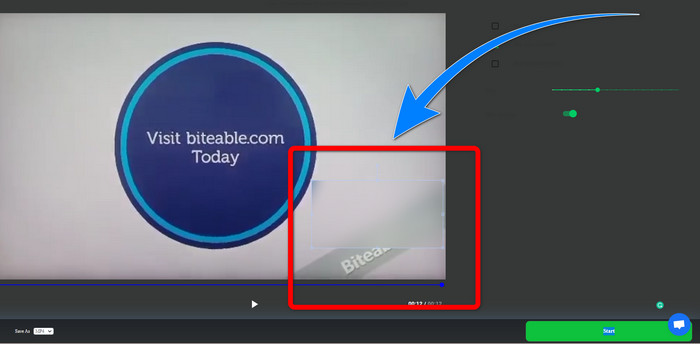
Stap 2: Als je je video al hebt ingevoegd, verschijnt er een vak op je video. Sleep het om de watermerken te bedekken en sla je uiteindelijke bestand op.
Gerelateerd aan:
Beste manier om het watermerk van Camtasia 9 op je Windows-pc te verwijderen
Hoe verwijder je snel de watermerkbanner uit AVS Video Editor
Deel 3: Veelgestelde vragen over het verwijderen van bijtbare watermerken uit video's
Kan ik een datumstempel verwijderen met Video Converter Ultimate?
Ja, dat kan! Video Converter Ultimate kan u helpen bij het verwijderen van storende objecten uit uw video's, zoals datumstempels, watermerken, tekst, enz.
Is het tijdrovend om watermerken uit mijn video's te verwijderen?
Het hangt af van de toepassingen die u gebruikt. Sommige applicaties kunnen de watermerken direct uit uw video's verwijderen en sommige applicaties hebben tijd nodig om watermerken te verwijderen.
Is er een watermerkverwijderaar die ik kan gebruiken zonder de kwaliteit van mijn video's te verliezen?
Ja, die is er! Je kunt Video Converter Ultimate gebruiken. Het is niet alleen goed in het verwijderen van watermerken en het bewerken van video’s. Met dit programma kun je watermerken uit je video’s verwijderen zonder kwaliteitsverlies.
Gevolgtrekking
Het verwijderen van het watermerk uit je video’s is geweldig, vooral als je je favoriete video’s zonder onnodige objecten wilt bekijken. Dit artikel heeft je praktische programma’s aangereikt die je kunt gebruiken voor het verwijderen van biteable‑watermerken uit je video’s. Tot slot is het gebruik van Video Converter Ultimate de beste keuze als je op zoek bent naar het meest uitstekende en indrukwekkende programma om watermerken uit je video’s te verwijderen.
-
 Hoe het Powtoon-watermerk te verwijderen met behulp van 4 effectieve methoden
 Lees dit artikel om te leren hoe u het Powtoon-watermerk kunt verwijderen met behulp van de beste tools die we hier hebben opgenomen en een zelfstudie.
-
 Apowersoft Watermark Remover Review – Functies, voor- en nadelen en prijzen
 Apowersoft Watermark Remover is een van de beste watermerkenverwijderaars die online en offline ondersteunt, klik hier voor meer informatie!
-
 3 van de nieuwste Shutterstock-watermerkverwijderaars die u ooit nodig zult hebben
 Houdt u niet van het Shutterstock-watermerk dat aan de geëxporteerde video is gekoppeld? U kunt een Shutterstock-watermerkverwijderaar gebruiken om het effectief te wissen.
