


 Video Converter Ultimate
 Scherm opnemer
 Videoreparatie
 Beveiligde download
Volledige manieren om het Picsart-filterwatermerk op uw video's effectief te verwijderen
Tegenwoordig is het onmisbaar om over betrouwbare software voor het bewerken van visuele media op je desktop te beschikken, zoals Picsart. Daarmee kun je met een paar aanpassingen een gewone afbeelding omtoveren tot een foto zoals niemand die ooit heeft gezien! Je kunt meer klanten of publiek aantrekken met een opvallende afbeelding die je zelf maakt. Maar er is een probleem bij het gebruik van Picsart: het watermerk dat na het exporteren wordt toegevoegd. Dat watermerk is behoorlijk irritant en kan visueel storend zijn als het niet wordt verwijderd. Dus als je de software wilt gebruiken én een handleiding zoekt voor het verwijderen van het Picsart-filterwatermerk, lees dan dit artikel verder om er alles over te leren!

Deel 1. Hoe Picsart Filter Watermark te verwijderen met behulp van de gratis software op het bureaublad
FVC Video Converter Ultimate - Nummer één watermerkverwijderaar op Windows en Mac
Laten we de software introduceren met onze nummer één keuze die je kan helpen en leren hoe je het Picsart-watermerk verwijdert. FVC Video Converter Ultimate is het onmisbare wapen in je arsenaal waarmee je het watermerk op video’s eenvoudig kunt verwijderen en toch een professioneel resultaat behoudt. Door de prestaties en ongeëvenaarde functies hebben al veel gebruikers het uitgeprobeerd, en de tool heeft hen niet teleurgesteld. Als je hulp nodig hebt bij het verwijderen van het watermerk in je video, kun je de stappen hieronder volgen en ze stap voor stap uitvoeren.
Stap 1. Je kunt deze ultieme software op je apparaat krijgen door op de juiste downloadknop hieronder te klikken. Daarna moet je de software op je computer installeren en op Start Now klikken om de software te openen.
Gratis downloadVoor Windows 7 of nieuwerVeilige download
Gratis downloadVoor MacOS 10.7 of nieuwerVeilige download
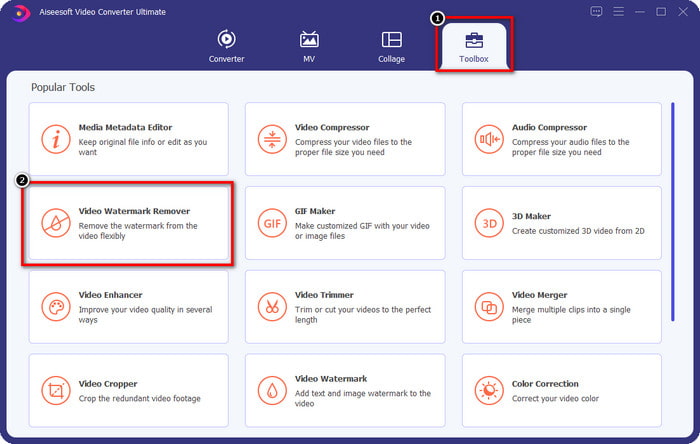
Stap 2. In de sectie Toolbox zie je andere functies die je kunt gebruiken om je video een professionele finishing touch te geven. Maar klik vandaag op Video Watermark Remover.
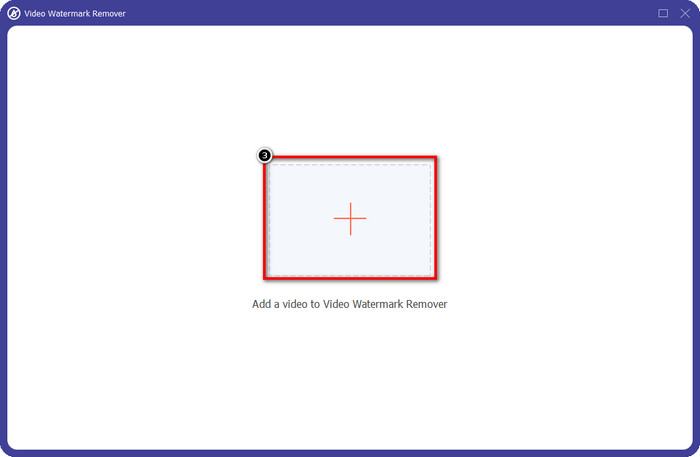
Stap 3. Upload de video die je in Picsart hebt bewerkt door op het +-icoon te klikken. Zoek het bestand in de map die op je scherm verschijnt en klik vervolgens op Open.
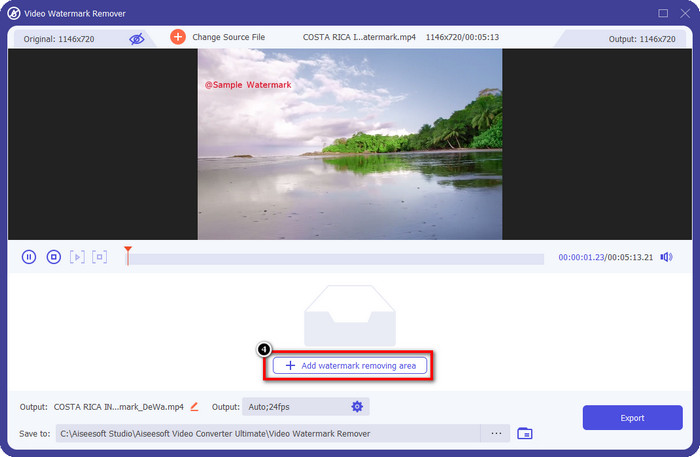
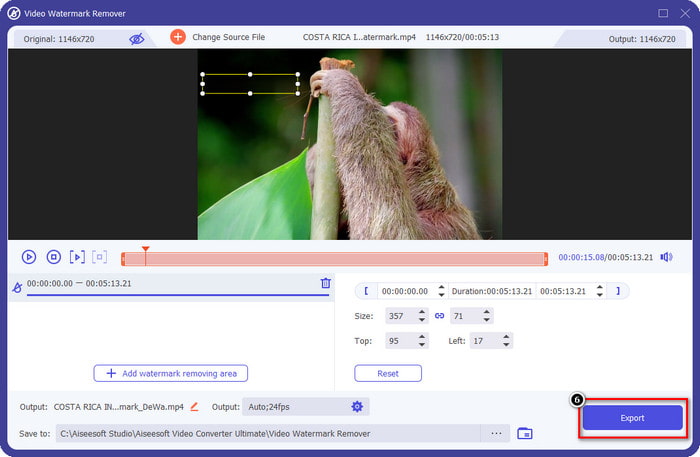
Stap 4. Druk op Add Watermark Removing Area om het watermerk te verwijderen dat in de geüploade video is ingebed.
Stap 5. Houd en versleep het selectiekader naar het watermerk en bedek het volledig. Je kunt het kader vergroten of verkleinen naar jouw voorkeur.
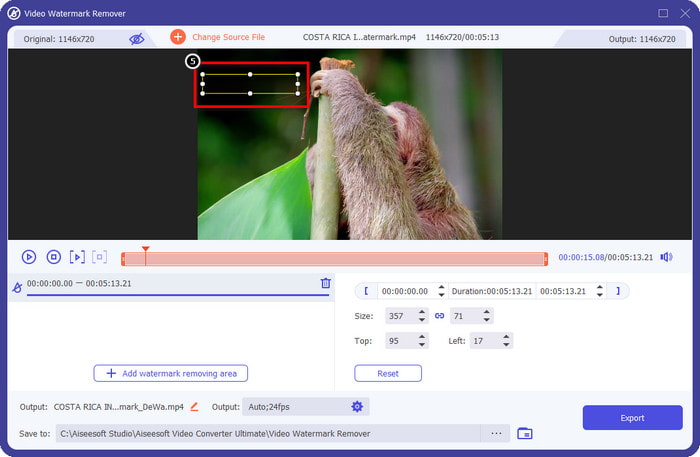
Stap 6. Nu je het watermerk met het selectiekader hebt afgedekt, klik je op Export om het uiteindelijke resultaat op je lokale schijf op te slaan.
Foto's op Windows - Cover Watermark met 3D-ontwerp
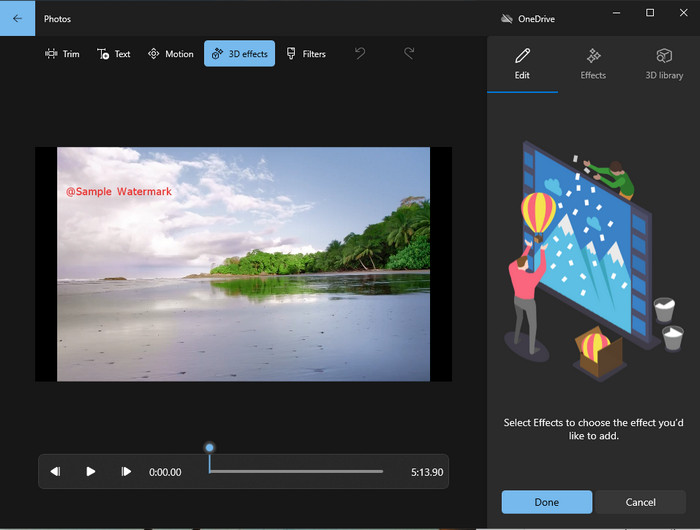
Als het downloaden van software niets voor jou is en je een Windows-gebruiker bent, kun je de app Foto’s gebruiken om het watermerk in je video te bewerken. Leren hoe je het Picsart-watermerk met deze tool verwijdert, gaat nog sneller, omdat je de app niet eerst hoeft te downloaden. De tool verwijdert het watermerk in de video niet echt, maar je kunt het watermerk wel afdekken met 3D-ontwerpen. Desondanks is de prestatie van deze standaardviewer en -editor voor visuele media goed. Niet zeker? Lees dan de onderstaande stappen en volg ze als je dat wilt.
Stap 1. Klik op de Windows-knop op de taakbalk en zoek naar Foto’s om de app te openen.
Stap 2. Nadat je de ingebouwde editor hebt geopend, klik je op het +-teken om de video te uploaden die je hier wilt bewerken.
Stap 3. Ga naar 3D Effects, klik op 3D Library en zoek het ontwerp dat je wilt gebruiken om het watermerk af te dekken. Plaats het door jou gekozen ontwerp op het gedeelte waar het watermerk staat.
Stap 4. Druk op Finish Video om het eindresultaat op de lokale schijf van je Windows-pc op te slaan.
Kies Uit Blur Video Online

PickFrom Blur Video Online kan je helpen het PicsArt-watermerk op de video’s die je online hebt te verwijderen. De tool is bij veel mensen onbekend, maar wij stellen hem vandaag aan je voor. We hebben deze software opgenomen vanwege de efficiëntie bij het verwijderen van watermerken in geüploade video’s. De gebruikersinterface is eenvoudig en overzichtelijk; je raakt niet de weg kwijt als je deze software gaat gebruiken. Als je dus een watermerk wilt verwijderen, volg dan het onderstaande proces.
Stap 1. Open je webbrowser, zoek de naam van de tool en klik op het eerste resultaat om de online watermark remover te openen.
Stap 2. Klik op Click to Add File zodat je de video hier kunt uploaden.
Stap 3. Vink Blur Part of the Video aan en plaats vervolgens het selectiekader over het watermerk.
Stap 4. Druk op Start om de video zonder watermerk te downloaden.
Deel 2. Picsart-watermerk verwijderen door de Premium-versie aan te schaffen
U moet de software aanschaffen als u geen problemen wilt krijgen met het verwijderen van het gouden Picsart-watermerk. Het kost je een bepaald bedrag omdat je ervoor moet betalen voordat je het kunt gebruiken en vervolgens de video kunt exporteren zonder enig ingebed watermerk. Dus als je een stapsgewijze tutorial wilt over het kopen van de Picsart, moet je de volgende tutorial volgen die we toevoegen.
Stap 1. Open de officiële website van Picsart en log hier in op je account. Als je nog geen account hebt, moet je er een aanmaken door je hier te registreren.
Stap 2. Klik op de hoofdwebsite op Pricing om de prijzen van elk beschikbaar product te bekijken.
Stap 3. Kies het abonnement dat je wilt, maandelijks of jaarlijks, en klik vervolgens op Go to Payment.
Stap 4. Voeg de factuurgegevens toe door de vereiste informatie in te vullen en klik vervolgens op Purchase Now.
Gerelateerd:
Watermerk van afstudeerfoto’s verwijderen
Deel 3. Veelgestelde vragen over het verwijderen van Picsart-watermerk
Kan ik de Picsart Gold permanent kopen?
Het ondersteunt geen eenmalige betalingsbasis of abonnement, dus als u Picsart Gold wilt gebruiken, moet u gebruikmaken van het maandelijkse of jaarlijkse abonnement. Bekijk de prijs voor elk abonnement door naar de officiële website te gaan.
Kan ik een abonnement op maat aanmaken op Picsart?
Ja, je kunt een abonnement voor een team aanmaken op Picsart. U kunt het aantal mensen instellen dat de app gaat gebruiken.
Waar kan ik toegang krijgen tot Picsart?
Je kunt de Picsart downloaden op Windows, Android en iOS. Helaas heeft de app momenteel geen Mac-versie, maar wees niet bedroefd, want je kunt andere mediabewerkingssoftware gebruiken die op je systeem beschikbaar is.
Gevolgtrekking
De tutorial die we eerder hebben gegeven, geeft je een idee van het verwijderen van watermerken met PicsArt en de beste watermerkverwijderaars die je kunt gebruiken. U kunt nu genieten van de video die u op Picsart bewerkt zonder u druk te maken over het productwatermerk dat het toevoegt aan de uiteindelijke uitvoer. Dus als je nog steeds niet overtuigd bent van de tools die we presenteren, is het een must om ze eerst te proberen, vooral de FVC Video Converter Ultimate. Klik op de downloadknop en laat het gratis op uw Windows & Mac staan, en geniet vervolgens van de functies en functies die het biedt waarvan u kunt profiteren.
-
 Pond5-watermerk verwijderen met de ultieme tools
 Leer hoe u het Pond5-watermerk kunt verwijderen door de eenvoudige stappen hieronder te volgen. U kunt het Pond5-watermerk op uw afbeelding eenvoudig verwijderen met deze indrukwekkende tools.
-
 2 krachtige manieren om Dxtory-watermerk te verwijderen
 Leer hoe u Dxtory-watermerk kunt verwijderen door de twee beste methoden te volgen. Als u op zoek bent naar de meest geschikte tool om het Dxtory-watermerk te verwijderen, lees dan hier.
-
 Uitstekende Arnold Maya-watermerkverwijderaars die u niet mag missen
 Veel watermerkverwijderaars kunnen het Arnold Maya-watermerk verwijderen. Maar als je wilt weten wat de beste Arnold Maya-watermerkverwijderaars zijn, lees dan deze pagina.
