


 Video Converter Ultimate
 Scherm opnemer
 Videoreparatie
 Beveiligde download
Geweldige manier om watermerk van Camtasia 9 te verwijderen die u moet proberen
Als je op zoek bent naar de eenvoudige en beste manier om de watermerk in Camtasia 9 te verwijderen, dan ben je hier op de juiste plek. Er zijn veel uitstekende video’s die we graag willen bekijken. Sommige daarvan hebben echter een groot watermerk, wat ze storend maakt en het moeilijker maakt om van de eigenlijke videoinhoud te genieten. Bovendien kun je door deze onnodige elementen bepaalde delen van de video niet zien, wat voor nog meer teleurstelling bij kijkers zorgt. Gelukkig zijn er softwareprogramma’s met watermark-removers die je kunt gebruiken om watermerken uit je video’s te verwijderen, zodat je ongestoord van je favoriete films kunt genieten. Als je meer wilt leren over hoe je snel watermerken uit je video’s kunt verwijderen, lees dit artikel dan van begin tot eind.

Deel 1: Beste manier om watermerk van Camtasia te verwijderen
Video Converter Ultimate gebruiken
Als je op zoek bent naar een geweldige en betrouwbare applicatie met hulpmiddelen om watermerken te verwijderen, is Video Converter Ultimate uitstekende software die je kunt gebruiken. Met deze applicatie kun je watermerken uit je video’s verwijderen. Je kunt deze applicatie ook gebruiken als je video watermerken heeft van andere apps zoals Camtasia. Bovendien is het programma eenvoudig en gebruiksvriendelijk, wat het geschikt maakt voor beginners. Daarnaast beschikt het over verschillende bewerkingstools waar je van kunt genieten, zoals Video Compressor, Video Enhancer, Video Trimmer, Audio Compressor, Video Reverser, Video Rotator en meer. In dit artikel worden twee manieren getoond om watermerken uit je video’s te verwijderen met behulp van Video Converter Ultimate.
1. Videowatermerkverwijderaar gebruiken
Stap 1: Download Video Converter Ultimate op je desktop. Ga daarna verder met het installatieproces.
Gratis downloadVoor Windows 7 of nieuwerVeilige download
Gratis downloadVoor MacOS 10.7 of nieuwerVeilige download
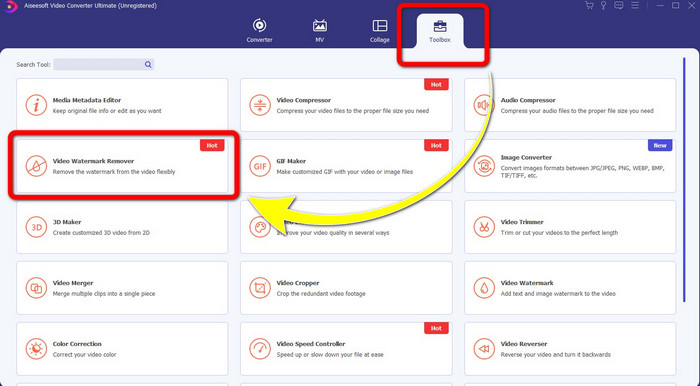
Stap 2: Wanneer de installatie voltooid is, open je de applicatie en ga je naar Toolbox > Video Watermark Remover. Vervolgens verschijnt er een andere interface op je scherm.
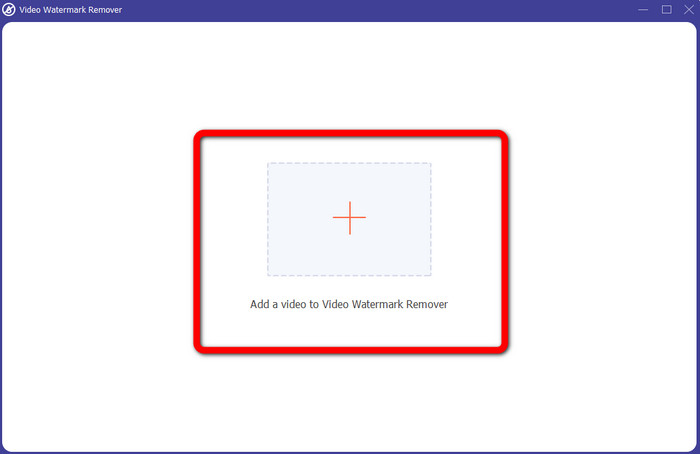
Stap 3: Wanneer de andere interface is verschenen, klik je op de knop met het plusteken en voeg je de video met het watermerk toe.
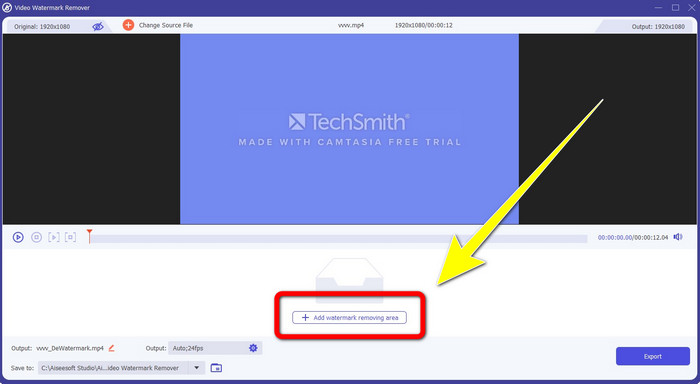
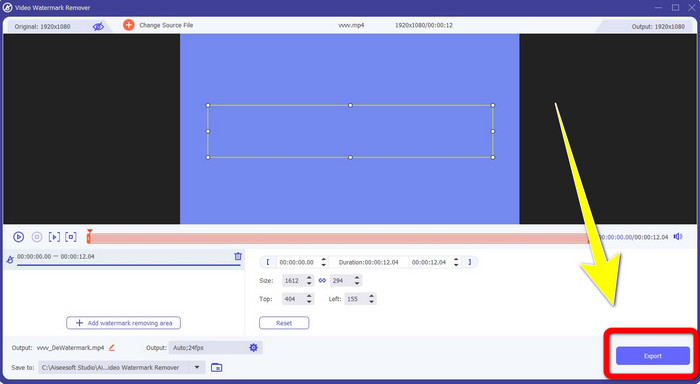
Stap 4: Nadat je je video met een watermerk hebt toegevoegd, klik je op Add Watermark Removing Area.
Stap 5: Er verschijnt een rechthoekig kader op je scherm. Gebruik dit kader om het watermerk in je video af te dekken.
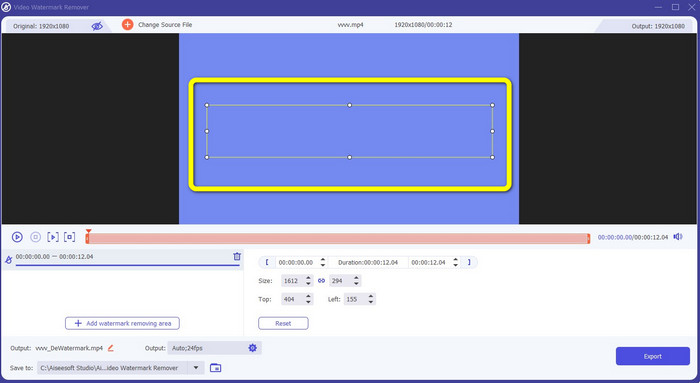
Stap 6: Zodra het watermerk volledig bedekt is, zal het watermerk uit je video verdwijnen. Klik op Export om je video op te slaan. Op deze manier kun je nu de video met een watermerk uit Camtasia verwijderen.
2. De bijsnijdfuncties gebruiken
Een andere manier die je kunt proberen, is de bijsnijdfunctie van Video Converter Ultimate. Dit is een van de eenvoudigste manieren om watermerken uit je video’s te verwijderen, vooral wanneer het watermerk alleen in de hoek of aan de rand van je video’s staat. Door je video’s bij te snijden kun je de onnodige elementen in je video meteen wegwerken. Volg deze eenvoudige stappen om watermerken te verwijderen met behulp van een bijsnijdtool.
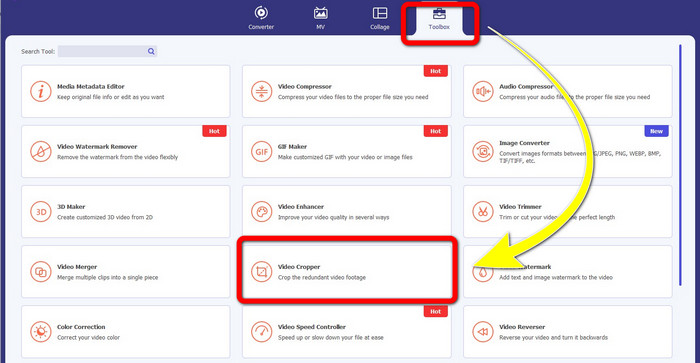
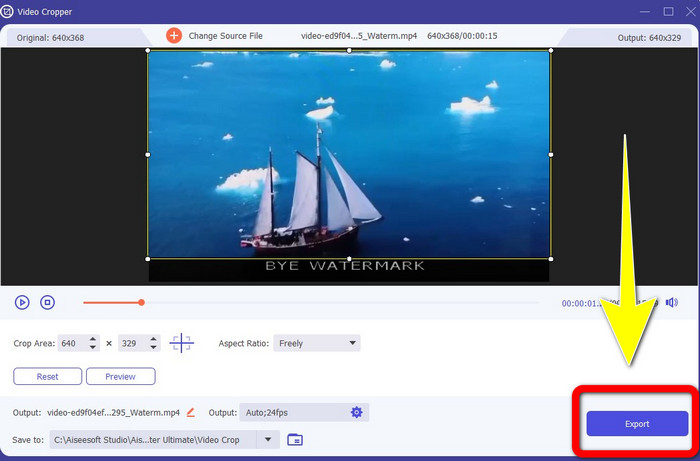
Stap 1: Open Video Converter Ultimate. Klik op Toolbox > Video Cropper. Daarna verschijnt er een andere interface op je scherm.
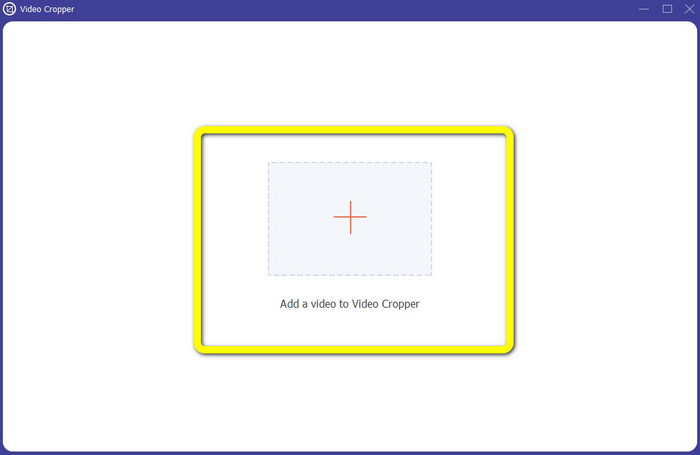
Stap 2: Klik op de knop met het plusteken en voeg de video met het watermerk toe dat je wilt verwijderen.
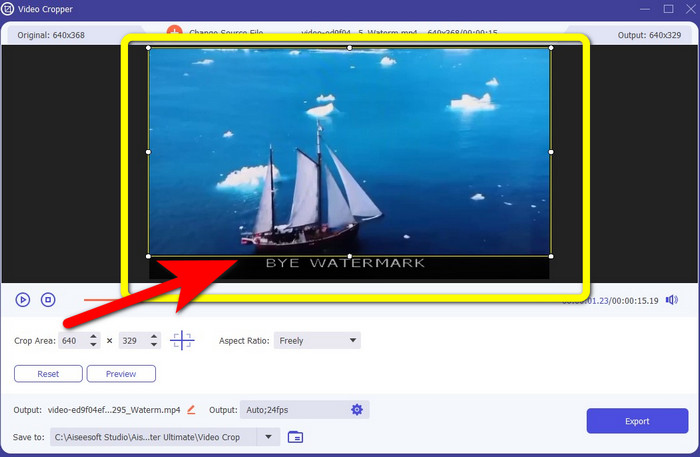
Stap 3: Wanneer je je video met een watermerk hebt toegevoegd, kun je nu de randen bijsnijden van je video tot aan het gebied met het watermerk. Op deze manier kun je de watermerken verwijderen.
Stap 4: Als je je video al hebt bijgesneden en ziet dat het watermerk verdwenen is, klik je op Export om je bewerkte video op te slaan. Nu kun je van je video genieten zonder watermerken op je scherm.
Deel 2: Video's maken in Camtasia zonder watermerk
Wil je leren hoe je een Camtasia‑video zonder watermerken kunt produceren? Laten we eerst definiëren wat Camtasia is. Camtasia is een eenvoudige en handige bewerkingstool die je kunt gebruiken. Bovendien is het ook software voor schermopname. Daarnaast heeft het verschillende bewerkingsfuncties waar je van kunt genieten, zoals annotaties, overgangen, animaties, audio‑effecten, video‑effecten en meer. Ook kun je in deze applicatie een diavoorstelling maken.
Met behulp van deze applicatie kun je je video's aantrekkelijker en unieker maken voor de kijkers. In Camtasia kun je prachtige video's maken waarvan je kunt genieten. Deze applicatie heeft echter een watermerk nadat je je video hebt geëxporteerd, tenzij je de applicatie koopt. Volg deze eenvoudige stappen om veel dingen in deze applicatie te leren, vooral het maken van video's in Camtasia.
Met behulp van deze applicatie kun je je video's aantrekkelijker en unieker maken voor de kijkers. In Camtasia kun je prachtige video's maken waarvan je kunt genieten. Deze applicatie heeft echter een watermerk nadat je je video hebt geëxporteerd, tenzij je de applicatie koopt. Volg deze eenvoudige stappen om veel dingen in deze applicatie te leren, vooral het maken van video's in Camtasia.
Stap 1: Je moet Camtasia downloaden op je Windows‑computer. Klik op de knop Download Free Trial om de applicatie te verkrijgen. Open daarna de applicatie na het installatieproces.
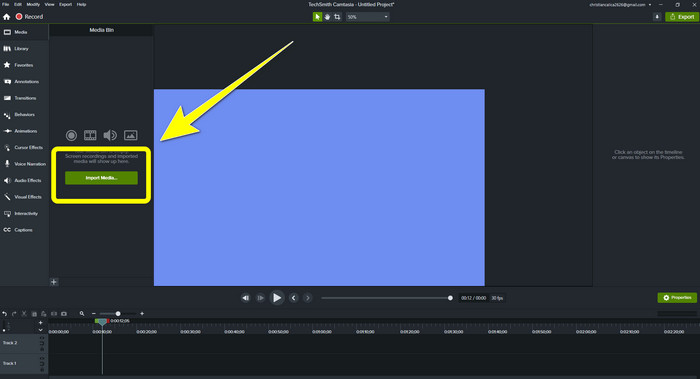
Stap 2: Nadat je de applicatie hebt gestart, klik je op de knop Import Media om het bestand toe te voegen dat je wilt bewerken.
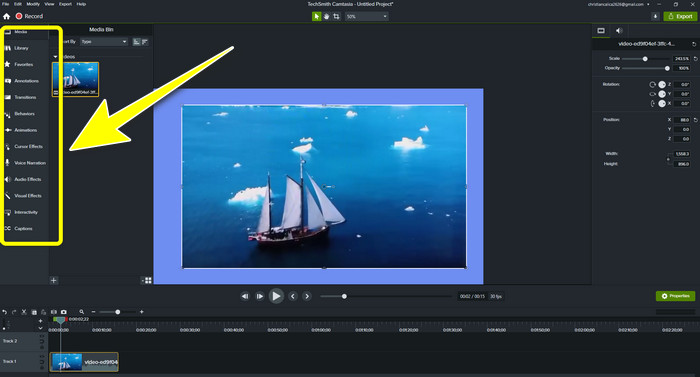
Stap 3: Je kunt je bestanden nu in deze applicatie bewerken met behulp van bewerkingstools, zoals het toevoegen van ondertitels, overgangen, animaties, annotaties, behaviors en meer.
Stap 4: Als je klaar bent en tevreden bent met het bewerken van je video’s, kun je op de knop Export > Local File klikken om je resultaat op te slaan.
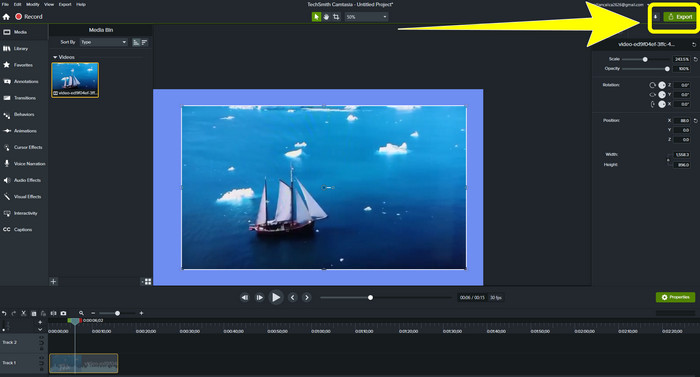
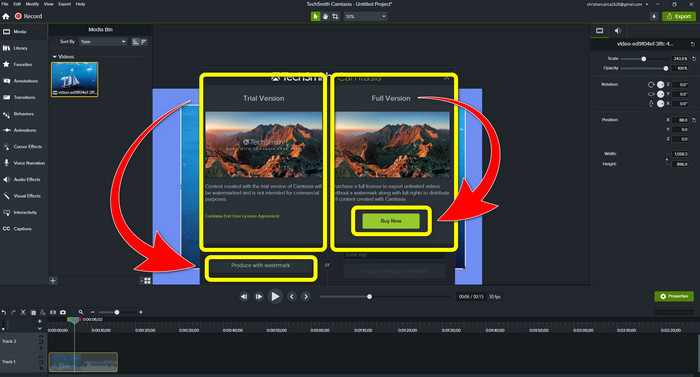
Stap 5: Nadat je op de knop Export > Local File hebt geklikt, verschijnt er een andere interface. Als je de applicatie wilt aanschaffen, klik je op de knop Buy om een video in Camtasia zonder watermerk te produceren. Als je echter alleen de proefversie gebruikt, krijgt je video een watermerk na het exporteren en opslaan.
Gerelateerd aan:
Hoe verwijder je het Filmora-watermerk gratis uit je video’s of projecten
Snelste truc om het Adobe Stock‑watermerk uit een video te verwijderen [ Tutorial ]
Deel 3: Veelgestelde vragen over het verwijderen van watermerken
Is er een uitstekende watermerkverwijderaar die ik op mijn Mac kan gebruiken?
Zeker weten! Je kunt applicaties gebruiken met watermark‑removers zoals Video Converter Ultimate. Deze is in staat watermerken uit je video’s te verwijderen. Bovendien is deze applicatie beschikbaar op zowel Windows als Mac, wat het nog handiger maakt.
Is er een manier om watermerken van foto's te verwijderen?
Absoluut ja! U kunt veel toepassingen op uw apparaat gebruiken om watermerken van foto's te verwijderen. Het beste wat u hoeft te doen, is in uw browsers zoeken naar hulpprogramma's voor het verwijderen van watermerken en zoeken naar de top 10 resultaten op de resultatenpagina.
Kan ik watermerken verwijderen met mijn telefoon?
Ja, dat kan! Sommige toepassingen met watermerkverwijderaars zijn nu toegankelijk op Mac en Windows en mobiele telefoons zoals Android-telefoons en iPhones.
Hoe kan ik watermerken verwijderen met een bijsnijdtool?
Het verwijderen van watermerken op uw foto's of video's met een bijsnijdgereedschap is een fluitje van een cent, vooral als het watermerk zich aan de rand van de afbeelding bevindt. Het enige wat u hoeft te doen is het bij te snijden, het watermerk te verwijderen en u bent klaar.
Gevolgtrekking
Zoals je ziet, laat dit artikel de beste manieren zien om de watermerk uit Camtasia 9 te verwijderen. Ook wordt er een uitstekende en betrouwbare applicatie aangeboden met twee methoden om onnodige objecten uit je video’s te verwijderen. Deze applicatie is Video Converter Ultimate.
-
 5 manieren om een watermerk op een professionele manier uit een video te verwijderen
 Wilt u een watermerk uit een video verwijderen om het er professioneel uit te laten zien? Welnu, lees dit artikel terwijl we een zelfstudie toevoegen over hoe u dit moet doen!
-
 3 van de nieuwste Shutterstock-watermerkverwijderaars die u ooit nodig zult hebben
 Houdt u niet van het Shutterstock-watermerk dat aan de geëxporteerde video is gekoppeld? U kunt een Shutterstock-watermerkverwijderaar gebruiken om het effectief te wissen.
-
 Eenvoudigste methoden voor het verwijderen van watermerk van foto's
 Ben je geïrriteerd door de watermerken op je foto? Maak je geen zorgen! Dit artikel biedt eenvoudige en gemakkelijke methoden om watermerken van uw foto's te verwijderen
