


 Video Converter Ultimate
 Nagrywarka ekranu
 Naprawa wideo
Proces konwersji online i offline: SWF do WMV
SWF is a legacy file format created by Adobe for the Shockwave Flash player. Flash is no longer supported by many browsers, was never supported by iOS devices, and the SWF file format is seldom used these days due to performance and security problems. On the other hand, WMV is a set of video compression codecs created for early internet video streaming and physical media such as HD-DVD and Blu-Ray. Video in this file format is natively viewable on Windows devices, so you may wish to convert SWF files to WMV because Flash players are becoming more unsupported, and you can no longer play SWF files. Hence, we provide you with two options to convert your SWF to WMV.

Część 1. Jak łatwo przekonwertować SWF na WMV w systemach Windows i Mac?
Video Converter Ultimate is a multimedia converter that converts practically all major video and audio files to your desired output format. It can convert video files in batches, making it more potent than it seems. It does not stop at converting; it also enables users to modify their videos with the help of helpful editing tools. Furthermore, this video converter supports various formats, including the most widely used nowadays. More significantly, it converts at a faster rate than comparable software. To use this particular software, follow these simple steps:
Step 1: Click the Free Download button to download the .exe file you will need to install the software. Wait for it to finish, open it, and follow the installation process promptly. Click Start Now and launch the software.
Bezpłatne pobieranieDla Windows 7 lub nowszegoBezpieczne pobieranie
Bezpłatne pobieranieDla MacOS 10.7 lub nowszegoBezpieczne pobieranie
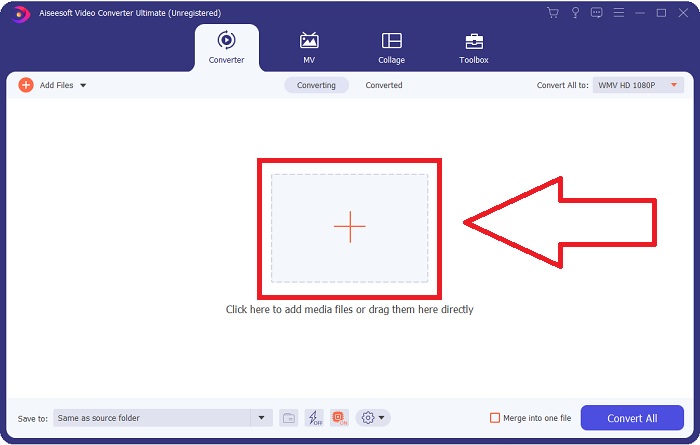
Step 2: Upload the video file you wish to convert by clicking the + button in the middle of the interface. Alternatively, drag the file from your desktop and drop it on the interface, and it will automatically import.
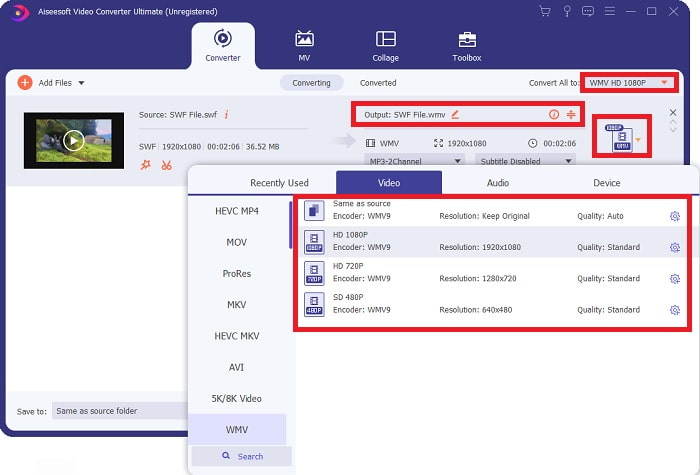
Step 3: Click the drop-down arrow on the right in which you will see the current format your video is in, and it will show you all the available formats to choose. In this case, scroll down and select WMV or just type it in the search bar. All video qualities are also available to choose from on the right panel.
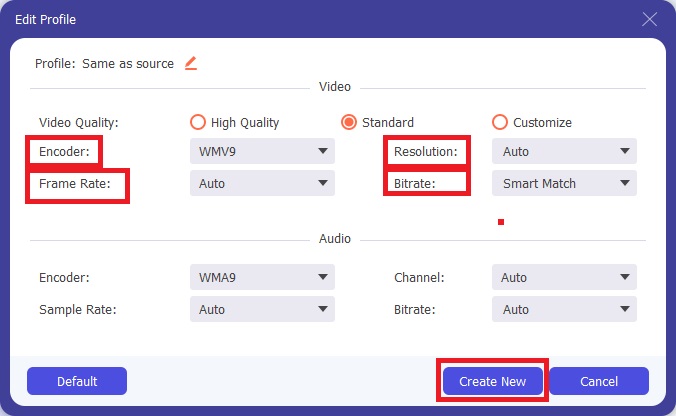
Step 4: To further edit your video, click on the gear icon on the right to show all the handy editing tools. From there, you can make all the necessary adjustments that best suit your needs. Just click the Create New button once you are finished.
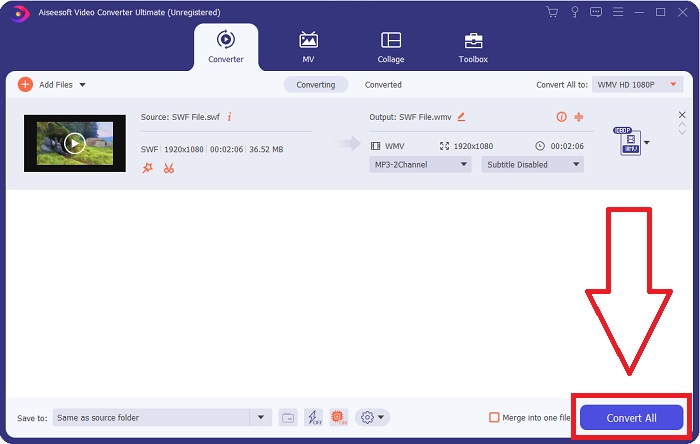
Step 5: Finish the conversion process by finally clicking the Convert All button on the window's bottom right corner and waiting for it to finish.
Część 2. Kolejna wskazówka dotycząca konwersji SWF na WMV Online
FVC Free Video Converter jest zawsze darmowy i nie wymaga rejestracji. Niektóre bezpłatne konwertery wideo online ograniczają ramy czasowe konwersji lub rozmiar pliku. Jeśli wykorzystałeś wszystkie darmowe czasy konwersji lub plik jest zbyt duży, musisz kupić plan, nawet jeśli rzadko konwertujesz filmy. Ale FVC Free Video Converter nie ma takich ograniczeń i może konwertować filmy w dowolnym momencie.
Co więcej, ta usługa nie wymaga rejestracji, aby konwertować większe pliki, w przeciwieństwie do większości konwerterów wideo online wymaga rejestracji, aby konwertować filmy większe niż 1 GB. Oto kroki, które musisz wykonać, aby uzyskać to fantastyczne narzędzie:
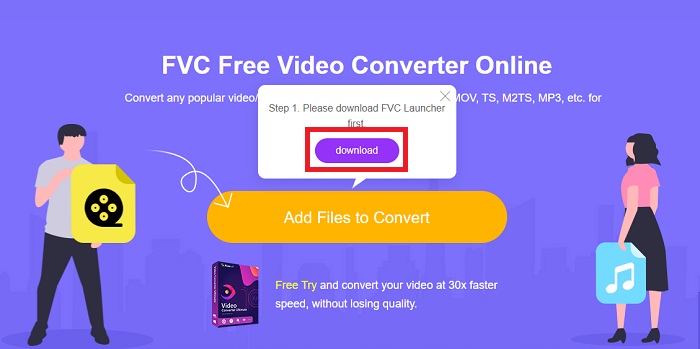
Step 1: To go to the website, click this link. Then, download the launcher quickly by clicking the Add Files to Convert button and waiting for it to finish.
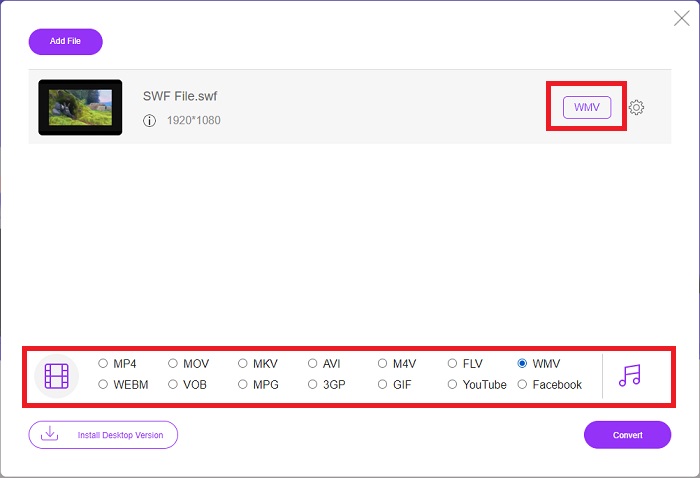
Step 2: Click the said button again, and this time, it will allow you to upload the video file you wish to convert. After that, select WMV among all the available formats.
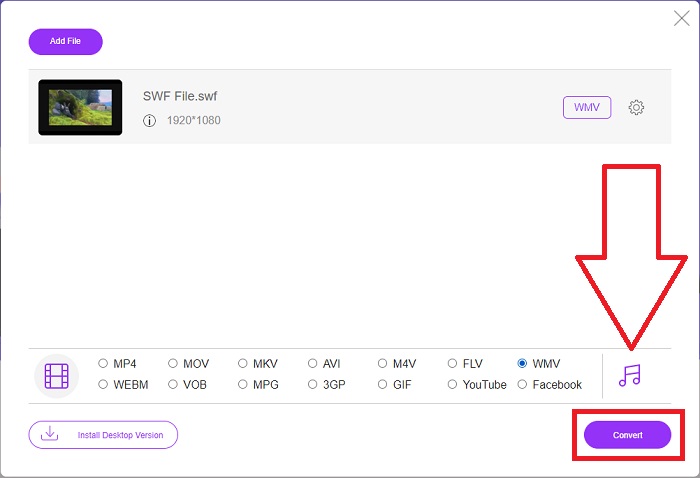
Step 3: You can still use handy editing tools like the software itself. Just click the gear icon, and it will show you all the adjustments you can make. To save the changes made, click OK and once you finish adjusting, click Convert to start the process.
Powiązane:
Część 3. Szeroka wiedza na temat formatów SWF i WMV
Jeśli chcesz dowiedzieć się więcej o tych dwóch formatach, czytaj dalej ten artykuł. Zapewniamy wszystkie niezbędne i niezbędne informacje, których możesz potrzebować jako tło.
Firma Adobe używa formatu pliku SWF do przechowywania filmów i animacji wektorowych. Small Web Format to skrót; jednak jest również znany jako format ShockWave. Jest zwykle używany do transmisji wideo przez Internet, zwłaszcza w grach przeglądarkowych. Niestety, Adobe oświadczył, że przestanie wspierać format Flash do końca 2020 roku ze względu na problemy z wydajnością i bezpieczeństwem.
Z drugiej strony plik WMV to plik Windows Media Video, który można skompresować przy użyciu jednego lub więcej formatów kompresji wideo firmy Microsoft. Jest to popularny format przechowywania wideo w systemie Windows, dlatego jest używany przez niektóre aplikacje innych firm do takich rzeczy, jak krótkie animacje. Został zaprojektowany do współpracy z odtwarzaczami multimedialnymi firmy Microsoft, takimi jak Windows Media Player oraz Filmy i TV. Do użytku z systemami zarządzania prawami cyfrowymi (DRM) pliki WMV mogą być szyfrowane.
| Mały format internetowy | Windows Media Wideo | |
| Rozszerzenie pliku | .swf | .wmv |
| Deweloper | Zawiera oprogramowanie Adobe | Microsoft |
| Programy wspierające | ◆Adobe Flash Player Adobe Flash ◆ Profesjonalny CC ◆GOM Player ◆ Adobe Dreamweaver 2020 | ◆ Odtwarzacz multimedialny VLC ◆ MPlayer ◆ Klasyczny odtwarzacz multimedialny ◆ Windows Media Player |
Część 4. Często zadawane pytania dotyczące konwersji SWF i WMV
Jaki jest pożytek z plików WMV?
Pliki wideo WMV to najlepszy format do sprzedaży materiałów wideo online lub za pośrednictwem dysków HD DVD i Blu-ray.
Jaki jest pożytek z pliku SWF?
Pliki Flash lub SWF są często wykorzystywane do wydajnej dystrybucji informacji multimedialnych przez Internet.
Czy można edytować pliki SWF?
Adobe Flash to format pliku używany przez firmę Adobe. W przeciwieństwie do innych plików multimedialnych, plik SWF wymaga wtyczki Flash Player do przeglądania przeglądarki internetowej. Ponadto użytkownicy nie mogą bezpośrednio edytować plików SWF.
Wniosek
FVC Video Converter Ultimate to idealna opcja dla Ciebie, jeśli jesteś nowicjuszem lub po prostu amatorem, jeśli chodzi o konwersję wideo. Nie często konwertujesz formaty wideo. Jego zalety, takie jak stała konwersja formatu wideo, szybka konwersja plików wideo w porównaniu do porównywalnych programów, prosta obsługa, obsługa różnych formatów itd., pomagają mu stać się najlepszym konwerterem wideo. Jeśli chodzi o konwersję wideo, Video Converter Ultimate i jego odpowiednik online są najbardziej akceptowalnymi opcjami.
-
 [Rozwiązania 2] Jak łatwo za darmo przekonwertować pliki SWF na GIF
 Jeśli nie uda się wyeksportować formatu GIF za pomocą oprogramowania Flash, możesz najpierw spróbować zapisać pliki w formacie SWF. Następnie możesz nauczyć się 2 prostych sposobów konwersji plików SWF na GIF z tego artykułu.
-
 Top of the Line 5 Najlepsze darmowe konwertery SWF na AVI [Web & Desktop Based]
 Czy chcesz wiedzieć, jak przekonwertować plik SWF na AVI? Więc jeśli nie, przeczytaj ten artykuł, ponieważ zapewniamy rozwiązanie problemu konwersji SWF.
-
 [Bezpłatne i łatwe] Wyjątkowe narzędzia do konwersji SWF na MOV
 Czy próbowałeś przekonwertować SWF na MOV, ponieważ nie możesz edytować filmów? Kto jest winien niezgodności edytora wideo #039? Kontynuuj czytanie, aby znaleźć swoje rozwiązanie.
