


 Video Converter Ultimate
 Nagrywarka ekranu
 Naprawa wideo
Jak przekonwertować nagranie Zoom na MP4 na komputerach z systemem Windows i Mac
Zoom to platforma umożliwiająca połączenia wideo, takie jak spotkania i zajęcia online. Zazwyczaj zapisuje nagrania w formacie odtwarzanym na większości urządzeń, np. MP4. Jeśli jednak przypadkowo zbyt wcześnie zatrzymasz nagrywanie, plik może utknąć w oryginalnym formacie platformy, czyli .zoom, którego nie da się od razu otworzyć. Dzieje się tak dlatego, że Zoom nie miał szansy automatycznie przekonwertować pliku na MP4. Jeśli przydarzy ci się taka sytuacja, musisz przekonwertować plik Zoom na MP4 w ramach platformy lub poza nią. Na szczęście istnieje kilka sposobów, aby doprowadzić proces konwersji Zoom do końca. Pokażemy ci krok po kroku, jak to zrobić w samym programie Zoom oraz za pomocą specjalnego narzędzia dołączonego do Zoom. Jeśli to nie zadziała, wymieniliśmy też inne narzędzie, z którego możesz skorzystać. Przejdźmy więc od razu do treści!

Część 1. Czy nagrania Zoom są w formacie MP4
Przede wszystkim Zoom tworzy nagrania w formacie MP4, co jest jego domyślną konfiguracją. Nie stanie się to jednak w jednej chwili. Mamy na myśli to, że podczas nagrywania surowy materiał nie jest jeszcze w formacie MP4, w jakim myślisz. W rzeczywistości, jak wspomniano powyżej, materiał filmowy z tego procesu jest nadal w formacie .zoom, który jest zastrzeżonym formatem platformy i zostanie przekształcony w MP4 dopiero po zakończeniu nagrywania i konwersji. Jest to szczególnie prawdziwe, gdy przypadkowo zatrzymasz nagrania.
Część 2. 3 sposoby konwersji nagrania Zoom na MP4 za pomocą Zoom
Przejdźmy teraz do skutecznych narzędzi, które pomogą Ci przekonwertować nagrania Zoom do MP4, jeśli nie masz ich na platformie.
1. Klient Zoom (komputer stacjonarny)
Czy wiesz, że Zoom śledzi wszystkie Twoje nagrania w aplikacji klienta na komputery stacjonarne? Nie tylko możesz łatwo uzyskać dostęp do swoich nagrań, ale Zoom zapewnia także wbudowany konwerter. Zapewni to kompatybilność odtwarzania na większości urządzeń. Jeśli więc nie masz pewności, jak z niego korzystać, poniżej znajduje się szczegółowy opis znajdowania i konwertowania nagrań Zoom do formatu MP4.
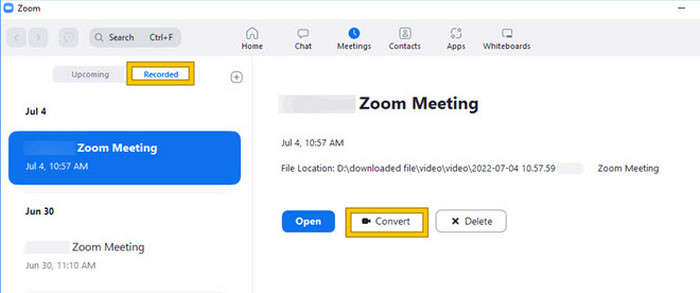
Krok 1. Uruchom Zoom na komputerze i od razu przejdź do sekcji Meetings, aby otworzyć historię spotkań.
Krok 2. Po otwarciu zobaczysz listę swoich nagranych spotkań. Znajdź nagranie, które chcesz przekonwertować, i kliknij, aby je zaznaczyć.
Krok 3. Po zaznaczeniu po prawej stronie ekranu pojawi się panel z opcjami. Kliknij przycisk Convert i poczekaj na końcowy wynik w formacie MP4.
2. Transkodowanie (macOS)
Jeśli jesteś użytkownikiem komputera Mac i automatyczna konwersja nagrania Zoom do formatu MP4 nie powiedzie się, oto przydatne narzędzie o nazwie Transcode, które może Ci pomóc. To narzędzie umożliwia ręczną konwersję plików .zoom na pliki MP4, które mogą nie być odtwarzane poprawnie z powodu nieudanej automatycznej konwersji. Zasadniczo Transcode zapewnia ręczne rozwiązanie dla użytkowników komputerów Mac, aby zapewnić dostępność i użyteczność ich nagrań Zoom, gdy automatyczny proces nie działa zgodnie z oczekiwaniami.
Krok 1. Zlokalizuj swój plik .zoom, kliknij go dwukrotnie i wybierz opcję Choose Application z wyświetlonego komunikatu. Następnie otwórz plik w aplikacji Transcode, którą możesz też ustawić jako domyślną do otwierania tych plików.
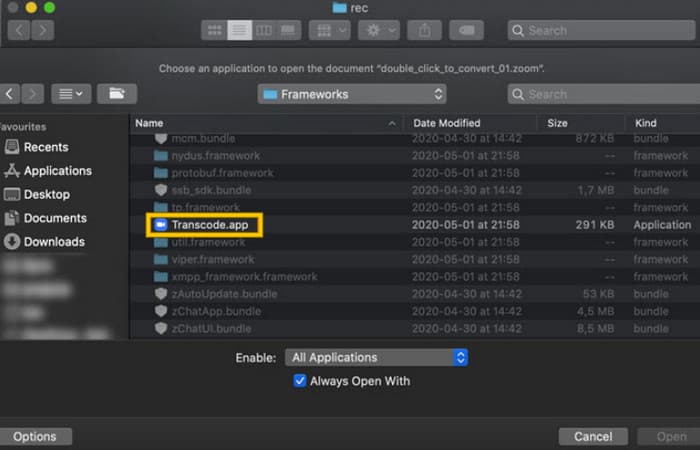
Krok 2. Zaraz po wybraniu aplikacji proces konwersji rozpocznie się automatycznie.
Krok 3. Gdy konwersja dobiegnie końca, wybierz preferowany folder, w którym chcesz zapisać wynikowy plik.
3. zTscoder (komputer stacjonarny)
Jeśli chcesz mieć narzędzie podobne do poprzedniego na swoim komputerze, polecamy zTscoder. zTscoder to wersja Transcode dla systemu Windows, z której korzystają użytkownicy komputerów Mac w podobnych sytuacjach. Obydwa narzędzia umożliwiają ręczną konwersję plików Zoom do standardowego formatu MP4, który może nie być odtwarzany poprawnie. Dlatego też, jeśli stoisz teraz przodem do pulpitu, wykonaj poniższe czynności.
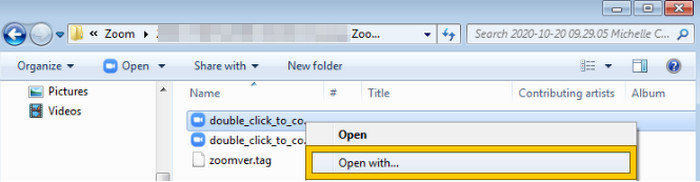
Krok 1. Znajdź folder, w którym zapisywane są nagrania Zoom, i wybierz to, które musisz przekonwertować. Kliknij plik prawym przyciskiem myszy i otwórz go za pomocą zTscoder.
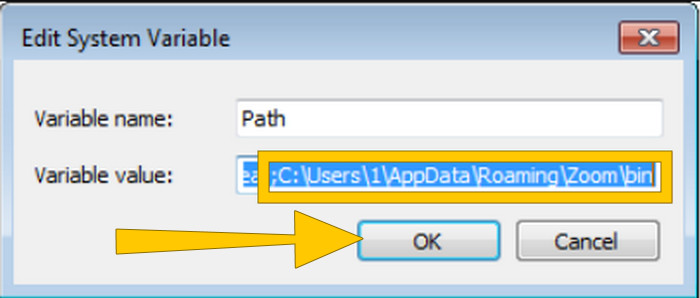
Krok 2. Jeśli narzędzie nie reaguje, przejdź do Panelu sterowania, wejdź w System i zabezpieczenia > System, a następnie otwórz Zaawansowane ustawienia systemu. Tam dodaj ścieżkę C:\Users\*twoja nazwa użytkownika*\AppData\Roaming\Zoom\bin do wartości zmiennej, po czym kliknij OK.
Krok 3. Gdy plik zostanie ustawiony do otwarcia tym narzędziem, proces konwersji uruchomi się automatycznie.
Część 3. Nagrywaj spotkania Zoom w formacie MP4 w jakości do 4K
Szukasz dobrego sposobu, aby twoje spotkania Zoom od razu były w MP4? Nagraj je za pomocą FVC Screen Recorder! Ten rejestrator oferuje wszechstronne rozwiązanie, które wykracza poza same spotkania Zoom. Umożliwia nagrywanie zajęć online, konferencji, samouczków lub czegokolwiek, co wyświetlasz na ekranie Zoom. Co więcej, masz możliwość nagrywania całego ekranu lub tylko wybranego okna, ponieważ narzędzie oferuje odpowiednie ustawienia. Może również przechwytywać dźwięk z mikrofonu, audio systemowe, a nawet obraz z kamery internetowej, o ile wcześniej skonfigurujesz ustawienia. Oprogramowanie jest kompatybilne zarówno z komputerami Mac, jak i Windows i pozwala zapisywać nagrania w wysokiej jakości, nawet do rozdzielczości 4K. Kolejnym godnym uwagi powodem, by polubić FVC, jest to, że oferuje narzędzia do adnotacji, dzięki którym możesz podkreślać kluczowe punkty podczas nagrywania. Tymczasem poniżej znajdziesz sposób, jak przekonwertować nagrania Zoom na MP4.
Krok 1. Zainstaluj rejestrator na swoim komputerze. Możesz skorzystać z przycisku Download poniżej. W trakcie instalacji otwórz spotkanie Zoom, które chcesz nagrać do MP4.
Darmowe pobieranieDla Windows 7 lub nowszegoBezpieczne pobieranie
Darmowe pobieranieDla macOS 10.7 lub nowszegoBezpieczne pobieranie
Krok 2. Uruchom konwerter i kliknij narzędzie Video Recorder. Następnie ustaw obszar nagrywania tak, aby obejmował cały interfejs spotkania Zoom. W razie potrzeby możesz także ustawić dźwięk System oraz Microphone.
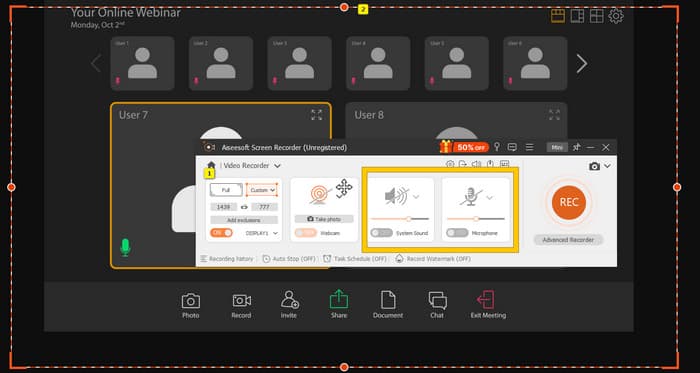
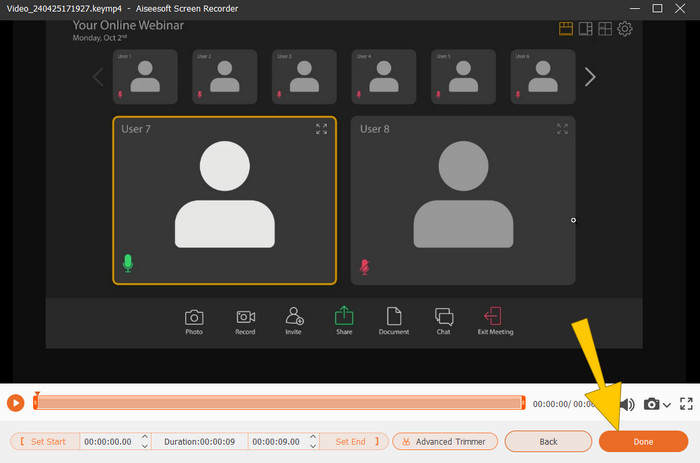
Krok 3. Następnie kliknij przycisk REC, aby rozpocząć nagrywanie. Gdy spotkanie się zakończy, kliknij przycisk Stop na pływającym pasku. Potem wprowadź drobne poprawki w nowym oknie. W przeciwnym razie kliknij przycisk DONE, aby przejść do zapisu nagrania.
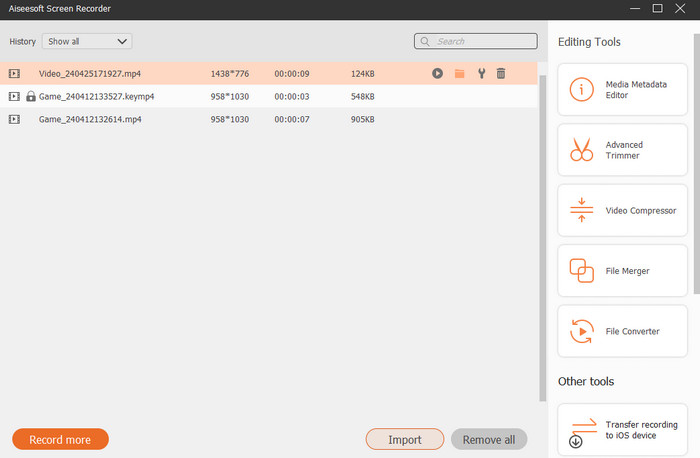
Krok 4. Aby uzyskać więcej opcji edycji, narzędzie przeniesie cię do swojej biblioteki, w której zobaczysz listę nagrań. Znajdziesz tam również dostępne narzędzia edycyjne.
Dalsza lektura:
6 niesamowitych narzędzi do nagrywania MP4 w 2024 roku [darmowe i płatne]
Top 5 rejestratorów spotkań Zoom do nagrywania spotkań na Zoom [2024]
Część 4. Często zadawane pytania dotyczące konwersji nagrań Zoom
Czy nagrania Zoom są MP4?
Tak. Jednakże nagrania mogą nie być w formacie MP4, jeśli zostały przypadkowo zatrzymane.
Czy istnieje ograniczenie czasu trwania nagrań, które mogę przekonwertować do formatu MP4?
To zależy. Bezpłatne konta mogą mieć ograniczenia dotyczące przestrzeni dyskowej i opcji konwersji, podczas gdy płatne plany zazwyczaj oferują większą elastyczność i wyższe limity.
Jak mogę przekonwertować nagranie Zoom na MP4?
Możesz przekonwertować nagranie Zoom na MP4 za pomocą klienta Zoom, ponieważ ma on wbudowaną funkcję konwersji. Po otwarciu nagrania wystarczy kliknąć przycisk Konwertuj.
Wniosek
Domyślnie spotkania Zoom są zapisywane w formacie MP4, ale jeśli nagrania nie zostaną poprawnie zapisane, nadal musisz przekonwertować nagrania Zoom na MP4. Dobrze, że w tym artykule przedstawiono skuteczne sposoby wykonania tej konwersji. Mamy nadzieję, że okazał się pomocny.
-
 7 wspaniałych dyktafonów dostępnych na wszystkich platformach
 Chcesz nauczyć się nagrywać dźwięk? Następnie przejdź do tego artykułu, ponieważ mówimy o najlepszym rejestratorze dźwięku, który może pasować do Twoich potrzeb.
-
 Recenzja CamStudio 2025: Zalety i wady korzystania z CamStudio
 CamStudio to fantastyczny darmowy program do przechwytywania ekranu typu open source do nagrywania zawartości ekranu. Czy rejestrator ekranu CamStudio jest bezpieczny? Cóż, ta recenzja pomoże Ci odkryć wszystkie funkcje CamStudio.
-
 Możliwe sposoby nagrywania dźwięku za pomocą odtwarzacza VLC
 Poznaj najlepsze sposoby nagrywania dźwięku za pomocą odtwarzacza VLC i innych praktycznych narzędzi, czytając ten artykuł.
