


 Video Converter Ultimate
 Nagrywarka ekranu
 Naprawa wideo
4 najłatwiejsze metody zmiany rozdzielczości wideo za pomocą kompleksowych kroków
Istnieje wiele powodów, dla których możesz potrzebować zmienić rozdzielczość wideo. Jednym z nich może być chęć zaoszczędzenia miejsca zajmowanego przez plik. Niezależnie od powodu, ten poradnik pokaże ci cztery metody obniżenia jakości wideo lub podniesienia jej do wysokiego poziomu. Bez dalszej zwłoki przyjrzyjmy się konwerterom rozdzielczości wideo, których możesz użyć, aby zmienić rozdzielczość swojego nagrania.

Część 1. Pierwsza metoda: najlepsze narzędzie pulpitu do zmiany rozdzielczości wideo w systemie Windows i macOS
Video Converter Ultimate to najlepsze narzędzie do tego zadania, ponieważ pozwala nie tylko konwertować format pliku, ale także zmieniać jakość wideo w zaledwie kilka kliknięć. Program obsługuje ultraszybki proces konwersji, dzięki czemu z łatwością zmienisz jakość nagrania na najwyższą lub standardową rozdzielczość wideo. Czyż nie przyjemnie korzysta się z takiego oprogramowania? Chcesz wiedzieć więcej? To narzędzie jest dostępne zarówno na komputery stacjonarne z systemem Windows, jak i na Maca. Funkcje dostępne w wersji na Windows są dostępne także na Macu i odwrotnie. Wiemy, że to oprogramowanie oferuje coś wyjątkowego, dlatego dodaliśmy je do tej listy. Jeśli chcesz teraz skorzystać z instrukcji krok po kroku, możesz postępować według poniższego poradnika, aby dowiedzieć się, jak skutecznie zmienić rozdzielczość wideo.
Krok 1. Kliknij odpowiedni przycisk, aby pobrać program na dysk. Otwórz pobrany plik i postępuj zgodnie z procesem instalacji wyświetlanym na ekranie. Po pomyślnym zakończeniu instalacji uruchom konwerter rozdzielczości wideo i przejdź do kolejnych kroków.
Bezpłatne pobieranieDla Windows 7 lub nowszegoBezpieczne pobieranie
Bezpłatne pobieranieDla MacOS 10.7 lub nowszegoBezpieczne pobieranie
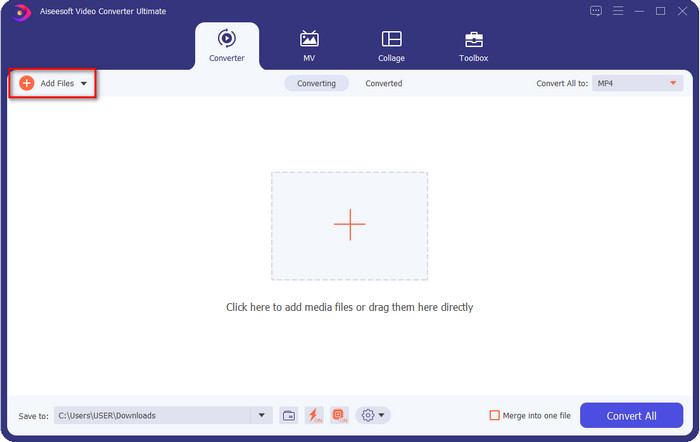
Krok 2. Aby wczytać plik wideo, w którym chcesz zmienić rozdzielczość, kliknij przycisk Add File. W wyświetlonym oknie eksploratora znajdź plik na komputerze, kliknij go, a następnie wybierz Open.
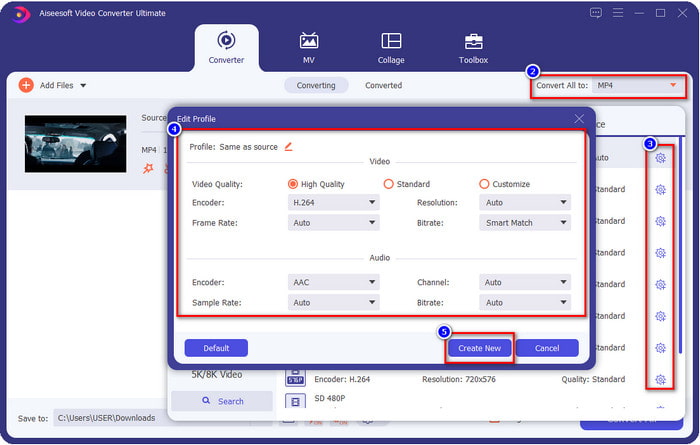
Krok 3. Spójrz w prawy górny róg głównego interfejsu i kliknij przycisk rozwijanej listy. Wybierz format wideo, który chcesz uzyskać – dostępne są m.in. MP4, MOV, AVI, MKV, FLV i ponad 200 innych formatów. Po wyborze formatu kliknij przycisk widget, aby edytować profil formatu. Tutaj możesz podnieść lub obniżyć rozdzielczość, zmienić koder, jakość, bitrate i więcej, aby zwiększyć rozdzielczość wideo lub pozostawić ją bez zmian. Aby zapisać modyfikacje, kliknij Create New.
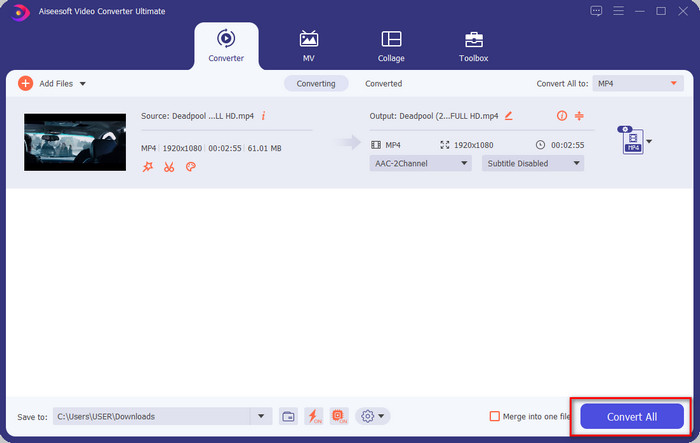
Krok 4. Na koniec kliknij Convert All, aby rozpocząć konwersję rozdzielczości. W ten sposób zmieniłeś już rozdzielczość wideo z pomocą programu Video Converter Ultimate.
Część 2. Druga metoda: prosta i bezpłatna metoda zmiany rozdzielczości wideo online
Chcesz zmienić rozdzielczość wideo online? W takim razie powinieneś skorzystać z darmowej wersji tego narzędzia dostępnej w przeglądarce – FVC Free Video Converter Online. To narzędzie umożliwia swobodną zmianę rozdzielczości twojego filmu. Jest to aplikacja internetowa, więc do działania wymaga połączenia z siecią. Dodatkowo nie obsługuje wszystkich formatów wideo, dlatego istnieją pewne ograniczenia dotyczące typów plików, które można dodać. Teraz wypróbujmy to narzędzie do zmiany rozdzielczości, postępując według poniższych kroków.
Krok 1. Aby otworzyć internetowy konwerter rozdzielczości wideo, kliknij ten link, aby przejść bezpośrednio do narzędzia.
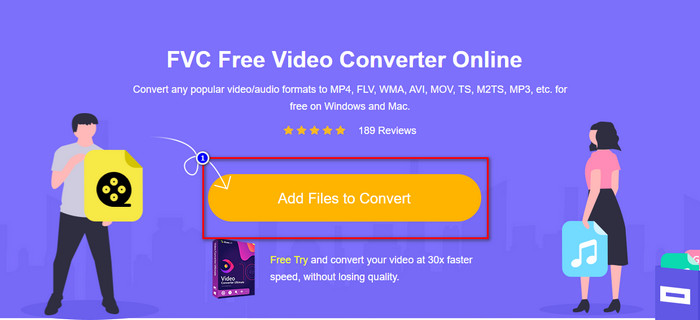
Krok 2. Naciśnij Add Files to Convert, aby przy pierwszym użyciu pobrać launcher, a następnie kliknij ten przycisk ponownie po zainstalowaniu instalatora. Po kliknięciu pojawi się okno folderu – znajdź w nim plik wideo i kliknij Open.
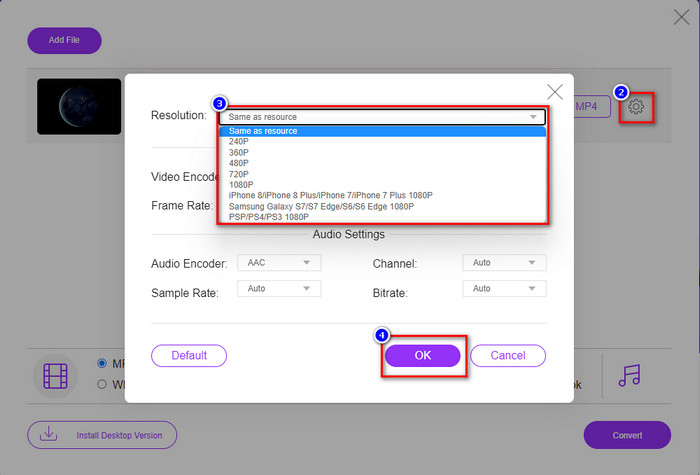
Krok 3. Kliknij przycisk gear, aby otworzyć nowe okno, w którym zmienisz rozdzielczość wideo. Na górze nowego okna kliknij Resolution, wybierz żądaną rozdzielczość i kliknij OK, aby ją zapisać.
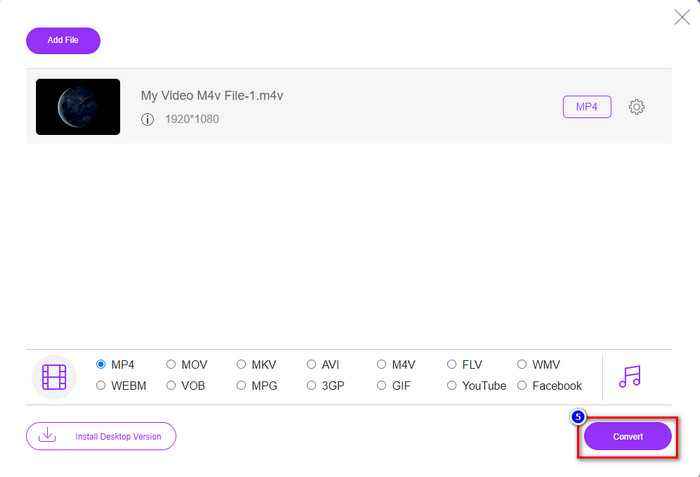
Krok 4. Wybierz format z listy ustawień i kliknij Convert, aby rozpocząć proces zmiany rozdzielczości.
Powiązane:
Część 3. Trzecia metoda: mobilny sposób zmiany rozdzielczości wideo na iPhonie i Androidzie
Te metody nie mogą przekonwertować rozdzielczości wideo, ale możesz nagrać wideo o niższej lub wyższej rozdzielczości. Ponadto zobaczmy, jak możemy zmienić rozdzielczość wideo podczas filmowania.
1. Wbudowana rozdzielczość wideo iPhone'a
Jeśli jesteś użytkownikiem iOS, możesz zmienić rozdzielczość wideo, którą robisz, jeśli chcesz. Jednak nie możesz go znaleźć w aparacie, więc jeśli nie możesz go znaleźć, możesz wykonać poniższe czynności, aby dowiedzieć się, jak zmienić rozdzielczość wideo na iPhonie przed nagraniem wideo.
Te kroki zostały zaczerpnięte z modelu iPhone X, więc kroki mogą nieznacznie różnić się od innych wersji nazwy lub funkcji podobnych do iPhone'a.
Krok 1. Otwórz Ustawienia na swoim iPhonie.
Krok 2. W Ustawieniach znajdź pozycję Aparat i dotknij jej.
Krok 3. Kliknij Nagrywaj wideo i wybierz rozdzielczość, w jakiej chcesz nagrywać. Wróć na ekran główny, uruchom Aparat i nagraj wideo w rozdzielczości ustawionej przed chwilą w Ustawieniach.
2. Wbudowana rozdzielczość wideo Androida
Użytkownicy Androida mogą uzyskać bezpośredni dostęp do rozdzielczości wideo w aparacie. Podane przez nas kroki nie są tak skomplikowane, jak w przypadku iPhone'a, ponieważ nie trzeba konfigurować ustawień. Więc teraz, aby zmienić rozdzielczość wideo na Androida, postępuj zgodnie z poniższymi instrukcjami.
Te kroki pochodzą z Redmi 10, więc kroki mogą być nieco inne w przypadku niektórych innych urządzeń z Androidem, takich jak nazwa lub funkcjonalność.
Krok 1. Na swoim telefonie dotknij ikony Aparat, aby go otworzyć.
Krok 2. Po otwarciu przejdź do trybu Wideo, kliknij ikonę trzech równoległych linii i wybierz żądaną rozdzielczość nagrania.
Krok 3. Naciśnij czerwony przycisk, aby rozpocząć nagrywanie wideo w ustawionej rozdzielczości.
Część 4. Często zadawane pytania dotyczące zmiany rozdzielczości wideo
Jaka jest rozdzielczość wideo?
Liczba pikseli zawartych na klatkę jest tym, co nazywamy rozdzielczością wideo. Kontroluje również szczegóły, które można zobaczyć w pojedynczym filmie, na przykład to, jak wyraźniejszy może być obraz. Ponadto istnieją różne odmiany rozdzielczości wideo; Nazywamy wyższą rozdzielczością, zaczynając od HD i wyższej, która wykorzystuje więcej klatek na sekundę. Podczas gdy niższa rozdzielczość zaczyna się od SD i niżej, ta rozdzielczość wideo ma mniejszą przepustowość niż wyższa rozdzielczość, ale ma mniejszą jakość klatek na sekundę.
Czy 1080 to najlepsza rozdzielczość wideo?
Tworzy jednego z najczęściej wybieranych użytkowników rozdzielczości wideo, najczęściej wybieranych na Youtube i innych aplikacjach do przesyłania strumieniowego wideo. Ale nie zawsze jest to najlepszy wybór do oglądania wideo w wysokiej jakości, ponieważ buforowanie wideo może zająć więcej czasu niż 720. Dlatego następnym razem, gdy będziesz oglądać wideo online, wolimy użyć 720 niż 1080 do załadowania wideo znacznie szybsze i nie ma znaczącej zmiany w obu jakościach, jeśli ją zmienisz.
Czy zmniejszenie rozdzielczości wpływa na jakość?
Tak, nastąpi zmiana po obniżeniu jakości wideo. Na przykład, jeśli Twój film jest w HD, zmienisz go na SD, jakość drastycznie się zmieni. Tak więc, jeśli zmienisz rozdzielczość wideo, zobaczysz nagłą zmianę, ale nadal można ją oglądać nawet po tym.
Wniosek
W końcu możemy teraz zmienić rozdzielczość wideo zgodnie z naszymi potrzebami. Chociaż możesz użyć wielu różnych narzędzi do zmiany jakości wideo, nadal oferujemy najbezpieczniejsze i najlepsze narzędzia online, offline i wbudowane. Mamy nadzieję, że ten artykuł pomoże ci zmienić rozdzielczość; jeśli masz więcej pytań, możesz zostawić komentarz poniżej, a my odpowiemy na Twoje komentarze.
-
 Recenzja oprogramowania 10 najlepszych konwerterów wideo HD (bezpłatne i komercyjne)
 Przeczytaj i porównaj, aby uzyskać najlepsze oprogramowanie do konwersji wideo HD z 10 rekomendacji. Oto szczegółowe recenzje każdego konwertera wideo HD na wiele platform.
-
 Wskazówki dotyczące konwersji M4A do WAV [PC i Mac]
 Dowiedz się więcej o tym, jak przekonwertować M4A na WAV ze szczegółowymi krokami i różnymi narzędziami, z których możesz wybierać.
-
 Doskonały wybór do konwersji MKV do formatu AVI
 Opanuj, jak konwertować filmy MKV za pomocą prostych kroków dostarczonych wyłącznie dla Ciebie. Chcesz wiedzieć jak? Następnie kliknij ten link, aby dowiedzieć się więcej.
