


 Video Converter Ultimate
 Nagrywarka ekranu
 Naprawa wideo
Jak dodać powolny i przyspieszony ruch do wideo w systemie Windows i Mac?
Stosując wideo w zwolnionym i przyspieszonym tempie, możesz z łatwością stworzyć iluzję, która sprawi, że Twój film będzie wyglądał świeżo i inaczej w oczach widza. Nawet jeśli używasz smartfona lub lustrzanki, możesz szybko nagrywać wideo w różnych prędkościach zgodnie ze swoimi preferencjami, ale nie wszystkie urządzenia oferują edytor, który pozwala szybko zmieniać tempo odtwarzania. Ze względu na efekt, jaki to na nas wywiera, zapotrzebowanie na narzędzia do zmiany prędkości natychmiast gwałtownie wzrosło. Tylko które z nich wybrać? Aby dowiedzieć się, jaki jest nasz najlepszy typ, musisz czytać dalej, ponieważ dalej wyjaśniamy dwa rodzaje ruchu, które chcesz uzyskać.

Część 1. Który jest najlepszy | Szybki ruch a zwolnione tempo
Po nagraniu filmu dostępne są trzy rodzaje ruchów: normalne, szybkie i wolne. Przez większość czasu zmieniamy prędkość odtwarzania na żądaną, ponieważ z jakiegoś powodu. Nie będziemy jednak omawiać powodów, dla których używamy efektu szybkiego zwolnionego tempa w filmie. Poniższe informacje pozwolą ci zerknąć, co sprawia, że efekty różnią się od siebie i ich zastosowanie.
| Szybki ruch | VS. | Zwolnione tempo |
| Ze względu na szybki ruch czas trwania wideo, jeśli jest ustawiony na tę prędkość, jest naturalnie krótki, ponieważ jest odtwarzany szybko. | Czas trwania wideo | W przeciwieństwie do tego, gdy zmienisz naturalną prędkość wideo na spowolnienie, czas trwania wideo jest dłuższy, ponieważ jest w stanie zwolnionym. |
| W przyspieszonym tempie FPS projekcji jest znacznie wyższy niż FPS przechwytywania. W przeciwieństwie do normalnego ruchu, prędkość, jaką zapewnia, jest równa zarówno projekcji, jak i przechwytywaniu FPS. | FPS wideo | Chociaż obsługuje wyższy FPS przechwytywania niż przyspieszenie, widzimy, że FPS projekcji jest niższy, ponieważ jest poświęcany po spowolnieniu. |
| Większość kinematografii wykorzystuje większą prędkość ruchu niż zwolnione tempo, ponieważ doskonale nadaje się do wymaganej akcji na akcję. I oszczędza nam czas, gdy oglądamy film lub film w tym ruchu. | Używany do | Mimo że możesz oglądać wideo bardziej szczegółowo w tej prędkości ruchu niż w pierwszym, widzimy, że czas, jaki zapewnia, jest zbyt długi, a rozmiar pliku staje się większy niż poprzedni. |
Teraz, gdy znamy różne efekty zwolnionego i przyspieszonego ruchu tworzonego podczas edycji, nadszedł czas, aby dowiedzieć się, który jest najlepszym kontrolerem prędkości, którego możemy użyć. Jeśli nie masz profesjonalnego edytora prędkości wideo, następną częścią jest dowiedzenie się; czytaj dalej ten artykuł, aby dowiedzieć się więcej.
Część 2. Najlepszy szybki i powolny kontroler prędkości wideo, który musisz mieć na pulpicie
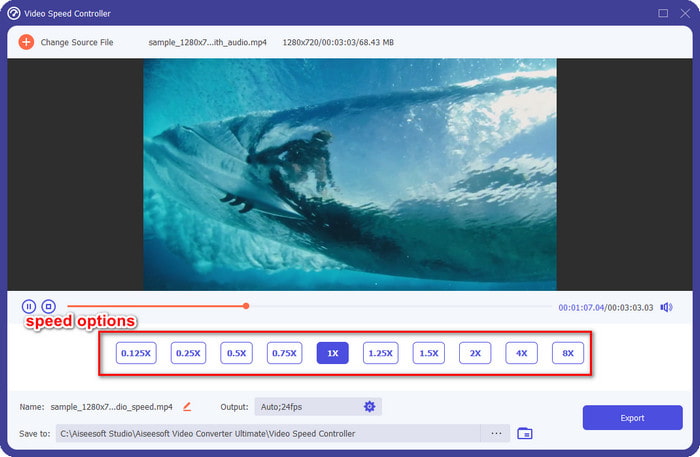
Mocny kontroler prędkości jest niezbędny, szczególnie jeśli chcesz skutecznie i efektywnie manipulować szybkością wideo, tak jak umożliwia to FVC Video Converter Ultimate. Dzięki opcjom prędkości możesz z łatwością zastosować wybraną szybkość – tak wolną jak 0,125x lub tak szybką jak 8x, czego inne edytory wideo często nie oferują. Możesz tu także przesłać dowolny typ pliku wideo, który chcesz przyspieszyć. To narzędzie w żaden sposób nie ogranicza Cię, jeśli chodzi o zmianę tempa ruchu wideo, które posiadasz. Z pewnością ten program do tworzenia efektu szybkiego i wolnego ruchu to narzędzie, które warto mieć, więc jeśli przykuło Twoją uwagę, przeczytaj i wykonaj kolejne kroki w samouczku, aby je pobrać i nauczyć się z niego korzystać.
Krok 1. Aby mieć na pulpicie najlepsze oprogramowanie, kliknij przycisk pobierania poniżej, aby bezpośrednio pobrać je na Windows lub Mac. Po pobraniu zainstaluj program, wykonaj prostą konfigurację, która zajmie minutę, a następnie go uruchom.
Bezpłatne pobieranieDla Windows 7 lub nowszegoBezpieczne pobieranie
Bezpłatne pobieranieDla MacOS 10.7 lub nowszegoBezpieczne pobieranie
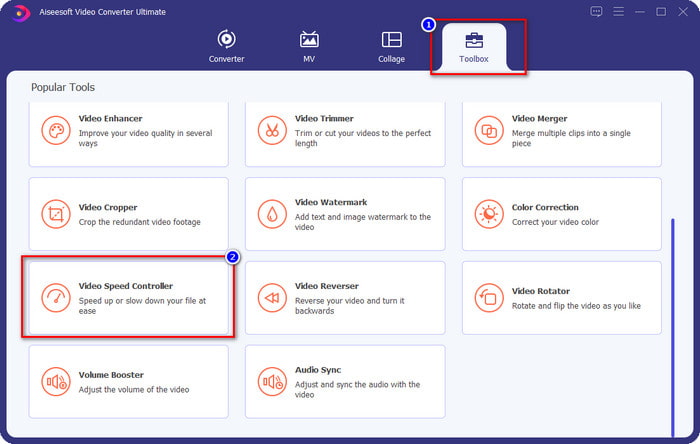
Krok 2. Otwórz zakładkę Toolbox, znajdź funkcję Video Speed Controller i kliknij ją.
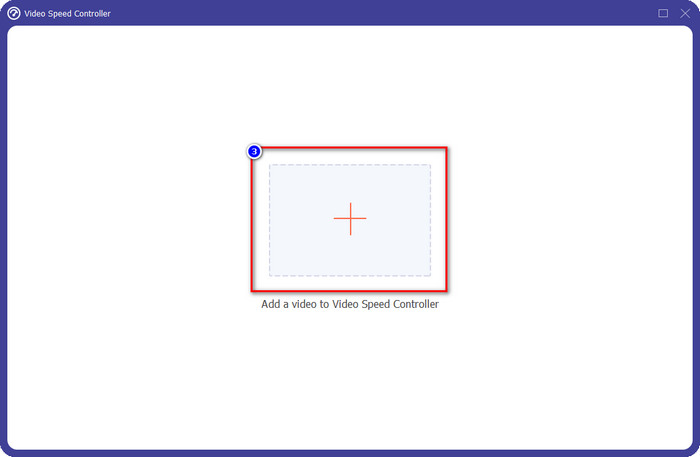
Krok 3. Kliknij przycisk +, wyszukaj wideo, w którym chcesz zmienić tempo ruchu, a następnie kliknij Open, aby je tutaj przesłać.
Krok 4. Gdy już prześlesz plik, na ekranie otworzy się okno z narzędziem do kontrolowania prędkości. Wybierz prędkość, jaką chcesz zastosować do swojego filmu, korzystając z dostępnych w programie opcji. Możesz klikać każdą z nich i zobaczyć podgląd z odpowiednią prędkością odtwarzania na ekranie.
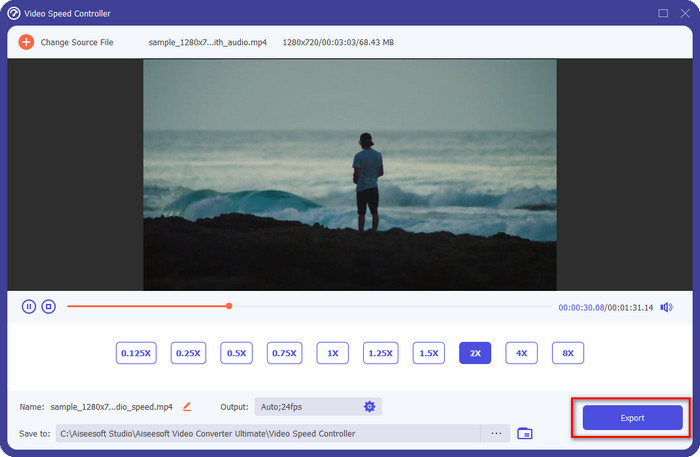
Krok 5. Aby zapisać wideo, w którym zmieniłeś prędkość, kliknij Export. To wszystko – w tak prosty sposób zmieniłeś tempo ruchu wideo za pomocą tego znakomitego programu na Windows lub Mac.
Część 3. Często zadawane pytania dotyczące szybkiego i wolnego ruchu
Czy mogę oglądać wideo w przyspieszonym i zwolnionym tempie na komputerze?
Dzięki różnym odtwarzaczom multimedialnym możesz łatwo zmienić prędkość oglądanego wideo, aby spowolnić lub przyspieszyć, zgodnie z własnymi preferencjami. Możesz go mieć na pulpicie, naciskając regulator prędkości wbudowany w odtwarzacz Blu-ray, VLC Media Player, Quicktime, Windows Media Player i inny odtwarzacz multimedialny. Pamiętaj jednak, że nie zmieni to na stałe szybkości wideo, więc jeśli chcesz, przeczytaj narzędzie, które przedstawiamy w tym artykule.
Dlaczego użycie efektu szybkiego i zwolnionego tempa stało się konieczne?
Zmieniając prędkość wideo, możesz łatwo uzyskać dostęp do niektórych efektów, do których inne efekty i filtry nie są w stanie. Tak więc, jeśli jesteś montażystą i chcesz wypróbować inne efekty, koniecznie spróbuj użyć kontrolera prędkości i zmienić prędkość wideo. Nie musisz być profesjonalistą, ponieważ jest to łatwe i na pewno sprawi, że Twój film będzie wyglądał niesamowicie.
Czy są jakieś ograniczenia dotyczące zmiany szybkości odtwarzania?
Nie da się ukryć, że istnieją pewne ograniczenia prędkości odtwarzania. Chociaż łatwo ją zastosować do dowolnego wideo, jeśli film zostanie zbyt mocno przyspieszony, możesz zauważyć zacięcia obrazu, których nie da się cofnąć. Podobnie przy silnym zwolnieniu liczba klatek może spadać i materiał stanie się bardzo 'ociężały' i lagujący. Aby temu zapobiec, musisz wziąć to pod uwagę i rozważnie zmieniać prędkość odtwarzania wideo.
Wniosek
Uwzględniliśmy wszystkie kwestie związane ze zwolnionym i przyspieszonym tempem, a powyższe informacje opierają się na materiałach, które przeanalizowaliśmy, oraz na naszym doświadczeniu w zmianie prędkości wideo. Choć dodanie efektu prędkości jest proste, warto najpierw lepiej je zrozumieć, zanim zaczniemy faktycznie zmieniać tempo. Bez profesjonalnej wiedzy i wszechstronnego narzędzia zastosowanie wybranej przez nas prędkości nigdy nie było łatwe. Jeśli pobierzesz FVC Video Converter Ultimate, zyskasz najlepszy kontroler prędkości oraz narzędzie typu „wszystko w jednym”. Tak, to prawda – ten program oferuje znacznie więcej; jeśli chcesz dowiedzieć się o nim czegoś więcej, najlepiej będzie, jeśli go pobierzesz i sam sprawdzisz, czy potrafi jeszcze więcej, niż opisaliśmy w tym artykule.
-
 Najważniejsze fakty, które powinieneś wiedzieć o QuickTime Slow Motion
 Czy próbowałeś używać programu QuickTime Media Player do odtwarzania wideo w zwolnionym tempie? Przeczytaj ten artykuł, aby dowiedzieć się więcej o doskonałej obsłudze tego odtwarzacza multimedialnego.
-
 5 profesjonalnych twórców filmów w zwolnionym tempie dla Windows/Mac/Online
 Czy chcesz wiedzieć, jak sprawić, by Twój film był odtwarzany w zwolnionym tempie? Następnie przeczytaj ten artykuł, aby dowiedzieć się, kim jest 5 profesjonalnych twórców filmów w zwolnionym tempie.
-
 Najlepsze sposoby korzystania z iMovie w tworzeniu filmów w zwolnionym tempie [rozwiązane]
 Czy kiedykolwiek korzystałeś z aplikacji iMovie, aby przekonwertować wideo o normalnej prędkości na zwolnione tempo? To okazja, aby dowiedzieć się więcej o tej aplikacji, więc czytaj dalej.
