


 Video Converter Ultimate
 Nagrywarka ekranu
 Naprawa wideo
Jak łatwo i szybko spowolnić wideo na iPhonie dzięki najlepszym rozwiązaniom
Czy zdarzyło ci się oglądać galę Grammy z udziałem twojego ulubionego artysty i zobaczyć, jak staje przed kamerą GlamBot? Większość z nas widziała już, jakie niesamowite ujęcia ta maszyna potrafi stworzyć w mniej niż sekundę, rejestrując kilka ruchów, a potem odtwarzając je w zwolnionym tempie. Niestety, nie każdy może pozwolić sobie na udział w Grammy i nagranie slow-motion z GlamBotem, ale jeśli jesteś celebrytą, to jedna z dróg, by z niego skorzystać. Nie smuć się jednak, jeśli nie możesz użyć GlamBota, bo nawet ty możesz nagrywać i tworzyć ujęcia w zwolnionym tempie na iPhonie w wysokiej jakości. Gotowy, by nagrywać i dowiedzieć się, jak spowolnić wideo na iPhonie tak, by wyglądało równie imponująco jak materiał z maszyny, o której mówiliśmy? W takim razie ten artykuł jest właśnie dla ciebie.

Część 1. Jak spowolnić wideo na iPhonie za pomocą aplikacji 3 Best Speed Controller?
iMovie
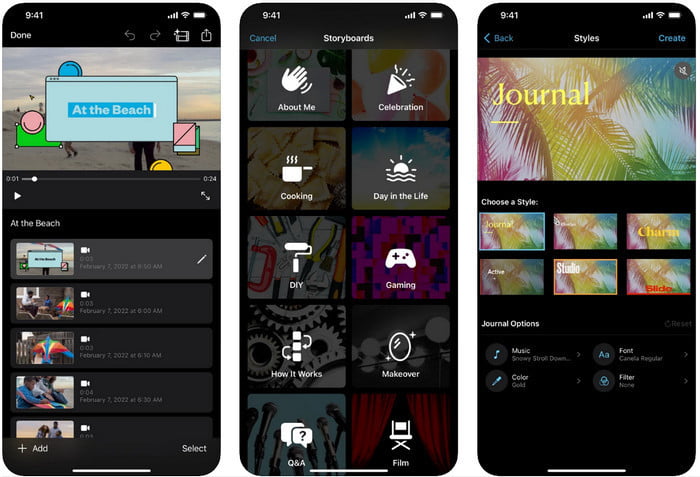
Krok 1. Stuknij w ikonę iMovie na ekranie, aby otworzyć aplikację, a następnie stuknij ikonę plusa. Na ekranie pojawi się nowe okno z dwiema opcjami – wybierz Movie (Film).
Krok 2. Wybierz wideo z listy, która pojawi się na ekranie, i stuknij Create Movie (Utwórz film), aby przejść dalej. Po zaimportowaniu stuknij ikonę przypominającą zegar, aby zmienić prędkość filmu, i przesuń suwak w lewo, aby go spowolnić.
Krok 3. Gdy skończysz edytować prędkość wideo, stuknij Done (Gotowe), a następnie Export (Eksportuj), aby zapisać je w pamięci urządzenia.
Edytor wideo w zwolnionym tempie
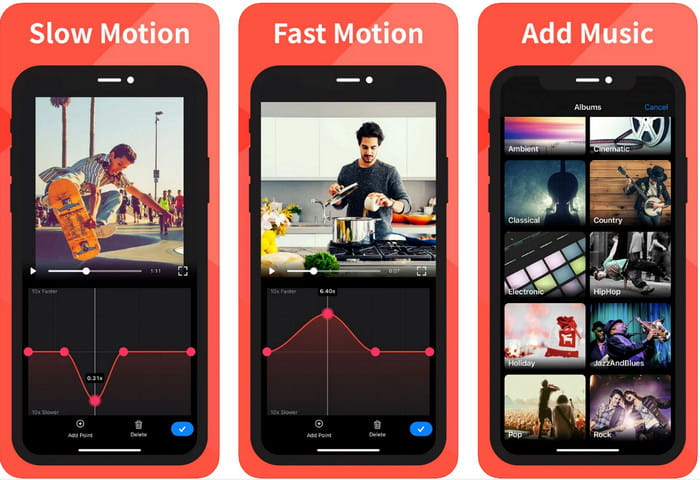
Slow Fast Motion Video Editor nie jest tak dobry jak iMovie, jeśli chodzi o nadawanie filmom imponującego wyglądu, ale z łatwością pozwala spowolnić wideo na iPhonie. Dzięki wielofunkcyjnemu edytorowi prędkości niewiele jest rzeczy, których ta aplikacja nie potrafi, szczególnie w kwestii przyspieszania. Niezależnie od tego, czy wideo jest w pionie, czy w poziomie, aplikacja działa w obu orientacjach. Nauka obsługi nie jest sztywna ani skomplikowana w porównaniu z innymi kontrolerami prędkości, które możesz pobrać na swoje urządzenie. Aby jednak móc korzystać z aplikacji w systemie iOS, musisz opłacić subskrypcję, choć dostępny jest 3‑dniowy darmowy okres próbny – w jego trakcie pojawiają się jednak reklamy. Aby użyć aplikacji, postępuj zgodnie z poniższymi krokami.
Krok 1. Pobierz aplikację, otwórz ją na swoim urządzeniu z iOS i stuknij Allow Access, aby przyznać jej dostęp do Zdjęć.
Krok 2. Wybierz wideo z pamięci urządzenia i stuknij Show Selected; następnie stuknij All Videos, aby zobaczyć przesłane nagranie, i stuknij Select.
Opcjonalnie: Możesz przyciąć i wyciąć fragmenty nagrania zgodnie ze swoimi preferencjami, przeciągając główki odtwarzania (play-heads) do żądanej długości. Jeśli nie chcesz przycinać ani ciąć filmu, stuknij Skip, a jeśli go edytujesz, stuknij Next.
Krok 4. Stuknij przycisk Speed (Prędkość), dostosuj poszczególne prędkości według uznania i przeciągnij w dół, aby spowolnić wideo. Pamiętaj, że każdy przeciągnięty punkt odpowiada za konkretną część nagrania – spowalniany jest ten fragment, a nie całe wideo. Stuknij Check and Save, aby wyeksportować nagranie ze zmienioną prędkością.
Slo-Mo: twórz filmy w zwolnionym tempie
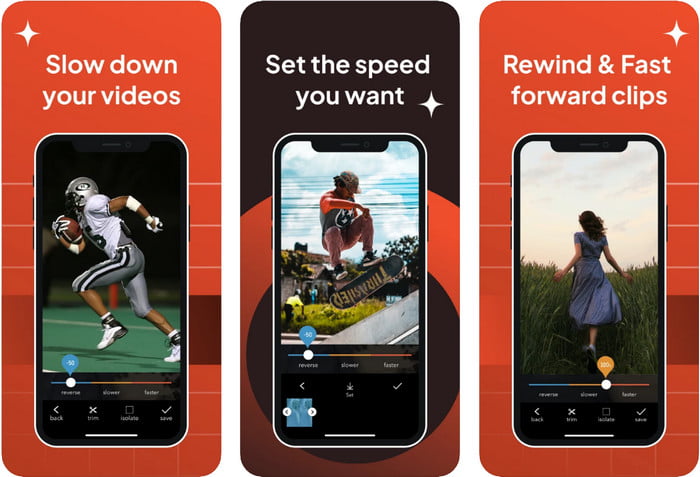
Slo-Mo: Make Slow Motion to kolejna dedykowana aplikacja, którą możesz bezpłatnie pobrać na iOS, choć oferuje zakupy w aplikacji. Podobnie jak w przypadku Slow Fast Motion Video Editor, pełnię możliwości uzyskasz po wykupieniu subskrypcji. Choć wciąż trzeba za nią zapłacić, jest tego warta i nie kosztuje zbyt wiele. Jeśli chodzi o zmianę prędkości odtwarzania wideo, ten program naprawdę się wyróżnia. Aby dowiedzieć się więcej o tym, jak zrobić slow‑motion na iPhonie, przeczytaj poniższy poradnik.
Krok 1. Aby pobrać aplikację, wejdź do App Store, pobierz ją, a następnie otwórz, by rozpocząć spowalnianie wybranego wideo.
Krok 2. Stuknij Library (Biblioteka), wybierz wideo, którego prędkość odtwarzania chcesz zmienić, i stuknij Choose, aby zacząć.
Krok 3. Przeciągnij suwak w lewo, aby spowolnić nagranie; kliknij Save, jeśli jesteś zadowolony z osiągniętej prędkości.
Część 2. Kontroler prędkości wideo z najwyższej półki dostępny w systemach Windows i Mac
FVC Video Converter Ultimate dysponuje najlepszym kontrolerem prędkości, którego możesz użyć do swoich nagrań wideo przechowywanych w systemach Windows i Mac. Dzięki unikalnym funkcjom przyspieszania wideo, w porównaniu z innymi aplikacjami wspomnianymi tutaj, widać wyraźną różnicę między „dobrym” a „najlepszym” kontrolerem prędkości. Ze względu na ograniczone wsparcie systemowe nie możesz pobrać tego oprogramowania na iOS, bo nie jest ono obsługiwane. Niemniej wciąż uznawane jest za kompleksowe narzędzie typu „wszystko w jednym”, które rozwiąże twoje problemy z wideo i audio. Aby dowiedzieć się, jak zrobić wideo w zwolnionym tempie na iPhonie po nagraniu, przeczytaj i wykonaj instrukcje z następnej części.
Krok 1. Aby pobrać to zaawansowane narzędzie do kontroli prędkości na komputer, kliknij przycisk pobierania i wybierz, czy korzystasz z Windows, czy z Maca. Następnie kliknij pobrany plik, aby go zainstalować i uruchomić.
Bezpłatne pobieranieDla Windows 7 lub nowszegoBezpieczne pobieranie
Bezpłatne pobieranieDla MacOS 10.7 lub nowszegoBezpieczne pobieranie
Krok 2. Przejdź do Toolbox (Narzędzia) w tym programie, aby uzyskać dostęp do funkcji Video Speed Controller (Kontroler prędkości wideo).
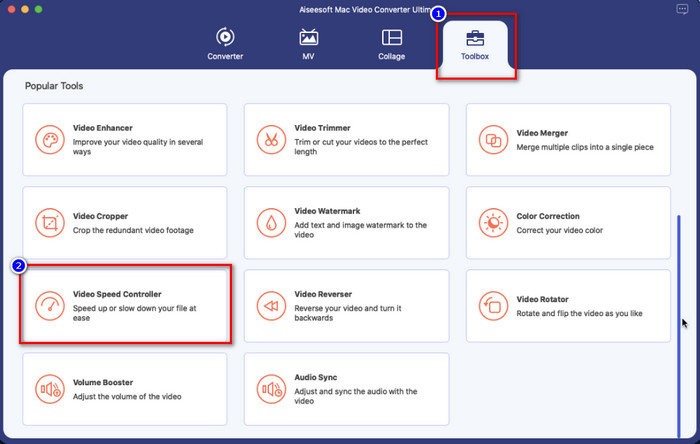
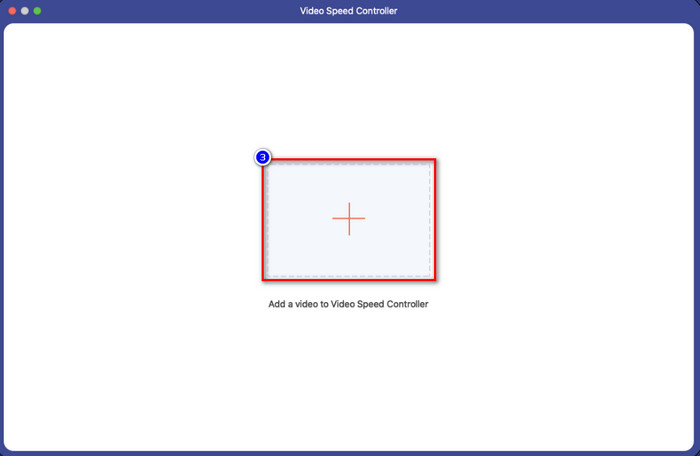
Krok 3. Kliknij ikonę plusa, a na ekranie pojawi się okno eksploratora plików. Odszukaj wideo, które chcesz zaimportować, kliknij je i naciśnij Open (Otwórz).
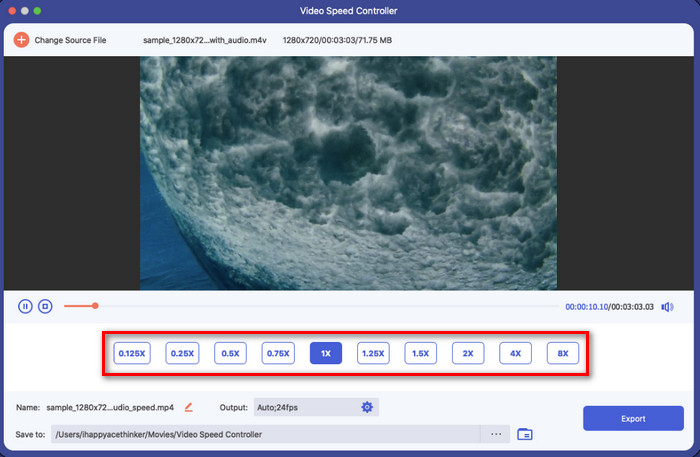
Krok 4. W tym miejscu możesz wybrać zwolnione tempo, które chcesz zastosować do swojego filmu. Przetestuj wszystkie dostępne opcje, aby sprawdzić, która prędkość odtwarzania najlepiej pasuje do wybranego nagrania.
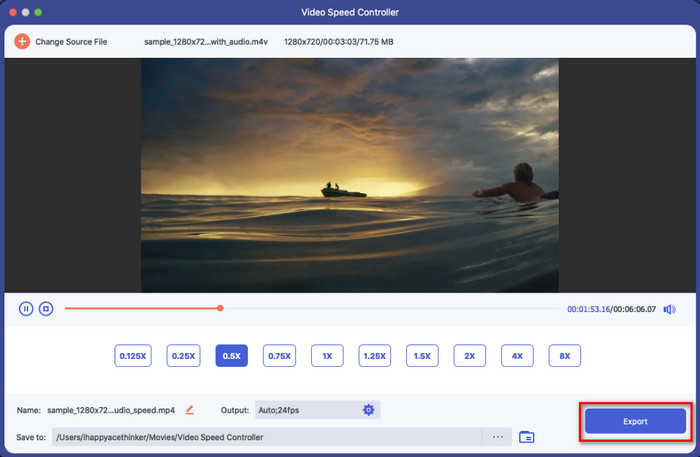
Krok 5. Na koniec możesz zapisać wprowadzone zmiany w filmie, klikając przycisk Export (Eksportuj). Po zakończeniu eksportu na ekranie pojawi się folder z wyeksportowanym, spowolnionym nagraniem.
Część 3. Często zadawane pytania dotyczące spowolnienia wideo na iPhonie
Czy spowolnienie filmu wpłynie na jakość?
Ze względu na zmianę odtwarzania wideo, niektóre zmiany mogą wystąpić w filmie po zmianie rzeczywistej prędkości na efekt zwolnionego tempa. Ale jeśli zastosujesz efekt w zwolnionym tempie na wideo, możemy zapewnić, że wideo nie obniży jakości, więc nie przesadzaj z jego używaniem.
Dlaczego mój film stał się rozmazany po zastosowaniu spowolnienia?
Takie instancje mogą się zdarzyć, jeśli wybrane narzędzie nie obsługuje eksportowania wideo o wysokiej jakości. Ale niektóre bezpłatne narzędzia pomagają zastosować efekt spowolnienia bez żadnych ograniczeń jakości. Podobnie jak to, co możesz uzyskać w FVC Video Converter Ultimate, gdy spowolnisz tutaj wideo, ta sama wysoka jakość pozostanie w przesłanym filmie.
Dlaczego po wyeksportowaniu wideo w zwolnionym tempie pojawiają się znaki wodne?
Jeśli używasz darmowej wersji aplikacji do spowalniania wideo, istnieje prawdopodobieństwo, że po wyeksportowaniu wideo zostanie na nim znak wodny. Dlatego konieczne jest przeczytanie informacji o wybranym oprogramowaniu i sprawdzenie, czy pozostawi ono znak wodny na filmie, jeśli zamierzasz go wyeksportować.
Wniosek
Jeśli chcesz nagrywać jak celebryta na gali Grammy, twoje urządzenie z iOS może ci w tym pomóc, a dzięki naszemu poradnikowi nauka, jak spowolnić wideo na iPhonie, staje się prosta i osiągalna. Dzięki wybranym przez nas aplikacjom wykonywanie tego zadania na poziomie 'pro' jest w zasięgu ręki każdego, kto lubi dodawać efekty slow‑motion. Choć te aplikacje są świetne, nie da się ukryć, że FVC Video Converter Ultimate przewyższa wszystkie standardy w zakresie spowalniania prędkości wideo. Jeśli chcesz mieć to narzędzie i z niego korzystać, przeczytaj instrukcje, które zamieściliśmy w części 2, i pobierz je.
-
 Rzeczywiście: najlepsza praktyka spowalniania wideo MP4
 Oprócz zwiększenia szybkości wideo, spowolnienie jest jedną z wielu praktyk potrzebnych do uzyskania najlepszego wyniku wideo. Postaraj się być najlepszym redaktorem, czytając resztę artykułu.
-
 Jak zmienić film w zwolnionym tempie na normalną prędkość [Łatwe kroki]
 Chcesz wiedzieć, jak przywrócić film w zwolnionym tempie pobrany z Internetu lub przypadkowo nagrany w zwolnionym tempie? Dowiedz się, jak konwertować wideo w zwolnionym tempie do normalnej szybkości na komputerach Mac, Windows, iOS i Android.
-
 Wszystko, co musisz wiedzieć o tym, jak tworzyć filmy w zwolnionym tempie
 Chcesz robić filmy w zwolnionym tempie jak profesjonalny montażysta, ale nie wiesz, jakiego oprogramowania lub aplikacji chcesz używać? Przeczytaj ten artykuł, aby poznać wszystkie potrzebne szczegóły.
