


 Video Converter Ultimate
 Nagrywarka ekranu
 Naprawa wideo
Prosty przewodnik po tym, jak skutecznie zrobić część filmu w zwolnionym tempie
Większość filmowców korzysta z techniki overcrankingu, aby uzyskać efekt zwolnionego tempa, ale głównie używa się jej w sporcie do powtórek akcji. Ze względu na efekt artystyczny, jaki daje, każdy dostosowuje prędkość odtwarzania wideo do własnych potrzeb. Innymi słowy, zapotrzebowanie na edytor zwolnionego tempa rozprzestrzeniło się w całym internecie, a potrzeba idealnego kontrolera prędkości wideo staje się coraz większa. Aby sprostać Twoim wymaganiom dotyczącym najlepszego kontrolera prędkości, omówimy 3 najlepsze kontrolery prędkości, jakie znaleźliśmy na rynku, które znakomicie sprawdzają się przy edycji szybkości wideo. Dodatkowo do każdego z wybranych narzędzi dołączymy samouczek pokazujący, jak spowolnić tylko fragment wideo.

Część 1. Najlepszy sposób na zrobienie części filmu w zwolnionym tempie [bardzo sugerowane]
Przy rosnącym zapotrzebowaniu na najlepszy kontroler prędkości do spowalniania klipów, FVC Video Converter Ultimate zapewnia pomoc, jakiej potrzebujesz, aby zrealizować to zadanie. Ten wszechstronny konwerter oferuje unikalną funkcję spowalniania wideo lub odtwarzania go w przyspieszonym tempie, a następnie zastosowania efektu w zaledwie kilku kliknięciach. Nie możesz się pomylić, wybierając to oprogramowanie, ponieważ jest jednym z najłatwiejszych do opanowania programów, a jego przejrzysty interfejs graficzny ułatwia zrozumienie i uporządkowanie wszystkiego.
Oprócz kontrolera prędkości możesz również użyć tego oprogramowania do dzielenia i łączenia wielu filmów jednocześnie. Wielu użytkowników było zachwyconych tym oprogramowaniem ze względu na jego wielofunkcyjne funkcje i funkcje. Załóżmy więc, że chcesz być częścią zachwyconej społeczności i być pod wrażeniem tego oprogramowania. W takim przypadku możesz przeczytać poniższy samouczek, jak spowolnić część filmu, ale najpierw musisz pobrać i zainstalować oprogramowanie, a następnie otworzyć je, aby rozpocząć.
Bezpłatne pobieranieDla Windows 7 lub nowszegoBezpieczne pobieranie
Bezpłatne pobieranieDla MacOS 10.7 lub nowszegoBezpieczne pobieranie
1. Przytnij część wideo, którą chcesz zwolnić
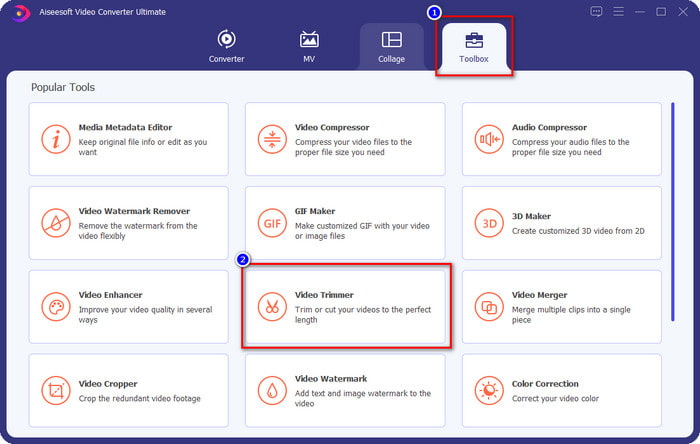
Krok 1. Po uruchomieniu programu przejdź do zakładki Toolbox i znajdź tam funkcję Video Trimmer.
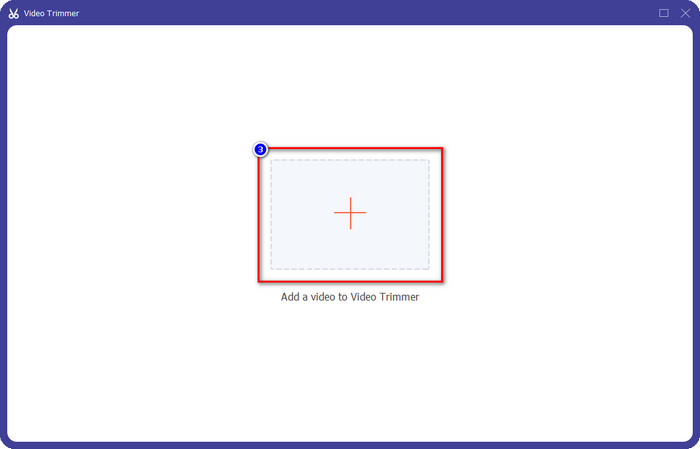
Krok 2. Naciśnij ikonę +, aby dodać wideo, które chcesz podzielić, znajdź je w folderze i kliknij Open.
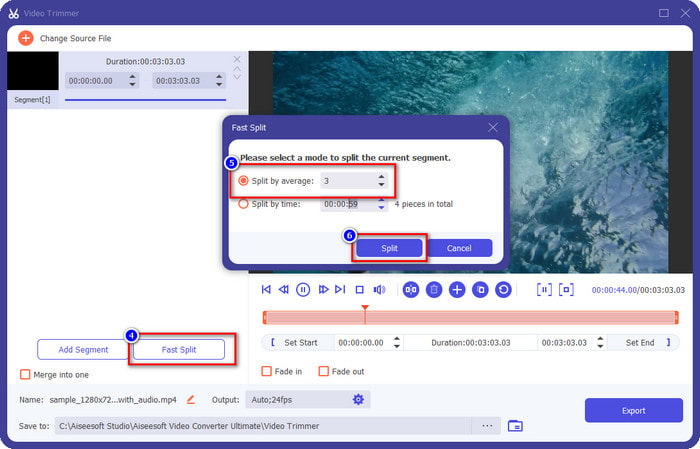
Krok 3. W przycinarce kliknij Fast Split, aby podzielić dodane wideo na segmenty i ustaw liczbę podziałów zgodnie z tym, jak chcesz pociąć materiał. Gdy ustawisz segmenty wideo, kliknij Split.
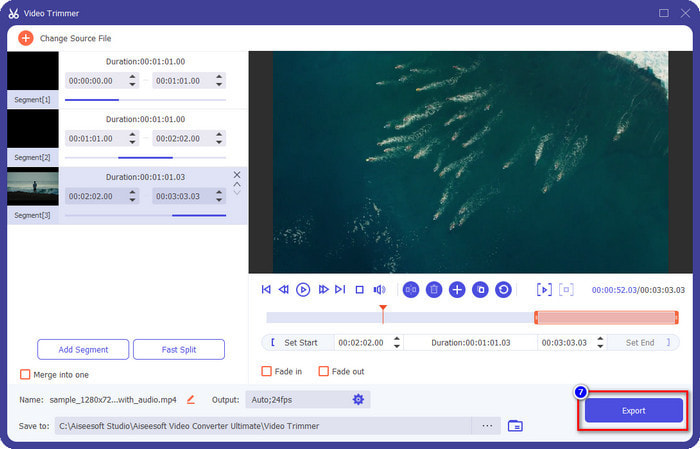
Krok 4. Kliknij każdy fragment wideo, aby sprawdzić, czy są to właściwe części, które chcesz zwolnić, a następnie kliknij Export, aby zapisać wideo na dysku.
2. Zmień prędkość segmentu, który wyeksportowałeś
Krok 1. W zakładce Toolbox znajdź funkcję Video Speed Controller, aby spowolnić segment, który wcześniej wyciąłeś.
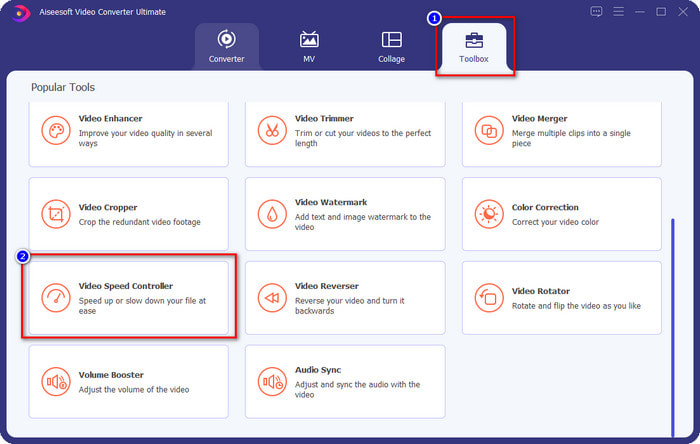
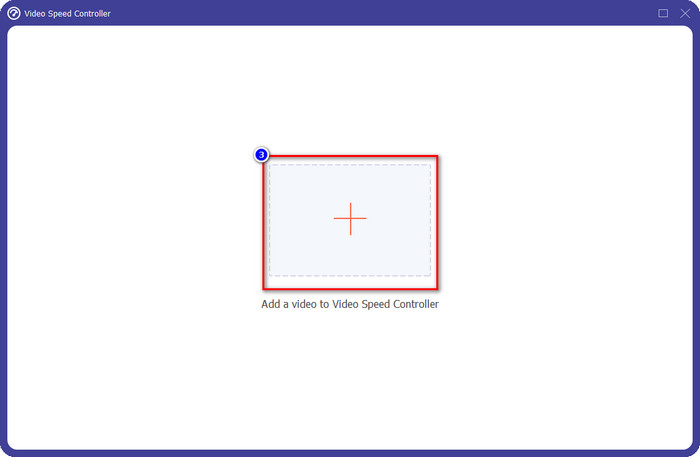
Krok 2. Naciśnij przycisk +, aby dodać plik wideo, zlokalizuj wcześniej podzielony plik, który chcesz spowolnić, a następnie kliknij Open, aby go wczytać.
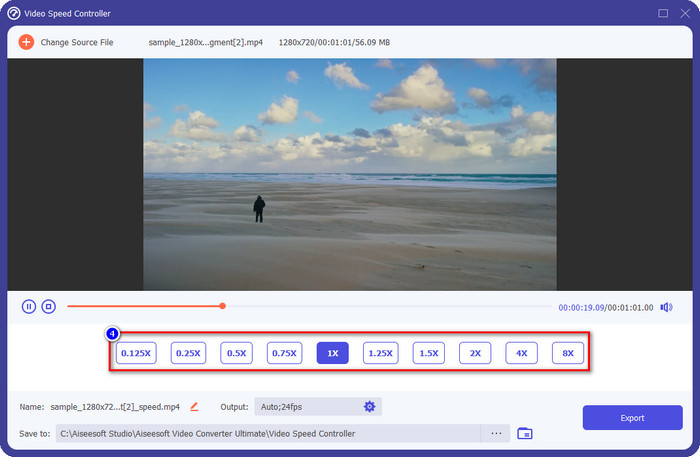
Krok 3. Po wstawieniu wideo wybierz efekt zwolnionego tempa, jaki chcesz zastosować do wyciętego fragmentu. Na ekranie pojawi się kilka opcji prędkości. Wypróbuj je wszystkie, aby sprawdzić, która najlepiej odpowiada efektowi slow motion, jaki chcesz uzyskać.
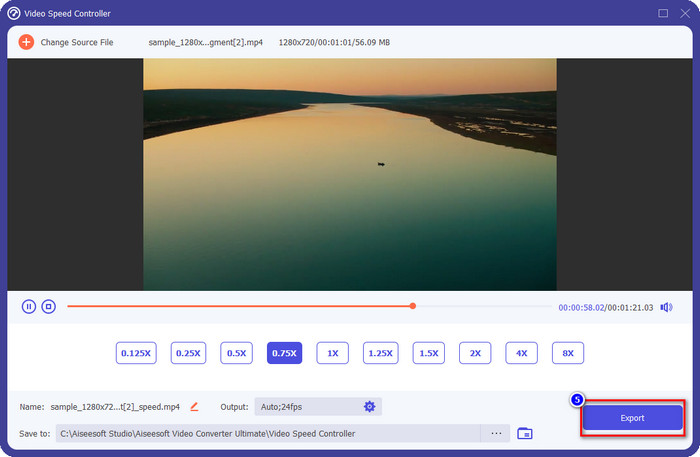
Krok 4. Aby zapisać spowolnione wideo, kliknij Export.
3. Połącz wcześniej przycięty film z funkcją Slow-mo
Krok 1. Po przycięciu wideo i dodaniu do niego efektu slow motion kliknij Video Merger, aby połączyć wszystkie filmy; znajdziesz go w zakładce Toolbox.
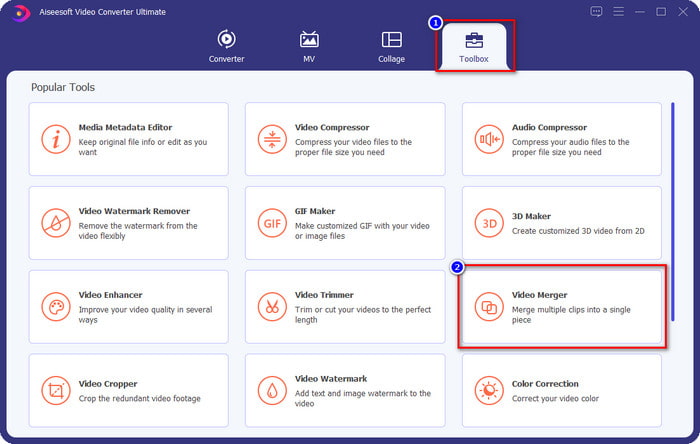
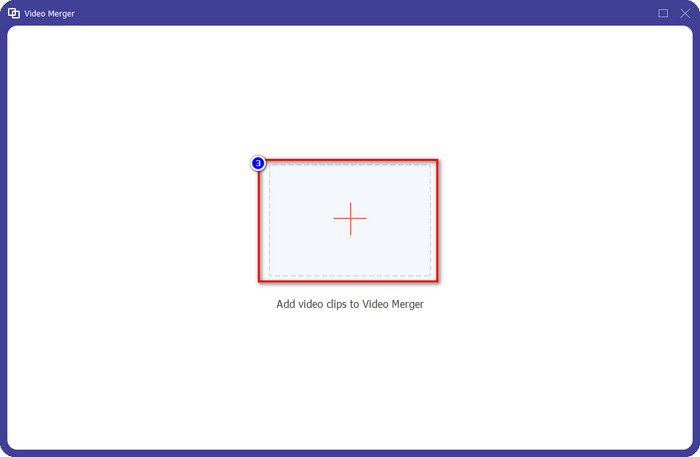
Krok 2. Kliknięcie przycisku + spowoduje wyświetlenie folderu na ekranie; wybierz plik, który chcesz dodać, a następnie naciśnij Open.
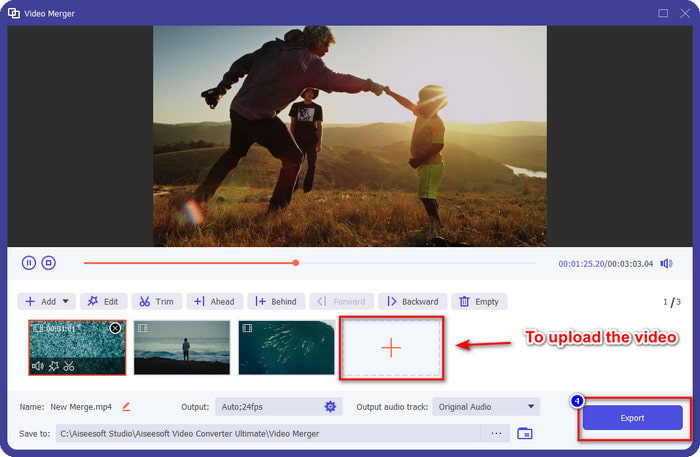
Krok 3. Aby dodać pozostałe fragmenty, które wcześniej podzieliłeś, klikaj przycisk +, aż dodasz je wszystkie. Uporządkuj je we właściwej kolejności, przeciągając każdy segment, a gdy wszystko będzie gotowe, kliknij Export, aby zapisać wideo z fragmentem w zwolnionym tempie.
Część 2. Inne oprogramowanie online i offline, którego można użyć do zmiany prędkości wideo na spowolnienie
Wycinarka wideo online – kontroler prędkości
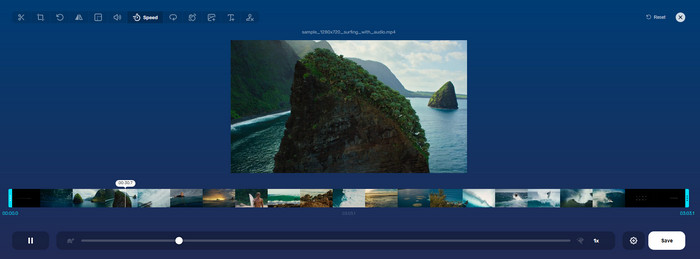
Online Video Cutter – Speed Controller to narzędzie, którego nie musisz pobierać, ponieważ działa w przeglądarce. Mając do dyspozycji taki kontroler prędkości wideo online, możesz od razu z niego korzystać, bez pobierania dodatkowych zasobów ani plików potrzebnych do uruchomienia programu. Narzędzie internetowe obsługuje także podstawowe funkcje edycji, których możesz potrzebować. Chociaż nie jest tak profesjonalne jak edytor, o którym wspomnieliśmy wyżej, nadal świetnie nadaje się do spowalniania nagrań. Aby dowiedzieć się, jak zrobić zwolnione tempo tylko na fragmencie nagrania, skopiuj poniższe kroki.
Krok 1. Aby uzyskać dostęp do narzędzia online, wyszukaj je w preferowanej przeglądarce.
Krok 2. Kliknij Open File i wczytaj plik wideo lub segment, który chcesz odtworzyć w zwolnionym tempie.
Krok 3. Przeciągnij suwak w lewo, aby spowolnić wideo, a następnie kliknij Save.
Darmowe wideo prędkości
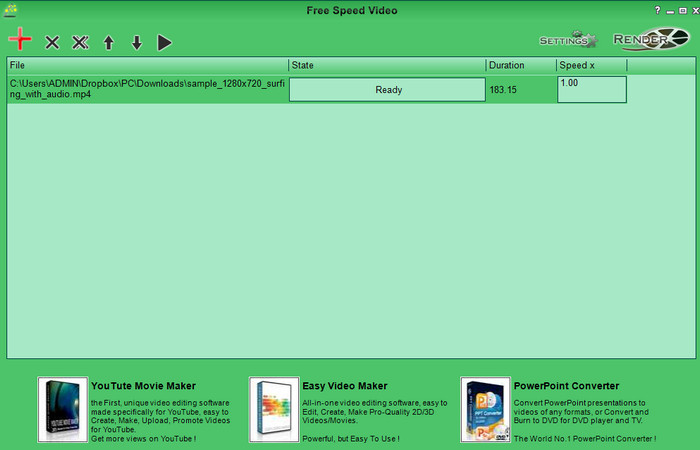
Innym kontrolerem prędkości, który możesz pobrać na komputer, jest Free Speed Video. To narzędzie jest bardzo proste w obsłudze, więc nauczenie się korzystania z niego nie sprawia problemów. Choć ma nieskomplikowany interfejs, wymaga on odświeżenia, aby wyglądał nowocześniej i ułatwiał użytkownikowi rozpoznanie dostępnych opcji. Jeśli wygląd interfejsu nie stanowi dla Ciebie problemu, możesz używać tego programu, aby bezpłatnie dostosować prędkość wideo do własnych potrzeb. Aby pomóc Ci spowolnić nagranie, poniższe kroki pokażą, jak zwolnić tylko część wideo.
Krok 1. Pobierz program i przejdź przez proces instalacji, aby zainstalować go na komputerze.
Krok 2. Kliknij przycisk +, aby dodać wideo, które chcesz spowolnić.
Krok 3. W polu Speed x wpisz wartość prędkości, jaką chcesz uzyskać.
Krok 4. Kliknij Render, aby zapisać gotowy plik na komputerze.
Część 3. Często zadawane pytania dotyczące tworzenia części wideo w zwolnionym tempie
Dlaczego część filmu ze zwolnionym tempem zawiesza się?
Przejście między spowolnieniem a normalną prędkością wideo zatrzymuje się z powodu różnych prędkości obu filmów. Nie możesz doświadczyć zamrożenia i opóźnień w przejściu pomimo różnic, jeśli zamiast tego użyjesz najlepszego narzędzia.
Co sprawia, że przejście wideo ze spowolnienia do normalnej szybkości jest płynniejsze?
Nie ma konkretnej odpowiedzi, ale lepiej jest zwolnić część wideo, jeśli posiadane narzędzie może przyspieszyć. Aby uzyskać płynniejsze przejście między filmem z normalną prędkością i spowolnieniem, musisz spróbować połączyć wideo, tak jak to zrobiliśmy z najlepszym oprogramowaniem.
Czy trudno jest zastosować efekt spowolnienia w części wideo?
Może to być zwłaszcza, że nie całe oprogramowanie, którego możesz użyć, może zmienić pewną część prędkości wideo. Większość kontrolerów prędkości dostosowuje prędkość całego wideo zamiast określonej części. Tak więc, jeśli chcesz zmienić część szybkości odtwarzania klipów, przeczytaj część 1, aby wszystko wiedzieć.
Wniosek
Wreszcie mamy już dość informacji o tym, jak zrobić tylko fragment wideo w zwolnionym tempie, korzystając z opisanych kroków i Twojego zaangażowania w przeczytanie tego artykułu do końca. Chociaż oprogramowanie może zmieniać prędkość wideo, nadal pojawia się problem, gdy chcesz zmodyfikować jedynie jego część. Aby zmienić fragment klipu na wersję w zwolnionym tempie i dodać Twojemu materiałowi nieco charakteru, musisz użyć programu FVC Video Converter Ultimate. Możesz go mieć, pobierając i instalując na komputerze, a następnie postępować według kroków, które omówiliśmy wcześniej, aby zmienić prędkość tylko części klipu, a nie całego nagrania.
-
 Solidne dowody na robienie filmów w zwolnionym tempie za pomocą After Effects
 Wszelkie myśli lub uczucia można wygenerować lub wzmocnić, oglądając coś w zwolnionym tempie. Przeczytaj ten artykuł, aby dowiedzieć się, jak tworzyć zwolnione tempo w programie After Effects.
-
 Sprawdzone metody tworzenia filmów w zwolnionym tempie w programie Adobe Premiere
 Jednym z najlepszych programów Adobe jest Premiere; działa bardziej na ulepszaniu filmów na wyższy poziom, na przykład w tworzeniu filmów w zwolnionym tempie. Przeczytaj ten artykuł, aby dowiedzieć się więcej o Adobe Premiere i jego przydatnych funkcjach.
-
 Łatwy sposób na zrobienie filmu w zwolnionym tempie w programie Windows Movie Maker
 Czy chcesz nadać swojemu filmowi dramatyczny efekt, aby podkreślić lub przynajmniej wyróżnić klip na tle reszty w zwolnionym tempie, a nie wiesz jak? Czytaj dalej ten artykuł, aby dowiedzieć się więcej.
