


 Video Converter Ultimate
 Nagrywarka ekranu
 Naprawa wideo
3 Wydajne metody konwertowania MP4 na AMV w systemie Windows i Mac z łatwością
Jeśli chcesz wysłać do smartfona duże filmy MP4, na przykład duży film, może być za mało miejsca. Aby przekonwertować MP4 na plik AMV, możesz użyć zaawansowanego algorytmu kompresji, aby uzyskać znacznie mniejsze wideo. Niezależnie od tego, czy chcesz przekonwertować filmy online, czy poprawić i edytować filmy o określonym rozmiarze, możesz dowiedzieć się więcej o 3 najbardziej wydajnych konwerterach MP4 na AMV z artykułu.

Część 1: Jak przekonwertować MP4 na AMV Online
Jeśli chcesz w prosty sposób przekonwertować zwykły plik MP4 na AMV, FVC Free Online Video Converter to wszechstronny internetowy konwerter wideo, który jest kompatybilny z MP4, AMV, AVI i wieloma innymi formatami. Umożliwia także dostosowanie ustawień wideo i audio, a nawet konwersję plików bez znaku wodnego ani innych ograniczeń.
- 1. Konwertuj MP4 na AMV, AVI, MKV i więcej innych filmów w oryginalnej jakości.
- 2. Dostosuj liczbę klatek na sekundę, jakość wideo, kodek wideo, jakość dźwięku i nie tylko.
- 3. Zapewnij łatwy interfejs użytkownika do konwersji plików AMV tylko w 3 krokach.
- 4. Jest to bezpieczna i stabilna metoda konwersji plików bez znaku wodnego.
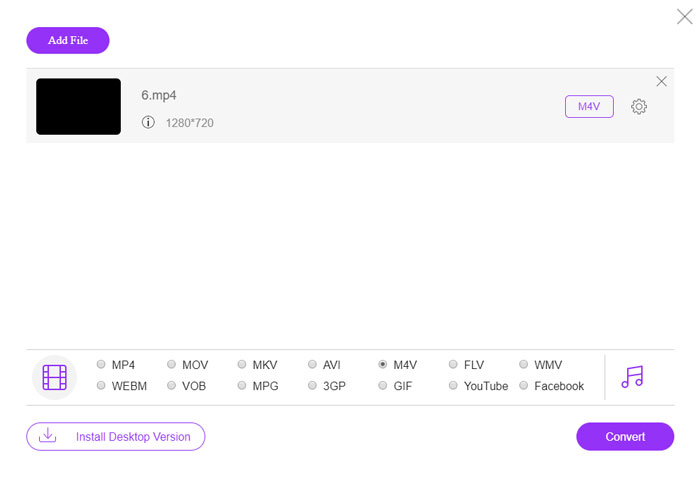
Krok 1. Przejdź w dowolnej przeglądarce do internetowego konwertera MP4 na AMV, a następnie kliknij przycisk Add File to Convert, aby przy pierwszym użyciu zainstalować konwerter wideo. Możesz też załadować pliki MP4 do programu.

Krok 2. Wybierz AMV jako format wyjściowy z dolnej listy. Oczywiście możesz również dostosować ustawienia wideo i audio, takie jak enkoder wideo, rozdzielczość wideo, przepływność (bitrate), liczba klatek na sekundę i inne parametry, aby uzyskać pożądany plik wideo.

Krok 3. Następnie kliknij przycisk Convert, aby rozpocząć konwersję MP4 na AMV. Po kilku sekundach otrzymasz gotowy plik, który możesz następnie przenieść na swój smartfon.
Część 2: Jak przekonwertować MP4 na AMV za pomocą VLC Media Player
VLC Media Player to jeden z najpopularniejszych konwerterów MP4 na AMV. Zapewnia również podstawowe funkcje konwersji i edycji wideo. Co więcej, możesz również wyświetlić podgląd wyjściowego wideo AMV po konwersji. Po prostu sprawdź szczegółowy proces, jak poniżej.
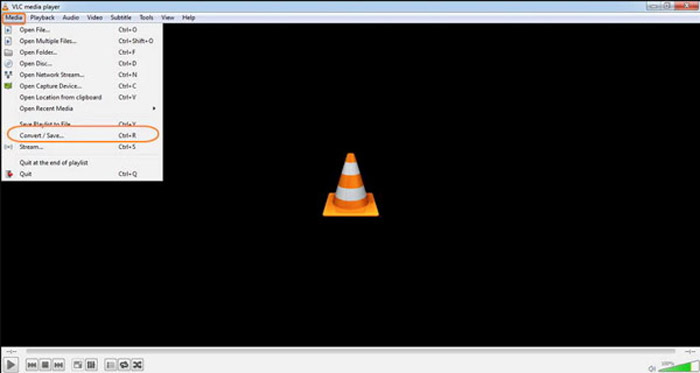
Krok 1. Otwórz VLC Media Player na komputerze, przejdź do menu Media i wybierz opcję Convert/Save. Kliknij przycisk Add po prawej stronie listy File Selection na karcie File i wyszukaj pliki MP4.
Krok 2. Kliknij przycisk Convert/Save, aby kontynuować. W oknie Convert możesz wybrać AMV jako format wyjściowy. Kliknij przycisk Edit Selected Profile, aby dostosować ustawienia wideo i audio.
Krok 3. Kliknij opcję Browse i wybierz lokalizację oraz nazwę pliku wyjściowego. Następnie kliknij przycisk Start, aby przekonwertować pliki MP4 na AMV na swoim komputerze.
Część 3: Najlepsza metoda konwersji MP4 na AMV z łatwością
FVC Video Converter Ultimate to kompleksowy konwerter MP4 na AMV dla systemów Windows i Mac. Nie tylko konwertuje formaty wideo, lecz także umożliwia regulację różnych parametrów wideo i audio, dodawanie napisów/ścieżek dźwiękowych, a nawet łatwą edycję przekonwertowanych plików wideo.
- 1. Konwertuj MP4 na AMV i inne formaty wideo z oryginalną jakością.
- 2. Dostosuj liczbę klatek na sekundę, jakość wideo, szybkość transmisji, kodek wideo i inne.
- 3. Zapewnij wiele funkcji edycji wideo, aby obracać, przycinać, dostosowywać filtry itp.
- 4. Zaawansowana akceleracja sprzętowa do konwersji wideo z 70x większą szybkością.
Bezpłatne pobieranieDla Windows 7 lub nowszegoBezpieczne pobieranie
Bezpłatne pobieranieDla MacOS 10.7 lub nowszegoBezpieczne pobieranie
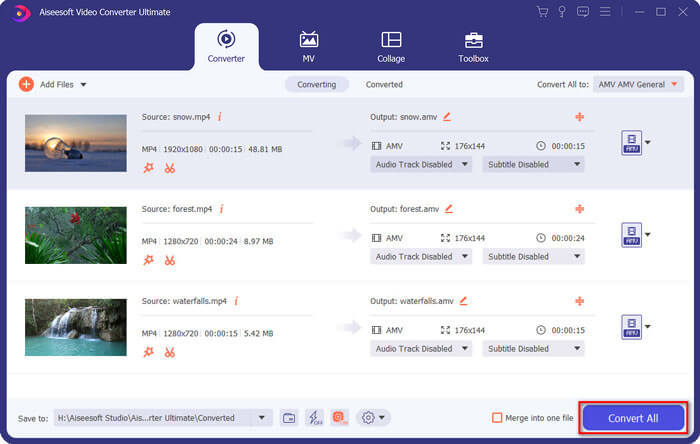
Krok 1. Pobierz i zainstaluj konwerter MP4 na AMV, a następnie uruchom program na komputerze. Wybierz przycisk Convert i kliknij opcję Add File, aby załadować pliki MP4, lub po prostu przeciągnij wiele plików MP4 bezpośrednio do programu.

Krok 2. Kliknij ikonę formatu po prawej stronie pliku wideo i wybierz AMV jako format wyjściowy. Możesz też kliknąć ikonę Gear, aby dostosować ustawienia wideo i audio, a nawet edytować wideo/dostosowywać filtry w prosty sposób.

Krok 3. Gdy będziesz zadowolony z wynikowego pliku AMV, na przykład z jego rozmiaru, kliknij przycisk Convert All, aby rozpocząć konwersję MP4 na AMV. Następnie możesz przenieść pliki AMV na inne urządzenie.
Część 4: Często zadawane pytania dotyczące konwersji MP4 do plików AMV
1. Jaki jest format pliku AMV?
Plik AMV jest znany jako plik Anime Music Video. Jest to typowo używany przez przenośne urządzenia do odtwarzania multimediów zi w Chinach. Format wideo AMV jest prezentowany dla niskiej rozdzielczości, która ma rozdzielczość wideo między 94x64 a 160x120. Konwertując MP4 na AMV, możesz z łatwością przesyłać więcej filmów do smartfona.
2. Jak odtwarzać pliki AMV na smartfonie i komputerze?
Kiedy konwertujesz MP4 na pliki AMV, jak odtwarzać pliki wideo na smartfonie lub komputerze? Właściwie możesz po prostu wziąć AMV jako wariant formatu AVI, który działa na większości odtwarzaczy multimedialnych. Jeśli chcesz odtwarzać pliki AMV na urządzeniach z systemem iOS, możesz zamiast tego użyć VLC Media Player lub innego odtwarzacza multimedialnego.
3. Jakie są różnice między AMV a MP4?
MP4 to jeden z najczęściej używanych formatów wideo, który może być używany w usłudze i urządzeniu do przesyłania strumieniowego online. AMV to odmiana Motion JPEG, ze stałymi, a nie zmiennymi tabelami kwantyzacji. Konwertując MP4 na AMV, możesz skompresować wideo i zaoszczędzić więcej miejsca, szczególnie w przypadku przesyłania filmów do urządzeń.
Wniosek
Jaki jest najlepszy wybór do konwersji MP4 na AMV? Dowiedz się więcej szczegółów o najlepszych metodach z artykułu. Jeśli chcesz konwertować i kompresować filmy online bez dodatkowego oprogramowania, FVC Free Online Video Converter to najlepsze rozwiązanie, które możesz wziąć pod uwagę.
-
 AVI VS MP4 - co jest lepsze (jakość / kompresja / rozmiar pliku…)
 Jaki jest lepszy format wideo, AVI czy MP4? Jeśli chcesz uzyskać szczegółowe porównanie, możesz zapoznać się z tym artykułem AVI VS MP4. Możesz poznać różnice i podobieństwa między AVI i MP4 w wielu aspektach.
-
 Najlepsze oprogramowanie odtwarzacza 10 MP4 dla systemu Windows i Mac (bezpłatne i płatne)
 Przeczytaj i uzyskaj najlepszy odtwarzacz MP4, korzystając z zaleceń najnowszego oprogramowania odtwarzacza wideo 10 MP4. Możesz płynnie odtwarzać pliki wideo MP4 w systemie Windows i Mac bez opóźnień.
-
 Jak przekonwertować MP4 na WMV dla Mac / Windows
 W tym poście opisano, jak przekonwertować wideo MP4 na format WMV na komputerze Mac lub Windows. Oferujemy również kilka opcji, w tym zarówno oprogramowanie komputerowe, jak i internetowe konwertery online. Gotowy poznać najlepsze narzędzia do konwersji MP4 na WMV?
