


 Video Converter Ultimate
 Nagrywarka ekranu
 Naprawa wideo
Kompletny proces dotyczący używania GIMP do zmiany rozmiaru obrazów
Zmiana rozmiaru obrazu jest niezbędna, jeśli chodzi o edycję obrazu. Czasami trzeba zmienić wysokość i szerokość obrazu, aby uzyskać preferowany rozmiar. Ponadto zmiana rozmiaru obrazu jest wykonywana przez inne edytory zdjęć w celu zmniejszenia rozmiaru ich obrazu lub podwyższenia jakości. Na szczęście znaleźliśmy aplikację, która umożliwia zmianę rozmiaru obrazu.
GIMP to internetowe oprogramowanie do edycji grafiki, w którym możesz modyfikować swoje obrazy. Dodatkowo GIMP umożliwia zmianę wysokości i szerokości obrazu, poprawiając jego jakość. Jeśli więc chcesz użyć GIMP do zmiany rozmiaru obrazu, zapoznaj się z tym artykułem.

Część 1. Jak używać GIMP do zmiany rozmiaru obrazów
GIMP to platforma aplikacji do obróbki grafiki, która umożliwia grafikom tworzenie doskonałych wyników. Umożliwia użytkownikom tworzenie elementów projektu, skryptów obrazów, ikon i nie tylko. Ponadto jest to bezpłatna aplikacja typu open source, z której można korzystać na prawie wszystkich platformach multimedialnych, takich jak Windows, Mac i Linux. Wiele osób poleca tę aplikację, szukając alternatywy dla Adobe Photoshop.
I pomimo tego, że ma łatwiejszy interfejs niż Photoshop, niektórzy ludzie wciąż mają trudności z używaniem GIMP-a. Jeszcze bardziej interesujące w GIMP jest to, że pozwala edytować piksele twojego zdjęcia. A jeśli szukasz najlepszego narzędzia do zmiany rozmiaru obrazu, możesz rozważyć GIMP jako swoje preferencje.
W tej części przedstawimy Ci dwie metody wykorzystania GIMP-a do zmiany rozmiaru obrazu (wymiary i rozmiar).
Jak używać GIMP-a do zmiany rozmiaru wymiarów obrazu
Krok 1. Najpierw pobierz aplikację GIMP na swoje urządzenie i zainstaluj ją. Po instalacji otwórz program na swoim urządzeniu. Następnie otwórz w GIMP‑ie obraz, który chcesz edytować.
Zwróć uwagę, że po otwarciu obrazu w GIMP-ie obraz zostanie powiększony, aby cały obraz zmieścił się na płótnie obrazu. Bieżący rozmiar obrazu zobaczysz w prawym górnym rogu okna.
Krok 2. Aby zmienić wymiary obrazu, przejdź do menu Image (Obraz), a następnie wybierz Scale Image (Skaluj obraz). W oknie Scale Image możesz zmienić Width i Height (szerokość i wysokość) obrazu. Wpisz preferowane wymiary i przejdź do następnego kroku. Oprócz wysokości i szerokości zobaczysz też ikonę łańcuszka, która oznacza, że wysokość i szerokość są ze sobą powiązane – gdy zmienisz wysokość, szerokość dostosuje się automatycznie.
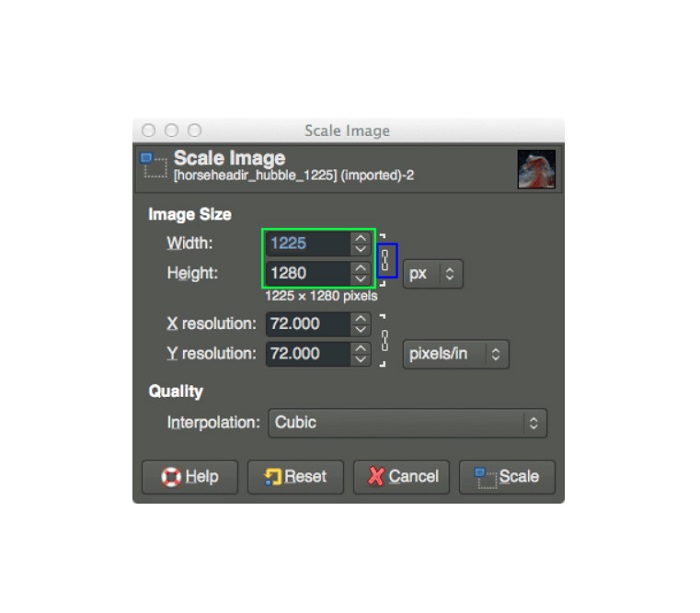
Krok 3. Gdy skończysz zmieniać wymiary zdjęcia, możesz wyeksportować obraz. Aby to zrobić, wybierz File > Export (Plik > Eksportuj). Jeśli chcesz zapisać wynik w nowym pliku, wybierz File > Overwrite (Plik > Nadpisz), a następnie nadaj plikowi nazwę.
Jak używać GIMP-a do zmiany rozmiaru obrazów bez utraty jakości (rozmiaru pliku):
W tym samouczku użyjemy obrazu JPEG, ponieważ ten typ formatu jest kompresją stratną, co oznacza, że podczas kompresji rozmiaru tego obrazu poświęcimy część jego jakości. Ale za pomocą GIMP-a można zmienić rozmiar obrazu bez wpływu na jego jakość.
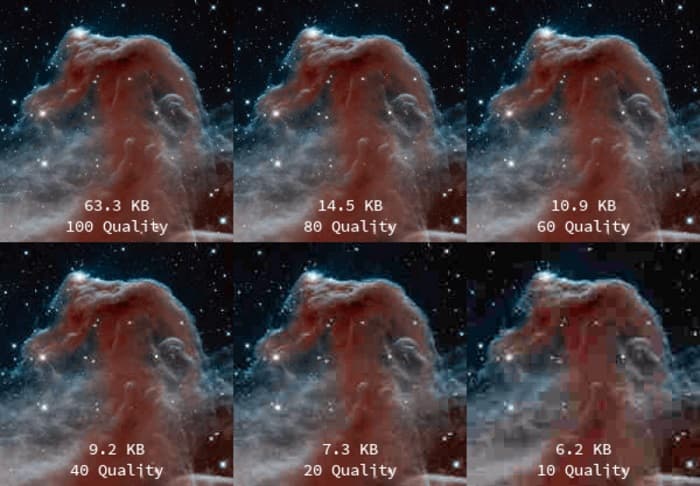
Krok 1. Korzystając z tego samego obrazu, przeskalujemy go do szerokości 200 px i wyeksportujemy plik z różnymi poziomami kompresji JPEG. Na poniższym przykładzie zauważysz, że przy jakości ustawionej na 80 rozmiar pliku jest mniejszy niż przy 100, przy prawie niezmienionej jakości obrazu.
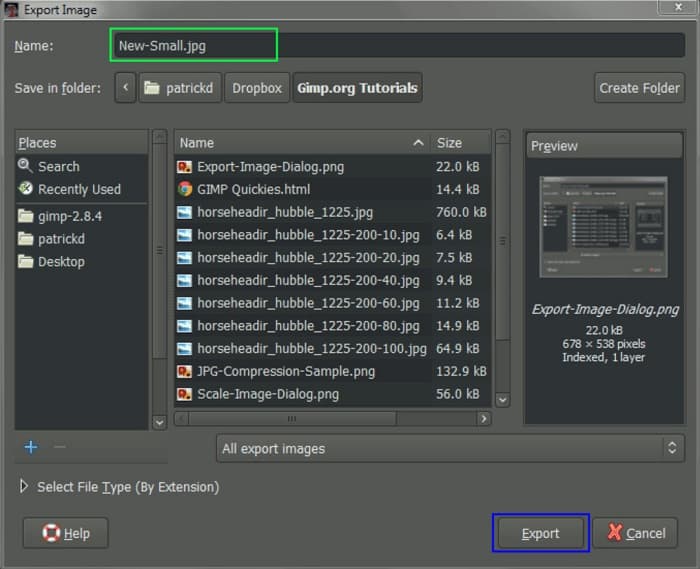
Krok 2. Kiedy skończysz zmieniać rozmiar obrazu, wyeksportujemy wynik. Kliknij przycisk File (Plik), a następnie wybierz Export (Eksportuj).
Krok 3. W zakładce Export Image (Eksportuj obraz) wpisz nową nazwę pliku. Jeśli zastanawiasz się, w jakim formacie zostanie zapisany wynik, GIMP domyślnie eksportuje w oryginalnym formacie pliku. W naszym przykładzie zobaczysz, że format wyjściowy to wciąż .jpg.
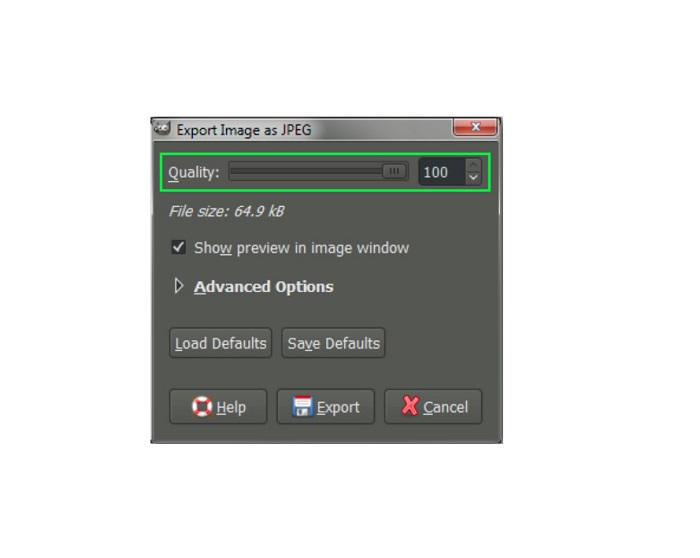
Krok 4. Po kliknięciu przycisku Export pojawi się okno Export Image as JPEG (Eksportuj obraz jako JPEG), w którym możesz zmienić jakość eksportowanego obrazu. Jeśli chcesz podejrzeć efekt w oknie obrazu, zaznacz opcję Show preview in image window (Pokaż podgląd w oknie obrazu), aby zobaczyć podgląd. Zobaczysz tam również informację o File size (rozmiarze pliku), dzięki czemu poznasz docelowy rozmiar pliku.
Krok 5. Na końcu kliknij przycisk Export, aby wyeksportować obraz i zapisać go na swoim urządzeniu.
I w ten sposób możesz użyć GIMP-a do zmiany rozmiaru obrazu i rozmiaru pliku. Możesz wykonać więcej edycji obrazu, na przykład obrócić obraz, odwrócić zdjęcie i przyciąć obraz. Przeczytaj następną część, jeśli nadal chcesz mieć możliwość zmiany rozmiaru obrazu lub poprawy jakości zdjęć.
Część 2. Alternatywa dla GIMP-a
GIMP to jedna z najbardziej standardowych aplikacji do edycji zdjęć, z których korzysta wielu profesjonalistów. Jednak niektórzy użytkownicy mają trudności z używaniem tego oprogramowania do edycji zdjęć, takich jak zmiana rozmiaru obrazów. A jeśli należysz do użytkowników, którzy chcą korzystać z prostszej aplikacji, mamy dla Ciebie rozwiązanie.
FVC Free Image Upscaler to darmowa aplikacja online z prostym interfejsem użytkownika, dzięki czemu jest przyjaznym narzędziem dla początkujących, jeśli szukasz najlepszego narzędzia do powiększania obrazów i poprawy ich jakości. Wykorzystuje proces skalowania z użyciem AI, który automatycznie wykrywa rozmazane fragmenty zdjęcia i je poprawia. Co więcej, możesz ulepszyć swoje zdjęcie nawet do 8‑krotnego powiększenia. Obsługuje też najpopularniejsze formaty obrazów, takie jak JPEG, JPG, PNG i BMP. W przeciwieństwie do wielu innych edytorów, FVC Free Image Upscaler potrafi zmienić rozmiar obrazu bez utraty jakości. Jeśli więc chcesz użyć tego narzędzia do zmiany rozmiaru i ulepszenia zdjęcia, wykonaj poniższe proste kroki.
Jak zmienić rozmiar obrazu bez utraty jakości alternatywy GIMP:
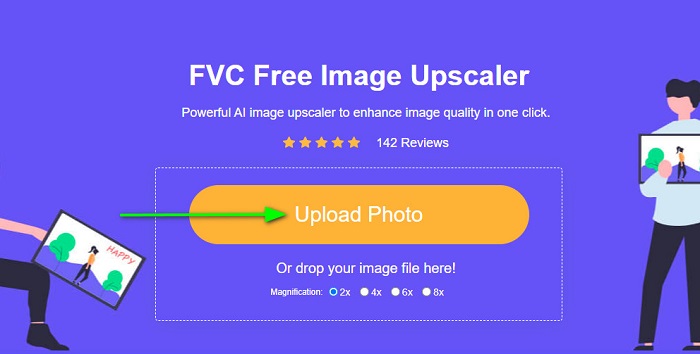
Krok 1. Otwórz przeglądarkę internetową i wyszukaj FVC Free Image Upscaler w polu wyszukiwania. Możesz też kliknąć bezpośredni link do strony głównej. Na głównym ekranie programu kliknij przycisk Upload Photo, aby uruchomić aplikację na swoim urządzeniu.
Krok 2. Następnie kliknij przycisk Upload Photo w głównym interfejsie, aby dodać zdjęcie, które chcesz przeskalować lub zmienić jego rozmiar.
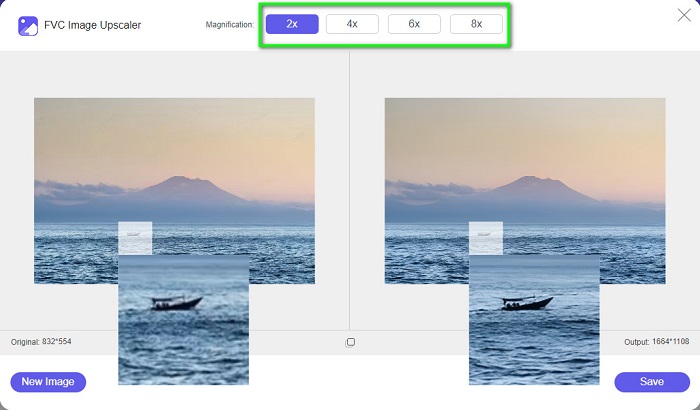
Krok 3. Po przesłaniu pliku wybierz jedno z dostępnych ustawień powiększenia. Możesz wybrać 2x, 4x, 6x lub 8x. Następnie możesz sprawdzić podgląd wyniku, przesuwając kursor po obrazie.
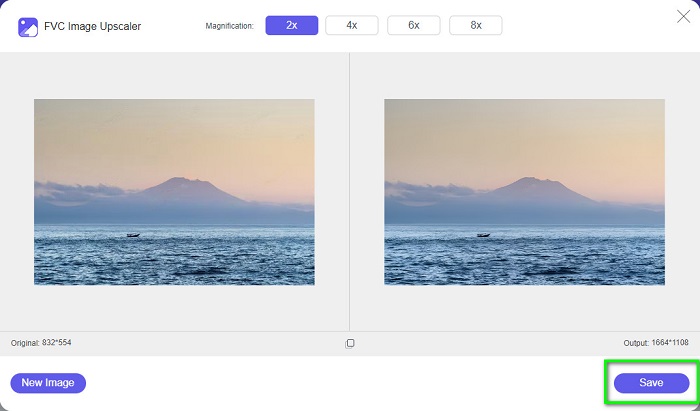
Krok 4. Na koniec kliknij przycisk Save w prawym dolnym rogu interfejsu, aby zapisać wynik na swoim urządzeniu.
Powiązane z:
Jak zoptymalizować obraz do internetu za pomocą najlepszych rozwiązań [szybko]
3 sposoby na zmianę rozmiaru obrazka na Twittera bez utraty jakości
Część 3. Często zadawane pytania dotyczące używania GIMP do zmiany rozmiaru obrazów
Czy GIMP ma wersję online?
Tak. GIMP to nie tylko aplikacja do edycji zdjęć offline; ma również wersję online. Jednak GIMP online nie zawiera wszystkich funkcji, takich jak wersja GIMP na komputery stacjonarne.
Czy GIMP to najlepszy darmowy Photoshop?
GIMP nie jest porównywalny z Photoshopem. Photoshop jest nadal najdoskonalszym oprogramowaniem do edycji zdjęć na komputery stacjonarne. Jednak GIMP jest jedną z najlepszych alternatyw dla Adobe Photoshop.
Czy GIMP obsługuje pliki PNG?
TAk. GIMP umożliwia zapisywanie wyników w formatach JPEG, JPG, PNG i innych.
Wniosek
I tak wygląda proces używania GIMP do zmiany rozmiaru obrazów. Chociaż interfejs GIMP‑a jest dość złożony, dzięki krokom opisanym powyżej możesz łatwo zmienić wymiary i rozmiar pliku obrazu. Jeśli jednak wolisz darmowy internetowy zmieniacz rozmiaru, który dodatkowo poprawia jakość zdjęcia, skorzystaj z narzędzia FVC Free Image Upscaler.
-
 6 sposobów na zmianę rozmiaru obrazu w Internecie i offline [100% Working]
 Dzięki samouczkowi, który tutaj dodamy, możesz teraz łatwo zmienić rozmiar obrazu w oparciu o preferowany rozmiar. Dowiedz się, jak to zrobić tutaj!
-
 Rzeczywista recenzja PicResize, którą musisz znać 2022
 Czy chcesz wiedzieć, czy PicResize to najlepsza opcja do edycji obrazu? Przeczytaj ten artykuł, gdy przeglądamy ogólne narzędzie.
-
 Wszystko, co musisz wiedzieć o Waifu2x i Alternative
 Chcesz dowiedzieć się więcej o Waifu2x? Ten artykuł zawiera informacje, które należy podkreślić w tej aplikacji i jej alternatywie.
