


 Video Converter Ultimate
 Nagrywarka ekranu
 Naprawa wideo
Wspaniałe sposoby na usunięcie logo z wideo za pomocą urządzeń
Oglądanie ulubionych filmów jest satysfakcjonujące – dopóki na nagraniu nie pojawia się zbędny element, taki jak logo, znak wodny, tekst itp. Jeśli szukasz najlepszych i najbardziej przydatnych metod, musisz przeczytać ten artykuł, aby zorientować się w możliwościach. Korzystając ze świetnych aplikacji, możesz wypróbować wiele sposobów usuwania logo z filmów w trybie offline i online. Dzięki tym narzędziom do usuwania logo możesz z przyjemnością oglądać swoje ulubione filmy, klipy wideo, pokazy slajdów i inne materiały. W ten sposób nigdy więcej nie napotkasz tego samego problemu. Jeśli chcesz poznać skuteczne sposoby na usunięcie logo z filmów, nie pomijaj lektury tego informacyjnego artykułu.

Część 1: Najlepsza metoda usuwania logo z wideo
Załóżmy, że szukasz darmowego narzędzia do usuwania logo. Najlepszą aplikacją, z której możesz skorzystać, jest Video Converter Ultimate. Ten program pomoże ci usunąć logo z twojego filmu. Nie tylko logo, ale także inne zbędne elementy w nagraniach, takie jak znaki wodne, teksty, obrazy itp. Dodatkowo możesz łatwo usunąć logo, ponieważ program oferuje proste kroki, które zrozumie nawet początkujący użytkownik.
Co więcej, Video Converter Ultimate ma szybki proces usuwania, w przeciwieństwie do innych aplikacji, które zajmują dużo czasu na usuwanie logo z wideo. Korzystając z tej aplikacji, możesz usunąć logo za pomocą dwóch łatwych narzędzi, narzędzia do usuwania znaków wodnych wideo i narzędzia do przycinania wideo. Ponadto ma funkcje, z których możesz korzystać, takie jak konwerter wideo, kontroler prędkości wideo, kompresor wideo, korekcja kolorów, przycinanie wideo, narzędzie do tworzenia kolaży i inne. Jeśli chcesz poznać te dwa sposoby usuwania logo za pomocą Video Converter Ultimate, wykonaj poniższe czynności.
1. Korzystanie z funkcji usuwania znaków wodnych wideo
Krok 1: Na początku przejdź na stronę internetową Video Converter Ultimate i pobierz oprogramowanie. Po pobraniu przejdź do instalacji i uruchom Video Converter Ultimate na komputerze.
Bezpłatne pobieranieDla Windows 7 lub nowszegoBezpieczne pobieranie
Bezpłatne pobieranieDla MacOS 10.7 lub nowszegoBezpieczne pobieranie
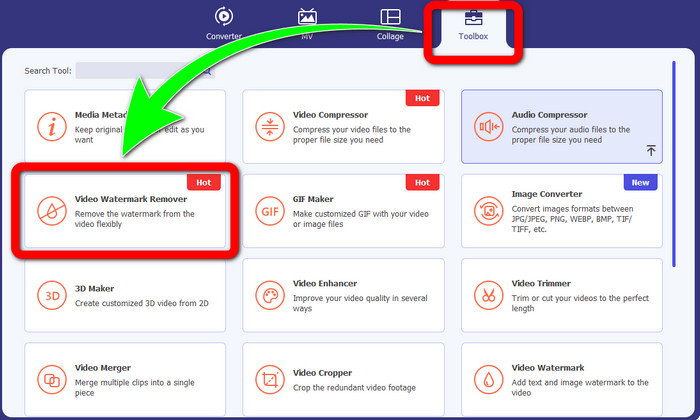
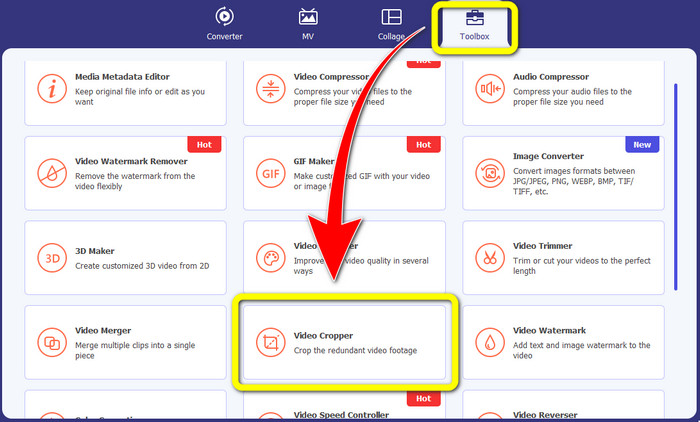
Krok 2: Po uruchomieniu programu przejdź do zakładki Toolbox. Następnie znajdź opcję Video Watermark Remover i kliknij ją.
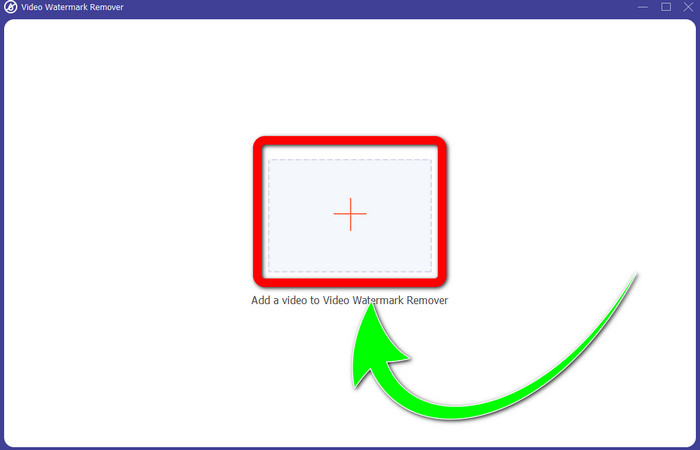
Krok 3: Po kliknięciu Video Watermark Remover na pulpicie pojawi się nowe okno. Wybierz przycisk z plusem i zaimportuj wideo z logo.
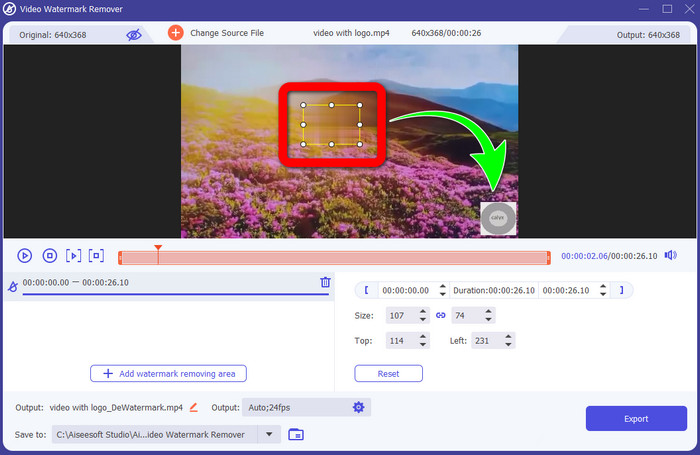
Krok 4: Kliknij przycisk Add Watermark Removing Area. Na wideo pojawi się małe okienko. Przesuń je na logo, aby je zakryć.
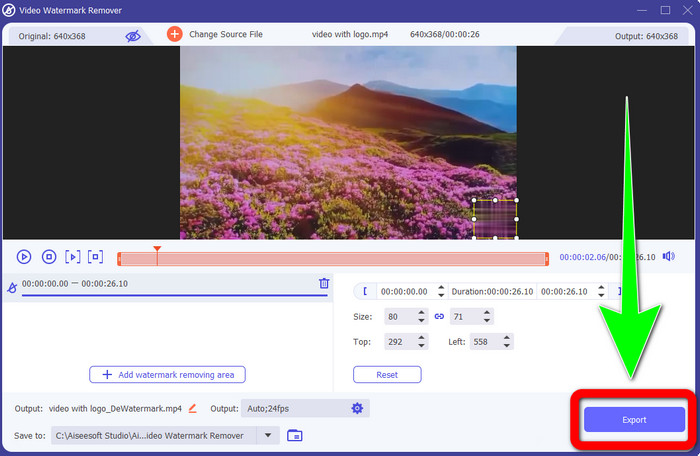
Krok 5: Po ustawieniu okienka tak, aby zakrywało logo, wybierz przycisk Export, aby zapisać gotowe wideo.
1. Korzystanie z funkcji przycinania wideo
Krok 1: Otwórz Video Converter Ultimate, przejdź do Toolbox i kliknij przycisk Video Cropper. Następnie na ekranie pojawi się nowe okno.
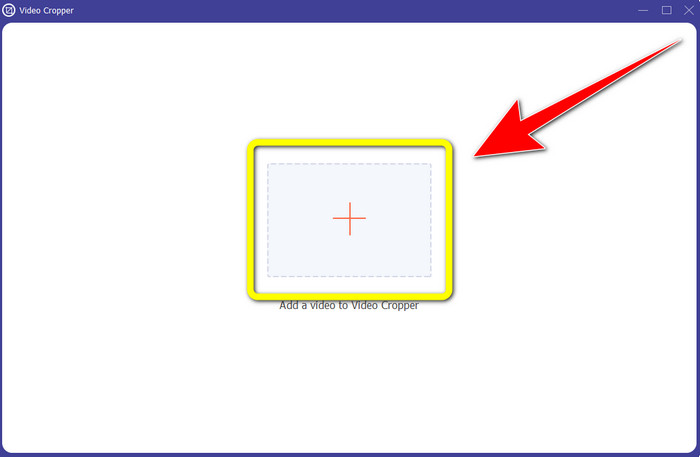
Krok 2: Gdy na ekranie pojawi się nowe okno, kliknij przycisk z plusem, aby zaimportować wideo z logo.
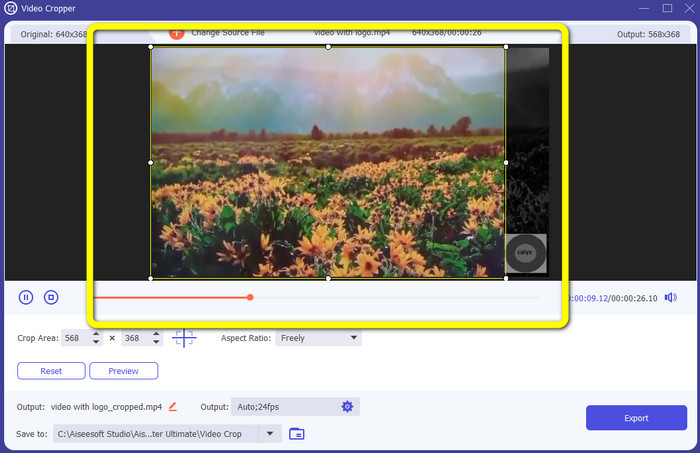
Krok 3: Po zaimportowaniu filmu możesz go przyciąć, aby usunąć z kadru logo.
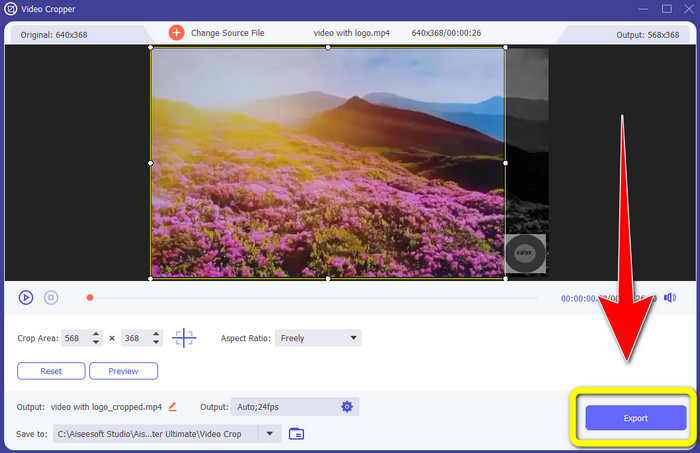
Krok 4: Po przycięciu filmu kliknij przycisk Export.
Część 2: Jak usunąć logo z wideo online
Jeśli szukasz świetnej aplikacji, która pomoże ci usunąć logo z filmu, możesz skorzystać z 123APPS. Ten program pozwala szybko i bez wysiłku usunąć logo z nagrania, co jest idealne dla początkujących. Co więcej, to narzędzie online jest darmowe, więc nie musisz się martwić o zakup licencji. Jedną z jego przydatnych funkcji jest możliwość eliminowania irytujących elementów w filmach, takich jak znaki wodne, teksty, obrazy itp. Ponadto obsługuje różne formaty plików, takie jak MOV, WMV, AVI, MP4 i inne. Trzeba jednak pamiętać, że za każdym razem, gdy przesyłasz plik, wgrywanie trwa dość długo. Sam proces usuwania także jest powolny. Jeśli chcesz usunąć logo z nagrań, postępuj według poniższych prostych kroków.
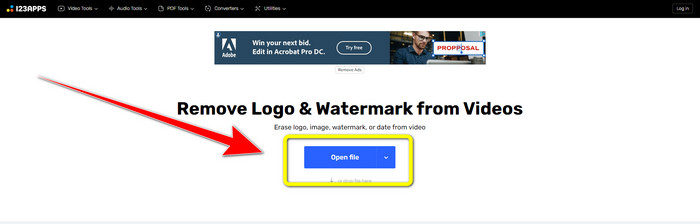
Krok 1: Przejdź na stronę 123APPS. Kliknij przycisk Open file i dodaj film z logo TikTok.
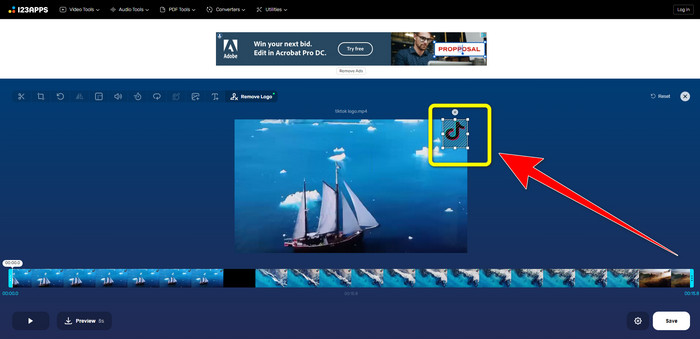
Krok 2: Po dodaniu wideo utwórz na ekranie ramkę za pomocą myszy i ustaw ją tak, aby zakryć logo.
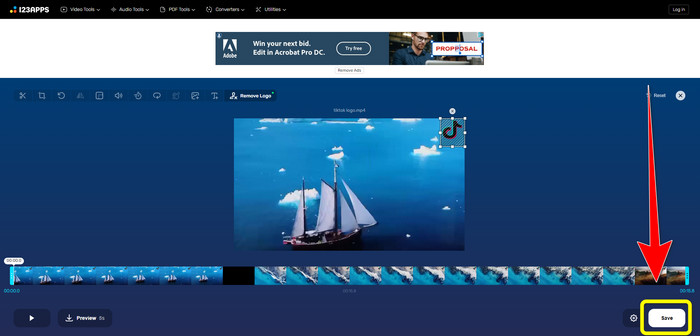
Krok 3: Po zakryciu logo możesz kliknąć przycisk Save, aby zapisać gotowe wideo bez logo.
Część 3: Jak usunąć logo z wideo na iPhonie i Androidzie
Jak usunąć logo z wideo na Androidzie
Jeśli chcesz się dowiedzieć, jak usunąć logo z filmu na Androidzie, możesz skorzystać z aplikacji Remove and Add Watermark. Ten program pozwoli ci natychmiast usunąć logo z nagrań. Nie służy on wyłącznie do usuwania zbędnych elementów z filmów – możesz także usuwać logotypy z obrazów, co jest bardzo wygodne. Dodatkowo to narzędzie jest proste i łatwe w obsłudze. Na koniec warto dodać, że zapisywanie materiałów przebiega bardzo szybko. Jeśli chcesz pozbyć się logo z filmów, wykonaj poniższe proste kroki.
Krok 1: Pobierz aplikację Remove and Add Watermark na swój telefon z Androidem.
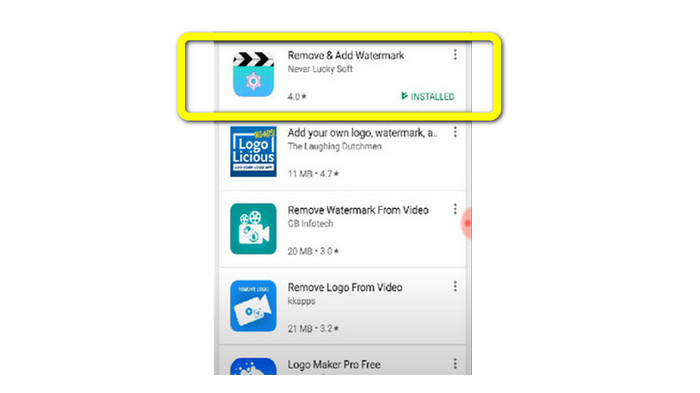
Krok 2: Po pobraniu aplikacji kliknij przycisk Select Video > Remove Logo, aby dodać film z logo.
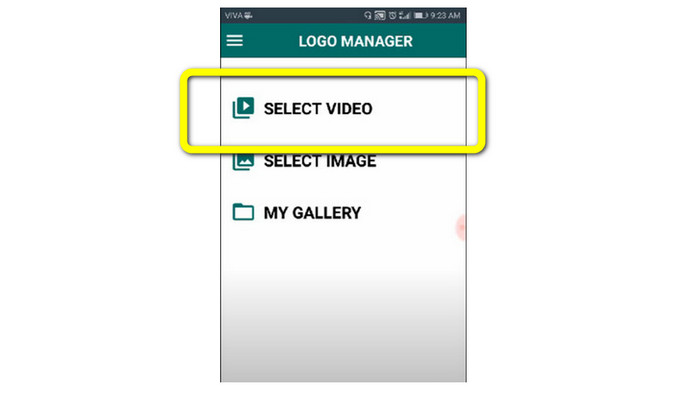
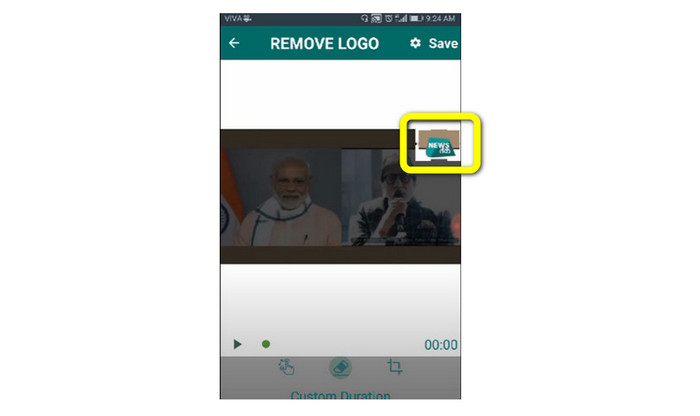
Krok 3: Gdy wideo zostanie dodane, na ekranie pojawi się małe okienko. Użyj go, aby zakryć logo.
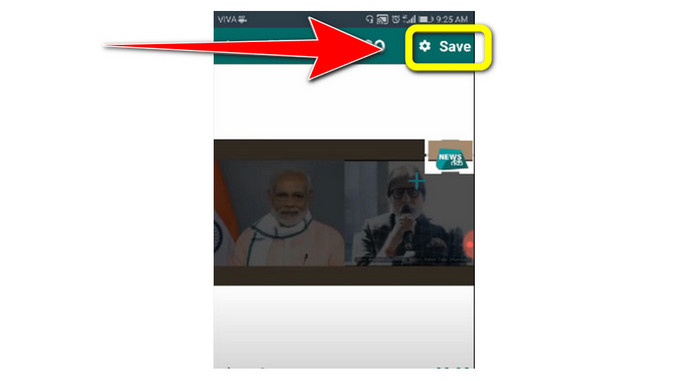
Krok 4: Po zakryciu logo kliknij przycisk Save, aby zapisać wideo bez logo.
Jak usunąć logo z wideo na iPhonie
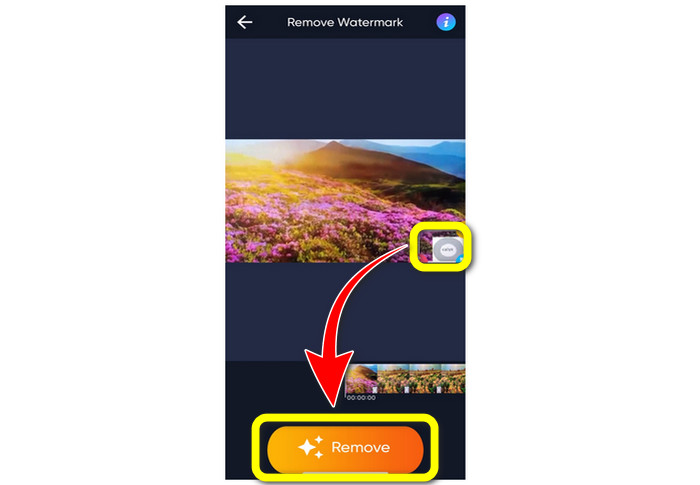
Jeśli chcesz usunąć logo z filmów na iPhonie, najlepszą aplikacją będzie Watermark Remover Retouch. Ten program pozwala usunąć zbędne elementy z nagrań, takie jak logotypy, znaki wodne, teksty, obrazy itp. Usuwanie przebiega szybko, co jest wygodne dla nowych użytkowników. Ponadto aplikacja ma prosty interfejs, dzięki czemu korzystanie z niej jest łatwe. Jeśli chcesz użyć tego programu do usuwania logo z filmów na iPhonie, wykonaj poniższe proste kroki.
Krok 1: Pobierz aplikację Watermark Remover Retouch na iPhone’a. Następnie uruchom program i dodaj film z logo.
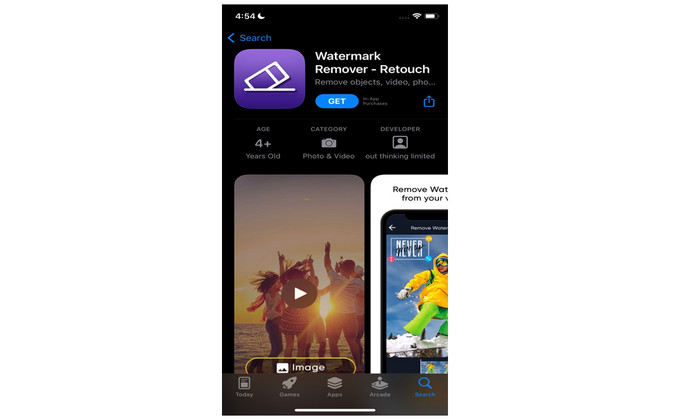
Krok 2: Gdy wideo zostanie dodane, na nagraniu pojawi się małe okienko. Użyj go, aby zakryć logo. Następnie kliknij przycisk Remove i zapisz film bez znaku wodnego.
Powiązane z:
Jak za darmo usunąć znak wodny Filmora z filmów lub projektów
Najszybszy sposób na usunięcie znaku wodnego Adobe Stock z filmu [Poradnik[
Część 4: Często zadawane pytania dotyczące usuwania logo z wideo
Czy usunięcie logo online jest bezpieczne?
Tak to jest! Aplikacje internetowe są bezpieczne i bezpieczne w użyciu. Najlepszą rzeczą, jaką musisz zrobić, to poszukać aplikacji, która pomoże Ci usunąć logo i wykorzystać je.
Czy mogę usunąć podpisy z moich filmów?
Oczywiście, że tak. Możesz usunąć podpisy z filmów za pomocą Video Converter Ultimate. Podpisy, znaki wodne, logotypy i teksty można łatwo usunąć dzięki tej doskonałej aplikacji.
Jaka jest najlepsza aplikacja, której mogę użyć do usuwania logo na komputerze Mac?
Najlepszą aplikacją do usuwania logo na Macu jest Video Converter Ultimate. Program jest dostępny nie tylko na Windows, ale także na macOS, co jest bardzo wygodne dla użytkowników.
Wniosek
W tym artykule przedstawiono skuteczne i niezawodne sposoby, aby usunąć logo z filmów. Dzięki temu możesz oglądać swoje ulubione nagrania bez logotypów. Na koniec, jeśli chcesz najprostszej i najmniej kłopotliwej metody usuwania logo z filmów, powinieneś skorzystać z Video Converter Ultimate.
-
 Jak usunąć znak wodny animaker bez ponoszenia kosztów [sprawdzone sposoby]
 Jak usunąć znak wodny animaker? Dzięki najlepszym narzędziom, które zaciągamy na tym blogu, możesz ich użyć, aby pozbyć się znaku wodnego.
-
 Samouczek usuwania znaku wodnego z wykresu pochodzenia [100% Working]
 Aby usunąć znak wodny z wykresu Origin, będziesz potrzebować pomocy. Pomoc, której potrzebujesz, jest zawarta w tym artykule, możesz to przeczytać, aby wiedzieć.
-
 Jak łatwo usunąć znak wodny w SmartDraw [2 sprawdzone sposoby]
 Jak usunąć znak wodny w Smart Draw? Jeśli masz to samo pytanie, możesz polegać na tym artykule, ponieważ mamy cię w zasięgu!
