


 Video Converter Ultimate
 Nagrywarka ekranu
 Naprawa wideo
Najprostsze sposoby na usunięcie logo z wideo za pomocą programu Windows Movie Maker
Jak usunąć logo z filmów za pomocą Windows Movie Maker? To najczęściej zadawane pytanie przez osoby, które uwielbiają oglądać swoje ulubione filmy, klipy wideo, pokazy slajdów i inne materiały. Oglądanie filmu, na którym cały czas widać logo, nie jest satysfakcjonujące. Nie musisz się jednak już tym martwić. Mamy skuteczne sposoby na usuwanie logo z Twoich filmów za pomocą Windows Movie Maker. Istnieje też inne narzędzie, którego możesz użyć do usuwania logo, oprócz Windows Movie Maker. Jeśli chcesz poznać tę dodatkową aplikację oraz te proste metody, czytaj dalej ten artykuł.

Część 1: Jak usunąć logo z wideo za pomocą programu Windows Movie Maker
Jeśli jesteś użytkownikiem systemu Windows, koniecznie wypróbuj Windows Movie Maker, aby usunąć logo z Twoich filmów. To narzędzie może również wykorzystywać różne metody do usuwania elementów z nagrań, takich jak logotypy, znaki wodne, teksty, stemple i wiele innych. Dodatkowo Windows Movie Maker to program do edycji wideo, który pomaga użytkownikom tworzyć i ulepszać filmy. Ma prosty interfejs, który ułatwia pracę i jest idealny dla osób bez doświadczenia. Podczas usuwania logo możesz zastąpić je innymi elementami, na przykład obrazami lub tekstem. Co więcej, aplikacja oferuje wiele narzędzi do edycji, z których możesz korzystać, takich jak cięcie, łączenie, obracanie i przycinanie wideo. Możesz także dodawać przejścia, teksty, efekty i inne elementy. Jeśli chcesz poznać ten prosty sposób, wykonaj poniższe kroki.
Krok 1: Najpierw pobierz program Windows Movie Maker na swój komputer z systemem Windows. Poczekaj na zakończenie instalacji, a następnie otwórz aplikację.
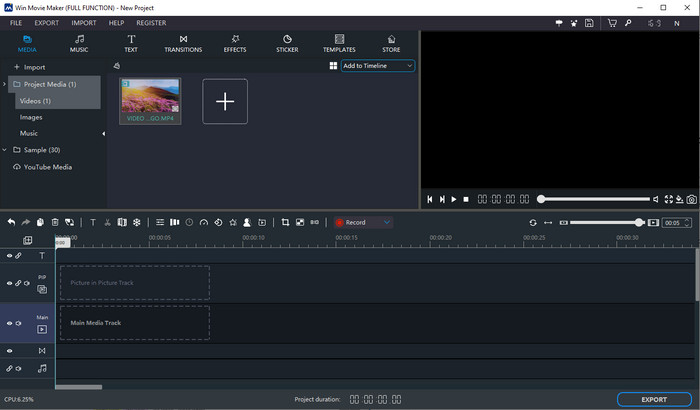
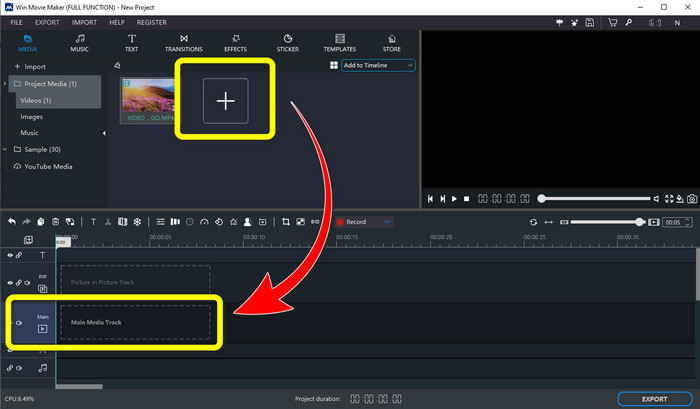
Krok 2: Kliknij ikonę znaku Plus, aby dodać film z logo. Gdy wideo zostanie już zaimportowane, przeciągnij je na Main Media Track.
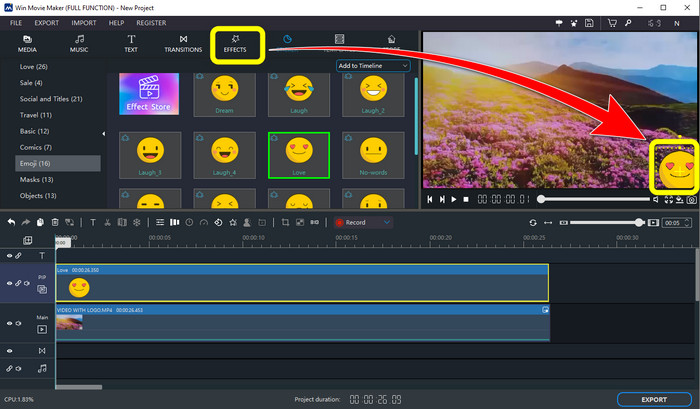
Krok 3: Aby zastąpić logo, kliknij przycisk Sticker. Następnie wybierz preferowaną naklejkę lub inny element i umieść go w miejscu logo, aby je zakryć.
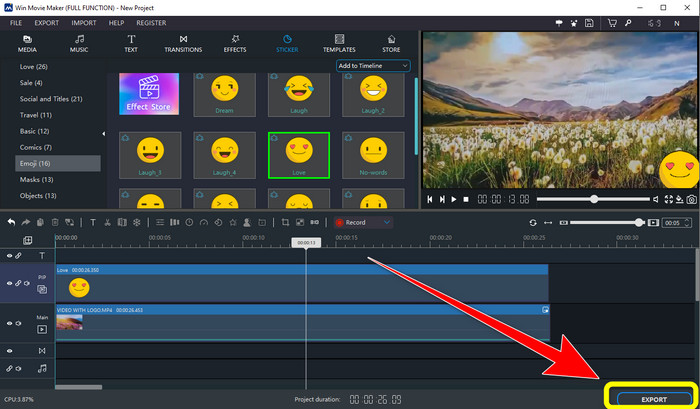
Krok 4: Na koniec, gdy skończysz zakrywać logo w swoim filmie, kliknij przycisk Export, aby zapisać wynikowy plik.
Część 2: Najlepszy alternatywny sposób na usunięcie logo z wideo
Video Converter Ultimate to jedna z najlepszych alternatyw dla Windows Movie Maker, umożliwiająca łatwe usuwanie logo z filmów. Aplikacja pozwala usuwać zbędne elementy, takie jak znaki wodne, logotypy, podpisy, stemple i wiele innych. Dodatkowo możesz użyć narzędzia przycinania, aby usunąć logotypy umieszczone przy krawędzi lub w rogu wideo. Video Converter Ultimate oferuje prosty i intuicyjny interfejs, odpowiedni dla osób bez doświadczenia. Oprócz usuwania logo z filmów program zapewnia różne narzędzia do edycji, z których możesz korzystać. Zawiera kompresor wideo, kontroler prędkości odtwarzania, generator GIF-ów, kreator kolaży, narzędzia do dodawania i usuwania znaków wodnych, obrotu wideo i wiele innych. Obsługuje również różne formaty plików, takie jak MP4, MKV, FLV, MOV, XVID, DIVX, TRP, MTS itd. Wreszcie, Video Converter Ultimate jest dostępny zarówno na Windows, jak i Mac, co jest wygodne dla użytkowników. Skorzystaj z poniższych szczegółowych instrukcji, aby usunąć logo z filmów, używając narzędzia do usuwania znaków wodnych z wideo i przycinania wideo.
Korzystanie z funkcji usuwania znaku wodnego wideo
Krok 1: Najpierw pobierz program Video Converter Ultimate i zainstaluj go na komputerze z systemem Windows lub Mac.
Bezpłatne pobieranieDla Windows 7 lub nowszegoBezpieczne pobieranie
Bezpłatne pobieranieDla MacOS 10.7 lub nowszegoBezpieczne pobieranie
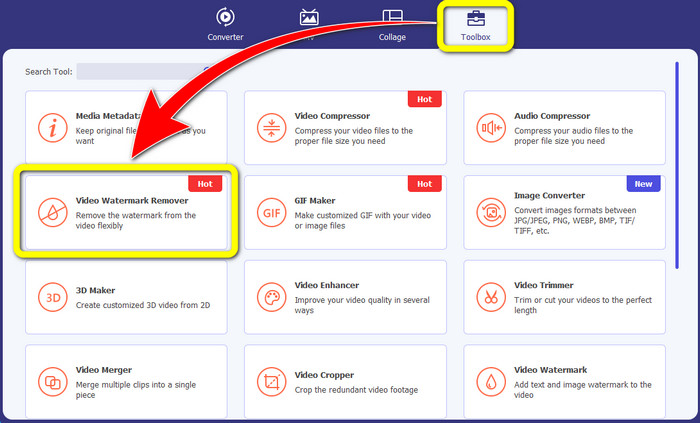
Krok 2: Po uruchomieniu aplikacji przejdź do panelu Toolbox, znajdź Video Watermark Remover i wybierz tę funkcję.
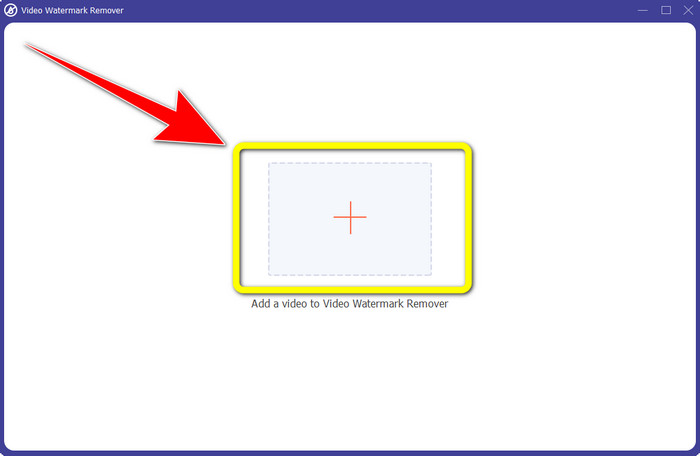
Krok 3: Następnie pojawi się nowe okno. Kliknij ikonę plusa, aby dodać film, z którego chcesz usunąć logo.
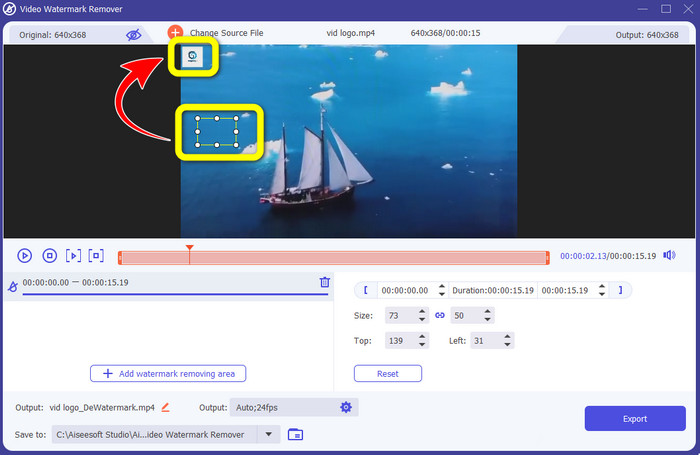
Krok 4: Gdy plik zostanie już zaimportowany, na ekranie pojawi się mini box. Przeciągnij to okienko w miejsce, w którym znajduje się logo, aby je zakryć.
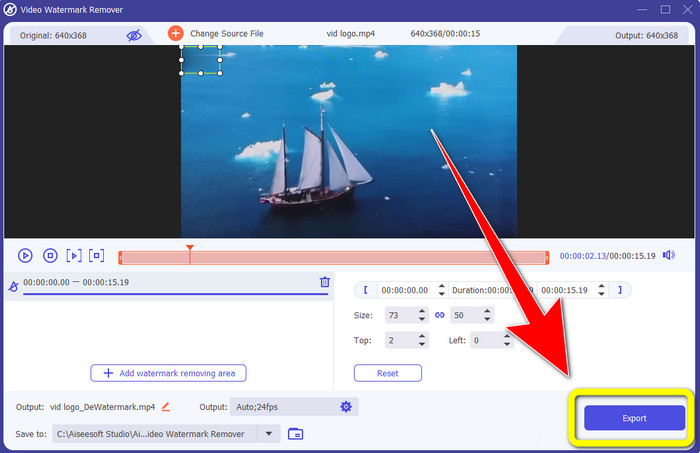
Krok 5: Gdy skończysz usuwać logo z filmów, kliknij przycisk Export, aby wyeksportować i zapisać nagranie bez logo.
Korzystanie z funkcji przycinania wideo
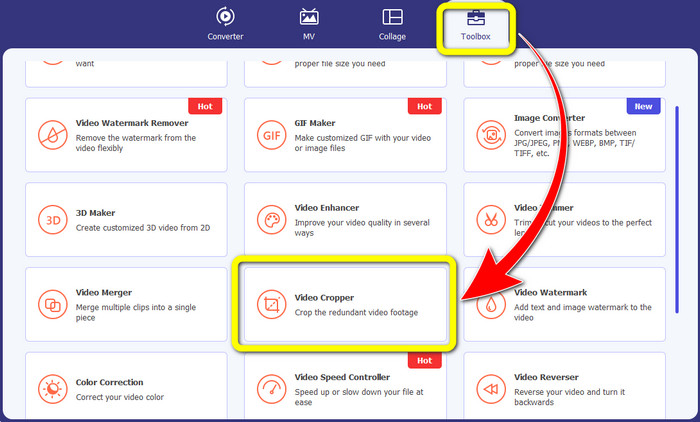
Krok 1: Najpierw kliknij panel Toolbox. Następnie znajdź narzędzie Video Cropper i wybierz je.
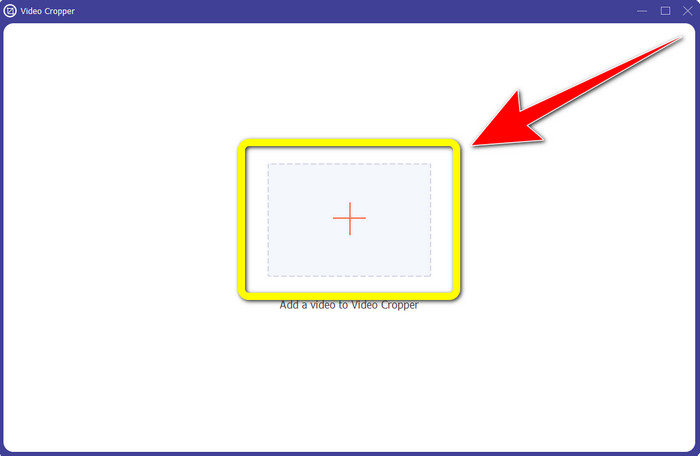
Krok 2: Teraz kliknij przycisk z ikoną Plus, aby zaimportować wideo z logo.
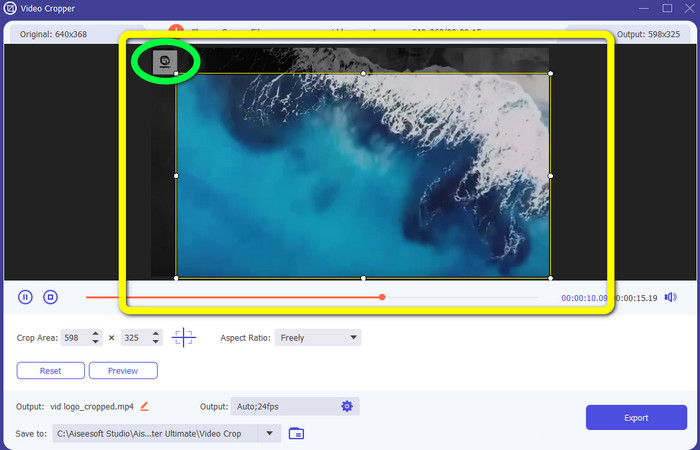
Krok 3: W tej funkcji możesz przyciąć boki lub górną i dolną część nagrania, aby usunąć logo z filmu.
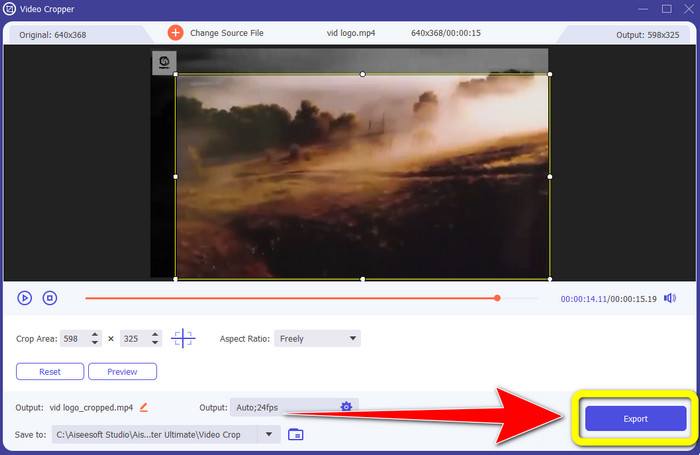
Krok 4: Na koniec kliknij przycisk Export i zapisz wideo na komputerze.
Część 3: Często zadawane pytania dotyczące usuwania logo z wideo za pomocą programu Windows Movie Maker
Ile czasu zajmie wyeksportowanie filmu do programu Windows Movie Maker po usunięciu logo?
Korzystając z programu Windows Movie Maker, możesz wyeksportować wideo w zaledwie minutę po usunięciu logo.
Która aplikacja jest najlepsza do usuwania logo z filmu?
Jeśli szukasz najlepszego i najbardziej niezawodnego programu z funkcją usuwania logo, możesz użyć Video Converter Ultimate. Ta aplikacja pozwoli Ci w pełni cieszyć się filmem po usunięciu z niego logo.
Czy istnieje pomocna aplikacja, której mogę użyć do usunięcia logo z filmów za pomocą mojego telefonu?
Oczywiście, że tak! Możesz użyć aplikacji PicLab. Jest dostępna zarówno na Androida, jak i iPhone’a. Oto ogólna instrukcja:
1. Pobierz PicLab na swój telefon i uruchom aplikację.
2. Dodaj plik i wybierz narzędzie markera.
3. Wskaż część do usunięcia, następnie naciśnij erase (wymaż) i zapisz.
Czy można usunąć logo z filmu bez utraty jakości?
Tak, to możliwe! Najbardziej polecanym programem, którego możesz użyć, jest Video Converter Ultimate.
Czy istnieje narzędzie online, za pomocą którego mogę usunąć logo z moich filmów?
Zdecydowanie tak! Możesz skorzystać z wielu narzędzi online do usuwania logo z filmów. Możesz użyć Apowersoft Online Watermark Remover. Oto proste kroki korzystania z tego narzędzia:
1. Przejdź na stronę Apowersoft Online Watermark Remover i kliknij przycisk remove watermark from video.
2. Dodaj swój plik. Użyj okienka, aby zakryć logo.
3. Kliknij Erase i pobierz swoje wideo.
Wniosek
W tym artykule przedstawiono skuteczne metody jak usunąć logo z wideo za pomocą Windows Movie Maker na komputerze. Oprócz korzystania z Windows Movie Maker, artykuł oferuje także jedną z najlepszych alternatyw do usuwania logo z filmów. Tym niezawodnym programem jest Video Converter Ultimate. Oprogramowanie to pozwala usunąć logo na dwa proste sposoby. Pierwszy to narzędzie Video Watermark Remover, a drugi to narzędzie Video Cropper.
-
 Jak bez wysiłku usunąć znak wodny Bandicam [3 skuteczne sposoby]
 Jak usunąć znak wodny Bandicam? Dzięki narzędziom, dodamy tutaj, będziesz wiedział, jak skutecznie sobie z tym poradzić!
-
 Jak usunąć znak wodny iStock przy użyciu najskuteczniejszych sposobów?
 Jak usunąć znak wodny iStock z filmów i zdjęć? Jeśli szukasz sposobu na pozbycie się znaku wodnego, przeczytaj to!
-
 Usuń znak wodny DaVinci Resolve z wyeksportowanych filmów za pomocą pełnego samouczka
 Aby usunąć znak wodny Davinci Resolve, musisz użyć narzędzia lub kupić jego oficjalną wersję, czytaj dalej, aby dowiedzieć się więcej.
