


 Video Converter Ultimate
 Nagrywarka ekranu
 Naprawa wideo
Rozwiązania do wycinania filmów online [samouczki krok po kroku]
Jak skrócić długi film? Jeśli nie znasz najlepszych metod, których możesz użyć, masz powód, by przeczytać ten poradnik. W trakcie lektury artykułu przekażemy wszystkie najważniejsze informacje o tym, jak zmniejszyć długość nagrania. Przedstawimy także programy do edycji wideo online i offline, z których możesz skorzystać. Dzięki temu zyskasz większą szansę na osiągnięcie celu. A więc, bez zbędnych wstępów, przeczytaj ten tekst i dowiedz się, jak przyciąć wideo online.

Część 1. Doskonałe metody przycinania wideo online
1. InVideo
Jednym z pomocnych narzędzi do edycji wideo, które można znaleźć w Internecie, jest trymer wideo InVideo. To oprogramowanie internetowe oferuje łatwy w obsłudze układ. Po odwiedzeniu strony nie musisz instalować narzędzia. Wszystko, co musisz zrobić, to dodać wideo i możesz już przystąpić do przycinania. Ponadto, ponieważ ma prosty układ, będzie również zrozumiała metoda. W ten sposób, niezależnie od tego, czy jesteś użytkownikiem profesjonalnym, czy nieprofesjonalnym, możesz korzystać z InVideo. Co więcej, InVideo jest dostępne na prawie wszystkich platformach internetowych. Możesz używać tego narzędzia w Google Chrome, Mozilla Firefox, Internet Explorer i innych. InVideo ma jednak pewne wady. Podczas korzystania z bezpłatnej wersji InVideo nie może oferować wysokiej jakości wideo. Ponadto może oferować tylko niską jakość wideo, co jest niezadowalające. Jeśli chcesz doskonałej jakości wideo, musisz wykupić abonament. Wykonaj poniższe czynności, aby wyciąć/przyciąć wideo za pomocą trymera wideo InVideo.
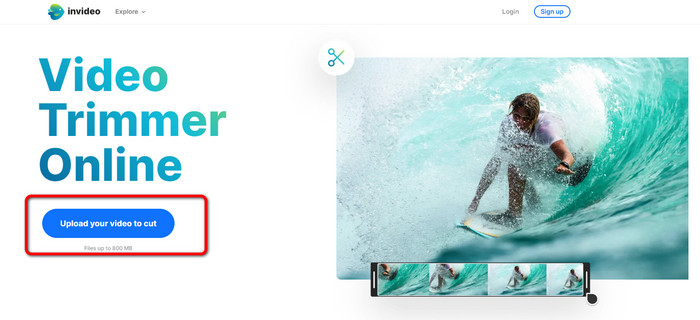
Krok 1. Otwórz przeglądarkę i przejdź na oficjalną stronę InVideo. Następnie, jeśli jesteś już na stronie, kliknij przycisk Upload your video to cut. Gdy na ekranie pojawi się okno wyboru pliku, wskaż film, który chcesz przyciąć/zmontować, i otwórz go.
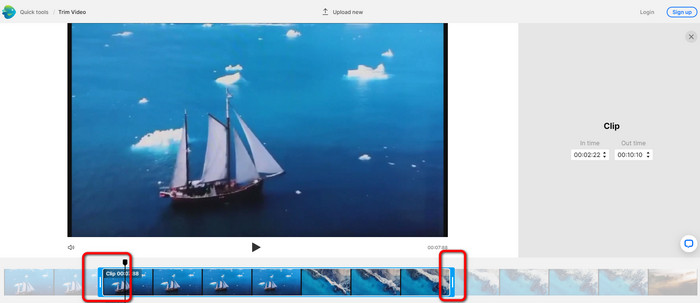
Krok 2. Po wybraniu filmu zostaniesz przeniesiony do sekcji, w której można go przyciąć. Aby skrócić nagranie, przesuń suwaki po obu stronach klipu do żądanego momentu czasowego.
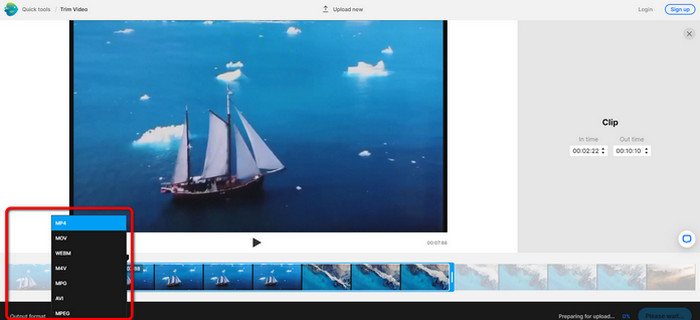
Krok 3. Po przycięciu filmu możesz zapisać go w różnych formatach. Przejdź do opcji Output Format w dolnej lewej części interfejsu. Gdy pojawią się dostępne formaty, wybierz preferowany. Następnie kliknij Done.
Krok 4. Zanim będzie można zapisać wideo, musisz zarejestrować konto w InVideo lub zalogować się na już istniejące. Po wpisaniu danych logowania Twoje wideo będzie gotowe do zapisania w ciągu kilku sekund.
2. Ezgif
Kolejnym darmowym trymerem wideo online jest Ezgif. Oferuje proste kroki, aby skrócić nagranie. Ezgif to bezpłatne narzędzie online, więc nie musisz martwić się o jakiekolwiek opłaty. Dodatkowo możesz korzystać z niego w każdej przeglądarce – w tym w Google, Edge, Firefox, Explorer i innych. Jednak wersja online obsługuje wyłącznie GIF-y. Jeśli więc planujesz przyciąć film w innym formacie, Ezgif nie będzie odpowiednim narzędziem. Co więcej, podczas pracy pojawia się wiele natarczywych reklam, które przeszkadzają przy edycji.
Krok 1. Przejdź na stronę internetową Ezgif i wybierz opcję Cut.
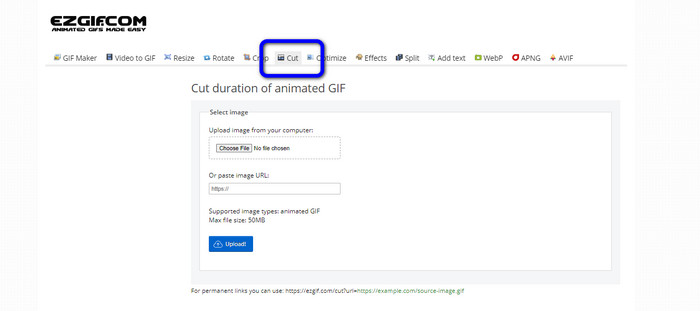
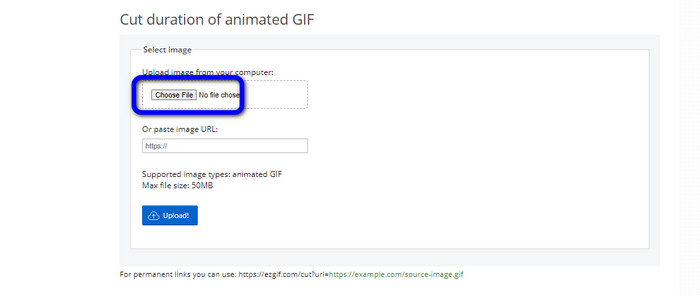
Krok 2. Następnie kliknij przycisk Choose File. Dodaj plik GIF, który chcesz wgrać, z folderu na komputerze.
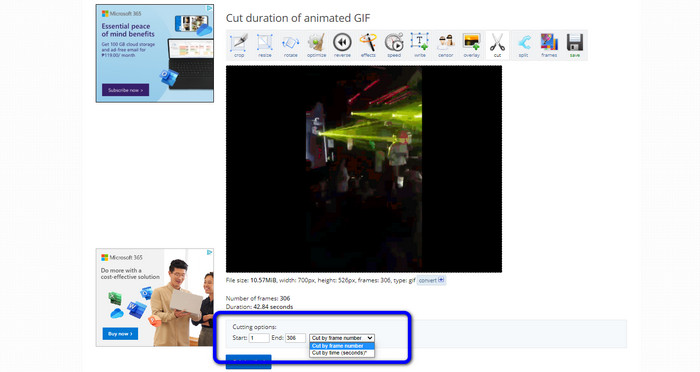
Krok 3. Po przesłaniu pliku GIF możesz od razu go przyciąć. Istnieją dwa sposoby cięcia GIF-a: według numeru klatki lub według czasu. Przytnij go w preferowany przez siebie sposób.
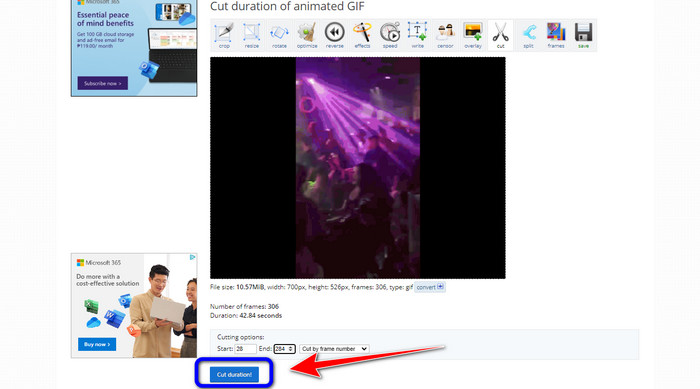
Krok 4. Kliknij przycisk Cut Duration, aby rozpocząć proces cięcia.
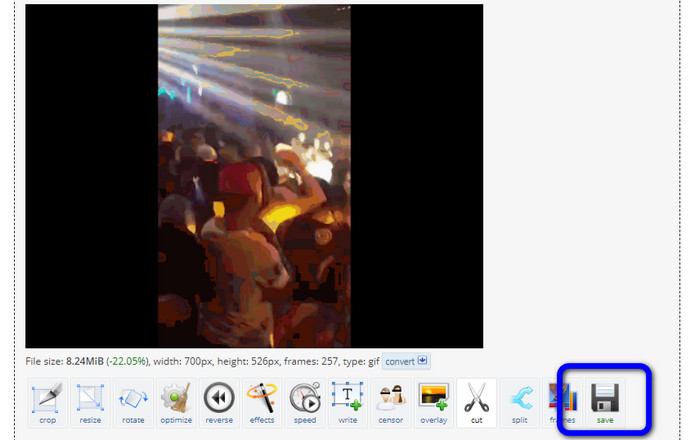
Krok 5. Następnie pojawi się zmodyfikowana wersja. Kliknij opcję Save, aby pobrać gotowy plik na komputer.
3. Skrzydło
Do przycinania filmów możesz także wykorzystać trymer wideo Kapwing. To narzędzie działające w przeglądarce umożliwia wygodne skracanie nagrań. Możesz korzystać z niego na różnych platformach – m.in. w Chrome, Mozilli, Edge i innych. Co więcej, Kapwing obsługuje wiele formatów wideo, takich jak MP4, MOV, AVI, FLV, WEBM i inne, co czyni go wygodnym dla wszystkich użytkowników. Kapwing ma jednak pewne wady. Na ekranie często pojawiają się irytujące reklamy. Ponadto w darmowej wersji możesz przesyłać filmy tylko w jakości do 720p. Program dodaje też dokuczliwe znaki wodne po zakończeniu edycji. Jeśli chcesz uzyskać wideo bez watermarków i korzystać z większej liczby funkcji, musisz wykupić abonament.
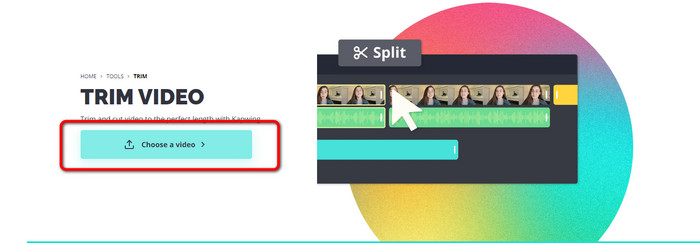
Krok 1. Przejdź na stronę Kapwing. Następnie kliknij opcję Choose a video, aby przejść do głównego interfejsu narzędzia.
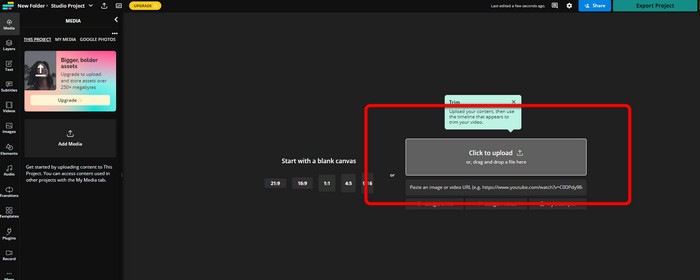
Krok 2. Kliknij przycisk Click to upload, aby wstawić wideo z folderu na komputerze.
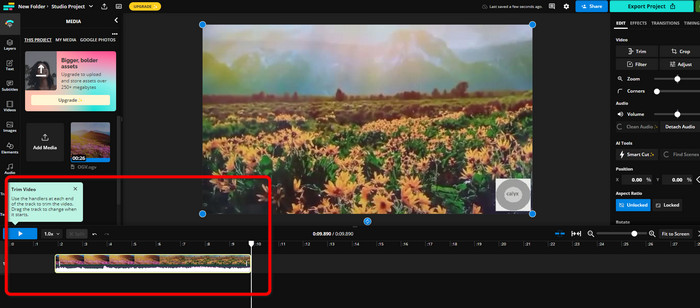
Krok 3. Gdy film znajdzie się już na osi czasu, możesz przeciągać uchwyty po obu stronach, aby rozpocząć przycinanie nagrania.
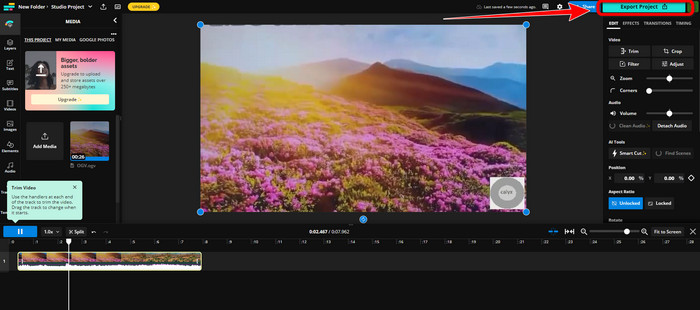
Krok 4. Po zakończeniu przejdź do prawego górnego rogu interfejsu i kliknij przycisk Export Project. W ten sposób zapiszesz edytowany film na komputerze.
Część 2. Alternatywny sposób przycinania wideo offline
Użyj programu Video Converter Ultimate, aby w jak najlepszy sposób edytować wideo offline. To narzędzie ułatwia dzielenie i/lub przycinanie filmu. Ma prosty interfejs i intuicyjną nawigację, dzięki czemu jest odpowiednie dla każdego użytkownika. Gotowy materiał możesz zapisać w wielu formatach, m.in. MOV, AVI, MP4, MKV i innych. Podczas przycinania możesz zrobić znacznie więcej. Po przejściu do opcji wyjściowych (Output) możesz zmienić liczbę klatek na sekundę, rozdzielczość, kodek, jakość itp. Co ważne, Video Converter Ultimate nie dodaje znaków wodnych do edytowanego wideo. Dzięki temu obejrzysz gotowy materiał bez żadnych irytujących elementów. Z programu Video Converter Ultimate mogą korzystać zarówno użytkownicy Windows, jak i macOS, co czyni go wygodnym rozwiązaniem na obie platformy. Postępuj zgodnie ze szczegółową instrukcją poniżej, aby rozpocząć przycinanie nagrania.
Krok 1. Kliknij przycisk Pobierz poniżej, aby zainstalować Video Converter Ultimate na komputerze. Po zakończeniu instalacji uruchom program.
Bezpłatne pobieranieDla Windows 7 lub nowszegoBezpieczne pobieranie
Bezpłatne pobieranieDla MacOS 10.7 lub nowszegoBezpieczne pobieranie
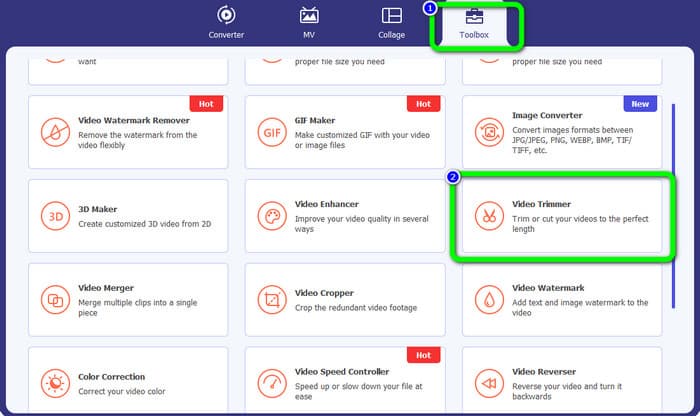
Krok 2. W interfejsie kliknij menu Toolbox i wybierz narzędzie Video Trimmer.
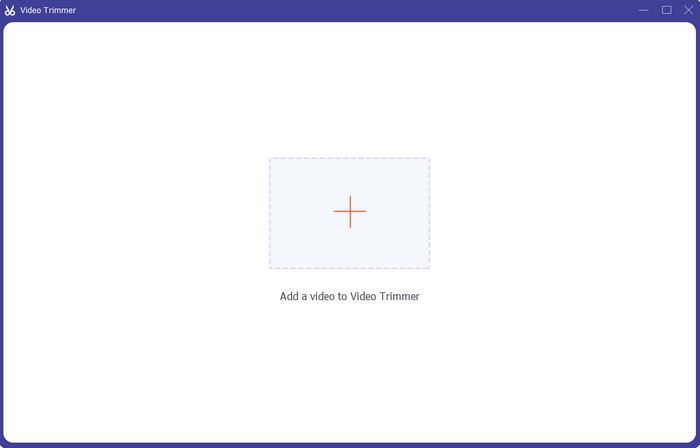
Krok 3. Gdy na ekranie pojawi się nowe okno, kliknij ikonę Plus, aby dodać film, który chcesz edytować.
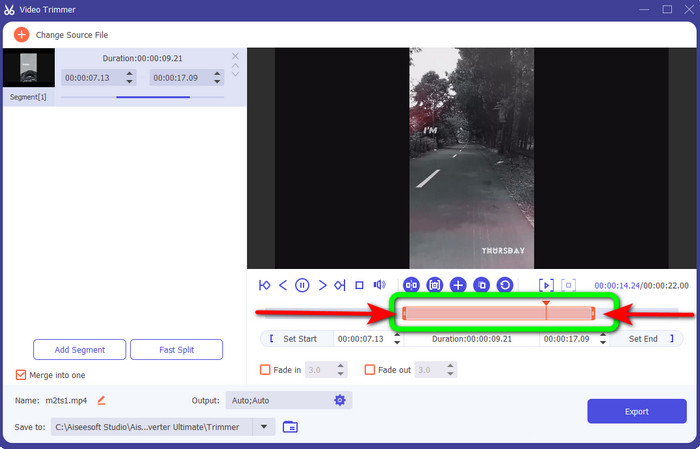
Krok 4. W tym miejscu możesz już rozpocząć edycję nagrania. Przesuwaj krawędzie paska wideo, aby zdecydować, jak chcesz je przyciąć/skrócić. Możesz przesuwać prawą i lewą krawędź zgodnie ze swoimi potrzebami.
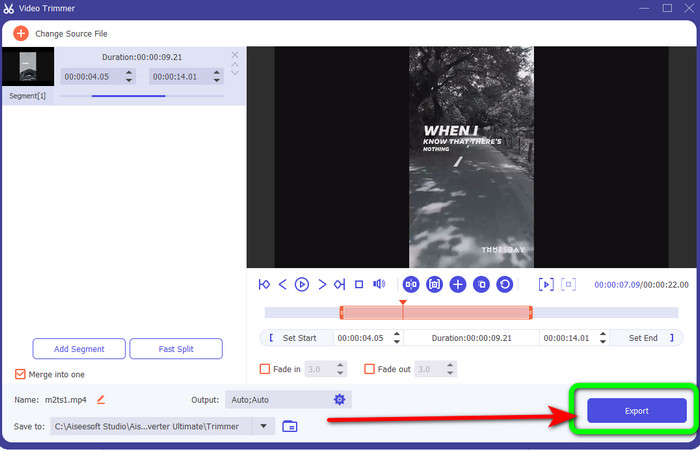
Krok 5. Gdy efekt Cię zadowala, kliknij przycisk Export, aby przejść do eksportu. Następnie zapisz końcową, zmontowaną wersję filmu.
Część 3. Często zadawane pytania dotyczące wycinania wideo online
Jak przyciąć wideo na iPhonie?
Po uruchomieniu dotknij wideo, które chcesz edytować w aplikacji Obrazy. Kliknij Edytuj. Zmień czas rozpoczęcia i zakończenia, przeciągając suwaki po obu stronach osi czasu wideo. Użyj przycisku odtwarzania, aby zobaczyć podgląd edytowanego filmu. Wybierz Zapisz wideo lub Zapisz wideo jako nowy klip po wybraniu Gotowe.
Jak przycinać filmy w Shotcut?
Przeciągnij plik wideo na oś czasu po zaimportowaniu go do Shotcut. Umieść głowicę odtwarzania na początku segmentu, który chcesz przyciąć. Następnie naciśnij klawisz skrótu I. Naciśnij klawisz O po przesunięciu głowicy do końca sekcji. Segment zostanie teraz oddzielony od reszty filmu.
Jakie jest najlepsze oprogramowanie do wycinania plików MP4 w trybie offline?
Jeśli chcesz przycinać pliki MP4 offline, skorzystaj z programu Video Converter Ultimate. Ten darmowy do pobrania program pozwala bezproblemowo przycinać pliki MP4.
Wniosek
To są najlepsze metody, aby przyciąć wideo online. Do skracania nagrań możesz użyć wszystkich wymienionych wyżej narzędzi do edycji wideo. Pamiętaj jednak, że w przypadku rozwiązań online zdarza się, iż z powodu słabego połączenia internetowego nie działają one prawidłowo. W takiej sytuacji skorzystaj z Video Converter Ultimate. Jest to program do pobrania, który umożliwia edycję wideo bez dostępu do Internetu.
-
 [4 sposoby] Jak łatwo przyspieszyć swoje filmy online?
 Czy chcesz przyspieszyć wideo online? Przeczytaj ten artykuł, aby dowiedzieć się więcej o przyspieszeniu wideo na różne możliwe sposoby.
-
 Jak wycinać i łączyć utwory online – 4 najlepsze sposoby, które powinieneś wiedzieć
 Jeśli chcesz wyciąć i połączyć utwory online, aby stworzyć utwór muzyczny, możesz dowiedzieć się więcej o 4 najlepszych narzędziach online do przycinania utworów i łączenia plików z artykułu.
-
 Odkryj najlepszy trymer MP4 z procedurą i informacjami
 Czy chcesz się nauczyć, jak przycinać filmy tak, jak oglądani przez Ciebie vlogerzy? Następnie czytaj dalej ten post, aby dowiedzieć się, jakich trymerów MP4 możesz użyć.
