


 Video Converter Ultimate
 Nagrywarka ekranu
 Naprawa wideo
Jak obracać filmy na Androidzie w kilka minut za pomocą najlepszych metod
Czy lubisz uwieczniać cenne chwile życia na swoim urządzeniu z Androidem, ale irytuje Cię, gdy nagrane filmy wychodzą przekrzywione lub do góry nogami? To częsty problem, lecz na szczęście bardzo łatwy do naprawienia. Nie potrzebujesz zaawansowanych umiejętności montażu wideo. Wystarczy Twoje urządzenie z Androidem lub skuteczna aplikacja na Androida do obracania filmów oraz kilka minut czasu.
Pod koniec posta będziesz mógł obracać swoje filmy jak profesjonalista i nigdy więcej nie oglądać filmów z boku. To powiedziawszy, zacznijmy i nauczmy się obracać filmy na Androidzie!

Część 1. Jak obracać filmy w Galerii Android
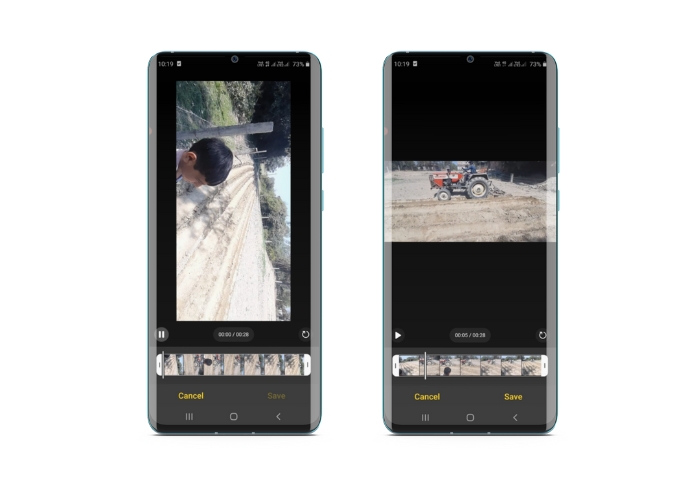
Aplikacja Galeria na Androida zawiera wiele narzędzi do edycji filmów, które mogą pomóc Ci ulepszyć Twoje filmy. Dzięki aplikacji Galeria możesz przycinać, przycinać, obracać, a nawet dodawać filtry i efekty do swoich filmów. Niezależnie od tego, czy chcesz usunąć niechciane fragmenty, dostosować proporcje, czy dodać trochę kreatywnego stylu, aplikacja Galeria zapewni Ci wszystko. A najlepsza część? Nie potrzebujesz żadnego wcześniejszego doświadczenia w edycji wideo, aby korzystać z tych funkcji. Interfejs jest intuicyjny, dzięki czemu każdy może łatwo tworzyć wspaniałe filmy bezpośrednio z urządzenia z systemem Android. Zapoznaj się z podanymi krokami, aby dowiedzieć się, jak obracać filmy w Galerii na Androida.
Krok 1. Uruchom aplikację Galeria na swoim urządzeniu z Androidem. Znajdź wideo, które chcesz obrócić, i stuknij je, aby je otworzyć.
Krok 2. Stuknij ikonę edycji (wygląda jak ołówek) znajdującą się na dole ekranu. U dołu pojawi się teraz zestaw narzędzi edycyjnych, w tym Przytnij, Kadruj, Filtry i Dostosuj.
Krok 3. Aby obrócić wideo, wybierz narzędzie Dostosuj. Zobaczysz teraz szereg opcji regulacji, w tym Jasność, Kontrast, Nasycenie i inne. Wyszukaj opcję Obróć i stuknij ją.
Krok 4. Każde stuknięcie przycisku Obróć obróci wideo o 90 stopni w prawo. W ten sposób możesz użyć Androida, aby obrócić filmy o 90 stopni. Stukaj przycisk, dopóki wideo nie zostanie obrócone do żądanej orientacji. Gdy będziesz zadowolony z obrotu, stuknij ikonę zapisu, aby zastosować zmiany.
Część 2. Jak obracać filmy w aplikacji PowerDirector na Androida
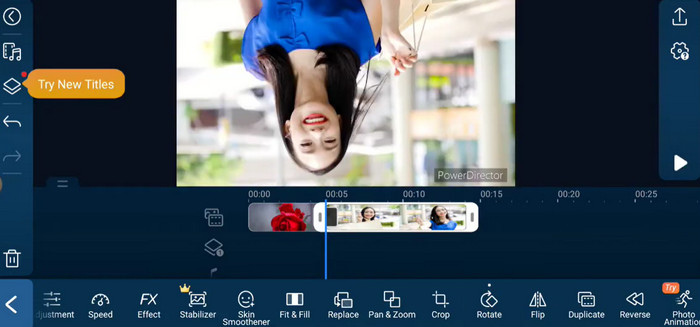
PowerDirector to aplikacja do edycji wideo dostępna na platformę Android. Jest to bogata w funkcje aplikacja, która pozwala użytkownikom edytować filmy na smartfonach i tabletach. Ta aplikacja pozwala użytkownikom obracać filmy w dowolnym kierunku, zgodnie z ruchem wskazówek zegara lub przeciwnie do ruchu wskazówek zegara. Jest to szczególnie przydatne w przypadku filmów nakręconych w złym kierunku, na przykład filmów w pionie, które należy obrócić do trybu poziomego. Postępuj zgodnie z prostym przewodnikiem poniżej, aby opanować obracanie filmów w PowerDirector na urządzeniu z Androidem.
Krok 1. Uruchom aplikację PowerDirector na swoim urządzeniu z Androidem. Następnie stuknij przycisk Utwórz projekt wideo, aby rozpocząć nowy projekt.
Krok 2. Wybierz wideo, które chcesz obrócić, stukając przycisk Dodaj multimedia i wyszukując film w pamięci urządzenia. Następnie przeciągnij i upuść klip wideo na oś czasu.
Krok 3. Następnie stuknij klip wideo na osi czasu, aby go zaznaczyć. Teraz stuknij przycisk Edytuj, który pojawi się nad osią czasu.
Krok 4. Stuknij przycisk Obróć w menu edycji, które się pojawi. Użyj przycisków Obróć w lewo i Obróć w prawo, aby obrócić wideo w wybranym kierunku. Na koniec stuknij przycisk Gotowe, aby zapisać wprowadzone zmiany w wideo.
Część 3. Jak obracać filmy w aplikacji VLC na Androida
VLC to znany odtwarzacz multimedialny, którego można używać na wielu platformach, w tym na Androidzie. To potężna i elastyczna aplikacja, która obsługuje wiele różnych formatów multimedialnych i oferuje wiele funkcji, w tym możliwość obracania filmów. Co więcej, ma inne przydatne opcje, takie jak możliwość regulacji szybkości odtwarzania, dodawanie napisów oraz stosowanie filtrów audio i wideo. Poniżej znajdziesz instrukcję, jak obracać filmy w VLC na urządzeniu z Androidem.
Krok 1. Otwórz aplikację VLC na swoim urządzeniu z Androidem. Następnie stuknij przycisk Wideo na dolnym pasku menu.
Krok 2. Wybierz wideo, które chcesz obrócić, z pamięci urządzenia. Następnie stuknij przycisk Więcej opcji w prawym górnym rogu ekranu.
Krok 3. Na koniec stuknij Obróć, aby uzyskać dostęp do opcji obrotu wideo. Wybierz kierunek, w którym chcesz obrócić wideo (zgodnie z ruchem wskazówek zegara lub przeciwnie do niego).
Część 4. Jak obracać filmy z Androida na komputerze
Szukasz wydajnego konwertera wideo, który potrafi wszystko? Zwróć uwagę na FVC Video Converter Ultimate. To nowoczesne oprogramowanie zostało zaprojektowane tak, aby dać Ci pełną kontrolę nad Twoimi filmami. Dzięki funkcji obracania filmów możesz zmienić orientację nagrania o 90, 180, a nawet 270 stopni lub odwzorować funkcję pełnoekranowego obrotu wideo znaną z Androida. I to jeszcze nie wszystko, co ta aplikacja potrafi. Wykonuje ten proces bez jakiejkolwiek utraty jakości. Oto instrukcja, jak korzystać z tego programu, aby obracać filmy na komputerze.
Krok 1. Pobierz kopię programu i zainstaluj ją
Najpierw musisz zdobyć kopię instalatora programu i zainstalować go na swoim komputerze. Po tym zacznij od razu.
Bezpłatne pobieranieDla Windows 7 lub nowszegoBezpieczne pobieranie
Bezpłatne pobranieDla macOS 10.7 lub nowszegoBezpieczne pobieranie
Krok 2. Dodaj wideo do obrócenia
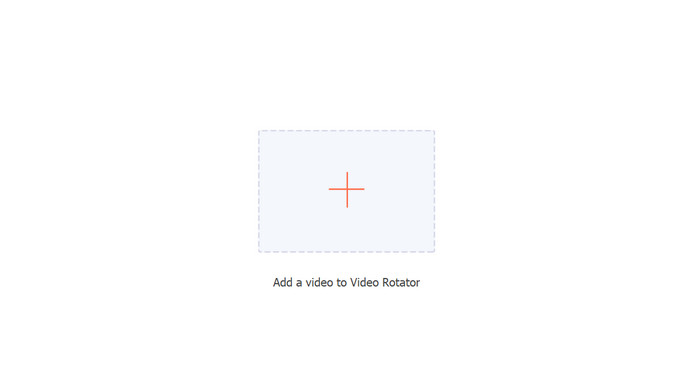
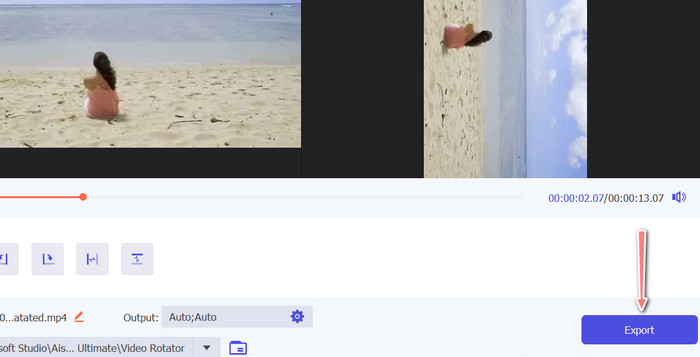
Narzędzie Video Rotator w programie można następnie otworzyć z karty Toolbox. Po wybraniu tej opcji zostaniesz poproszony o dodanie wideo do swojego konta. Aby przesłać materiał, po prostu naciśnij teraz przycisk +.
Krok 3. Wybierz sposób obrotu
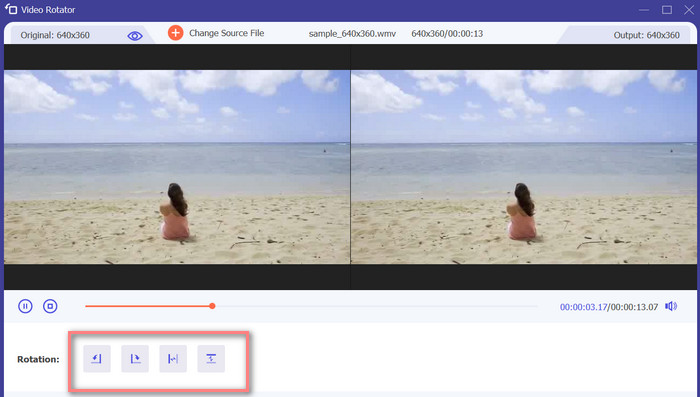
Aby rozpocząć, zdecyduj, jak chcesz obrócić wideo. Odwróć w poziomie, odwróć w pionie, obróć o 90 stopni i odwróć o 90 stopni to cztery opcje. Po prostu wybierz żądaną metodę rotacji.
Krok 4. Wyeksportuj plik wideo
Gdy zakończysz wprowadzanie wszystkich zmian, możesz dostosować ustawienia audio i wideo w menu wyjściowym. Następnie kliknij przycisk Eksportuj, aby zakończyć proces.
Część 5. Często zadawane pytania dotyczące obracania filmów na Androida
Czy mogę obrócić wideo za pomocą domyślnego odtwarzacza wideo mojego Androida?
Nie, domyślny odtwarzacz wideo na większości urządzeń z Androidem nie ma funkcji obracania filmów. W takiej sytuacji z pomocą może przyjść aplikacja Galeria.
Czy obracanie filmu na moim urządzeniu z Androidem wpłynie na jego jakość?
Jeśli używasz wysokiej jakości aplikacji do edycji wideo na urządzeniu z Androidem, obracanie filmu nie obniży jakości.
Czy obrócenie filmu na moim urządzeniu z Androidem zmieni proporcje?
Obracanie filmu na urządzeniu z systemem Android może zmienić współczynnik proporcji w zależności od orientacji oryginalnego filmu i zastosowanego stopnia obrotu.
Wniosek
Obracanie filmów na urządzeniu z Androidem może być przydatne podczas edycji i udostępniania nagrań. Należy jednak pamiętać, że obrót wideo może wpłynąć na proporcje obrazu oraz jakość oryginalnego nagrania, w zależności od użytej aplikacji na Androida do obracania filmów i stopnia zastosowanego obrotu. Dlatego kluczowe jest korzystanie z renomowanej aplikacji do edycji wideo, takiej jak FVC Video Converter Ultimate, która nie kompresuje ani nie obniża rozdzielczości materiału podczas procesu obracania.
-
 Przewodnik po naprawie filmów, które nie są odtwarzane na telefonach z Androidem
 Chcesz wiedzieć, jakie są powody, dla których nie można odtwarzać filmów na urządzeniu z Androidem? A jeśli tak, czy są jakieś sposoby samodzielnego rozwiązania problemu? Czytaj dalej, aby dowiedzieć się więcej.
-
 Najprostsze sposoby na przyspieszenie wideo na urządzeniach z Androidem [2023]
 Czy wiesz, że możesz przyspieszyć wideo na swoim Androidzie? Tak więc, jeśli chcesz wiedzieć, jak przyspieszyć wideo na telefonie z Androidem, przeczytaj ten artykuł.
-
 3 doskonałe metody przycinania wideo na Androidzie
 Czy chcesz użyć urządzenia z Androidem do wycięcia wideo? W takim razie ten post jest dla Ciebie. Omówimy wartościowe sposoby skracania wideo na Androidzie.
