


 Video Converter Ultimate
 Nagrywarka ekranu
 Naprawa wideo
3 sposoby odtwarzania plików MKV w programie Windows Media Player
Nie możesz otworzyć pliku MKV w Windows Media Player?
MKV to jeden z popularnych formatów wideo. Możesz mieć wiele filmów w wysokiej jakości, seriali lub innych nagrań zapisanych w MKV. Jednak jako użytkownik systemu Windows musisz pamiętać, że domyślny odtwarzacz wideo, Windows Media Player, nie obsługuje natywnie rozdzielania (otwierania) kontenerów MKV. Wracamy więc do pytania: jak odtwarzać pliki MKV w Windows Media Center?

Nawet po uaktualnieniu programu Windows Media Player do najnowszej wersji nie ma gwarancji, że nie wystąpią problemy z odtwarzaniem MKV. Biorąc to pod uwagę, ten post lubi udostępniać skuteczne sposoby 3, które pomogą Ci odtwarzać pliki MKV na komputerze z systemem Windows.
Część 1. Jak otworzyć plik MKV w programie Windows Media Player
Windows Media Player nie może odtwarzać plików MKV głównie z powodu niezgodności kodeków. Musisz wiedzieć, że MKV jest tak naprawdę kontenerem multimedialnym dla strumieni wideo, audio, napisów i innych. Należy dostarczyć WMP odpowiedni splitter dla MKV oraz kodeki i filtry dla obrazu i dźwięku. W tej części pokażemy, jak odtwarzać plik MKV w Windows Media Player.
Krok 1. Otwórz Windows Media Player i spróbuj otworzyć w nim plik MKV. Możesz też kliknąć prawym przyciskiem myszy na plik MKV i wybrać Otwórz za pomocą WMP.
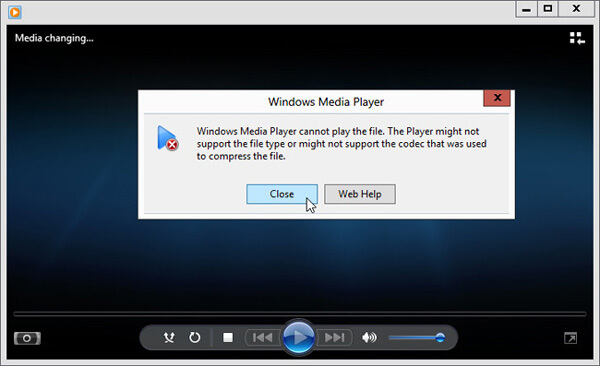
Krok 2. Teraz zobaczysz komunikat o błędzie informujący, że Windows Media Player nie może odtworzyć tego pliku. Kliknij opcję Pomoc w sieci Web (Web Help) w oknie dialogowym.
Krok 3. Kliknij odnośnik do kodeka pod komunikatem Brak kodeka (Codec is Missing). Skopiuj i wklej ten link w przeglądarce. Dzięki temu pobierzesz odpowiedni kodek MKV dla Windows Media Player. Po pobraniu wykonaj instrukcje, aby dokończyć proces instalacji obsługi MKV w Windows Media Player.
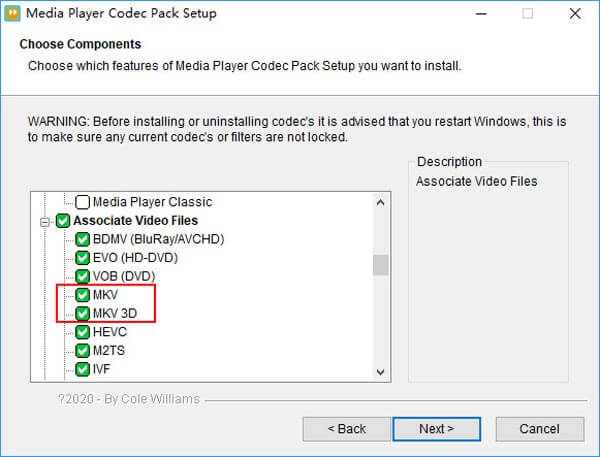
Krok 4. Uruchom ponownie Windows Media Player, a następnie spróbuj ponownie odtworzyć swój plik MKV.

Część 2. Lepszy sposób odtwarzania plików MKV w alternatywnym programie Windows Media Player
Dzięki odpowiedniemu kodekowi MKV możesz łatwo otworzyć plik MKV w programie Windows Media Player. Jednak wielu użytkowników zgłosiło, że podczas odtwarzania MKV z WMP nadal występują inne problemy z odtwarzaniem. W takim przypadku możesz wybrać alternatywę programu Windows Media Player, która pomoże Ci odtwarzać pliki MKV.
FVC Free MKV Player to świetna alternatywa dla Windows Media Player. Natywnie obsługuje wszystkie najczęściej używane formaty wideo i audio, takie jak MKV, MOV, MP4, FLV, AVI, RMVB, MPEG, AAC, MP3, M4A, WMA i wiele innych. Możesz na nim polegać, gdy chcesz oglądać filmy MKV w wysokiej jakości.

Krok 1. Otwórz przeglądarkę i przejdź na stronę tego darmowego odtwarzacza MKV. Kliknij przycisk Play Now, aby zainstalować niewielki plik startowy (launcher) do odtwarzania MKV. Następnie na ekranie pojawi się główne okno odtwarzacza MKV.

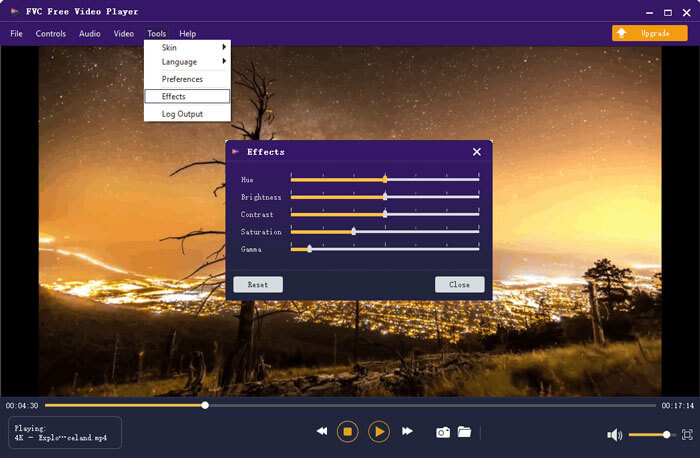
Krok 2. Kliknij przycisk Open File, aby wyszukać i zaimportować do niego swój plik MKV. Po tym plik wideo zacznie się automatycznie odtwarzać. Dzięki zastosowaniu zaawansowanej technologii kodowania wideo odtwarzacz może płynnie odtwarzać plik MKV w wysokiej jakości. Dodatkowo obsługuje DTS-HD i Dolby TrueHD.

Masz wszystkie elementy sterujące odtwarzaniem MKV. Oprócz podstawowych operacji, takich jak odtwarzanie, pauza, przewijanie do tyłu, do przodu, regulacja głośności i nie tylko, umożliwia również dostosowywanie efektów, zmianę ścieżki dźwiękowej i napisów oraz dostosowywanie innych ustawień.
Część 3. Konwersja MKV do odtwarzania w programie Windows Media Player
Aby odtwarzać plik MKV w Windows Media Player, możesz także zdecydować się na konwersję MKV do obsługiwanego formatu wideo, na przykład MP4. Tutaj przedstawiamy Free Online Video Converter, który pomoże Ci przekonwertować MKV na MP4 bez utraty jakości.
Krok 1. Wejdź w przeglądarce na stronę tego darmowego konwertera MKV na MP4 online. Jest on kompatybilny z każdą popularną przeglądarką internetową, w tym Chrome, IE, Safari i Firefox.
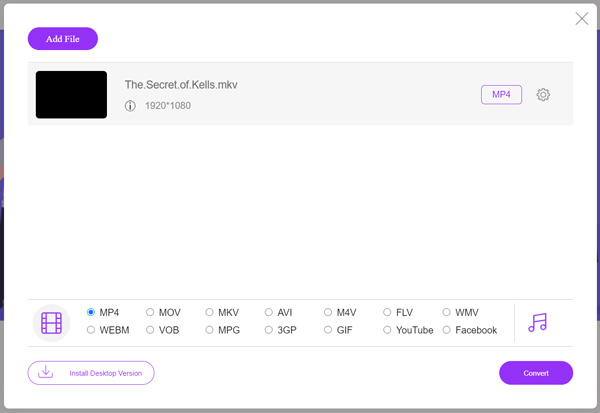
Krok 2. Po wejściu na stronę kliknij przycisk Add File to Convert. Na tym etapie musisz zainstalować niewielki program uruchamiający (launcher) do konwersji MKV. Następnie na ekranie pojawi się wyskakujące okno, w którym wybierzesz swój plik MKV.
Krok 3. Zobaczysz tam wiele popularnych formatów wideo, takich jak MP4, MOV, AVI, MKV, FLV itd. Upewnij się, że format wyjściowy to MP4, a następnie kliknij przycisk Convert.
Po zakończeniu konwersji MKV na MP4 możesz odtworzyć plik w Windows Media Player. Podczas konwersji nie wystąpi żadna utrata jakości obrazu ani dźwięku.
Część 4. Często zadawane pytania dotyczące odtwarzania formatu MKV w programie Windows Media Player
Pytanie 1. Jak zmienić format wideo w programie Windows Media Player?
Otwórz program Windows Media Player i załaduj plik wideo, który chcesz przekonwertować. Kliknij małą strzałkę pod zakładką Zgraj w górnym menu. Wybierz Więcej opcji, a następnie kliknij menu rozwijane z etykietą Format. Tutaj możesz wybrać odpowiedni format wyjściowy i rozpocząć konwersję.
Pytanie 2. Jakim formatem wideo jest Windows Media Player?
Domyślny format plików programu Windows Media Player to WMV, Windows Media Video i WMA, Windows Media Audio. Obsługuje również format Advanced Systems Format i własny format listy odtwarzania oparty na języku XML, Windows Playlist.
Pytanie 3. Czy system Windows 10 może odtwarzać pliki MKV?
Nie. Wbudowany program Windows Media Player 12 w systemie Windows 10 nie może odtwarzać plików MKV. Aby uzyskać odtwarzanie, musisz zainstalować kodek MKV.
Wniosek
Gdy Windows Media Player nie rozpoznaje kodeka MKV, po prostu wyświetla błąd. Aby odtwarzać plik MKV w Windows Media Player, musisz zainstalować odpowiedni zestaw kodeków. Możesz też skorzystać z odtwarzacza firm trzecich lub przekonwertować format MKV na inny. Jeśli nadal masz pytania dotyczące tego, jak otworzyć plik MKV w Windows Media Player, nie wahaj się zostawić nam wiadomości.
-
 Najlepsze odtwarzacze 8 MKV do odtwarzania plików MKV z żądanym napisem
 Jeśli chcesz odtworzyć wideo MKV z żądanym napisem, możesz dowiedzieć się więcej o najlepszych odtwarzaczach plików 8 MKV na PC / Mac i wybrać żądany zgodnie z wymaganiami.
-
 MKV do MOV - Jak przekonwertować MKV na MOV
 Jak przekonwertować MKV na MOV na Macu? Czy iMovie może czytać MKV? Co oznacza format MOV? Ten post przedstawia 2 proste sposoby, które pomogą Ci przekonwertować MKV na MOV za pomocą bezpłatnych internetowych i profesjonalnych konwerterów wideo.
-
 AC3 Player - przegląd 10 najlepszych darmowych graczy AC3 w 2021 roku
 Jaki jest najlepszy odtwarzacz AC3? Czy MX Player może otworzyć AC3? Ten post zawiera listę 10 bezpłatnych odtwarzaczy AC3 dla komputerów Mac, komputerów z systemem Windows, iOS i urządzeń z systemem Android.
