


 Video Converter Ultimate
 Nagrywarka ekranu
 Naprawa wideo
Jak nagrywać rozgrywkę na PS5 bez ograniczeń [Kompleksowe wskazówki]
W ciągu zaledwie trzech lat PlayStation 5 znikało ze sklepowych półek w błyskawicznym tempie. Od premiery sprzedano już ponad 50 milionów egzemplarzy tej konsoli, oferującej świetny sprzęt i granie w jakości 4K. Jeśli chcesz pochwalić się swoimi umiejętnościami albo dzielić się epickimi momentami z rozgrywki ze swoimi fanami, nagrywanie na PlayStation 5 to świetne rozwiązanie. Jeśli zastanawiasz się, jak nagrywać na PS5, konsola ma wbudowaną funkcję, która pozwala przechwytywać, edytować i udostępniać Twoje przygody z gier na różnych platformach. Ale jak dokładnie to wszystko zrobić? Zostań z nami, aby dowiedzieć się, jak nagrywać i robić zrzuty ekranu na PS5, a także jak korzystać z metody nagrywania bez limitu czasu.

Część 1. Jak nagrywać rozgrywkę na PS5
Oczywiście, PS5 ma wbudowany rejestrator, który pomoże Ci nagrać zapierającą dech w piersiach rozgrywkę. Warto jednak zauważyć, że rejestrator Twojej konsoli ma swoje ograniczenia i skuteczność. Jeśli chodzi o skuteczność, można śmiało powiedzieć, że jest wysoce skuteczny w produkcji wysokiej jakości nagranych filmów. Z drugiej strony, jeśli chodzi o jego ograniczenia, musisz pamiętać, że ta konsola pozwala na nagranie maksymalnie 60 minut czasu gry. Poza tym pozwoli Ci na produkcję filmów tylko w formatach MP4 i WebM jako obsługiwanych formatach wyjściowych.
Tymczasem, jeśli chodzi o pytanie, jak nagrywać ekran za pomocą wbudowanego rejestratora rozgrywki w konsoli PS5, poniżej znajdziesz odpowiedź.
Nagraj rozgrywkę
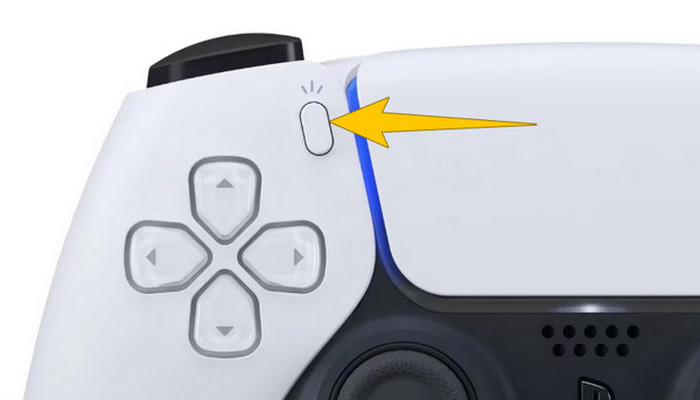
Krok 1. Weź kontroler DualSense i naciśnij przycisk znajdujący się nad przyciskami kierunkowymi. Odpowiada on funkcji Utwórz (Create) i możesz go nacisnąć w momencie, gdy chcesz rozpocząć nagrywanie rozgrywki.
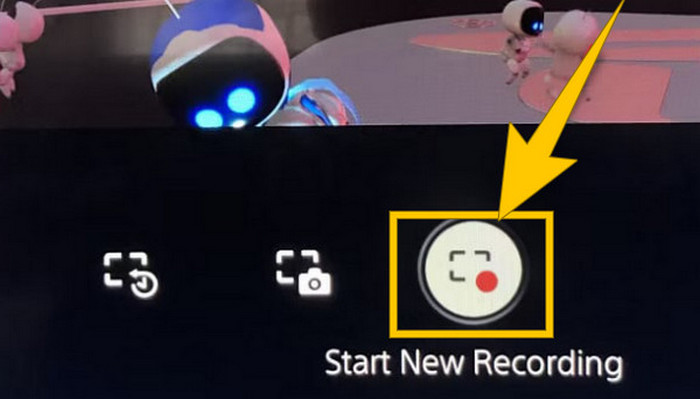
Krok 2. Po naciśnięciu przycisku spójrz na ekran i kliknij opcję Rozpocznij nowe nagrywanie (Start New Recording). Zobaczysz ją w dolnej części ekranu. Nagrywanie rozpocznie się od razu, więc możesz zacząć grać.
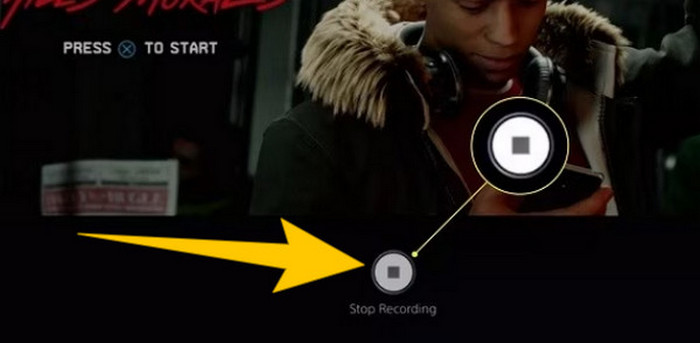
Krok 3. Gdy skończysz rozgrywkę, tak wyłączysz nagrywanie na PS5. Wystarczy ponownie nacisnąć przycisk Utwórz, a następnie tym razem kliknąć Stop Recording (Zatrzymaj nagrywanie), który zobaczysz na ekranie.
Pobierz nagrania
Po nagraniu PS5 automatycznie zapisze dane wyjściowe w Twojej Galerii multimediów, gdzie przechowywane są wszystkie pliki. Teraz, jeśli chcesz zachować kopię na swoim osobnym urządzeniu, niestety muszę Ci powiedzieć, że wspomniana galeria nie ma opcji pobierania. Istnieje jednak sposób na zachowanie plików.
Krok 1. Podłącz zewnętrzną kartę SD lub dysk USB do konsoli. Następnie przejdź do galerii multimediów (Media Gallery) i ją otwórz.
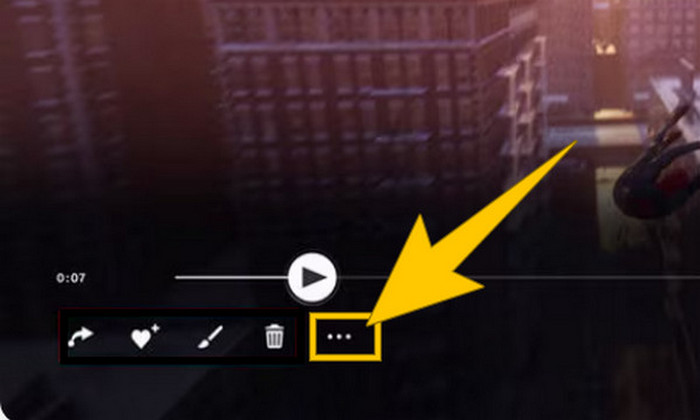
Krok 2. Wybierz nagranie ekranu, które ostatnio zapisałeś. Następnie kliknij przycisk Ellypsis, czyli ikonę trzech kropek w dolnej części ekranu, obok innych dostępnych opcji.
Krok 3. Po kliknięciu wybierz opcję Copy to USB Drive (Kopiuj na dysk USB), aby rozpocząć kopiowanie nagranego wideo na pamięć USB. Gdy proces się zakończy, przenieś wideo na urządzenie, na którym chcesz przechowywać plik z nagraniem.
Część 2. Jak nagrywać ekran na PS5 w jakości 4K bez ograniczeń
Nie martw się, jeśli PlayStation 5 pozwala przechwycić tylko do godziny rozgrywki w dobrej jakości. Wiemy, że dla wielu graczy jest to frustrujące, a nie wszystkie gry to wspierają. Dlatego, jeśli chcesz nagrywać bez limitu czasu w jakości 4K we wszystkich grach na PS5, warto sprawdzić FVC Screen Recorder. Ten rejestrator ekranu nie ogranicza długości nagrania – jedynym limitem jest pojemność dysku Twojego komputera. Co więcej, nie spowolni on rozgrywki. Dzięki temu świetnemu rejestratorowi gier możesz też dopracować swoje nagrania przed zapisaniem. Możesz je przycinać, łączyć, kompresować, konwertować, edytować metadane, poprawiać jakość nagrania i z łatwością udostępniać je na wybranych platformach.
Warto również zauważyć, że FVC Screen Recorder oferuje różne narzędzia do nagrywania, aby sprostać Twoim zadaniom nagrywania. Dzięki niemu możesz nagrywać wideo, audio, okna, kamery internetowe, telefony itp. Co ciekawe, możesz cieszyć się nagraniami bez osadzonych w nich znaków wodnych! Aby dowiedzieć się więcej o FVC Screen Recorder, wykonaj poniższe kroki, aby zobaczyć, jak nagrywać ekran na PS5.
Krok 1. Pobierz FVC Screen Recorder na swój komputer. Aby to zrobić, kliknij przycisk Free Download, a następnie postępuj zgodnie z instrukcjami, aby zainstalować i uruchomić program.
Bezpłatne pobieranieDla Windows 7 lub nowszegoBezpieczne pobieranie
Bezpłatne pobieranieDla MacOS 10.7 lub nowszegoBezpieczne pobieranie
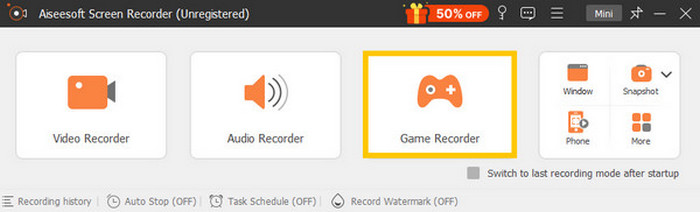
Krok 2. Po przejściu do głównego interfejsu FVC znajdź i kliknij narzędzie Game Recorder. Znajduje się ono po prawej–środkowej stronie ekranu. Następnie kliknij małą strzałkę obok Select the Game, aby wybrać okno, w którym wyświetlana jest Twoja PS5.
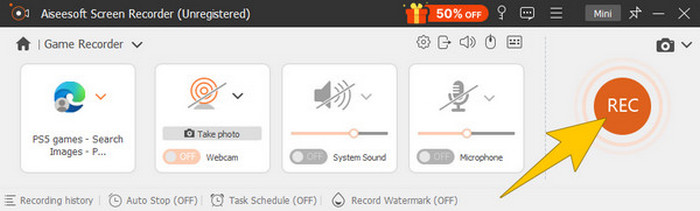
Krok 3. Po wybraniu okna zauważysz, że rejestrator skupi się właśnie na nim. Co więcej, możesz zdecydować, czy chcesz dołączyć obraz z kamery internetowej (nagrywanie w trybie picture-in-picture), dźwięk systemowy i mikrofon w swoim nagraniu. Gdy wszystko będzie gotowe, kliknij przycisk REC, aby rozpocząć grę i nagrywanie.
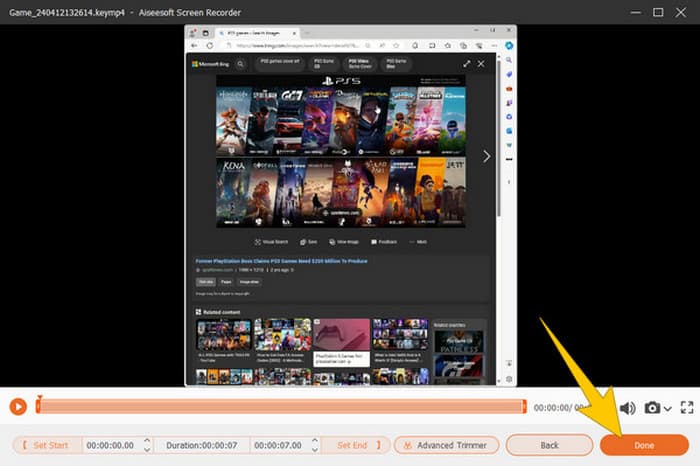
Krok 4. Gdy zakończysz nagrywanie, kliknij przycisk Stop na pływającym pasku. Następnie możesz dopracować wideo za pomocą narzędzi do edycji dostępnych w nowym oknie. Po zakończeniu kliknij przycisk Done, aby zapisać nagrany plik w swojej galerii.
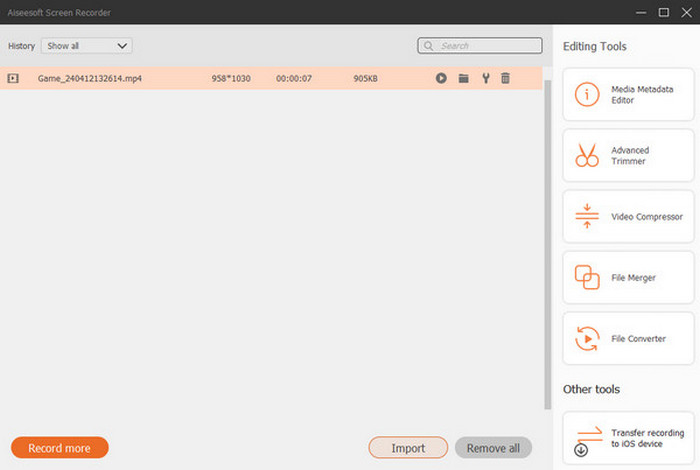
Krok 5. Ten krok jest opcjonalny. Jeśli jednak chcesz udostępnić nagranie w swoich mediach społecznościowych, możesz kliknąć prawym przyciskiem myszy najnowsze nagranie rozgrywki, a następnie wybrać opcję Share (Udostępnij). Możesz też skorzystać z dodatkowych zaawansowanych narzędzi edycyjnych, aby jeszcze bardziej ulepszyć swoje nagrania.
Jeśli chcesz dowiedzieć się więcej o tym rejestratorze, poniżej znajdziesz więcej wskazówek.
Dalsza lektura
5 skutecznych sposobów nagrywania ekranu do GIF na Mac i Windows
Jak nagrywać epickie wyczyny, clutche i poradniki w Minecraft
Część 3. Często zadawane pytania dotyczące nagrywania rozgrywki na PS5
Jak wyłączyć nagrywanie rozgrywki na PS5?
Aby wyłączyć lub zatrzymać nagrywanie rozgrywki na PS5, wystarczy nacisnąć przycisk Utwórz na kontrolerze gry. Następnie na ekranie kliknij opcję Zatrzymaj nagrywanie.
Gdzie mogę obejrzeć nagrane klipy z rozgrywki na PS5?
Nagrane klipy rozgrywki są przechowywane w sekcji Capture w Main Gallery. Możesz uzyskać dostęp do tej galerii z ekranu Home. Dzięki niej możesz przeglądać, edytować i udostępniać klipy, tak jak pozwala Ci na to Twoja galeria.
W jaki sposób mogę udostępniać nagrania na PS5?
Możesz udostępniać swoje klipy po nagraniu na PS5 bezpośrednio z Capture Gallery. Wystarczy wybrać klip, który chcesz udostępnić, kliknąć przycisk Options na kontrolerze i wybrać opcję Share.
Wniosek
Nie musisz już pytać, jak nagrywać na PS5, ponieważ w tym artykule przedstawiliśmy domyślne i najlepsze metody. Dzięki nim możesz tworzyć wysokiej jakości, długie nagrania rozgrywki według własnego uznania. Podziel się tymi rozwiązaniami ze współgraczami, aby i oni mogli cieszyć się równie ekscytującym doświadczeniem nagrywania na swojej PS5!
-
 5 najlepszych programów do nagrywania gier, które każdy gracz musi znać [2024]
 Czy jesteś graczem, który chce nagrać grę? W tym artykule znajdziesz najlepszy rejestrator gier, którego możesz użyć, aby doświadczyć nowych szczytów gier.
-
 5 najlepszych aplikacji do nagrywania ekranu na Androida, które musisz kupić w 2024 r
 Masz problem, ponieważ nie możesz nagrywać ekranu na swoim Androidzie? Jeśli tak, w tym artykule omówiono rejestratory ekranu Android, z których można pobrać.
-
 5 najlepszych rejestratorów spotkań Zoom do nagrywania spotkań na Zoomie [2024]
 Chcesz nagrać spotkanie przybliżające, aby nie przegapić ważnych szczegółów spotkania? Jeśli tak, w tym artykule znajdziesz najlepsze rejestratory zoomu, które powinieneś znać.
