


 Video Converter Ultimate
 Nagrywarka ekranu
 Naprawa wideo
Kompleksowy przewodnik po tworzeniu dzwonka z notatki głosowej
Jednak wielu deweloperów stworzyło oprogramowanie do tworzenia dzwonków. Oznacza to, że możesz swobodnie wycinać fragmenty swoich ulubionych piosenek lub nagrywać własny głos jako dzwonek. W tym artykule wyjaśnimy, jak zrobić z notatki głosowej dzwonek. Mamy nadzieję, że znajdziesz tu odpowiedź, której szukasz.

Część 1. Najlepszy sposób na zrobienie z notatki głosowej dzwonka
Jeśli szukasz również w pełni funkcjonalnego kreatora dzwonków, wybierz polecany przez FVC program Video Converter Ultimate, lidera nawet na wysoce konkurencyjnym rynku oprogramowania do edycji multimediów. Różne modele smartfonów mogą obsługiwać różne formaty dzwonków, ale z Video Converter Ultimate nie stanowi to problemu. Jak można wywnioskować z nazwy, jego główną funkcją jest konwersja formatów plików. Dlatego bez względu na to, w jakim formacie nagrywasz lub pobierasz notatki głosowe, możesz przekonwertować je tak, aby pasowały do formatu Twojego telefonu. Możesz nawet użyć go do bezpośredniego wyodrębniania dźwięku z filmów, co otwiera szerokie możliwości tworzenia dzwonków. Możesz także zmienić głośność, ścieżkę, długość itp. docelowego dźwięku. Z Video Converter Ultimate stworzenie dzwonka z notatki głosowej w dowolnym momencie przestaje być marzeniem.
Bezpłatne pobieranieDla Windows 7 lub nowszegoBezpieczne pobieranie
Bezpłatne pobieranieDla MacOS 10.7 lub nowszegoBezpieczne pobieranie
Tutaj pokażemy Ci, jak edytować nagrane lub pobrane notatki głosowe, aby móc ich używać jako dzwonka telefonu.
Krok 1. Pobierz i zainstaluj Video Converter Ultimate na swoim komputerze. Następnie uruchom program na pulpicie.
Krok 2. Kliknij Add Files, aby załadować dźwięk, który chcesz edytować.
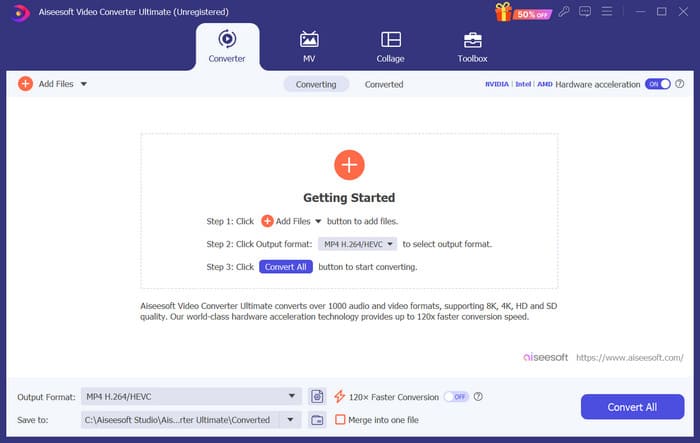
Krok 3. Aby przyciąć dźwięk, kliknij Cut. Możesz dostosować długość pliku. Po zakończeniu przycinania kliknij Save.
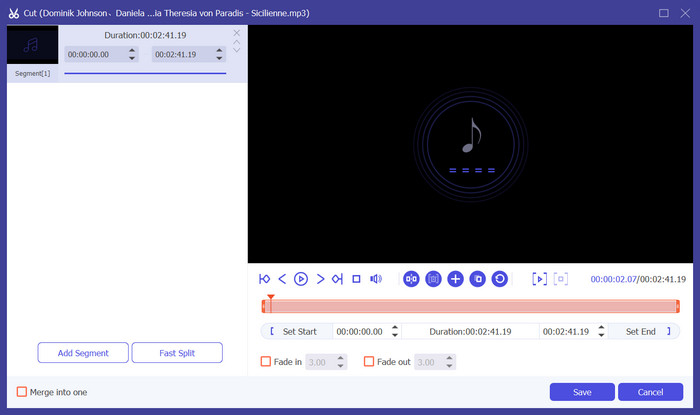
Krok 4. Aby edytować głośność i ścieżkę audio swoich notatek głosowych, kliknij Edit. W wyskakującym oknie możesz wprowadzić dowolne zmiany. Po zakończeniu edycji kliknij OK.
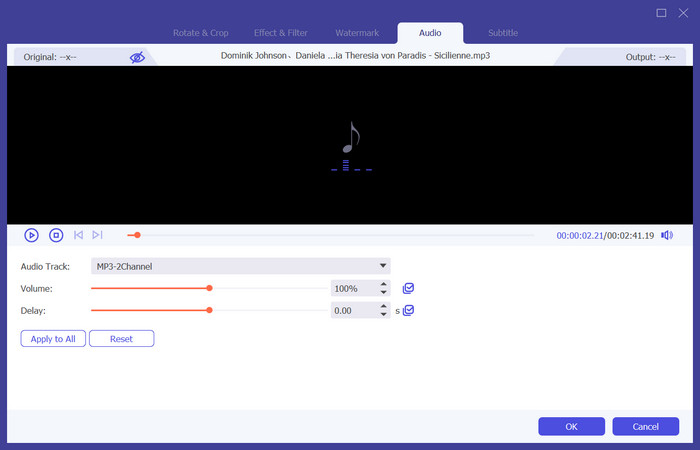
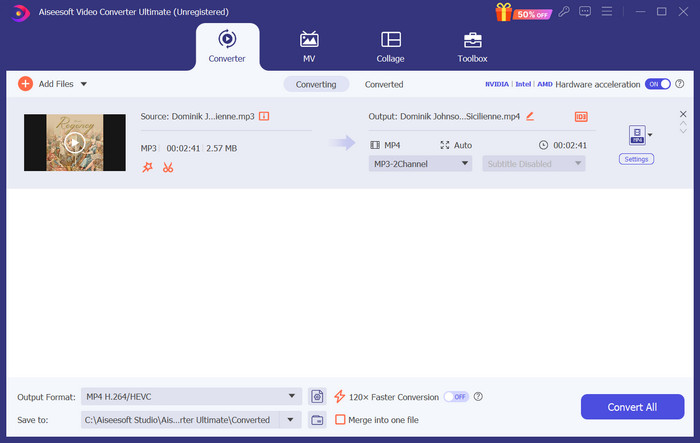
Krok 5. Jeśli musisz zmienić format pliku, rozwiń menu obok Output Format. Tutaj możesz wybrać format wyjściowy dla swojego dźwięku.
Krok 6. Gdy chcesz wyeksportować edytowany dzwonek, kliknij Convert All.
Część 2. Jak zrobić z notatki głosowej dzwonek na iPhone'a
Polecamy GarageBand, jeśli chcesz utworzyć dzwonek notatki głosowej na swoim iPhonie. Jest to aplikacja opracowana przez Apple. Użytkownicy mogą jej używać do tworzenia muzyki na swoich urządzeniach z systemem iOS. Posiada wiele narzędzi do produkcji muzyki, nagrywania, edycji i miksowania. GarageBand może również integrować się z innym oprogramowaniem Apple. Oznacza to, że możemy łatwo przenosić projekty między GarageBand a innym oprogramowaniem w celu dalszej edycji. Ta aplikacja jest popularna zarówno wśród profesjonalnych użytkowników, jak i początkujących ze względu na przyjazny interfejs użytkownika, rozbudowane funkcje i dostępność. Wszystkie ustawienia można wykonać w telefonie bez pomocy żadnego innego urządzenia.
Oto, co musisz zrobić, aby zamienić notatkę głosową w dzwonek telefonu.
Krok 1. Zanim ustawisz swoje dzwonki, musisz przejść do aplikacji Notatki głosowe na iPhonie, aby wybrać notatkę głosową.
Krok 2. Po wybraniu docelowej notatki głosowej naciśnij ikonę trzech kropek. Wybierz Save to Files, a następnie ponownie stuknij Save, aby potwierdzić operację.
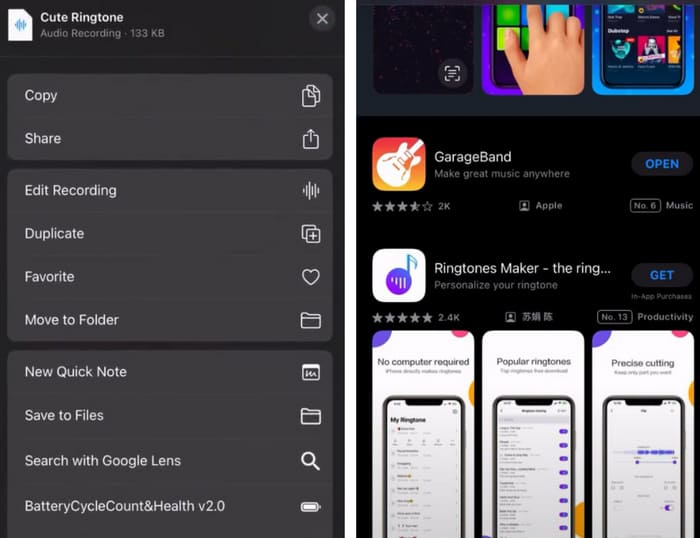
Krok 3. Otwórz GarageBand na iPhonie i stuknij Project.
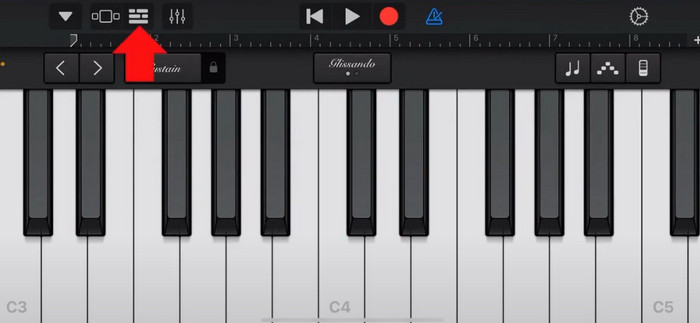
Krok 4. Wybierz Loop > Files. Następnie stuknij „Browse items from the Files app”, aby wybrać docelową notatkę głosową.
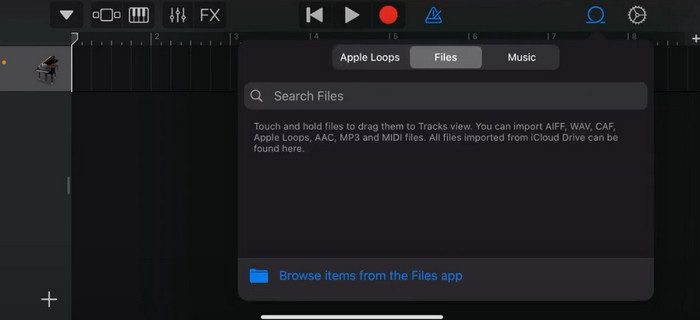
Krok 5. Przeciągnij i upuść plik na oś czasu (timeline).
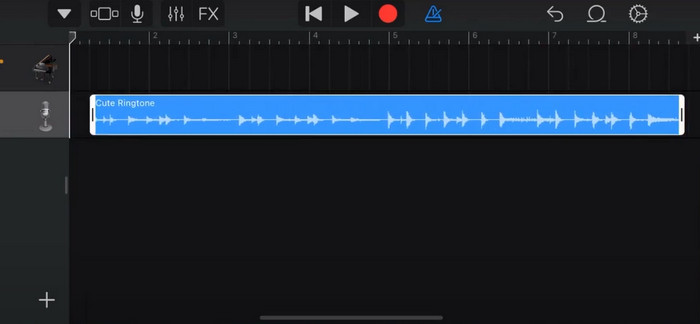
Krok 6. Wyłącz Metronome i stuknij ikonę strzałki w dół > My Songs.
Krok 7. Stuknij i przytrzymaj klip, a następnie wybierz Share.
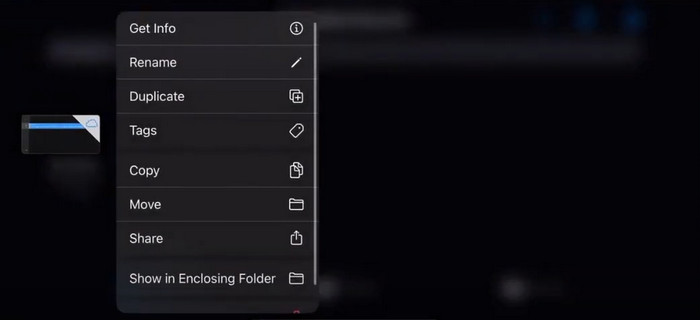
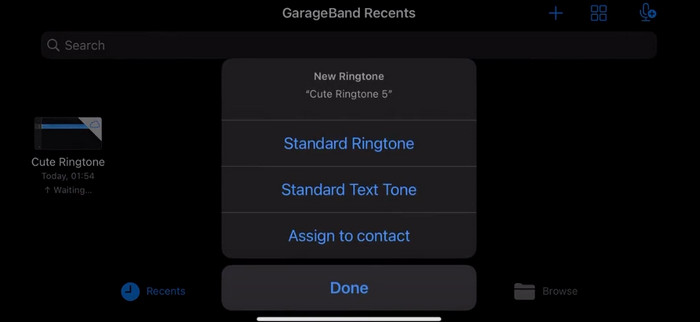
Krok 8. Z dostępnych opcji wybierz Ringtone i naciśnij Export. Na koniec stuknij Use sound as > Standard Ringtone. W ten sposób pomyślnie utworzysz dzwonek z notatki głosowej.
Część 3. Jak zrobić z nagrania głosowego dzwonek na Androida
Jeśli używasz telefonu z Androidem i chcesz zamienić nagraną muzykę na dzwonek, możesz to zrobić bezpośrednio w aplikacji Ustawienia telefonu. Procedura jest bardzo prosta i nie ma potrzeby pobierania żadnego oprogramowania do tego procesu. Jeśli jednak chcesz zmodyfikować nagrane audio, możesz wybrać profesjonalne oprogramowanie do edycji audio i wideo, takie jak FVC-wybrany Video Converter Ultimate.
Następnie pokażemy, jak utworzyć dzwonek z nagrania głosowego na Androidzie. W tej części posłużymy się jako przykładem smartfonem Samsung. Zanim zaczniesz, upewnij się, że zapisałeś plik nagrania w aplikacji Dyktafon.
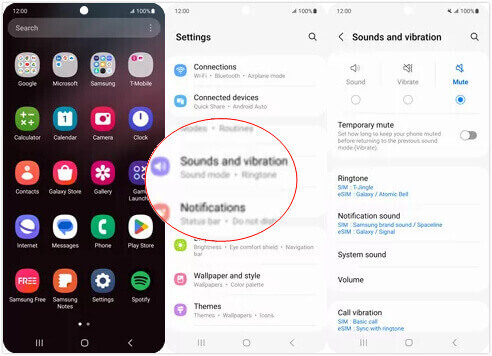
Krok 1. Otwórz Settings (Ustawienia) w swoim telefonie i wybierz Sounds and vibration (Dźwięki i wibracje).
Krok 2. Upewnij się, że opcja Sound (Dźwięk) jest zaznaczona w sekcji Sound mode (Tryb dźwięku). Następnie wybierz Notification sound (Dźwięk powiadomień).
Krok 3. Wybierz nagrany plik muzyczny. Na koniec wróć do ekranu głównego, aby zastosować ustawienia.
Część 4. Często zadawane pytania dotyczące tworzenia dzwonka z notatki głosowej
W jakim formacie są dzwonki na Androida?
Dzwonki dla urządzeń z systemem Android mogą być zapisywane w różnych formatach plików audio, ale najpopularniejsze obsługiwane formaty to MP3, AAC, M4A, OGG i WAV.
Jak zapisać notatkę głosową jako piosenkę na moim iPhonie?
Otwórz aplikację Notatki głosowe na swoim iPhonie i znajdź notatkę głosową, którą chcesz zapisać jako piosenkę. Stuknij notatkę głosową, aby ją otworzyć, a następnie naciśnij ikonę udostępniania, aby zobaczyć dostępne opcje udostępniania. Możesz zapisać notatkę głosową w aplikacji Pliki. Następnie możesz otworzyć aplikację muzyczną na swoim iPhonie, która obsługuje importowanie plików audio. Odpowiednie są aplikacje takie jak GarageBand lub Notatki muzyczne.
Jak nagrywać dźwięk na urządzeniu Android Samsung?
Aby nagrać dźwięk na urządzeniu Samsung z Androidem, użyj wbudowanej aplikacji Voice Recorder (Dyktafon). Otwórz ją i stuknij Record, aby rozpocząć nagrywanie. Po zakończeniu możesz zapisać plik audio i nadać mu nazwę, aby łatwo go później odnaleźć.
Wniosek
W tym artykule odpowiadamy na pytanie, jak zmienić notatkę głosową w dzwonek. Oferujemy jedno z najlepszych narzędzi do edycji dzwonków – FVC Video Converter Ultimate. Przedstawiamy metody zmiany notatki głosowej w dzwonek na telefonach iPhone i z Androidem. Dla każdej części zamieściliśmy także kompletne instrukcje krok po kroku na wypadek, gdyby pojawiły się jakiekolwiek problemy.
-
 3 najlepsze rozwiązania do kompresji plików WAV do mniejszego rozmiaru
 Jeśli szukasz również sposobów na kompresję rozmiaru plików audio WAV, przeczytaj nasze treści. Przedstawimy Ci różne narzędzia z trzech aspektów.
-
 Szczegółowy samouczek dotyczący kompresji dźwięku w 2024 r. (krok po kroku)
 Czy potrzebujesz skompresować dźwięk, ale potrzebujesz pomocy w ustaleniu, od czego zacząć? W tym poście przedstawimy najlepsze możliwości zmniejszenia rozmiaru plików utworów.
-
 Skuteczne kompresory audio dla użytkowników offline i online
 Masz problemy z dużymi plikami audio? Istnieje wiele kompresorów plików audio dostępnych dla użytkowników offline i online. Sprawdź je tutaj.
