


 Video Converter Ultimate
 Nagrywarka ekranu
 Naprawa wideo
Cięcie plików WMA: kompletny przewodnik dla użytkowników systemów Windows i Mac
Edycja plików audio to świetna zabawa – dopóki nie trzeba zmierzyć się z długimi ścieżkami WMA, które wydają się niemożliwe do przycięcia. Niezależnie od tego, czy jesteś podcasterem, muzykiem, czy po prostu kimś, kto lubi majstrować przy dźwięku, przycinanie plików WMA może wydawać się trudnym zadaniem bez odpowiednich narzędzi i wiedzy. Ten artykuł ma na celu uprościć cały proces zarówno dla użytkowników systemu Windows, jak i Mac, dostarczając instrukcje krok po kroku oraz polecając najlepsze dostępne narzędzia, aby Twoja praca z dźwiękiem była płynniejsza i bardziej efektywna. Czytaj dalej, aby dowiedzieć się więcej.

Część 1: Najlepszy sposób na przycięcie pliku WMA w systemie Windows/Mac
Najlepszym i ostatecznym sposobem na przycinanie plików WMA zarówno w systemie Windows, jak i na Macu jest skorzystanie z starannie wybranego narzędzia Video Converter Ultimate. Ten kompleksowy konwerter wideo i audio doskonale radzi sobie z formatem WMA, szczególnie właśnie z jego przycinaniem. Narzędzie to ma specjalną funkcję, która w prosty sposób skraca pliki audio. Jest to szczególnie pomocne dla osób, które muszą przyciąć pliki WMA o niepraktycznie dużej długości lub zawierające niepożądane fragmenty. Co więcej, za pomocą tego programu możesz ręcznie zaznaczyć część pliku WMA, którą chcesz wyciąć, albo przyciąć ją automatycznie, korzystając z funkcji szybkiego dzielenia (Fast Slip).
Krok 1. Najpierw pobierz i zainstaluj program Video Converter Ultimate na swoim komputerze z systemem Mac lub Windows.
Bezpłatne pobieranieDla Windows 7 lub nowszegoBezpieczne pobieranie
Bezpłatne pobieranieDla MacOS 10.7 lub nowszegoBezpieczne pobieranie
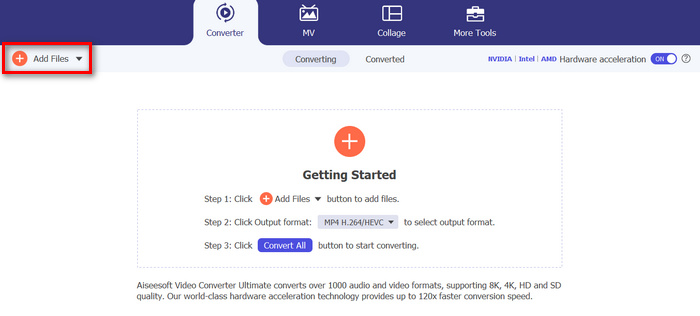
Krok 2. Aby zaimportować pliki WMA, które chcesz przyciąć, kliknij przycisk Add Files.
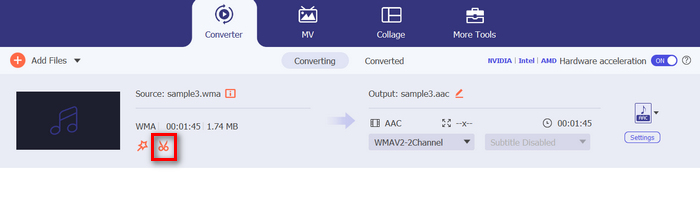
Krok 3. Następnie kliknij przycisk Cut.
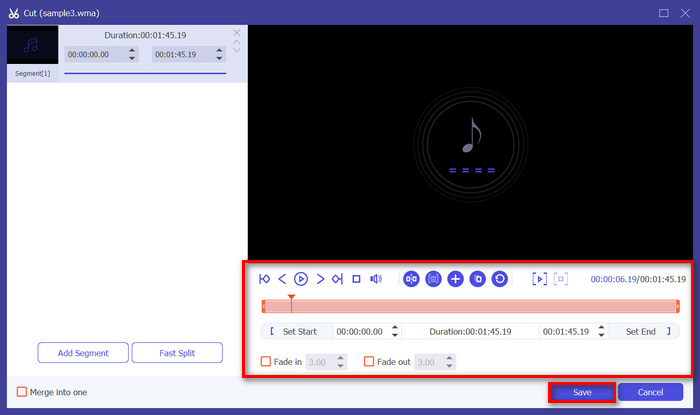
Krok 4. Aby przyciąć swoje pliki WMA, możesz zrobić to ręcznie, łatwo dopasowując lub przesuwając suwak początkowy i końcowy klipu, przeciągając go z lewej na prawą stronę albo wpisując dokładny czas początku i końca fragmentu pliku WMA, który chcesz przyciąć.
Proces ten automatycznie wycina część dźwięku na podstawie momentu, w którym chcesz rozpocząć i zakończyć przycinanie.
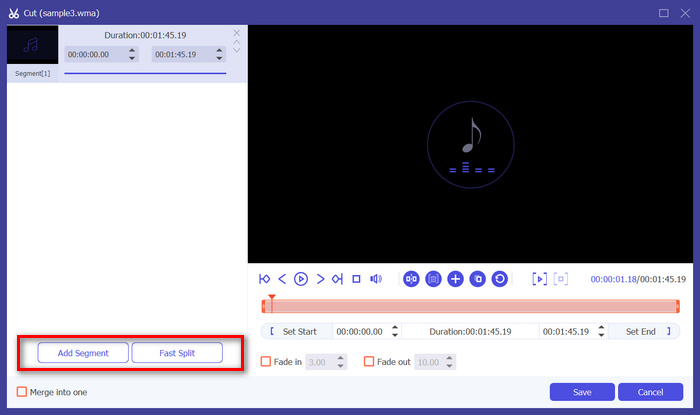
Krok 5. Natomiast jeśli chcesz przyciąć plik za pomocą funkcji Fast Slip, wystarczy kliknąć przycisk Fast Slip obok przycisku Add Segment. Następnie wybierz tryb dzielenia segmentu. Jeśli wybierzesz dzielenie według średniej długości, podaj liczbę segmentów, a jeśli według czasu – podaj żądany czas. Po zakończeniu kliknij przycisk Save.
Krok 6. Na koniec, aby wyeksportować przycięty plik WMA, kliknij przycisk Convert All.
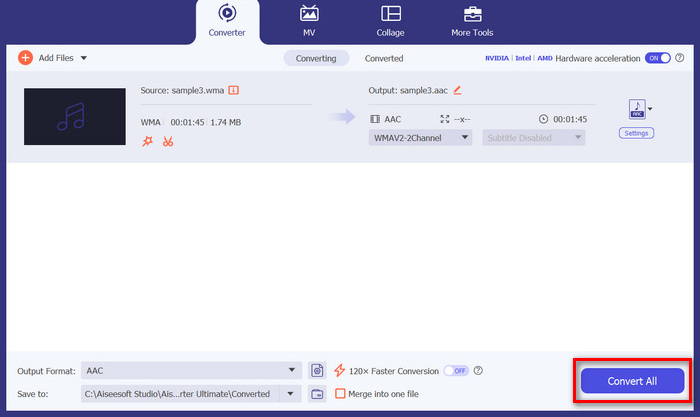
Jeśli chodzi o cięcie plików WMA, ten wybrany przez FVC Video Converter Ultimate jest rzeczywiście niezbędnym rozwiązaniem. Jego prosty i przyjazny użytkownikowi interfejs zapewnia, że możesz bez wysiłku i precyzyjnie przycinać pliki WMA, a jego różne opcje przycinania dają Ci elastyczność w tym, jak chcesz łatwo przycinać pliki audio.
Część 2: Wytnij plik WMA online za darmo
Audio Trimmer to bezpłatne narzędzie, które pozwala użytkownikom przycinać pliki audio w locie. Obsługuje szeroką gamę popularnych formatów audio, w tym WMA, co czyni to narzędzie jedną z najlepszych alternatyw, jeśli wolisz przycinać pliki WMA online.
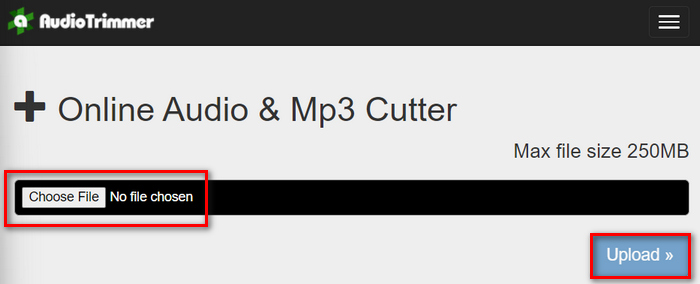
Krok 1. Aby zaimportować pliki WMA, które chcesz przyciąć, kliknij przycisk Choose File, a następnie przycisk Upload.
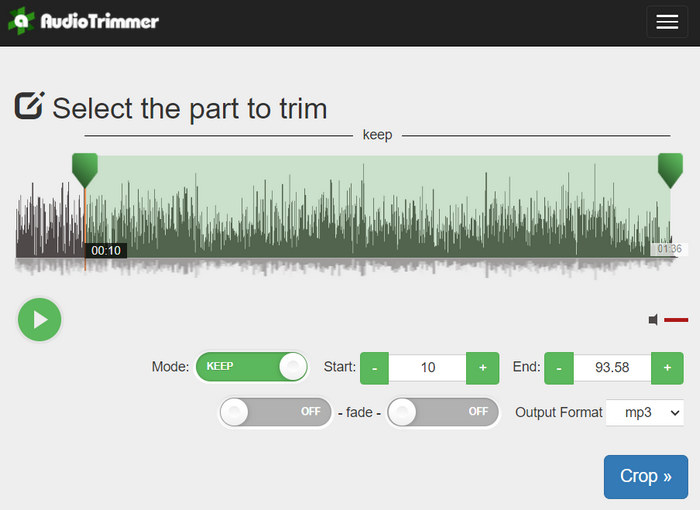
Krok 2. Teraz po prostu przesuń suwak i wybierz część ścieżki audio, którą chcesz przyciąć. Gdy skończysz, kliknij przycisk Crop.
Krok 3. Na koniec, aby zapisać przycięty plik WMA, kliknij przycisk Download.
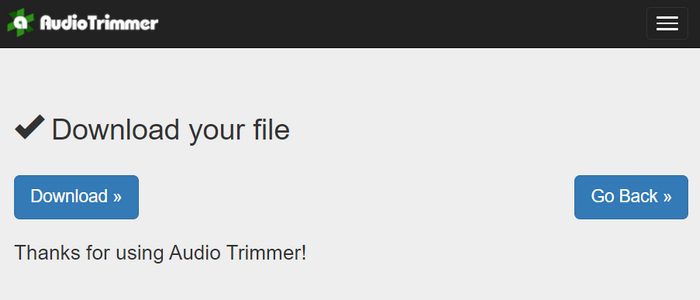
I to wszystko – możesz teraz odtworzyć swoje klipy w odtwarzaczu WMA, aby sprawdzić, czy zostały poprawnie przycięte. Dzięki prostemu i bardzo intuicyjnemu interfejsowi przycinanie plików WMA zajmuje tu tylko 3 kroki. Choć narzędzie to znacznie ułatwia skracanie plików audio, nie wszyscy użytkownicy mogą w pełni z niego korzystać, ponieważ darmowa wersja umożliwia przetwarzanie plików jedynie do 250 MB.
Część 3: Wytnij WMA za pomocą VLC Media Player
VLC Media Player jest szeroko stosowanym odtwarzaczem multimediów typu open source ze względu na swoją wszechstronność. To narzędzie obsługuje szeroką gamę formatów audio i wideo, w tym pliki WMA. Oprócz funkcji odtwarzania, przesyłania strumieniowego i nagrywania multimediów, to narzędzie może być również używane do cięcia plików WMA. Dzięki temu użytkownicy mogą łatwo przycinać sekcje, nagrywając w czasie rzeczywistym, bez konieczności ręcznej zmiany czasu odtwarzania.
Krok 1. Otwórz VLC Media Player. Po prostu przeciągnij i upuść plik WMA, który chcesz przyciąć.
Krok 2. Dźwięk zacznie odtwarzać się automatycznie. Zatrzymaj go na chwilę, a następnie kliknij przycisk View i zaznacz opcję Advanced Controls. Zobaczysz teraz cztery nowe przyciski nad ikoną odtwarzania.
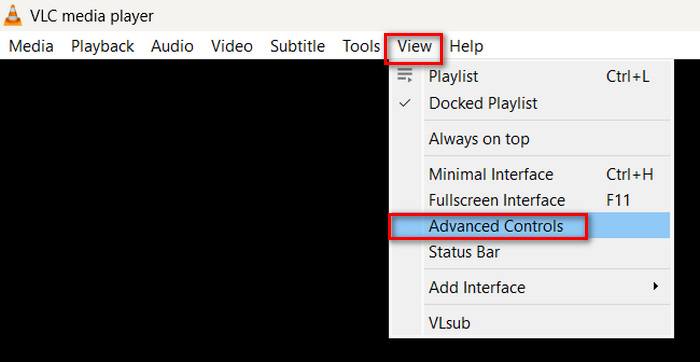
Krok 3. Przeciągnij pasek postępu do miejsca, w którym chcesz rozpocząć swój klip. Teraz dopasuj pasek dokładnie do punktu, od którego chcesz zacząć przycinanie pliku WMA. Gdy będziesz gotów, odtwórz plik i kliknij przycisk Record.
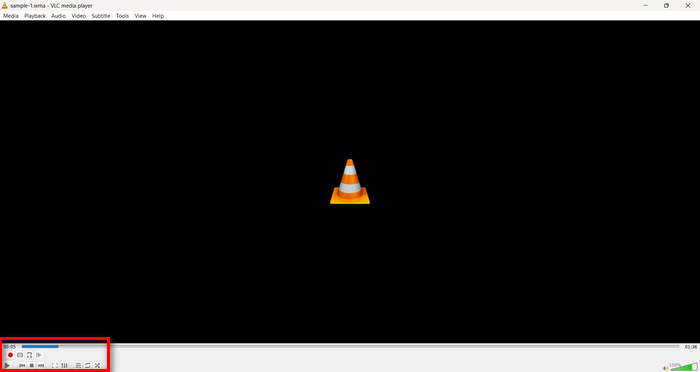
Krok 4. Gdy dotrzesz do końca fragmentu, który chcesz zachować, ponownie kliknij przycisk Record, aby zatrzymać nagrywanie.
Unikaj przeciągania paska postępu w trakcie nagrywania, aby zmienić czas odtwarzania, ponieważ VLC musi nagrać dany fragment w czasie rzeczywistym. Jeśli spodoba Ci się to narzędzie, koniecznie sprawdź także alternatywy dla VLC.
Część 4: Często zadawane pytania dotyczące cięcia WMA
Jak wyciąć fragment pliku audio?
Aby wyciąć część z pliku audio, możesz użyć narzędzi takich jak Video Converter Ultimate. Aby to zrobić, wystarczy zaimportować plik WMA, kliknąć przycisk Cut i dostosować czas rozpoczęcia i zakończenia.
Czy WMA jest lepsze niż MP3?
WMA często oferuje lepszą jakość dźwięku przy niższych przepływnościach w porównaniu z MP3, co przekłada się na mniejsze rozmiary plików przy zachowaniu dobrej jakości audio. MP3 jest jednak znacznie szerzej wspierany na różnych urządzeniach i platformach. Wybór między WMA a MP3 zależy więc od Twoich potrzeb dotyczących jakości i kompatybilności. Możesz też szybko zmienić WMA na MP3 za pomocą narzędzi do konwersji WMA na MP3.
Jak przycinać pliki audio w programie Windows Media Player?
Aby przyciąć pliki audio w programie Windows Media Player, musisz skorzystać z wtyczki SolveigMM WMP Trimmer Plugin Home Edition. Ta wtyczka umożliwia użytkownikom łatwe przycinanie plików audio bezpośrednio w interfejsie programu Windows Media Player, zapewniając wygodne rozwiązanie do zadań edycji audio.
Wniosek
Przycinanie plików WMA wcale nie musi być stresujące. Niezależnie od tego, czy wolisz programy takie jak Video Converter Ultimate, narzędzie online typu Audio Trimmer, czy wszechstronny VLC Media Player, dostępne są skuteczne metody zarówno dla użytkowników Windows, jak i Mac. Wybierz rozwiązanie, które najlepiej do Ciebie pasuje, i zacznij z łatwością edytować swoje pliki audio. Chcesz ułatwić sobie edycję dźwięku? Wypróbuj jedną z tych metod już dziś!
-
 Metody 2 do konwersji FLV na WMA Audio [Bezpłatne i online]
 Chcesz wyodrębnić dźwięk WMA z wideo FLV? Oto 2 darmowe ekstraktory audio WMA do konwersji FLV (Flash Video) na WMA (Windows Media Audio) z dużą szybkością konwersji w systemie Mac OS X i Windows 10/8/7.
-
 Najpopularniejsze edytory metadanych WMA, których nie możesz przegapić [2024]
 Dlaczego nie mogę edytować tagów WMA? Ten problem jest powszechny u użytkowników' zapytania. Ale dzisiaj podamy Ci metaedytory WMA, z których będziesz mógł korzystać w 2024 roku.
-
 8 sposobów konwersji MP4 na MP3 Audio (konwersja wsadowa i duży rozmiar)
 Jeśli chcesz wyodrębnić dźwięk MP3 z wideo MP4, możesz sprawdzić ten artykuł i uzyskać rozwiązania 8. Istnieją sposoby, aby z łatwością przekonwertować MP4 na MP3 na telefonie lub komputerze w trybie online i offline.
