


 Video Converter Ultimate
 Nagrywarka ekranu
 Naprawa wideo
Jak zrobić zrzut ekranu na Facebooku: 6 praktycznych sposobów, aby to zrobić
As an avid user of social media platforms like Facebook, I know that sharing information has become an integral part of the overall social media experience. As always, when looking for something interesting, you need to be able to share news from your mutual friends, and the best way to do it is by taking a Facebook screenshot. Regardless of the context of the screenshot, doing it is very easy. Through this guide, we will delve into different ways to take a screenshot on Facebook using different devices, varying from mobile to desktop devices. In the process of knowing how to do it, we also included the use of a reliable third-party software tool that can do all screenshot-type regardless of the device you are using. To find more information on the software tool, read this article until the end and take Facebook screenshots like a pro.

Część 1. Metody robienia zrzutów ekranu Facebooka na różnych urządzeniach
Zanim zagłębisz się w metody robienia zrzutów ekranu postów na Facebooku, musisz najpierw zdecydować lub wiedzieć, jakiego urządzenia będziesz używać. W tym przypadku postanowiliśmy oddzielić każde urządzenie i przygotować przewodnik krok po kroku, zaczynając od Windows, Mac, iPad/iPhone, Samsung Galaxy i Android. Różne urządzenia mogą mieć niewielkie różnice pod względem robienia zrzutów ekranu, a co dopiero w przypadku korzystania z nich na platformie mediów społecznościowych, takiej jak Facebook.
Windows
W przypadku systemu Windows istnieje wiele sposobów na zrobienie zrzutu ekranu na Facebooku, niezależnie od tego, czy użytkownik korzysta z systemu Windows 7 czy nowszego. Postępując zgodnie z poniższymi krokami, możesz skutecznie wykonać zrzut ekranu przy użyciu najprostszej metody. Ponadto poniższe kroki wykorzystują funkcję narzędzia Wycinanie w systemie Windows do zrobienia zrzutu ekranu na Facebooku.
Step 1. From your Windows Start Menu, search and open the Snipping Tool software.
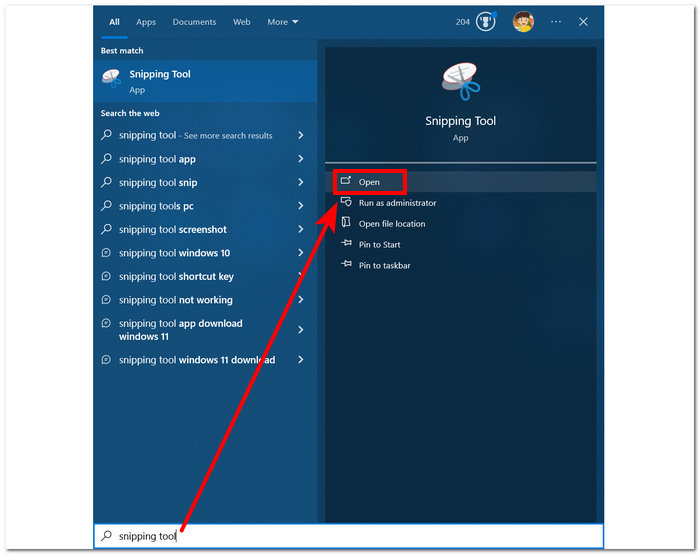
Oprogramowanie Snipping Tool jest już wstępnie zainstalowane w systemie Windows.
Step 2. Once the Snipping Tool software is open, proceed to click on the Mode drop-down button to access the snipping features. For this case, you can select the Rectangular Snip.
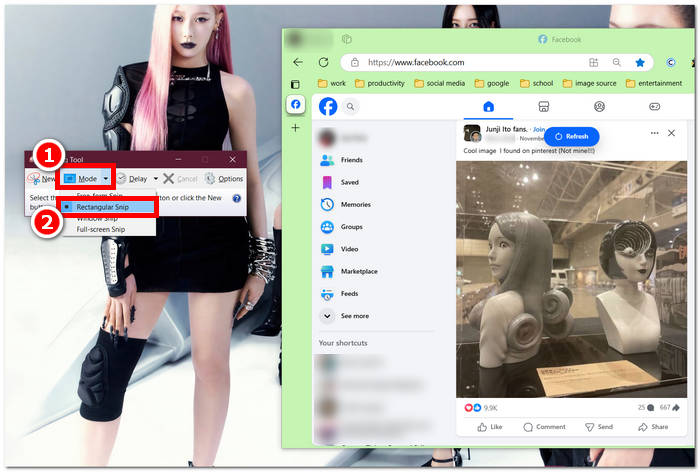
Jeśli chcesz, aby w migawce znajdował się obszar o niestandardowym kształcie, wybierz opcję Snip swobodny. Jeśli chcesz prostokątny obszar zrzutu ekranu, wybierz opcję Snip prostokątny. Jeśli chcesz uchwycić zrzut ekranu konkretnego okna lub karty, wybierz opcję Snip okna. Aby uchwycić migawkę całego ekranu systemu Windows, wybierz opcję Snip pełnoekranowy.
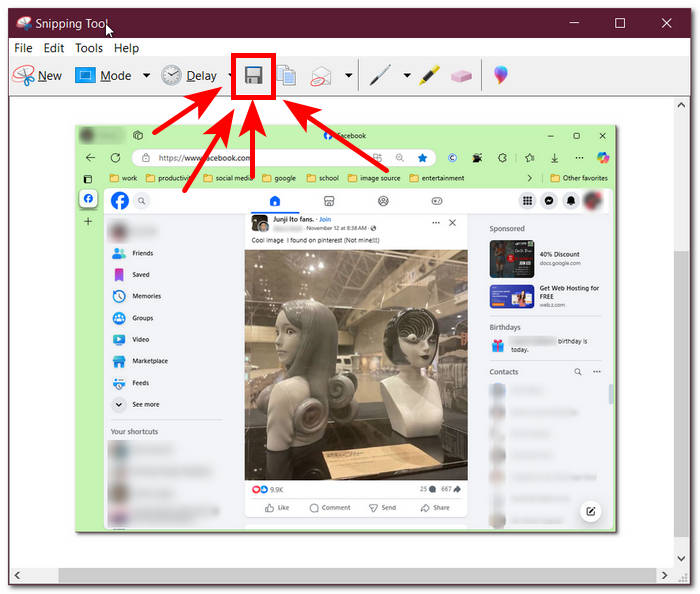
Step 3. Once you click on the Rectangular Snip, you can select the area on your Facebook web that you want to include in your screenshot. Once you've done this, a Snipping Tool window will appear containing your selected screenshot. Within that, you can customize your screenshot by adding text, highlights, annotating words, and more.
Step 4. To finish the process, click the Save button in the upper part of the Snipping Tool window.
Prochowiec
Robienie zrzutu ekranu zawartości Facebooka może być inne na urządzeniach Mac niż w przypadku systemu Windows. Jednak w tym przypadku powiemy użytkownikom tylko, aby stosowali się do podstawowych poleceń klawiszy skrótu na klawiaturze Maca.
Step 1. Using your Mac devices, open your Safari web browser and proceed to the Facebook website.
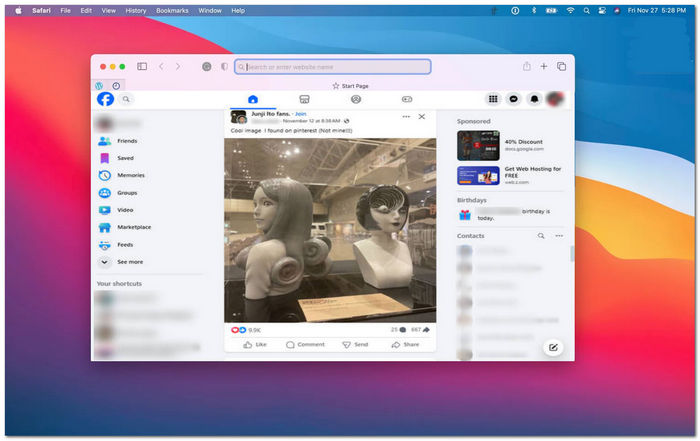
Step 2. On your Mac keyboard, to screenshot your Facebook webpage, hold down the following command + shift + 4.
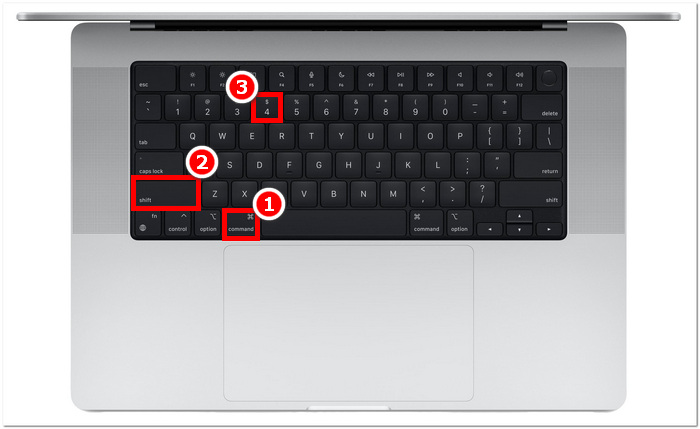
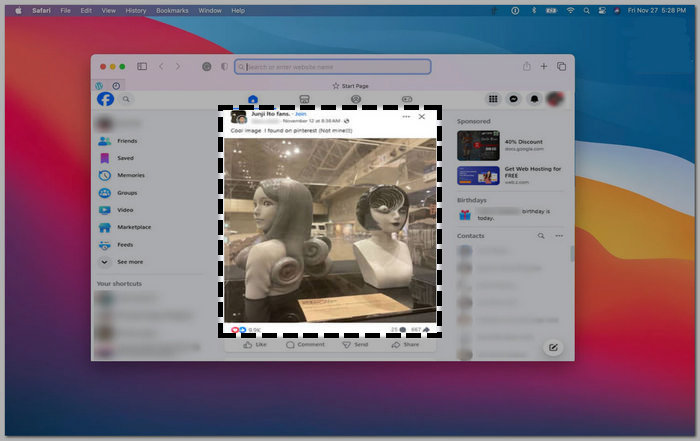
Step 3. Using your cursor, click, hold, and drag onto the area you want to capture.
Step 4. Release the cursor to instantly screenshot the Facebook consent using your Mac’s Safari web browser.
iPad/iPhone
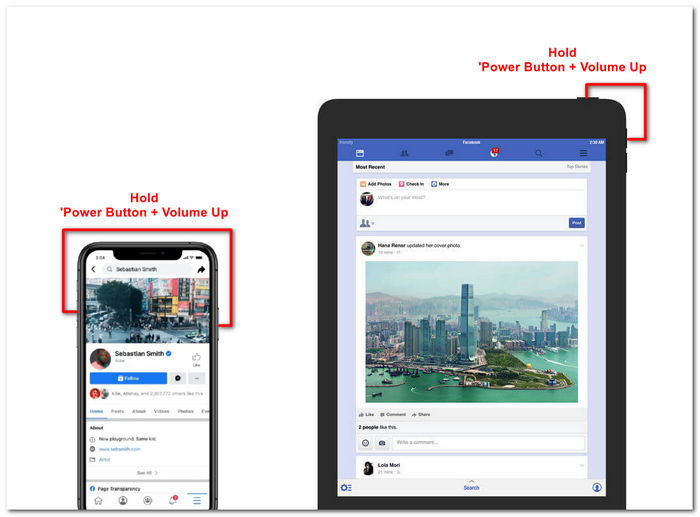
Zrobienie zrzutu ekranu jest łatwe na urządzeniu przenośnym, takim jak iPad lub iPhone, ponieważ oba urządzenia używają tylko połączonego przycisku zasilania i zwiększania głośności. Niezależnie od tego, czy używasz iPada, czy iPhone'a, możesz wykonać poniższe kroki.
Step 1. Open your iPhone or iPad’s Facebook App and browse through your feed to find a post or perhaps a screenshot of Facebook story content.
Step 2. Once you are all set, take a screenshot of Facebook content; hold your device's Power Button + Volume Up button to capture it and have it saved in your Photos App.
Samsung Galaxy
Jeśli używasz urządzenia Samsung Galaxy i nie wiesz, jak zrobić zrzut ekranu w aplikacji Facebook. W takim razie poniższe kroki Ci pomogą.
Step 1. Through your Samsung Galaxy device, open your Facebook App and look for content within the platform you want to save as a screenshot to your device.
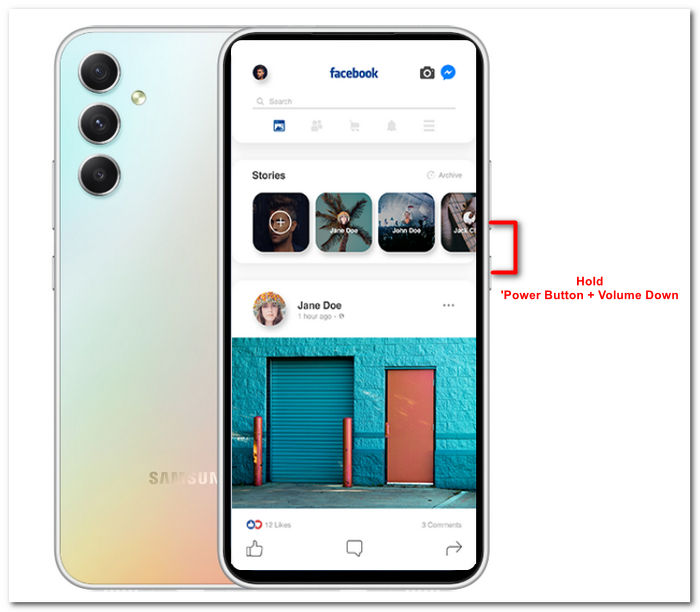
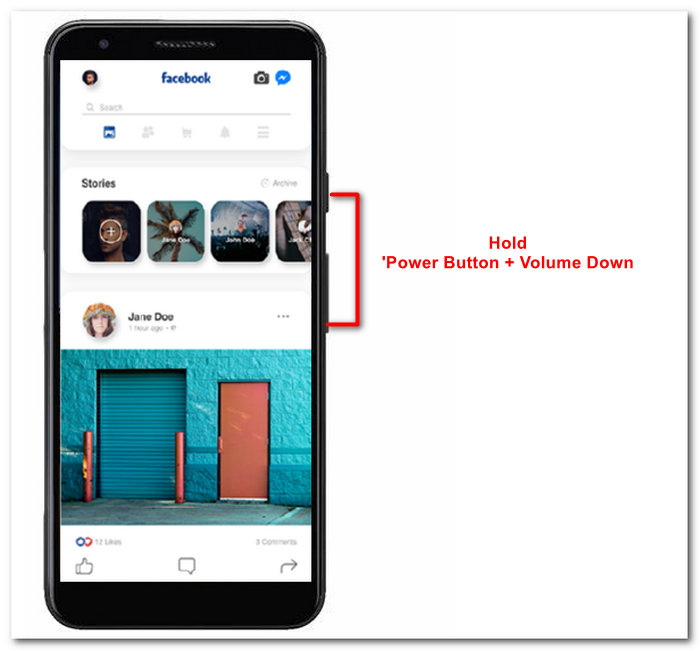
Step 2. Once you find the Facebook content you want to capture, hold your Power Button + Volume Down to screenshot it effectively.
It can also help you how to screenshot Samsung-specific models, like S23. You can use it to solve all your screenshot problems.
Android
Proces robienia zrzutu ekranu różni się w przypadku urządzeń z systemem Android i iOS, ponieważ Android używa przycisku zmniejszania głośności zamiast przycisku zwiększania głośności. Aby łatwo uchwycić ekran Facebooka, wykonaj poniższą procedurę.
Step 1. Open the Facebook mobile app on your Android device and browse your timeline for content you want to save as a screenshot in your Gallery.
Step 2. Once you find one, hold your mobile’s Power Button and Volume Down to screenshot it and save it directly in your Gallery App.
Część 2. Świetny rejestrator ekranu do przechwytywania wszystkiego, co dzieje się na pulpicie
If you are looking for a more convenient way to take screenshots on your Facebook with a feature that allows you to instantly make edits, annotate, highlight, crop, and more in the screenshot, then you might like using the FVC-picked screen recorder. This free-to-use screen record tool can double function as a tool to record your screen in real time and take a snapshot for easy and quick sharing of content. Moreover, this comprises four screenshot settings to cater to all types of screen capture needs, no matter whether you want to screenshot on Mac or Dell. and using it in the likes of Facebook is beneficial. To learn more about these screenshot features offered by FVC-picked screen record, it is best to show you how to do it.
Step 1. On your desktop, download and install the FVC-picked screen recorder software, then start the application.
Bezpłatne pobieranieDla Windows 7 lub nowszegoBezpieczne pobieranie
Bezpłatne pobieranieDla MacOS 10.7 lub nowszegoBezpieczne pobieranie
Step 2. Access your Facebook web using any of your preferred web browsers. In the screen recording tool, click on the Snapshot drop-down menu, then select a screenshot type to capture your Facebook screen.
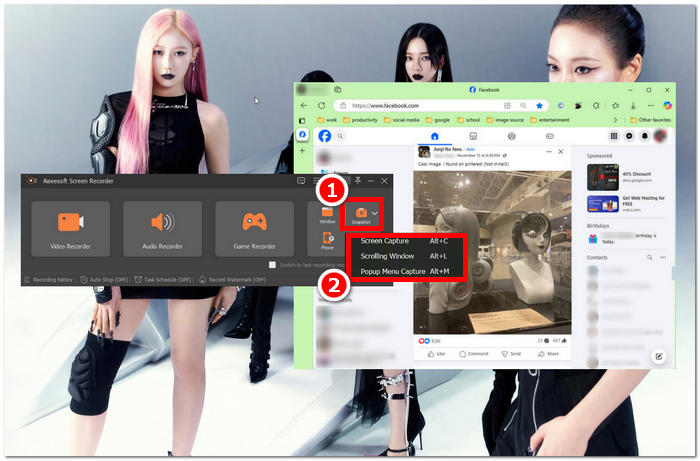
Możesz zapisać zrzut ekranu całej strony głównej za pomocą funkcji Screen Capture. Funkcja Scrolling Window wykonuje migawkę całej strony głównej, od góry do dołu. Użytkownicy mogą wybrać sekcję strony internetowej podczas wykonywania spersonalizowanego zrzutu ekranu za pomocą funkcji Popup Menu Capture.
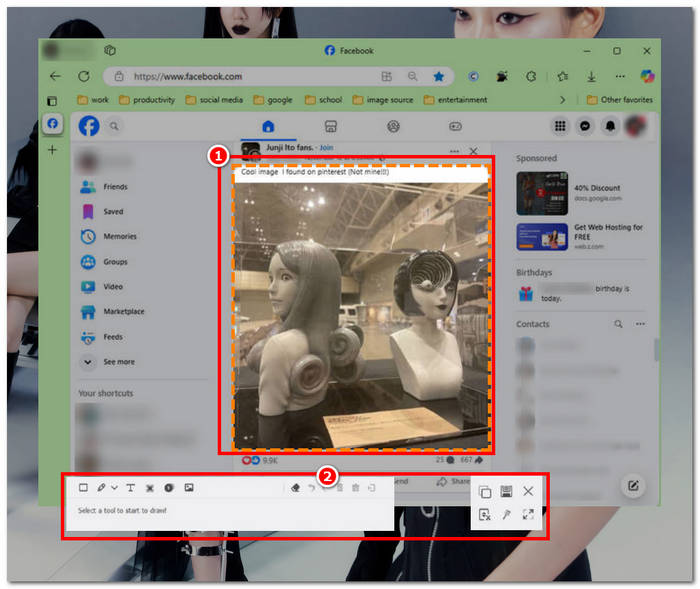
Step 3. In your Facebook timeline, click, hold, and drag your cursor on the area of the Facebook content you wish to capture as a screenshot.
Step 4. Once done, you can utilize the tools below to edit your screenshots before you can download them to your desktop download folder.
Część 3. Często zadawane pytania dotyczące zrzutu ekranu na Facebooku
Czy ludzie mogą zobaczyć, jeśli zrobię zrzut ekranu ich profilu, posta lub zdjęcia?
Nie, inni użytkownicy nie zostaną powiadomieni, jeśli zrobisz zrzut ekranu ich profilu na Facebooku. Tylko Ty możesz go zobaczyć, chyba że udostępnisz im zrzut ekranu.
Czy zrzuty ekranu z Messengera są wykrywalne?
Nie, ponieważ wiąże się to z obawami dotyczącymi bezpieczeństwa i naruszenia danych, Facebook nie powiadamia drugiego użytkownika o tym, że właśnie zrobiłeś zrzut ekranu swojej rozmowy.
Czy robienie zrzutów ekranu treści na Facebooku jest legalne?
Zrzuty ekranu treści Facebooka nie są nielegalne, ponieważ publiczne posty są publiczne i widoczne dla każdego. Jednak nielegalne jest używanie czyjejś treści lub posta dla własnej korzyści bez jej zgody.
Wniosek
Taking screenshots of Facebook content is a great way to store and quickly share it with another user. While it is greatly helpful, learning how to do it, especially using other devices, from desktop to mobile, is also helpful. Through this guide, you learn different approaches to taking a Facebook screenshot using any available device you may have. While it is very convenient, the ability to edit and highlight instantly the screenshot using the FVC-picked screen recorder is the best way to take when you want to crop or highlight a certain part of the screenshot so that you won’t have to edit them later.
-
 Jak zrobić zrzut ekranu na Alcatel, aby uchwycić chwilę
 Masz problemy z robieniem zrzutów ekranu na urządzeniu Alcatel? Wypróbuj to rozwiązanie do telefonów komórkowych i komputerów stacjonarnych, a zapisz ekran do przeglądania w trybie offline.
-
 Jak robić zrzuty ekranu w Minecraft: Najłatwiejsze przechwytywanie ekranu gry
 Dowiedz się, jak najłatwiej robić zrzuty ekranu w Minecrafcie. Wypróbuj wbudowane narzędzia i oprogramowanie do nagrywania ekranu, aby zapisać swoje dzieło Minecraft.
-
 Jak robić zrzuty ekranu na Chromebooku [Przewodnik krok po kroku]
 Dzięki temu obszernemu przewodnikowi krok po kroku dowiesz się, jak łatwo robić zrzuty ekranu na Chromebooku. Skorzystaj z podpowiedzi i zdobądź teraz idealny zrzut ekranu!
