


 Video Converter Ultimate
 Nagrywarka ekranu
 Naprawa wideo
Jak nagrać wideo w Teams [4 najprostsze sposoby]
Jesteś na spotkaniu w MS Teams? Na zajęciach? Chcesz nagrać ekran, żeby mieć kopię dyskusji lub wrócić później do ważnych punktów? A może zastanawiasz się, czy w ogóle da się nagrywać w Microsoft Teams. Dobra wiadomość jest taka, że tak – można! Niezależnie od tego, czy jesteś studentem chcącym utrwalić wykład online, specjalistą dokumentującym spotkanie projektowe, czy po prostu kimś, kto chce zachować rozmowę online na później, Teams oferuje wbudowaną funkcję nagrywania, która to umożliwia.
W tym poradniku krok po kroku dowiesz się, jak nagrać wideo w Teams, a także poznasz alternatywne narzędzia, które zapewnią Ci większą elastyczność i kontrolę nad nagraniami ekranu. Dzięki temu każda myśl, prezentacja i rozmowa będzie zapisana dokładnie tak, jak tego potrzebujesz. Zaczynajmy!

Część 1. Czy mogę nagrać spotkanie w Microsoft Teams?
Wielu z Was może się zastanawiać, czy można nagrać wideo w Microsoft Teams, i odpowiedź brzmi: tak. Microsoft Teams zapewnia wbudowaną funkcję nagrywania, która pozwala uczestnikom rejestrować wideo, dźwięk oraz udostępnianie ekranu podczas spotkania. Trzeba jednak pamiętać, że nie każdy uczestnik ma uprawnienia do rozpoczęcia lub zatrzymania nagrywania. Zwykle może to zrobić tylko organizator spotkania lub osoba z tej samej organizacji, która ma przyznane odpowiednie uprawnienia.
Gdy nagrywasz spotkanie, Teams automatycznie zapisuje nagranie w Microsoft Stream lub OneDrive, w zależności od konfiguracji w Twojej organizacji. Dzięki temu łatwo udostępnisz plik innym uczestnikom lub obejrzysz go później, żeby zrobić notatki i wyłapać ważne szczegóły.
Tak więc tak, możesz nagrywać spotkania w Teams, ale ważne jest, by znać ograniczenia i uprawnienia, które się z tym wiążą.
Część 2. Jak nagrać wideo w Teams za pomocą wbudowanej funkcji [Windows]
Jeśli korzystasz z systemu Windows, oto jak możesz nagrać wideo w Teams, używając jego wbudowanej funkcji nagrywania ekranu:
Krok 1. Najpierw musisz dołączyć do spotkania w Teams.
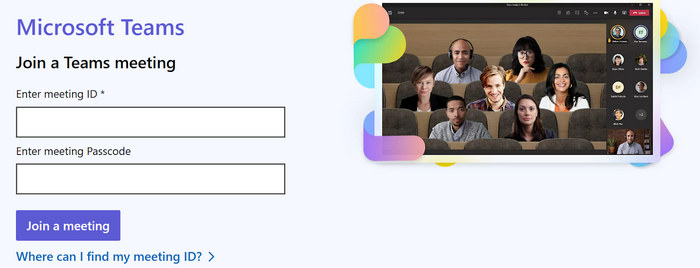
Uwaga: Jeśli masz trudności z dostępem do aplikacji lub wersji webowej, niektóre spotkania umożliwiają dołączenie przez połączenie telefoniczne. Wystarczy, że wpiszesz numer telefonu i identyfikator konferencji, które przesłał organizator, aby uzyskać dostęp do sesji.
Krok 2. Gdy już jesteś na spotkaniu w Teams, przejdź do paska sterowania i kliknij trzy kropki widoczne w interfejsie Teams. W wyświetlonym menu wybierz Rozpocznij nagrywanie. Spowoduje to także włączenie transkrypcji na żywo.
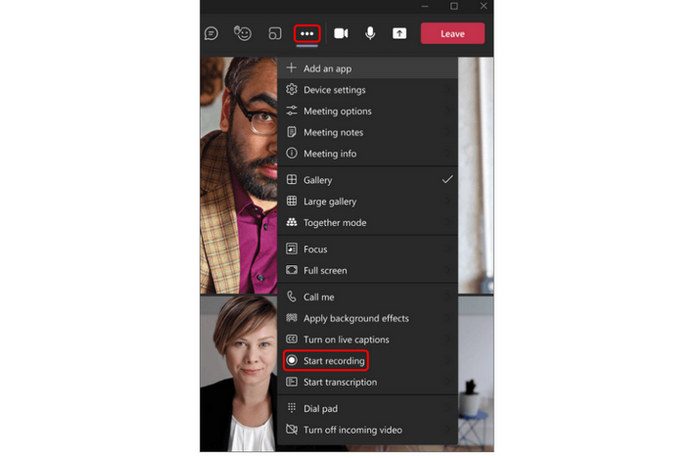
Krok 3. Gdy skończysz i chcesz zakończyć spotkanie w Teams, ponownie kliknij trzy kropki u góry i wybierz Zatrzymaj nagrywanie.
Uwaga: Gdy nagrywanie się rozpocznie, wszyscy uczestnicy otrzymają powiadomienie. Wideo jest natychmiast zapisywane w chmurze, konkretnie w Microsoft Stream. Dzięki temu Ty i uczestnicy możecie od razu uzyskać do niego dostęp, niezależnie od miejsca, w którym się znajdujecie.
Część 3. Jak nagrać wideo w Microsoft Teams na Macu
Z kolei jeśli używasz macOS, oto jak możesz nagrać wideo w Microsoft Teams:
Krok 1. Podobnie jak w przypadku użytkowników Windows, zacznij od dołączenia do spotkania w Teams.
Krok 2. Gdy już dołączysz do spotkania, otwórz QuickTime Player. U góry wybierz Plik, a następnie kliknij Nowe nagranie ekranu. Następnie rozwiń menu i kliknij przycisk Nagraj, aby rozpocząć nagrywanie ekranu.
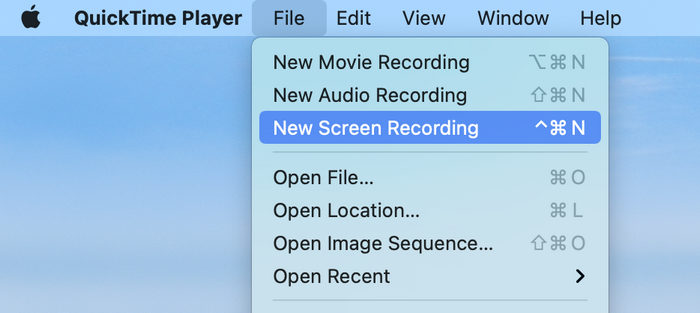
Krok 3. Aby zatrzymać nagrywanie, naciśnij na klawiaturze Command + Control + Esc lub kliknij przycisk Stop w aplikacji QuickTime Player, wciskając ikonę kwadratu w kółku na górze ekranu.
Uwaga: Po zakończeniu nagrywania ekranu nagrane spotkanie pojawi się w oknie QuickTime, gdzie możesz od razu kliknąć sesję i ją odtworzyć.
Część 4. Jak swobodnie nagrać wideo w Teams [Online]
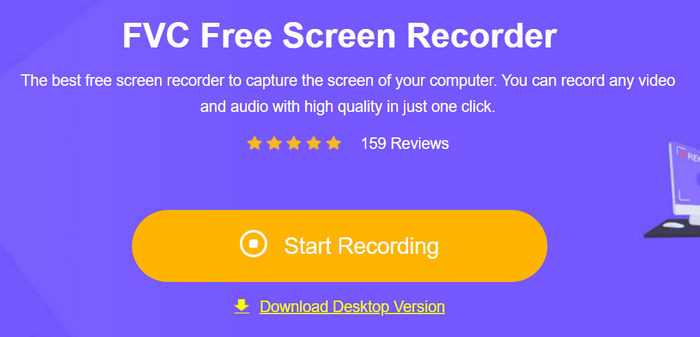
Jeśli szukasz alternatywnego sposobu na nagrywanie spotkania bezpośrednio z poziomu przeglądarki, możesz skorzystać z FVC Free Screen Recorder. Dzięki temu narzędziu użytkownicy mogą nagrywać wideo w Teams, a później je edytować i dodawać adnotacje. Działa ono zarówno w systemie Windows, jak i macOS, co daje użytkownikom swobodę korzystania z niego niezależnie od systemu operacyjnego. Co więcej, ten rejestrator ekranu obsługuje dźwięk systemowy, wejście z mikrofonu, a nawet nagrywanie z kamery internetowej, co czyni go świetnym wyborem do spotkań online i tworzenia samouczków wideo.
Główne cechy:
- Umożliwia nagrywanie całego ekranu, wybranego okna lub obszaru niestandardowego.
- Możesz korzystać z niego bezpośrednio z poziomu przeglądarki internetowej.
- Nagrywaj połączenia wideo, spotkania, rozgrywkę i zajęcia online
- Umożliwia dodawanie tekstu, linii, wyróżnień i kształtów podczas nagrywania.
- Można nagrywać zarówno dźwięk systemowy, jak i głos z mikrofonu.
- Obsługuje różne formaty wyjściowe wideo i audio.
- Nagrywanie filmów w jakości HD.
- Dostępny zarówno na Windows, jak i macOS
Bezpłatne pobieranieDla Windows 7 lub nowszegoBezpieczne pobieranie
Bezpłatne pobieranieDla MacOS 10.7 lub nowszegoBezpieczne pobieranie
Kroki, jak nagrać wideo w Teams za pomocą FVC Free Screen Record:
Krok 1. Najpierw wyszukaj w przeglądarce FVC Free Screen Recorder. Następnie dołącz do spotkania w Teams.
Krok 2. Gdy będziesz już na spotkaniu w Teams, kliknij Rec w interfejsie narzędzia.
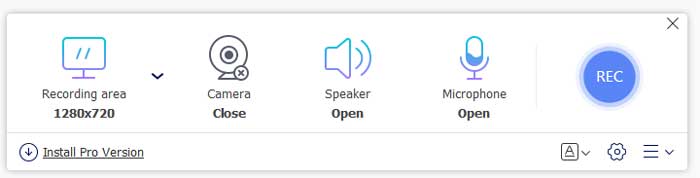
Krok 3. Po zakończeniu nagrywania obejrzyj podgląd i wyeksportuj swoje wideo z Teams.
Zaletą FVC Free Screen Recorder jest to, że masz pełną kontrolę nad tym, jak nagrywasz wideo w Teams, w przeciwieństwie do wbudowanej funkcji nagrywania, która wiąże się z pewnymi ograniczeniami. Dzięki temu narzędziu możesz rozpocząć nagrywanie w dowolnej chwili, nawet jeśli nie jesteś organizatorem spotkania ani nie masz uprawnień administratora. Możesz też wybrać, czy chcesz nagrywać cały ekran, konkretne okno czy tylko wybrany fragment, co daje dużą elastyczność w zakresie tego, co zostanie zarejestrowane.
Co więcej, FVC Free Screen Recorder pozwala nagrywać dźwięk systemowy, dźwięk z mikrofonu lub oba jednocześnie, dzięki czemu wyraźnie uchwycisz wszystkie głosy i prezentacje. To idealna alternatywa, jeśli chcesz w wygodny i nieograniczony sposób nagrywać swoje spotkania lub zajęcia w Teams.
Część 5. Najczęstsze pytania dotyczące nagrywania wideo w Teams
Dlaczego nie mogę nagrać mojego spotkania w Microsoft Teams?
Jeżeli nie możesz nagrać wideo w Teams, najprawdopodobniej nie masz odpowiednich uprawnień. Tylko organizator spotkania lub członkowie tej samej organizacji z przyznanymi uprawnieniami do nagrywania mogą rozpocząć lub zatrzymać nagrywanie. Dodatkowo administrator IT mógł wyłączyć funkcję nagrywania ze względów prywatności lub bezpieczeństwa. W takiej sytuacji możesz skorzystać z narzędzi zewnętrznych, takich jak FVC Free Screen Recorder.
Gdzie trafiają nagrania z Teams po zakończeniu spotkania?
Microsoft Teams automatycznie zapisuje nagranie Twojego spotkania w Microsoft Stream lub OneDrive, w zależności od konfiguracji w Twojej organizacji. Po przetworzeniu nagrania otrzymasz link umożliwiający dostęp do niego, a pozostali uczestnicy będą mogli je również wyświetlić lub pobrać, o ile pozwalają na to uprawnienia.
Czy mogę nagrać spotkanie w Teams, aby inni się o tym nie dowiedzieli?
Nie, Teams zawsze powiadomi uczestników, gdy rozpocznie się nagrywanie, aby zapewnić przejrzystość i zgodność z przepisami dotyczącymi prywatności. Jednak jeśli chcesz nagrać wideo w Teams wyłącznie do osobistego wglądu, możesz użyć zewnętrznego rejestratora ekranu, takiego jak FVC Free Screen Recorder, który daje ci pełną kontrolę nad tym, co i kiedy nagrywasz.
Wniosek
Poznanie jak nagrać wideo w Teams pomaga utrwalać i później odtwarzać ważne spotkania, zajęcia i dyskusje w dowolnym momencie. Wbudowana funkcja nagrywania w Microsoft Teams sprawia, że nagrywanie i zapisywanie sesji bezpośrednio w chmurze jest bardzo proste. Jeśli jednak chcesz mieć większą kontrolę nad nagraniami, możesz wypróbować FVC Free Screen Recorder. Dzięki tym opcjom nagrywanie wideo w Teams staje się łatwe i niezawodne, niezależnie od celu.
-
 Nagrywanie ekranu QuickTime - nagrywaj wideo z dźwiękiem na komputerach Mac i PC
 Przydaje się ekran nagrywania z dźwiękiem na Macu. Wbudowany odtwarzacz QuickTime Player może to zrobić. Przeczytaj jego post i dowiedz się, jak przechwycić ekran z dźwiękiem na komputerach Mac i PC.
-
 Jak nagrać wideo połączenie WhatsApp [3 skuteczne sposoby]
 Zastanawiasz się, jak nagrać rozmowę wideo na WhatsAppie? Przeczytaj ten artykuł i poznaj 3 metody, które ułatwią Ci nagrywanie na różnych urządzeniach.
-
 Jak łatwo nagrać ekran za pomocą VLC [Kompletny przewodnik]
 Jeśli zastanawiasz się, jak nagrać ekran za pomocą funkcji nagrywania ekranu w programie VLC, nie martw się! Ten artykuł nauczy Cię czterech prostych sposobów, jak zrobić to jak profesjonalista.
