


 Video Converter Ultimate
 Nagrywarka ekranu
 Naprawa wideo
Najlepsze rozwiązania dla filmów, które nie odtwarzają się w Chrome: 4 rozwiązania
The default video format of QuickTime Player is MOV. So it should be very smooth for us to use it to process MOV video, right? It should be, but some users have also found a new problem: QuickTime Player can't open MOV.
Wygląda to niesamowicie. Więc jaki jest problem? Rozważmy dwa główne aspekty: plik wideo i narzędzie do odtwarzania. W tym przewodniku znajdziesz sposoby na dostosowanie pliku, naprawę wideo i zmianę oprogramowania do odtwarzania. Przeczytaj dalej i wybierz ten, który Ci odpowiada.

| Typ problemów | Rozwiązanie |
| QuickTime jest stary lub niezgodny | Wypróbuj odtwarzacz Blu-Ray Aiseesoft, aby odtworzyć swój film |
| Uszkodzenie pliku wideo | Naprawa za pomocą FVC Naprawa wideo |
| Format wideo nie jest obsługiwany | Konwertuj swój plik za pomocą FVC Video Converter Ultimate |
| Brak niezbędnych kodeków | Brak niezbędnych kodeków Zainstaluj odpowiedni kodek na swoim urządzeniu |
Część 1. Używaj alternatywnych odtwarzaczy wideo
Odtwarzacz Blu-Ray Aiseesoft
Czy QuickTime może odtwarzać pliki MOV? Cóż, tak, możemy odpowiedzieć na to pytanie, ale nie absolutnie. QuickTime może nadal mieć pewne problemy ze zgodnością. I zawsze musisz aktualizować oprogramowanie do najnowszej wersji. Jeśli nie chcesz zmieniać bieżącej wersji oprogramowania, spróbuj najpierw użyć innego odtwarzacza multimedialnego o lepszej zgodności. Ponadto zmiana odtwarzacza może pomóc Ci sprawdzić, czy problem dotyczy QuickTime Player, czy plików wideo.
We recommend using Aiseesoft Blu-Ray Player as an alternative to QuickTime Player. This program is compatible with all popular digital video formats. It can also be used to open video content from DVDs, Blu-ray disks, or ISO image folders. Aiseesoft Blu-Ray Player supports maximum clarity in 4K UHD quality, and it is capable of restoring absolutely every detail of your videos.
Free DownloadFor Windows 7 or laterSecure Download
Free DownloadFor MacOS 10.7 or laterSecure Download
Oto jak odtwarzać pliki MOV za pomocą odtwarzacza Blu-Ray Aiseesoft.
Step 1. Here is how to play MOV files with Aiseesoft Blu-Ray Player.Download and install Aiseesoft Blu-Ray Player on your computer. When you enter the main interface, click Open File to load your MOV file.
Step 2. Your video will be played automatically.
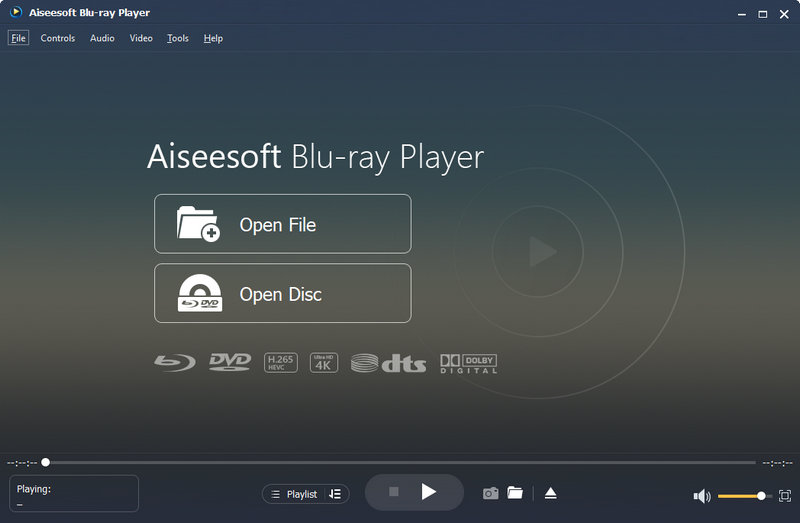
It's all that simple. You can freely adjust the playback speed, volume, and other parameters when playing videos with this best QuickTime Player alternative.
Część 2. Naprawa pliku MOV za pomocą narzędzia do naprawy wideo FVC
Zmieniłem odtwarzacz. Dlaczego problem z plikiem .mov nie odtwarza się w QuickTime nadal występuje? W takim razie rozważ, że sam plik wideo jest uszkodzony. Nie martw się. Mamy gotowe rozwiązanie.
Naprawa wideo FVC
Try to repair your MOV video with FVC Video Repair . This program can fix files that are corrupted due to storage device corruption, transfer failures, viruses, system crashes, and many other reasons. You don't need to have any specialized knowledge of coding or data recovery.FVC Video Repair uses state-of-the-art AI technology to repair corrupted files based on the sample videos you upload. Everything is done within three clicks.
Bezpłatne pobieranieDla Windows 7 lub nowszegoBezpieczne pobieranie
Bezpłatne pobieranieDla macOS 10.7 lub nowszegoBezpieczne pobieranie
Oto jak naprawić uszkodzony film MOV za pomocą programu FVC Video Repair.
Step 1. Download and install FVC Video Repair on your computer.
Step 2. Enter the main interface. Choose the red + button to upload your MOV file. Choose the purple + button to upload the sample video.
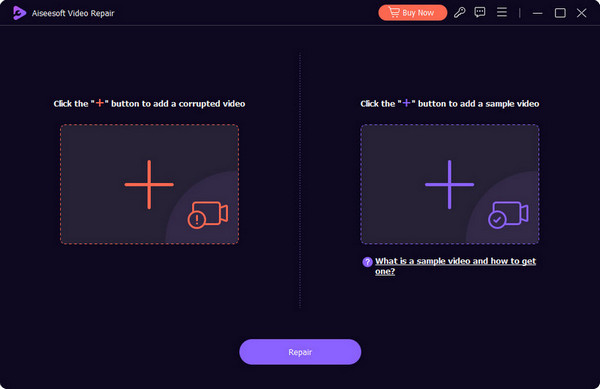
Należy pamiętać, że przykładowy film wideo powinien być również w formacie MOV. Najlepiej, aby pochodził z tego samego sprzętu, co oryginalny film wideo, i był zbliżony pod względem wszystkich parametrów.
Step 3. After loading the two videos, click Repair.
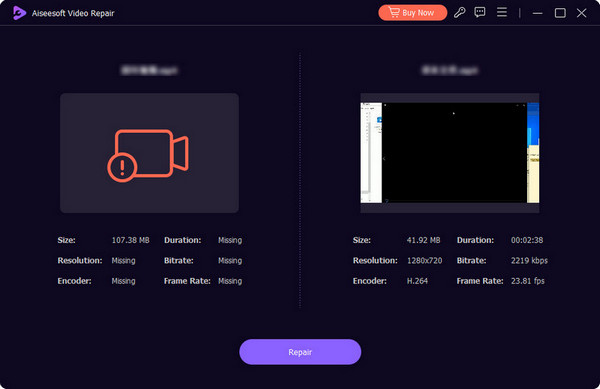
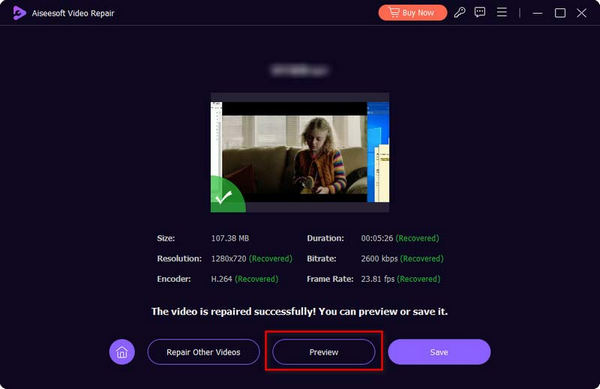
You will be reminded when the fixing process is over. Click Preview to check the result. If you feel OK, click Save.
Część 3. Konwersja do zgodnego formatu
Plik z rozszerzeniem .mov nie jest zgodny z QuickTime? Tak, jeśli kodek wideo lub audio w pliku MOV nie jest zgodny z QuickTime Player, nie może odczytać pliku. Najbardziej bezpośredni sposób to przekonwertować ten film MOV na QuickTime MOV. Albo zamiast zmagać się z MOV, przekonwertować go bezpośrednio na uniwersalny plik MP4. W tym momencie możesz łatwo oglądać film bez względu na to, jakiego odtwarzacza używasz.
FVC Video Converter Ultimate
FVC Video Converter Ultimate will help you do all the conversion tasks seamlessly. It supports more than a thousand multimedia formats and even has format presets for certain devices and video platforms. Upload your video, choose the format, and with one click - your new file is ready. There are also many flexible video editing features on this platform. See if you can use them to make even more stunning results.
Bezpłatne pobieranieDla Windows 7 lub nowszegoBezpieczne pobieranie
Bezpłatne pobranieDla macOS 10.7 lub nowszegoBezpieczne pobieranie
Oto jak przekonwertować plik MOV za pomocą programu FVC Video Converter Ultimate.
Step 1. Download and install FVC Video Converter Ultimate on your device. Launch it, and click Add Files to load your MOV video.

Step 2. Go to Convert All to. Expand the menu and choose a more compatible format like MP4.
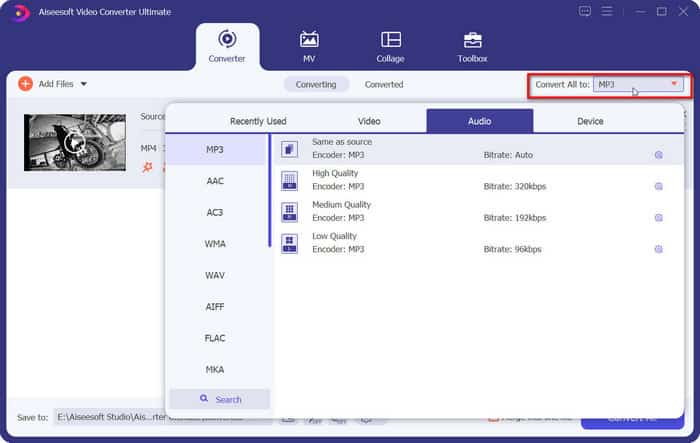
Step 3. Click Convert All.

Część 4. Zainstaluj kodek MOV, aby odtwarzać za pomocą programu QuickTime Player
QuickTime Player obsługuje wiele popularnych kodeków, ale nie XVID, DIVX, AC3, DTS itd. Weźmy XVID i DivX jako przykład, Twój QuickTime Player nie może odtwarzać takich plików bez zainstalowania specjalistycznych kodeków.
Możesz pobrać wtyczkę, odwiedzając oficjalne strony XVID i DIVX. Poniższy link pomoże Ci przejść tam bezpośrednio.
XVID: https://www.xvid.com/download/
DIVX: https://www.divx.com/

Część 5. Często zadawane pytania dotyczące programu QuickTime Player Nie można otworzyć pliku MOV
Dlaczego mojego pliku .mov nie można otworzyć w programie QuickTime Player?
Może to być spowodowane tym, że w pliku MOV znajduje się kodek, który nie jest zgodny z QuickTime Player. Możesz przekonwertować go na bardziej zgodny format, taki jak MP4.
Dlaczego program After Effects eksportuje pliki MOV do formatu niekompatybilnego z QuickTime?
Some video editors have introduced new effects that are not compatible with QuickTime Player, or macOS. You can try to use another video player to open the edited or rendered video.
Jak naprawić plik .mov, którego nie można odtworzyć?
Jeśli Twój obecny odtwarzacz nie jest kompatybilny z plikiem MOV, spróbuj przekonwertować MOV na MP4 lub inne formaty o szerokiej kompatybilności. Jeśli plik jest uszkodzony, użyj FVC Video Repair, aby go naprawić.
Wniosek
Converting formats, changing players, and installing new plugins can all solve the QuickTime Player can't open MOV problem. If the video is already corrupted, we recommend using FVC Video Repair to restore it. The steps for all the above options are shown above. Hope the content here helps you.
-
 MOV VS MP4 - Który wybierzesz?
 MOV VS MP4, który z nich jest lepszy? Ten post wyjaśnia różnicę między MP4 i MOV, dzięki czemu możesz uzyskać lepszy wybór do wykorzystania w plikach wideo.
-
 Nagrywanie ekranu QuickTime - nagrywaj wideo z dźwiękiem na komputerach Mac i PC
 Przydaje się ekran nagrywania z dźwiękiem na Macu. Wbudowany odtwarzacz QuickTime Player może to zrobić. Przeczytaj jego post i dowiedz się, jak przechwycić ekran z dźwiękiem na komputerach Mac i PC.
-
 Najważniejsze fakty, które powinieneś wiedzieć o QuickTime Slow Motion
 Czy próbowałeś używać programu QuickTime Media Player do odtwarzania wideo w zwolnionym tempie? Przeczytaj ten artykuł, aby dowiedzieć się więcej o doskonałej obsłudze tego odtwarzacza multimedialnego.
