


 Video Converter Ultimate
 Nagrywarka ekranu
 Naprawa wideo
Uproszczony sposób nagrywania Blu-ray w OBS Studio i innych możliwych narzędziach
Blu-ray disk stores the highest quality a disk can be stored. It can save a video up to 1080 pixels. Same as in audio, it produces a crystal-clear sound rather than CDs. And also, no need to worry about storing high-volume storage on Blu-ray because it has a lot of space. As we proceed, OBS Studio is a free downloadable open-source program. It supports platforms like Windows, macOS, and Linux. In addition, it is perfect for recording audio video on your screen computer. Some users find it troublesome to record Blu-ray in a studio. So, stay still and read the article to know how to record Blu-ray movies with OBS and what expert recorder you should use for taking high-quality video output.

Część 1. Jak nagrywać filmy Blu-ray za pomocą OBS Studio
Znane z tego, że jest potężnym narzędziem do przesyłania strumieniowego, OBS Studio otrzymuje regularne aktualizacje dzięki swoim wpływowym sponsorom YouTube, Twitch, Facebook, API.video, own3d.pro i wielu innym platformom. Nie musisz się martwić o przesyłanie strumieniowe dzięki tym głównym platformom. Z drugiej strony buduje swoją nazwę jako najbardziej złożone narzędzie do nagrywania i mniej wskazówek. Ale jeśli chcesz prostego przesyłania strumieniowego, nie musisz zagłębiać się w skomplikowane ustawienia. Co więcej, zamień trudne w łatwe do opanowania, czytając ten artykuł, aby poznać kroki i szczegóły dotyczące OBS Studio.
Oto kilka kroków, jak korzystać z OBS Studio:
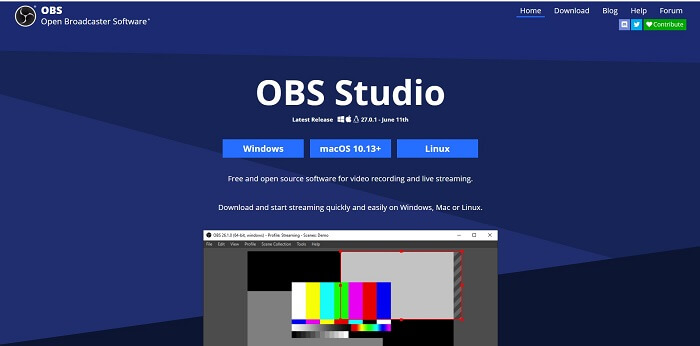
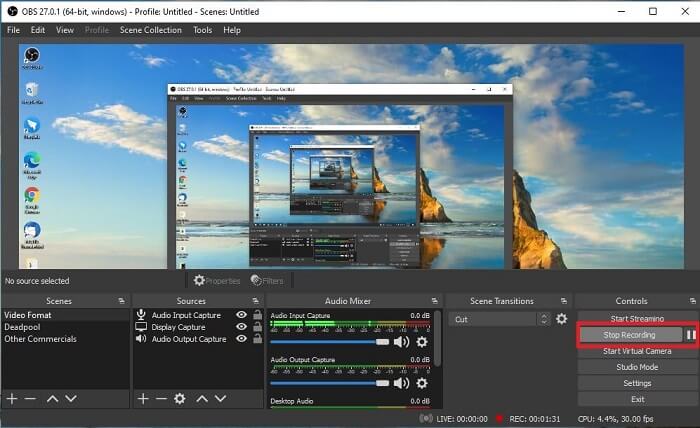
Step 1. Go to your browser. Then choose what OS you are currently using, then download, set it up, install it, and then click Finish to launch the tool.
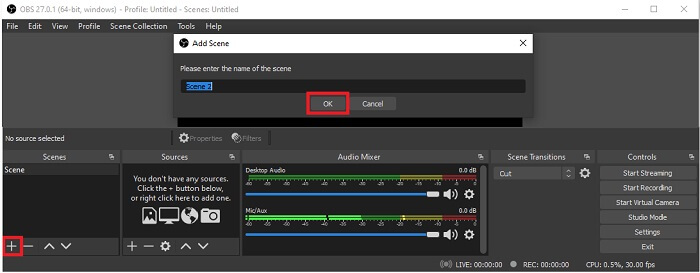
Step 2. Go to the Scenes panel, click the Add icon to add a scene then name it Click OK to proceed.
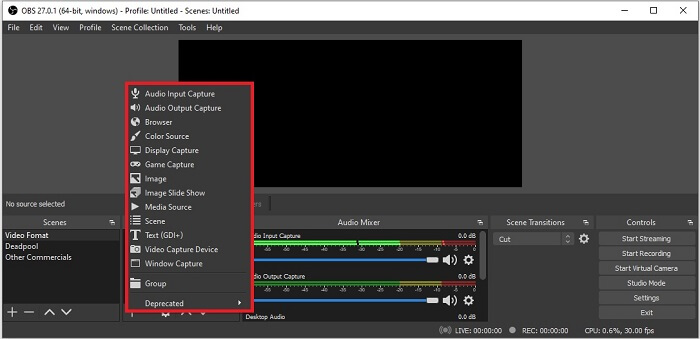
Step 3. Proceed to the source panel. Click the Plus icon then different options will show. Here are some basic options that are enlisted here. The Audio Input Capture to record your voice in the microphone. Next, Audio Output capture to record the sound coming out to your system. And the Display capture to record the entire screen. Lastly, Game Capture to record your montages. Click OK to save. Once all done gathering all the sources needed, adjust the volume in the Audio Mixer tab.
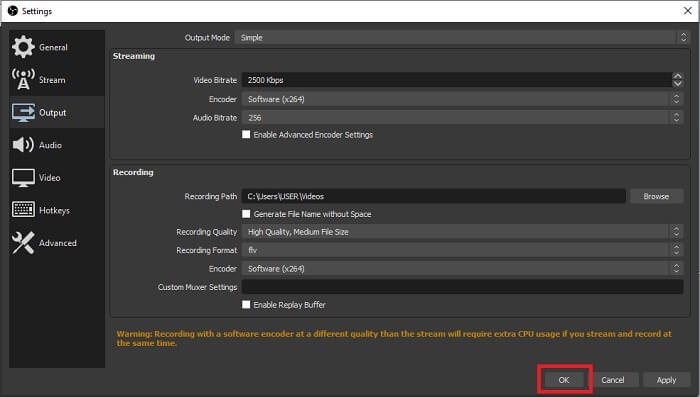
Step 4. Click the Settings button under the Control Panel on the lower right side of the interface. Go to the Output tab, set the format, and adjust the options based on your needs. Set the other options and click OK to save.
Step 5. Click the Start Recording button and start recording. Same as if recording is already finished click the bottom right side where you click the start to record. You may check the recorder in the file explorer.
Plusy
- Jest odpowiedni do nagrywania dowolnych filmów i przesyłania strumieniowego na żywo.
- Nie oferuje bezpłatnej wersji próbnej. Ponieważ jest bezpłatny.
- Daje wiele opcji do wyboru.
Cons
- Nie jest to najlepszy wybór dla początkującego, ponieważ jest wiele do skonfigurowania.
- Nie obsługuje edycji wideo, więc do edycji musisz zainstalować inne narzędzie. A samo narzędzie ma 85,6 MB, co jest największą pamięcią, jaką ma rejestrator ekranu.
Część 2. Metoda online do przechwytywania Blu-ray z alternatywą OBS
Studio OBS jest rzeczywiście dobrym wyborem do nagrywania i przesyłania strumieniowego. Ale narzędzie ma wiele w swoim interfejsie, więc nagrywanie jest kłopotliwe dla nowego użytkownika. Oto alternatywne narzędzie online, z którego możesz skorzystać.
Darmowy rejestrator ekranu FVC (narzędzie online)
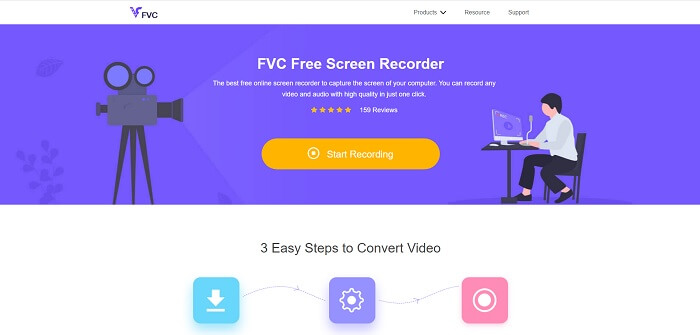
An open-free tool that is less hassle for the user to manage is the FVC Free Screen Recorder. It functions the same as record Blu-ray on OBS studio, easier to use because of its manageable floating toolbar. This on-point detailed tool helps you to record any set of video audio platforms that is available. And with clear sounds and high-definition video output that you may save in the Blu-ray. Instead, to download a large file then use it one time, why don't you try this online tool? Now let's take a tour of how this tool operates. Here are some steps on how to use this online tool.
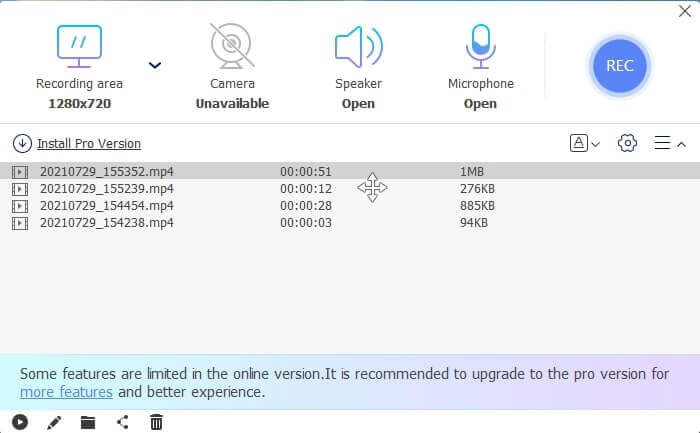
Step 1. Open your browser and visit https://www.free-videoconverter.net/free-screen-recorder/. Then, click the Start Recording button to launch the online tool. A floating bar will pop up on your screen after launching the tool.
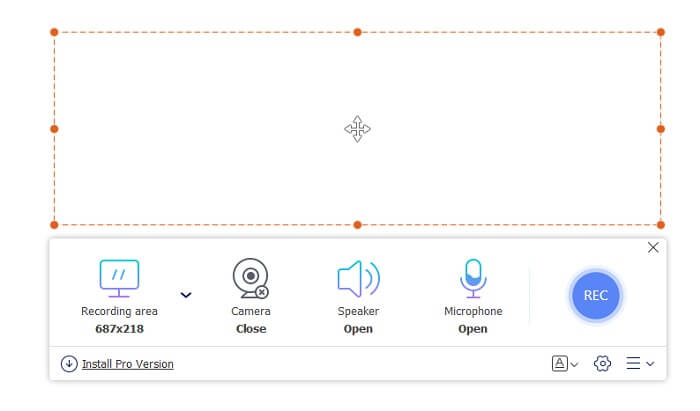
Step 2. In the floating toolbar, there are 4 different panels you may choose. You may adjust the frame size or click the full screen. Next, click the Speaker icon on the system volume. Also, you may add your voice and face if you click to open the Microphone and Webcam. But if you didn't intend to add it you may click it to close. Then click the round REC button to start recording.
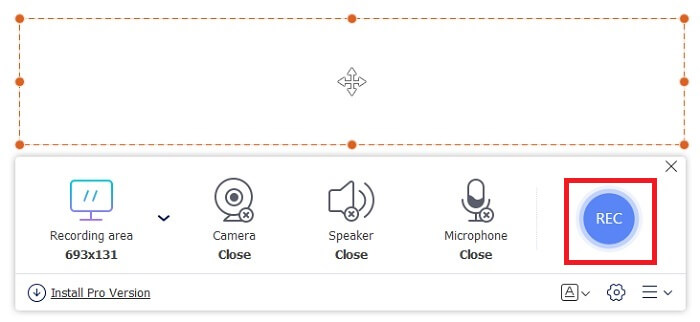
Step 3. When recording is done, Click the square button to stop recording. All the recordings you capture are listed in the history dropdown. Click the first recorded video because that is the latest.
Plusy
- Otwórz darmowe źródło online. Bez pobierania, więc bez kłopotów.
- Najlepszy rejestrator ekranu dla usług online, który obsługuje wszystkie platformy.
- Łatwy w użyciu dzięki bezpośredniej instrukcji narzędzia.
Cons
- Do działania narzędzia potrzebne jest połączenie internetowe.
- Funkcje premium nie są obsługiwane bezpłatnie.
Część 3. Najlepszy zamiennik OBS do nagrywania filmów Blu-ray
Kolejną najlepszą płytą Blu-ray w OBS Studio jest ten rejestrator ekranu FVC. Jeśli chcesz nagrywać online i offline oraz dostępne na wszystkich platformach, to jest to dla Ciebie.
Rejestrator ekranu FVC
W przeciwieństwie do OBS Studio to narzędzie jest przyjazne dla użytkownika z łatwym w zarządzaniu paskiem narzędzi. FVC Screen Recorder to jedna z najlepszych alternatyw do nagrywania. Zawiera funkcje takie jak OBS, które są bardziej konkretne i łatwe do zrozumienia. Na przykład ekran nagrywania, kamera internetowa, dźwięk i dźwięk systemowy i wiele innych. To narzędzie ma również funkcję Lock-in, której nie ma obs. Tyle że to narzędzie jest płatne. Ponadto, jeśli skorzystasz z tego rejestratora ekranu, dokonasz właściwego wyboru.
Wykonaj poniższe czynności, aby w pełni korzystać z tego narzędzia.
Step 1. Click the download button to install the software then set up your desired preference click finish to proceed. Then the tool will launch.
Bezpłatne pobieranieDla Windows 7 lub nowszegoBezpieczne pobieranie
Bezpłatne pobieranieDla MacOS 10.7 lub nowszegoBezpieczne pobieranie
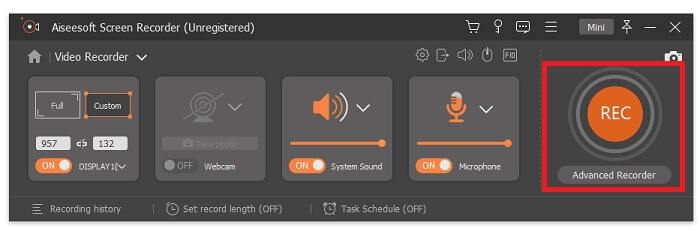
Step 2. Click the Video Recorder. Then 4 different panels will show. In the first panel, you may adjust the frame size to change the aspect ratio or click the Full to record the whole display. The second-panel Webcam is intended to record your face while screen recording. The next panel is System Sound to records the audio of the system. Lastly, a microphone for inputting your sounds to the video. Click the disk shape button to start recording.
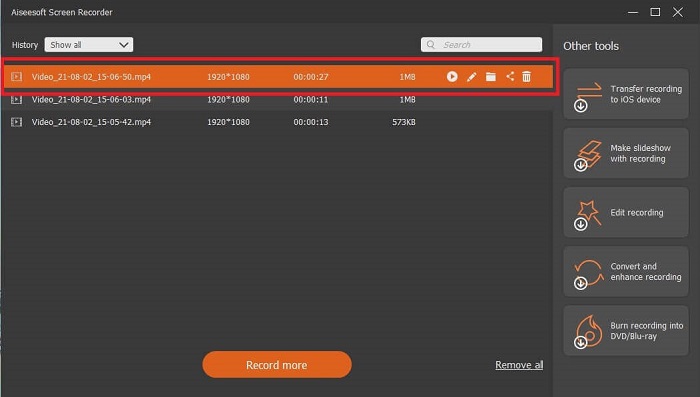
Step 3. If the video recording is finished click the square button to stop. Click the Play button to play the recorded video.
Plusy
- Ma tę unikalną funkcję, którą nazywamy ekranem blokady, aby uniknąć zakłóceń podczas nagrywania.
- Może nagrywać przez 24 godziny bez żadnych dysfunkcji audio-wideo.
- Przechowywanie i przyjazne dla użytkownika ze względu na skompresowany format danych i łatwe do wykonania informacje.
Cons
- Aby go zdobyć, trzeba zapłacić za miesiąc, rok lub przez całe życie.
- Aby z niego korzystać, należy go pobrać ze strony internetowej.
Dalsza lektura
1. Record Screen Video with VLC Media Player
2. Record Screen with Audio on Mac Using QuickTime
Część 4. Często zadawane pytania dotyczące nagrywania Blu-ray w OBS Studio
Jaka jest różnica między Blu-ray, DVD i CD?
Główną różnicą między każdym formatem dysku optycznego jest wyjście i pamięć, którą może samodzielnie przechowywać. Stwierdza, że płyta CD może pomieścić do 700 MB pliku, DVD może pomieścić do 4,7 GB danych, a Blu-ray może pomieścić do 25 GB. W niektórych przypadkach dwuwarstwowy Blu-ray może pomieścić 50 GB danych. Ma również potrójną warstwę dysku i poczwórną warstwę.
Czy OBS jest darmowym narzędziem? Czy pobieranie jest bezpieczne?
Tak, OBS Studio to bezpłatne narzędzie bez ukrytych opłat. Możesz go również pobrać na wszystkie platformy. Kolejny Tak, jest bezpieczny przed złośliwym oprogramowaniem, wirusami, robakami, porywaczami przeglądarki i nie tylko.
Jakie kodeki wideo obsługują Blu-ray?
For video: MPEG-2, MPEG-4 AVC, and SMPTE VC-1.
For audio: Linear PCM (LPCM), Dolby Digital® (DD), Dolby Digital® Plus (DD+), Dolby® TrueHD, DTS Digital Surround®, and DTS-HD®.
Wniosek
W końcu rejestratory ekranu są przydatne ze względu na ich możliwości. OBS to dobry wybór do nagrywania, ale ze względu na różne opcje sprawia, że użytkownik zgaduje i pyta, czy robi to dobrze. Ale ze względu na listę online i offline, która obsługuje wszystkie różne platformy. Teraz masz prawo wyboru. Aby wybrać to, co jest dla Ciebie najlepsze.
Jak rejestrator ekranu FVC. Jest to przyjazne dla użytkownika i punktowe narzędzie, które pomaga użytkownikowi nagrywać w dowolnym miejscu i czasie. Nawet jeśli jest to narzędzie płatne. Mimo to jest wart każdego wydanego grosza. Pamiętaj, aby nie stresować się trudnym w użyciu, jeśli łatwy w użyciu może działać lepiej.
-
 Akcja! Recenzja Screen Recorder - wady, zalety i najlepsza alternatywa
 Czy Action Screen Recorder jest pożądanym oprogramowaniem do nagrywania gier do przechwytywania filmów z rozgrywki? Po prostu dowiedz się więcej szczegółów z recenzji i jej alternatywy z artykułu.
-
 3 najlepsze rejestratory rozmów na Facebooku dla komputerów, iOS i Android
 Jeśli chcesz nagrywać rozmowy na Facebooku, aby zaoszczędzić cenne rzeczy, masz do wyboru wiele rejestratorów rozmów na Facebooku. Tutaj możesz poznać 3 najlepsze narzędzia do nagrywania rozmów wideo na Facebooku na PC, iOS i Androida.
-
 Top 6 darmowych rejestratorów WAV dostępnych dla systemów Windows i Mac
 Najlepsze oprogramowanie do nagrywania WAV, które udostępniamy w tym artykule, ma wiele przydatnych funkcji, które pomagają rejestrować dźwięk i głos jak profesjonaliści.
