


 Video Converter Ultimate
 Nagrywarka ekranu
 Naprawa wideo
Opanuj, jak przyspieszyć wideo w programie Windows Media Player w najlepszy możliwy sposób [Oparte na dowodach]
Wszystkie sceny wideo różnią się szybkością odtwarzania, ale różnią się też celem, w jakim ta szybkość jest zmieniana. Gdy przyspieszasz wideo, symbolizuje to mało istotne i nieciekawe wydarzenia w filmie lub nagraniu. Z kolei spowolnienie wideo podkreśla momenty lub sceny, które są bardzo ważne z punktu widzenia obrazu. Takie modyfikacje prędkości odtwarzania są niezwykle istotne podczas montażu lub tworzenia filmów wideo. Przeczytaj ten artykuł, aby nauczyć użytkowników, jak przyspieszać filmy, szczególnie w popularnych odtwarzaczach multimedialnych na komputerze, takich jak Windows Media Player.

Część 1. Windows Media Player: jak przyspieszyć wideo
Windows Media Player to darmowy odtwarzacz multimedialny firmy Microsoft, który jest dostarczany z każdą kopią systemu Windows. Znany jest również jako odtwarzacz WMP lub WM firmy Microsoft. Pozwala im nie tylko oglądać zdjęcia i słuchać muzyki, ale także oglądać filmy. Zgrywanie płyt audio CD i organizowanie biblioteki muzycznej są możliwe dzięki Windows Media Player (WMP). Posiada również zakładkę edycji, która pomaga dostosować filmy, zdjęcia i muzykę. Jeśli chcesz przyspieszyć wideo za pomocą programu Windows Media Player, oto kroki, które należy wykonać:
Krok 1: Otwórz Windows Media Player; w lewym górnym rogu wybierz kartę Wideo.
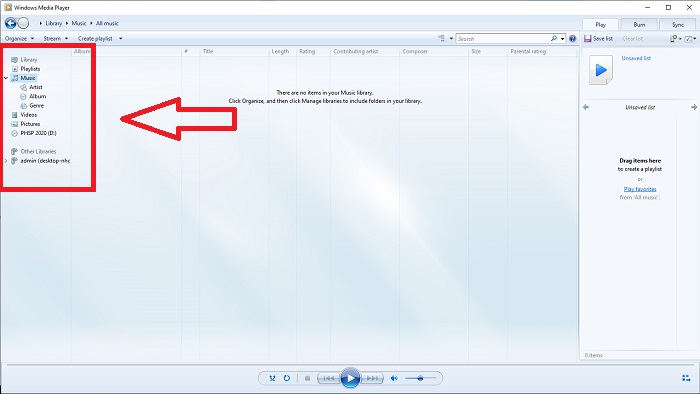
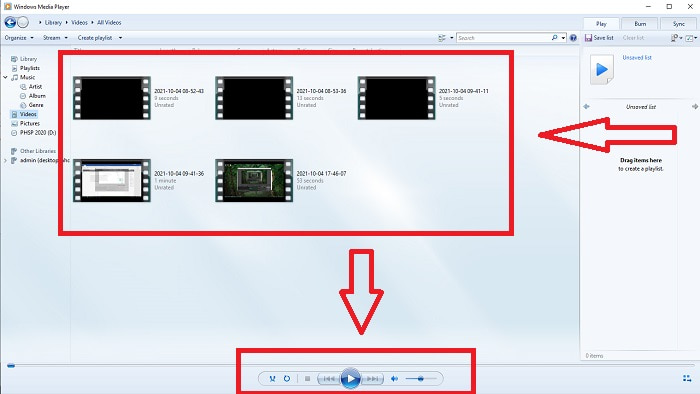
Krok 2: Odtwórz wideo, dwukrotnie klikając lewym przyciskiem myszy lub klikając prawym przyciskiem myszy, albo naciśnij przycisk Odtwórz na dole, pośrodku interfejsu.
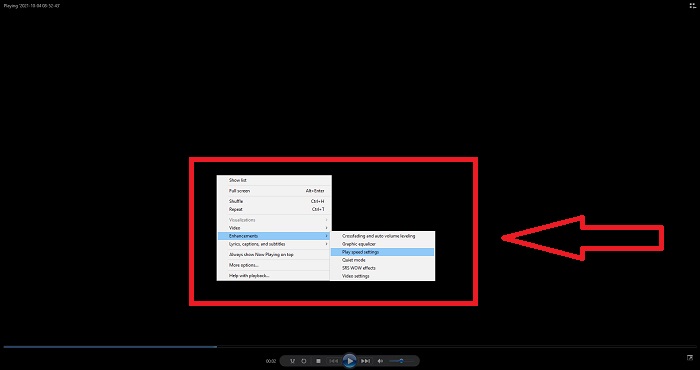
Krok 3: Następnie kliknij prawym przyciskiem myszy ekran, aby przejść do karty edycji. Kontynuuj, klikając Ulepszenia i Ustawienia prędkości odtwarzania. Po tym możesz już dostosować prędkość odtwarzania swojego klipu wideo, przeciągając suwak.
Część 2. Co się stanie, jeśli szybkość odtwarzania programu Windows Media Player nie działa?
Podczas odtwarzania plików wideo AVI, WAV lub MOV możesz natknąć się na odtwarzacz multimedialny Windows i napotkać problem podczas odtwarzania błędu pliku. Filmy o przeciętnej jakości są często oglądane w formacie AVI. Inne odtwarzacze multimedialne nie mają problemów z odtwarzaniem AVI. Z drugiej strony WMP może mieć usterkę podczas odtwarzania pliku AVI. Program Windows Media Player nie obsługuje plików AVI, ponieważ są one zakodowane przy użyciu kodeków. Mogłeś otrzymać następujące powiadomienie: Windows Media Player nie może odtworzyć pliku. Odtwarzacz może nie obsługiwać danego typu pliku lub może nie obsługiwać kodera-dekodera użytego do skompresowania pliku. Istnieją dwa możliwe wyjaśnienia tego zjawiska.
1. Ponieważ nie pasuje do wymaganego pliku, odtwarzacz multimedialny Windows (WMP) nie obsługuje kodeka dla pliku.
2. Windows Media Player nie obsługuje kodeków kompresji.
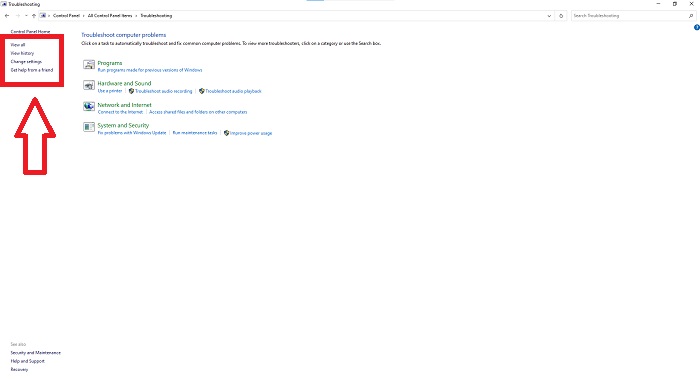
Krok 1: Otwórz Panel sterowania na swoim komputerze i znajdź opcję Wyświetl według, następnie kliknij Duże ikony, aby uzyskać dostęp do wszystkich funkcji Panelu sterowania.
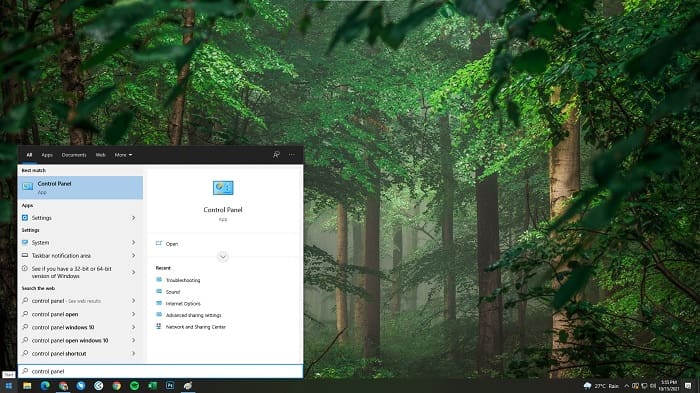
Krok 2: Następnie kliknij Rozwiązywanie problemów. W lewym górnym rogu kliknij Wyświetl wszystko i znajdź Biblioteka programu Windows Media Player.
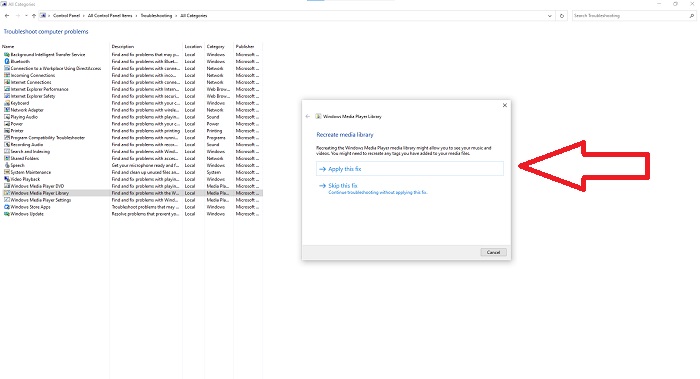
Krok 3: Na koniec przeprowadź diagnostykę Windows Media Player, klikając Dalej po pojawieniu się okna. Następnie wybierz Zastosuj tę poprawkę. Po zakończeniu rozwiązywania problemów zdecyduj, czy chcesz je zamknąć, czy wystawić opinię.
Część 3. Kolejny możliwy sposób na przyspieszenie filmów
Załóżmy, że masz problem z ustaleniem szybkości odtwarzania swoich filmów z powodu skomplikowanych kroków. Ponadto, jeśli rozwiązywanie problemów nie działa i nadal nie możesz odtworzyć wideo. W Internecie dostępne są narzędzia internetowe, a niektóre z nich należy zakupić przed uzyskaniem dostępu do kompletnego narzędzia. Video Converter Ultimate to najlepsza alternatywa dla przyspieszenia filmów i jest darmowy. To oprogramowanie może edytować Twój film na wyższy poziom, a oto podane kroki:
Krok 1: Wybierz Bezpłatne pobranie, aby pobrać oprogramowanie bezpośrednio na komputer. Następnie dostosuj ustawienia i zainstaluj program.
Bezpłatne pobieranieDla Windows 7 lub nowszegoBezpieczne pobieranie
Bezpłatne pobieranieDla MacOS 10.7 lub nowszegoBezpieczne pobieranie
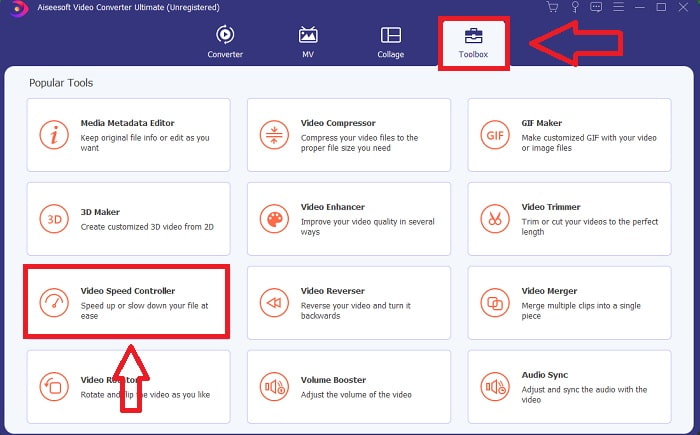
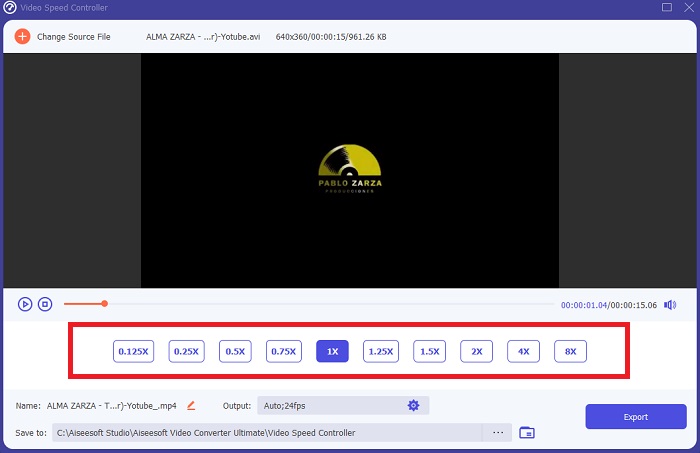
Krok 2: Gdy oprogramowanie zostanie zainstalowane, uruchom je, wybierając z paska menu opcję Przybornik, a następnie z wyświetlonej listy wybierz Kontroler prędkości wideo.
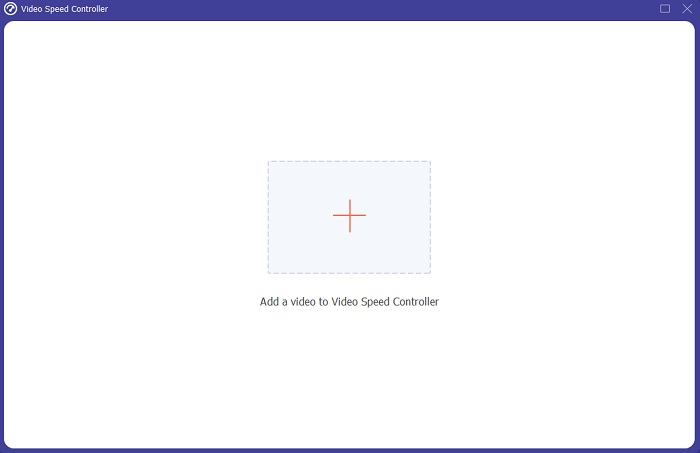
Krok 3: Kliknij przycisk + według własnego uznania, aby dodać plik, a następnie kontynuuj edycję wideo.
Krok 4: Wybierz, ile razy liczba klatek na sekundę ma zostać zwiększona lub zmniejszona, aby zmienić prędkość odtwarzania.
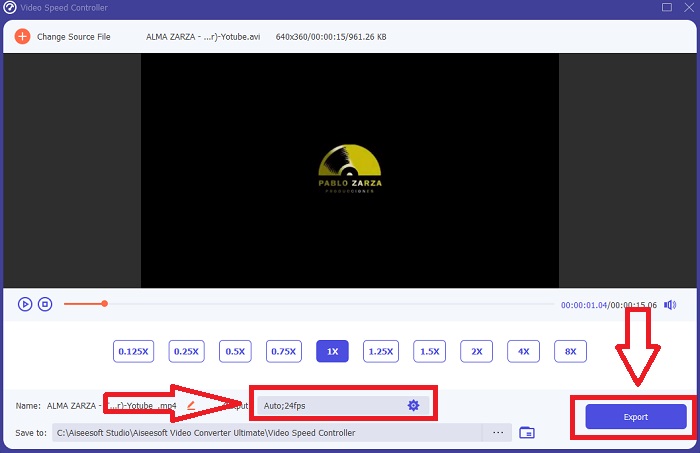
Krok 5: Zmiana formatu, rozdzielczości, jakości i innych parametrów pozwoli ci wybrać pożądany wynik po zakończeniu regulacji prędkości odtwarzania wideo. Kliknij Export, a następnie wybierz lokalizację, w której chcesz zapisać swoją pracę po zakończeniu.
Część 4. Często zadawane pytania dotyczące tego, jak przyspieszyć wideo w programie Windows Media Player
Jak naprawić filmy MP4, których nie można odtwarzać w programie Windows Media Player?
Jak wspomniano wcześniej w artykule, Windows Media Player nie obsługuje szerokiej gamy formatów wideo. Ponieważ obsługuje on głównie formaty typowe dla systemu Windows, trudno jest naprawiać błędy przy użyciu tego odtwarzacza. Dlatego musisz nauczyć się, jak konwertować pliki lub jak odtwarzać filmy w formacie MP4. Artykuł pod linkiem tutaj pomoże ci rozwiązać ten problem.
Jak odtwarzać DVD w Windows Media Player?
Niektóre filmy znajdują się na płytach DVD i aby je odtworzyć, musisz znaleźć odpowiedni odtwarzacz multimedialny do odtwarzania DVD. Windows Media Player jest jednym z popularnych odtwarzaczy, które odtwarzają płyty DVD. Ponadto ten odtwarzacz oferuje ustawienia pomagające w edycji podczas odtwarzania DVD. Więcej szczegółów znajdziesz w artykule jak odtwarzać płyty DVD w Windows Media Player.
Czy rozmiar pliku wideo zmniejsza się po zwiększeniu szybkości odtwarzania?
Tylko klatka zostanie podzielona za każdym razem, gdy zwiększysz lub zmniejszysz prędkość odtwarzania wideo. Jeśli zwiększysz go 0,5x szybciej, klatka będzie miała 60 klatek na 1/120 sekundy. Krótko mówiąc, nie może to wpłynąć na wideo, chyba że wideo ma już niską liczbę klatek na sekundę.
Wniosek
Podsumowując, Windows Media Player może być wadliwym programem, który obsługuje jedynie ograniczoną liczbę formatów. Nadal jednak oferuje on pewne funkcje, które mogą rozwiązywać problemy związane z formatami wideo. Jeśli jednak chcesz zwiększyć prędkość odtwarzania swojego klipu wideo, pobierz Video Converter Ultimate – nie tylko po to, by przyspieszyć film. To oprogramowanie może wynieść twoje wideo na zupełnie nowy poziom. Dzięki wszystkim dostępnym funkcjom będzie to najlepszy i najwygodniejszy program, jaki polecamy do użycia.
-
 WebM na GIF – 3 darmowe konwertery WebM na GIF do tworzenia własnych GIF-ów
 Czy WebM to GIF? Jak zamienić wideo w GIF? Czy jest jakiś darmowy konwerter WebM na GIF? Ten post udostępnia 3 bezpłatne sposoby, które pomogą Ci przekonwertować WebM na GIF.
-
 Jak konwertować filmy MKV na animowane pliki GIF bez Photoshopa / FFmpeg
 Po pobraniu i obejrzeniu filmów MKV na komputerze możesz chcieć podzielić się wspaniałymi chwilami z przyjaciółmi lub w Internecie jako GIF-y. W tym artykule dowiesz się o 2 najłatwiejszych sposobach konwersji MKV na GIF.
-
 Stwórz swój najlepszy animowany GIF za pomocą internetowego kreatora GIF [2021]
 Pouczająca recenzja na temat tworzenia GIF-ów za pomocą tych prostych internetowych twórców GIF-ów, z którymi już się spotykasz lub nie w Internecie.
