


 Video Converter Ultimate
 Nagrywarka ekranu
 Naprawa wideo
Poznaj 3 sposoby na łatwe dodawanie muzyki do iMovie [2024]
If you’re an iPhone or Mac user and love to edit videos, your go-to video editing tool is probably the iMovie app. This app is known for its user-friendly interface and basic editing features, making it easy to create videos. However, adding music to iMovie can be a little tricky compared to other video editing tools, especially when you need to add a personal touch. With that in mind, in this article, learn the easiest way how to add music to iMovie on Mac and iPhone. What are you waiting for? Let’s get started!

Część 1. Jak dodać muzykę do iMovie na Macu
Dodawanie muzyki do wideo nie jest niczym nowym. To w rzeczywistości klasyczna technika, która przekształca zwykłe ujęcia w coś wciągającego i niezapomnianego. Muzyka nadaje nastrój, wzmacnia opowiadanie historii, a nawet może wywołać określone emocje u odbiorców. Dzięki iMovie masz potężne, a jednocześnie przyjazne dla użytkownika narzędzie na wyciągnięcie ręki, które upraszcza ten proces.
iMovie to oprogramowanie do edycji wideo powszechnie używane przez użytkowników komputerów Mac i iPhone ze względu na intuicyjny interfejs i podstawowe funkcje edycji. Dzięki temu, niezależnie od tego, czy jesteś początkującym, czy doświadczonym użytkownikiem, jeśli chcesz dodać muzykę do iMovie na komputerze Mac, możesz to zrobić łatwo! Poniżej znajduje się prosty przewodnik, który pomoże Ci dodać muzykę do Twojego wideo:
Step 1. First, launch the iMovie app on your Mac computer.
Step 2. Next, choose Create New and import the audio file that you want to add by clicking the Import Media button.
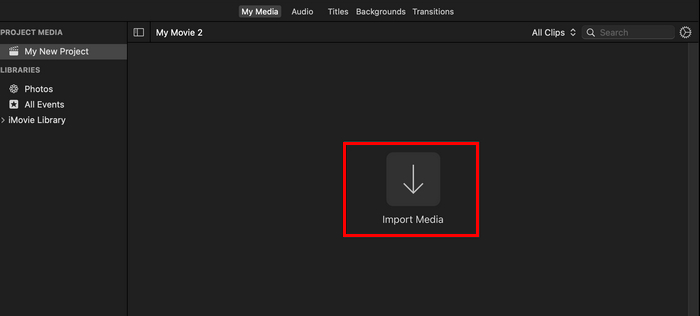
Step 3. Now, click on the audio files that you want to add and then click the Import All button. After that, you will notice that your imported music files are now in your project’s My Media tab.
Step 4. Lastly, open up your Finder window, select the song or media file, and click and drag it into your Media tab to add it to your project’s files.
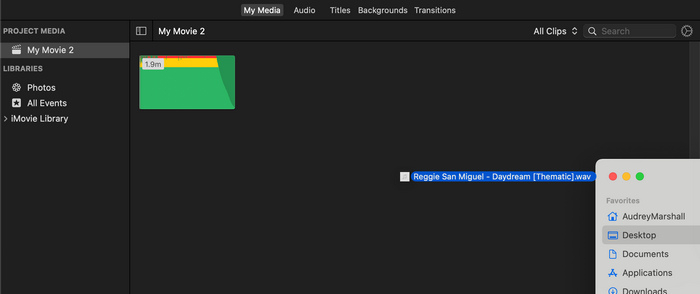
Aby łatwo dodawać muzykę do iMovie na Macu, uporządkuj pliki audio w folderach przed ich zaimportowaniem. Dzięki temu nie będziesz się martwić o znajdowanie i zarządzanie ścieżkami muzycznymi, a stosowanie się do tej prostej wskazówki może zaoszczędzić Ci czasu i pomóc utrzymać proces edycji wydajnym i skoncentrowanym.
Część 2. Dodawanie muzyki do iMovie na iPhonie
iMovie jest również dostępny na iPhone, który oferuje te same funkcje co iMovie na Mac. Wersja iMovie na iPhone'a zachowuje przyjazny dla użytkownika interfejs i podstawowe funkcje edycji w podróży. Dlatego jeśli chcesz dodać muzykę do iMovie na iPhonie, wykonaj poniższe kroki:
Step 1. Open the iMovie app on your iPhone, or if you don’t have the app, install it from the App Store.
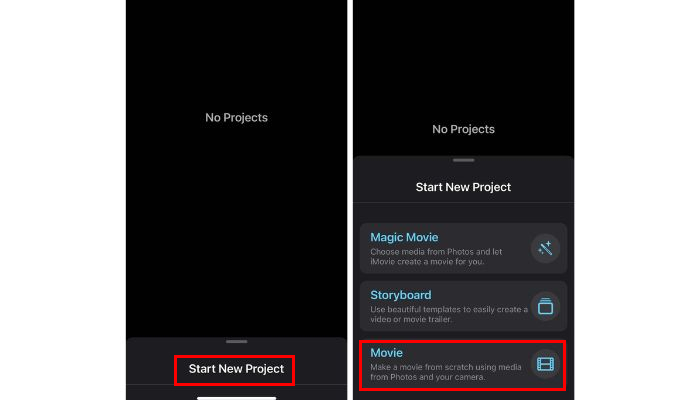
Step 2. After that, tap on the Start New Project and choose Movie among the options.
Step 3. Next, choose the video clips that you want to edit, and after that, tap the Create Movie button below.
Step 4. Now, to add music to iMovie on iPhone, tap the Gear icon below, and among the options, choose Audio. From there, you have three choices, Soundtracks, My Music, and Sound Effects, where you can select music for your video.
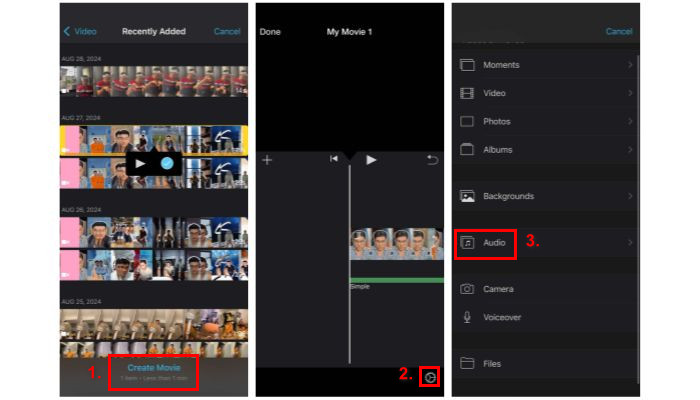
Step 5. Lastly, on your timeline, you can now see the audio along with your video. Once you’re satisfied with the result, tap on the Done button.
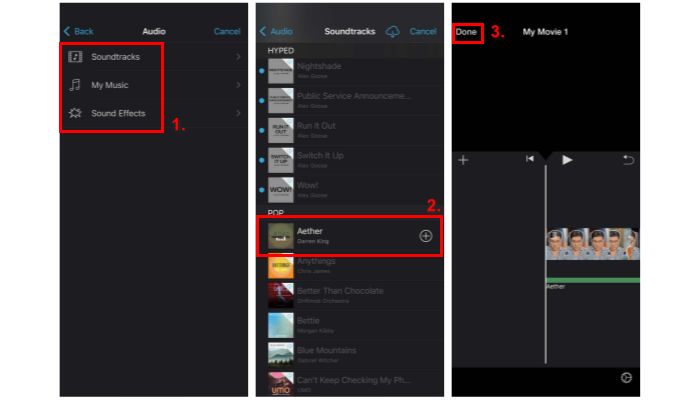
If you want to add music to iMovie from your library, make sure to download the tracks on your device first before starting your project in iMovie. The reason for this is that you can’t easily import music other than the built-in soundtrack within the app. Therefore, you really need to download them first and save them on your files. What’s more, click here to read how to add text to iMovie.
Część 3. Łatwiejsza alternatywa do dodawania muzyki do iMovie
Suppose you find the process on iMovie complicated. There are other alternatives that are easier and more efficient to use, and one of them is the FVC picked Video Converter Ultimate. This is a full-featured tool that works beyond a converter tool. It has a lot of features, like basic video and audio editing. But what makes this tool a top-tier alternative to adding music to iMovie is its intuitive and direct process of adding music to video in a few clicks. Now, let’s learn how to add music to iMovie with this alternative method:
Step 1. First, you need to download and install the FVC picked Video Converter Ultimate on your computer.
Bezpłatne pobieranieDla Windows 7 lub nowszegoBezpieczne pobieranie
Bezpłatne pobieranieDla MacOS 10.7 lub nowszegoBezpieczne pobieranie
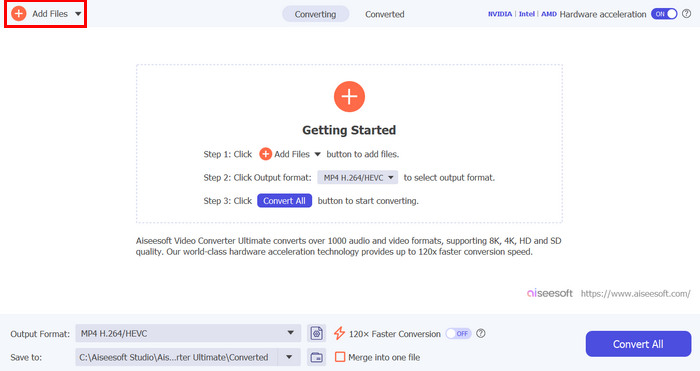
Step 2. After that, import the video file to which you want to add music by clicking the Add Files button.
Step 3. Now click on the drop-down button below the MP4 format, choose Add Audio Track from the options, and select the music you want to add. Lastly, click on the Convert All button to save your file.
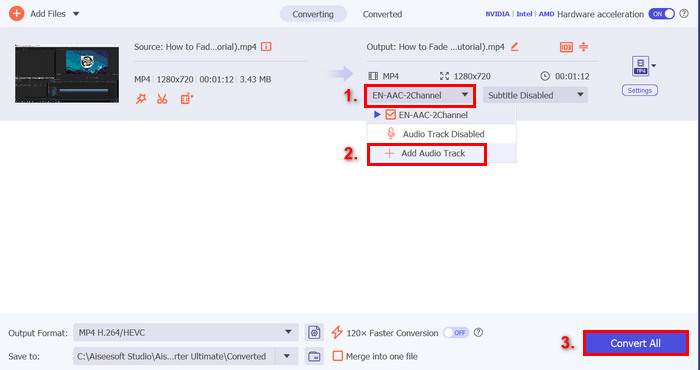
Zanim dodasz muzykę do swojego filmu, zostaniesz poproszony o jej edycję najpierw lub później. Ponieważ to narzędzie ma wbudowaną funkcję edycji, po dodaniu muzyki możesz wyświetlić podgląd i ponownie edytować swoją muzykę, aby zsynchronizować ją z filmem. Dzięki temu wszelkie niezbędne zmiany zostaną wykonane szybko, co zapewni Ci dopracowany wynik bez konieczności ponownej edycji.
Część 4. Często zadawane pytania dotyczące dodawania muzyki do iMovie
Czy można bezpłatnie dodawać muzykę do iMovie?
Tak. Możesz dodać muzykę do iMovie za darmo, ponieważ jest to darmowa aplikacja zaprojektowana przez Apple dla niektórych produktów, takich jak komputery Mac, iPhone'y i iPady. Jednak ta aplikacja jest dostępna tylko dla urządzeń wymienionych powyżej.
Czy mogę dodać muzykę ze Spotify do iMovie?
Unfortunately, no. It is forbidden to directly add Spotify music to iMovie because Spotify's music is protected by digital rights management or DRM. This protection prevents Spotify tracks from being used outside of the Spotify app. But the thing is, there are ways to use a specific song from Spotify, for example, to create a ringtone. To do that, you'll need to purchase and download it from a music store or use a Spotify-compatible music converter to remove DRM.
Jak dodać wiele piosenek do aplikacji iMovie?
Aby dodać wiele utworów do iMovie, po prostu powtórz proces importowania i przeciągania plików audio na oś czasu. Pierwszą rzeczą, którą musisz zrobić, jest zaimportowanie całej muzyki, której chcesz użyć. Zwróć uwagę, że powinna być widoczna na karcie Moje media. Następnie możesz łatwo przeciągnąć każdy z nich na oś czasu, co pozwoli Ci je odpowiednio edytować.
Wniosek
Learning how to add music to iMovie is a great way to enhance your videos. By following the carefully crafted steps in this article, you can easily add music to your videos with so much ease. So, whether you're a beginner or an experienced editor, these methods will help you create the perfect soundtrack for your iMovie projects.
-
 Jak wyciszyć muzykę w aplikacji iMovie na komputerze Mac i iPhonie
 Czy masz problemy z wyciszaniem dźwięku w iMovie? Czytaj dalej, aby odkryć najłatwiejsze sposoby stosowania efektów wyciszania za pomocą komputera Mac, iPhone'a lub alternatywnego oprogramowania.
-
 Najlepszy przewodnik po tym, jak edytować dźwięk w iMovie: 3 najłatwiejsze sposoby
 Zastanawiasz się, jak możesz ulepszyć swój projekt audio? Poznaj 2 sposoby edycji audio w iMovie i odkryj 1 alternatywę, która pomoże Ci skutecznie edytować audio.
-
 Jak dodać znak wodny do wideo w iMovie na Macu [All Embracing]
 Czy chcesz poznać tajniki dodawania znaku wodnego do wideo w iMovie? Nie rozlewaj herbaty na nikogo i naucz się tego, czytając ten artykuł.
