


 Video Converter Ultimate
 Nagrywarka ekranu
 Naprawa wideo
Jak kompresować pliki audio WAV bez utraty jakości
Kiedy ludzie chcą zapisać swoje pliki muzyczne w wysokiej jakości, często wybierają WAV jako format audio. Jednak ogólnie rzecz biorąc, im wyższa jakość, tym więcej miejsca na dysku zajmuje plik. W porównaniu z MP3, WAV może zapewnić dźwięk wysokiej jakości, ale rozmiar pliku będzie większy. Dlatego jeśli chcesz udostępnić plik WAV znajomym lub przesłać go do mediów społecznościowych, lepiej najpierw zmniejszyć jego rozmiar. Przedstawimy ci trzy różne narzędzia do kompresowania plików WAV. Poznasz ich zalety, wady oraz szczegółowe sposoby użycia. Czytaj dalej, aby dowiedzieć się więcej.

Część 1. Najlepszy sposób na kompresję pliku WAV
Zaczniemy od polecenia dość rozbudowanego narzędzia do edycji audio i wideo, starannie wybranego Video Converter Ultimate. Wyposażono je w zaawansowane narzędzia analityczne, które rozpoczynają przetwarzanie plików zaraz po ich przesłaniu. Jeśli szukasz narzędzia, które pozwoli ci swobodnie regulować procent kompresji audio WAV, będzie to twój najlepszy pomocnik. Możesz nawet edytować długość nagrania, dostosować kanały audio i zmienić głośność przed wyeksportowaniem pliku. Po otwarciu wbudowanego kompresora audio pojawi się nowe okno. Tam zobaczysz wiele ustawień do wyboru. Oferuje wysoki poziom personalizacji i umożliwia precyzyjną kontrolę parametrów dźwięku. Jeśli uznasz, że rozmiar pliku WAV wciąż jest zbyt duży, możesz skorzystać z konwertera dostarczonego przez ten program, aby przekonwertować audio do formatu łatwiejszego do udostępniania, takiego jak MP3.
Bezpłatne pobieranieDla Windows 7 lub nowszegoBezpieczne pobieranie
Bezpłatne pobieranieDla MacOS 10.7 lub nowszegoBezpieczne pobieranie
Tutaj nauczysz się, jak kompresować pliki WAV za pomocą programu FVC Video Converter Ultimate.
Krok 1. Pobierz i zainstaluj FVC Video Converter Ultimate na swoim komputerze.
Krok 2. Wejdź do głównego interfejsu programu i wybierz Toolbox > Audio Compressor.
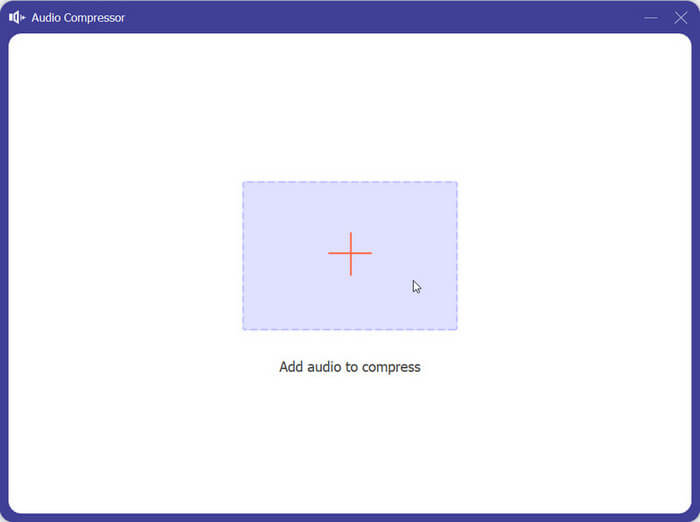
Krok 3. Po przejściu do okna Audio Compressor kliknij duży przycisk z plusem, aby przesłać docelowy plik WAV.
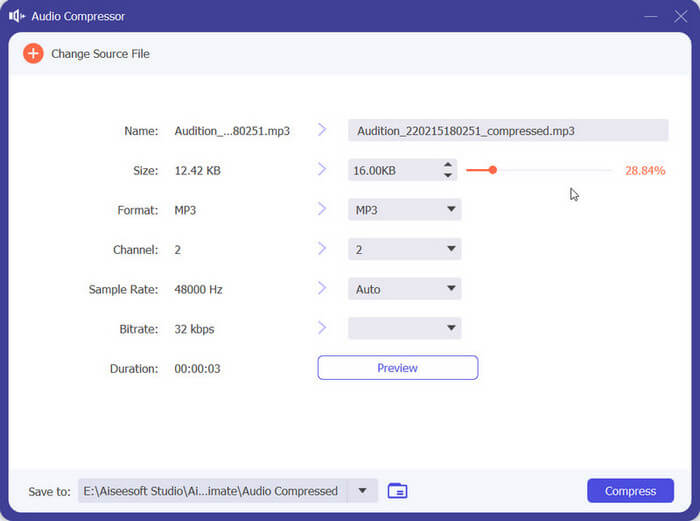
Krok 4. Możesz ustawić rozmiar pliku po kompresji, zmieniając wartość pola Size. Po dostosowaniu zobaczysz procentową wielkość kompresji pliku.
Tutaj możesz również ustawić nazwę pliku, format, kanał dźwiękowy, częstotliwość próbkowania i przepływność transmisji danych swojego dźwięku.
Krok 5. Aby sprawdzić wynikowy dźwięk, kliknij Preview. Jeśli efekt cię satysfakcjonuje, kliknij Compress.
Obecnie może kompresować dźwięk WAV do 50% rozmiaru pliku źródłowego. Prędkość kompresji jest tak duża, że nie musimy czekać na wyeksportowanie skompresowanego pliku. Nie ma prawie żadnej utraty jakości. Mamy jednak tylko 5 darmowych szans, a jeśli chcemy więcej, musimy zapłacić.
Część 2. Kompresja pliku WAV online
Oprogramowanie desktopowe oferuje więcej funkcji edycyjnych, ale wymaga ich pobrania i zainstalowania na komputerze. Zajmuje to również część pamięci komputera i uruchomienie oprogramowania zajmuje trochę czasu. Jeśli chcesz doświadczyć szybszej kompresji plików audio WAV, wypróbuj narzędzia online. Spośród wielu dostępnych produktów zalecamy wypróbowanie FreeConvert WAV Compressor, darmowego kompresora o bardzo przyjaznym dla użytkownika interfejsie. Wystarczy, że wejdziesz na oficjalną stronę internetową, a natychmiast znajdziesz przycisk docelowy. Nawet jeśli nigdy wcześniej z niego nie korzystałeś, będziesz w stanie zacząć w mgnieniu oka.
Tutaj nauczysz się, jak zmniejszyć rozmiar pliku WAV za pomocą kompresora WAV FreeConvert.
Krok 1. Otwórz w przeglądarce FreeConvert WAV Compressor.
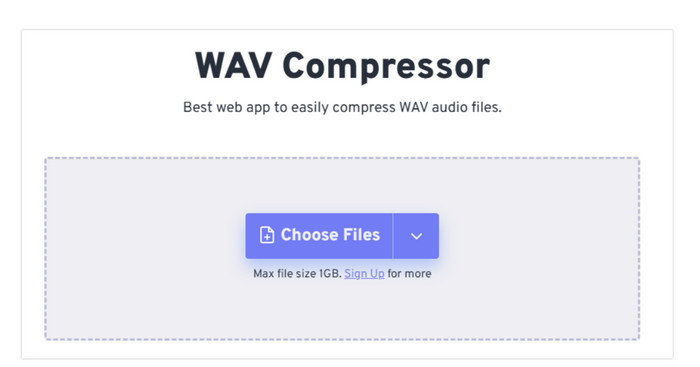
Krok 2. Kliknij Choose Files, aby przesłać audio, które chcesz skompresować.
.
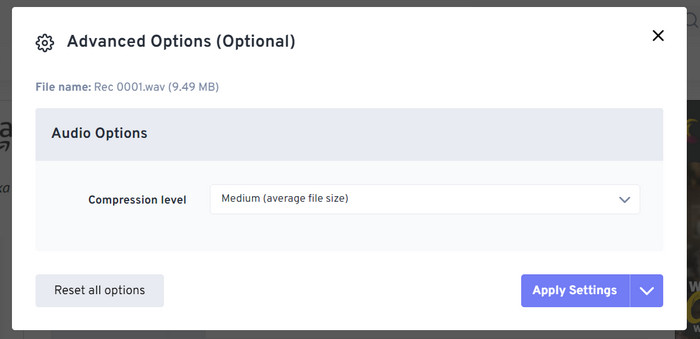
Krok 3. Aby dostosować poziom kompresji, kliknij Advanced settings (optional). Możesz wybrać Low, Medium lub Strong. Następnie wybierz Apply Settings.
Krok 4. Na koniec kliknij Compress Now. Program uruchomi się i skompresuje twój plik WAV online.
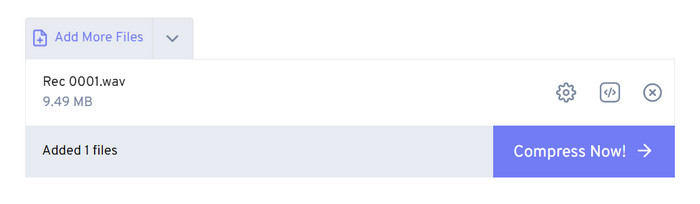
Po naszych próbach odkryliśmy, że działa całkiem wydajnie, a jakość dźwięku pliku wyjściowego nie różni się zbytnio od pliku źródłowego. Jednak są tylko trzy stopnie kompresji, które możesz wybrać, i nie możesz zwizualizować procentu kompresji i rozmiaru skompresowanego pliku. Obecnie użytkownicy mogą używać go tylko do kompresji plików do 1 GB.
Część 3. Kompresja pliku WAV w Audacity
Oprócz wielofunkcyjnego oprogramowania do przetwarzania multimediów istnieje wiele narzędzi zaprojektowanych specjalnie do pracy z dźwiękiem. W tym aspekcie edycji muzyki wykazują one większy profesjonalizm i precyzję. Jeśli użyjesz profesjonalnego narzędzia do zmniejszenia rozmiaru pliku WAV, jakość dźwięku może zostać zachowana w maksymalnym możliwym stopniu. Jako jedno z najlepszych, Audacity od lat pozostaje bezkonkurencyjny. Użytkownicy mogą za jego pomocą zrealizować kompleksowy proces nagrywania i modyfikowania dźwięku. Do operacji edycyjnych, które obsługuje, należą: dostosowanie długości utworu, kompresowanie rozmiaru pliku, konwersja formatu audio oraz dodawanie specjalnych efektów dźwiękowych. Dla tego programu to pestka.
Następnie pokażemy Ci, jak kompresować pliki WAV przy użyciu programu Audacity.
Krok 1. Pobierz i zainstaluj Audacity na swoim urządzeniu.
Krok 2. Otwórz program i wybierz File > Open.
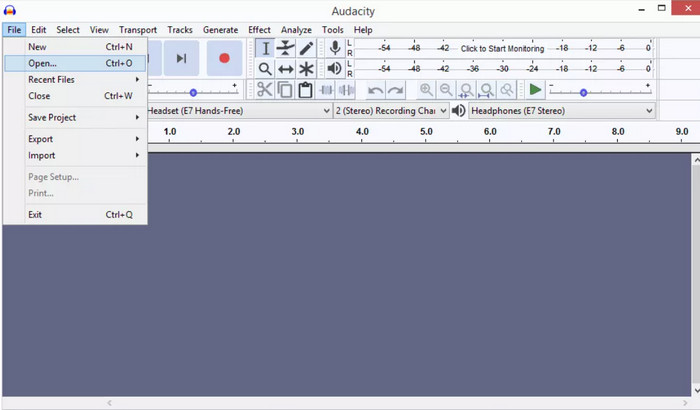
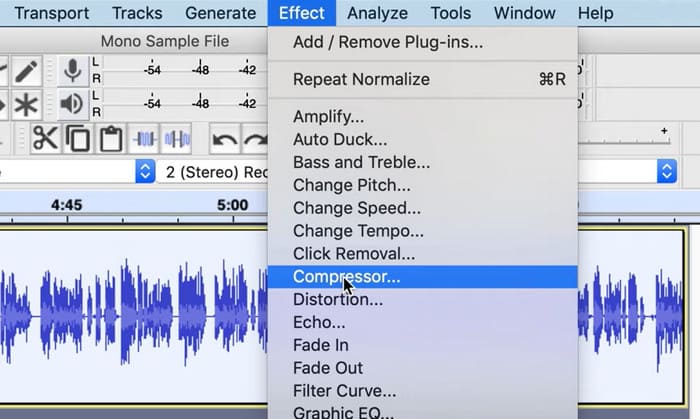
Krok 3. Prześlij plik, który chcesz skompresować, i naciśnij na klawiaturze Ctrl + A, aby zaznaczyć ścieżkę dźwiękową. Następnie kliknij Effect > Compressor.
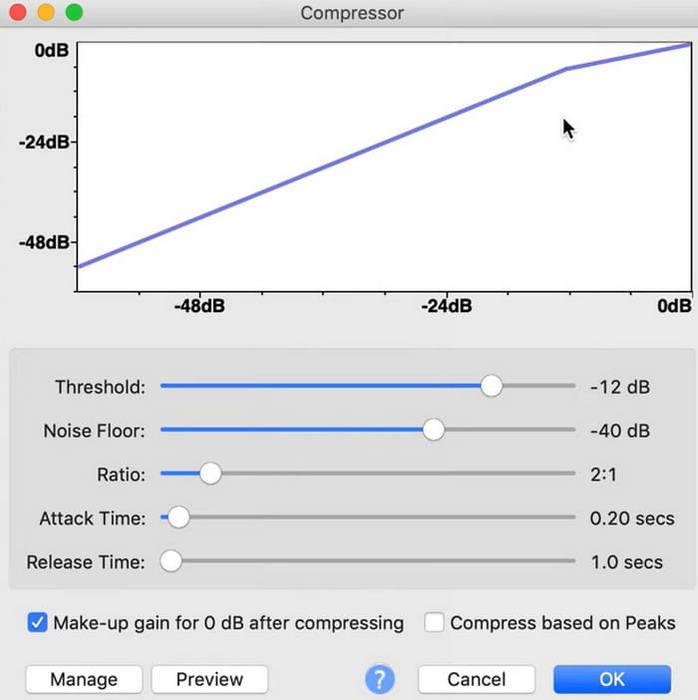
Krok 4. Teraz możesz zmieniać parametry pliku WAV, w tym próg (threshold), poziom szumu tła (noise floor), współczynnik kompresji (ratio), czas ataku (attack) i zwolnienia (release time).
Krok 5. Na końcu ponownie kliknij File i wybierz Export.
Umożliwia kompresję plików WAV za darmo i bez ograniczeń rozmiaru pliku. Możesz precyzyjnie kontrolować szybkość kompresji i eksportować gotowy produkt zaraz po zastosowaniu ustawień. Jego interfejs jest dość skomplikowany, a niedoświadczeni użytkownicy będą mieli trudności ze znalezieniem potrzebnych im funkcji. Zajmie trochę czasu nauczenie się, jak z niego umiejętnie korzystać.
Część 4. Często zadawane pytania dotyczące kompresji plików WAV
Dlaczego mój plik WAV jest tak duży?
Pliki WAV to zazwyczaj nieskompresowane pliki audio, które przechowują dane dźwiękowe w surowej postaci, bez utraty jakości. Często mają też wyższą głębię bitową i częstotliwość próbkowania niż skompresowane formaty audio. Jeśli musisz zmniejszyć rozmiar pliku WAV, możesz rozważyć jego kompresję lub konwersję WAV do MP3.
Czy kompresja pliku WAV powoduje obniżenie jakości?
Kompresja pliku WAV do stratnego formatu audio, takiego jak MP3, AAC lub OGG, zwykle powoduje obniżenie jakości dźwięku. Jednak wybór dobrego narzędzia do kompresji może w pewnym stopniu zrekompensować ten problem. Ważne jest, aby wziąć pod uwagę równowagę między rozmiarem pliku a jakością dźwięku.
Czy można przyciąć plik WAV w programie Windows Media Player?
Windows Media Player nie ma wbudowanych możliwości bezpośredniej edycji lub przycinania plików audio, takich jak pliki WAV. Aby przyciąć plik WAV w systemie Windows, możesz użyć innych aplikacji oferujących funkcje edycji audio, takich jak FVC Video Converter Ultimate i Audacity.
Wniosek
Ten artykuł ma pomóc ci rozwiązać problem kompresowania plików WAV. Udostępniliśmy trzy narzędzia, spośród których możesz wybrać. Jeśli chcesz korzystać z bardziej kompleksowych usług edycji audio, użyj starannie dobranego Video Converter Ultimate. Jeśli nie chcesz pobierać dodatkowego oprogramowania na komputer, rozważ FreeConvert WAV Compressor. Jeśli potrzebujesz najbardziej profesjonalnego oprogramowania do przetwarzania dźwięku do kompresji plików, Audacity spełni twoje oczekiwania.
-
 Odtwarzacz WAV - 5 najlepszych aplikacji odtwarzacza WAV na Androida, iPhone'a, PC i Mac
 Jak odtwarzać pliki WAV na telefonie z systemem Android? Jaki odtwarzacz może odtwarzać WAV? Ten post przedstawia 5 najlepszych darmowych odtwarzaczy WAV na Androida, iPhone'a, Maca i PC.
-
 Szczegółowy samouczek dotyczący kompresji dźwięku w 2024 r. (krok po kroku)
 Czy potrzebujesz skompresować dźwięk, ale potrzebujesz pomocy w ustaleniu, od czego zacząć? W tym poście przedstawimy najlepsze możliwości zmniejszenia rozmiaru plików utworów.
-
 Skuteczne kompresory audio dla użytkowników offline i online
 Masz problemy z dużymi plikami audio? Istnieje wiele kompresorów plików audio dostępnych dla użytkowników offline i online. Sprawdź je tutaj.
