Podręcznik użytkownika

Rozwiązania do konwersji wideo/audio

Zaczynaj

FVC Free FLV to Audio Converter to najlepszy darmowy konwerter wideo na audio. Może wyodrębniać ścieżki audio z pliku wideo FLV. Co więcej, obsługuje konwersję plików audio między różnymi formatami audio.
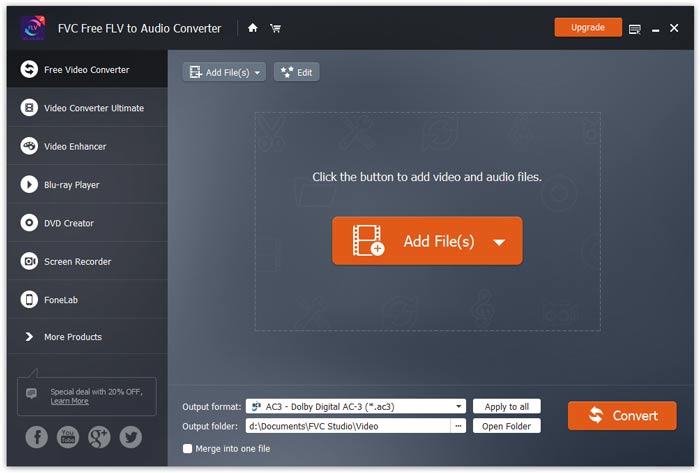
Główny interfejs

Pobierz i zainstaluj

Pobierz pakiet instalacyjny w oparciu o system operacyjny komputera. Następnie kliknij dwukrotnie plik instalacyjny i postępuj zgodnie z instrukcjami wyświetlanymi na ekranie, aby zainstalować program.

Preferencje

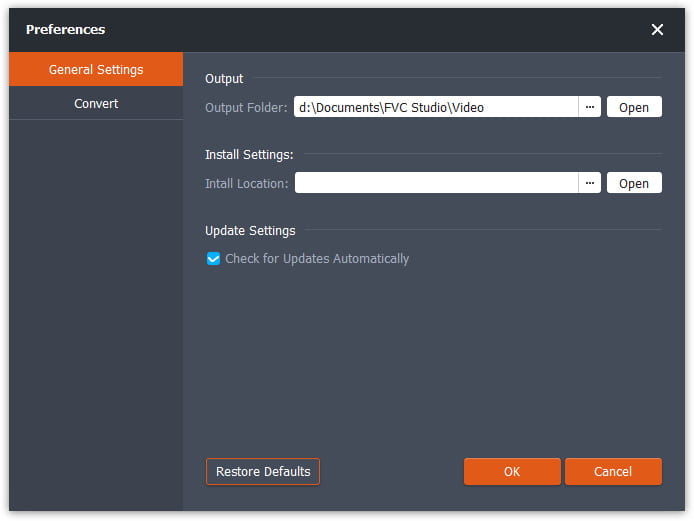
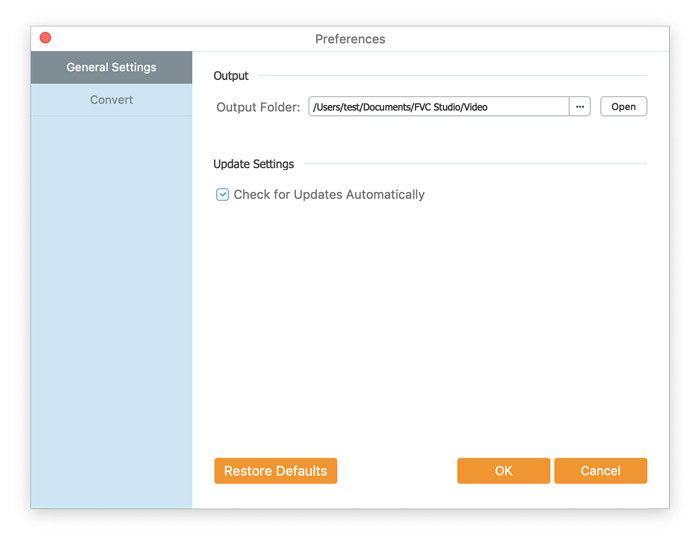
Before you start the conversion, it’s recommended to tweak the default settings. You can click the Menu icon and click on Preferences… to configure the specific settings. For example, you are free to choose the output folder to store your converted files.

Preferencje

Konwertuj FLV na audio

Teraz możesz wykonać następujące kroki, aby przekonwertować pliki FLV na formaty audio.

Step 1. Launch FVC Free FLV to Audio Converter

Uruchom FVC Free FLV to Audio Converter, a zobaczysz jego przejrzysty interfejs.

Główny interfejs

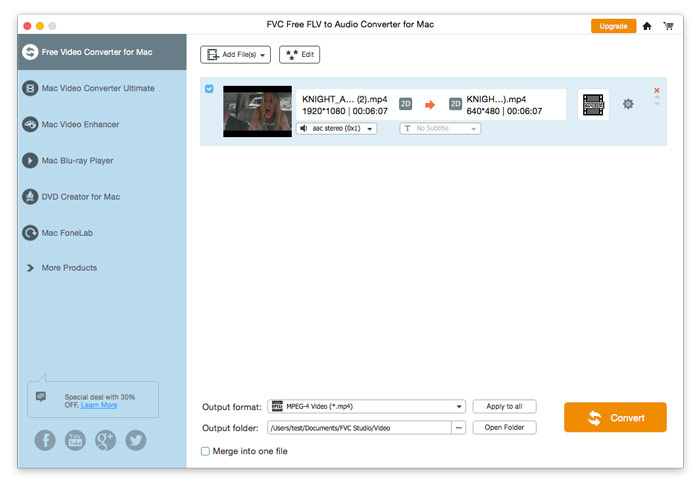
Step 2. Add an FLV file into the program

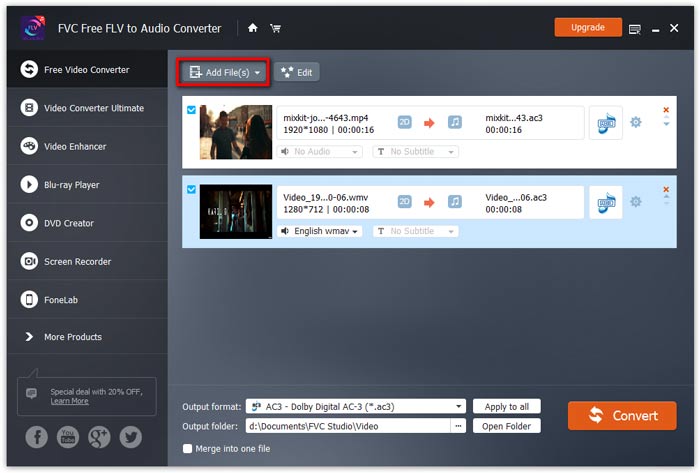
Click the Add File(s) button and choose FLV files you want to process in the dialogue opening subsequently. After the files are added to the program, they will be displayed on the file list.

Dodaj pliki FLV

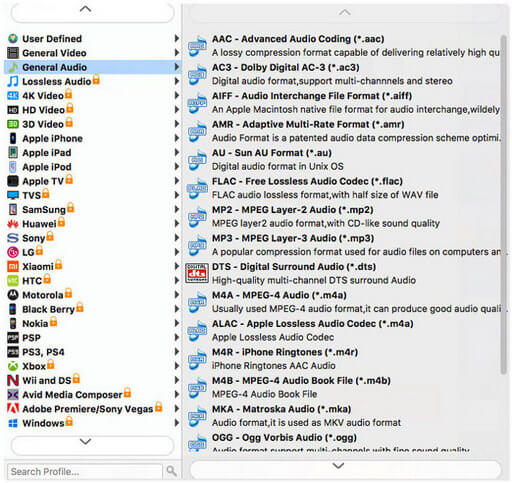
Step 3. Select the output format

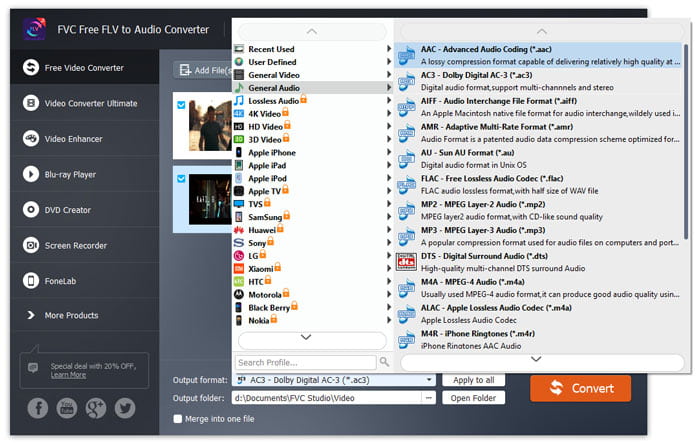
Click to open Output format drop-down list, then choose the audio format from the General Audio profile list. It can convert your FLV files to MP3, WMA, AAC, M4A, and so on.

Wybierz Format audio

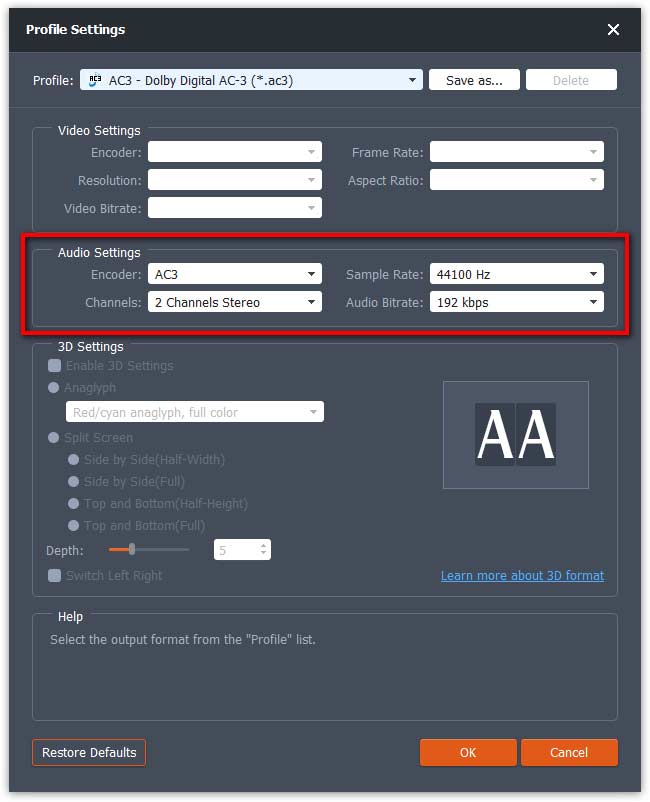
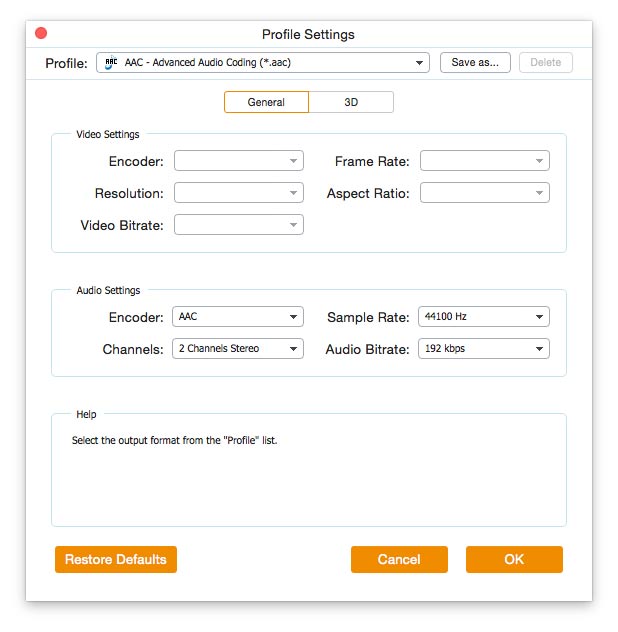
If you’re not satisfied with the original profile parameter settings, you can click the Cogwheel icon and adjust the encoder, channel, sample rate, and audio bitrate in the Profile settings window.

Ustawienia profilu

Step 4. Start converting FLV to Audio

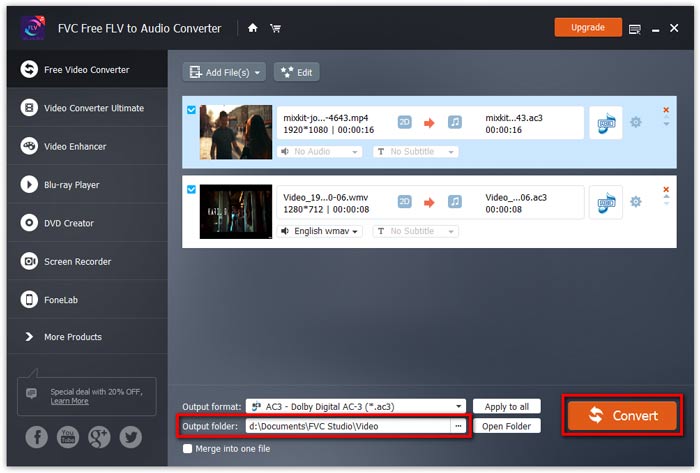
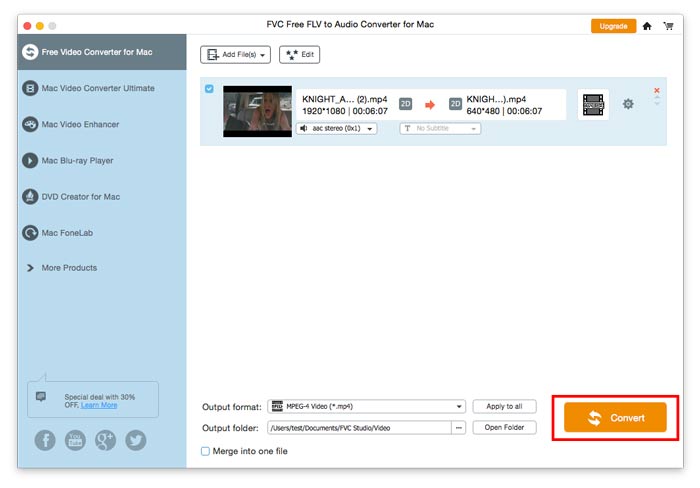
Go to Output folder to choose the destination folder for saving output files, and then click OK button to return to the main window. Finally, click the Convert button to start the conversion.

Rozpocznij konwersję

Podręcznik użytkownika

Rozwiązania do konwersji wideo/audio

Zaczynaj

FVC Free FLV to Audio Converter to najlepszy darmowy konwerter wideo na audio. Może wyodrębniać ścieżki audio z pliku wideo FLV. Co więcej, obsługuje konwersję plików audio między różnymi formatami audio.
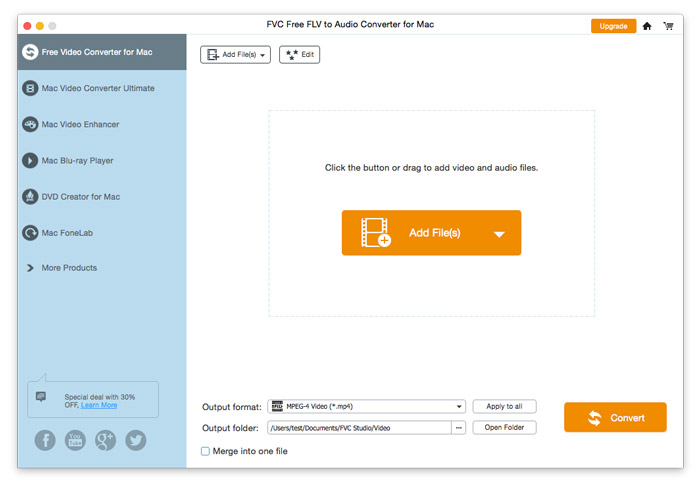
Główny interfejs

Pobierz i zainstaluj

Pobierz pakiet instalacyjny w oparciu o system operacyjny komputera. Następnie kliknij dwukrotnie plik instalacyjny i postępuj zgodnie z instrukcjami wyświetlanymi na ekranie, aby zainstalować program.

Preferencje

Before you start the conversion, it’s recommended to tweak the default settings. You can click the Menu icon and click on Preferences… to configure the specific settings. For example, you are free to choose the output folder to store your converted files.

Preferencje

Konwertuj FLV na audio

Teraz możesz wykonać następujące kroki, aby przekonwertować pliki FLV na formaty audio.

Step 1. Launch FVC Free FLV to Audio Converter

Uruchom FVC Free FLV to Audio Converter, a zobaczysz jego przejrzysty interfejs.

Główny interfejs

Step 2. Add an FLV file into the program

Click the Add File(s) button and choose FLV files you want to process in the dialogue opening subsequently. After the files are added to the program, they will be displayed on the file list.

Dodaj pliki FLV

Step 3. Select the output format

Click to open Output format drop-down list, then choose the audio format from the General Audio profile list. It can convert your FLV files to MP3, WMA, AAC, M4A, and so on.

Wybierz wyjście audio

If you’re not satisfied with the original profile parameter settings, you can click the Cogwheel icon and adjust the encoder, channel, sample rate, and audio bitrate in the Profile settings window.

Ustawienia profilu

Step 4. Start converting FLV to Audio

Go to Output folder to choose the destination folder for saving output files, and then click OK button to return to the main window. Finally, click the Convert button to start the conversion.

Rozpocznij konwersję