


 Video Converter Ultimate
 Nagrywarka ekranu
 Naprawa wideo
Jak przekonwertować EPS na plik JPG i PNG [Szczegółowe samouczki]
Do profesjonalnego i wysokiej jakości druku obrazów potrzebny jest plik wektorowy, tak zwany plik EPS. Jest on również znany jako Encapsulated PostScript. W rezultacie jest mniej popularny niż formaty takie jak JPG, PNG czy GIF, które są powszechnie używane. Jeśli chcesz, aby Twój projekt był widoczny dla szerokiej publiczności w internecie, musisz przekonwertować EPS na JPG. Dodatkowo niektóre programy nie obsługują plików EPS, co jest kłopotliwe dla użytkowników. Dlatego najlepiej jest przekonwertować go na inne formaty, takie jak JPG i PNG. Ten poradnik jest dla Ciebie idealny, jeśli planujesz konwersję formatu EPS na inne formaty, takie jak JPG i PNG. Przeczytaj ten artykuł i dowiedz się więcej o konwertowaniu EPS do JPG i PNG.

Część 1. Porównaj pliki EPS, JPG i PNG
| Format pliku | EPS | JPG / JPEG | PNG |
| Rozszerzenie pliku | eps | jpg | png |
| Pełne imię i nazwisko | Enkapsulowany PostScript | Wspólna Grupa Ekspertów Fotograficznych | Przenośna grafika sieciowa |
| Opracowany przez | Johna Warnocka i Chucka Geschke | Wspólna Grupa Ekspertów Fotograficznych | Grupa Rozwoju PNG |
| Opis | Enkapsulowane pliki PostScript mają rozszerzenie .eps i są znane jako EPS akta. Ponadto zawiera dane mapy bitowej, które zachowują unikalne kodowanie koloru i rozmiaru. Oznacza to, że pliki EPS są idealne do skalowania obrazów o wysokiej rozdzielczości. | Użytkownicy szeroko używają JPG akta. Używają go do zdjęć i grafiki internetowej. Jest również określany jako pliki JPEG lub JPG. Format pliku obrazu JPG był najbardziej efektywnym formatem kompresji obrazu. | Począwszy od 1995 r PNG format obrazu oznacza przenośną grafikę sieciową. Specjalista IT, Oliver Fromme, stworzył format PING. Później jednak zmieniono go na PNG. |
| Kompresja | Bezstratny | Strata | Bezstratny |
| Powiązane programy/przeglądarki | Adobe Illustrator, Adobe Photoshop, przeglądarka EPS, GIMP, Dysk Google | IrfanView, Paint, Adobe Photoshop, GIMP, Microsoft, FastStone Image Viewer, Google Chrome, Internet Explorer | FastStone Image Viewer, Adobe Photoshop, GIMP, Microsoft, Paint, Google Chrome, Internet Explorer |
Część 2. Najłatwiejsze sposoby konwersji EPS na JPG i PNG online
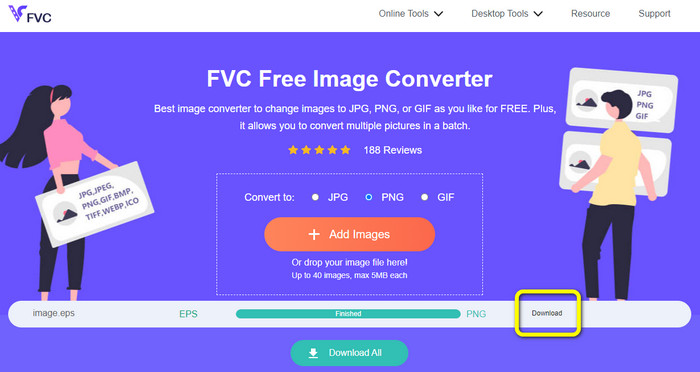
Jak przekonwertować EPS na JPG/PNG w FVC Free Image Converter
Format pliku EPS nie jest popularny w niektórych narzędziach, co utrudnia jego konwersję. Na szczęście możesz przekonwertować EPS na JPG lub PNG za pomocą narzędzia online FVC Free Image Converter. To narzędzie obsługuje różne formaty wejściowe, w tym EPS, JPG, PNG, GIF, BMP i inne. Dzięki temu możesz przesłać dowolne obrazy, jakie chcesz. Dodatkowo konwersja EPS do JPG/PNG jest prosta. FVC Free Image Converter oferuje nieskomplikowane metody konwersji obrazów, co jest odpowiednie dla początkujących. Co więcej, konwerter ma funkcję konwersji wsadowej. Możesz przekonwertować do 40 obrazów jednym kliknięciem. Do konwertera obrazu możesz uzyskać dostęp we wszystkich przeglądarkach internetowych, takich jak Google, Firefox, Explorer i inne. Na koniec, po skonwertowaniu obrazów, nie pojawią się na nich żadne niepożądane elementy, takie jak znaki wodne, logotypy, tekst i inne.
Konwertuj EPS na JPG
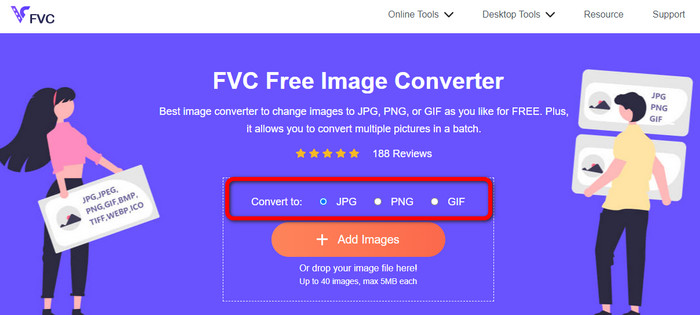
Krok 1. Otwórz przeglądarkę i odwiedź stronę FVC Free Image Converter. Wybierz format JPG z opcji Convert to.
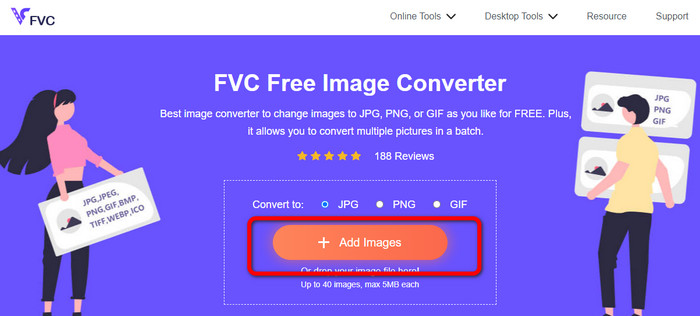
Krok 2. Kliknij przycisk Add Images, aby przesłać obraz w formacie EPS. Otwórz obraz z folderu na komputerze. Możesz dodać wiele plików, jeśli chcesz przeprowadzić konwersję wsadową.
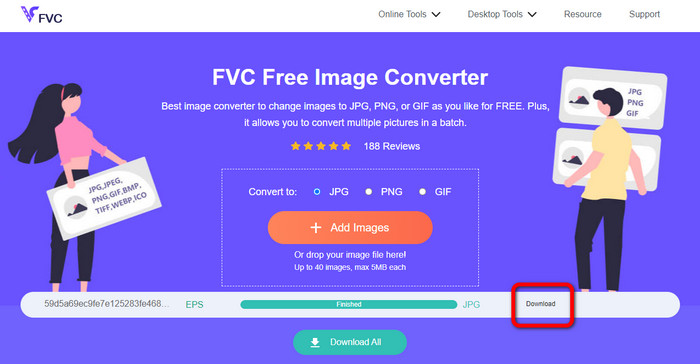
Krok 3. Po zakończeniu procesu konwersji kliknij przycisk Download. W ten sposób zapiszesz skonwertowane obrazy na swoim komputerze.
Konwertuj EPS na PNG
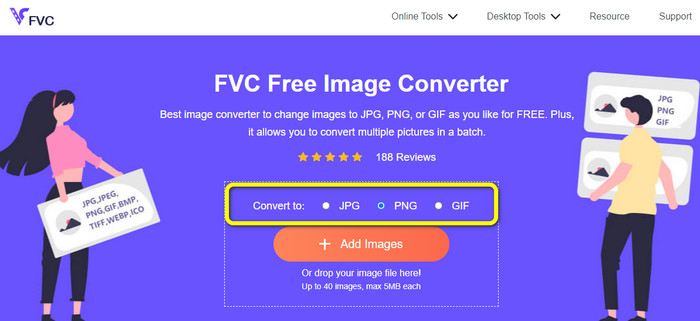
Krok 1. Wybierz format pliku PNG jako format wyjściowy.
Krok 2. Kliknij przycisk Add Images, aby przesłać obraz EPS. Otwórz plik EPS z folderu na komputerze. Innym sposobem przesłania obrazu jest upuszczenie pliku z obrazem do okienka.
Krok 3. Zapisz skonwertowany obraz, klikając przycisk Download. Otwórz skonwertowany obraz z pliku na komputerze.
Jak przekonwertować EPS na JPG/PNG w Aspose
Aspose to kolejne przydatne narzędzie online do konwersji EPS na JPG lub PNG. To narzędzie nie wymaga instalowania żadnych programów na komputerze. Wszystko można konwertować online z dowolnego systemu operacyjnego, w tym Windows, Linux, macOS i Android. Aspose nie wymaga rejestracji. Możesz od razu rozpocząć proces konwersji. Wiele obrazów można również przekonwertować bezpłatnie. W ten sposób nie jest potrzebna żadna subskrypcja. Oprócz JPG i PNG obsługuje również TIFF, BMP, DIB, GIF, SVG, WEBP i inne typy plików graficznych. Fakt, że to narzędzie usuwa Twoje zdjęcie po 24 godzinach w celu zapewnienia prywatności, sprawia, że jest ono bezpieczne. Jednak jako narzędzie online wymaga dostępu do internetu. Dodatkowo zdarzają się sytuacje, w których program nie działa poprawnie. Proces konwersji jest również zbyt wolny i nie obsługuje konwersji wsadowej.
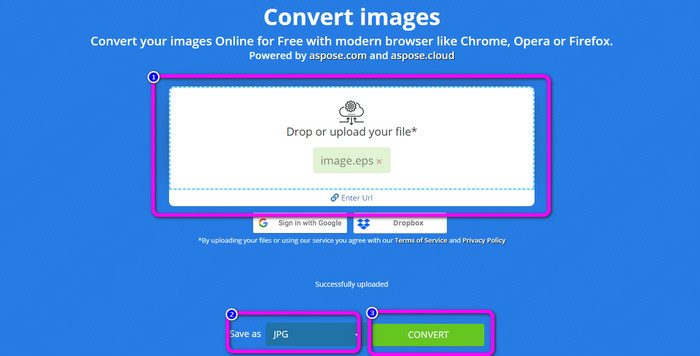
Krok 1. Wejdź na oficjalną stronę Aspose. Kliknij przycisk Drop or Upload your file. Z plików na komputerze otwórz obraz EPS, który chcesz przekonwertować. Możesz też po prostu upuścić plik EPS w białym polu.
Krok 2. Przejdź do opcji Save as i wybierz plik JPG lub PNG jako format wyjściowy.
Krok 3. Przejdź do procesu konwersji, klikając przycisk Convert. Następnie zapisz skonwertowany obraz.
Część 3. Najlepsze metody konwertowania plików EPS na JPG i PNG w trybie offline
Jak przekonwertować EPS na JPG/PNG w Video Converter Ultimate
Znalezienie sposobu na konwersję EPS do JPG/PNG w trybie offline jest trudne. Do czasu, aż odkryjesz Video Converter Ultimate. Program ten umożliwia konwersję pliku obrazu EPS na JPG/PNG. Dodatkowo możesz konwertować wiele obrazów jednym kliknięciem dzięki funkcji konwersji wsadowej. Konwerter ma prosty układ, co ułatwia jego zrozumienie i obsługę. Możesz go również pobrać zarówno na systemy Mac, jak i Windows. W ten sposób masz łatwy dostęp do konwertera. Co więcej, podczas konwersji obrazów możesz zmienić jakość obrazu w ustawieniach, aby go poprawić. Skorzystaj z prostych instrukcji poniżej, aby dowiedzieć się, jak konwertować EPS na JPG i PNG.
Krok 1. Pobierz program Video Converter Ultimate na komputery z systemem Windows lub Mac. Aby łatwo pobrać konwerter, kliknij poniżej przycisk Download. Poniżej znajdują się dwa przyciski: jeden dla systemu Windows i jeden dla wersji na Maca.
Bezpłatne pobieranieDla Windows 7 lub nowszegoBezpieczne pobieranie
Bezpłatne pobieranieDla MacOS 10.7 lub nowszegoBezpieczne pobieranie
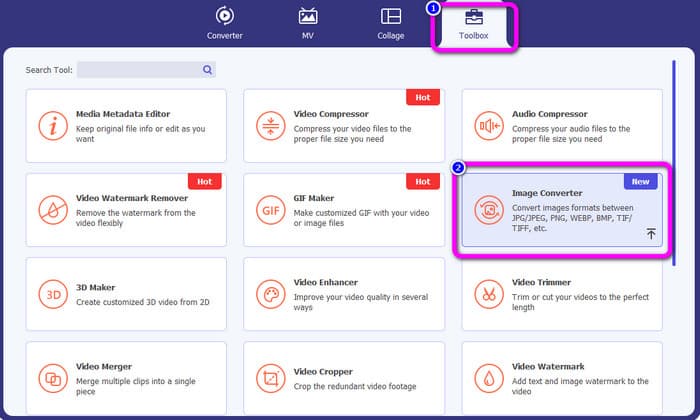
Krok 2. Po uruchomieniu programu przejdź do panelu Toolbox. Następnie wybierz narzędzie Image Converter.
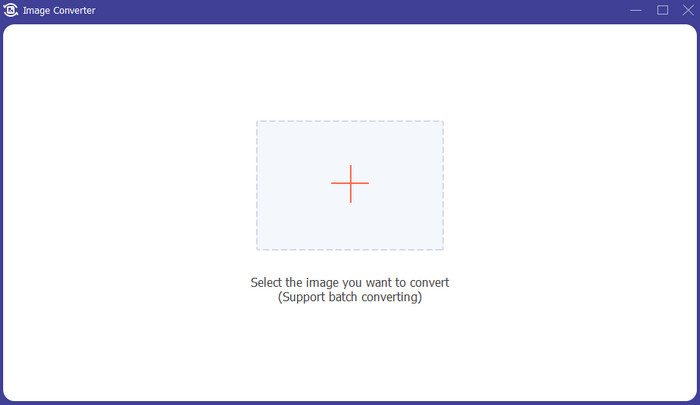
Krok 3. Kliknij przycisk Plus, aby wstawić plik obrazu EPS. Możesz też upuścić plik obrazu do okienka. Dodatkowo możesz dodać wiele obrazów do procesu konwersji wsadowej.
Krok 4. Przejdź do opcji formatu i wybierz format JPG/PNG.
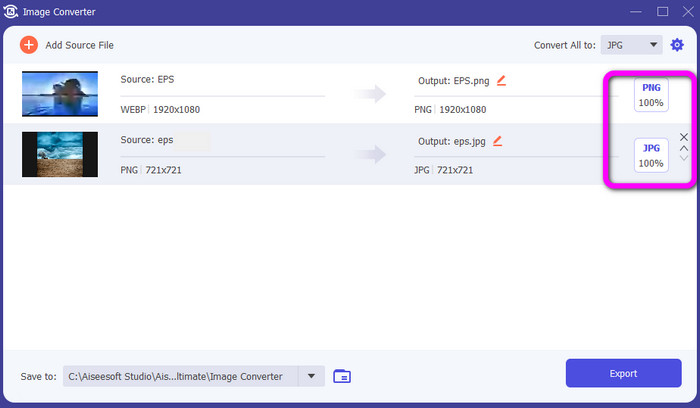
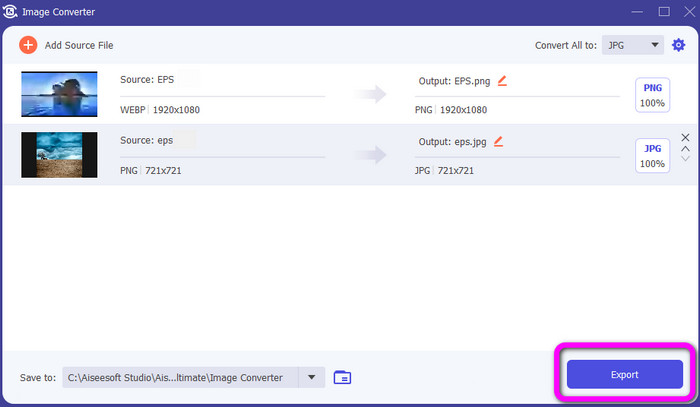
Krok 5. Po wybraniu preferowanego formatu wyjściowego kliknij przycisk Export. Poczekaj na zakończenie procesu eksportu, a następnie możesz otworzyć skonwertowane obrazy na swoim pulpicie.
Część 4. Często zadawane pytania dotyczące konwersji plików EPS na JPG i PNG
1. Dlaczego ludzie używają plików EPS?
Ludzie używają formatu pliku obrazu EPS, ponieważ może on zmniejszać i powiększać obrazy bez utraty jakości.
2. Czy mogę otworzyć EPS w Photoshopie?
Tak, możesz. Jednak twój obraz zostanie zrastrowany. Oznacza to, że zostanie zablokowany do edycji.
3. Czy wszystkie pliki EPS można edytować?
Tak, oni są. Jeśli chcesz edytować pliki obrazów EPS, możesz użyć programu Illustrator.
Wniosek
Teraz masz już wyobrażenie o tym, czym są formaty EPS, JPG i PNG. Ponadto artykuł przedstawił trzy proste metody konwersji EPS do JPG i PNG. Jeśli chcesz przekonwertować swoje pliki graficzne, skorzystaj z narzędzia online FVC Free Image Converter. Ten internetowy konwerter umożliwia łatwą i szybką konwersję obrazów.
-
 Przydatne metody łatwej konwersji TIFF na JPG / PNG
 Nie przegap tych doskonałych sposobów przekształcania plików TIF w formaty JPG/PNG. Ten post zawiera niezbędne informacje, które musisz znać. Obejmuje ich różnice.
-
 Najprostsze metody konwersji BMP na formaty JPG i PNG
 Poznaj najlepsze metody konwersji BMP na JPG lub PNG przy użyciu doskonałych konwerterów. Odkryjesz również różnicę między formatami plików BMP, JPG i PNG.
-
 Pełne szczegóły na temat różnic między plikami JPEG a JPG a PNG
 Ten post dostarczy ci wystarczających informacji o różnicach między JPEG a JPG a PNG. Ponadto dowiesz się, jak konwertować obrazy do tych plików.
