


 Video Converter Ultimate
 Nagrywarka ekranu
 Naprawa wideo
Jak zwiększyć rozdzielczość obrazu na pulpicie za darmo i za opłatą?
Do you have an interest in capturing high-quality images? Well, you must know that you will need a high PPI or pixels per inch to have fine detail on the image you capture. It can be frustrating if you find that the image you capture doesn't have a high PPI, which could lead to a poor quality image when you print or share on the web. Luckily, there are ways you can do to make the image have a higher PPI. The tools we include here prove that they can increase the pixels of your image to turn them into a high-quality output. Keep on reading this post as we introduce and show a tutorial on how to increase the resolution of images to achieve the best image output.

Część 1. Jak zwiększyć rozdzielczość obrazu za darmo online [dostępne w dowolnej przeglądarce internetowej]
Bezpłatna skalowarka obrazu FVC
FVC Free Image Upscaler can be the one you'll need to know how to increase the photo resolution easily and for free. This online tool doesn't upscale your image thru the resampling method. Still, it uses an automatic enhancer to detect the blurred parts of your images. If the image you upload lost pixels, this tool could aid the problem by producing new pixels for the image to make them high quality. After upscaling the image, you can see the difference between the before and after. So, if you want to know how to aid this problem with this tool, you can copy the easy steps we add to upscale the image.
How to Upscale an Image with the FVC Free Image Upscaler:
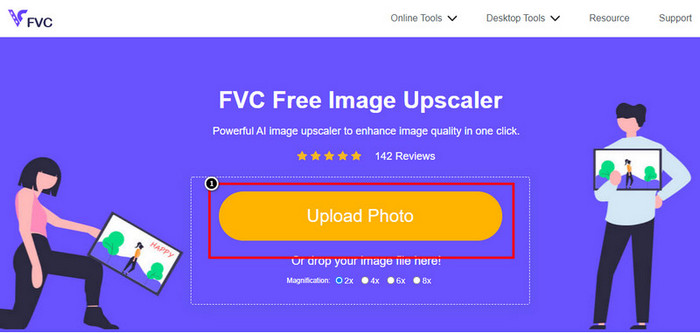
Step 1. You can tick this link to open the main website of the FVC, where you can start upscaling the image.
Step 2. On the main website, click the Upload Image to import the image you want to increase the resolution.
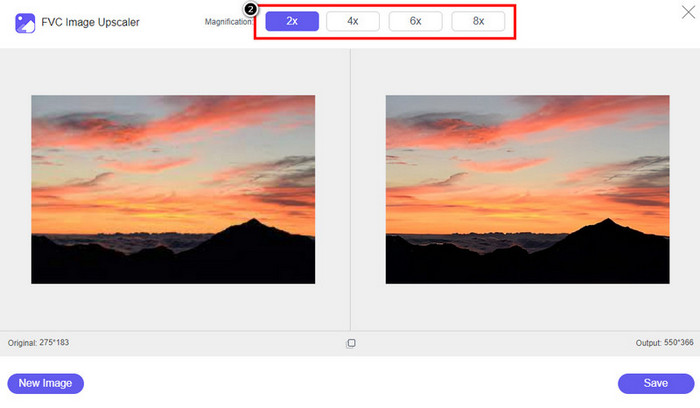
Step 3. After uploading, two columns will show on your screen: the original image and the upscaled version. Choose what Magnification you want to apply to the image to upscale it.
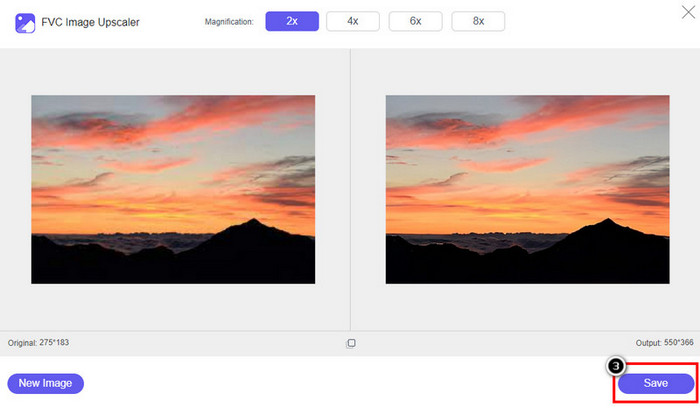
Step 4. Press Save to download the final output on your local drive; as easy as that, you have finished upscaling the image.
Powiększ obraz
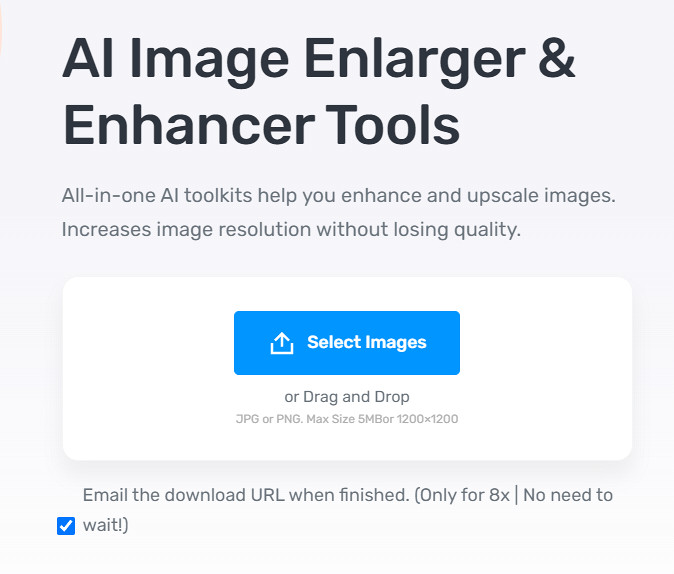
Image Enlarger can lead you on how to increase the resolution of an image on the web. This tool still uses the traditional resampling method, which works well for multiple images. Here, you can upload images in JPG, PNG, GIF, and BMP format with a max dimension of 4100 x 4100 with a 5 MB file size or lesser. However, there is no preview here to see the image's appearance after you increase the resolution. Though it could be a problem for many because we wonder what the image would look like. Nevertheless, this online tool has already proven itself to other users. Now is the right time to prove that it can be a good choice for upscaling by following the included steps.
How to Enhance a Photo with the Image Enlarger:
Step 1. Open the official website of this image enhancer on your browser.
Step 2. Click Choose File to upload the image you want to upscale; you can also enter the URL here to upload the image if you want.
Step 3. Change the target width and height number according to your preference to upscale the image. Add the correct measurement you want to achieve to get the perfect dimension for the image.
Step 4. Press the Start button to upscale the image you upload earlier.
Obrazek
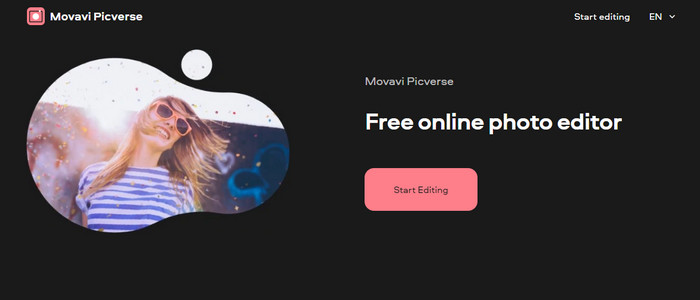
Picverse is a Movavi-supported tool you can use to increase photo resolution online for free. This tool uses an essential image editing feature that can correct the color of the images to make them look better. However, this tool doesn't reproduce new pixels to increase the resolution of the image you upload here. But the impact you can make to your image if you edit it here is excellent compared to other image editors you can use on the web. Overall, you can experience a mini-professional editor if you try to use this software. Want to know how to do it? You can follow the steps we add with this tool.
How to Make High-Resolution Images with the Picverse:
Step 1. Visit the official website, and click the Upload Image to load up the image you want to enhance the quality.
Step 2. Now that the images you want to improve are here, you can start improving the image by adjusting these settings.
Additional: If you want to apply an effect to your image, you can select the effects option and choose the effect you want that is available here. Also, you can adjust the strength of each effect according to your preference.
Step 3. To apply all the changes to the image, click the Save button.
Część 2. Jak tworzyć obrazy o wysokiej rozdzielczości w systemie Windows i macOS Offline [Wersja płatna i bezpłatna]
Adobe Photoshop
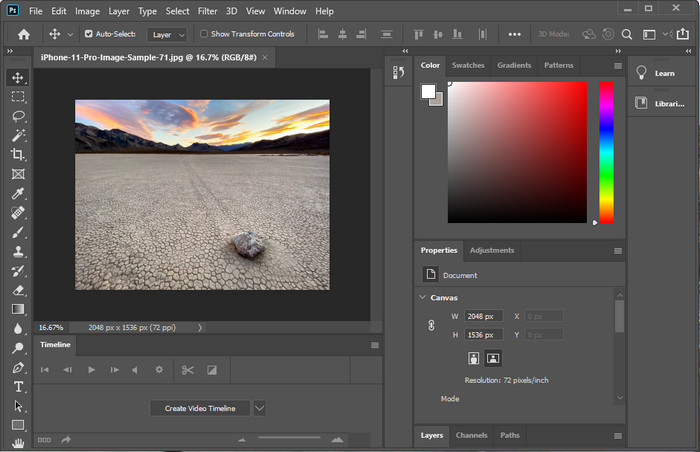
Nie powinniśmy zapominać o Adobe Photo, ponieważ jest to profesjonalne narzędzie; musisz wiedzieć, jak zrobić zdjęcie w wyższej rozdzielczości. Nie jest dla nas niczym nowym, że to oprogramowanie może dodawać piksele do obrazu, dzięki czemu jego rozdzielczość będzie najlepsza. Dzięki zautomatyzowanym funkcjom możesz dodać więcej pikseli do obrazu po jego poprawie. Mimo że zmieniasz tutaj rozmiar obrazu, ma on funkcję, która może pomóc w powiększeniu obrazów bez ich rozciągania. Ale zanim użyjesz tego profesjonalnego narzędzia, musisz je kupić na oficjalnej stronie Adobe. Załóżmy, że nie masz pieniędzy, aby go kupić. W takim przypadku możesz spróbować skorzystać z bezpłatnej wersji próbnej, aby przekonać się, jak profesjonalne jest to narzędzie. Jeśli pobrałeś to oprogramowanie na swój komputer, możesz wykonać kroki, które dodamy poniżej, aby przeskalować obraz tutaj.
How to Make a Picture Higher Resolution with the Adobe Photoshop:
Step 1. Upload the image you want to increase the resolution here by clicking the File.
Step 2. On the upper toolbar, click Image and press Image Size to increase your image's resolution.
Step 3. In the dialog box, input the measurement you want to achieve and press OK to apply it.
Step 4. Open the File and click Save. Another dialog box will show where you can manipulate the image quality and save it.
KORDONEK
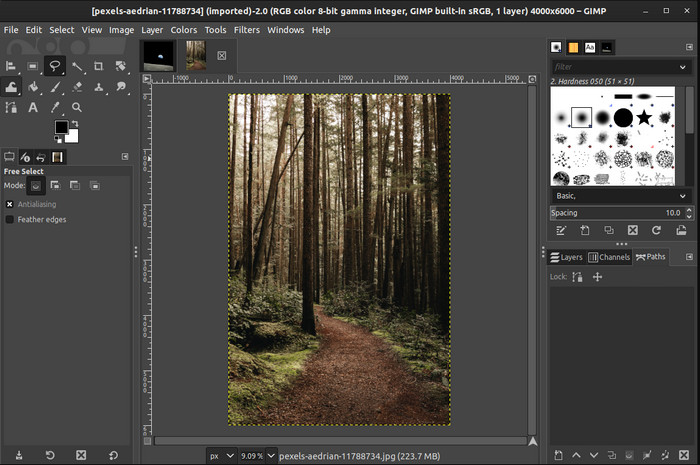
GIMP is an alternative to Photoshop you can download and help you convert low-resolution photos to high. It became a known alternative to Photoshop because of how good this editor does to the image you have, but Photoshop has more tools. With it, you can easily handle increasing the resolution of the image on Windows or Mac by downloading it. As we said, the tool is similar to the Adobe image editor; its complexity is far beyond what a newbie can handle. But if you follow the guideline we add here; you can use the software and then adjust the image you have with GIMP.
How to Increase Resolution of a Photo with GIMP:
Step 1. Download the software on your device, follow the installation process, and launch it if everything is settled.
Step 2. Go to File and click Open to upload the image you want to increase the resolution.
Step 3. Open the Image menu and select Scale Image to start scaling the image with the GIMP.
Step 4. After clicking the Scale Image, a set of options will show where you can manipulate the image resolution. Adjust the value of each to increase the image’s resolution.
Step 5. Press the Scale button to save the value you add on each.
Część 3. Często zadawane pytania dotyczące zwiększania rozdzielczości obrazu
Co jest lepsze, GIMP czy Photoshop, aby zwiększyć rozdzielczość obrazu?
GIMP i Adobe Photoshop to najwyższej klasy oprogramowanie i mają prawie wyrównane edytory obrazów, które można pobrać na swoje urządzenie. Jednak Photoshop jest znacznie lepszy pod względem zwiększania rozdzielczości obrazu.
Czy pobranie oprogramowania jest konieczne do poprawy rozdzielczości obrazu?
Pobieranie oprogramowania może się przydać, gdy nie masz Internetu i chcesz poprawić rozdzielczość, ale zdecydowanie zalecamy korzystanie z narzędzia internetowego, jeśli masz przyzwoity internet. Podobnie jak FVC Free Image Upscaler, to narzędzie jest niezawodnym skalerem obrazu, do którego można uzyskać dostęp w Internecie bez pobierania jakichkolwiek plików.
Czy skalowanie obrazu jest trudne?
Niektórzy uważają to wyzwanie za kłopotliwe ze względu na ich narzędzie, ale tutaj robimy wszystko dla Ciebie wygodniej. Po przeczytaniu tego artykułu masz teraz ogromną wiedzę na temat prostszego radzenia sobie z tym problemem.
Wniosek
Jak myślisz, jakiego oprogramowania będziesz używać ze względu na jego zalety? Aby zwiększyć rozdzielczość zdjęć online lub offline, będziesz potrzebować oprogramowania i samouczka, jak z nich korzystać; to właśnie dodajemy do tego artykułu. Możesz wybrać, który Twoim zdaniem najbardziej Ci odpowiada i postępować zgodnie z dodanymi przez nas krokami, aby łatwo poradzić sobie z tym problemem.
-
 Jak usunąć znak wodny animaker bez ponoszenia kosztów [sprawdzone sposoby]
 Jak usunąć znak wodny animaker? Dzięki najlepszym narzędziom, które zaciągamy na tym blogu, możesz ich użyć, aby pozbyć się znaku wodnego.
-
 Samouczek usuwania znaku wodnego z wykresu pochodzenia [100% Working]
 Aby usunąć znak wodny z wykresu Origin, będziesz potrzebować pomocy. Pomoc, której potrzebujesz, jest zawarta w tym artykule, możesz to przeczytać, aby wiedzieć.
-
 Jak łatwo usunąć znak wodny w SmartDraw [2 sprawdzone sposoby]
 Jak usunąć znak wodny w Smart Draw? Jeśli masz to samo pytanie, możesz polegać na tym artykule, ponieważ mamy cię w zasięgu!
