


 Video Converter Ultimate
 Nagrywarka ekranu
 Naprawa wideo
Jak łatwo usunąć znak wodny ze zdjęć ukończenia szkoły?
Znaki wodne są okropne, gdy widzisz je na jakimkolwiek zdjęciu, i psują jakość zdjęcia. Znaki wodne zobaczysz na zdjęciach zawsze wtedy, gdy twórca nie chce, aby jego dzieło zostało skradzione. A jeśli jesteś studentem, prawdopodobnie zobaczysz znaki wodne na swoim zdjęciu dyplomowym, wskazujące nazwę studia lub fotografa, który je zrobił.
Jeśli chcesz usunąć znak wodny ze swojego zdjęcia z ukończenia szkoły, potrzebujesz narzędzi, które ci w tym pomogą. W tym artykule wymieniliśmy trzy najczęściej używane programy do usuwania znaków wodnych, a także poznasz kroki, jak usuwać znaki wodne ze zdjęć z ukończenia szkoły.

Część 1. Jak usunąć znak wodny ze zdjęć dyplomowych online
Istnieje wiele narzędzi do usuwania znaków wodnych, które zobaczysz w Internecie. Jednak nie wszystkie są darmowe i łatwe w użyciu. Ponadto w tej części dowiesz się, jak wygodnie i skutecznie usunąć znaki wodne.
FVC Free Watermark Remover to internetowe narzędzie do usuwania znaków wodnych, które umożliwia łatwe usuwanie znaków wodnych z twoich zdjęć z ukończenia szkoły. To narzędzie online jest popularne, ponieważ przed jego użyciem nie musisz niczego pobierać. Ponadto obsługuje najpopularniejsze formaty obrazu, takie jak PNG, JPG, JPEG, BMP i inne. Co więcej, nawet jeśli usuniesz znak wodny ze swojego obrazu, po pobraniu zachowa on ten sam format, co wcześniej.
Korzystając z tego narzędzia do usuwania znaków wodnych, możesz wybrać spośród ustawień narzędzia do usuwania przy wyborze obszaru znaku wodnego. Możesz wybrać między wielokątem, lassem lub pędzlem. Ponadto możesz użyć tego narzędzia do usunięcia innych niepotrzebnych rzeczy na swoim obrazie.
Plusy
- Posiada szybki interfejs oprogramowania operacyjnego.
- Jest bezpieczny w użyciu.
- Jest 100% darmowy.
- Dostępne we wszystkich przeglądarkach internetowych, w tym Google, Firefox i Safari.
Cons
- Jest zależny od Internetu.
Jak pozbyć się znaku wodnego na zdjęciach dyplomowych za pomocą FVC Free Watermark Remover:
Krok 1. W przeglądarce, z której korzystasz, wyszukaj FVC Free Watermark Remover. Możesz kliknąć ten link, aby przejść bezpośrednio na ich stronę.
Krok 2. Na głównym interfejsie programu kliknij przycisk Upload Image. Pojawią się foldery na twoim komputerze, z których wybierzesz zdjęcie z ukończenia szkoły i je wgrasz.
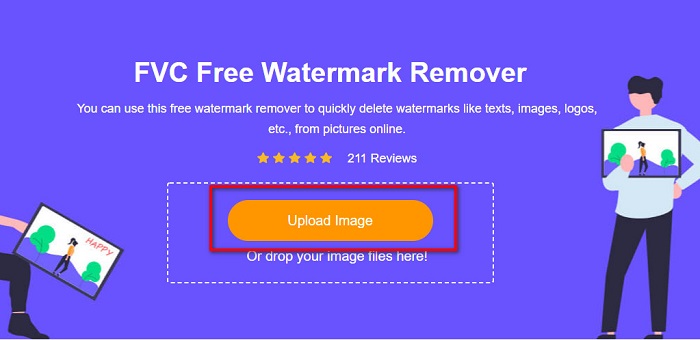
Krok 3. Następnie wybierz narzędzie do usuwania, którego chcesz użyć do usunięcia znaku wodnego. Wybierz pomiędzy Polygonal, Lasso lub Brush. Potem zaznacz obszar znaku wodnego, który chcesz usunąć.

Krok 4. Po zaznaczeniu obszaru znaku wodnego kliknij przycisk Remove, aby wymazać znak wodny.

Krok 5. Zobaczysz, że znak wodny został usunięty. Kliknij przycisk Save, aby pobrać obraz na swoje urządzenie. Co więcej, to internetowe narzędzie do usuwania znaków wodnych jest również narzędziem do usuwania znaków wodnych z Photobucket.

Część 2. Jak usunąć znak wodny ze zdjęć dyplomowych za pomocą Inpaint
Ludzie czasami retuszują znak wodny, aby przywrócić oryginalnemu wyglądowi zdjęcia. Ale jak oni to robią? Profesjonaliści używają edytora zdjęć i malują etykietę piksel po pikselu, co zajmuje kilka godzin pracy. Istnieje jednak inne narzędzie, które ułatwi Ci życie. W tej części dowiesz się, jak korzystać z Inpaint i jakie są jego zalety.
Inpaint to internetowe narzędzie do usuwania znaków wodnych, które również pomoże ci usunąć znaki wodne ze zdjęcia z ukończenia szkoły. Ta aplikacja online ma także wersję do pobrania na Windows i Mac. Ponadto pozwala usuwać z niechciane elementy ze zdjęcia, takie jak logotypy, teksty, obiekty itp. Co więcej, zaskakuje funkcja naprawy starych zdjęć i przywracania im oryginalnej jakości. Posiada też narzędzia do zaznaczania obszaru znaku wodnego, który chcesz usunąć.
Plusy
- Posiada łatwy w obsłudze interfejs oprogramowania.
- Pozwala na cyfrowy retusz twarzy.
- Umożliwia wypełnienie czarnych obszarów Panoramy.
- Dostępny w prawie wszystkich przeglądarkach internetowych, takich jak Google i Firefox.
Cons
- Jest zależny od Internetu.
Jak usunąć znak wodny ze zdjęcia dyplomowego za pomocą Inpaint:
Krok 1. Wyszukaj Inpaint w swojej przeglądarce, a następnie przejdź na ich stronę. Potem, na głównym interfejsie programu, kliknij przycisk Upload Image, aby wgrać swoje zdjęcie z ukończenia szkoły.
Krok 2. Następnie wybierz narzędzie do usuwania, którego chcesz użyć do zaznaczenia obszaru znaku wodnego. Wybierz pomiędzy marker tool, lasso tool i polygonal lasso tool.
Krok 3. Następnie, korzystając z wybranego narzędzia, zaznacz obszar znaku wodnego, który chcesz usunąć.

Krok 4. Na koniec kliknij przycisk Erase, aby usunąć znak wodny ze swojego zdjęcia z ukończenia szkoły. Następnie kliknij przycisk Download, aby pobrać zdjęcie.
Część 3. Jak usunąć znak wodny ze zdjęcia dyplomowego za pomocą programu Photoshop
Adobe Photoshop to najbardziej znane oprogramowanie do edycji, z którego korzysta wielu profesjonalistów. Ale wielu użytkowników nie wie, że nie jest to tylko oprogramowanie do edycji; może również usuwać niechciane znaki wodne ze zdjęcia. Aby dowiedzieć się, jak usunąć znak wodny ze zdjęcia, przeczytaj dokładnie tę część.
Adobe Photoshop to najpopularniejszy program do edycji zdjęć z wieloma funkcjami edycyjnymi. Wielu profesjonalistów używa tej aplikacji, ponieważ pozwala ona edytować obrazy na wiele zaawansowanych sposobów. Zawiera narzędzia, które umożliwiają szczegółową obróbkę zdjęć. Co więcej, generuje pliki wyjściowe w wysokiej jakości, którymi możesz dzielić się na dowolnej platformie społecznościowej.
Plusy
- Ma wiele zaawansowanych funkcji edycyjnych do użycia.
- Zawiera wiele narzędzi do edycji.
- Tworzy wydruki wysokiej jakości.
- Umożliwia edycję i tworzenie obrazów zarówno do druku, jak i do Internetu.
Cons
- Posiada trudny w obsłudze interfejs programowy.
- Musisz kupić aplikację, aby ją pobrać.
Jak usunąć znaki wodne ze zdjęcia za pomocą programu Adobe Photoshop:
Krok 1. Pobierz Adobe Photoshop na swoje urządzenie, a następnie uruchom aplikację. W głównym interfejsie użytkownika otwórz obraz w Photoshopie.
Krok 2. Zaznacz obszar znaku wodnego. Możesz użyć Pen tool, Quick Selection tool lub Magic Wand tool.
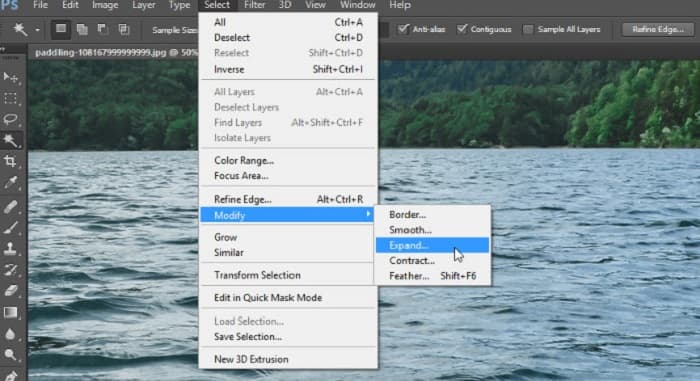
Krok 3. Przejdź do Select > Modify > Expand, aby uwzględnić piksele tła.
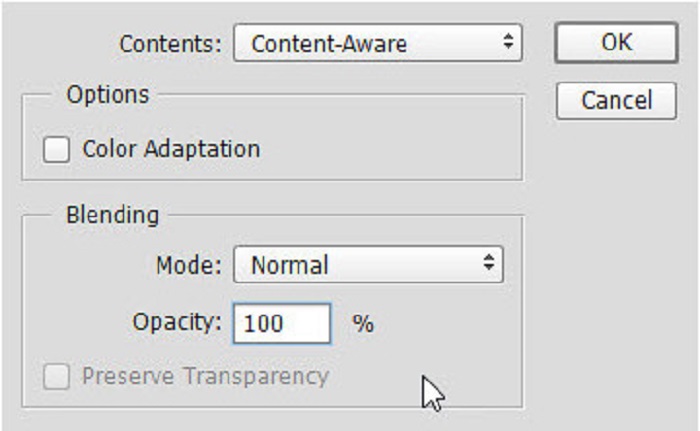
Krok 4. Przejdź do Edit > Fill, a następnie wybierz Content-Aware w sekcji Contents.
Krok 5. Następnie naciśnij CTRL+D. Zobaczysz, że znak wodny został wypełniony tłem. Aby usunąć obrys znaku wodnego, użyj Clone Stamp Tool.
Krok 6. Przytrzymaj klawisz Alt i obrysuj kontur znaku wodnego. Gdy skończysz usuwać ślady, zauważysz, że znak wodny zniknął.
Część 4. Często zadawane pytania dotyczące usuwania znaku wodnego z obrazu ukończenia szkoły
Czy usuwanie znaków wodnych ze zdjęć dyplomowych psuje jakość?
Usunięcie znaku wodnego ze zdjęć dyplomowych niekoniecznie zepsuje jakość. Jednak po usunięciu znaku wodnego niektóre narzędzia nadal pozostawiają ślady.
Czy można usunąć znaki wodne w serwisie Canva?
Tak. Canva ma funkcję, dzięki której możesz bezpłatnie usuwać znaki wodne. Wystarczy kliknąć przycisk Usuń znaki wodne, aby to zrobić.
Czy możesz usunąć znaki wodne z pliku PDF?
Korzystając z powyższych narzędzi, możesz usuwać wszelkie znaki wodne z plików PDF.
Wniosek
Ponieważ poznałeś już jak usuwać znaki wodne ze zdjęć z ukończenia szkoły, możesz teraz zrobić to samodzielnie i wypróbować narzędzia przedstawione powyżej. Usuwanie znaku wodnego jest łatwe dzięki programom do usuwania znaków wodnych. Jednak wiele osób poleca korzystanie z FVC Free Watermark Remover, ponieważ jest to rozwiązanie wygodne i łatwe w użyciu.
-
 Jak łatwo usunąć znak wodny Lumion w systemach Windows i Mac?
 Chcesz usunąć znak wodny Lumiona, aby go profesjonalnie zaprezentować? Cóż, istnieją narzędzia, których możesz użyć, aby pozbyć się znaku wodnego, który pozostawia.
-
 Jak łatwo usunąć znak wodny Weibo z filmów i obrazów?
 Masz problem z usunięciem znaku wodnego Weibo z wyeksportowanego wideo i obrazu? W takim przypadku musisz użyć narzędzia do usuwania znaków wodnych, które podajemy poniżej, które może ci pomóc.
-
 Dowiedz się, jak bezpłatnie usunąć znak wodny Movavi $91; Must Have! $93;
 Eksportowanie wideo lub obrazu w Movavi pozostawi znak wodny, ale czy można go usunąć? Aby nauczyć się, jak usunąć znak wodny za darmo, przeczytaj to.
