


 Video Converter Ultimate
 Nagrywarka ekranu
 Naprawa wideo
Jak zmienić rozmiar obrazu na iPhonie za pomocą skutecznych sposobów 3 [Bezpłatny]
Nie wszystkie obrazy z sieci, które zapisujesz na swoim iPhonie, nadają się na tapetę lub ekran początkowy ze względu na ich proporcje i wymiary. Czasami, gdy użyjesz zdjęcia o nieodpowiednich wymiarach jako tapety lub ekranu początkowego, staje się ono rozmazane, a po bokach pojawiają się czarne paski zamiast dopasowania do ekranu. Kłopotliwe, prawda? Na szczęście możesz pobrać aplikację do zmiany rozmiaru zdjęć z App Store, skorzystać ze Skrótów lub wykorzystać wbudowany edytor zdjęć, który masz pod ręką. Aby szybko zmienić rozmiar zdjęcia na iPhonie, poświęć kilka minut na przeczytanie tego artykułu, aby lepiej to zrozumieć i rozwiązać problem z rozmiarem na swoim urządzeniu.

Część 1. 3 skuteczne sposoby zmiany rozmiaru obrazu na iPhonie [Do pobrania i wbudowane]
Używanie skrótu [wbudowany]
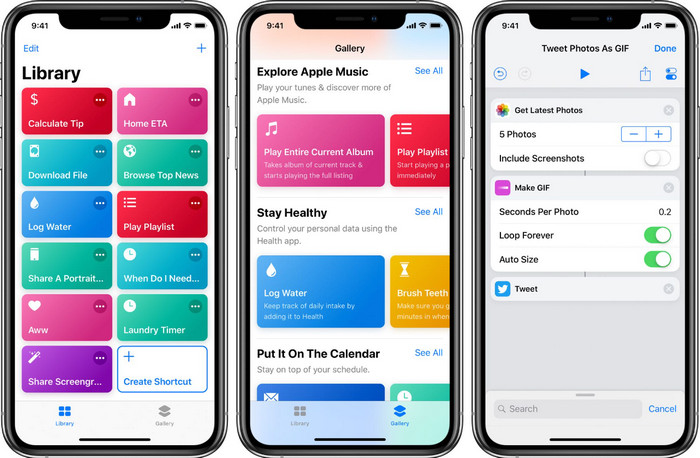
Skróty pozwalają użytkownikom iOS tworzyć rozbudowane funkcje, z których możesz korzystać, na przykład zmieniać rozmiar obrazu zapisanego w pamięci lokalnej. Wszystkie wersje iOS od 13 wzwyż mają tę aplikację wstępnie zainstalowaną. Ponieważ jest to stosunkowo nowe narzędzie, starsze wersje systemu nie posiadają tak rozbudowanej aplikacji. Możesz jednak bezpłatnie pobrać ją z App Store na iPhone’a lub iPada. Aby pokazać ci, jak zmienić rozmiar zdjęcia na iPhonie za pomocą tej aplikacji, postępuj zgodnie z poniższymi krokami.
Krok 1. Otwórz aplikację na swoim iPhonie, a następnie stuknij przycisk plus u góry, aby dodać skrót do zmiany rozmiaru na twoim urządzeniu.
Krok 2. Stuknij w trzy poziome kropki, a następnie dodaj nazwę skrótu; w tym przypadku możesz użyć nazwy „Resizing Photo”. Włącz opcję Pokaż w arkuszu udostępniania, aby za każdym razem, gdy chcesz udostępnić obraz, był on automatycznie przeskalowany, jeśli wybierzesz ten skrót.
Krok 3. Odznacz opcję Anything (Wszystko) w typach Arkusza udostępniania i pozostaw tylko Images (Obrazy). Następnie stuknij Gotowe, aby zapisać wprowadzone ustawienia.
Krok 4. Zanim skorzystasz z tej funkcji, musisz nacisnąć ikonę plus, wybrać Media, a potem stuknąć Resize Image (Zmień rozmiar obrazu). Ustaw długość zgodnie ze swoimi potrzebami i naciśnij Gotowe, aby to zapisać. Teraz za każdym razem, gdy udostępniasz obraz, masz możliwość automatycznej zmiany jego rozmiaru za pomocą tego skrótu.
Korzystanie z aplikacji do zdjęć [wbudowana]
Inną wbudowaną aplikacją, z której możesz swobodnie korzystać na iPhonie w każdej wersji systemu, jest Zdjęcia. Przez lata, jako niezawodny edytor i poprawiacz zdjęć użytkowników iPhone’a, ta aplikacja nie mogłaby zostać tu pominięta. Niektórzy wiedzą, jak wykorzystać ją do zmiany rozmiaru, a inni nie. Dlatego dla użytkowników, którzy nie wiedzą, jak zmienić rozmiar zdjęcia na iPhonie, ten poradnik będzie pomocny.
Krok 1. Otwórz aplikację Zdjęcia i stuknij zdjęcie, którego rozmiar chcesz zmienić.
Krok 2. Po wybraniu obrazu, którego rozmiar chcesz zmienić, stuknij Edytuj.
Krok 3. Stuknij ikonę przycinania w prawym górnym rogu, a następnie przycisk przypominający kwadraty.
Krok 4. Zobaczysz tam różne gotowe ustawienia proporcji obrazu, które możesz wybrać, a następnie stuknij Gotowe, aby zapisać zmiany.
Korzystanie z rozmiaru obrazu [Do pobrania]
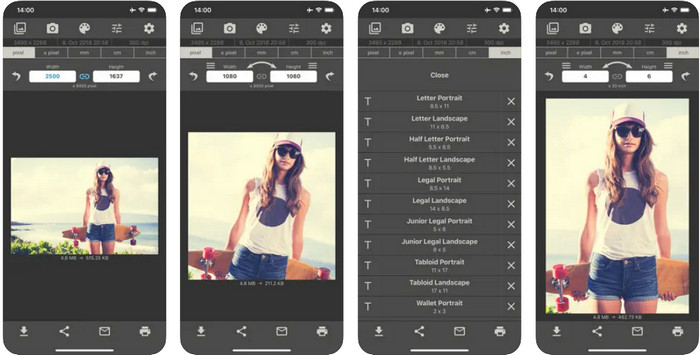
Image Size to zewnętrzna aplikacja, na której możesz polegać i którą możesz pobrać na iOS, aby z łatwością zmienić rozmiar zdjęcia na tapetę do iPhone’a. W przeciwieństwie do dwóch wcześniej opisanych sposobów, tę aplikację musisz najpierw pobrać z App Store. Nie jest to narzędzie wbudowane w iOS, ale jest dostępne w większości wersji systemu i można je od razu zainstalować. Ponieważ aplikacja jest darmowa, podczas korzystania z niej pojawiają się liczne wyskakujące reklamy. Jeśli ci one nie przeszkadzają, możesz przejść do kroków opisujących, jak używać tego narzędzia do zmiany rozmiaru zdjęć na iPhonie.
Krok 1. Zainstaluj ten program do zmiany rozmiaru zdjęć na swoim urządzeniu z iOS, a następnie go otwórz.
Krok 2. Stuknij ikonę obrazu, aby wczytać zdjęcie, którego rozmiar chcesz zmienić w tej aplikacji.
Krok 3. W górnej części zobaczysz wymiary przypisane do obrazu; zmień je na preferowaną wysokość i długość.
Krok 4. Stuknij przycisk pobierania, aby zapisać zdjęcie o zmienionym rozmiarze.
Część 2. Najlepszy sposób na zmianę rozmiaru obrazu online bez reklam i procesu instalacji
Dzięki FVC Free Image Upscaler możesz z łatwością automatycznie zmienić wymiary każdego obrazu z pomocą sztucznej inteligencji. Nie potrzebujesz dużego doświadczenia w skalowaniu, ponieważ z tą aplikacją jest to proste do osiągnięcia. Miliony użytkowników korzystają z niej, aby jednocześnie zmieniać rozmiar, powiększać, ulepszać i poprawiać jakość swoich zdjęć. Tym, co jeszcze bardziej wyróżnia to narzędzie, jest fakt, że możesz korzystać z niego za darmo. Niesamowite, prawda? I rzeczywiście tak jest. Ta aplikacja oferuje ci kompletne, wielofunkcyjne narzędzie do edycji. Aby pomóc ci zmienić rozmiar zdjęcia, wykonaj podane poniżej kroki i skorzystaj z tego narzędzia.
Krok 1. Otwórz to narzędzie online, klikając ten link; na ekranie pojawi się nowa karta.
Krok 2. Aby dodać obraz, którego rozmiar chcesz zmienić, kliknij Add Image. Wyszukaj zdjęcie w oknie wyboru pliku, które pojawi się na ekranie, i naciśnij Open, aby je tutaj dodać.
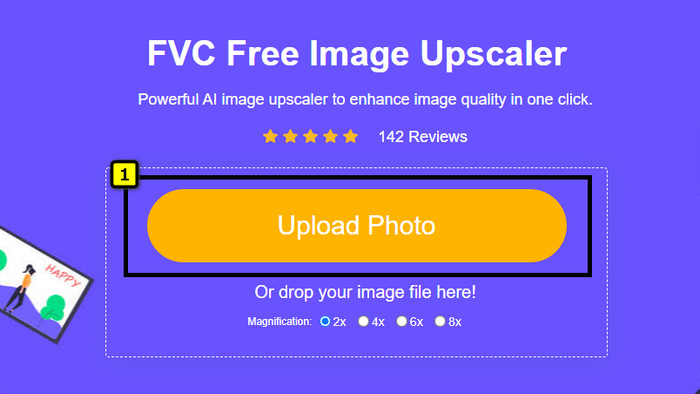
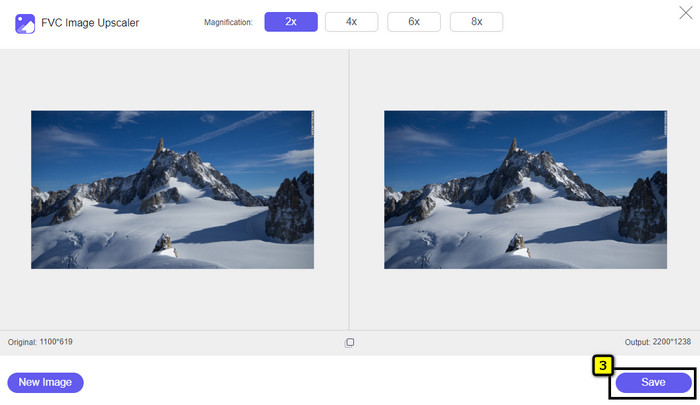
Krok 3. Aplikacja wczyta przesłany obraz; wybierz powiększenie, jakie chcesz zastosować do zdjęcia. Narzędzie automatycznie przeskaluje twoje zdjęcie do nowych wymiarów.
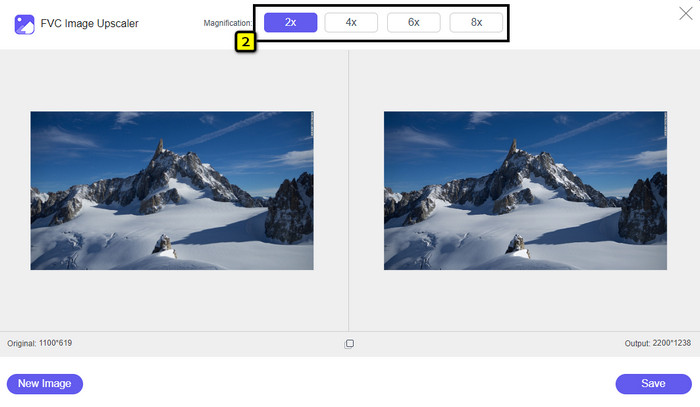
Krok 4. Gdy skończysz modyfikować obraz, naciśnij Save, aby pobrać wersję o zmienionym rozmiarze na swój dysk lokalny.
Część 3. Często zadawane pytania dotyczące zmiany rozmiaru obrazu na iPhonie
Jaki jest idealny wymiar do wykorzystania jako tapeta na iPhonie?
Dla użytkowników iPhone'a SE, 6, 6 plus, 7, 7 plus, 8, 8 plus standardowy rozmiar obrazu, który ma być użyty jako tapeta, musi wynosić od 1136 x 640 do 1920 x 1080 pikseli. Jest to standardowa długość i wysokość obrazu, którego chcesz użyć jako tapety na urządzeniach iPhone. Ale ci, którzy używają iPhone'a XR, 11 i 13, mogą teraz używać 828 x 1792 lub nawet 3073 x 1420 pikseli jako wymiaru wyświetlacza.
Jaka jest wada kadrowania zamiast zmiany rozmiaru zdjęć na iPhonie?
Po przycięciu obrazu zobaczysz, że wycina on jego wymiar. Tak, rozmiar obrazu ulegnie zmianie, ale jego ogólny wygląd nie będzie taki sam jak zmiana rozmiaru. Podczas zmiany rozmiaru możesz dowolnie zmieniać wysokość i długość obrazu bez przycinania krawędzi lub innego rodzaju. Jeśli więc chcesz użyć zdjęcia jako tapety i dopasować je, lepiej zmień jego rozmiar, zamiast przycinać go na iPhonie.
Dlaczego powiększenie obrazu stało się rozmyte po zmianie rozmiaru na iPhonie?
Ponieważ te aplikacje i sposoby, które uwzględniliśmy w tym artykule, nie tworzą PPI, rozciągają obraz o zmienionym rozmiarze na telefonie iPhone. Tak więc, jeśli nie chcesz doświadczać tego typu problemów, musisz użyć narzędzia online, które tutaj zamieściliśmy, aby utworzyć PPI podczas zmiany rozmiaru obrazu na iPhonie.
Wniosek
Możesz polegać na narzędziach, które znaleźliśmy na iPhone’a, a które pomogą ci łatwo zmienić rozmiar zdjęcia na iPhonie. Nawet jeśli nie pobierzesz żadnej dodatkowej aplikacji, możesz użyć wbudowanych programów zapisanych na twoim urządzeniu. Jeśli zależy ci na większej precyzji, możesz zainstalować i użyć aplikacji, które opisaliśmy. Jeśli jednak chcesz zmienić rozmiar zdjęcia bez pogorszenia jakości, skorzystaj z dodanego przez nas narzędzia online. Przeczytaj część 2, ponieważ zamieściliśmy tam samouczek dotyczący jego obsługi.
-
 5 najlepszych resizerów GIF dostępnych na wszystkich platformach [2022]
 Chcesz poznać resizery GIF-ów, których możesz użyć? W takim przypadku informacje podane poniżej będą mówić o resizerach, których możesz używać w swoich GIF-ach na wszystkich platformach.
-
 Jak zmienić rozmiar obrazu – Adobe Zmień rozmiar obrazu [Online i Offline]
 Jeśli szukasz obrazu Adobe do zmiany rozmiaru, mamy dla Ciebie rozwiązanie. Zapoznaj się dokładnie z tym postem, aby dowiedzieć się, jak zmienić rozmiar obrazów za pomocą Adobe na komputerze.
-
 Jak zmienić rozmiar zdjęcia na Facebooku [Szybkie i łatwe kroki]
 Jeśli masz problem z przesłaniem dużego obrazu na Facebooku, mamy dla Ciebie rozwiązanie. Dokończ ten artykuł, aby dowiedzieć się, jak zmienić rozmiar zdjęć na Facebooku.
