


 Video Converter Ultimate
 Nagrywarka ekranu
 Naprawa wideo
Najlepszy przewodnik po używaniu sztucznej inteligencji do wyostrzania obrazu na komputerze i urządzeniu mobilnym
Czy zdarzyło ci się mieć obraz, który wygląda na matowy i bez życia? Być może twojemu zdjęciu brakuje ostrości i wyrazistości. Ale czy wiesz, że w internecie znajdziesz wiele aplikacji do wyostrzania obrazów? Nie potrzebujesz drogich programów desktopowych, aby wyostrzyć swój obraz. Wystarczy, że poszukasz w sieci, a znajdziesz mnóstwo narzędzi, które w tym pomogą. Ale nie musisz już szukać dalej, ponieważ zebraliśmy najlepsze narzędzia do wyostrzania obrazów i pokażemy ci, jak z nich korzystać. Przeczytaj artykuł do końca, aby dowiedzieć się, jak za darmo wyostrzać obrazy online lub offline.

Część 1. Jak wyostrzyć obraz za darmo online bez konieczności rejestracji
Mimo to istnieje wiele aplikacji do wyostrzania obrazu; zaleca się korzystanie z bezpiecznego i najprostszego narzędzia. Dlatego wyszukaliśmy najlepsze ostrzałki do obrazów i wymieniliśmy je specjalnie dla Ciebie. Ponadto pokażemy Ci, jak korzystać z tych narzędzi do wyostrzania obrazu.
Wyostrz obraz za pomocą bezpłatnego skalowania obrazu FVC
FVC Free Image Upscaler to najlepsze narzędzie do wyostrzania obrazu. Jeśli szukasz narzędzia AI do wyostrzania zdjęć, FVC Free Image Upscaler jest dokładnie tym, czego potrzebujesz. Obsługuje różne formaty obrazu, takie jak PNG, JPG, JPEG i BMP. Korzystając z technologii SI (Sztucznej Inteligencji), możesz poprawić swój obraz w skali nawet 2x, 4x, 6x i 8x. Co więcej, to narzędzie online jest dostępne we wszystkich popularnych przeglądarkach, w tym Google, Firefox i Safari.
Co więcej, wielu początkujących preferuje korzystanie z tego narzędzia, ponieważ ma ono prosty interfejs użytkownika. Ponadto, chociaż jest to aplikacja internetowa, ma szybki proces ostrzenia, dzięki czemu jest wygodna w użyciu. Możesz także wyświetlić podgląd obrazu wyjściowego przed pobraniem go na urządzenie. Jeśli więc chcesz użyć tego narzędzia do wyostrzenia obrazu, postępuj zgodnie z prostymi instrukcjami poniżej.
Jak wyostrzyć obraz za pomocą FVC Free Image Upscaler:
Krok 1. Otwórz przeglądarkę i wyszukaj FVC Free Image Upscaler w pasku wyszukiwania. Możesz też kliknąć bezpośredni link do strony głównej.
Krok 2. Następnie kliknij przycisk Upload Photo w głównym interfejsie, aby zaimportować obraz, który chcesz wyostrzyć.

Krok 3. Kolejno wybierz preset magnification, który chcesz zastosować do obrazu. Możesz wybrać powiększenie 2x, 4x, 6x lub 8x. Następnie zobaczysz podgląd wyniku.
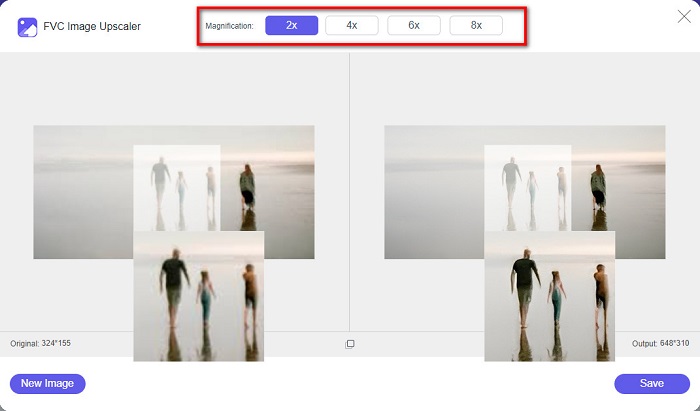
Krok 4. Na końcu, aby zapisać wyostrzony obraz, kliknij przycisk Save. Aplikacja automatycznie i szybko zapisze plik w folderach na twoim komputerze.
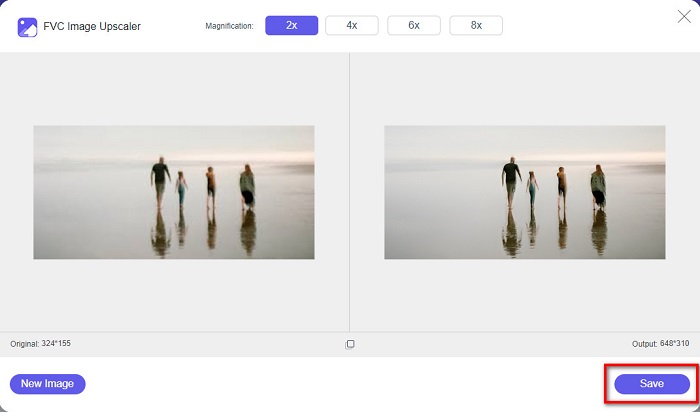
I to wszystko! Tak proste, że możesz łatwo poprawić rozmytą część obrazu i dodać do niego ostrość.
Wyostrz obraz dzięki VanceAI
VanceAI to internetowe narzędzie do wyostrzania obrazów, którego możesz użyć, jeśli chcesz wyostrzyć zdjęcie lub dodać mu wyrazistości. Gdy zwiększysz ostrość obrazu, będzie wyglądał zdecydowanie lepiej. Dlatego, jeśli chcesz szybko poprawić ostrość, VanceAI jest narzędziem dla ciebie. Dodatkowo możesz korzystać z niego za darmo w prawie wszystkich przeglądarkach, takich jak Google i Safari. Automatycznie poprawia rozmyte fragmenty obrazu zaledwie kilkoma kliknięciami. Dzięki prostemu interfejsowi z łatwością poradzą sobie z nim początkujący użytkownicy. Co więcej, obsługuje najpopularniejsze formaty graficzne, takie jak JPG, JPEG i PNG. Minusem jest to, że po wyostrzeniu obrazu w VanceAI na zdjęciu pozostaje znak wodny.
Jak wyostrzyć rozmazany obraz za pomocą VanceAI:
Krok 1. W przeglądarce wyszukaj VanceAI, a następnie przejdź na stronę główną. W głównym interfejsie kliknij przycisk Upload Image, aby wczytać obraz, który chcesz wyostrzyć.
Krok 2. Po załadowaniu obrazu kliknij przycisk Start to Process w prawym dolnym rogu interfejsu.
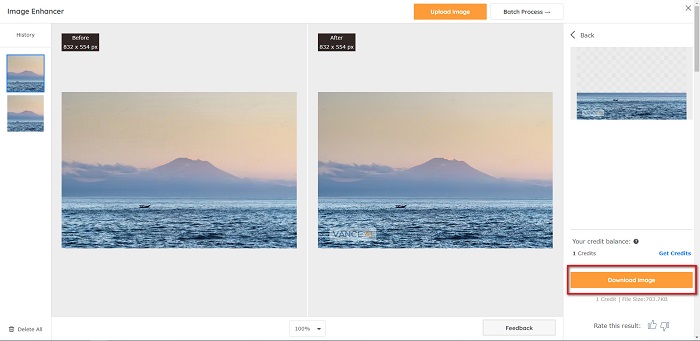
Krok 3. Na koniec zobaczysz podgląd przetworzonego obrazu. Następnie kliknij przycisk Download Image, aby pobrać wyostrzony plik.
Wyostrzanie rozmazanego obrazu za pomocą PineTools
PineTools to kolejne internetowe narzędzie do wyostrzania, z którego możesz łatwo korzystać. Dzięki prostemu interfejsowi początkujący użytkownicy mogą użyć go również do poprawy jakości zdjęcia. Za pomocą suwaka możesz regulować siłę efektu lub poziom ostrości obrazu. Ponadto możesz wybrać rozmiar maski splotowej dla zdjęcia – 3x3 lub 5x5. Co jeszcze lepsze, aplikacja online jest dostępna prawie we wszystkich przeglądarkach, w tym Google i Safari. Wadą PineTools jest to, że zawiera wiele reklam, które mogą cię rozpraszać podczas wyostrzania obrazu. Mimo to wielu początkujących chętnie korzysta z tego narzędzia, ponieważ jest bardzo wygodne.
Jak wyostrzyć rozmazany obraz za pomocą PineTools
Krok 1. Najpierw wyszukaj PineTools w przeglądarce i kliknij wynik prowadzący na oficjalną stronę. Następnie kliknij przycisk Choose Files w pierwszym interfejsie, aby wczytać zdjęcie, które chcesz wyostrzyć.

Krok 2. Następnie w panelu Sharpen przesuń mini box na poziom siły lub ostrości, który ci odpowiada.
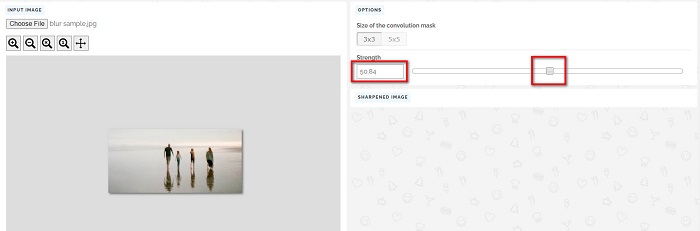
Krok 3. Potem kliknij przycisk Sharpen poniżej interfejsu, aby wyostrzyć obraz. Jeśli chcesz zapisać wynik, kliknij wybrany format obrazu, a plik zostanie zapisany na twoim urządzeniu.
Część 2. Jak wyostrzyć obraz w systemie Windows/Mac
Jak wyostrzyć obraz w Photoshopie
Adobe Photoshop to potężne i szeroko stosowane oprogramowanie do edycji obrazów, z którego korzysta wiele osób na całym świecie. Jest przeznaczone zarówno dla początkujących, jak i profesjonalistów, a także zawiera liczne funkcje, które umożliwiają osobom precyzyjną i kreatywną edycję obrazów. Od prostych korekt po skomplikowane projekty, Photoshop pozwala wcielić pomysły w życie. Jego filtry wyostrzające pomagają w wyostrzaniu zdjęć poprzez modyfikację ich kontrastu i szczegółów. Wyostrzanie zdjęcia w Photoshopie jest proste i nie uszkodzi oryginału dzięki wyrafinowanym warstwom i filtrom — idealne do obrazów w mediach społecznościowych, fotografii komercyjnej i projektowania graficznego.
Krok 1. Kliknij Layers panel > Filter menu > Convert for Smart Filters.

Krok 2. Wybierz Sharpen > Unsharp Mask under Filter.
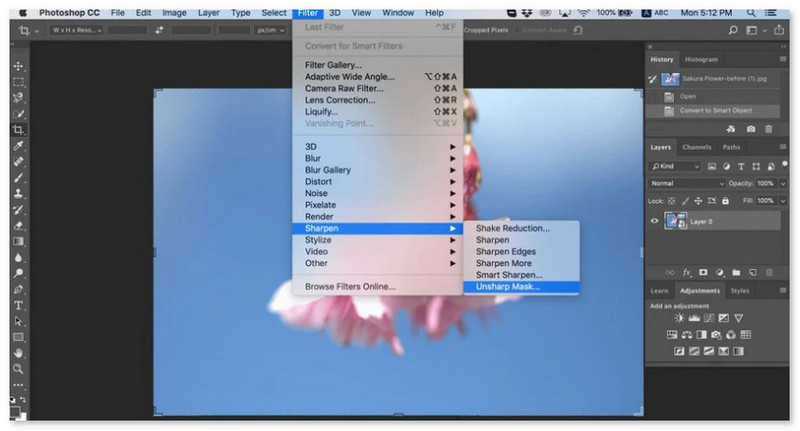
Krok 3. Dostosuj ustawienia i kliknij OK.
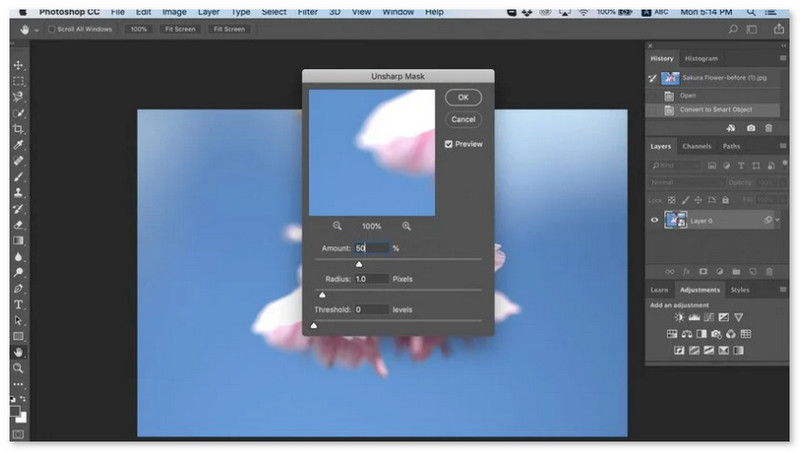
Jak wyostrzyć obraz w programie GIMP
W przeciwieństwie do przedstawionej powyżej aplikacji do wyostrzania obrazu, GIMP jest narzędziem offline, którego możesz użyć, jeśli chcesz wyostrzyć obraz lub poprawić jego jakość. Co więcej, wielu profesjonalistów używa tego narzędzia do wyostrzania i poprawiania obrazów. Wiele osób rozpoznaje to narzędzie jako alternatywę dla Adobe Photoshop. Obsługuje prawie wszystkie formaty obrazów, takie jak PNG, JPG, JPEG, WebP i BMP. Ponadto ma wiele funkcji edycyjnych, z których można korzystać, w tym retusz zdjęć, zmianę kompozycji i wiele innych. Ale wadą tej aplikacji jest to, że ma trudny w użyciu interfejs, co utrudnia korzystanie z niego początkującym.
Niemniej jednak, jeśli jesteś profesjonalistą w wielu aplikacjach do edycji zdjęć, z pewnością znajdziesz w GIMP-ie świetne narzędzie do wyostrzania obrazu.
Jak wyostrzyć obraz w GIMP:
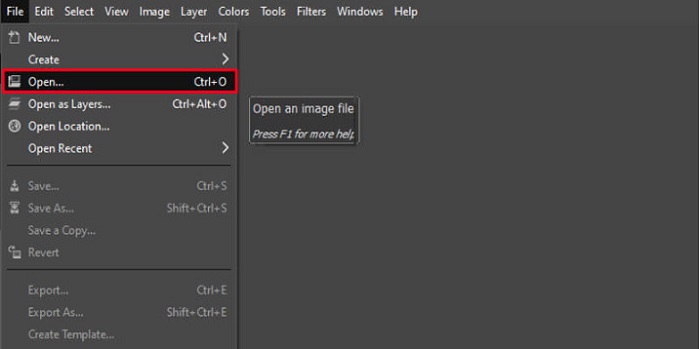
Krok 1. Pobierz na urządzenie program GIMP do wyostrzania obrazów. W głównym interfejsie programu zaimportuj obraz, klikając File > Open.
Krok 2. Następnie utwórz duplikat warstwy, klikając przycisk Layer > Duplicate. Możesz też użyć skrótu klawiaturowego, aby zduplikować warstwę: kliknij Shift + Ctrl + D, a warstwa zostanie skopiowana.
Krok 3. Kolejno zredukujemy szum, przechodząc do Filter > Enhance > Noise Reduction. Następnie użyjemy opcji High Pass, aby uzyskać pożądane wyostrzenie. Przejdź do Filters > Enhance > a potem wybierz High Pass.
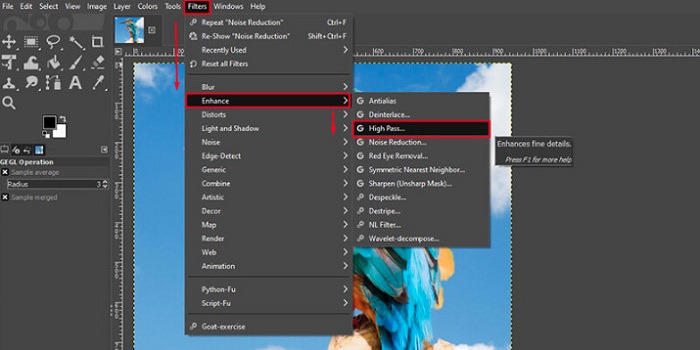
Krok 4. Następnie użyjemy opcji Vivid Light, aby rozjaśnić obraz i dodać mu szczegółów. Przejdź do sekcji trybu, wybierz Option i zmień Normal na Vivid Light.
Krok 5. Stwórz jeszcze raz duplikat warstwy, aby nadać ostatnie szlify, a potem przejdź do Filters > Enhance > Sharpen (Unsharp Mask). Następnie możesz dostosować Radius, Amount i Threshold dla swojego obrazu. Na końcu naciśnij Ctrl + S na klawiaturze, aby zapisać wynik.
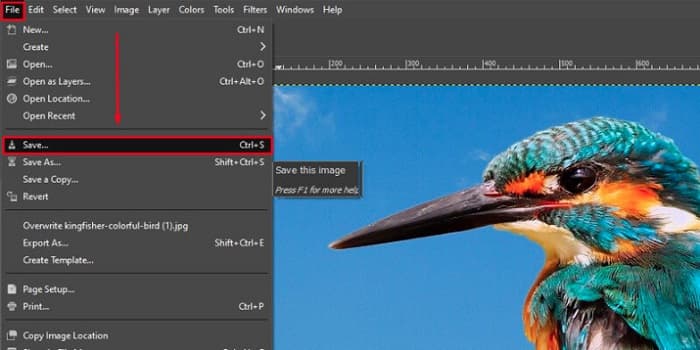
I to wszystko! Jeśli jesteś jedną z osób, które szukają sposobu na wyostrzanie obrazów w GIMP-ie, ten poradnik jest właśnie dla ciebie. Wystarczy, że wykonasz te kroki, aby zwiększyć jakość obrazu za pomocą GIMP.
Część 3. Jak wyostrzyć obraz na iPhonie/Androidzie
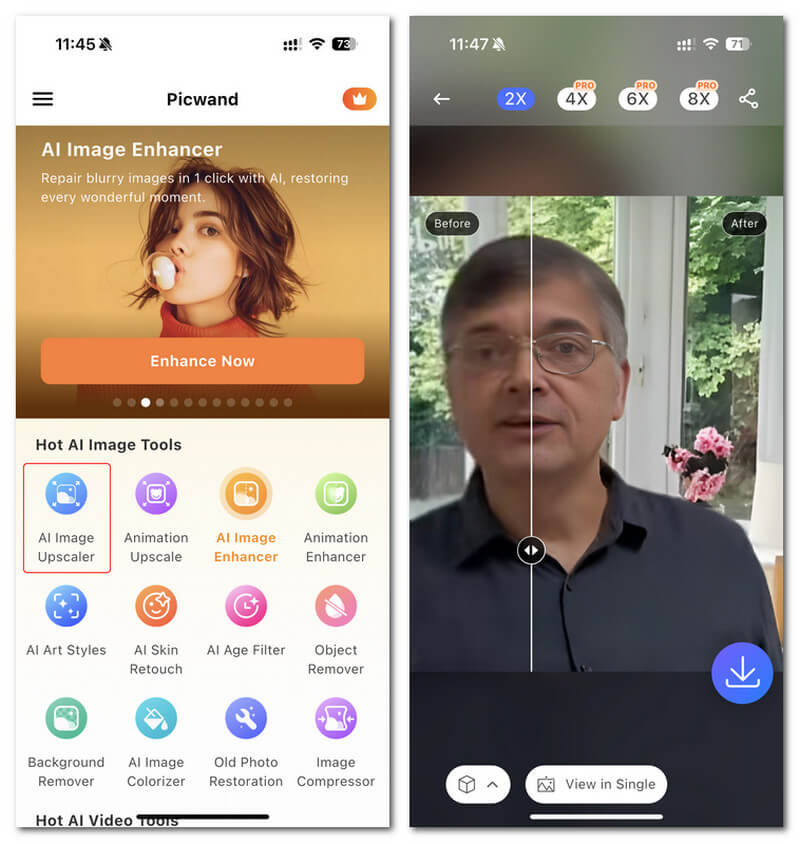
Picwand AI Photo Editor to potężny edytor, który pomaga Ci edytować zdjęcia za pomocą AI. Możesz edytować bezpośrednio na stronie internetowej Picwand lub pobrać go na iPhone'a lub urządzenia z systemem Android. Istnieje wiele inteligentnych funkcji, takich jak powiększanie zdjęć, wycinanie tła, wyodrębnianie obiektów i rozjaśnianie zdjęć, wszystko dzięki zaawansowanej AI. Napraw rozmazane obrazy, retuszuj stare zdjęcia lub usuwaj niechciane rzeczy za pomocą Picwand i zrób to szybko i precyzyjnie. Jego prosty interfejs sprawia, że nadaje się dla każdego, niezależnie od doświadczenia.
Krok 1. Otwórz aplikację i wybierz AI Image Upscaler.
Krok 2. Prześlij obraz i wybierz żądany współczynnik powiększenia.
Krok 3. Dotknij ikony pobierania, aby wyeksportować plik.
Część 4. Często zadawane pytania dotyczące wyostrzania rozmazanego obrazu
Czy istnieje aplikacja do naprawy pikselowanych zdjęć?
Tak. Możesz użyć narzędzia do skalowania obrazu, aby dostosować liczbę pikseli w swoim zdjęciu. Jednym z najlepszych narzędzi do naprawiania spikselizowanych zdjęć jest PIXLR. Świetnie nadaje się także do usuwania rozmycia.
Czy GIMP jest bezpłatny?
GIMP to aplikacja do edycji obrazów dostępna w systemach Windows, Mac i Linux. Jest to darmowa aplikacja, w której możesz zmienić jej kod źródłowy. Musisz jednak kupić aplikację, aby uzyskać dostęp do jej innych funkcji edycji.
Czy mogę wyostrzyć obraz w serwisie Canva?
Na szczęście Canva ma funkcję, dzięki której możesz dodać ostrość swojemu obrazowi. Dlatego Canva może być dla Ciebie odpowiednim narzędziem, jeśli masz rozmazany obraz.
Wniosek
Mamy nadzieję, że odpowiedzieliśmy na twoje pytania dotyczące tego, jak wyostrzać obrazy. Istnieje 7 sposobów, aby zrobić to dobrze i szybko, m.in. za pomocą Video Converter Ultimate, PhotoShop, VanceAI i innych. Jeśli natomiast szukasz całkowicie darmowego narzędzia, zwróć uwagę na FVC Free Image Upscaler. To w 100% darmowe narzędzie online.
-
 4 najlepsze reduktory jakości obrazu, których możesz używać online i offline
 Te reduktory jakości obrazu mogą z pewnych powodów pomóc w obniżeniu jakości obrazu. Jeśli potrzebujesz, przeczytaj ten artykuł!
-
 Oficjalne sposoby na przeskalowanie obrazu do 4k za pomocą praktycznego samouczka
 Aby przeskalować obraz do 4k, potrzebujesz oprogramowania na swoim urządzeniu. Jeśli go nie masz, musisz wybrać narzędzie, które tutaj zawieramy.
-
 Jak edytować klarowność zdjęcia za pomocą bezpłatnych i płatnych aplikacji
 Jak edytować wyrazistość zdjęcia? Na to pytanie odpowiemy podczas czytania tego artykułu, a my dodamy wskazówki, które musisz znać!
