


 Video Converter Ultimate
 Nagrywarka ekranu
 Naprawa wideo
Jak konwertować filmy MOV do formatu FLV na komputerze i w Internecie?
MOV jest zarówno rozszerzeniem pliku, jak i formatem wideo. Plik z rozszerzeniem MOV to film Apple QuickTime. Dobrze działa w systemach iOS i Mac. Co więcej, Windows 10 również zawiera odpowiedni kodek. Jednak format ten nie został zaprojektowany z myślą o dystrybucji online. Dlatego przed opublikowaniem filmu w YouTube lub na innych stronach musisz przekonwertować MOV na FLV. W tym artykule przedstawimy dwa najlepsze sposoby, jak to zrobić.

Część 1: Jak przekonwertować MOV na FLV na PC / Mac?
Możesz otworzyć prawie wszystkie pliki MOV w QuickTime, ale program ten nie potrafi zmienić formatu MOV na FLV. Potrzebujesz więc konwertera wideo, takiego jak FVC Free FLV Converter. Choć jest bezpłatny, oferuje wiele przydatnych funkcji, które zwykle spotyka się tylko w profesjonalnym oprogramowaniu.
Główne funkcje najlepszego darmowego konwertera MOV na FLV
- 1. Konwertuj nieograniczoną liczbę plików MOV do formatu FLV w partii.
- 2. Chroń jakość wideo i audio podczas konwersji.
- 3. Oferuj różnorodne funkcje bonusowe, takie jak dostosuj rozdzielczość.
Bezpłatne pobieranieDla Windows 7 lub nowszegoBezpieczne pobieranie
Bezpłatne pobieranieDla MacOS 10.7 lub nowszegoBezpieczne pobieranie
Nie trzeba dodawać, że jest to najlepsza opcja bezpłatnej konwersji plików MOV do FLV na komputerze.
Jak przekonwertować MOV na FLV w partii?
Krok 1: Dodaj pliki MOV
Uruchom najlepszy konwerter MOV na FLV po zainstalowaniu go na komputerze. Oprogramowanie możesz pobrać bezpłatnie z oficjalnej strony. Kliknij przycisk Add File(s) na głównym ekranie, aby wczytać do programu pliki MOV, które chcesz przekonwertować. Następnie filmy pojawią się w panelu biblioteki. Tutaj możesz je podglądać i edytować.

Krok 2: Ustaw format wyjściowy
Aby zmienić format wyjściowy, kliknij i rozwiń opcję Output format na dole. Przejdź do zakładki General Video, przewiń w dół i wybierz FLV lub pokrewny format. W oknie profilu możesz również zmienić rozdzielczość i inne parametry. Kliknij ikonę Gear, a okno profilu pojawi się na ekranie.

Krok 3: Konwertuj MOV na FLV
Kliknij przycisk Open Folder obok pola Output folder i wybierz folder, w którym mają zostać zapisane wyniki. Na koniec kliknij przycisk Convert, a konwerter MOV na FLV wykona resztę pracy. Po kilku minutach znajdziesz pliki FLV w wybranej lokalizacji.

Część 2: Najlepszy sposób na konwersję MOV do FLV Online
Obecnie mamy więcej niż kiedykolwiek sposobów na edycję i konwertowanie plików wideo. Na przykład FVC Free Online Video Converter to internetowy konwerter MOV na FLV. Umożliwia on bezpłatne przetwarzanie kilku plików MOV bez rejestracji. Co więcej, nie ma ograniczenia rozmiaru pliku, znaku wodnego itp. Jeśli potrzebujesz tylko okazjonalnie przekonwertować MOV na FLV, wykonaj poniższe kroki.
Krok 1: Odwiedź w przeglądarce stronę https://www.free-videoconverter.net/free-online-video-converter/. Działa ona w Chrome, Firefox i innych przeglądarkach. Kliknij przycisk Add Files to Convert, aby pobrać uruchamiacz.
Pobierz Wersję desktopową, aby konwertować pliki w trybie wsadowym.
Krok 2: Następnie kliknij przycisk Add File, gdy uruchamiacz się pojawi. Prześlij z dysku twardego pliki MOV, które chcesz przekonwertować. Wybierz FLV w sekcji formatu na dole uruchamiacza.
Wskazówka: Jeśli chcesz zmienić rozdzielczość, kliknij ikonę Settings, aby otworzyć okno ustawień i łatwo to zrobić.
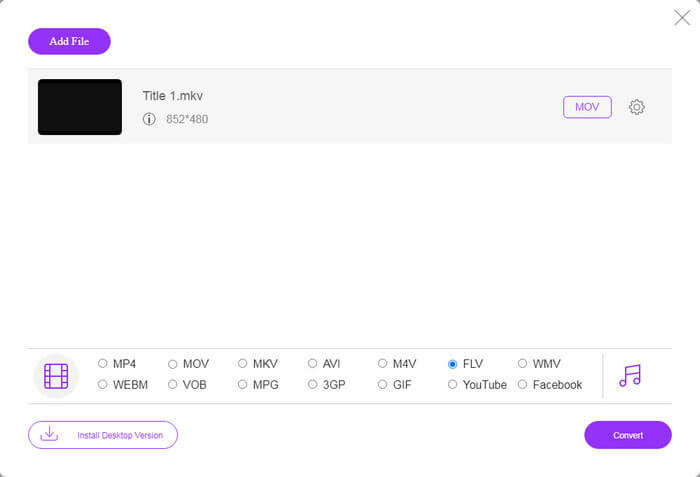
Krok 3: Naciśnij przycisk Convert, aby rozpocząć konwersję MOV na FLV online. Zgodnie z naszymi testami trwa to tylko chwilę. Rzeczywisty czas zależy od szybkości Twojego połączenia internetowego. Następnie pobierz pliki FLV na swój komputer.
Może Ci się też spodobać:
Jak przekonwertować MOV na MP4
MOV kontra FLV
Format MOV może być używany do przechowywania filmu, programu telewizyjnego, krótkiego klipu wideo lub filmu domowego. W rzeczywistości jest zapisany w formacie QuickTime File Format (QTFF), który został wprowadzony przez Apple w 1991 roku. Pliki MOV są często używane, gdy ludzie chcą zapisać wideo w wysokiej jakości.
Adobe Flash Player używał FLV do dostarczania treści wideo, takich jak filmy i programy telewizyjne. Obecnie firma Adobe nie rozwija już odtwarzacza i zaleca użytkownikom odinstalowanie go ze względów bezpieczeństwa. Jednak nadal możesz używać formatu FLV w wielu programach firm innych niż Adobe/Macromedia.
Część 3: Często zadawane pytania dotyczące konwersji MOV do FLV
Jak przekonwertować MOV na FLV na Macu?
Nie ma możliwości przekonwertowania MOV na FLV na Macu bez konwerterów wideo innych firm. Istnieje jednak wiele konwerterów MOV na FLV dla komputerów Mac. Możesz także używać aplikacji internetowych do tworzenia plików FLV z MOV.
Czy VLC może przekonwertować MOV na FLV?
Tak, VLC jest w stanie przekonwertować MOV na FLV na Windows, Mac, Linux. Największa zaleta VLC jest bezpłatna. Minusem jest skomplikowany przepływ pracy. W rzeczywistości funkcja konwersji jest głęboko ukryta na pasku menu.
Który jest lepszy, MOV czy FLV?
Odpowiedź zależy od twojego celu. Aby odtwarzać lub edytować na iOS lub Mac, MOV jest lepszy niż inne formaty. Jednak FLV może generować małe rozmiary plików i dobrze działać w Internecie.
Wniosek
W tym przewodniku omówiono najlepsze sposoby konwersji plików wideo MOV do formatu FLV. Na szczęście istnieją co najmniej dwa sposoby wykonania tej pracy. Po pierwsze, możesz zmienić MOV na FLV za pomocą internetowej aplikacji konwertera wideo. Jeśli potrzebujesz bardziej zaawansowanych funkcji, FVC Free FLV Converter może spełnić Twoje potrzeby. Co więcej, korzystanie z niego na komputerze jest całkowicie bezpłatne. Więcej problemów? Skontaktuj się z nami, zostawiając wiadomość pod tym postem.
-
 2 najłatwiejsze sposoby konwersji plików WMV na FLV na PC / Mac
 Jak przekonwertować WMV na FLV? Najpierw musisz przeczytać naszą rekomendację i znaleźć swoją ulubioną metodę, a następnie postępować zgodnie z naszym przewodnikiem, aby szybko wykonać zadanie.
-
 4 Zweryfikowane metody konwersji TS do FLV na komputerze stacjonarnym / online
 Domyślnie nie można otworzyć TS na komputerze lub telefonie komórkowym. Jedynym sposobem na obejrzenie plików wideo jest konwersja TS do FLV lub innych formatów za pomocą naszego konkretnego przewodnika.
-
 Rozwiązania 3 do konwersji MTS na FLV za darmo i online
 Chcesz przekonwertować MTS na FLV? Oto 3 darmowe oprogramowanie do konwersji MTS na FLV, które możesz spróbować przekonwertować MTS na FLV na Mac OS X i Windows 10/8/7.

