


 Video Converter Ultimate
 Nagrywarka ekranu
 Naprawa wideo
Proces konwersji pliku WebM do MOV: bezproblemowe metody, które powinieneś znać
Jeśli chodzi o produkcję i transmisję strumieniową, nie każdy format wideo jest kompatybilny z każdą platformą cyfrową. Podczas próby wprowadzania, produkowania, przesyłania lub pobierania odpowiednich plików może to powodować poważne problemy. Apple na przykład nie korzysta z tradycyjnych przeglądarek, do których dorastaliśmy w dawnych czasach – ma własną platformę o nazwie Safari. Dlatego formaty wideo obsługiwane tylko przez Google Chrome, Mozilla Firefox, Opera i Microsoft Edge nie zawsze są dostępne dla użytkowników komputerów Mac w przeglądarce.
Jednym z takich formatów jest wideo WebM, które zapewnia otwartą kompresję wideo dla HTML5. Jeśli jesteś użytkownikiem Maca, do jego odtwarzania potrzebujesz zewnętrznego odtwarzacza multimedialnego. Jeśli jednak chcesz odtwarzać swoje filmy bez żadnych problemów, powinieneś sięgnąć po format MOV, ponieważ jest to własny format Apple opracowany dla Apple QuickTime Player. Dlatego tym, czego potrzebujesz, jest konwersja WebM do MOV na Macu, a w tym artykule przedstawiamy najlepsze sposoby, jak to zrobić.
Część 1. Przegląd: WebM i MOV
Jeśli od dłuższego czasu byłeś narażony na konsumpcję wideo i przesyłanie strumieniowe, musiałeś oglądać wiele filmów w różnych formatach na różnych platformach. Być może zastanawiałeś się kiedyś, co reprezentują te rozszerzenia plików lub czym się od siebie różnią. Z pewnością próbowałeś odtworzyć określony film w przeglądarce, ale nie zrobi tego, mówiąc, że jest nieobsługiwany. Na przykład WebM jest obsługiwany tylko przez kilka nowoczesnych przeglądarek, takich jak Chrome, Firefox i edge, ponieważ jest zwykle osadzony na stronach internetowych za pomocą HTML5
Część 2. Najlepszy konwerter, który pomaga w konwersji WebM do MOV
Konwertowanie plików wideo nie jest tak trudne, jak mogłoby się wydawać. Chociaż istnieje wiele programów i aplikacji, które mogą Ci w tym pomóc, jest jeden z nich, który wykonuje to zadanie szybko i łatwo. FVC Video Converter Ultimate to darmowy do pobrania program, który oszczędza Ci czas na przeszukiwaniu internetu w poszukiwaniu najlepszego konwertera online. Naszym celem jest dostarczyć Ci to, co najlepsze. Nie musisz się martwić formatem wideo, które chcesz przekonwertować, ponieważ to oprogramowanie obsługuje różne formaty i, co więcej, zapewnia wiele opcji edycji wideo podczas właściwej konwersji. Oto kroki, które musisz wykonać, aby skorzystać z tego programu:
Krok 1: Przed rozpoczęciem konwersji najpierw musisz pobrać program, co możesz zrobić, klikając przycisk Free Download. Możesz wybrać wersję dla Windows lub Mac. W tym przypadku wybierz For Mac OS. Poczekaj, aż plik .exe zakończy pobieranie, a następnie otwórz go, aby rozpocząć instalację.
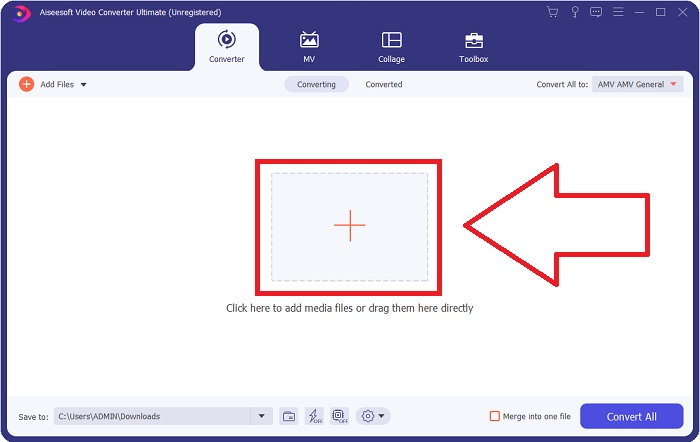
Krok 2: Gdy program zostanie zainstalowany, uruchom go, a pojawi się interfejs. Po uruchomieniu programu automatycznie znajdziesz się w zakładce Converter. Jeśli nie, kliknij ją.
Krok 3: Na środku interfejsu znajdziesz przycisk z ikoną +, który należy kliknąć, aby zaimportować plik wideo do konwersji. Możesz też po prostu przeciągnąć i upuścić swoje filmy.
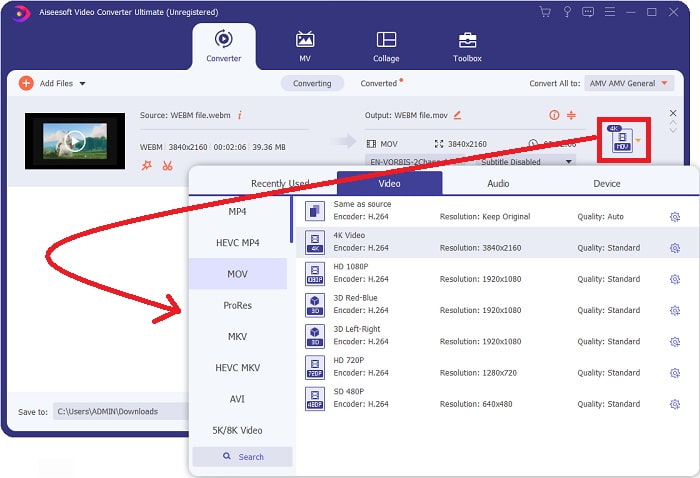
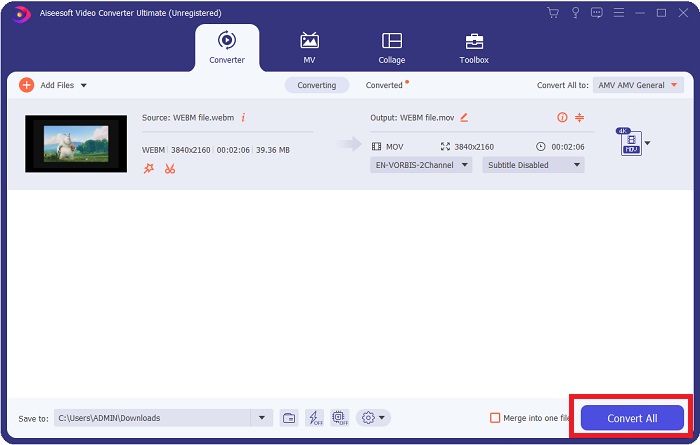
Krok 4: Gdy wideo zostanie pomyślnie zaimportowane, pojawi się kolejny interfejs. Po prawej stronie zobaczysz aktualny format swojego wideo. Obok znajduje się strzałka rozwijana – kliknij ją, a pojawią się różne opcje. Możesz wybrać dowolny format docelowy, ale w tym przypadku wybierz MOV. Dostępne są opcje takie jak rozdzielczość i jakość dźwięku. Aby uzyskać więcej możliwości, kliknij ikonę koła zębatego obok wybranej jakości lub rozdzielczości – będziesz mógł dalej edytować swoje wideo w zależności od potrzeb. Aby zapisać wprowadzone zmiany, kliknij Create New.
Krok 5: Gdy zakończysz edycję i będziesz zadowolony z efektów, znajdź przycisk Convert All w prawym dolnym rogu interfejsu i kliknij go, aby wyeksportować skonwertowane wideo.
Część 3. Dodatkowe wskazówki: inne konwertery online, które konwertują WebM na MOV
Metoda 1: Użyj darmowej konwersji
Jeśli nie chcesz już pobierać oprogramowania i po prostu już zajmij się procesem konwersji, możemy pokazać Ci alternatywy dla tego. Odbywa się to wyłącznie online, podczas gdy nadal oferuje funkcje potrzebne do potrzeb edycji. Jeśli chcesz mieć bezproblemową metodę, to narzędzie internetowe jest jednym ze sposobów.
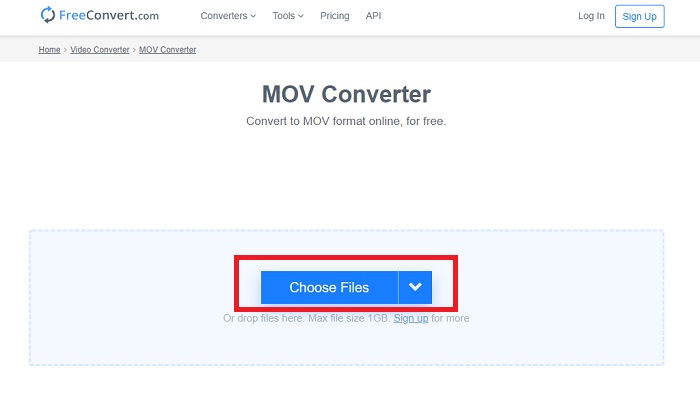
Krok 1: Przejdź na odpowiednią stronę, a zobaczysz interfejs, w którym na środku znajduje się przycisk Choose Files. Kliknij go, aby zaimportować plik wideo, który chcesz przekonwertować.
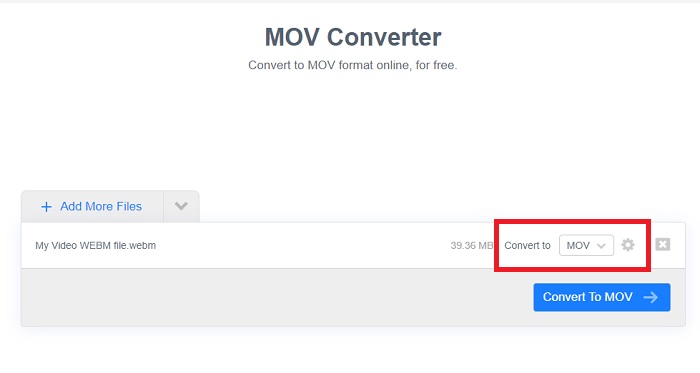
Krok 2: Podobnie jak w programie komputerowym, aktualny format Twojego wideo widoczny jest po prawej stronie, a obok niego znajduje się strzałka rozwijana. Kliknij ją i wybierz format, na który chcesz przekonwertować swoje wideo. Aby uzyskać więcej opcji, kliknij ikonę koła zębatego, aby dalej edytować wideo. Kliknij przycisk Apply Settings, aby zachować wprowadzone zmiany.
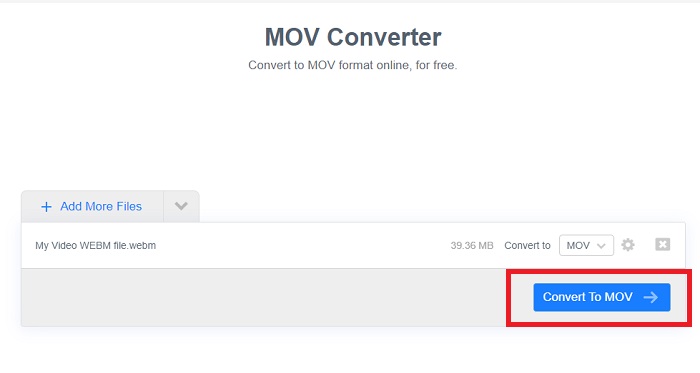
Krok 3: Gdy zakończysz wprowadzanie wszystkich zmian, możesz rozpocząć konwersję, klikając przycisk Convert to MOV znajdujący się poniżej, i poczekać na zakończenie procesu. Następnie możesz wyeksportować przekonwertowane wideo, klikając Download MOV.
Metoda 2: Użyj konwersji w chmurze
To narzędzie internetowe oferuje kilka dodatkowych opcji podczas konwersji pliku WebM do MOV online. Możesz nie tylko edytować rozdzielczość lub jakość dźwięku, ale także fps, napisy i wiele innych. Wykonaj te proste kroki, aby użyć tego konwertera online:
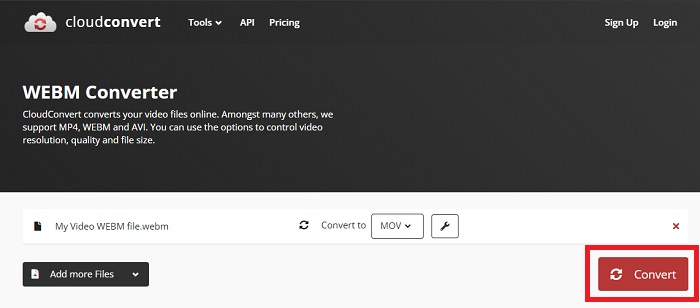
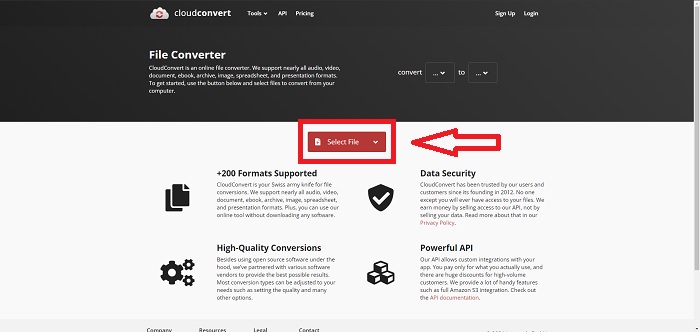
Krok 1: Najpierw musisz zaimportować plik wideo, który chcesz przekonwertować, klikając przycisk Select File na środku strony. Jeśli chcesz konwertować pliki jednocześnie, kliknij Add more Files.
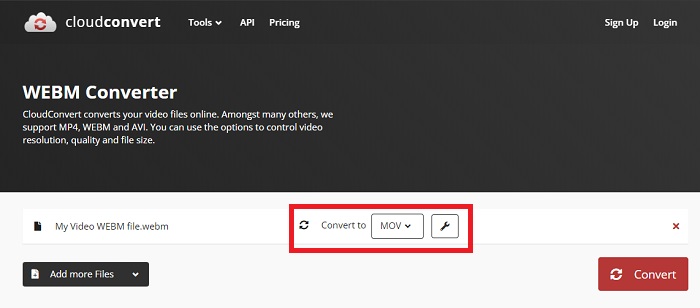
Krok 2: Obok pliku możesz wybrać format wideo, klikając strzałkę rozwijaną. Kliknij również ikonę klucza (wrench), aby uzyskać więcej opcji. Tam możesz edytować niektóre aspekty obrazu i dźwięku w swoim wideo. Następnie kliknij OK, aby zapisać zmiany.
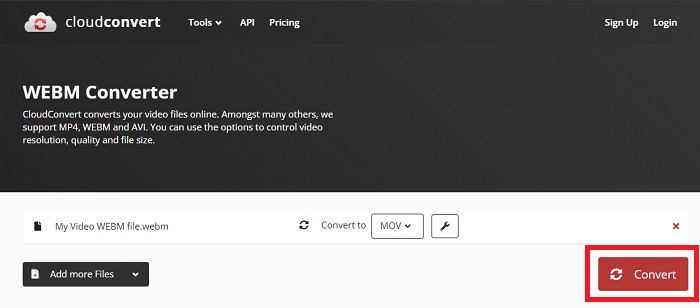
Krok 3: Gdy zakończysz wszystkie edycje, kliknij przycisk Convert podświetlony na czerwono i poczekaj na zakończenie procesu. Na koniec kliknij Download podświetlony na zielono, aby wyeksportować w pełni przekonwertowane wideo.
Metoda 3: Użyj ZamZar Convert
To narzędzie internetowe oferuje mniej opcji dla Twojego wideo, ponieważ konwertuje tylko format wideo i audio. Jednak wykonuje pracę szybciej niż inne wymienione metody. Aby skorzystać z tego konwertera online, wykonaj następujące czynności:
Krok 1: Na środku strony znajdują się tylko trzy przyciski, które należy kliknąć, aby przekonwertować wideo. Najpierw kliknij Add files, aby zaimportować plik wideo.
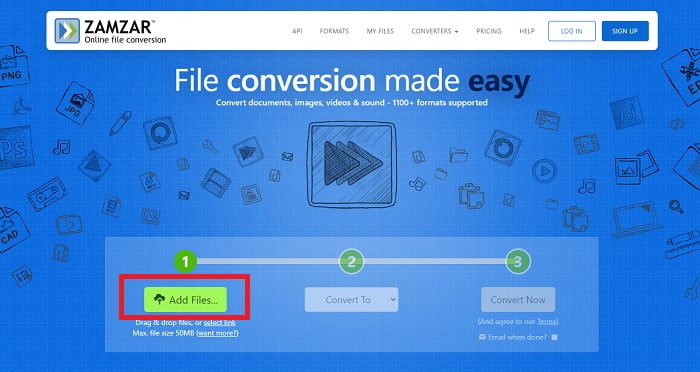
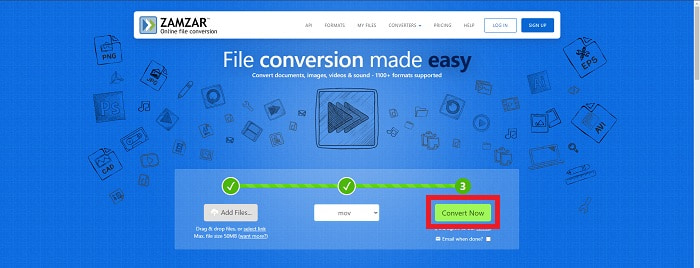
Krok 2: Za pomocą drugiego przycisku możesz wybrać format wideo i audio, jaki chcesz uzyskać. W tym przypadku wybierz format MOV.
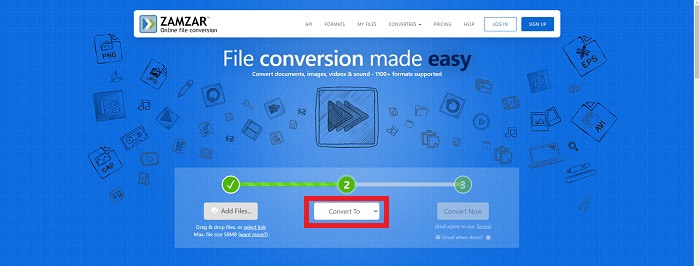
Krok 3: Na końcu kliknij trzeci, ostatni przycisk, Convert Now, aby rozpocząć właściwą konwersję i poczekać na jej zakończenie. Gdy będzie gotowe, kliknij Download, aby ostatecznie wyeksportować wideo na swój komputer.
Część 4. Często zadawane pytania dotyczące konwersji WebM do MOV
Czym dokładnie jest format WebM?
WebM to specyficzny dla sieci format plików multimedialnych, który obejmuje strumienie wideo skompresowane za pomocą kodeków wideo VP8 lub VP9, strumienie audio skompresowane za pomocą kodeków audio Vorbis lub Opus oraz teksty WebVTT. Struktura plików WebM oparta jest na kontenerze multimedialnym Matroska. Większość przeglądarek internetowych akceptuje pliki WebM, ponieważ są one czasami używane w witrynach HTML5 do odtwarzania filmów online. Na przykład YouTube stosuje format pliku WebM Video dla wszystkich filmów na swojej stronie, od 360p do innych bardzo wysokiej jakości. Wikimedia i Skype są takie same.
Jakich odtwarzaczy multimedialnych potrzebuję, aby odtwarzać filmy WebM na wypadek, gdybym nie chciał konwertować ich na MOV?
Istnieje alternatywa, jeśli nie chcesz przechodzić przez cały proces konwersji, aby odtworzyć swoje wideo WebM. Możesz użyć zewnętrznej aplikacji, czyli tzw. rozwiązania wieloplatformowego. Kilka takich odtwarzaczy multimedialnych to VLC, KM Player, Media Player Classic, Winamp, jetAudio Basic, Moovidia, Persian i XBMC, które możesz pobrać z ich oficjalnych stron, aby odtwarzać pliki WebM.
Czy MOV jest wysokiej czy niskiej jakości?
Odtwarzanie wideo jest dość wysokiej jakości z plikami MOV. MOV jest szczególnie przydatny, ponieważ może zawierać mieszane media, takie jak obrazy, filmy i animacje 360 stopni. Zawiera również wszystkie informacje wideo i audio. To znacznie ułatwia edytowanie pliku.
Wniosek
Rzeczywiście istnieje wiele narzędzi, których możesz użyć do konwersji wideo z jednego formatu na inny, czy to za pomocą oprogramowania, czy narzędzia internetowego, które można znaleźć w Internecie. Jednak nadal idą w parze pod względem oferowanych opcji lub wygody. Niektórzy po prostu wykonują swoją pracę, a niektórzy zapewniają różne opcje do wyboru. Ten artykuł koncentruje się na tym, aby pomóc Ci dowiedzieć się, którego z nich powinieneś użyć w zależności od swoich potrzeb. Dlatego najbardziej polecamy Video Converter Ultimate, ponieważ oferuje wszystkie dodatkowe opcje, których możesz nigdy nie wiedzieć, kiedy będziesz ich potrzebować. Lepiej jest mieć to oprogramowanie przez cały czas przy sobie, aby oszczędzić ci kłopotów ze znalezieniem konwertera online za każdym razem, gdy go potrzebujesz.
-
 Jak zmienić GIF na format WebM bez utraty jakości plików?
 Konwertuj swoje GIF-y do formatu wideo WebM, aby mieć tag wideo HTML5. Polegaj na tym narzędziu poniżej, aby wiedzieć, które z nich jest najlepsze do pracy.
-
 3 sposoby konwersji WebM na MP3 bez utraty jakości dźwięku
 Masz problem, ponieważ plików WebM nie można użyć do odtwarzania zapisanego dźwięku? Następnie przeczytaj ten artykuł, ponieważ zapewniamy skuteczną pomoc, konwertując WebM na MP3.
-
 3 Oszałamiające oprogramowanie używane do konwersji plików WebM do formatu AVI
 Nie masz pojęcia, jak przekonwertować WebM na AVI? W takim razie zacznijmy czytać ten artykuł. Ponieważ określamy wszystkie szczegóły dotyczące WebM i trzech konwerterów, których możesz użyć do konwersji.
