


 Video Converter Ultimate
 Nagrywarka ekranu
 Naprawa wideo
Jak bez wysiłku przekonwertować plik MP3 na dzwonek na iPhonie
Czy domyślne dźwięki w Twoim iPhonie nie należą do ulubionych i wolisz, aby jeden z plików MP3 stał się dzwonkiem na iPhonie? A co, jeśli powiemy Ci, że da się przekonwertować MP3 na dzwonek w iPhonie?
W tym artykule poznasz 3 różne sposoby, aby zamienić pliki muzyczne MP3 na Twoim iPhonie w dzwonki. Konwersja ich jest nieco skomplikowana, ale z odpowiednim narzędziem i metodą, sprawimy, że będzie to tak proste i wygodne dla Ciebie. Na co czekasz? Zanurzmy się!

Część 1. Konwertuj MP3 na dzwonek dla iPhone'a na Macu/Windowsie
Jednym z najprostszych i najszybszych sposobów na konwersję MP3 na dzwonek w iPhonie jest użycie wybranego przez FVC programu Video Converter Ultimate na komputerze z Windows lub macOS. To wielofunkcyjne narzędzie obsługuje do 300 różnych formatów, w tym M4R, co sprawia, że jest niezawodnym sposobem na zmianę muzycznych plików MP3 w dzwonek iPhone’a. Co więcej, ten konwerter działa nawet do 120 razy szybciej niż inne narzędzia, dzięki czemu proces konwersji jest szybki i bezproblemowy.
Oto jak użyć wybranego przez FVC programu Video Converter Ultimate, aby przekonwertować MP3 na dzwonek:
Krok 1. Najpierw pobierz i zainstaluj narzędzie na swoim komputerze z systemem Windows lub Mac.
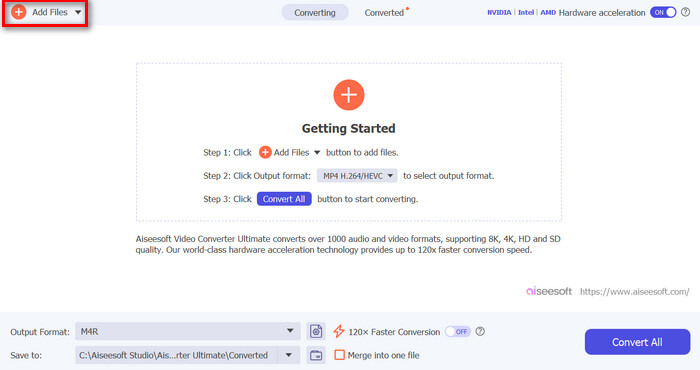
Krok 2. Uruchom program i na głównym ekranie kliknij przycisk Add Files. Pozwoli Ci to zaimportować plik MP3, który chcesz zamienić w dzwonek iPhone’a.
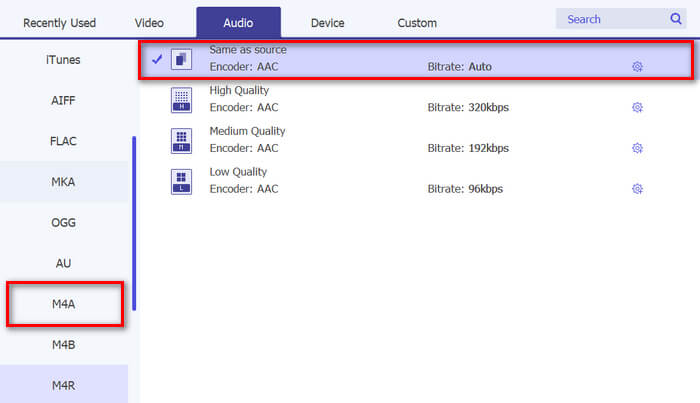
Krok 3. Następnie przejdź do sekcji Output format i z listy różnych formatów audio wybierz M4R. M4R to format plików dla dzwonków iPhone’a.
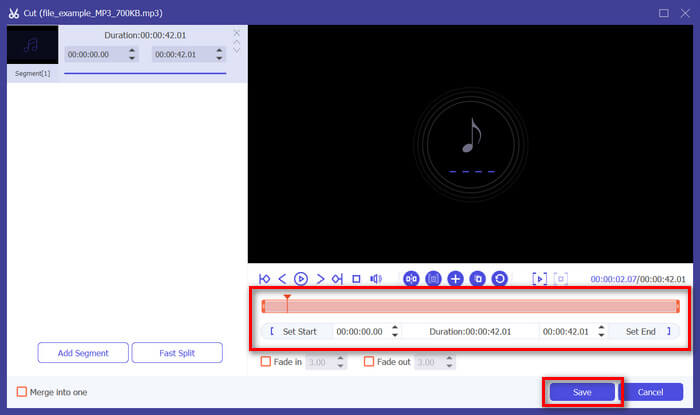
Krok 4. Upewnij się, że Twój plik MP3 ma maksymalnie 30 sekund. Jeśli jest dłuższy, kliknij przycisk Cut i skróć długość pliku, przesuwając suwak na osi czasu lub ręcznie ustawiając czas zakończenia na 30 sekund.
Krok 5. Teraz kliknij przycisk Convert All, aby rozpocząć konwertowanie plików MP3 na dzwonki iPhone’a. Przekonwertowane pliki zostaną zapisane bezpośrednio w folderze na Twoim komputerze.
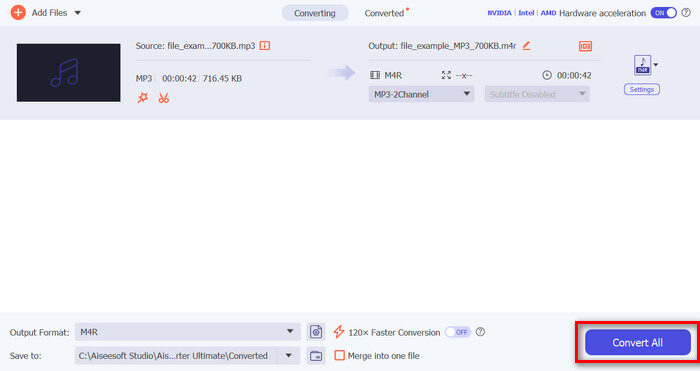
To szybkie, prawda? To naprawdę niesamowite, jak to narzędzie Video Converter Ultimate wybrane przez FVC sprawia, że konwersja MP3 na dzwonek iPhone'a jest łatwa i szybka. Więc jeśli szukasz narzędzia do konwersji, które może zaoszczędzić Ci czasu, wypróbuj to narzędzie już teraz.
Część 2. Konwersja MP3 na dzwonek na iPhone'ie
Jeśli wolisz bezpośrednią metodę bez użycia komputera, GarageBand oferuje wygodne rozwiązanie do konwersji plików MP3 na dzwonki bezpośrednio na Twoim iPhonie. To narzędzie to potężna aplikacja do tworzenia muzyki, która jest wstępnie zainstalowana na większości iPhone'ów. To narzędzie jest nie tylko przyjazne dla użytkownika, ale także oferuje różne funkcje, aby skutecznie dostosować pliki audio.
Oto jak użyć GarageBand, aby przekonwertować MP3 na dzwonek:
Krok 1. Najpierw uruchom aplikację GarageBand na iPhonie. Jeśli nie masz jej zainstalowanej, przejdź do App Store i pobierz ją.
Krok 2. Stuknij ikonę Project, a następnie ikonę Loop w prawym górnym rogu.
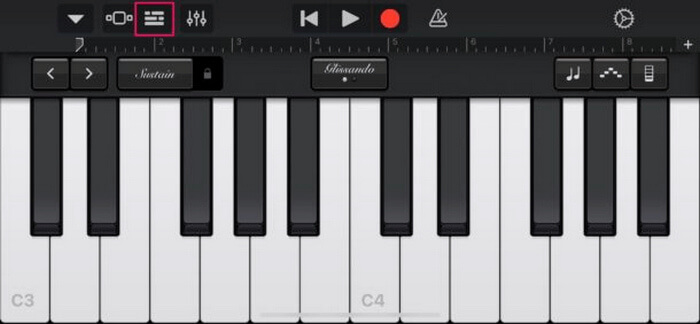
Krok 3. Teraz stuknij Music lub Files, aby wybrać plik MP3 i przytrzymaj go, aby zaimportować do GarageBand.
Krok 4. Następnie stuknij ścieżkę i przeciągnij oba końce, aby przyciąć dźwięk. Upewnij się, że dzwonek ma mniej niż 30 sekund.
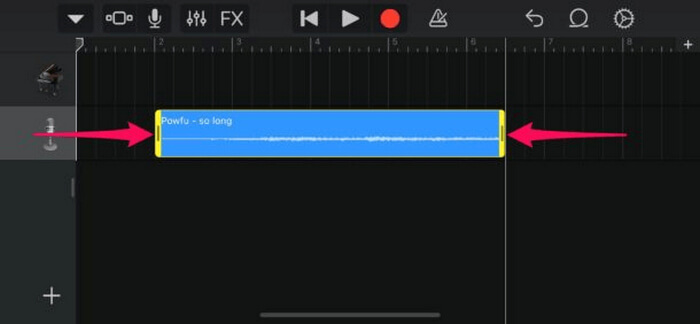
Krok 5. W lewym górnym rogu zobaczysz strzałkę skierowaną w dół. Stuknij ją, a następnie wybierz My Songs, aby zapisać klip.
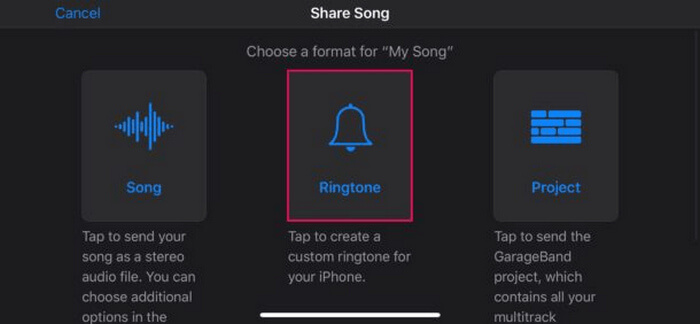
Krok 6. Znajdź utworzony klip, przytrzymaj go, stuknij Share i wybierz opcję Ringtone. Nie zapomnij nazwać dzwonka i stuknąć Export.
Krok 7. Aby użyć przekonwertowanego pliku MP3 jako dzwonka na iPhonie, stuknij Use Sound As, aby ustawić dźwięk jako domyślny dzwonek wiadomości tekstowych lub dla konkretnego kontaktu. Możesz też przejść do Settings, Sounds & Haptics i Ringtone, aby zmienić dzwonek w iPhonie.
Jeśli wolisz konwertować pliki MP3 bezpośrednio na dzwonki na swoim iPhonie, ta metoda jest dla Ciebie idealna. Jednak nowi użytkownicy będą potrzebowali trochę czasu, aby się tego nauczyć, ponieważ zawiera złożone funkcje, które mogą ich przytłoczyć na początku.
Część 3. Konwertuj MP3 na dzwonek iPhone'a [Online i za darmo]
Jeśli wolisz darmową, internetową metodę konwersji MP3 na dzwonek iPhone’a, idealnym rozwiązaniem będzie FVC Free Audio Converter. Dzięki temu narzędziu możesz łatwo przekonwertować dowolny format pliku audio, szczególnie MP3 na M4R, ponieważ obsługuje formaty MP3, AAC, AC3, WMA, WAV, AIFF, FLAC, MKA, M4A, M4B i M4R. Ponadto jest to świetna opcja dla osób potrzebujących konwertera „w biegu”, dzięki bardzo intuicyjnemu i prostemu interfejsowi.
Oto jak użyć FVC Free Audio Converter, aby przekonwertować MP3 na dzwonek:
Krok 1. Kliknij przycisk Add Files, aby zaimportować pliki MP3, które chcesz przekonwertować na dzwonek.
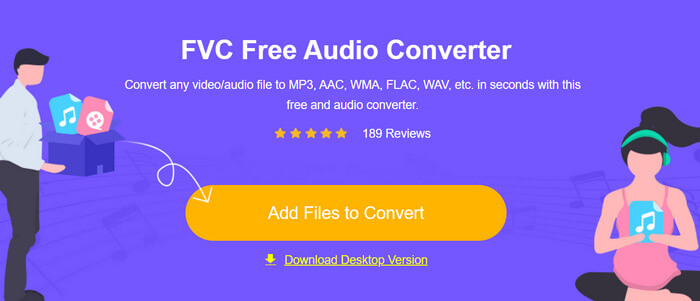
Krok 2. Wybierz M4R jako format wyjściowy audio.
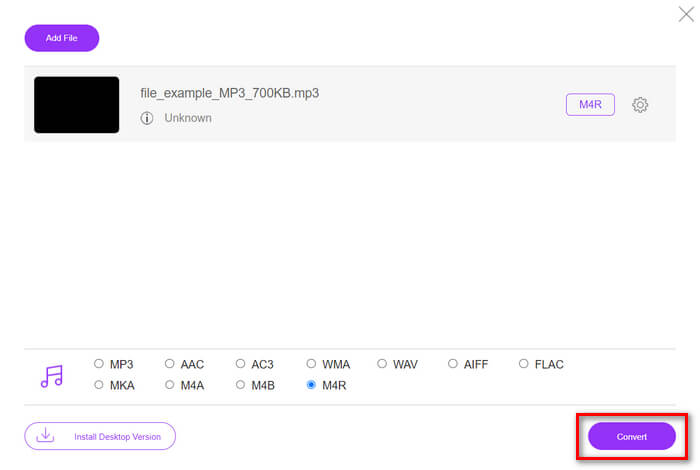
Krok 3. Na koniec, aby rozpocząć konwersję pliku MP3 na dzwonek, kliknij przycisk Convert. Przekonwertowany plik zostanie zapisany bezpośrednio na Twoim komputerze.
Jeśli szukasz darmowej internetowej metody, aby przekonwertować MP3 na M4R jako dzwonek na iPhone’a, FVC Free Audio Converter będzie doskonałym wyborem. Jego intuicyjny interfejs upraszcza proces konwersji, a obsługa wielu formatów audio zapewnia zgodność z różnymi typami plików.
Część 4. Jak przenieść przekonwertowane dzwonki z komputera na iPhone’a
Teraz, gdy udało Ci się w końcu przekonwertować pliki MP3 na dzwonki na komputerze, najszybszym sposobem na ich przeniesienie na iPhone'a będzie użycie iTunes.
Oto jak przenieść przekonwertowane dzwonki na iPhone’a za pomocą iTunes:
Krok 1. Otwórz iTunes na komputerze i podłącz iPhone’a kablem USB.
Krok 2. Przeciągnij przekonwertowany plik dzwonka do biblioteki iTunes. Upewnij się, że pojawia się w sekcji Tones (Dzwonki).
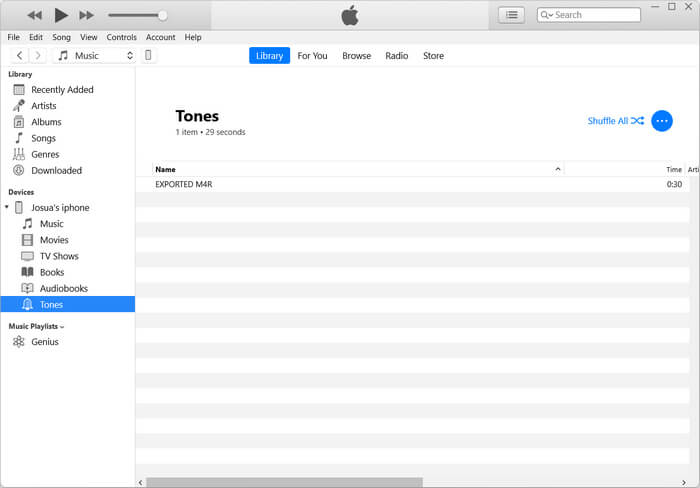
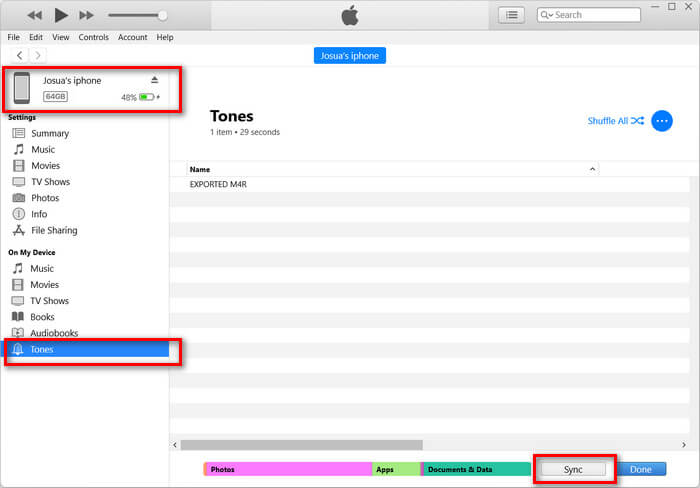
Krok 3. Wybierz ikonę swojego iPhone’a w iTunes, przejdź do zakładki Tones i zaznacz Sync Tones. Następnie wybierz zaimportowany plik dzwonka i kliknij Apply, aby zsynchronizować.
Krok 4. Teraz na iPhonie przejdź do Ustawienia (Settings), wybierz Sounds & Haptics, stuknij Ringtone i wybierz nowy dzwonek.
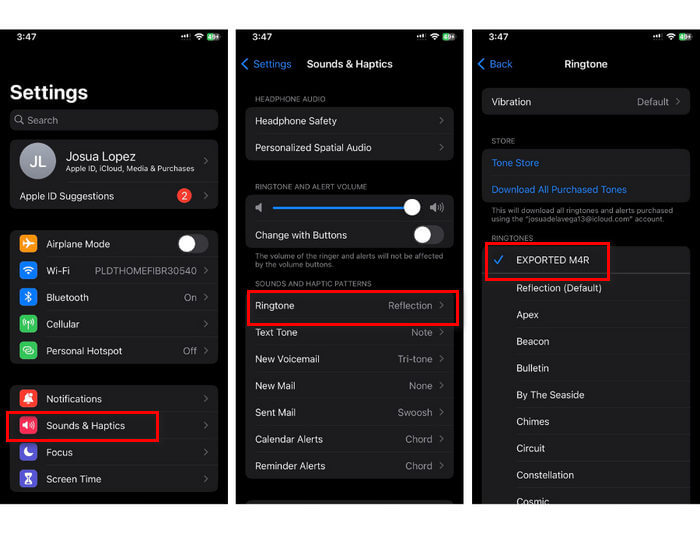
Oto i masz. Teraz możesz łatwo przenieść i użyć przekonwertowanego MP3 jako dzwonka na swoim iPhonie, nadając swojemu urządzeniu osobisty charakter dzięki swoim ulubionym dźwiękom.
Część 5. Często zadawane pytania dotyczące konwersji plików MP3 na dzwonki
Jaka jest najlepsza strona z darmowymi dzwonkami?
Wiele stron internetowych oferuje darmowe dzwonki, ale niektóre popularne i niezawodne to Zedge, Mobile9 i Tones7. Strony te oferują szeroką gamę dzwonków, które możesz pobrać i używać na swoim telefonie.
W jakim formacie można zapisać plik MP3 na dzwonku iPhone'a?
Format dzwonka iPhone'a to M4R. Podczas konwersji pliku MP3 do użycia jako dzwonek na iPhonie, musi on zostać zapisany w formacie M4R.
Jak dodać plik MP3 do dzwonka iPhone'a?
Aby dodać MP3 do dzwonka iPhone'a, musisz najpierw przekonwertować plik MP3 na M4R za pomocą narzędzia konwertującego, takiego jak FVC-wybrany Video Converter Ultimate. Po przekonwertowaniu pliku MP3 użyj iTunes, aby przenieść go na iPhone'a i używać jako nowego dzwonka.
Wniosek
Możesz teraz użyć swoich ulubionych plików MP3 i stworzyć dzwonek dla iPhone’a. Wystarczy wybrać narzędzie do konwersji, które najlepiej odpowiada Twoim potrzebom. Każde z nich oferuje prosty sposób, aby przekonwertować MP3 na dzwonek w iPhonie. Na co więc czekasz? Zacznij tworzyć swój niepowtarzalny dzwonek już teraz i spraw, by Twój iPhone naprawdę był „Twój”!
-
 MOV VS MP4 - Który wybierzesz?
 MOV VS MP4, który z nich jest lepszy? Ten post wyjaśnia różnicę między MP4 i MOV, dzięki czemu możesz uzyskać lepszy wybór do wykorzystania w plikach wideo.
-
 FLAC vs. MP3: Który format plików audio króluje
 W tym poście porównamy kluczowe różnice między FLAC a MP3. Obejmuje to jakość dźwięku, rozmiar pliku, kompatybilność i wiele innych.
-
 Jak przekonwertować MP3 na M4A w celu uzyskania lepszej jakości dźwięku
 Popraw jakość swoich plików muzycznych, konwertując MP3 na M4A, korzystając z porad i wskazówek naszych ekspertów. Nasz przewodnik zawiera instrukcje krok po kroku i zalecane oprogramowanie.
