


 Video Converter Ultimate
 Nagrywarka ekranu
 Naprawa wideo
Konwertuj swój PPT do MP4 za pomocą 3 skutecznych metod
PPT to świetne narzędzie do prezentacji, czy to w szkole, pracy, itd. Czasami po prezentacji niektórzy mogą poprosić o kopię materiału PPT w celach informacyjnych.
Ważne jest jednak, aby pamiętać, że niektórzy ludzie nie mają dostępu do pliku, ponieważ nie mają zainstalowanej aplikacji lub narzędzia programowego na swoich urządzeniach. Dzięki temu większość prezenterów ma przekonwertowaną wersję MP4 prezentacji, aby łatwo udostępnić materiał wszystkim.
Jeśli więc szukasz sposobu, aby przekonwertować swój plik PPT na MP4 w celu szybkiego udostępniania i łatwego dostępu do treści, jesteś we właściwym miejscu. Czytaj dalej ten artykuł i poznaj 3 różne metody, dzięki którym możesz zmienić swój plik PPT w wideo.

Część 1: Jak przekonwertować PowerPoint do MP4 w PPT
Używając prezentacji PowerPoint, użytkownicy mogą łatwo przekonwertować swój PPT na MP4. To świetna wbudowana funkcja dla wygody i elastyczności.
Krok 1. Otwórz swoją prezentację w programie PowerPoint zainstalowanym na Twoim urządzeniu.
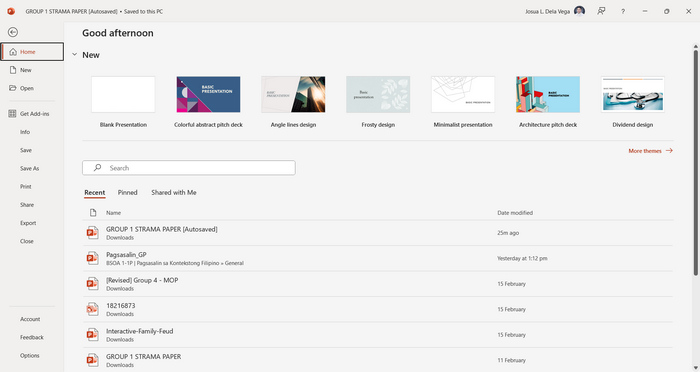
Krok 2. Przejdź do zakładki Plik, znajdź przycisk Eksportuj i kliknij go.
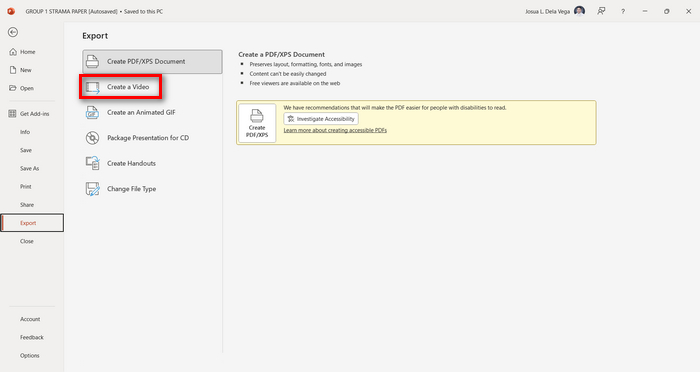
Krok 3. Gdy będziesz już w zakładce Eksportuj, kliknij opcję Utwórz wideo.
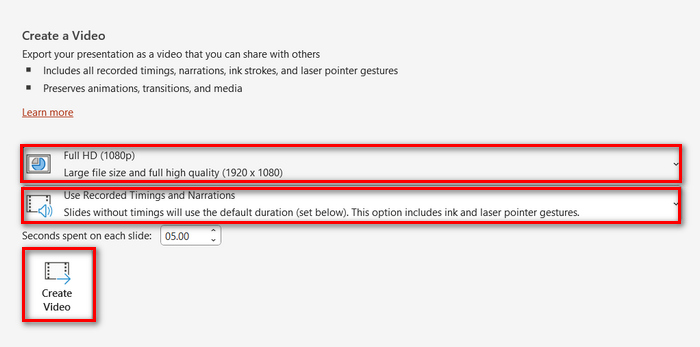
Krok 4. Teraz ustaw preferowaną rozdzielczość wideo. Możesz wybrać od 480p do 4K. Ponadto, w opcji Użyj nagranych chronometraży i narracji możesz ręcznie ustawić czas wyświetlania slajdów. Następnie kliknij przycisk Utwórz wideo.
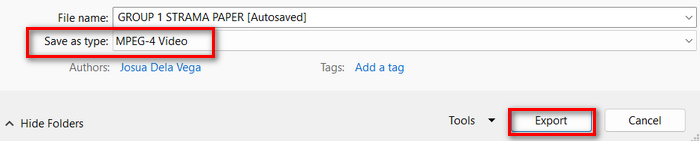
Krok 5. Po kliknięciu przycisku Utwórz wideo pojawi się nowe okno, w którym możesz sprawdzić format wynikowego pliku oraz miejsce jego zapisania. Po ustawieniu wszystkiego kliknij przycisk Eksportuj i poczekaj na zakończenie procesu.
Konwersja PowerPoint do MP4 z użyciem wbudowanej funkcji jest rzeczywiście wygodna. Brakuje jej jednak możliwości rozbudowanej personalizacji, jeśli chcesz dodać muzykę w tle. Niemniej jednak, jeśli Twoim celem jest jedynie udostępnianie prezentacji, nie będzie to dla Ciebie problemem.
Część 2: Konwertuj PPT na MP4 z dźwiękiem online za darmo
Jeśli masz plik PPT i chcesz go przekonwertować online, ponieważ nie masz aplikacji ani narzędzia do prezentacji PowerPoint na swoim urządzeniu, możesz użyć MagicSlides. To narzędzie do konwersji online pozwala łatwo przekonwertować PowerPoint na MP4, po prostu importując plik do swojego systemu.
Krok 1. Prześlij plik PPT, który chcesz przekonwertować na MP4, klikając przycisk Upload your source file.
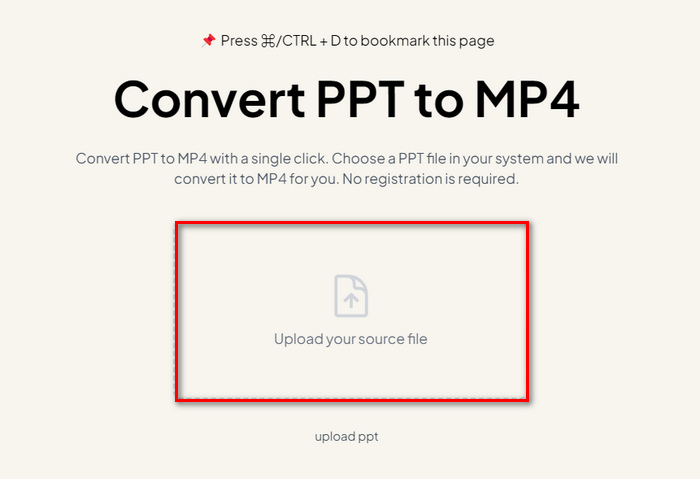
Krok 2. Gdy plik zostanie zaimportowany, kliknij przycisk Create MP4, aby rozpocząć proces konwersji.
Krok 3. Po zakończeniu możesz najpierw obejrzeć podgląd przekonwertowanego pliku PPT, a gdy będziesz zadowolony z rezultatu, kliknij przycisk Download, aby zapisać go bezpośrednio na swoim urządzeniu.
Chociaż to narzędzie oferuje bardzo proste kroki konwersji PPT do MP4, importowanie plików PPT zajmuje dużo czasu, co może być niepokojące, zwłaszcza gdy się spieszysz. Ponadto nie ma żadnych opcji dostosowywania. Po prostu dosłownie przekształca pliki PPT w wideo.
Część 3: Jak przekonwertować PPT na MP4 z efektami i dźwiękiem
Jeśli chcesz przekonwertować swój PPT na MP4, ale tym razem z efektami i dźwiękiem, to ta opcja jest właśnie dla Ciebie. Dzięki FVC Screen Recorder możesz zamienić swoją prezentację PowerPoint w kreatywny i interaktywny plik MP4, korzystając z jego funkcji edycyjnych. Co więcej, nie musisz martwić się o jakość wyjściową, ponieważ narzędzie obsługuje rozdzielczość wideo do 4K. Aby z niego skorzystać, postępuj zgodnie z poniższą instrukcją:
Krok 1. Najpierw pobierz narzędzie i zainstaluj je na swoim komputerze.
Bezpłatne pobieranieDla Windows 7 lub nowszegoBezpieczne pobieranie
Bezpłatne pobieranieDla MacOS 10.7 lub nowszegoBezpieczne pobieranie
Krok 2. Otwórz swoją prezentację PowerPoint i upewnij się, że jest wyświetlana na pełnym ekranie.
Krok 3. Następnie w narzędziu do nagrywania ekranu wybierz funkcję Video Recorder i ustaw obszar nagrywania na Full.
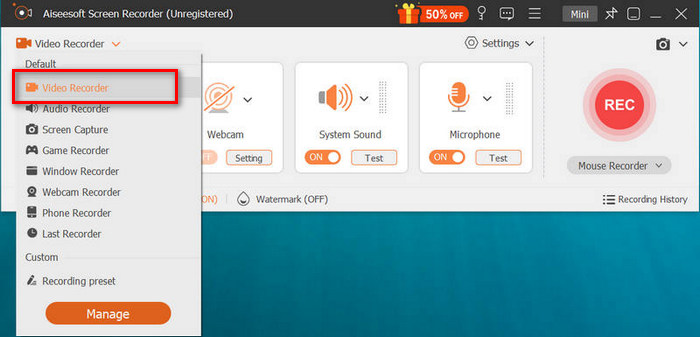
Krok 4. Po tym rozpocznij odtwarzanie pokazu slajdów PowerPoint. Jednocześnie kliknij przycisk REC, aby rozpocząć nagrywanie prezentacji.
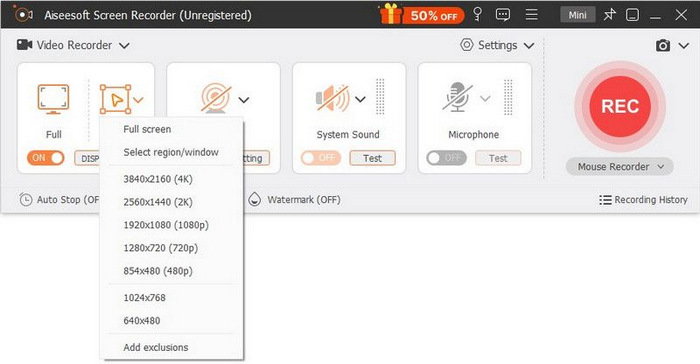
Krok 5. Po zakończeniu kliknij przycisk Stop, a zostaniesz przeniesiony do interfejsu podglądu. Tam, w dolnym rogu, znajdziesz funkcje edycji, z których możesz skorzystać, aby edytować dźwięk i efekty podczas konwertowania PPT na MP4.

Krok 6. Na koniec możesz uzyskać dostęp do swojego pliku, klikając przycisk Open Folder.
Dobrą rzeczą w korzystaniu z FVC Screen Recorder w celu przekształcenia PowerPointa w MP4 jest to, że możesz kontrolować czas i tempo slajdów. Ponadto, w przeciwieństwie do innych narzędzi, które oferują tylko podstawową konwersję, to narzędzie ma funkcje edycji, które można wykorzystać do dalszego ulepszania przekonwertowanego pliku MP4.
Część 4: Często zadawane pytania dotyczące konwersji PPT do MP4
Ile czasu zajmuje konwersja PPT do MP4?
Czas procesu konwersji zależy od rozmiaru konwertowanego pliku. Ale zwykle proste prezentacje nie zajmują dużo czasu podczas konwersji.
Czy mogę zachować animacje i przejścia podczas konwersji pliku PPT do formatu MP4 w formacie PPT?
Tak. Wbudowana funkcja pozwala użytkownikom zachować animacje i przejścia podczas procesu konwersji. Ma to na celu zapewnienie, że elementy wizualne w prezentacji, takie jak przejścia i animacje, zostaną zachowane podczas konwersji do formatu MP4. Należy jednak pamiętać, że zgodność animacji i przejść może się różnić w zależności od używanej wersji programu PowerPoint i złożoności zastosowanych efektów.
Czy jakość mojej prezentacji PowerPoint zostanie zachowana po konwersji do formatu MP4?
Tak. Prezentacja PowerPoint obsługuje rozdzielczość wideo do 4K. Dlatego wybór wyższej rozdzielczości pomoże utrzymać jakość prezentacji. Ponadto, gdy zdecydujesz się przekonwertować PPT do MP4 za pomocą zaawansowanego narzędzia konwertującego, które oferuje opcje dostosowywania ustawień szybkości transmisji i kompresji w celu dalszej optymalizacji jakości wideo, możesz zagwarantować sobie wysokiej jakości wyjście.
Wniosek
Konwersja formatu PPT na MP4 rzeczywiście zapewnia wygodę i łatwy dostęp do udostępniania pliku na różnych platformach i urządzeniach. Teraz, gdy wiesz już, jak je konwertować, czas wcielić tę wiedzę w życie. Zacznij konwertować już dziś i zwiększ zasięg oraz wpływ swoich prezentacji!
-
 Jak zmienić rozmiar obrazu w programie PowerPoint [Najszybszy sposób na zmianę rozmiaru]
 Nauka zmiany rozmiaru obrazów w programie PowerPoint jest niezbędna, zwłaszcza jeśli chcesz użyć go w prezentacji. Przeczytaj ten artykuł, aby dowiedzieć się, jak to zrobić.
-
 Recenzja narzędzia do usuwania znaków wodnych Apowersoft — funkcje, zalety i wady oraz cena
 Apowersoft Watermark Remover to jeden z najlepszych usuwania znaków wodnych, który obsługuje online i offline, kliknij to, aby dowiedzieć się więcej!
-
 Jak naprawić brak odtwarzania wideo w programie PowerPoint | Szybka porada
 Czy Twój film w programie PowerPoint nie jest odtwarzany? Pokonaj frustrację związaną z nieodtwarzaniem osadzonych filmów dzięki pięciu najlepszym rozwiązaniom, które pozwolą Ci rozwiązać ten problem bez wysiłku.
