


 Video Converter Ultimate
 Nagrywarka ekranu
 Naprawa wideo
Łatwe metody konwersji DV na MP4 online i offline
Format DV był wcześniej najpopularniejszym formatem plików w prawie wszystkich kamerach, ponieważ przechowuje świetnej jakości wideo do oglądania i edycji. Jednak ten typ pliku nie jest już powszechnie używany w obecnych czasach. Niektóre programy go nie obsługują, co jest problemem dla użytkowników mających pliki wideo DV. Jeśli jednak chcesz odtwarzać swoje filmy we wszystkich programach, musisz przekonwertować plik DV na najpopularniejszy obecnie format, czyli MP4. Masz szczęście, ponieważ w tym artykule przedstawimy najskuteczniejsze metody konwersji DV na MP4 z użyciem znakomitych konwerterów. Przeczytaj ten artykuł, aby poznać wszystkie niezbędne szczegóły.

Część 1: Różnice między DV a MP4
Zanim przystąpimy do procesu konwersji plików, zobaczmy najpierw różnice pomiędzy plikiem DV, a formatem MP4.
| Plik | DV | MP4 |
| Rozszerzenie pliku | .dv | .mp4 |
| Pełne imię i nazwisko | Wideo cyfrowe | MPEG-4 |
| Opis | Główni producenci sprzętu wideo stworzyli DV w 1995 roku jako cyfrowy format magnetycznego zapisu wideo i metodę kompresji wideo. Format DV wykorzystuje 8-bitowy cyfrowy komponentowy sygnał wideo o rozdzielczości 720 × 576 pikseli. Sekwencja DIF zawierająca dane wideo, audio i subkodu jest używana do przesyłania danych. W obszarze usług rejestrowana jest godzina i data. | Standardy wideo MPEG-4 i audio AAC wspólnie definiują rozszerzenie MP4. Kontener może pomieścić dowolne multimedia, w tym grafikę 2D i 3D, dźwięk, wideo i napisy. W systemie Windows praktycznie każdy odtwarzacz może odtwarzać pliki MP4, ale na komputerze Mac potrzebujesz wtyczki lub przekonwertuj plik MP4 na inny format. |
| Deweloper | Sony i Panasonica | Grupa ekspertów ds. ruchomych obrazów |
| Typ MIME | wideo/x-dv | wideo/mp4 |
| Powiązane programy | QuickTime Player Windows Movie Maker Vlc media player | Vlc media player MPlayer QuickTime Player Windows Media Player Filmy i telewizja firmy Microsoft |
Część 2: Najlepszy sposób na konwersję DV na MP4 online
Konwersja DV do MP4 online jest trudna, zwłaszcza gdy nie wiesz, z jakiej aplikacji możesz korzystać i której zaufać. Jednak dzięki FVC Free Video Converter Online możesz szybko i natychmiast przekształcić plik DV w format MP4. To narzędzie online obsługuje różne formaty wideo, takie jak AVI, FLV, M4V, VOB, WMA, MOV, TS i inne. Ma także prosty sposób działania – możesz konwertować pliki za pomocą zaledwie kilku kliknięć. Dodatkowo, jeśli planujesz połączyć wiele plików DV w jeden plik MP4, możesz użyć tego konwertera, ponieważ oferuje on wsadową konwersję plików. Możesz również korzystać z tego narzędzia we wszystkich przeglądarkach, takich jak Google Chrome, Mozilla Firefox, Safari, Microsoft Edge i innych, co czyni je jeszcze wygodniejszym dla wszystkich. Dzięki tym funkcjom można uznać ten konwerter online za jedną z najbardziej wyjątkowych aplikacji, z jakich możesz skorzystać. Postępuj zgodnie z prostą instrukcją poniżej, aby dowiedzieć się, jak przekonwertować plik DV na format MP4 za pomocą FVC Free Video Converter Online.
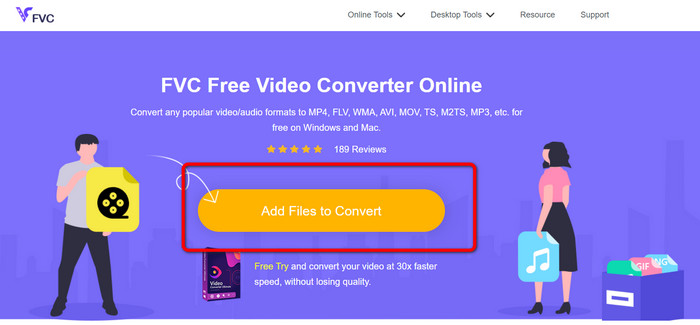
Krok 1: Najpierw otwórz przeglądarkę i przejdź na stronę FVC Free Video Converter Online. Następnie na środku strony głównej kliknij przycisk Add Files to Convert, aby wczytać swój plik wideo DV.
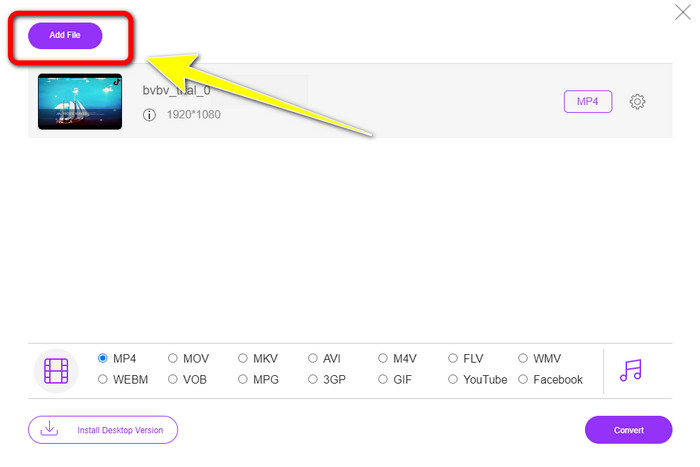
Krok 2: Jeśli chcesz przekonwertować wiele plików DV do jednego pliku MP4, kliknij przycisk Add File w lewym górnym rogu interfejsu, aby dodać więcej plików.
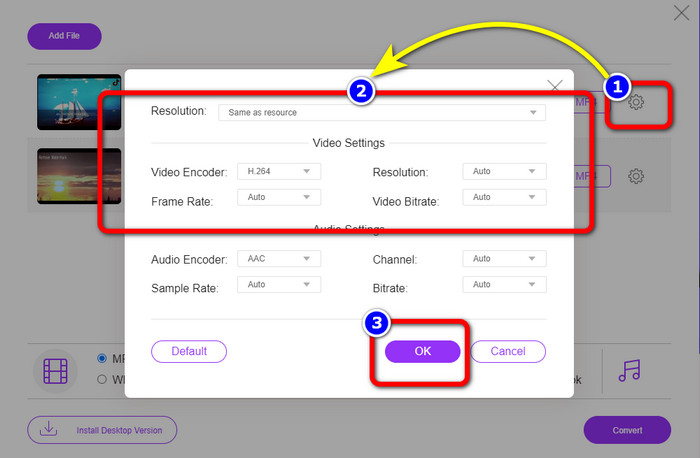
Krok 3: Kliknij ikonę Setting, aby dostosować bitrate, liczbę klatek na sekundę oraz rozdzielczość wideo. Następnie, gdy zakończysz zmiany zgodnie ze swoimi preferencjami, kliknij OK.
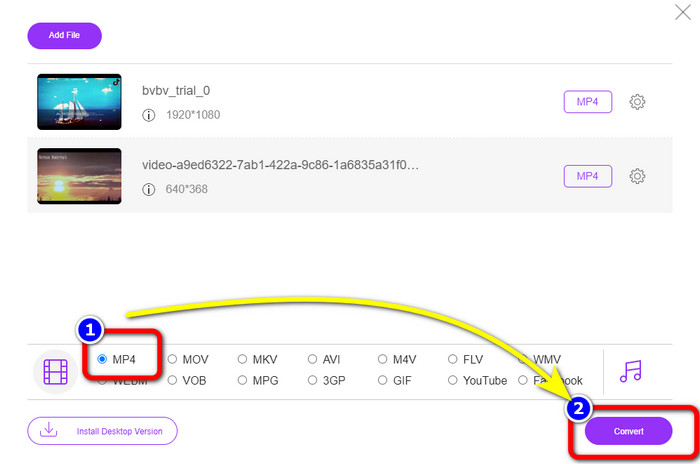
Krok 4: Po wprowadzeniu wszystkich zmian przejdź do dolnej części interfejsu, aby zobaczyć dostępne formaty wyjściowe. Wybierz format MP4 i naciśnij Convert, aby rozpocząć proces konwersji.
Część 3: Jak bezstratnie przekonwertować DV na MP4
Jeśli chodzi o konwerter offline, możesz użyć programu Video Converter Ultimate, aby bezstratnie przekonwertować DV na MP4 na Macu i Windows. Możesz konwertować różne pliki wideo bez utraty jakości. Ponadto, korzystając z tej aplikacji, możesz konwertować wiele plików jednocześnie, ponieważ oferuje ona wsadową konwersję. To narzędzie offline obsługuje również liczne formaty wideo, takie jak MOV, AVI, FLV, M4V, SWF, MTS, MKV, WMV, VOB i ponad 100 innych. Dodatkowo Video Converter Ultimate zapewnia prędkość konwersji do 30 razy wyższą niż przeciętna, co sprawia, że jest bardzo wygodny dla wszystkich użytkowników. Co więcej, większość użytkowników preferuje prostą metodę konwersji plików. Ta aplikacja oferuje prosty interfejs z wyjątkowo nieskomplikowanym sposobem konwertowania filmów. Możesz także edytować swoje nagrania w trakcie konwersji, ponieważ program posiada narzędzia do edycji. Jeśli chcesz przekonwertować mini DV na format pliku MP4, skorzystaj z poniższej szczegółowej instrukcji z użyciem Video Converter Ultimate.
Krok 1: Pobierz i zainstaluj Video Converter Ultimate na Macu lub Windows, klikając przycisk Download. Po instalacji uruchom program.
Bezpłatne pobieranieDla Windows 7 lub nowszegoBezpieczne pobieranie
Bezpłatne pobieranieDla MacOS 10.7 lub nowszegoBezpieczne pobieranie
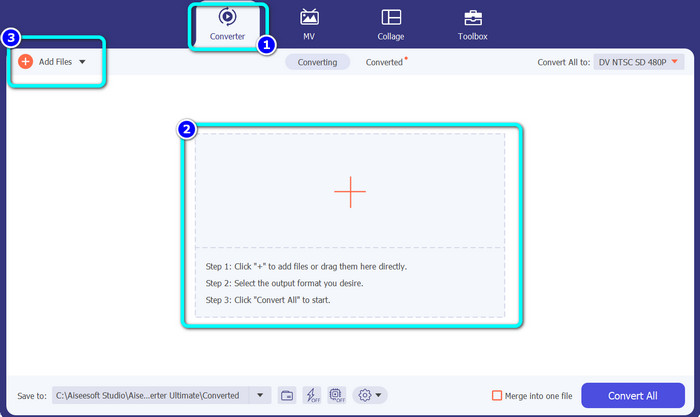
Krok 2: Naciśnij zakładkę Converter i wybierz ikonę Plus, aby dołączyć plik DV. Możesz też kliknąć przycisk Add Files lub upuścić plik bezpośrednio w wyznaczonym obszarze.
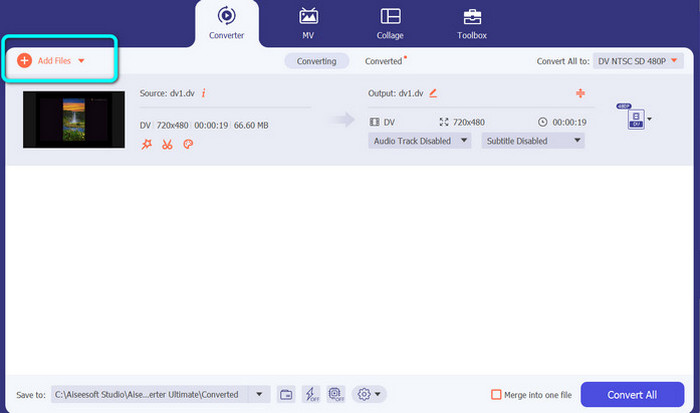
Krok 3: Jeśli chcesz przeprowadzić wsadową konwersję, kliknij przycisk Add Files, aby dodać więcej plików wideo DV.
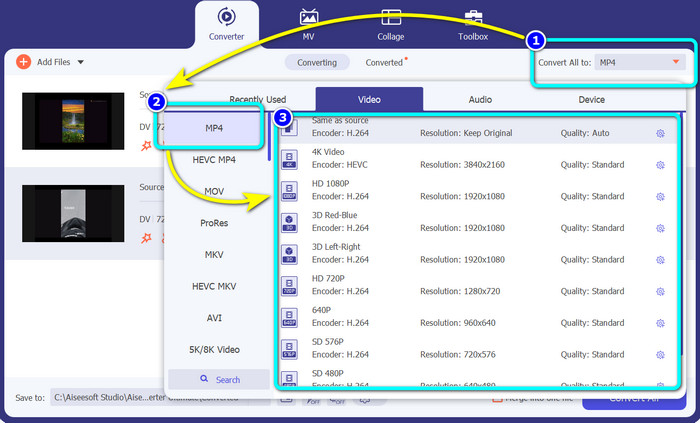
Krok 4: Po dodaniu kolejnego pliku DV zmień ich format wyjściowy, klikając przycisk Convert All to. Pojawią się opcje formatów – wybierz format MP4. Następnie wybierz żądaną rozdzielczość.
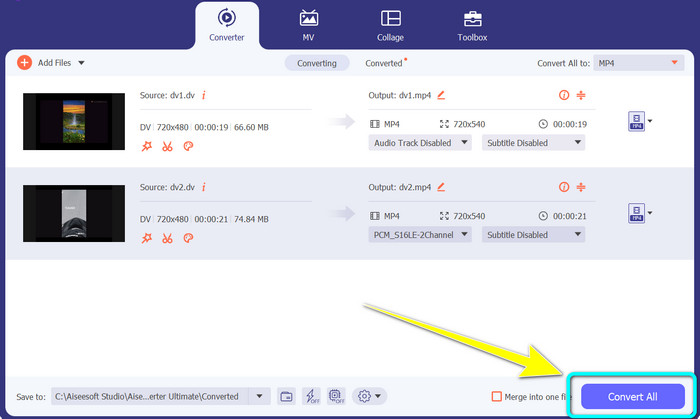
Krok 5: Na koniec rozpocznij proces konwersji, klikając przycisk Convert All. Następnie zapisz swój plik wideo w wybranej lokalizacji.
Część 4: Łatwa metoda konwersji DV na MP4 za pomocą darmowego oprogramowania
W tej części dowiesz się, jak przekonwertować DV na MP4 za pomocą hamulca ręcznego. To narzędzie offline jest również w stanie konwertować pliki wideo, takie jak MP4, MKV, WEBM itp. Oferuje również proces konwersji wsadowej. Jednak korzystanie z tego narzędzia nie jest łatwe. Ma wiele opcji w interfejsie, co jest trudne do zrozumienia, szczególnie dla początkujących. Wykonaj poniższe czynności, aby przekonwertować DV na MP4.
Krok 1: Pobierz aplikację Handbrake na swój komputer. Następnie ją uruchom.
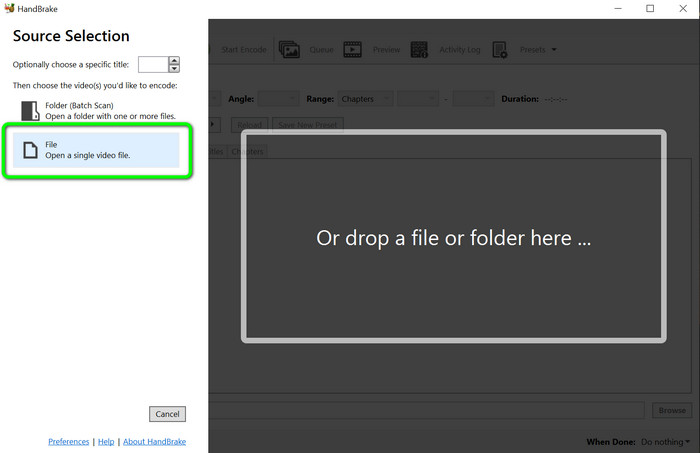
Krok 2: Po otwarciu aplikacji wybierz przycisk File, aby dodać plik DV.
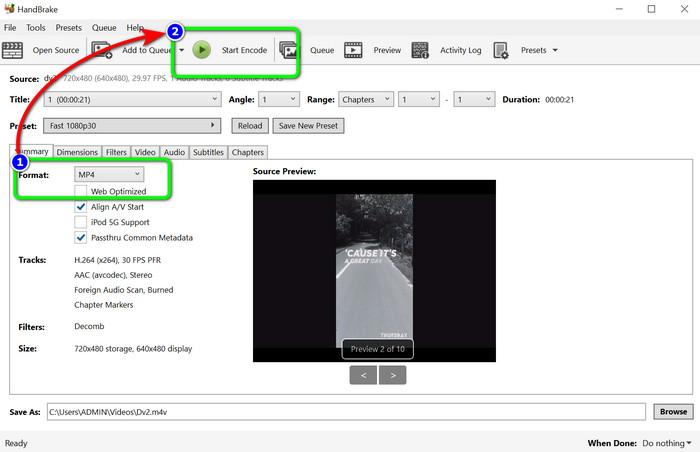
Krok 3: Z listy formatów wybierz format pliku MP4. Następnie kliknij przycisk Start Encode, aby rozpocząć proces konwersji.
Dalsza lektura:
2 najlepsze sposoby na darmową konwersję plików DV do MOV na komputerze i online
Przydatne konwertery DV na FLV do konwersji DV do FLV [2023]
Część 5: Często zadawane pytania dotyczące konwersji DV na MP4
1. Czy VLC może odtwarzać pliki DV?
Tak! VLC Media Player obsługuje format plików DV, dzięki czemu możesz odtwarzać swoje filmy w tym programie.
2. Które oprogramowanie online jest najlepsze do konwersji wideo?
Możesz skorzystać z FVC Free Video Converter Online. To narzędzie online pozwala z łatwością konwertować Twoje filmy. Możesz także wykonywać konwersję wsadową i edytować bitrate, liczbę klatek na sekundę oraz rozdzielczość wideo.
3. Jaka jest standardowa rozdzielczość pliku DV?
Standardowa rozdzielczość pliku DV to 720 pikseli w poziomie i 480 linii z przeplotem. Standardem wysokiej rozdzielczości DV jest 720 i 1080 linii.
Wniosek
Jak pokazano powyżej, są to najlepsze metody konwersji DV na MP4 online i offline. Do konwersji plików online możesz użyć FVC Free Video Converter Online. Z kolei do szybszej konwersji offline użyj Video Converter Ultimate.
-
 Najlepsze i bezpłatne sposoby konwersji DV na WMV [online i offline]
 Dowiedz się, jakie są najlepsze sposoby na bezproblemową konwersję DV do WMV. Chcieć wiedzieć więcej? Przeczytaj ten artykuł, aby dowiedzieć się więcej o DV i WMV.
-
 Jak przekonwertować F4V na MP4 za pomocą najskuteczniejszych metod
 Czy Twoje filmy F4V nie są dobrej jakości? Następnie przekształć go w plik MP4. Ten post zaoferuje najlepszy sposób konwersji F4V na MP4 online i offline
-
 Pięć popularnych podejść do konwersji Xvid na format MP4
 Rzuć okiem na te niesamowite metody konwersji Xvid na format pliku MP4 w tym artykule. Poznasz też najlepsze aplikacje, których możesz użyć do konwersji
