


 Video Converter Ultimate
 Nagrywarka ekranu
 Naprawa wideo
Konwertuj JPG do MP4 na Windows/Mac bez utraty jakości
JPG jest najpopularniejszym formatem obrazu i używamy go do różnych celów, od udostępniania zdjęć online po przechowywanie cyfrowych migawek na naszych urządzeniach. Dzięki powszechnej kompatybilności i stosunkowo niewielkiemu rozmiarowi pliku JPG stał się wyborem do przechwytywania i zachowywania wizualnych wspomnień w życiu codziennym.
Ale obecnie tworzenie filmów ze zdjęć staje się coraz popularniejsze. To także inny sposób na zapisywanie wspomnień w bardziej kreatywny i emocjonalny sposób. Możesz dodać dźwięk, przejścia albo po prostu stworzyć zwykły pokaz slajdów w formacie MP4 z ulubioną muzyką w tle. Jeśli więc podoba ci się ten pomysł i planujesz przekształcić JPG w MP4, czytaj dalej ten artykuł i poznaj 4 różne metody konwersji bez utraty jakości. Uwolnij dziś drzemiącą w tobie kreatywność!

Część 1: Najlepszy sposób na konwersję JPG do MP4 w systemie Windows/Mac [Najlepszy dla początkujących]
Najlepszym sposobem na konwersję JPG do MP4 jest użycie programu FVC Video Converter Ultimate. To narzędzie ma specjalną funkcję o nazwie MV, która pozwala użytkownikom tworzyć wysokiej jakości filmy MP4 ze zdjęć JPG. Do dyspozycji masz gotowe motywy, z których możesz swobodnie korzystać, a także różne efekty i filtry. Ponadto możesz łatwo obracać i przycinać pliki JPG przed wyeksportowaniem ich do formatu MP4. Najciekawsze w tym narzędziu jest to, że możesz zaimportować własny dźwięk, spersonalizować projekt znakiem wodnym i nie tylko. Co ważne, program nie jest przytłaczający w obsłudze, ponieważ ma bardzo intuicyjny i przyjazny dla użytkownika interfejs. Aby to zrobić, postępuj według poniższych kroków:
Krok 1. Najpierw pobierz program na Windows lub Mac, a następnie go zainstaluj.
Bezpłatne pobieranieDla Windows 7 lub nowszegoBezpieczne pobieranie
Bezpłatne pobieranieDla MacOS 10.7 lub nowszegoBezpieczne pobieranie
Krok 2. Następnie uruchom narzędzie i spośród 4 zakładek u góry kliknij MV.

Krok 3. Gdy znajdziesz się w głównym interfejsie MV, kliknij przycisk Add File, aby dodać pliki JPG, które chcesz przekonwertować na MP4.

Krok 4. Aby dodać, edytować i przycinać wideo MP4, kliknij przycisk w górnej części przycisku Add File. Możesz też wybrać gotowy motyw, klikając zakładkę Theme u góry.

Krok 5. Aby przycinać i obracać obrazy, dodawać filtry i efekty oraz dodać znak wodny, by lepiej spersonalizować projekt, kliknij ikonę Edit poniżej – otworzy się nowe okno.

Krok 6. Gdy wszystko będzie gotowe, kliknij przycisk Export, w którym możesz zmienić format na MP4 oraz ustawić liczbę klatek, rozdzielczość i jakość. Możesz też wskazać folder, w którym ma zostać zapisany przekonwertowany plik JPG na MP4. Na końcu, aby zapisać plik, kliknij przycisk Start Export.

FVC Video Converter Ultimate upraszcza konwersję JPG do MP4 dzięki przyjaznemu użytkownikowi interfejsowi, konfigurowalnym funkcjom, wstępnie ustawionym motywom, narzędziom do edycji, wysokiej jakości wynikom i zgodności z systemami operacyjnymi Windows i Mac. To rzeczywiście najlepszy sposób na przekształcenie nudnych zdjęć w zabawne i kreatywne filmy.
Część 2: Konwersja JPG do MP4 w systemie Windows 11/10 za pomocą domyślnego narzędzia Photos
W systemach Windows 10 i 11 Clipchamp jest teraz zintegrowany z aplikacją Zdjęcia, która umożliwia użytkownikom konwersję plików JPG do MP4. Ta integracja ułatwia edycję, którą następnie można zapisać w formacie MP4. Aby Cię w tym poprowadzić, wykonaj poniższy proces krok po kroku:
Krok 1. Na komputerze z Windows przejdź do Menu Start, a następnie kliknij Zdjęcia (Photos).
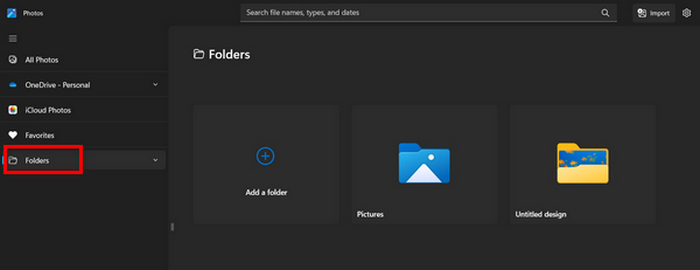
Krok 2. W aplikacji Zdjęcia przejdź do sekcji Folders w lewym panelu. Zostaniesz poproszony o dodanie folderu lub możesz po prostu wybrać zdjęcia z obrazów, które chcesz przekształcić w MP4.
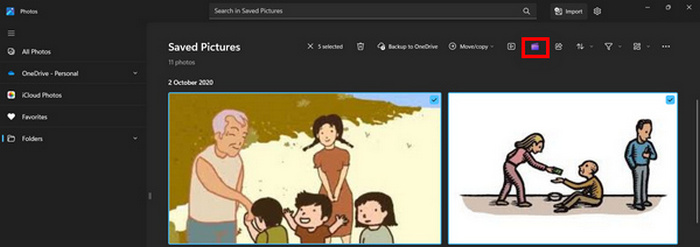
Krok 3. Po wybraniu zdjęć JPG, które chcesz przekonwertować, kliknij ikonę Create a video.
Krok 4. W nowym oknie pojawi się pytanie, czy chcesz dodać pliki multimedialne do tego wideo. Kliknij Yes to Add Video.

Krok 5. Teraz przeciągnij zaimportowane media na oś czasu. Możesz skorzystać z opcji edycji w lewym panelu, gdzie dodasz tekst, wybierzesz szablony i nie tylko. W prawym panelu (Right) możesz dodać dźwięk, efekty, filtry itd. Gdy skończysz, kliknij przycisk Export, a plik MP4 zostanie zapisany bezpośrednio na twoim komputerze.
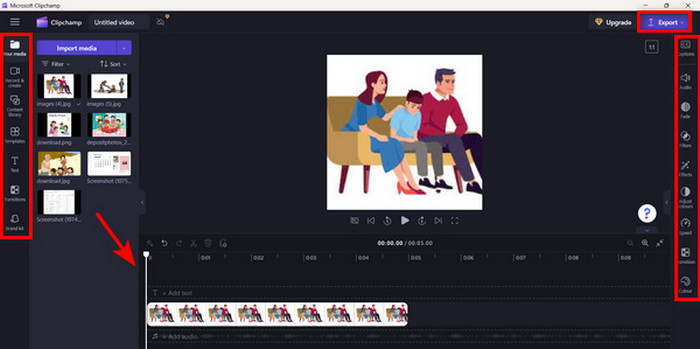
Jeśli jesteś użytkownikiem systemu Windows, ta metoda sprawia, że konwersja JPG do MP4 jest naprawdę szybka. Jednak ta metoda mogłaby być łatwiejsza w porównaniu do innych narzędzi. Ponadto nie możesz eksportować rozdzielczości wideo 2K/4K za pomocą jej bezpłatnej wersji i nie masz dostępu do innych dobrych efektów i filtrów w porównaniu do innych narzędzi do konwersji.
Część 3: Konwersja JPG do MP4 na komputerze Mac za pomocą iMovie
Jeśli jesteś użytkownikiem Maca, istnieje poręczne rozwiązanie do konwersji JPG do MP4. Mac ma wbudowaną aplikację o nazwie iMovie. Jest to aplikacja do edycji wideo, która oferuje podstawową edycję dla swoich użytkowników, ale poza tym może być również używana do konwersji plików JPG do MP4. Muszą oni po prostu zaimportować swoje obrazy, dodać efekty i filtry, a następnie zapisać je jako MP4.
Krok 1. Na komputerze Mac uruchom aplikację iMovie i kliknij Create New.
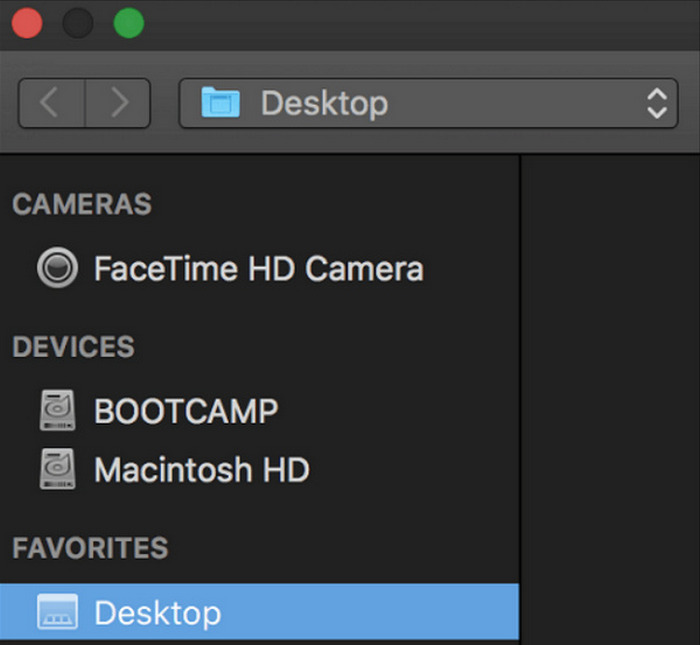
Krok 2. Następnie dodaj plik JPG do aplikacji, klikając przycisk Import Media w głównym interfejsie.
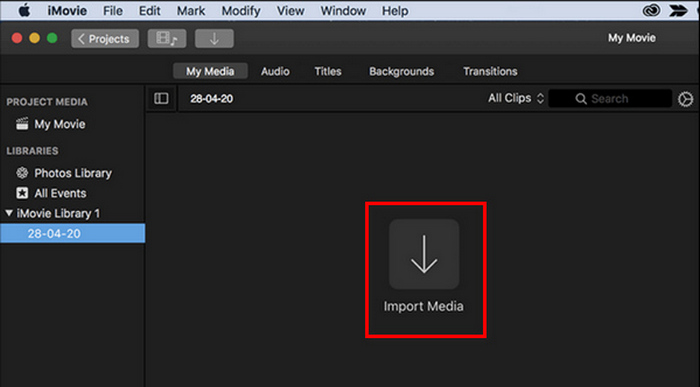
Krok 3. Wyszukaj teraz pliki JPG, które chcesz przekonwertować na MP4.
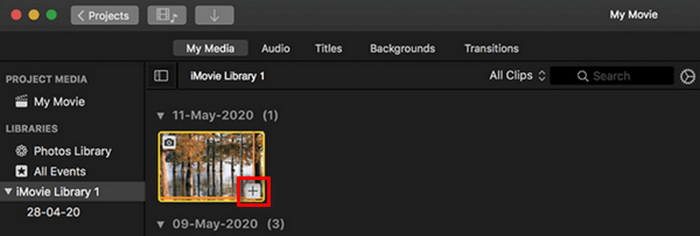
Krok 4. Gdy twój plik JPG pojawi się w interfejsie aplikacji, zaznacz go i zauważysz ikonę Plus. Kliknij ją, aby dodać zdjęcie do osi czasu.
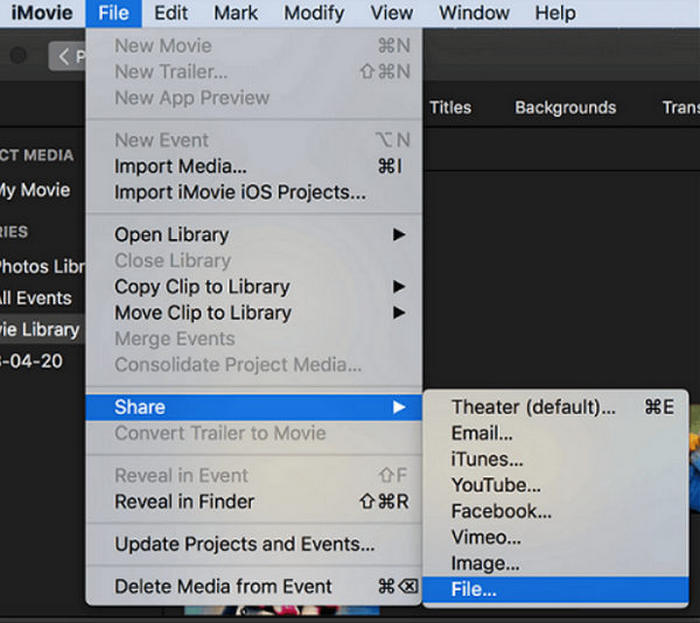
Krok 5. Po dodaniu plików JPG do osi czasu możesz przeciągnąć ich krawędzie, aby wydłużyć czas trwania końcowego pliku MP4. Następnie kliknij menu File u góry, wybierz Share, a potem File, aby wyeksportować plik.
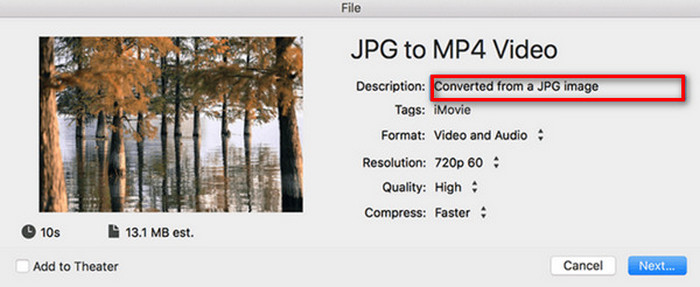
Krok 6. Na końcu nadaj nazwę plikowi MP4 u góry, wypełnij pozostałe pola metadanych wideo i kliknij Next. Wybierz docelową lokalizację zapisu pliku MP4, który chcesz utworzyć. Po wybraniu lokalizacji rozpocznie się proces konwersji.
iMovie oferuje użytkownikom Maca wygodny sposób konwertowania plików JPG na MP4 dzięki przyjaznemu interfejsowi i wbudowanym narzędziom edycyjnym. Może jednak brakować w nim zaawansowanych funkcji w porównaniu z innymi konwerterami, co ogranicza możliwości personalizacji i efekty. Choć nadaje się do podstawowej edycji, użytkownicy stają się coraz bardziej wymagający i kreatywni, szukając narzędzia, które rzeczywiście zaspokoi potrzeby i oczekiwania każdego. Dodatkowo ten program nie działa w systemie Windows. Jeśli lubisz iMovie, znajdź narzędzia typu iMovie dla Windows tutaj.
Część 4: Konwersja JPG do MP4 online
Teraz, jeśli szukasz innego sposobu na konwersję JPG do MP4, to konwersja online może być dla Ciebie. Jednym z najlepszych konwerterów online jest Online Convert.com. Możesz uruchomić to narzędzie z różnych przeglądarek na swoim komputerze i można go łatwo używać dzięki intuicyjnemu interfejsowi użytkownika.
Krok 1. W przeglądarce wyszukaj stronę Online Convert.com.
Krok 2. Po wejściu na stronę wybierz odpowiednie formaty. Ponieważ zamierzasz konwertować JPG na MP4, wybierz JPG z rozwijanego przycisku Convert oraz MP4 z rozwijanego przycisku To.
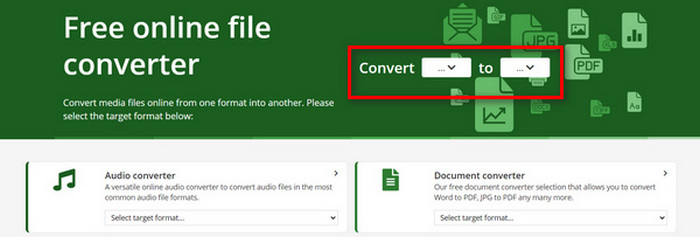
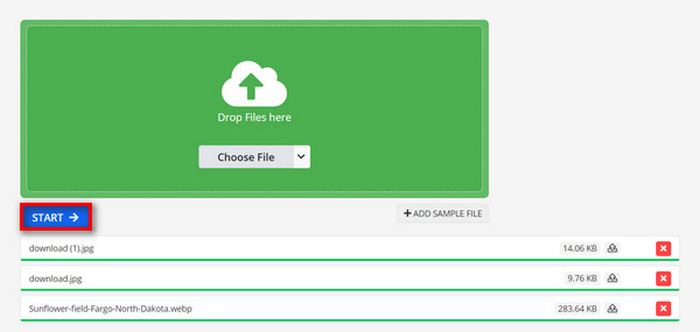
Krok 3. Następnie prześlij pliki JPG, które chcesz przekonwertować, klikając rozwijany przycisk Choose File, skąd możesz zaimportować pliki z urządzenia, Dropboxa, Dysku Google, a nawet z adresu URL.

Krok 4. Po przesłaniu plików JPG, które chcesz przekonwertować na MP4, kliknij przycisk Start.
Krok 5. Na końcu pobierz swój plik MP4, klikając przycisk Download.
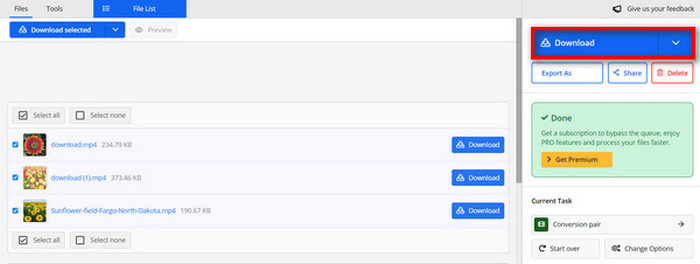
Przekonwertowane wyjście z tego narzędzia jest wynikiem wstępnie ustawionego ustawienia wideo, które użytkownicy ręcznie dostosowali przed konwersją plików. Podczas gdy to łatwo zamienia JPG na MP4, nie możesz bezpośrednio ulepszyć przekonwertowanego wideo w oparciu o swój styl kreatywny.
Część 5: Często zadawane pytania dotyczące konwersji JPG do MP4
Czy JPEG to to samo co JPG?
JPEG i JPG to w istocie ten sam format cyfrowego obrazu – obie nazwy rozszerzeń odnoszą się do formatu JPEG stworzonego przez Joint Photographic Experts Group (JPEG). Dowiedz się tutaj, jak przekonwertować JPEG na JPG.
Kiedy powinienem przekonwertować JPG na MP4?
Powinieneś przekonwertować JPG na MP4, gdy chcesz utworzyć prezentację wizualną lub udostępnić serię obrazów jako wideo, np. tworząc pokazy slajdów, cyfrowe albumy ze zdjęciami lub slajdy wideo. Poza tym, jeśli chcesz być kreatywny w kwestii tego, jak chcesz, aby Twoje pliki JPG były wyświetlane, to przekonwertowanie ich na MP4 jest najlepszym sposobem na dodawanie przejść, muzyki, nakładek tekstowych i innych elementów multimedialnych.
Jak połączyć formaty JPG i MP4?
Jedynym sposobem na połączenie JPG i MP4 jest użycie narzędzi do edycji wideo. Dzięki temu podejściu masz pełną kontrolę nad układem, czasem i dostosowaniem zarówno obrazów, jak i wideo, które chcesz połączyć.
Wniosek
Teraz twoja kolej! Konwertowanie JPG na MP4 to kolejny sposób na kreatywne zachowywanie wspomnień. Jeśli więc masz pliki JPG i chcesz je przekonwertować, skorzystaj ze wszystkich opisanych w tym artykule metod i wybierz tę, która najbardziej ci odpowiada. Zacznij już dziś i zobacz, jak działa magia!
-
 Top 5 wiodących samouczków do szybkiej konwersji PNG na JPG
 Jeśli chcesz przekonwertować plik PNG do formatu JPG, tutaj możesz poznać najlepsze sposoby. Dowiesz się również, jaka jest różnica między formatami plików PNG i JPG.
-
 Bezproblemowe metody konwersji SVG do formatu JPG
 Szukasz najlepszego sposobu na konwersję SVG na JPG? W tym poście znajdziesz kilka niezawodnych samouczków, które możesz wypróbować. Odkryjesz także konwerter SVG na JPG.
-
 Przydatne metody łatwej konwersji TIFF na JPG / PNG
 Nie przegap tych doskonałych sposobów przekształcania plików TIF w formaty JPG/PNG. Ten post zawiera niezbędne informacje, które musisz znać. Obejmuje ich różnice.
