


 Video Converter Ultimate
 Nagrywarka ekranu
 Naprawa wideo
Powszechnie używane metody konwersji Xvid na MP4 online i offline
Masz problemy z odtwarzaniem swoich filmów Xvid? W takim razie mamy dla Ciebie najlepsze rozwiązania. Najlepszym, co możesz zrobić, jest konwersja Xvid do innego, znakomitego formatu, takiego jak MP4. Dzięki temu nie napotkasz trudności podczas strumieniowego odtwarzania wideo. W tym artykule przedstawimy darmowy konwerter Xvid na MP4, z którego możesz skorzystać. To narzędzie pomoże Ci łatwo i natychmiastowo przekonwertować pliki wideo. Jeśli zainteresował Cię ten temat, przeczytaj kolejne części i wykorzystaj czas na naukę nowych rzeczy!

Część 1: Najprostszy sposób na konwersję Xvid na MP4 na komputerach Mac i Windows
Użyj Video Converter Ultimate, aby przekonwertować Xvid na MP4. Możesz korzystać z tego konwertera zarówno na komputerze Mac, jak i Windows. Przetwarza dane 30 razy szybciej niż inne konwertery. Co więcej, dzięki obsłudze konwersji wsadowej możesz połączyć liczne pliki Xvid w jeden format MP4. Dzięki tej funkcji konwersja plików jest łatwa i szybka. Dodatkowe typy plików wideo obsługiwane przez to narzędzie to m.in. AVI, FLV, MKV, MOV, VOB, WMV, M4V i ponad 100 innych. Jest odpowiedni dla użytkowników Xvid i MP4. Ponadto, dzięki przyjaznemu interfejsowi i prostym metodom konwersji, z tego konwertera mogą korzystać zarówno początkujący, jak i zaawansowani użytkownicy. Aby dowiedzieć się więcej o tym, czego można się spodziewać podczas korzystania z Video Converter Ultimate, zapoznaj się z dodatkowymi funkcjami wymienionymi poniżej.
Funkcje
◆ Konwertuj różne formaty plików wideo, takie jak Xvid, MP4, DIVX, M4V, FLV, AVI, MKV, WMV, SWF i inne.
◆ Jednoczesna konwersja wielu plików wideo.
◆ Oferuje niezwykle szybki proces konwersji, który jest 30 razy szybszy niż inne konwertery.
◆ Oferuje narzędzia do edycji wideo, w tym wzmacniacz wideo, kompresor, trymer, przycinanie, odwracanie itp.
Wykonaj szczegółowe kroki poniżej, aby przekonwertować Xvid na MP4 na komputerze Mac lub Windows za pomocą FVC Video Converter Ultimate.
Krok 1: Pobierz Video Converter Ultimate na komputer Mac lub z systemem Windows, klikając przycisk Download poniżej. Następnie, po zakończeniu instalacji, uruchom program.
Bezpłatne pobieranieDla Windows 7 lub nowszegoBezpieczne pobieranie
Bezpłatne pobieranieDla MacOS 10.7 lub nowszegoBezpieczne pobieranie
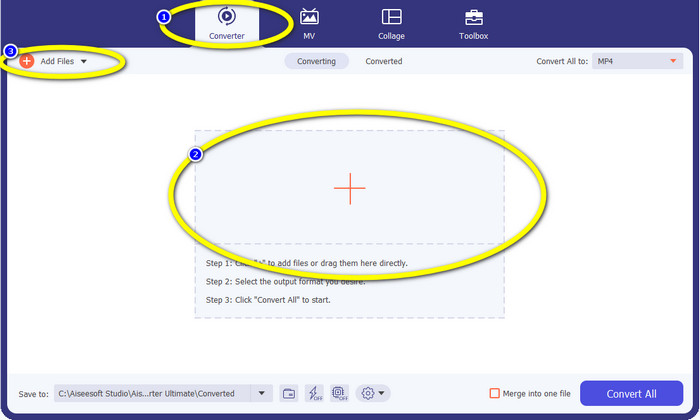
Krok 2: Gdy interfejs pojawi się już na ekranie, wybierz opcję Converter i kliknij ikonę +, aby dodać plik Xvid. Innym sposobem dodania pliku wideo jest kliknięcie przycisku Add Files.
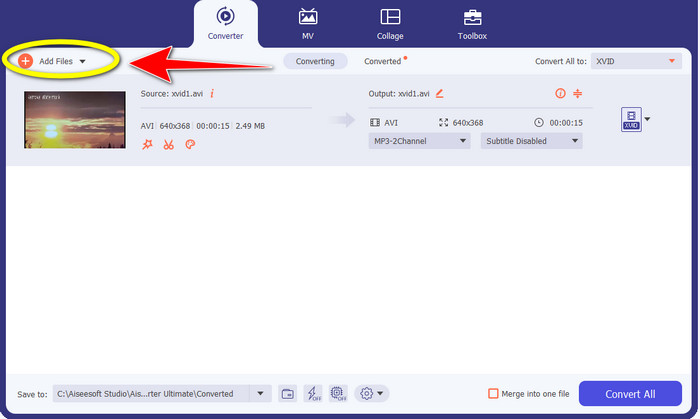
Krok 3: Ta aplikacja umożliwia konwersję wielu plików. Aby więc dodać kolejny film Xvid, który chcesz przekonwertować, kliknij przycisk Add Files w lewym górnym rogu interfejsu.
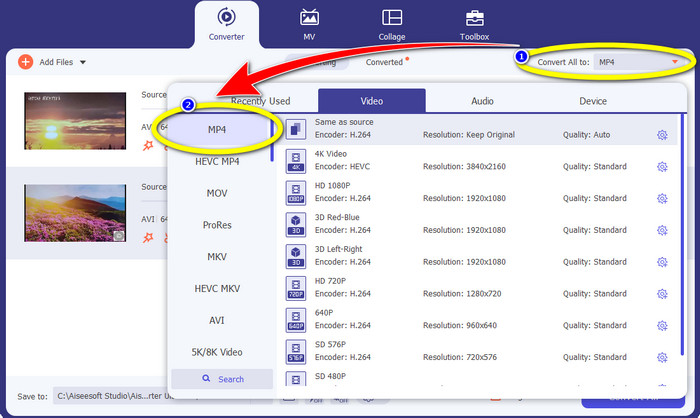
Krok 4: Następnie, aby przekonwertować je do jednego pliku MP4, kliknij przycisk Convert All to. Wybierz plik MP4 z listy formatów i ustaw preferowaną jakość wideo.
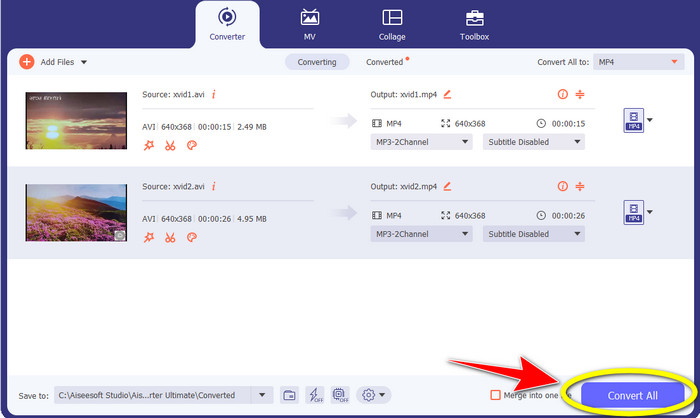
Krok 5: Po wybraniu docelowego formatu wyjściowego możesz przejść do procesu konwersji, klikając przycisk Convert All. Następnie zapisz wideo MP4 na swoim urządzeniu.
Część 2: Jak przekonwertować Xvid na MP4 na VLC
W tej części dowiesz się, jak przekonwertować Xvid na MP4 w programie VLC. Dodatkowo VLC Media Player oprócz odtwarzania wideo potrafi konwertować wiele plików wideo. Obsługuje formaty plików wideo, takie jak MP4, TS, WEM, OGG i inne. Ponadto może konwertować pliki audio, takie jak MP3, FLAC itd. Z tego względu VLC jest również godnym zaufania programem do konwersji różnych plików. Jednak to oprogramowanie nie jest odpowiednie dla początkujących. Ma trudny do zrozumienia interfejs, co sprawia, że jest bardziej skomplikowane w obsłudze. Dodatkowo pobieranie i instalacja na komputerze zajmuje sporo czasu.
Krok 1: Pobierz i zainstaluj VLC Media Player na komputerze. Następnie uruchom program.
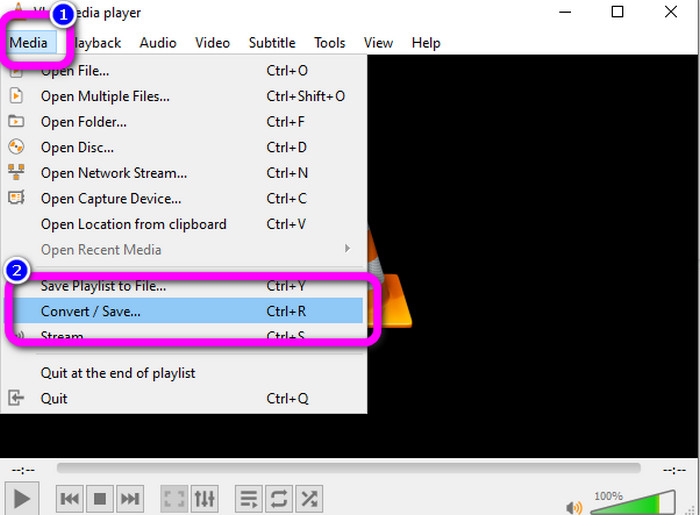
Krok 2: Przejdź do górnej części interfejsu i wybierz opcję Media. Następnie kliknij przycisk Convert/Save.
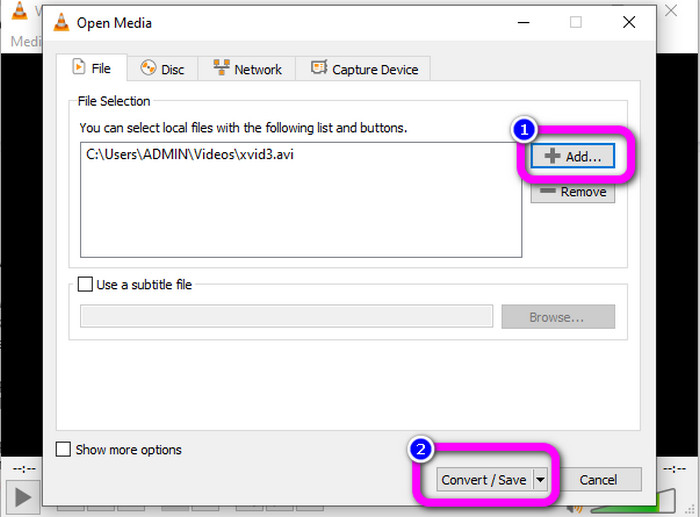
Krok 3: Naciśnij przycisk Add, aby wstawić plik wideo Xvid. Gdy plik zostanie dodany, kliknij przycisk Convert / Save.
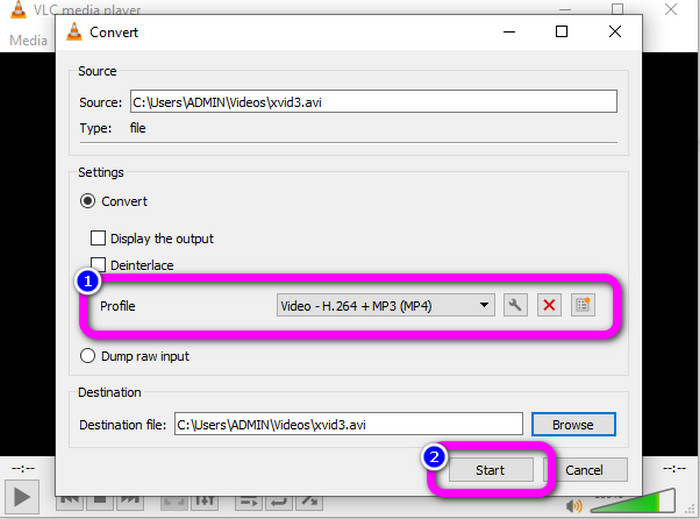
Krok 4: Na ostatnim etapie kliknij Profile, aby zobaczyć dostępne formaty, i wybierz format pliku MP4. Ustaw plik docelowy i przejdź do procesu konwersji, klikając przycisk Start.
Część 3: Proste kroki, aby przekonwertować Xvid na MP4 na hamulcu ręcznym
Hamulec ręczny to kolejne narzędzie offline, któremu możesz zaufać w konwersji pliku Xvid do formatu MP4. Ponadto to narzędzie oferuje proces konwersji wsadowej, w którym wystarczy wstawić folder składający się z kilku filmów i przekonwertować je jednocześnie. Jednak nie jest łatwy w użyciu. Wiele opcji jest mylących dla początkujących. Postępuj zgodnie z prostym przewodnikiem poniżej, aby przekonwertować Xvid na MP4 za pomocą hamulca ręcznego.
Krok 1: Pobierz program Handbrake na komputer. Uruchom go po zakończeniu instalacji.
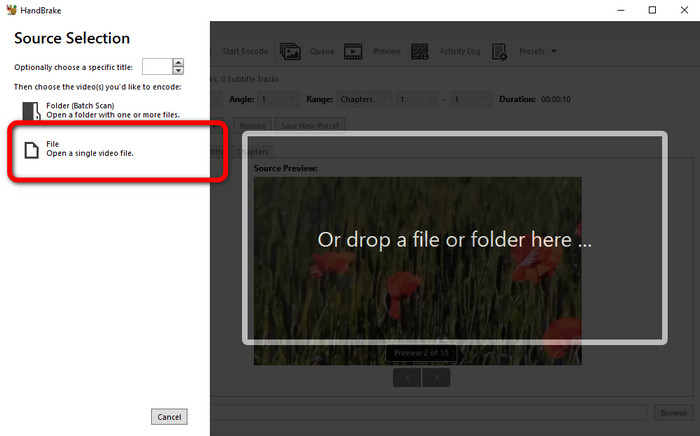
Krok 2: Otwórz przycisk File, aby dodać plik wideo Xvid.
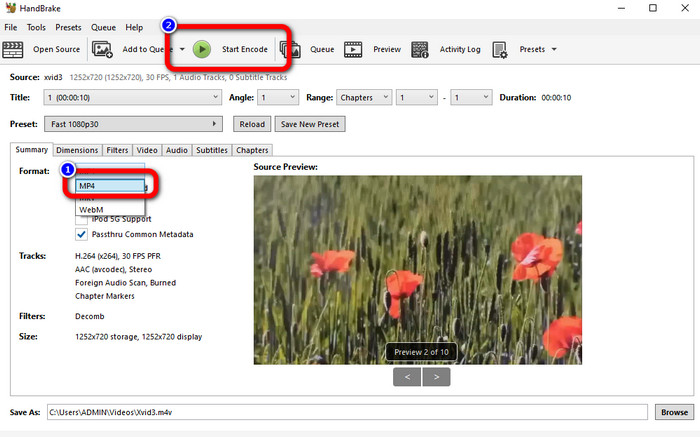
Krok 3: Przejdź do opcji Format i wybierz format pliku MP4. Następnie kliknij przycisk Start Encode, aby przekonwertować plik Xvid do formatu MP4.
Część 4: Proces konwersji Xvid na MP4 Online
FVC Free Video Converter Online to świetne narzędzie do konwersji Xvid na MP4 online. Oferuje przyjazny interfejs, który doskonale sprawdzi się dla początkujących. Możesz przekonwertować pliki w zaledwie trzech prostych krokach. Dodatkowo możesz konwertować wiele plików jednocześnie, ponieważ umożliwia proces konwersji wsadowej. To narzędzie obsługuje różne formaty plików wideo, takie jak FLV, AVI, MKV, WMA, MOV, VOB i inne. Jeśli chcesz użyć FVC Free Video Converter Online, skorzystaj z prostych instrukcji poniżej.
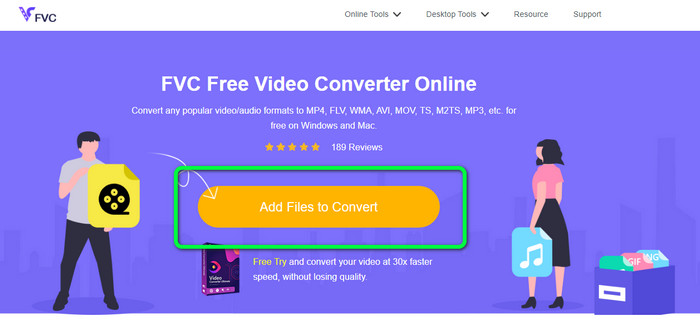
Krok 1: Przejdź na stronę FVC Free Video Converter Online. Na stronie głównej wybierz przycisk Add Files to Convert, aby przesłać plik wideo Xvid, który chcesz przekonwertować.
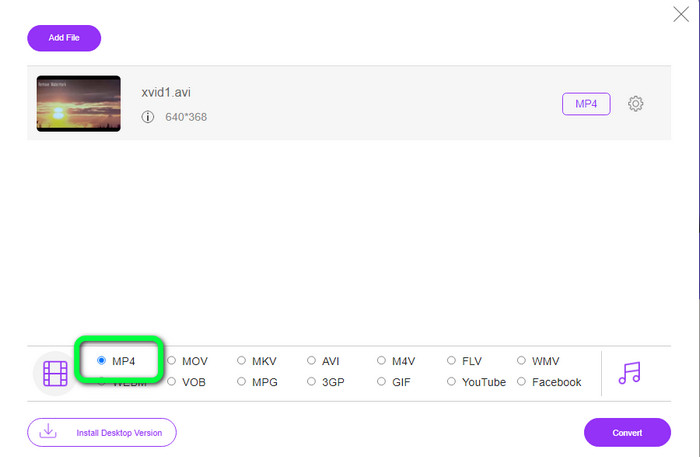
Krok 2: Jak widać w dolnej części interfejsu, znajdują się tam opcje formatów. Wybierz MP4 jako docelowy format pliku.
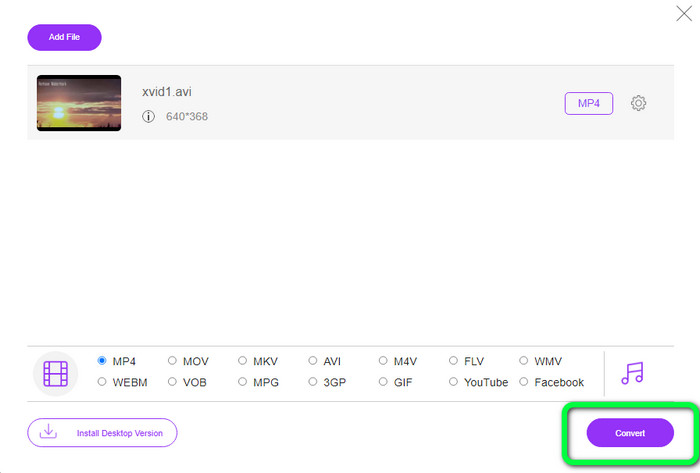
Krok 3: Naciśnij przycisk Convert, aby przekonwertować plik Xvid do formatu MP4. Poczekaj na zakończenie procesu konwersji i zapisz plik wynikowy.
Część 5: Świetna metoda konwersji Xvid na MP4 za pomocą Androida
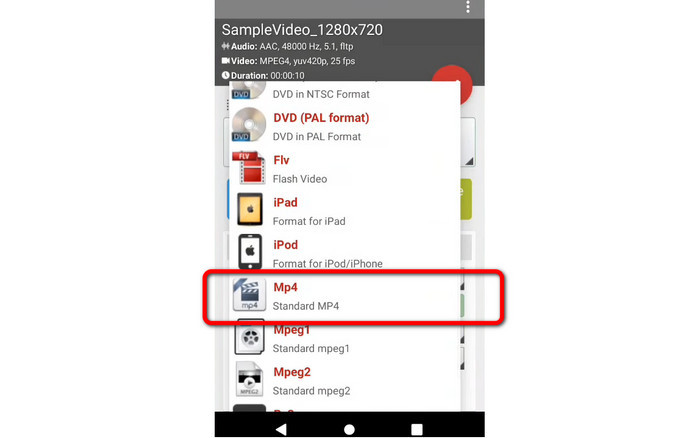
Jeśli potrzebujesz konwertera Xvid na MP4 dla systemu Android, możesz użyć aplikacji Video Format Factory. Dzięki niej możesz z łatwością zmieniać format plików wideo. Jednak konwersja filmów jest czasochłonna, ponieważ proces przetwarzania jest powolny. Zobacz poniższe kroki, aby przekonwertować Xvid na MP4.
Krok 1: Pobierz i zainstaluj Video Format Factory na urządzeniu z Androidem.
Krok 2: Po uruchomieniu aplikacji wybierz przycisk Video, aby wstawić plik Xvid.
Krok 3: Wybierz opcję Convert i z listy formatów wybierz MP4. Następnie rozpocznij proces konwersji, klikając Checkmark.
Dalsza lektura:
Łatwe do opanowania metody konwersji Xvid na DivX
Znakomite techniki szybkiej konwersji XviD na 3GP
Część 6: Często zadawane pytania dotyczące konwersji Xvid na MP4
1. Jaki jest format pliku Xvid?
Format pliku Xvid to kodek wideo zgodny ze standardem kodowania MPEG-4. Ten kodek kompresuje pliki wideo z wykorzystaniem formatu MPEG-4 Part 2 A SP.
2. Czy Xvid jest dobrej jakości?
Tak. Ten plik jest kontynuacją projektu Mayo. Jej celem jest opracowanie wysokiej jakości kodeka MPEG-4 typu open source.
3. Czy MP4 jest skompresowany?
Tak to jest. Istnieje skompresowany plik MP4. W pliku MP4 można zawrzeć różne kodeki wideo. Do najbardziej lubianych kodeków wideo dla MP4 należą H.264, H.265 i MPEG-4. Dzięki kompresji H.264 godzinny film można skompresować do około 1 GB za pomocą kodeka wideo MP4.
Wniosek
Po zapoznaniu się z powyższymi informacjami wiesz już, jak konwertować Xvid na MP4 online, offline oraz na urządzeniach z systemem Android. Jednak najlepszymi konwerterami, z których możesz skorzystać, są Video Converter Ultimate oraz FVC Free Video Converter Online. Te dwa narzędzia oferują intuicyjny interfejs, odpowiedni dla wszystkich użytkowników.
-
 Jak przekonwertować MPG na M4V na komputerze Mac i za pomocą narzędzia online
 Czy jesteś nowym użytkownikiem komputera Mac i nie wiesz, jak przekonwertować MPG na M4V? Następnie możesz przeczytać ten artykuł, aby dowiedzieć się więcej i dowiedzieć się, jak konwertować pliki za pomocą komputera Mac
-
 Skuteczne metody natychmiastowej konwersji DIVX na MP4
 Jak przekonwertować DIVX na MP4? Jeśli szukasz najlepszego rozwiązania, trafiłeś we właściwy artykuł. Pokażemy Ci, jak łatwo przekonwertować DIVX na MP4
-
 Jak przekonwertować F4V na MP4 za pomocą najskuteczniejszych metod
 Czy Twoje filmy F4V nie są dobrej jakości? Następnie przekształć go w plik MP4. Ten post zaoferuje najlepszy sposób konwersji F4V na MP4 online i offline
