


 Video Converter Ultimate
 Nagrywarka ekranu
 Naprawa wideo
Samouczek dotyczący przechwytywania ekranu GIF na komputerze
Przestrzeń online niewątpliwie sprawiła, że większość naszych aktywności odbywa się wirtualnie. Niezależnie od tego, czy przygotowujesz się do spotkania, tworzysz prezentację, czy chcesz dotrzeć do tysięcy osób, ucząc je gotowania, nagrywanie ekranu to wydajne rozwiązanie, które pozwala uchwycić wszystko, co potrzebne. Jednak nagrywanie ekranu za pomocą wbudowanych narzędzi w urządzeniu, takich jak Xbox Game Bar czy QuickTime Screen Recorder, ogranicza możliwość pełnego wykorzystania potencjału screencastów. W tym artykule zebraliśmy najlepsze programy, które wynoszą przechwytywanie ekranu do GIF-a na wyższy poziom.

Część 1: Jak nagrać ekran do GIF na Windows/Mac za darmo
1. Darmowy rejestrator ekranu FVC
Zaledwie kilkoma kliknięciami nagrywanie ekranu staje się możliwe dzięki FVC Free Screen Recorder. To internetowe rozwiązanie zapewnia szeroki zakres podstawowych funkcji nagrywania, zbierając znakomite opinie użytkowników. FVC Free Screen Recorder potrafi przechwytywać Twoje aktywności na ekranie, takie jak gry, filmy i konferencje online, nie nakładając na nagranie żadnego znaku wodnego. Co więcej, może rejestrować to, co dzieje się na ekranie komputera, wraz z dźwiękiem systemowym i z mikrofonu. Dzięki temu możesz pozostawić urządzenie w trybie nagrywania i odtworzyć materiał, gdy będzie potrzebny. Poniżej przygotowaliśmy instrukcję, jak nagrywać GIF-y na Macu i Windowsie za pomocą FVC Free Screen Recorder.
Krok 1. Przejdź do najlepszego internetowego rejestratora ekranu
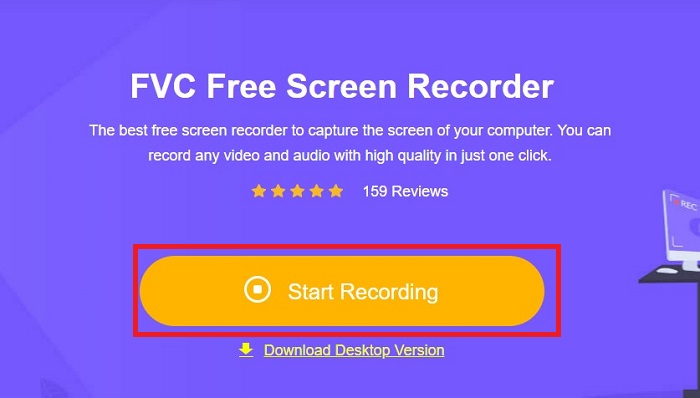
Otwórz wyszukiwarkę na swoim urządzeniu i wpisz w pasku wyszukiwania FVC Free Screen Recorder. Gdy narzędzie zostanie uruchomione, kliknij przycisk Start Recording pośrodku, aby uzyskać dostęp do narzędzi nagrywania.
Krok 2. Skonfiguruj nagrywanie
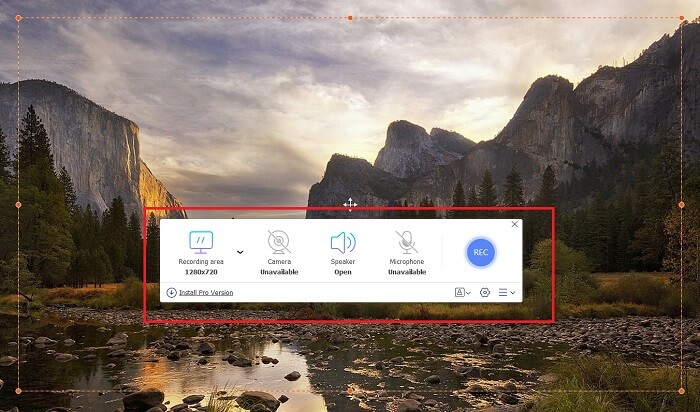
Ustaw wymagania dotyczące nagrywania w sekcjach Recording Area, System Sound i Camera. Gdy wszystko będzie gotowe, naciśnij przycisk REC, aby rozpocząć nagrywanie ekranu.
Krok 3. Dodawaj adnotacje podczas nagrywania
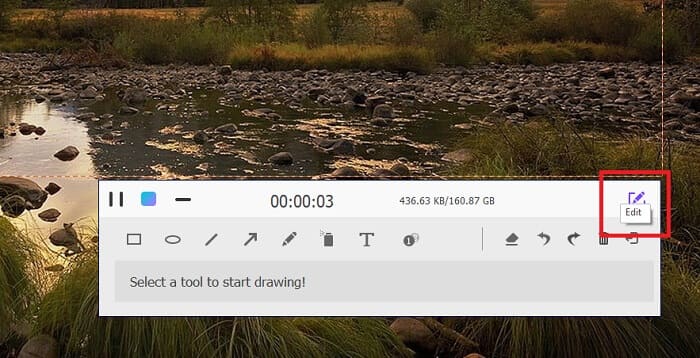
Po 3-sekundowym odliczaniu nagrywasz teraz swój ekran. Jeśli chcesz dodać adnotacje, takie jak tekst, kształty, wyróżnienia i długopis, kliknij przycisk Edytuj w lewym dolnym rogu pola nagrywania.
Krok 4. Zapisz wynik
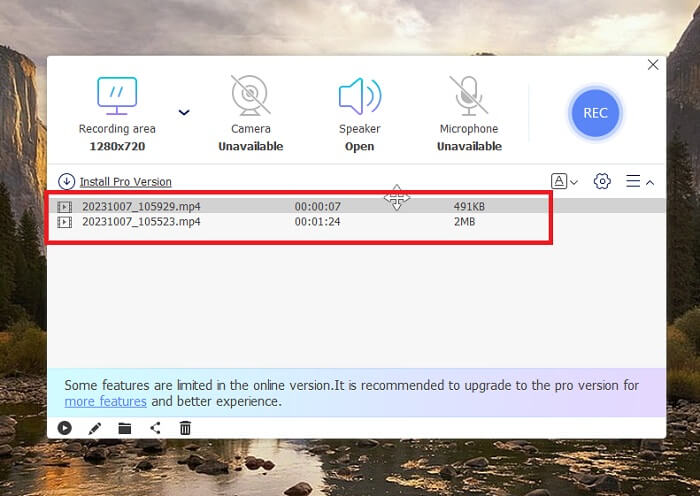
Aby zapisać nagrany materiał, kliknij przycisk Stop w FVC Free Screen Recorder. Po zakończeniu zapisywania zostaniesz przeniesiony do panelu Recorded w tym narzędziu. Możesz także kliknąć przycisk Folder, aby przejść do lokalnego katalogu z zapisanym plikiem.
Funkcje:
◆ Ten program jest najwyższej klasy narzędziem do dodawania adnotacji w czasie rzeczywistym podczas wyświetlania ekranu.
◆ Darmowy rejestrator ekranu FVC oferuje wysoce kompatybilne formaty wyjściowe, w tym MP4 i WMV.
◆ To narzędzie umożliwia nałożenie efektu obrazu w obrazie na ekran kamery internetowej.
◆ To narzędzie jest oprogramowaniem do tworzenia screencastów bez ograniczeń czasowych.
2. Chrome Capture — narzędzie do zrzutów ekranu i GIF-ów
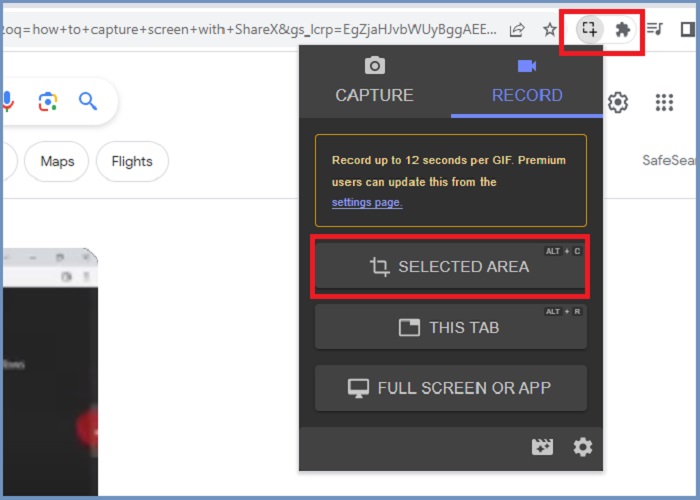
Chrome Capture to narzędzie rozszerzające Google, które zamienia nagrywanie ekranu w GIF. Ta aplikacja przeglądarki internetowej umożliwia przechwytywanie ekranu w wybranych obszarach, na karcie lub podczas wykonywania czynności na pełnym ekranie. Poza tym Chrome Capture to najlepsza opcja do robienia zrzutów ekranu całostronicowych stron internetowych, dzięki czemu uzyskasz wszystkie potrzebne informacje. Wielu użytkowników uzależnia się od tego narzędzia ze względu na jego łatwy w użyciu interfejs i intuicyjne funkcje, takie jak narzędzia do przycinania i dodawania adnotacji. ChromeCapture sprawia, że nagrywanie ekranu jest mniej kłopotliwe, oferując klawisze skrótów umożliwiające wykonanie zrzutu ekranu lub zatrzymanie samego nagrywania. Utwórz GIF z nagrania ekranu za pomocą narzędzia Chrome Capture, postępując zgodnie z poniższym przewodnikiem.
Krok 1. Najpierw otwórz stronę w Google Chrome, którą chcesz przechwycić. Następnie kliknij ikonę Chrome Capture na pasku rozszerzeń w prawym górnym rogu przeglądarki.
Krok 2. Przejdź do zakładki nagrywania w Chrome Capture i wybierz preferowany typ nagrania, taki jak wybrany obszar, karta lub cały ekran. Gdy dokonasz wyboru, nagrywanie rozpocznie się. Po zakończeniu kliknij przycisk Stop, aby przejść do procesu zapisywania.
Krok 3. Aby utworzyć GIF z nagrania ekranu, kliknij przycisk Save i wybierz GIF jako format wyjściowy. Możesz także zmienić nazwę pliku, aby szybciej go odnaleźć.
Funkcje:
◆ Chrome Capture oferuje formaty wyjściowe takie jak WebM i GIF.
◆ To narzędzie ułatwia udostępnianie nagranych filmów online.
◆ Narzędzie Edycja programu umożliwia dodawanie tekstu, rysowanie strzałek, zmianę szybkości nagrań i wiele więcej.
Część 2: Jak nagrywać i edytować nagrania GIF na komputerach Mac i Windows
1. UdostępnijX
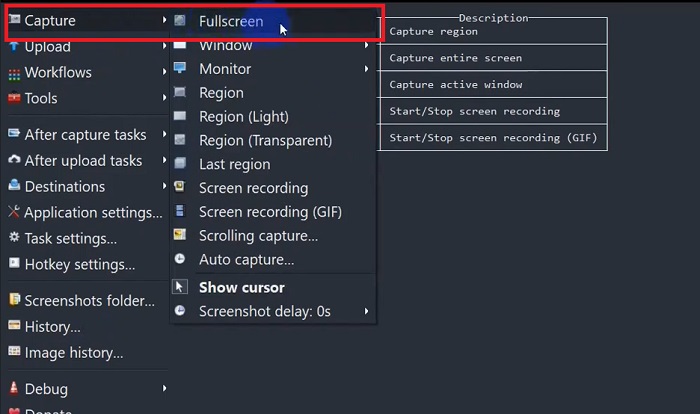
Pod względem wydajnego, a jednocześnie bezpłatnego narzędzia do przechwytywania ekranu, ShareX pozostaje na liście. To narzędzie jest narzędziem do nagrywania ekranu typu open source dla systemów operacyjnych Windows. Co więcej, oferuje niestandardowe nagrywanie regionu, w którym możesz wybrać konkretny obszar ekranu do przechwycenia. Poza tym ShareX zawiera narzędzie do przechwytywania przewijania, umożliwiające użytkownikom wykonanie zrzutu ekranu zawartości na raz, a nie wielu zrzutów ekranu. Jeśli chcesz dowiedzieć się, jak ShareX radzi sobie z nagrywaniem okien GIF, oto samouczek krok po kroku.
Krok 1. Najpierw otwórz ShareX na swoim urządzeniu z Windows. Następnie przejdź do Capture i wybierz preferowany typ nagrania.
Krok 2. Gdy pojawi się prostokąt zaznaczenia, przesuń kursor, aby zaznaczyć obszar ekranu, który chcesz przechwycić. Następnie kliknij Start.
Krok 3. Po zakończeniu nagrywania kliknij przycisk Stop. Następnie ponownie pojawią się opcje nagrywania, abyś mógł wybrać formaty wyjściowe Video i Audio. Na koniec naciśnij przycisk Download, aby znaleźć nagrany plik na swoim komputerze.
Funkcje:
◆ Oferuje specjalne klawisze skrótu umożliwiające łatwe kontrolowanie czynności związanych z nagrywaniem ekranu.
◆ ShareX umożliwia użytkownikom konwersję nagrania ekranu do formatu GIF.
◆ Narzędzie umożliwia trzy typy przechwytywania ekranu w dowolnym regionie: prostokąt, elipsa lub odręczne.
2. Nagraj
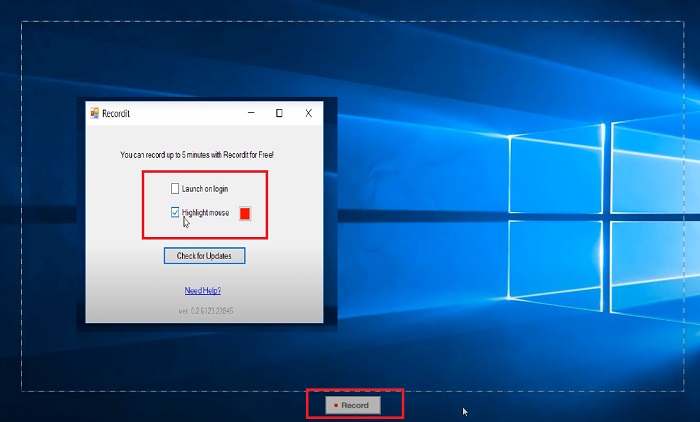
Recordit to kolejne przykładowe oprogramowanie, które pozwala przechwycić czynności wykonywane na ekranie. To narzędzie jest narzędziem do nagrywania opartym na formacie GIF i jest kompatybilne z urządzeniami z systemem Windows i Mac. Jednakże w bezpłatnej wersji próbnej programu można nagrywać maksymalnie pięć minut, a aby przekroczyć to ograniczenie, konieczne będzie uaktualnienie oprogramowania do wersji premium. Teraz nauczmy się, jak przechwytywać ekran GIF za pomocą programu.
Krok 1. Po zainstalowaniu Recordit na urządzeniu zobaczysz jego ikonę w System Tray.
Krok 2. Następnie poczekaj, aż narzędzie pojawi się na ekranie. Przeciągnij ramkę, aby wybrać obszar do nagrania, a gdy będzie ustawiony, kliknij Start, aby rozpocząć nagrywanie.
Krok 3. Na koniec kliknij przycisk Stop, gdy zakończysz nagrywanie. Kliknij GIF, aby w ustawieniach odnaleźć swój plik wyjściowy w formacie GIF.
Funkcje:
◆ Recordit udostępnia dziennik historyczny Twoich ostatnich i wcześniejszych nagrań ekranowych.
◆ To narzędzie pozwala użytkownikom dostosować czynności związane z nagrywaniem ekranu w różnych regionach.
3. ScreenToGIF
Kolejnym narzędziem do chwytania ekranu, którego nie powinieneś puszczać, jest narzędzie ScreentoGIF. Jak sama nazwa wskazuje, to oprogramowanie pozwala użytkownikom bezpośrednio tworzyć pliki GIF z nagrań ekranowych. Ponadto jest uważane za narzędzie typu open source, co oznacza, że nie musisz wydawać żadnych pieniędzy, aby je mieć. ScreenToGIF może wykonać zrzut ekranu i wyeksportować dane wyjściowe do formatu PNG, PSD i wideo. Oczywiście, jeśli chcesz udostępnić swój plik GIF online, ScreenToGIF może z łatwością przesłać go na Imgur i Gfycat.
Krok 1. Otwórz ScreenToGIF na swoim urządzeniu, aby nagrywać GIF-y na Macu lub Windowsie.
Krok 2. Aby rozpocząć przechwytywanie ekranu, przejdź do Toolbox w programie i wybierz Recorder. Następnie przesuń kursor w kształcie celownika na konkretny obszar, który chcesz nagrać.
Krok 3. Następnie wciśnij na klawiaturze klawisz F8, aby zatrzymać nagrywanie.
Funkcje:
◆ Umożliwia nakładkę kamery internetowej jednoczesne nagrywanie Ciebie i ekranu.
◆ Korzystając z Sketchboardu, możesz nagrywać swoje rysunki w czasie rzeczywistym.
Dalsza lektura:
Przewodnik krok po kroku: jak konwertować MP4 na GIF na komputerze i online
5 najlepszych sposobów na zmianę obrazu w animowany GIF [aktualizacja 2023]
Część 3: Często zadawane pytania dotyczące nagrywania ekranu w formacie GIF
Czy Mac ma wbudowane narzędzia do przekształcania nagrania ekranu w GIF?
Jeśli chodzi o wbudowany rejestrator ekranu, urządzenia Mac oferują taki w aplikacji QuickTime. Jednak nagrane dane wyjściowe są domyślnie ustawione w formacie MOV i do przekonwertowania ich na format GIF może być konieczne oprogramowanie innej firmy.
Czy są jakieś narzędzia do nagrywania plików GIF na iPhonie i Androidzie?
Zdecydowanie tak! Urządzenia mobilne iPhone i Android są wyposażone w natywny rejestrator ekranu. Mogą także przechwytywać dźwięk systemowy i Twój głos za pomocą mikrofonu.
Czy ScreentoGIF jest bezpieczny?
Absolutnie ScreenToGIF jest darmowym oprogramowaniem na urządzenia z systemem Windows i jest wolny od złośliwego oprogramowania.
Czy możesz ustawić GIF na ekranie głównym na komputerze Mac?
Ustawienie pliku GIF jako ekranu głównego na Macu jest możliwe bez instalowania dodatkowych aplikacji. Wystarczy otworzyć Settings > System Preferences > Desktop and Screen Saver i wybrać dostępne GIF-y.
Czy ekran blokady systemu Windows może być plikiem GIF?
Większość tapet systemu Windows jest statyczna, w przeciwieństwie do urządzeń Mac. Do uruchomienia tapety GIF na urządzeniu z systemem Windows może być potrzebna aplikacja innej firmy, np. Lively Wallpaper.
Wniosek
Niezależnie od tego, czy chcesz nagrywać ekran do GIF-a, czy statycznego obrazu, dodawać adnotacje i obraz z kamery internetowej, Twoje zadania związane ze screencastingiem są w pełni wykonalne za pomocą wyżej wymienionych narzędzi. Rozwiązania online najlepiej sprawdzają się do nagrywania „w pogotowiu”, jednak oprogramowanie offline jest zdecydowanie zalecane, jeśli chcesz uniknąć niechcianych przerw i opóźnień spowodowanych łączem internetowym.
-
 Przytnij GIF: najlepsze narzędzia online, stacjonarne i mobilne do przycinania GIF
 Czy chcesz uchwycić część GIF-u, aby precyzyjnie przekazać swoje emocje i reakcje? Tutaj odkryjemy i zoptymalizujemy różne narzędzia do przycinania animowanych plików GIF.
-
 6 najlepszych niesamowitych aplikacji GIF na iPhone'a w 2023 r. (Recenzje)
 Ten post przeprowadzi Cię przez najlepsze aplikacje do tworzenia GIF-ów na iPhone'a i komputery. Sprawdź je i dowiedz się, co mają do zaoferowania.
-
 Najwyższej klasy programy do tworzenia plików GIF 3D, których nie chcesz przegapić
 Znalezienie i ocena każdej aplikacji 3D GIF Maker, którą widzisz, może być czasochłonne. Na szczęście przygotowaliśmy listę, którą możesz przeczytać.
