


 Video Converter Ultimate
 Nagrywarka ekranu
 Naprawa wideo
Szczegółowe procedury konwersji plików AVI do formatu M4V
Multimedialny format kontenera AVI (Audio Video Interleaved) jest funkcją oprogramowania wideo w systemie Windows. Umożliwia jednoczesne odtwarzanie dźwięku i obrazu połączonych w jeden plik. Dzięki swoim unikalnym możliwościom, w tym zsynchronizowanemu sterowaniu i wyświetlaniu w czasie rzeczywistym, AVI szybko stał się jednym z najczęściej używanych formatów wideo. Jednak jeśli chcesz odtwarzać swoje wideo na Macu, musisz przekonwertować AVI na M4V, ponieważ M4V to format Apple, obsługiwany przez iTunes, Apple QuickTime Player oraz urządzenia z iOS. Czasami możesz chcieć przekonwertować pliki .avi na Macu na uniwersalny format, taki jak M4V. W takiej sytuacji zaleca się konwersję AVI na M4V, aby pliki poprawnie działały w systemie Mac OS. Pokażemy Ci najlepsze metody, jak konwertować AVI na M4V za pomocą aplikacji online i offline.

Część 1: Wprowadzenie do AVI i M4V
| AVI | M4V | |
| Nazwa pliku | Audio Video Interleave | Wideo MPEG-4 |
| Rozszerzenie pliku | .avi | .m4v |
| Opis | Format pliku AVI jest jednym z najpopularniejszych kontenerów multimedialnych, jakie kiedykolwiek stworzono. Akronim AVI, który oznacza przeplot audio-wideo, został pierwotnie udostępniony publicznie przez firmę Microsoft w 1992 roku jako składnik ich platformy multimedialnej „wideo dla systemu Windows”. Plik AVI z rozszerzeniem nazwy pliku .avi może zawierać zarówno zsynchronizowaną zawartość wideo, jak i audio, ponieważ jest to format kontenera. W ten sposób autorzy mogą edytować i kodować sekwencje audio-wideo lub sekwencje wideo przy użyciu standardu. | Firma Apple stworzyła rozszerzenie pliku M4V, które jest niezwykle podobne do rozszerzenia pliku MP4, dla zawartości sklepu iTunes. Urządzenia Apple są jedynymi, które mogą odtwarzać pliki M4V. Aby odtwarzać na urządzeniach Apple, inne formaty wideo, takie jak MP4 i MOV, można przekonwertować na M4V. Podstawowa różnica między formatami plików M4V i MP4 polega na tym, że ten pierwszy obsługuje ochronę praw autorskich DRM, która zabrania naruszania praw autorskich do treści multimedialnych. Komputer musi udzielić pozwolenia, logując się do konta iTunes, aby kupić plik multimedialny w celu odtworzenia pliku M4V chronionego systemem DRM. Jeśli jednak pliki nie są chronione przez DRM, użytkownik może po prostu zmienić nazwę rozszerzenia pliku M4V na MP4, aby był kompatybilny z urządzeniami innych firm niż Apple. |
| Opracowany przez | Microsoft | Apple Inc. |
| Powiązane programy | Vlc media player Apple QuickTime Player Adobe Premiere Pro 2020 Windows Media Player | KMPlayer Media Player Classic Zoom Player \Vlc media player |
| Kategoria pliku | Wideo | Wideo |
| Typ MIME | wideo/x-wideo | wideo/x-m4v |
Część 2: Najlepszy sposób na konwersję AVI do M4V
Chcesz za darmo przekonwertować AVI na M4V? Możesz użyć narzędzia FVC Free Video Converter Online. To narzędzie z łatwością przekonwertuje Twój plik AVI do formatu M4V. Obsługuje także więcej formatów wideo, takich jak FLV, MP4, MOV, WMA i inne. Ponadto, jeśli planujesz konwertować wiele plików AVI na różne formaty, możesz skorzystać z tej aplikacji, ponieważ oferuje ona funkcję konwersji wsadowej. Możesz także edytować swoje wideo przed konwersją, na przykład zmieniając liczbę klatek na sekundę, rozdzielczość i bitrate. Dodatkowo FVC Free Video Converter Online potrafi konwertować pliki audio, takie jak MP3, AAC, AC3, FLAC itd.
funkcje
◆ Konwertuj wiele formatów plików wideo, takich jak M4V, AVI, MP4, MOV, VOB, FLV, WMV itp.
◆ Może zmieniać rozdzielczość wideo, szybkość transmisji bitów i liczbę klatek na sekundę.
◆ Konwertuj pliki audio, takie jak MP3, AAC, AC3, FLAC itp.
Postępuj zgodnie z prostymi instrukcjami poniżej, aby łatwo przekonwertować AVI na M4V.
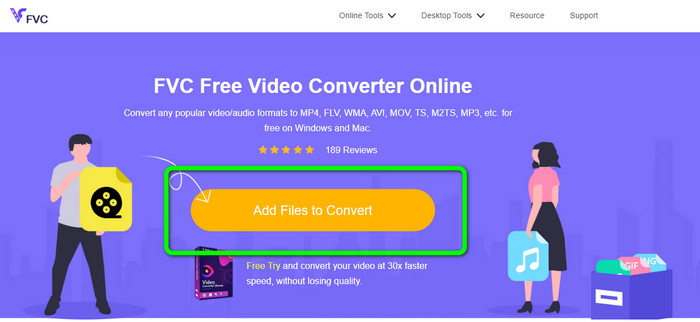
Krok 1: Najpierw otwórz przeglądarkę i wejdź na stronę FVC Free Video Converter Online. Naciśnij przycisk Add Files to Convert, aby wczytać swój plik AVI.
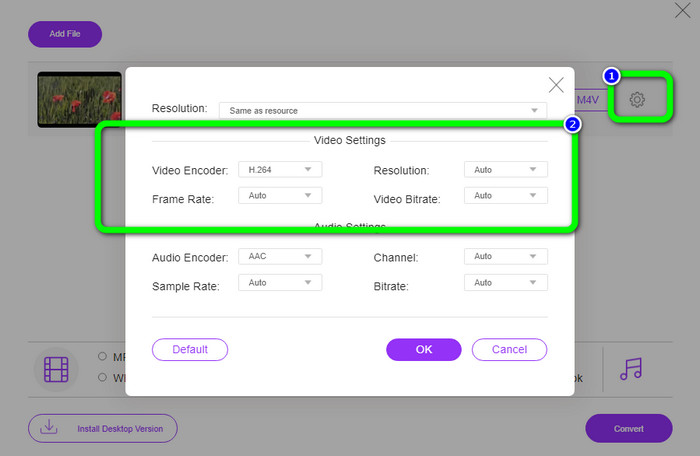
Krok 2: Jeśli chcesz zmienić rozdzielczość, liczbę klatek na sekundę lub bitrate wideo, kliknij ikonę Settings po lewej stronie interfejsu. Gdy skończysz wprowadzać zmiany, naciśnij OK.
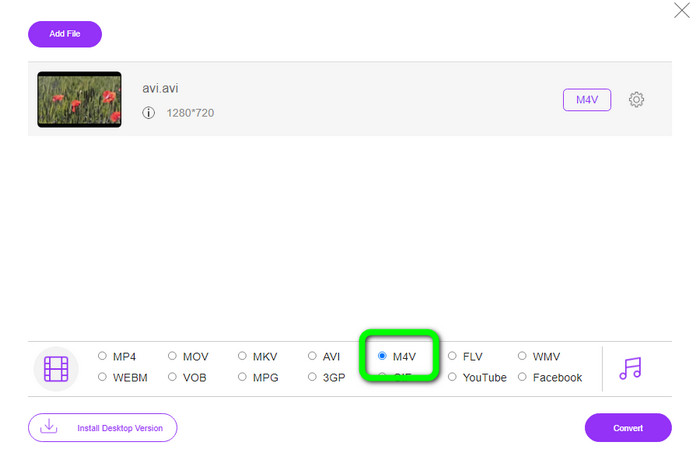
Krok 3: Następnie w dolnej części interfejsu wybierz plik M4V jako format wyjściowy.
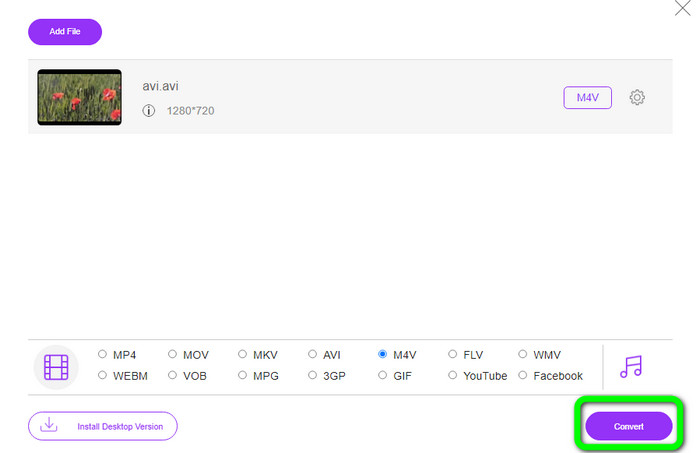
Krok 4: Na koniec, aby zapisać plik wideo, kliknij przycisk Convert. Poczekaj na zakończenie procesu konwersji i pobierz wynikowy plik.
Część 3: Łatwa metoda konwersji AVI na M4V w systemach Windows i Mac
Innym doskonałym konwerterem, z którego możesz skorzystać, jest FVC Video Converter Ultimate. To narzędzie potrafi konwertować AVI na M4V w systemie Windows. Może błyskawicznie konwertować Twoje pliki dzięki ultraszybkiemu procesowi konwersji, który jest 30 razy szybszy. Możesz też konwertować wiele plików jednocześnie, ponieważ program obsługuje konwersję wsadową. Co więcej, ma prosty sposób obsługi i intuicyjny interfejs, idealny dla początkujących. Ten program offline jest dostępny nie tylko w systemie Windows, ale również na Macu. Ponadto możesz wprowadzać różne zmiany w swoich filmach w trakcie konwersji. Możesz edytować wideo, ulepszając je, przycinając, dodając filtry i wiele więcej.
Funkcje
◆ Konwertuje ponad 100 plików wideo, w tym M4V, MP4, AVI, FLV, MKV, MOV, VOB, WMV i inne.
◆ Dostępne jest tworzenie kolaży za pomocą bezpłatnych szablonów i filtrów.
◆ Oferty twórca teledysków.
◆ Edytuj wideo za pomocą narzędzi, takich jak ulepszanie wideo, trymer, usuwanie znaku wodnego, kompresor itd.
◆ Konwertuj formaty plików graficznych, takie jak BMP, JPG, PNG itp.
◆ Przyspiesz i zwolnij wideo.
Skorzystaj ze szczegółowych instrukcji poniżej, aby dowiedzieć się, jak przekonwertować AVI na M4V w systemach Windows i Mac za pomocą FVC Video Converter Ultimate. Będziemy używać wersji Windows.
Krok 1: Pobierz program FVC Video Converter Ultimate na swój komputer z systemem Windows lub Mac, klikając przycisk pobierania.
Bezpłatne pobieranieDla Windows 7 lub nowszegoBezpieczne pobieranie
Bezpłatne pobieranieDla MacOS 10.7 lub nowszegoBezpieczne pobieranie
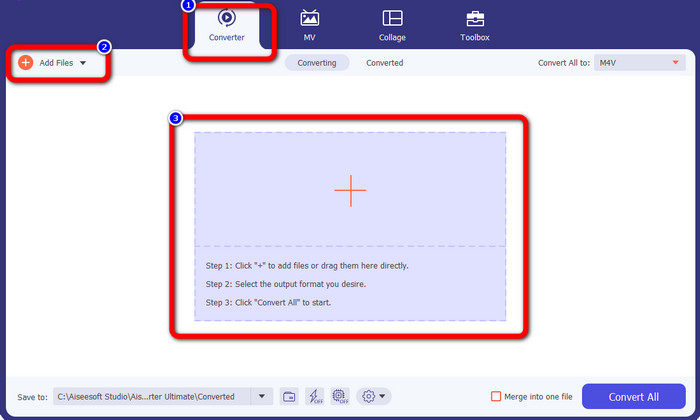
Krok 2: Po otwarciu aplikacji przejdź do panelu Converter. Następnie masz trzy opcje wczytania pliku AVI. Po pierwsze, możesz kliknąć przycisk Add File w drugim polu. Druga opcja to kliknięcie znaku Plus w trzecim polu. I wreszcie, możesz upuścić plik bezpośrednio na środek okna.
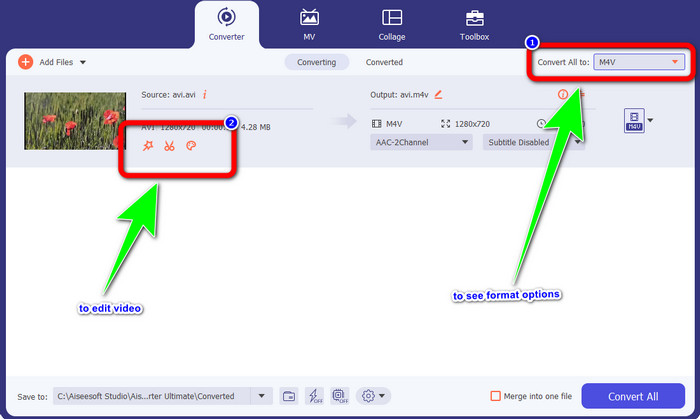
Krok 3: Po dodaniu pliku AVI kliknij przycisk Convert All to, aby wyświetlić listę dostępnych formatów i wybierz format M4V. Jeśli chcesz edytować swoje wideo, możesz przejść do drugiego pola. Możesz użyć dostępnych narzędzi, aby edytować wideo, na przykład dodając filtry, obracając i przycinając obraz, tnąc materiał i więcej.
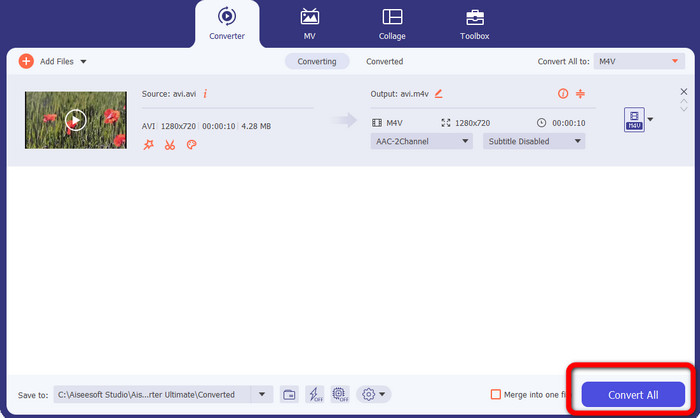
Krok 4: W ostatnim kroku kliknij przycisk Convert. Poczekaj na szybki proces konwersji i zapisz przekonwertowany film.
Część 4: Jak przekonwertować AVI na M4V za pomocą hamulca ręcznego
Handbrake to kolejny konwerter, za pomocą którego można za darmo konwertować AVI na M4V. Obsługuje konwersję wielu plików, takich jak WEBM, M4V, MP4, MKV itp. Dzięki temu narzędziu możesz z łatwością konwertować wiele plików. Jednak Handbrake jest skomplikowany w użyciu. Musisz mieć odpowiednią wiedzę na temat działania tego konwertera. Dodatkowo proces instalacji jest mylący. Trzeba wykonać wiele czynności przed rozpoczęciem korzystania z programu, co jest czasochłonne dla użytkowników.
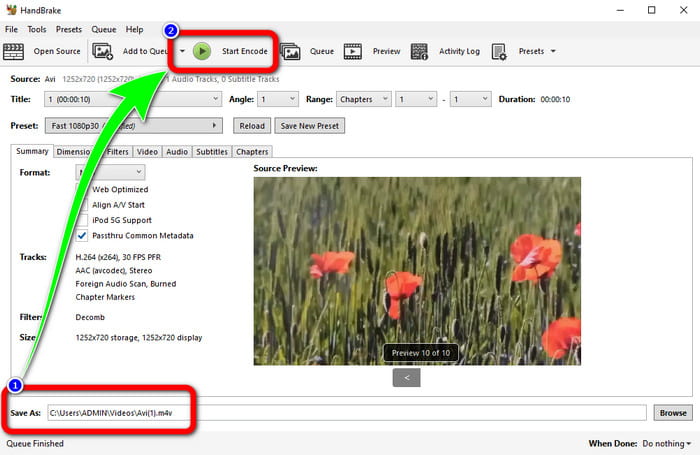
Krok 1: Pobierz program Handbrake na swój komputer.
Krok 2: Wybierz plik AVI, który chcesz przekonwertować.
Krok 3: Przejdź do ustawienia formatu i wybierz M4V. Następnie rozpocznij proces konwersji, klikając przycisk Start.
Część 5: Często zadawane pytania dotyczące konwersji AVI na M4V
1. Jak przekonwertować AVI na M4V na Macu?
Możesz użyć FVC Video Converter Ultimate. Ten konwerter może łatwo przekonwertować AVI na M4V za pomocą komputera Mac.
2. Jak duży jest plik AVI?
Ponieważ filmy AVI są nieskompresowane, zajmują więcej miejsca na dysku twardym. Na przykład jedna godzina materiału wideo AVI 352x288 może zająć do 33 GB (3300 MB) miejsca na dysku twardym.
3. Czy plik AVI jest uniwersalny?
Tak. Chociaż nowsze formaty, takie jak MP4, MOV czy WMV, w dużej mierze zastąpiły format AVI, wielu użytkowników nadal z niego korzysta ze względu na jego uniwersalność. Prawie każdy komputer lub urządzenie może odtwarzać pliki AVI.
Wniosek
Ten poradnik pokazuje doskonałe sposoby, aby konwertować pliki AVI do M4V za pomocą trzech konwerterów. Jeśli jednak zależy Ci na ultraszybkim procesie konwersji, użyj FVC Video Converter Ultimate. A jeśli wolisz prostszą metodę, skorzystaj z FVC Free Video Converter Online.
-
 Najlepsze odtwarzacze 5 M4V na Windows / Mac / Android / iOS, które powinieneś wiedzieć
 Jeśli nie możesz odtwarzać filmów M4V w programie QuickTime Player, powinieneś dowiedzieć się więcej o 5 doskonałych odtwarzaczach M4V dla systemów Windows, Mac, Android i iOS z tego artykułu
-
 AVI VS MP4 - różnice i podobieństwa między formatami AVI i MP4
 Który format wideo jest lepszy, AVI czy MP4? Jeśli chcesz uzyskać szczegółowe porównanie, możesz sprawdzić ten artykuł AVI VS MP4. Możesz poznać różnice i podobieństwa między AVI i MP4 w wielu aspektach
-
 3 Program do konwersji wideo używany do konwersji iTunes M4V na AVI na Macu
 Nie masz pojęcia, jak przekonwertować MKV do formatu AVI? Kontynuując czytanie tego artykułu, poznamy narzędzia 3, które mogą pomóc w konwersji tego formatu pliku
