


 Video Converter Ultimate
 Nagrywarka ekranu
 Naprawa wideo
Kompleksowy przewodnik Jak przekonwertować wideo na GIF za pomocą najlepszych narzędzi
Czy masz dość ciągłego przewijania kanałów w mediach społecznościowych i oglądania tych samych starych, statycznych obrazów? Dlaczego nie ożywić swojej obecności w Internecie za pomocą GIF-ów? Te krótkie, zapętlone animacje stały się w ostatnich latach coraz bardziej popularne i łatwo zrozumieć, dlaczego. Nie tylko przyciągają uwagę, ale mogą również przekazywać złożone emocje lub koncepcje w sposób, w jaki nieruchomy obraz po prostu nie jest w stanie.
Świetną wiadomością jest to, że nie musisz być profesjonalnym animatorem, aby tworzyć własne GIF‑y. W tym wpisie pokażemy Ci, jak zamienić wideo na GIF, abyś mógł zacząć udostępniać własne, spersonalizowane animacje światu, zwiększyć swoją widoczność w sieci i już dziś przyciągnąć uwagę odbiorców efektownymi animacjami!

Część 1. Konwertuj wideo na GIF na komputerze
Przekształcanie wideo w GIF to zabawny i kreatywny sposób na zmianę przeznaczenia istniejących treści. Jeśli masz film, który Ci się podoba, ale niekoniecznie chcesz go udostępnić w całości, możesz łatwo przekonwertować go na plik GIF i wyróżnić określony moment lub scenę. Pozwala to tchnąć nowe życie w stare treści i zachować świeżość i ekscytację obecności w Internecie. Dlatego poniższe programy zademonstrują proces tworzenia GIF-a z wideo.
1. Konwerter wideo Ultimate (sposób offline)
FVC Video Converter Ultimate to wszechstronna aplikacja komputerowa, która pozwala konwertować filmy na różne formaty, w tym GIF‑y. Dzięki wbudowanemu kreatorowi GIF‑ów możesz z łatwością przekształcić swoje ulubione filmy w GIF‑y idealne do mediów społecznościowych, komunikatorów i nie tylko.
Funkcja GIF Maker w FVC Video Converter Ultimate oferuje szereg opcji dostosowywania, w tym możliwość wyboru czasu rozpoczęcia i zakończenia wideo, dostosowania liczby klatek na sekundę i rozmiaru GIF oraz wyboru liczby pętli. Ponadto możesz dodawać tekstowe lub graficzne znaki wodne do swoich GIF-ów w celu personalizacji lub budowania marki. Aby użyć tego kreatora GIF z filmu, możesz wykonać poniższe czynności:
Krok 1. Pobierz program i zainstaluj
Najpierw musisz zainstalować program na swoim komputerze. Aby to zrobić, kliknij dowolny przycisk Free Download poniżej. Następnie przejdź przez proces instalacji, postępując zgodnie z kreatorem instalacji. Po zakończeniu uruchom program.
Bezpłatne pobieranieDla Windows 7 lub nowszegoBezpieczne pobieranie
Bezpłatne pobranieDla macOS 10.7 lub nowszegoBezpieczne pobieranie
Krok 2. Przejdź do kreatora GIF
Gdy program jest już uruchomiony i gotowy do użycia, możesz rozpocząć proces, przechodząc do kreatora GIF‑ów. Wejdź w zakładkę Toolbox i znajdź GIF Maker. Następnie, w kolejnym oknie, zobaczysz obszar przesyłania pliku.
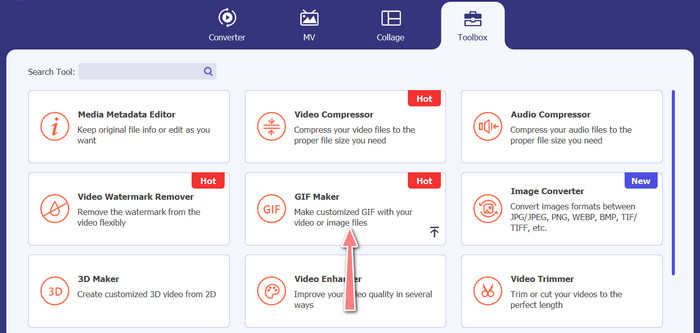
Krok 3. Załaduj wideo
Tym razem kliknij przycisk Video to GIF i wybierz wideo, które chcesz przekonwertować na GIF. Program umożliwi wybór pliku z lokalnego dysku komputera. Po wybraniu docelowego filmu możesz go edytować i rozpocząć proces tworzenia GIF‑a z wideo.
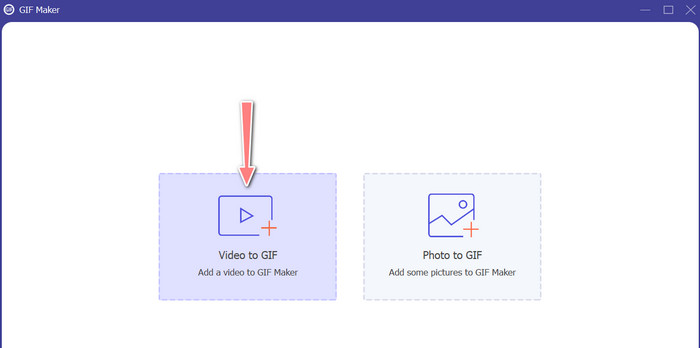
Krok 4. Utwórz GIF z wideo
Gdy masz już dostęp do kreatora GIF‑ów, możesz przyciąć załadowane wideo, edytować rozmiar wyjściowy, dostosować liczbę klatek na sekundę lub wprowadzić inne zmiany. Ponadto możesz włączyć lub wyłączyć zapętlanie animacji. Na końcu kliknij przycisk Generate GIF, jeśli jesteś zadowolony z efektu.
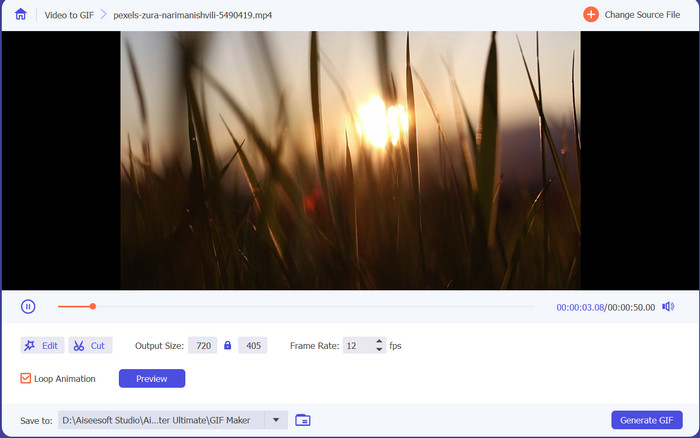
Plusy
- Zaawansowane algorytmy przetwarzania wideo do tworzenia wysokiej jakości plików GIF.
- Dostosuj liczbę klatek na sekundę, rozmiar i jakość GIF-a.
- Przyjazny dla użytkownika interfejs.
Cons
- Konwersja może przebiegać wolno, w zależności od sprzętu komputera.
2. GIMP
GIMP (GNU Image Manipulation Program) to solidne i wszechstronne oprogramowanie do edycji obrazów o otwartym kodzie źródłowym, które oferuje użytkownikom szeroką gamę narzędzi i funkcji do tworzenia i manipulowania obrazami. Jedną z kluczowych cech GIMP-a jest możliwość tworzenia animowanych plików GIF. Dzięki temu kreatorowi wideo do formatu GIF możesz łatwo tworzyć animowane pliki GIF, łącząc wiele obrazów lub klatek w jedną animację. Możesz importować obrazy do GIMP-a, dodawać warstwy i korzystać z funkcji animacji, aby stworzyć płynną i płynną animację. Możesz także dodawać tekst, kształty i inne elementy do swoich GIF-ów, aby uczynić je bardziej interesującymi i wciągającymi. Aby utworzyć plik GIF z filmu, wykonaj poniższe czynności.
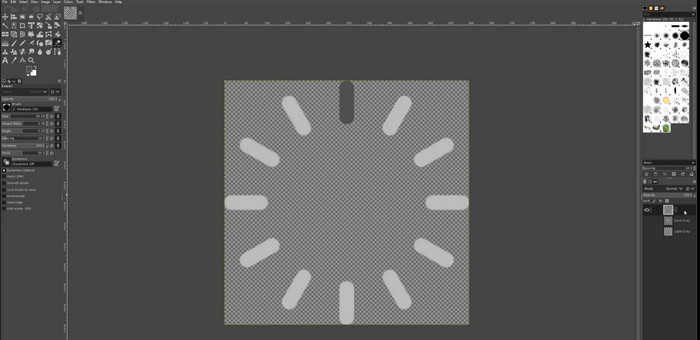
Krok 1. Otwórz GIMP i zaimportuj plik wideo, przechodząc do File > Open i wybierając plik wideo, którego chcesz użyć.
Krok 2. Po zaimportowaniu wideo GIMP poprosi Cię o wybranie liczby klatek na sekundę. Wybierz liczbę klatek na sekundę, jaką chcesz dla swojego GIF‑a, a następnie kliknij Import. W panelu Warstw (Layers) powinieneś zobaczyć klatki wideo jako osobne warstwy. Możesz usunąć dowolne klatki, których nie chcesz w GIF‑ie, klikając je prawym przyciskiem myszy i wybierając Delete Layer.
Krok 3. Kliknij prawym przyciskiem myszy pierwszą warstwę i wybierz z menu Duplicate Layer. Wybierz kopię i przejdź do Filters > Animation > Blend. Ustaw krycie warstwy na 50% i ustaw tryb mieszania na Addition.
Krok 4. Przejdź do File > Export As i wybierz format GIF, aby wyeksportować animację. Nazwij plik i wybierz folder, w którym chcesz go zapisać. Upewnij się, że w oknie eksportu zaznaczasz opcję As Animation oraz ustawiasz opóźnienie między klatkami zgodnie z potrzebami. Możesz także wybrać, ile razy animacja ma się zapętlać lub czy ma odtwarzać się w pętli bez końca.
Plusy
- Wideo do GIF w GIMP jest bezpłatne i jest open source.
- Dostępne na wielu platformach.
- Potężne narzędzia do edycji obrazu.
Cons
- Stroma krzywa uczenia się.
- Brak integracji z innym oprogramowaniem.
3. Darmowy konwerter wideo online
Jeśli chcesz natychmiast przekonwertować swoje ulubione filmy na GIF‑y, możesz skorzystać z narzędzia Free Video Converter Online od FVC. Umożliwia ono przesyłanie wielu formatów plików wideo i konwertowanie ich na różne formaty wyjściowe, w tym GIF. Dlatego jeśli szukasz internetowego konwertera wideo na GIF, warto rozważyć to narzędzie. Dodatkowo proces jest prosty i nie zajmuje wiele czasu. Wystarczy przesłać pliki, a konwersja odbywa się jednym kliknięciem. Oto kroki, jak zamienić wideo na GIF za darmo online.
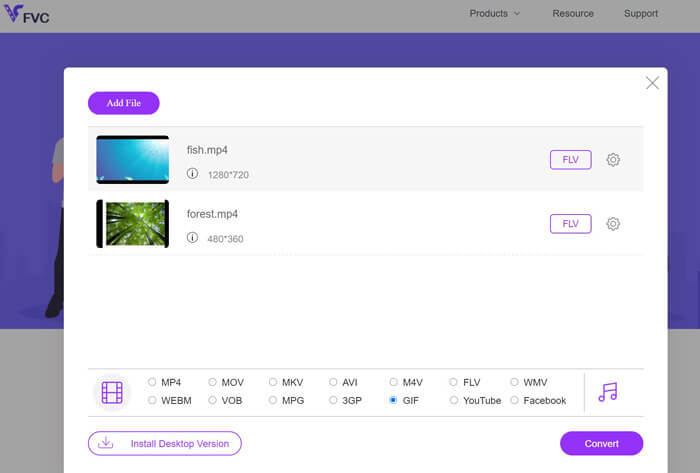
Krok 1. Uruchom przeglądarkę na komputerze i przejdź na oficjalną stronę programu. Na stronie głównej od razu zobaczysz przycisk przesyłania plików.
Krok 2. Kliknij przycisk Add Files to Upload, a pojawi się monit o pobranie programu uruchomieniowego, aby umożliwić przesyłanie. Zainstaluj go i wszystko będzie gotowe do działania.
Krok 3. Następnie dodaj wybrane wideo z komputera. Potem wybierz format, ustawiając GIF jako docelowy format wideo.
Krok 4. Możesz kliknąć ikonę koła zębatego obok miniatury wideo, aby dostosować ustawienia wyjściowe. Na koniec kliknij przycisk Convert, aby zamienić wideo na GIF.
Plusy
- Konwertuj pliki bez utraty jakości.
- Obsługuje wiele formatów plików.
Cons
- Uzależnienie od łącza internetowego.
Ezgif to bezpłatne narzędzie online, które umożliwia przycinanie, zmianę rozmiaru, dodawanie tekstu lub efektów oraz konwersję między różnymi formatami obrazów i wideo. Posiada również narzędzie do tworzenia GIF-ów, które pozwala użytkownikom tworzyć animowane GIF-y z plików wideo lub sekwencji obrazów. Ogólnie rzecz biorąc, Ezgif jest przydatnym narzędziem do podstawowej edycji obrazów i GIF-ów, a jego narzędzie do tworzenia GIF-ów ułatwia tworzenie animowanych GIF-ów. Ale może nie być dobry w przypadku bardziej skomplikowanych zadań edycyjnych, a fakt, że ma ograniczenia dotyczące rozmiaru pliku i kontroli, może przeszkadzać niektórym użytkownikom. Dowiedz się, jak zrobić GIF z wideo za pomocą tego programu, wykonując poniższe czynności.
4. EZGIF
Ezgif to bezpłatne narzędzie online, które umożliwia przycinanie, zmianę rozmiaru, dodawanie tekstu lub efektów oraz konwersję między różnymi formatami obrazów i wideo. Posiada również narzędzie do tworzenia GIF-ów, które pozwala użytkownikom tworzyć animowane GIF-y z plików wideo lub sekwencji obrazów. Ogólnie rzecz biorąc, Ezgif jest przydatnym narzędziem do podstawowej edycji obrazów i GIF-ów, a jego narzędzie do tworzenia GIF-ów ułatwia tworzenie animowanych GIF-ów. Ale może nie być dobry w przypadku bardziej skomplikowanych zadań edycyjnych, a fakt, że ma ograniczenia dotyczące rozmiaru pliku i kontroli, może przeszkadzać niektórym użytkownikom. Dowiedz się, jak zrobić GIF z wideo za pomocą tego programu, wykonując poniższe czynności.
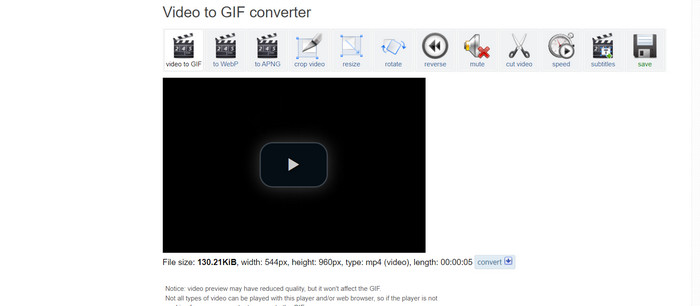
Krok 1. Wejdź na stronę EZGIF. Następnie z dostępnych opcji wybierz Video to GIF.
Krok 2. Kliknij Choose File, aby przesłać plik wideo, który chcesz zamienić na GIF. Możesz też wpisać adres URL wideo.
Krok 3. Po przesłaniu wideo możesz użyć suwaków, aby wybrać moment rozpoczęcia i zakończenia GIF‑a. Dostępne są również opcje dodawania tekstu, filtrów lub zmiany rozmiaru GIF‑a.
Krok 4. Kliknij przycisk Convert to GIF, gdy będziesz zadowolony z ustawień. Po zakończeniu konwersji możesz kliknąć przycisk Download, aby zapisać swojego GIF‑a.
Plusy
- Zapewnia szereg funkcji i Edytor GIF.
- Twórz GIF-y z sekwencji obrazów.
- Całkowicie darmowy w użyciu.
Cons
- Witryna wyświetla reklamy.
- Ograniczone funkcje edycji.
Część 2. Konwertuj wideo na GIF na Androida i iPhone'a
Mobilna aplikacja GIPHY to potężne narzędzie do tworzenia i udostępniania animowanych GIF‑ów w drodze. Dzięki aplikacji możesz z łatwością zamieniać swoje filmy i zdjęcia w GIF‑y, które można wykorzystywać w mediach społecznościowych, komunikatorach i nie tylko. Aplikacja zapewnia również dostęp do ogromnej biblioteki gotowych GIF‑ów, które można natychmiast wyszukiwać i udostępniać. Niezależnie od tego, czy szukasz GIF‑a z reakcją, zabawnego mema czy uroczej scenki ze zwierzętami, z pewnością znajdziesz go w GIPHY. Postępuj według poniższych instrukcji, aby przekonwertować wideo na GIF na urządzeniach z Androidem i iOS.
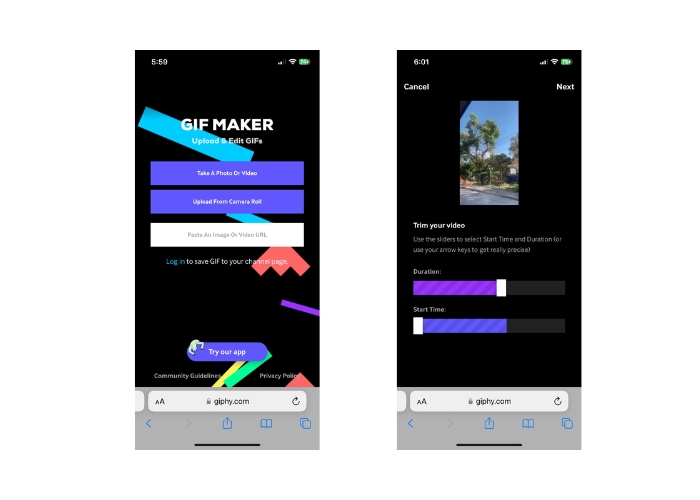
Krok 1. Pobierz aplikację GIPHY z App Store (iOS) lub Google Play Store i zainstaluj ją w telefonie (Android). Aby utworzyć nowy GIF, otwórz aplikację i stuknij ikonę aparatu.
Krok 2. Wybierz wideo lub zdjęcia, których chcesz użyć do stworzenia GIF‑a.
Krok 3. Skorzystaj z edytora, aby wyciąć fragmenty wideo, dodać filtry, zmienić prędkość odtwarzania lub dostosować opcje zapętlania.
Krok 4. Stuknij przycisk Create GIF, aby utworzyć GIF‑a. Gdy GIF będzie gotowy, możesz zapisać go w rolce aparatu lub wysłać bezpośrednio do mediów społecznościowych albo komunikatorów.
Plusy
- Bezpłatne w użyciu.
- Kompatybilność między platformami.
- Ogromna biblioteka gotowych GIF-ów.
Cons
- Kwestie praw autorskich.
- Ograniczona długość wideo.
Część 3. Często zadawane pytania dotyczące konwertowania filmów do formatu GIF
Jak udostępnić GIF po jego utworzeniu?
Po utworzeniu pliku GIF możesz udostępnić go w mediach społecznościowych, aplikacjach do przesyłania wiadomości lub na innych platformach, przesyłając go bezpośrednio lub korzystając z łącza do pliku. Wiele narzędzi do tworzenia plików GIF oferuje również wbudowane opcje udostępniania, które ułatwiają udostępnianie plików GIF innym osobom.
Jakie są ograniczenia tworzenia GIF-a z wideo?
Tworzenie pliku GIF z filmu może spowodować utratę jakości, ponieważ pliki GIF mają zazwyczaj niższą rozdzielczość i ograniczoną paletę kolorów. Ponadto mogą istnieć ograniczenia dotyczące długości i rozmiaru wynikowego pliku GIF, w zależności od używanego narzędzia.
Jaka jest idealna długość GIF-a utworzonego z filmu?
Idealna długość GIF-a utworzonego z filmu zależy od zamierzonego zastosowania i platformy, na której zostanie udostępniony. W przypadku platform mediów społecznościowych zalecana długość wynosi zwykle od 3 do 6 sekund.
Wniosek
Dzięki różnorodności internetowych konwerterów, programów komputerowych i aplikacji mobilnych do tworzenia GIF‑ów z filmów, dzielenie się zabawnymi, animowanymi treściami ze znajomymi i obserwującymi jeszcze nigdy nie było tak proste. Aby tworzyć GIF‑y z wideo w wysokiej jakości, ważne jest wybranie nagrania z dobrym oświetleniem, minimalnymi drganiami kamery i długością odpowiednią do docelowej platformy.
-
 Przewodnik krok po kroku dotyczący konwersji MP4 na GIF na komputerze lub w Internecie
 Szukasz najlepszego sposobu na konwersję wideo MP4 na animowane pliki GIF? Oto szczegółowy przewodnik, jak to zrobić w programie Photoshop, Windows Movie Maker, konwerterze wideo online i nie tylko.
-
 Zapętl GIF z najlepszym animowanym zapętlaniem GIF na Windows i Mac
 Chcesz poznać sekret najlepszego GIF-a z pętlą? Chcesz to zrobić? Jeśli tak, to jesteś we właściwym miejscu. Naucz się więc tworzyć pętlę za pomocą najlepszego dostępnego loopera.
-
 Jak podzielić pliki GIF i dostosować ulubione animowane pliki GIF
 Dowiedz się, jak podzielić GIF-y na ramki i dostosować je do swoich potrzeb, korzystając z naszego łatwego przewodnika. Oszczędzaj czas i używaj tylko potrzebnych części pliku GIF.
