


 Video Converter Ultimate
 Nagrywarka ekranu
 Naprawa wideo
Jak łatwo przekonwertować DivX na WMV: metody offline i online
DivX to kodek kompresji wideo, który zmniejsza rozmiar pliku wideo do żądanego przez użytkownika. Plik WMV to plik Windows Media Video, który może kompresować formaty wideo firmy Microsoft. Pamiętaj, że DivX i WMV nie zawsze są ze sobą zgodne. Mimo że większość filmów jest obecnie kodowana w DivX i zapisywana w formacie WMV, w zależności od sytuacji czasem konieczne jest konwertowanie DivX do formatu WMV. Na szczęście oferujemy konwertery DivX na WMV, których potrzebujesz, aby szybko wykonać to zadanie – zarówno w trybie offline, jak i online.

Część 1. Doskonała metoda konwersji DivX do WMV [Offline]
Video Converter Ultimate to prawdopodobnie najlepszy wybór, jeśli szukasz oprogramowania, które potrafi przeprowadzić cały proces za jednym razem, a przy tym oferuje dodatkowe funkcje do innych potrzeb edycyjnych. Program nie tylko obsługuje liczne formaty plików wideo, ale także pozwala dalej edytować obraz i dźwięk pod kątem jakości, a ponadto personalizować klipy poprzez dodawanie efektów. To oprogramowanie typu „wszystko w jednym”. Oto kroki, które musisz wykonać, aby skorzystać z tego programu:
Krok 1: Zainstaluj oprogramowanie na komputerze, klikając jeden z przycisków Bezpłatne pobieranie poniżej, odpowiedni dla Twojego systemu operacyjnego. Poczekaj, aż plik .exe zostanie pobrany, a następnie otwórz go, aby rozpocząć instalację. Po zakończeniu instalacji kliknij Uruchom teraz i włącz program.
Bezpłatne pobieranieDla Windows 7 lub nowszegoBezpieczne pobieranie
Bezpłatne pobieranieDla MacOS 10.7 lub nowszegoBezpieczne pobieranie
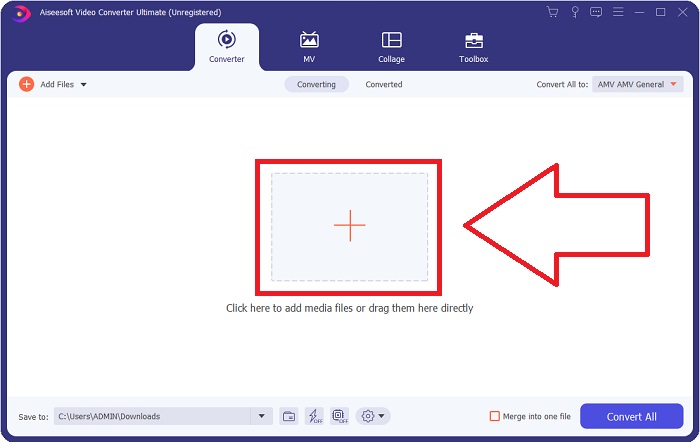
Krok 2: Otworzy się okno z interfejsem, na środku którego znajduje się przycisk z symbolem +. Kliknij go, aby zaimportować plik wideo, który chcesz przekonwertować, lub po prostu przeciągnij i upuść pliki.
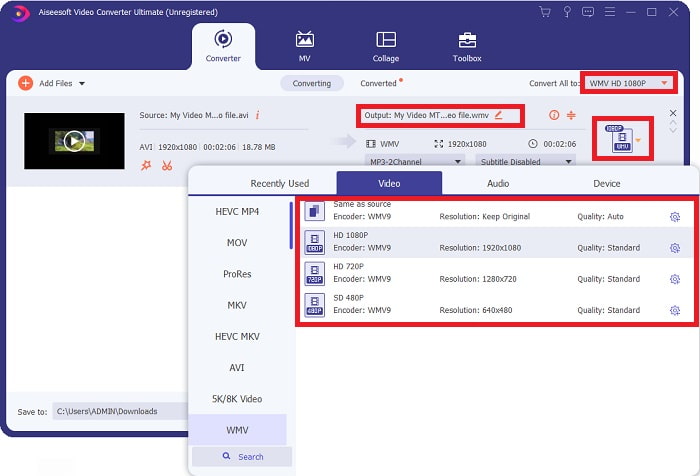
Krok 3: Po zakończeniu importu plików po prawej stronie pliku zostanie wyświetlony aktualny format Twojego wideo. Kliknij go, a pojawią się wszystkie dostępne formaty. Możesz przewinąć listę w dół lub wpisać WMV w pasku wyszukiwania, aby go wybrać. Po prawej stronie zakładki będą również dostępne różne jakości wideo do wyboru.
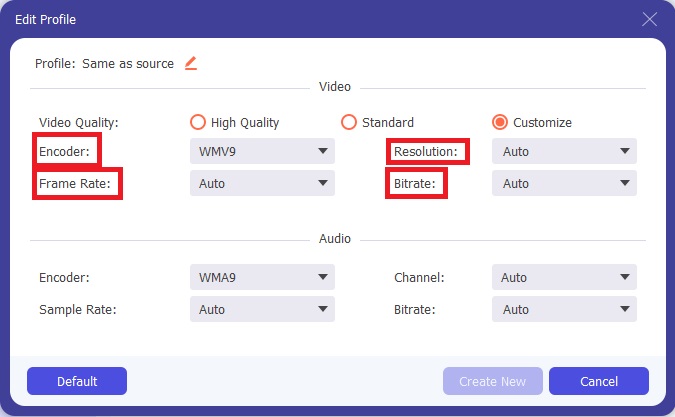
Krok 4: Aby uzyskać więcej opcji, kliknij ikonę koła zębatego obok wybranej jakości wideo, a pojawi się kolejne okno. Możesz tam edytować rozdzielczość, liczbę klatek na sekundę, bitrate i wiele innych parametrów, aby najlepiej dopasować je do swoich potrzeb. Jeśli jesteś zadowolony ze wszystkich zmian, kliknij przycisk Utwórz nowe w prawym dolnym rogu, aby je zachować.
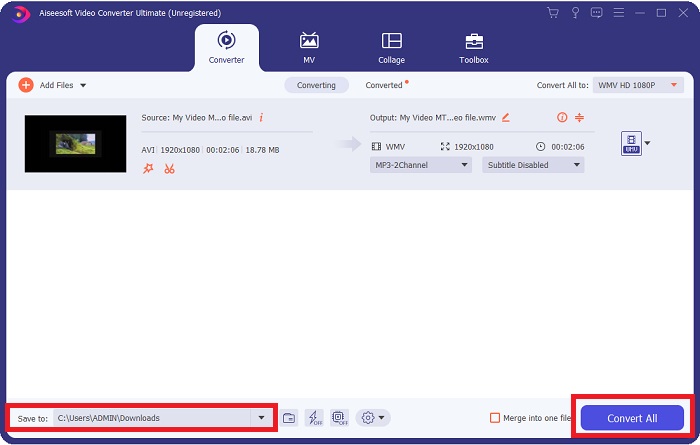
Krok 5: Gdy zakończysz dostosowywanie ustawień wideo, kliknij przycisk Konwertuj wszystko w prawym dolnym rogu, aby rozpocząć proces konwersji i poczekaj na jego zakończenie.
Część 2. Inna metoda konwersji DivX do WMV [Online]
Konwerter wideo można zawsze mieć pod ręką, bez konieczności instalowania jakiegokolwiek oprogramowania. Mimo to można również szybko i łatwo przekonwertować wideo bez instalowania czegokolwiek. Video Converter Ultimate ma odpowiednik online, którego można użyć za jednym zamachem. Nadal oferuje dodatkowe opcje i obsługuje wiele formatów. Aby skorzystać z tego narzędzia internetowego, wykonaj następujące proste czynności:
Krok 1: Zacznij od kliknięcia tego linku, który przekieruje Cię do narzędzia online. Tam znajdziesz przycisk Dodaj pliki do konwersji pośrodku strony. Kliknij go, aby pobrać launcher, którego będziesz potrzebować do łatwego importowania plików wideo.
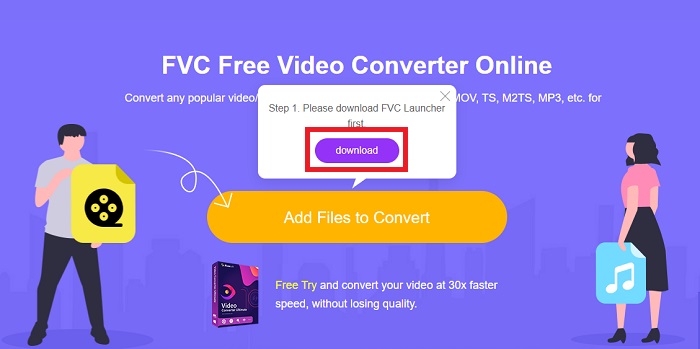
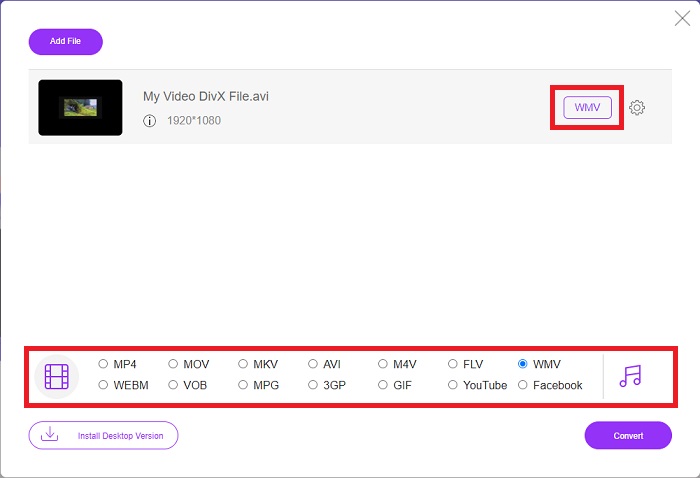
Krok 2: Gdy launcher zostanie pobrany, kliknij ponownie ten sam przycisk, aby zaimportować plik, który chcesz przekonwertować. Następnie możesz wybrać WMV z listy formatów na dole okna.
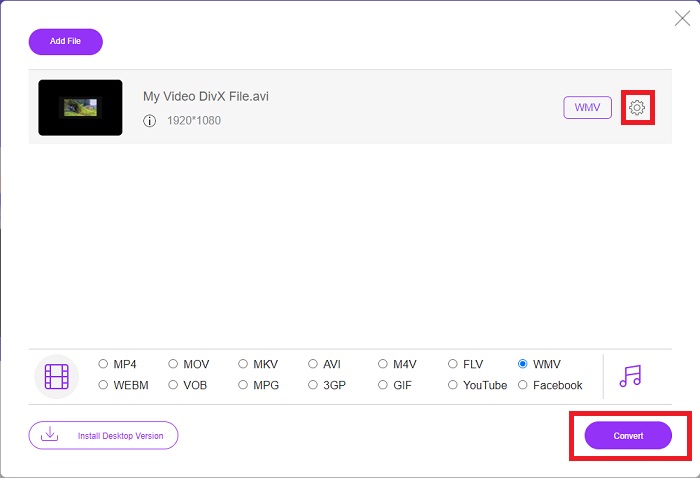
Krok 3: Po prawej stronie znajdziesz także ikonę koła zębatego, aby wprowadzić zmiany w rozdzielczości, liczbie klatek na sekundę i innych parametrach, podobnie jak w wersji programowej. Aby zapisać wprowadzone zmiany, kliknij OK, a następnie możesz rozpocząć proces konwersji. Kliknij przycisk Konwertuj w prawym dolnym rogu i poczekaj na zakończenie.
Powiązane:
Część 3. DivX kontra. WMV: informacje, które powinieneś wiedzieć
Aby porównać te dwa wymienione formaty, możesz przeczytać poza tą częścią, aby poznać wszystkie istotne informacje:
DivX to marka kodeków wideo stworzona przez DivX, LLC. Ten kodek wideo działa najlepiej z aplikacjami systemu Windows, chociaż użytkownicy mogą go również znaleźć na konsolach do gier, budzikach, zestawach stereo pojazdu i innych urządzeniach. MPEG-4 Part 2, HEVC Ultra HD i H.264/MPEG-4 AVC DivX Plus High Definition to trzy główne używane obecnie kodeki DivX.
Z drugiej strony, WMV (Windows Media Video) to zestaw kodeków wideo i formatów kodowania wydanych przez firmę Microsoft w ramach ich struktury Windows Media. Jego celem jest konkurowanie z formatem RM w aplikacjach do przesyłania strumieniowego w Internecie. Jego celem jest przechowywanie skompresowanych filmów, a nawet dostarczanie Blu-ray/DVD.
| Cyfrowe wideo ekspresowe (DivX) | Windows Media Wideo (WMV) | |
| Rozszerzenie pliku | .divx | .wmv |
| Deweloper | DivX Networks Inc. | Microsoft |
| Programy wspierające | ◆ Odtwarzacze DVD/Blu-ray ◆Budziki ◆Samochodowe stereo ◆ X-Box 360 | ◆ Odtwarzacz multimedialny VLC ◆ MPlayer ◆ Klasyczny odtwarzacz multimedialny ◆ Windows Media Player |
Część 4. Często zadawane pytania dotyczące konwersji DivX na WMV
Czy DivX jest nadal używany?
DIVX (Digital Video Express) to wycofany cyfrowy format wideo, który w Stanach Zjednoczonych nie powiódł się w celu opracowania realnej alternatywy dla wypożyczania wideo.
Jakie są ograniczenia WMV?
Ponieważ WMV jest formatem Windows, znalezienie odtwarzaczy multimedialnych Apple lub Linux może odtwarzać filmy WMV. Z tego powodu WMV nie jest popularnym formatem przesyłania strumieniowego wideo.
Który ma nagrywanie w wyższej rozdzielczości?
Chociaż zarówno WMV, jak i DivX mogą nagrywać w rozdzielczości 1280x720, jeden musi być wyższej jakości niż drugi. Te kodeki mogą nagrywać na wielu poziomach jakości z dokładną rozdzielczością, ale szybkość transmisji bitów jest różna, aby tworzyć mniejsze pliki. Chociaż obraz WMV jest lepszy, DivX utworzył pięciokrotnie szybszy plik io 50 procent mniejszy.
Wniosek
Biorąc wszystko pod uwagę, zachęcamy do posiadania konwertera obok siebie, aby w czasach, gdy go potrzebujesz, nie będziesz musiał męczyć się ze znalezieniem przyzwoitego online. Video Converter Ultimate i jego odpowiednik w narzędziach online są polecane zarówno konsumentom wideo, jak i twórcom, ponieważ oferują znacznie więcej niż inne konwertery. Ponadto zapewnia najwygodniejsze, ponieważ ma interfejs, w którym nawet początkujący mogą łatwo nawigować.
-
 4 sposoby darmowej konwersji DivX do MOV [Online i Offline]
 Czy zmagasz się z ograniczeniami DivX, czy nie masz odtwarzaczy multimedialnych, aby uzyskać dostęp do filmów w tym formacie? Jeśli chcesz przekonwertować go do formatu MOV, kontynuuj czytanie tego artykułu, aby wypełnić luki.
-
 2 certyfikowane konwertery używane do konwersji plików DivX do formatu FLV [2022]
 Czy chcesz wiedzieć, jak przekonwertować pliki DivX na FLV? Następnie przeczytaj ten artykuł, aby dowiedzieć się, jak to zrobić i jakie konwertery możesz użyć.
-
 Prosty przewodnik po tym, jak zamienić GIF na WMV w systemie Windows / Mac
 Czy chcesz wiedzieć, jak przekonwertować GIF do formatu WMV? Następnie postępuj zgodnie z tym artykułem, ponieważ przedstawia różne rozwiązania, które możesz wybrać.
