


 Video Converter Ultimate
 Nagrywarka ekranu
 Naprawa wideo
Odkryj, jak zmienić rozmiar wideo na Androida za pomocą skutecznych metod
Niezależnie od tego, czy jesteś influencerem w mediach społecznościowych, czy po prostu chcesz podzielić się swoją najnowszą podróżniczą przygodą z przyjaciółmi i rodziną, zmiana rozmiaru wideo może zrobić ogromną różnicę. Nie tylko pomaga zoptymalizować rozmiar pliku pod kątem łatwiejszego udostępniania, ale także poprawia komfort oglądania dla Twoich odbiorców. W tym wpisie pokażemy Ci, jak zmieniać rozmiar filmów na Androidzie – od dostosowania proporcji obrazu po zmianę rozdzielczości. Dzięki naszemu prostemu, przejrzystemu poradnikowi możesz edytować rozmiar swoich nagrań jak profesjonalista i wynieść swoje treści na wyższy poziom.

Część 1. Samouczek Jak przyciąć wideo na Androidzie za pomocą Galerii Samsung
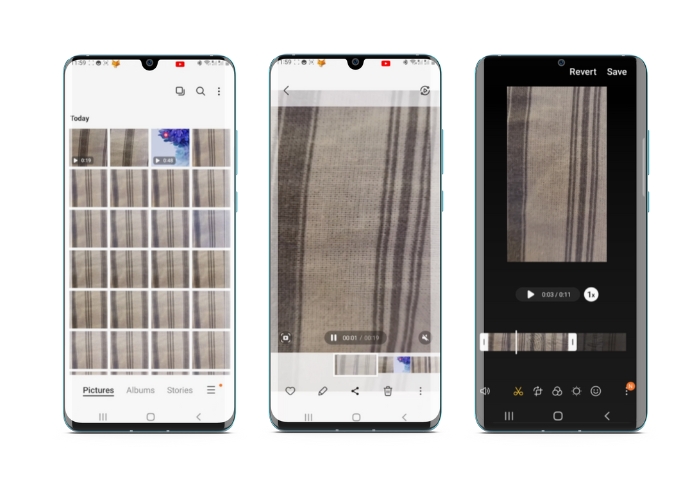
Aplikacja Samsung Gallery jest niezbędna do zarządzania treściami wizualnymi i edytowania ich, jeśli posiadasz urządzenie Samsung. Jedną z przydatnych funkcji aplikacji jest możliwość przycinania filmów w ruchu. Pozwala użytkownikom usuwać niechciane części wideo lub dostosowywać proporcje. Funkcja przycinania sprawia, że jest to łatwe i intuicyjne. Dzięki Galerii Samsung możesz łatwo tworzyć i udostępniać wysokiej jakości filmy, które są dostosowane do Twoich potrzeb. Zapoznaj się z poniższymi krokami, które pomogą Ci korzystać z tego narzędzia do przycinania edytora wideo na Androida.
Krok 1. Uruchom aplikację Samsung Galeria na swoim urządzeniu i znajdź wideo, które chcesz przyciąć.
Krok 2. Stuknij w wideo, aby je otworzyć, a następnie stuknij przycisk Edytuj (ikona ołówka) na dole ekranu. Na ekranie Edytuj wybierz opcję Przytnij.
Krok 3. Zobaczysz teraz prostokąt nałożony na wideo, z uchwytami w każdym rogu. Przeciągaj uchwyty, aby zmienić rozmiar prostokąta tak, jak potrzebujesz, aby przyciąć nagranie. Stuknij przycisk Odtwórz, aby podejrzeć przycięty film.
Krok 4. Jeśli jesteś zadowolony z efektu, stuknij przycisk Zapisz, aby zapisać przycięty film w Galerii.
Część 2. Przewodnik Jak przyciąć wideo na Androida za pomocą Zdjęć Google
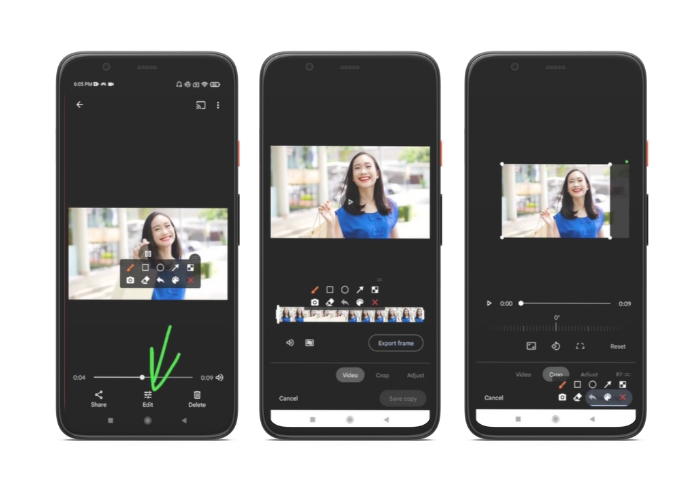
Zdjęcia Google to popularna aplikacja do zarządzania zdjęciami i filmami dla użytkowników Androida, która oferuje szeroki zakres funkcji ułatwiających edytowanie i ulepszanie treści wizualnych. Jedną wielką cechą tego narzędzia jest możliwość przycinania filmów, co pozwala usunąć niechciane części i skupić się na najważniejszych momentach. Możesz przycinać filmy za pomocą zaledwie kilku dotknięć, dzięki czemu tworzenie dopracowanych i profesjonalnie wyglądających treści wideo na urządzeniu z systemem Android jest łatwe i intuicyjne. Tutaj pokażemy Ci, jak krok po kroku przycinać filmy za pomocą Zdjęć Google.
Krok 1. Uruchom aplikację Google Zdjęcia na swoim urządzeniu z Androidem i znajdź wideo, które chcesz przyciąć. Następnie stuknij przycisk Edytuj znajdujący się na dole ekranu.
Krok 2. Na ekranie edycji wybierz opcję Przytnij i obróć.
Krok 3. Zobaczysz teraz prostokąt nałożony na wideo, z uchwytami w każdym rogu. Użyj uchwytów, aby zmienić rozmiar prostokąta tak, jak potrzebujesz, aby przyciąć film.
Krok 4. Na koniec stuknij Zapisz, aby zapisać wprowadzone zmiany w nagraniu.
Część 3. Przewodnik, jak przyciąć wideo na Androida za pomocą aplikacji innej firmy
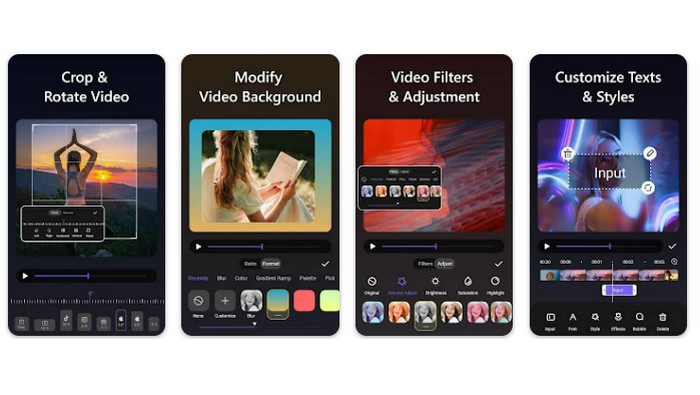
Dzięki aplikacji Vid.fun tworzenie i edytowanie wideo jest teraz w zasięgu ręki każdego użytkownika Androida. Program pozwala na rozmaitą edycję nagrań – dodawanie muzyki, tekstu i efektów, przycinanie i łączenie fragmentów i wiele więcej. Jak zmienić rozmiar wideo na Androidzie za pomocą tej aplikacji, pokazują poniższe kroki.
Krok 1. Pobierz aplikację Vid.fun ze Sklepu Google Play, a następnie rozpocznij nowy projekt.
Krok 2. Z galerii lub rolki aparatu w swoim urządzeniu wybierz klip, który chcesz przyciąć, i przeciągnij go na oś czasu.
Krok 3. Wybierz żądany fragment wideo na osi czasu, stukając go, a następnie użyj przycisku Przytnij u dołu ekranu, aby zmodyfikować fragment.
Krok 4. Na film został nałożony prostokąt, którego rogi możesz przeciągać, aby wprowadzić zmiany. Aby przyciąć film, po prostu złap uchwyty w rogach i przeciągnij je w wybrane miejsce. Po zakończeniu możesz wysłać nagranie bliskim lub opublikować je w sieci.
Część 4. Rekomendacja aplikacji
Oczywiście oprócz aplikacji mobilnych mamy też propozycję programu na komputer. Video Converter Ultimate od FVC to rozbudowane oprogramowanie do zmiany formatów wideo, wyposażone w wiele narzędzi do edycji. Jedną z wyróżniających się funkcji jest możliwość regulacji proporcji obrazu nagrania.
Za pomocą tego programu możesz łatwo modyfikować kształt i rozmiar wideo, zmieniając proporcje. Jeśli chcesz udostępnić wideo w mediach społecznościowych o określonym współczynniku proporcji lub po prostu dopasować wideo do określonego rozmiaru ekranu, FVC Video Converter Ultimate zapewni Ci to. Dowiedz się, jak przycinać filmy na Androidzie za pomocą tego programu.
Krok 1. Pobierz i zainstaluj FVC Video Converter Ultimate
Możesz pobrać aplikację, klikając jeden z przycisków Free Download poniżej. Gdy program zostanie pobrany, zainstaluj go i uruchom na swoim komputerze.
Bezpłatne pobieranieDla Windows 7 lub nowszegoBezpieczne pobieranie
Bezpłatne pobranieDla macOS 10.7 lub nowszegoBezpieczne pobieranie
Krok 2. Zaimportuj wideo do przycięcia
Następnie przejdź do zakładki Toolbox znajdującej się w górnej części interfejsu programu. Wybierz opcję Video Cropper i dodaj plik, klikając przycisk z ikoną plus.
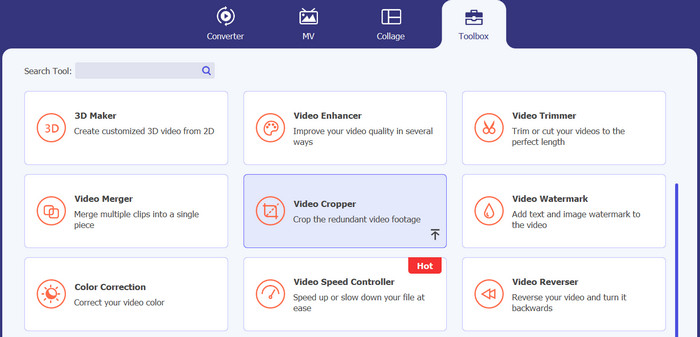
Krok 3. Przytnij plik wideo
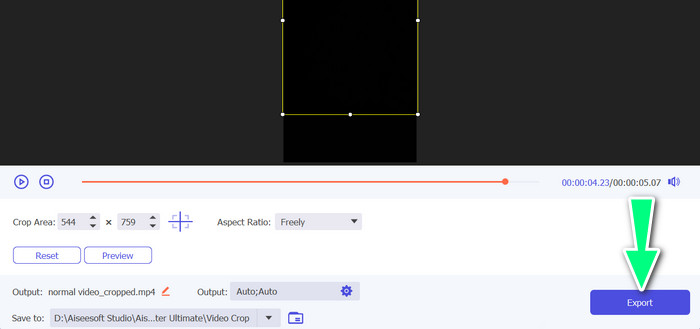
Możesz teraz przyciąć zaimportowany film. Za pomocą suwaków obszaru kadrowania dostosuj obszar, który chcesz przyciąć z wideo. Możesz także wybrać określony współczynnik proporcji z menu rozwijanego. Wyświetl podgląd przyciętego wideo, aby upewnić się, że żądana część filmu została przycięta.

Krok 4. Wyeksportuj przycięte wideo
Na koniec kliknij przycisk Export w prawym dolnym rogu, aby zakończyć proces przycinania i zapisać przycięte nagranie.
Część 5. Często zadawane pytania dotyczące przycinania filmów na Androidzie
Jak przycinać filmy bez utraty jakości?
Jednym ze sposobów przycinania filmów bez utraty jakości jest użycie narzędzia do edycji wideo, które obsługuje kadrowanie nieniszczące. Oznacza to, że oryginalny plik wideo nie jest zmieniany, a tylko przycięta część jest zapisywana jako nowy plik.
Czy przycięcie filmu na Androidzie wpłynie na jego jakość lub rozdzielczość?
Tak, przycinanie filmu na Androidzie może wpłynąć na jego jakość lub rozdzielczość, ponieważ proces ten polega na usunięciu części oryginalnego filmu. Jednak stopień, w jakim wpłynie to na jakość lub rozdzielczość, zależy od różnych czynników, takich jak rozmiar przycięcia, jakość oryginalnego wideo i metoda użyta do przycięcia wideo.
Czy na Androidzie można jednocześnie przyciąć wideo i dodać efekty lub filtry?
Tak, na Androidzie można jednocześnie przyciąć wideo i dodać do niego efekty lub filtry. W Sklepie Google Play jest dostępnych wiele aplikacji do edycji wideo, które oferują zarówno funkcje przycinania, jak i efekty wideo oraz filtry do wideo. Do popularnych przykładów należą m.in. FVC Video Converter Ultimate, Filmora itp.
Wniosek
Nauka jak przyciąć wideo na Androidzie jest prosta i można to zrobić za pomocą różnych aplikacji oraz programów. Samsung Galeria, Google Zdjęcia i FVC Video Converter Ultimate to tylko kilka przykładów narzędzi, które pomogą Ci przycinać nagrania na urządzeniach z Androidem.
-
 Przewodnik po naprawie filmów, które nie są odtwarzane na telefonach z Androidem
 Chcesz wiedzieć, jakie są powody, dla których nie można odtwarzać filmów na urządzeniu z Androidem? A jeśli tak, czy są jakieś sposoby samodzielnego rozwiązania problemu? Czytaj dalej, aby dowiedzieć się więcej.
-
 Najprostsze sposoby na przyspieszenie wideo na urządzeniach z Androidem [2023]
 Czy wiesz, że możesz przyspieszyć wideo na swoim Androidzie? Tak więc, jeśli chcesz wiedzieć, jak przyspieszyć wideo na telefonie z Androidem, przeczytaj ten artykuł.
-
 3 doskonałe metody przycinania wideo na Androidzie
 Czy chcesz użyć urządzenia z Androidem do wycięcia wideo? W takim razie ten post jest dla Ciebie. Omówimy wartościowe sposoby skracania wideo na Androidzie.
