


 Video Converter Ultimate
 Nagrywarka ekranu
 Naprawa wideo
Jak łatwo przyciąć filmy MP4 i rozwiązanie #91 dla komputerów Mac i Windows
Obecnie przycinanie lub dzielenie wideo jest bardzo przydatną czynnością, zwłaszcza gdy chcesz usunąć zbędne i nudne fragmenty z długiego nagrania. Jeśli chcesz przyciąć plik MP4, ale nie wiesz, jak to zrobić i z jakich narzędzi skorzystać, jesteśmy tu, by pomóc! W tym artykule poznasz 6 narzędzi do cięcia wideo, które pomogą ci z łatwością usuwać niechciane fragmenty nagrań w systemach Windows i Mac.

Część 1: Jak przyciąć MP4 w systemie Windows i macOS za pomocą w pełni funkcjonalnego trymera MP4
Jeśli korzystasz z systemu Windows lub macOS i chcesz przyciąć wideo za pomocą w pełni funkcjonalnego narzędzia do przycinania MP4, FVC Video Converter Ultimate będzie dla ciebie idealny. Jest to narzędzie do konwersji wideo, ale oferuje również wiele funkcji, w tym przycinanie wideo. Dzięki tej opcji użytkownicy mogą dzielić lub przycinać dowolne pliki MP4, szczególnie te zbyt długie lub zawierające niechciane części czy segmenty. Co więcej, możesz ręcznie wybrać fragment wideo, który chcesz przyciąć, albo automatycznie przyciąć segment, korzystając z funkcji szybkiego podziału. Wreszcie, to potężne narzędzie obsługuje różne formaty wideo, aby zapewnić zgodność z materiałami wejściowymi, takimi jak MP4, MKV, MOV, FLV, AVI, MP3 itd. Dlatego niezależnie od tego, czy wycinasz zbędne ujęcia, wyodrębniasz konkretne fragmenty, czy dopracowujesz timing, FVC Video Converter Ultimate to idealne narzędzie do płynnego przycinania plików MP4 zarówno w systemie Windows, jak i macOS.
Krok 1. Pobierz i zainstaluj FVC Video Converter Ultimate na swoim komputerze z systemem Windows lub Mac.
Bezpłatne pobieranieDla Windows 7 lub nowszegoBezpieczne pobieranie
Bezpłatne pobieranieDla MacOS 10.7 lub nowszegoBezpieczne pobieranie
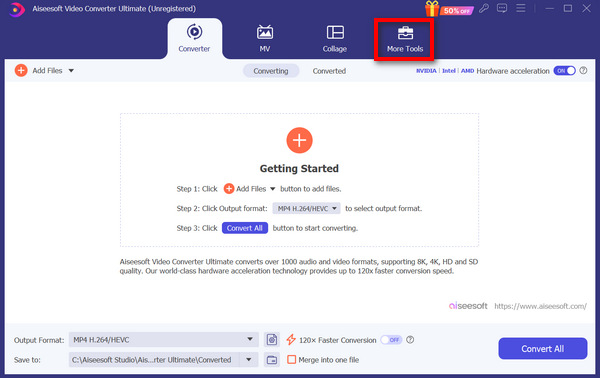
Krok 2. Następnie kliknij Toolbox i znajdź Video Trimmer.
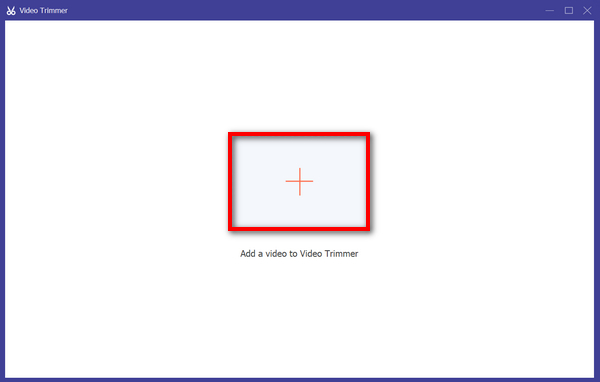
Krok 3. Teraz kliknij przycisk Add a Video to Video Trimmer, aby dodać plik MP4, który chcesz przyciąć.
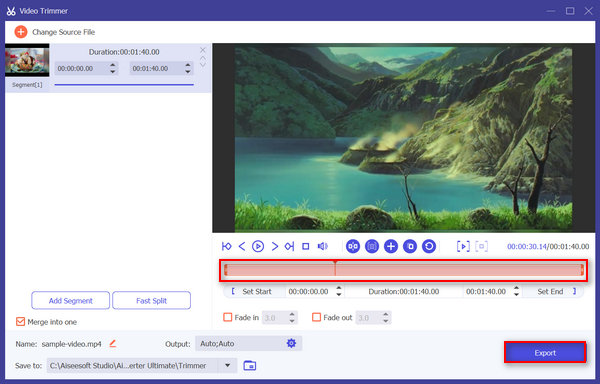
Krok 4. Aby przyciąć wideo, możesz zrobić to ręcznie, łatwo regulując lub przesuwając suwak początkowy i końcowy klipu, przeciągając go z lewej na prawą stronę, albo wpisując czas rozpoczęcia i zakończenia fragmentu pliku MP4, który chcesz przyciąć.
Proces ten automatycznie przycina część wideo na podstawie czasu rozpoczęcia i zakończenia przycinania.
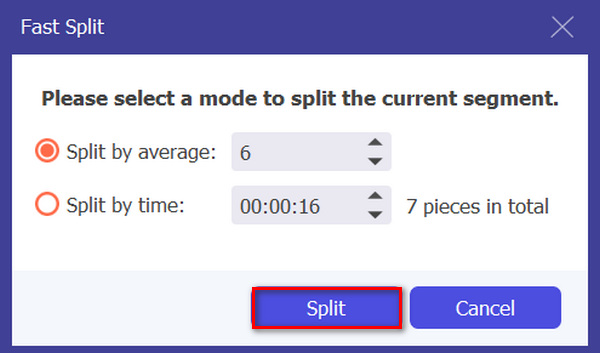
Tymczasem, jeśli chcesz przyciąć wideo, używając funkcji Fast slip trimmer, wystarczy, że klikniesz przycisk Fast Slip obok przycisku Add Segment. Następnie wybierz tryb, w którym chcesz podzielić segment. Jeśli wybierzesz podział według średniej, po prostu podaj liczbę segmentów, natomiast jeśli chcesz podzielić według czasu, podaj czas. Po tym kliknij przycisk Split.
Krok 5. Na koniec, aby wyeksportować przycięte wideo, kliknij przycisk Export.
Jeśli chodzi o przycinanie plików wideo MP4, FVC Video Converter Ultimate jest rzeczywiście idealnym rozwiązaniem. Intuicyjny interfejs zapewnia łatwe i precyzyjne przycinanie filmów w formacie MP4, a różne opcje przycinania zapewniają elastyczność w zakresie łatwego przycinania filmów.
Plusy
- Obsługuje szeroką gamę formatów wejściowych wideo.
- Precyzyjne przycinanie.
- Intuicyjny interfejs edycji.
- Zachowuje jakość przyciętego wideo.
- Połączył się w jedną funkcję.
Cons
- Dostęp do pełnych funkcji może być ograniczony w przypadku korzystania z bezpłatnej wersji.
Część 2: Jak przyciąć MP4 online za darmo
Jeśli szukasz sposobu na przycinanie filmów MP4 online, są bezpłatne i dostępne narzędzia, których możesz użyć. Cóż, korzystanie z internetowego trymera wideo może być niezwykle przydatne, zwłaszcza jeśli musisz szybko edytować swoje filmy bez potrzeby specjalistycznego oprogramowania lub pobierania. Bez zbędnych ceregieli, oto pięć bezpłatnych internetowych trymerów wideo w 2025 roku:
Ezgif
Ezgif to darmowy i prosty zestaw narzędzi, który umożliwia użytkownikom przycinanie GIF-ów i plików MP4 online i bez opłat. Ma również bardzo prosty i przyjazny interfejs. Jednak momentami interfejs narzędzia jest nieuporządkowany i może być przytłaczający dla nowych użytkowników. Mimo to narzędzie nadal świetnie sprawdza się, gdy chcesz przycinać krótkie filmy.
Krok 1. Najpierw przejdź na ich oficjalną stronę internetową.
Krok 2. Kliknij Video to GIF, wybierz Cut Video i prześlij plik MP4, który chcesz przyciąć, ze swojego urządzenia, klikając przycisk Choose File, lub wklej URL pliku MP4 w polu poniżej.
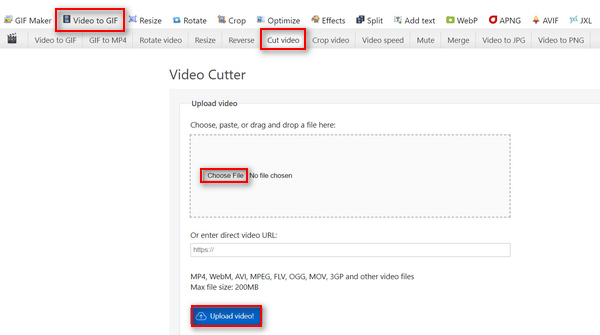
Krok 3. Gdy wideo zostanie przesłane, przytnij je. Upewnij się, że ustawisz czas rozpoczęcia i zakończenia fragmentu, który chcesz przyciąć.
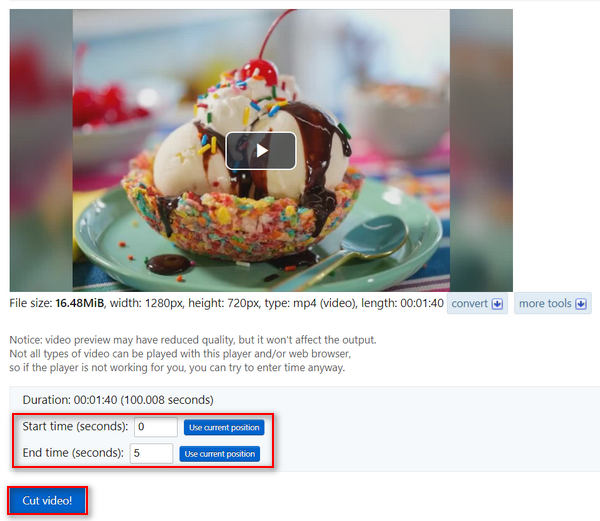
Krok 4. Gdy ustawisz moment rozpoczęcia i zakończenia fragmentu wideo, który chcesz przyciąć, kliknij przycisk Cut the Video.
Ezgif Video Cutter to świetne narzędzie, jeśli chcesz przyciąć filmy MP4, które nie wymagają skomplikowanego przycinania. Jeśli więc potrzebujesz bardziej zaawansowanego i złożonego trymera MP4, to nie jest to dla Ciebie.
Plusy
- Prosty w użyciu.
- Obsługuje wiele formatów, takich jak MP4, WebM, AVI, MPEG, FLV, OGG, MOV i 3GP.
- Działa na adresach URL.
Cons
- Niechlujny interfejs.
- Limit rozmiaru wynosi tylko do 200 MB.
Fastreel
Fastreel to proste narzędzie do edycji wideo online, którego można używać do łatwego przycinania filmów MP4 ze względu na przyjazny dla użytkownika i intuicyjny interfejs. Użytkownicy mogą łatwo poruszać się po narzędziu, wystarczy przeciągnąć i upuścić swoje pliki, a następnie łatwo usunąć niepotrzebne części. Co więcej, narzędzie to obsługuje różne formaty wideo, takie jak pliki MP4, MOV, MKV, AVI i WMV. Wreszcie, dzięki temu narzędziu możesz bezpłatnie zapisywać i pobierać edytowane filmy.
Krok 1. Przejdź na ich oficjalną stronę internetową.
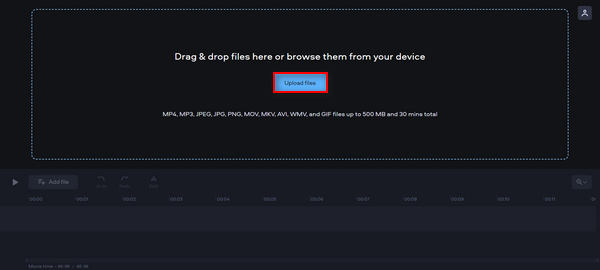
Krok 2. Aby przesłać plik MP4, który chcesz przyciąć, kliknij przycisk Add Files.
Krok 3. Teraz, aby przyciąć plik MP4, przesuń czerwony znacznik w miejsce, w którym chcesz wykonać cięcie, i kliknij ikonę Scissors.
Krok 4. Na koniec, po przycięciu pliku MP4, kliknij przycisk Export, aby go zapisać.
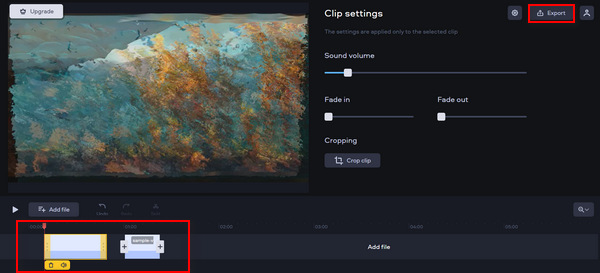
To narzędzie może z łatwością przycinać filmy MP4. Czasami jednak przesłanie filmu, który chcesz przyciąć, zajmuje trochę czasu.
Plusy
- Przyjazny dla użytkownika i intuicyjny interfejs.
- Precyzyjna edycja.
- Obsługuje wiele formatów wideo.
Cons
- Przesyłanie filmu jest powolne.
- Zapisane filmy będą oznaczone znakiem wodnym.
- Limit rozmiaru wynosi tylko do 500 MB.
Wycinarka wideo online
Online Video Cutter to internetowe narzędzie do edycji wideo, którego możesz użyć, aby przycinać pliki MP4 online. Dzięki temu narzędziu możesz łatwo przycinać pliki MP4 i dalej je edytować, korzystając z pozostałych funkcji edycyjnych. Co więcej, w porównaniu z innymi darmowymi narzędziami do przycinania MP4, ten darmowy internetowy trymer MP4 obsługuje znacznie większy rozmiar pliku – maksymalnie do 4 GB.
Krok 1. Odwiedź ich oficjalną stronę internetową.
Krok 2. Aby dodać plik MP4, który chcesz przyciąć, kliknij przycisk Open File.
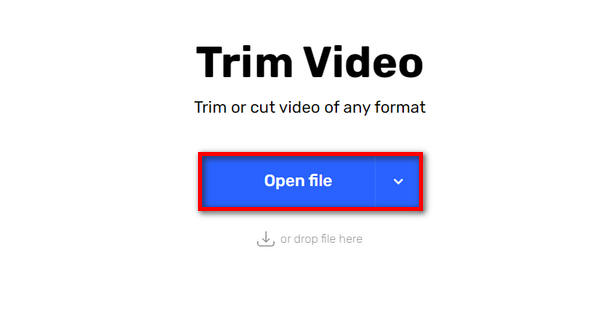
Krok 3. Teraz, aby przyciąć plik MP4 za pomocą tego narzędzia, kliknij w menu u góry Trim or Cut, a następnie wybierz część wideo, którą chcesz dostosować, regulując wskaźniki początku i końca. Po ustawieniu kliknij przycisk Trim or Cut poniżej, a następnie Save, aby wyeksportować wideo.
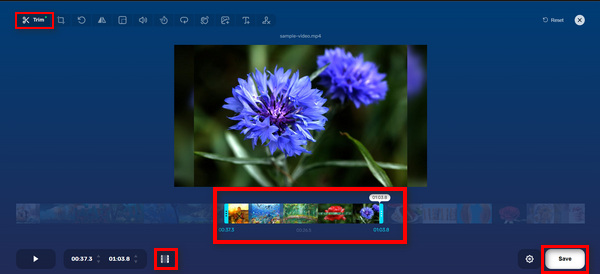
Dzięki dużemu limitowi rozmiaru, prostemu interfejsowi i innym funkcjom edycji, Online Video Cutter jest rzeczywiście obiecującym darmowym narzędziem do przycinania plików MP4 online.
Plusy
- Można przeglądać filmy przez 5 sekund.
- Obsługuje co najmniej maksymalnie 4 GB pliku wideo.
- Posiada inne funkcje edycji w interfejsie przycinania wideo.
Cons
- Przesyłanie filmu jest powolne.
- Zapisane filmy będą oznaczone znakiem wodnym.
- Limit rozmiaru wynosi tylko do 500 MB.
Kapwing
Kapwing to przyjazne dla użytkownika narzędzie do edycji wideo online, którego można łatwo używać do przycinania filmów MP4. Wyjątkową cechą tego narzędzia jest to, że obsługuje filmy z YouTube, umożliwiając użytkownikom bezpośrednie przycięcie wideo MP4 z YouTube poprzez wklejenie jego adresu URL do systemu.
Krok 1. Przejdź na ich oficjalną stronę internetową.
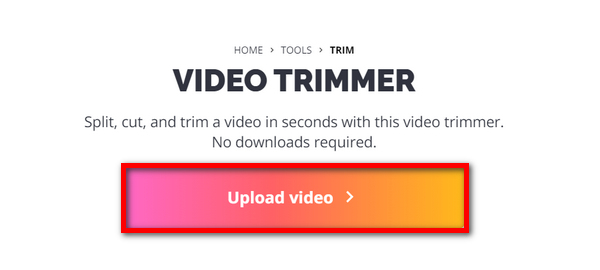
Krok 2. Kliknij przycisk Upload Video, aby przejść do głównego interfejsu.
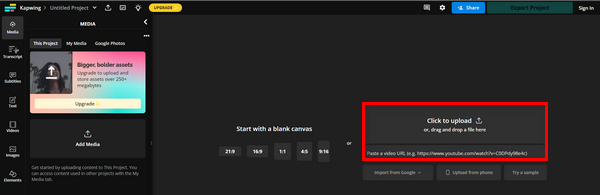
Krok 3. W tym miejscu masz dwie opcje dodania plików: możesz przesłać plik MP4, klikając przycisk Click to Upload, albo wkleić adres URL z YouTube, jeśli wideo, które chcesz przyciąć, pochodzi z YouTube.
Krok 4. Teraz kliknij menu Trim, aby zostać przekierowanym do nowego okna, w którym możesz przyciąć wideo.
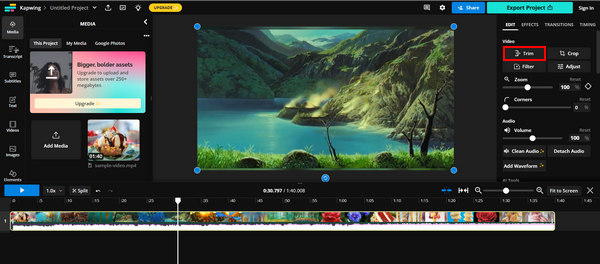
Krok 5. Aby przyciąć wideo, po prostu przesuń wskaźniki przycinania w miejsce, w którym ma się rozpocząć i zakończyć cięcie, albo wpisz dokładny czas rozpoczęcia i zakończenia przycinania. Następnie kliknij przycisk Trim.
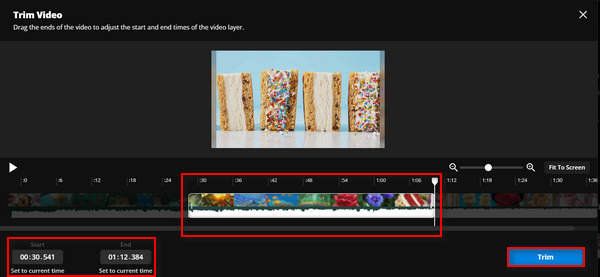
Krok 6. Aby zapisać plik, kliknij Export Project.
Upewnij się, że utworzyłeś konto, aby móc wyeksportować przycięte wideo.
Plusy
- Łatwy w użyciu.
- Obsługuje popularne formaty wideo, takie jak pliki MP4, filmy MOV, WMV i inne.
- Dodaj bezpłatnie.
Cons
- Trzeba się zarejestrować.
- Pozwala tylko na maksymalnie 250 MB.
FreeConvert
FreeConvert.com to internetowa platforma do edycji wideo, która oferuje różne narzędzia do konwersji i edycji multimediów. Jedną z jej kluczowych funkcji jest trymer wideo, który umożliwia przycinanie plików MP4 i innych formatów wideo o rozmiarze do 1 GB. Ponadto, dzięki intuicyjnemu interfejsowi, użytkownicy bez trudu mogą poruszać się po procesie przycinania swoich nagrań.
Krok 1. Przejdź na ich oficjalną stronę internetową.
Krok 2. Kliknij rozwijany przycisk Choose Files i dodaj plik MP4, który chcesz przyciąć, ze swojego Device, Dropbox lub Google Drive. Możesz też po prostu wkleić link do wideo, które chcesz przyciąć.
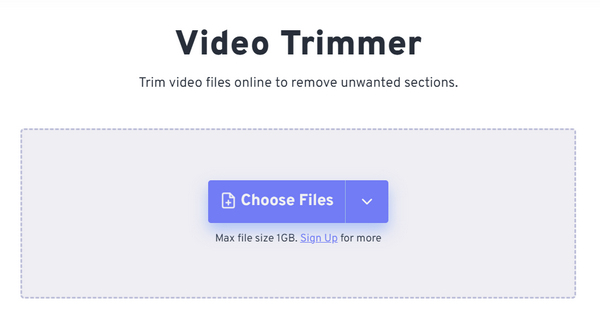
Krok 3. Teraz, aby przyciąć wideo, podaj czas rozpoczęcia przycinania oraz moment, w którym ma się ono zakończyć. Następnie kliknij przycisk Trim Video.
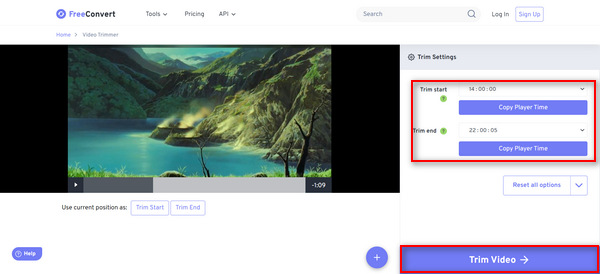
FreeConverter to świetne, bezpłatne narzędzie online MP4, które jest obecnie dostępne. Chociaż jest bezpłatne, w tym narzędziu trudno poradzić sobie z reklamami. Jeśli więc nie chcesz tego, to narzędzie nie jest dla Ciebie.
Plusy
- Brak znaku wodnego.
- Nie wymaga żadnej rejestracji.
- Obsługuje ponad 40 formatów wideo, w tym MP4, MOV, AVI i WebM.
Cons
- Zawiera zbyt wiele reklam.
Część 3: Często zadawane pytania dotyczące trymera MP4
Jaka jest różnica między przycinaniem wideo a dzieleniem wideo?
Przycinanie filmu polega na usunięciu części początku lub końca filmu. Z drugiej strony dzielenie wideo polega na pocięciu klipu wideo na dwie osobne części.
Czy powinienem płacić za oprogramowanie do przycinania moich filmów?
To naprawdę zależy od Twoich konkretnych potrzeb i preferencji. Chociaż dostępnych jest wiele płatnych programów do edycji wideo z zaawansowanymi funkcjami, istnieją również bezpłatne narzędzia online, które oferują podstawowe możliwości przycinania bez konieczności płacenia. Jeśli jednak chcesz mieć bardziej zaawansowaną funkcję edycji, warto zainwestować w płatne oprogramowanie do przycinania wideo.
Czy przycinanie wideo obniża jakość?
Zależy to od używanego narzędzia do przycinania. Przycinanie filmu nie pogarsza znacząco jego jakości, pod warunkiem, że proces przycinania zostanie przeprowadzony prawidłowo, a film zostanie zapisany w tym samym formacie i rozdzielczości. Jeśli jednak przycięty film MP4 zostanie ponownie zakodowany lub zapisany w niższej rozdzielczości, jakość wideo ulegnie pogorszeniu.
Wniosek
Przycinanie plików MP4 stało się dziś dla wielu z nas codziennością, zwłaszcza w kontekście edycji i ulepszania materiałów wideo. Niezależnie od tego, czy jesteś początkującym, czy doświadczonym użytkownikiem, nauczenie się, jak korzystać z przycinania, może znacząco poprawić jakość twoich nagrań, szczególnie w tej cyfrowej erze. Jeśli chcesz opanować tę umiejętność, nie zwlekaj i zacznij przycinać swoje filmy już dziś!
-
 5 programów do cięcia plików MP3, które pozwolą Ci łatwo przyciąć dowolny plik audio [aktualizacja 2025]
 Czy potrzebujesz obcinarki MP3 do przycięcia dźwięku? W takim przypadku przeczytaj ten artykuł, ponieważ zapewniamy narzędzia, na których możesz polegać, ułatwiające cięcie dźwięku.
-
 Jak przyciąć wideo za pomocą TikTok [Szczegółowe instrukcje]
 Czy chcesz wiedzieć, jak skrócić film za pomocą TikTok? Następnie zapewnimy łatwe sposoby. Poznasz także inne metody z wykorzystaniem aplikacji/programów offline.
-
 3 doskonałe metody przycinania wideo na Androidzie
 Czy chcesz użyć urządzenia z Androidem do wycięcia wideo? W takim razie ten post jest dla Ciebie. Omówimy wartościowe sposoby skracania wideo na Androidzie.
